Introduction
Mandrill is a transactional email API. It’s reliable, powerful, and ideal for sending data driven emails, including targeted e-commerce and personalized one-to-one messages.Integration
PrerequisitesEnsure you have access to your Mandrill account.
Configure Email connector
You can select your pricing plan and sign up for Mandrill at https://mandrill.com/signup/. After account creation, you need to set up your sending domain by adding your domain, verifying it and adding DKIM & SPF records to your DNS settings. More details on setting up domain here.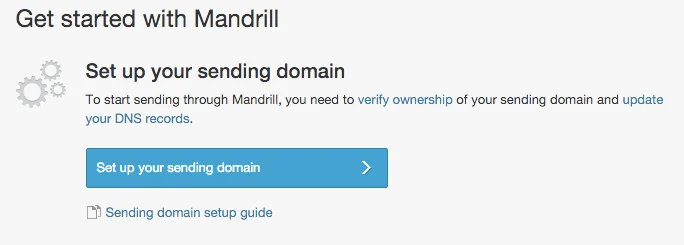
Configure SMTP settings
You can find SMTP Settings in your Mandrill account - > Settings -> SMTP & API Info- SMTP Host name can be filled from the details in SMTP & API Info.
- SMTP Port and Protocol type can be obtained from here. To avoid the rate limits set by some hosting companies, port 587 is the recommended port.
- SMTP Username is your Mandrill account username
- SMTP Password is any API Key generated by clicking on New API Key button under SMTP & API Info
- Maximum send rate depends on your pricing plan and is mentioned on your Mandrill Dashboard

Configure Unsubscribes
- “MoEngage Tracking” will add your unsubscribe page url as the email footer - “If you’d like to unsubscribe and stop receiving these emails click here”.
- Depending on the Data Center your dashboard was configured in please input the call-back URL for Unsubscribe Page:
| Unsubscribe URL | Data Center |
|---|---|
| https://api-01.moengage.com/v1/emailresubscribe | Datacenter 1 |
| https://api-02.moengage.com/v1/emailresubscribe | Datacenter 2 |
| https://api-03.moengage.com/v1/emailresubscribe | Datacenter 3 |
| https://api-04.moengage.com/v1/emailresubscribe | Datacenter 4 |

- “Mandrill Tracking” will enable us to use unsubscribe information from Mandrill on the Callback URL (mentioned below under Bounces) to track unsubscribes. You must mandatorily add Unsubscribe Tag or enable “add Unsubscribe Footer” in your Mandrill Account -> Settings -> Sending Defaults.
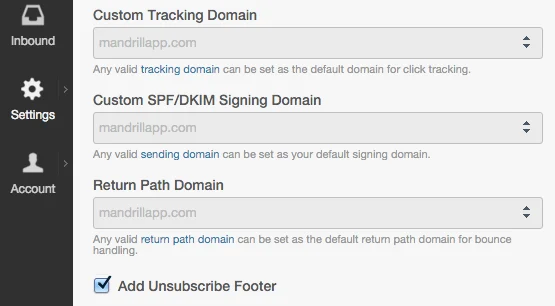
- Selecting “None” for promotional email campaigns will lead to higher chances of being classified as spam.
Configure Bounce and Complaints
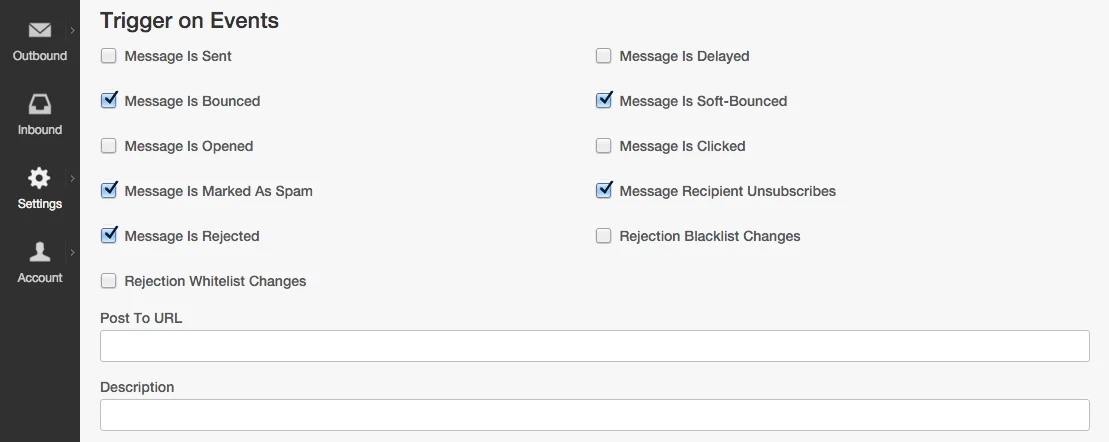
This information is obtained by “Adding a Webhook” in your Mandrill Account - > Settings -> Webhooks and selecting events as shown below to enable tracking of unsubscribes, bounces and complaints. Also, copy the url from Moengage App Settings - > Email Settings -> Connector Configurations -> Mandrill -> Callback URL and paste it in “POST to URL” text box shown below.