

Introduction
Trustpilot is an online review platform that enables customers to share feedback and allows you to manage and respond to reviews. This page provides a step-by-step guide for:- Creating review invitations using Trustpilot’s Create Invitation API
- Personalizing messages with product reviews through Trustpilot’s Product Reviews API
Integration
PrerequisitesEnsure you have access to a Trustpilot account and a Trustpilot authentication key.
Get your Trustpilot API credentials
- Log into Trustpilot with your credentials.
- Create or retrieve the API key and secret in the Trustpilot dashboard by going to Integrations > Developers > APIs. If you don’t already have an API key, create a new one:
- Go to Application Name > Create Application
- Copy your API key and secret, which will be used to authenticate your Content API requests
Sending Trustpilot review invitations
Step 1: Create an OAuth config on MoEngage
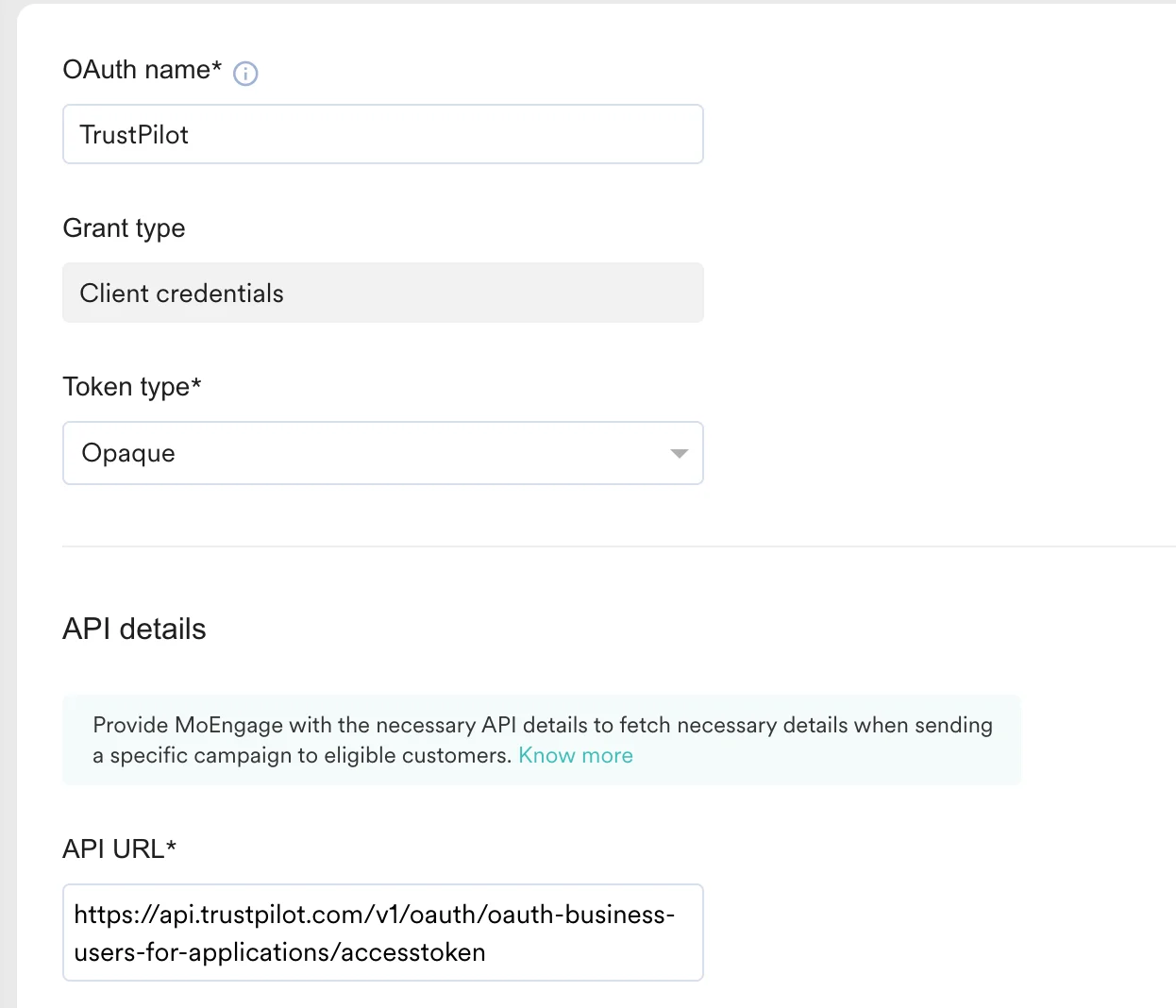
Use MoEngage content APIs to make a request to Trustpilot’s Authentication endpoint to retrieve the Access Token. On your MoEngage dashboard:- Navigate to Settings >> Authorisation configuration
- Click Add new config
-
Fill in the details:
- OAuth Name: TrustPilot
- Grant Type: Client Credentials
-
Token type: Opaque
-
API URL:
https://api.trustpilot.com/v1/oauth/oauth-business-users-for-applications/accesstoken - Method: Post
-
Headers:
Content-Type:application/x-www-form-urlencoded
Authorization: Basic{{'API_KEY:API_SECRET' | base64_encode}} -
Request Body: Select form and add the following Key value:
grant_type: client_credentials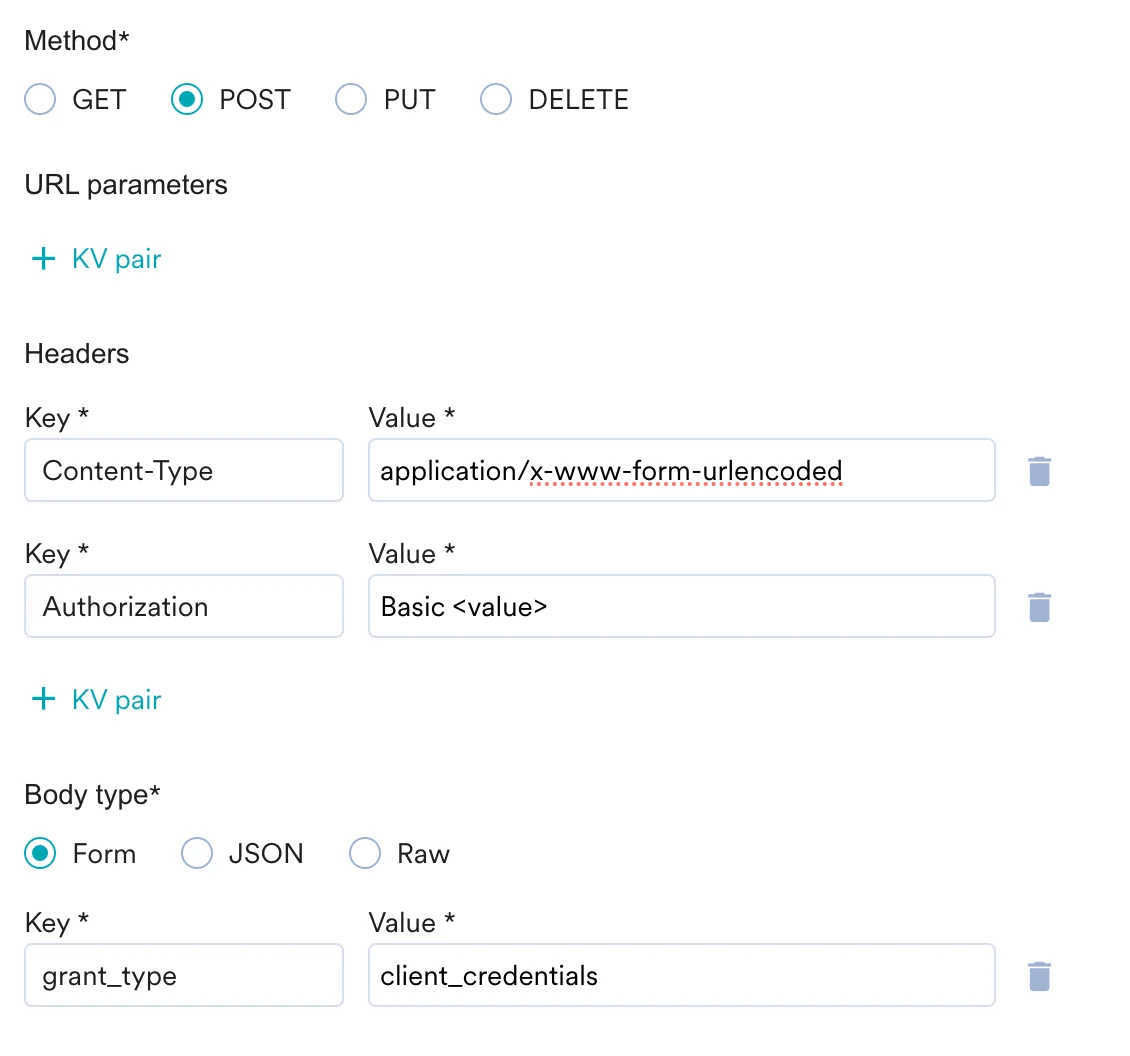
- Click Send Test and Continue.
- Save your connection
Step 2: Create a connector campaign on MoEngage
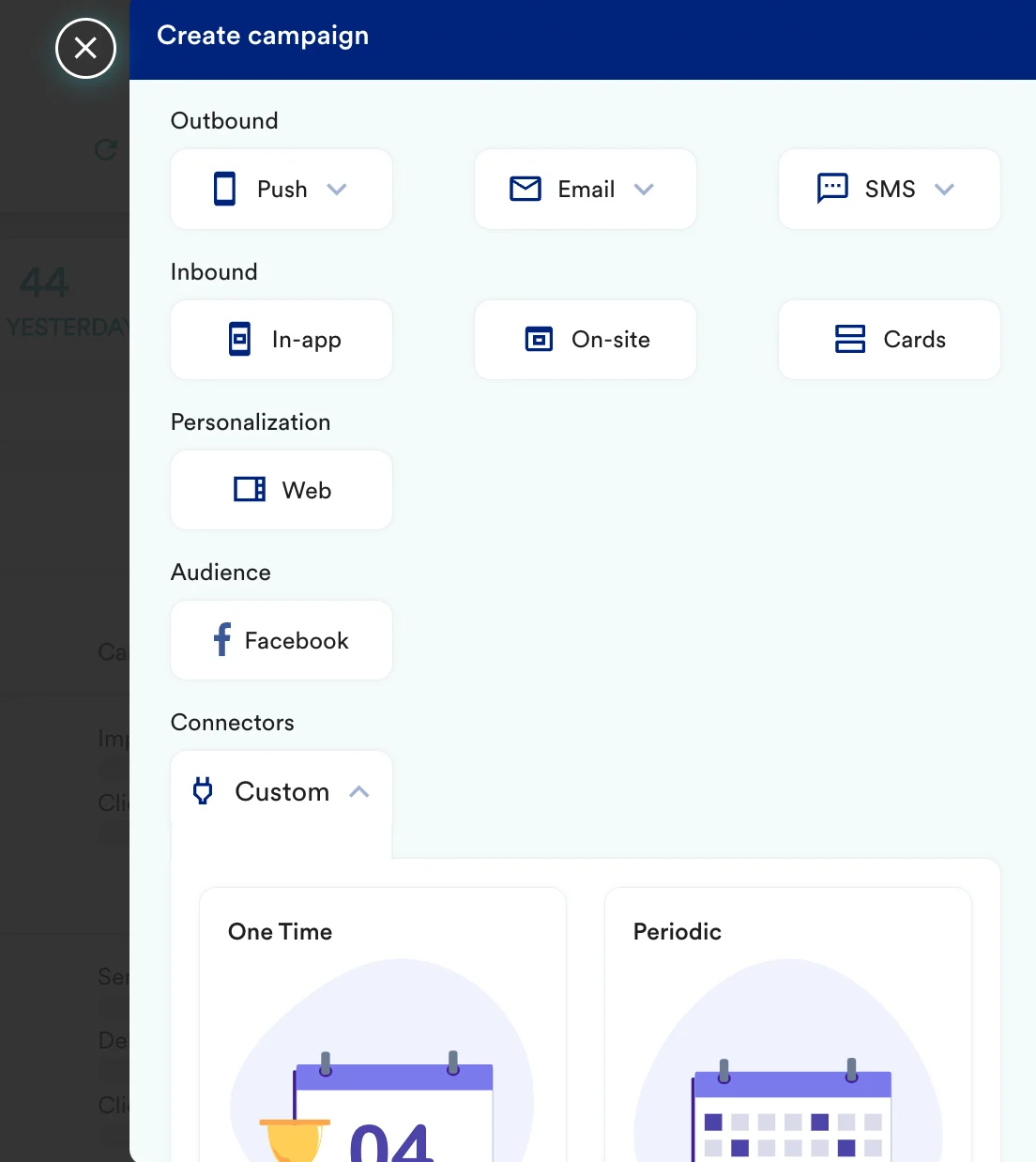
To create a connector campaign on MoEngage:-
Navigate to Create Campaign >> Connectors >> Custom
-
On step 2 of the campaign, select:
Key Value Method POST Webhook URL https://invitations-api.trustpilot.com/v1/private/business-units/%7BbusinessUnitId%7D/email-invitationsHeaders Enable OAuth toggle and select trustpilot. And Select Auth Prefix as Basic
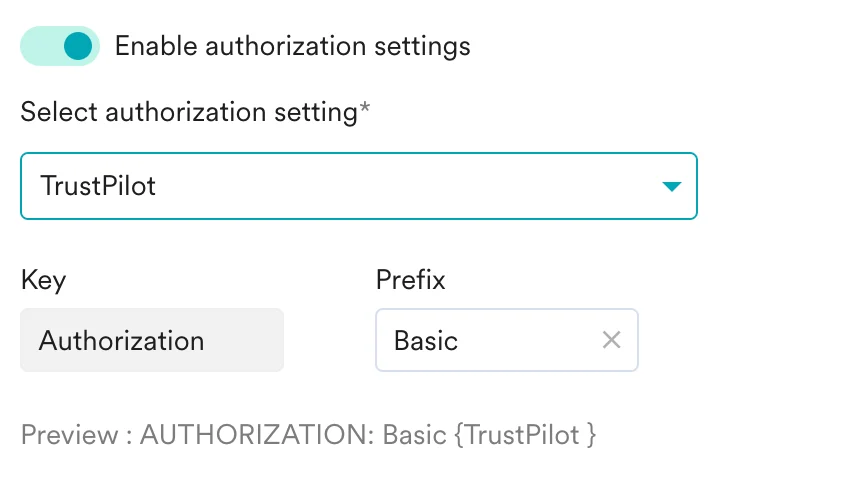
- Enter the request body as per the TrustPilot documentation.
-
Test your configuration: At this point, your campaign should be ready to test and send. You can also test your connector configuration using the Test functionality available on Step 2 of Create Connector Campaign.

- Now, publish your campaign.