> ## Documentation Index
> Fetch the complete documentation index at: https://moengage.com/docs/llms.txt
> Use this file to discover all available pages before exploring further.
# Bring Your Own Key (BYOK) For PII Data Encryption
> Bring Your Own Key (BYOK) provides direct control over the master encryption key used to protect your Personally Identifiable Information (PII).
# Overview
By default, MoEngage generates and manages the encryption keys used to protect your Personally Identifiable Information (PII). **Bring Your Own Key (BYOK)** provides direct control over the master encryption key. This ensures that no one — including MoEngage — can access your users' PII without involving your key.
**Information**
BYOK is an add-on to [PII Data Encryption](https://www.moengage.com/docs/user-guide/data/privacy/personal-data-or-personally-identifiable-information-pii/pii-data-encryption). It requires manual enablement by the MoEngage team. To get started, contact your Customer Success Manager or [MoEngage Support](https://help.moengage.com/hc/en-us/requests/new).
MoEngage supports the following variants of BYOK:
| Variant | How it works | Best for |
| :------------------------ | :---------------------------------------------------------------------------------------------------------------------------------- | :------------------------------------------------------------------------------------------------------------------------------------------------- |
| **Customer-Provided Key** | You generate a 256-bit AES key and share it securely with MoEngage. MoEngage stores it as the master key in MoEngage's own AWS KMS. | Organizations that want key ownership without managing AWS KMS cross-account access. |
| **Cross-Account KMS** | Your master key stays entirely within your own AWS KMS. MoEngage accesses it through a whitelisted IAM role when needed. | Organizations in highly regulated industries (banking, financial services, healthcare) require the key to never leave their own cloud environment. |
Both variants use the same underlying envelope encryption model: your master key protects a short-lived data key, which and turn encrypts the actual PII fields. For most enterprise and regulated customers, **Cross-Account KMS** is the recommended approach because it ensures the master key never leaves your AWS environment.
# How It Works
MoEngage uses envelope encryption, which is the following two-layer model:
* **Data Key:** A temporary AES-256-GCM key that encrypts your actual PII fields (for example, email address or phone number).
* **Master Key:** Your key, used to protect the Data Key. In Cross-Account KMS, this lives in your AWS account. In Customer-Provided Key, MoEngage stores this in MoEngage's AWS KMS.
### Data Ingestion
When user data arrives at MoEngage, the following process occurs:
1. MoEngage retrieves your master key from the appropriate KMS (AWS or MoEngage).
2. The system generates a Data Key and encrypts the PII fields by using AES-256-GCM.
3. MoEngage stores the encrypted PII and the encrypted Data Key together in the database.
4. The system immediately discards the plaintext Data Key; it is never persisted.
The system caches the Data Key in memory for up to **30 minutes** for performance, after which it must fetch it from KMS again.
### Campaign Dispatch
When MoEngage sends a campaign that uses a PII field, the following process occurs:
1. MoEngage retrieves the encrypted PII and the encrypted Data Key from storage.
2. MoEngage calls your master key (via KMS) to decrypt the Data Key.
3. The Data Key decrypts the PII in memory only for the duration of message delivery.
4. The system discards both the decrypted PII and Data Key immediately after sending the message.
**Critical**
MoEngage does not store, log, or have persistent access to your master key or your users' plaintext PII outside of the in-memory campaign execution context.
# Prerequisites
**Prerequisites**
Before you get started, ensure you meet the following requirements:
* Enable [**PII Data Encryption**](https://help.moengage.com/hc/en-us/articles/12844580781588-PII-Data-Encryption) for your workspace.
* Provide written acknowledgment that you cannot disable encryption once enabled and that historical data is not retroactively encrypted.
* For **Customer-Provided Key**: Prepare a 256-bit AES key encoded as a base64 string (exactly 32 bytes).
* For **Cross-Account KMS**, ensure you have:
* An active AWS account with access to AWS Key Management Service (KMS).
* Permission to create and manage Customer Managed Keys (CMK).
* A key configured as Symmetric, Encrypt/Decrypt usage, Origin: AWS\_KMS, Multi-Region: Disabled, and State: Enabled.
# Setting Up BYOK
To set up BYOK, follow the instructions for your chosen variant below.
## Option A: Customer-Provided Key
**Step 1: Generate your key.** To generate a 256-bit AES key encoded as a base64 string, use a tool such as OpenSSL. The key must represent exactly 32 bytes, as shown in the following example:
```bash theme={null}
openssl rand -base64 32
```
**Step 2: Share your key securely.** To share your key with MoEngage, follow these steps:
1. Raise a request with [MoEngage Support](https://help.moengage.com/hc/en-us/requests/new).
2. MoEngage SecOps will provide a secure upload link (via Tresorit).
3. Alternatively, request MoEngage's public key to share an encrypted version of your master key.
**Step 3: MoEngage registration.** MoEngage stores your key in its AWS KMS and registers your workspace. You will be notified once the process is complete.
## Option B: Cross-Account KMS
**Step 1: Create a CMK in AWS KMS.** To create your master key, follow these steps:
1. Sign in to the AWS Management Console and navigate to **Key Management Service (KMS)**.
2. Click **Create key**.
3. Select the **Symmetric** key type and the **Encrypt and decrypt** key usage.
4. Record your **Key ARN** once the wizard is complete.
**Step 2: Whitelist MoEngage's IAM Role.** To allow MoEngage to access your key, add the following statement to your KMS key policy. Replace `` with the value from the table provided below.
```json theme={null}
{
"Sid": "Allow MoEngage to access the key",
"Effect": "Allow",
"Principal": {
"AWS": ""
},
"Action": [
"kms:Decrypt",
"kms:ReEncrypt*",
"kms:GenerateDataKey*",
"kms:DescribeKey"
],
"Resource": ""
}
```
Use the ARN corresponding to your specific MoEngage Data Center:
| Data Center | Region | MoEngage IAM Role ARN |
| :---------- | :-------------------- | :--------------------------------------------------------------------------------- |
| DC01 | US East (N. Virginia) | `arn:aws:iam::612427630422:role/prod-us-east-1-c2-us-east-1-eks-worker-role` |
| DC02 | EU (Frankfurt) | `arn:aws:iam::612427630422:role/prod-eu-central-1-c2-eu-central-1-eks-worker-role` |
| DC03 | AP South (Mumbai) | `arn:aws:iam::612427630422:role/prod-ap-south-1-c1-ap-south-1-eks-worker-role` |
**Step 3: Share Your Key ARN.** Raise a request with [MoEngage Support](https://help.moengage.com/hc/en-us/requests/new) and provide your KMS Key ARN to finish registration.
# Enable PII Encryption from the MoEngage UI
To enable encryption for your attributes, perform the following steps:
1. On the sidebar menu in MoEngage, hover over the Settings menu item  . The **Settings Home** menu appears.
2. Click **Data management**.
. The **Settings Home** menu appears.
2. Click **Data management**. 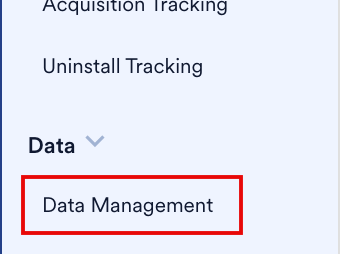 3. Click the **User attributes** or **Event** tab.
 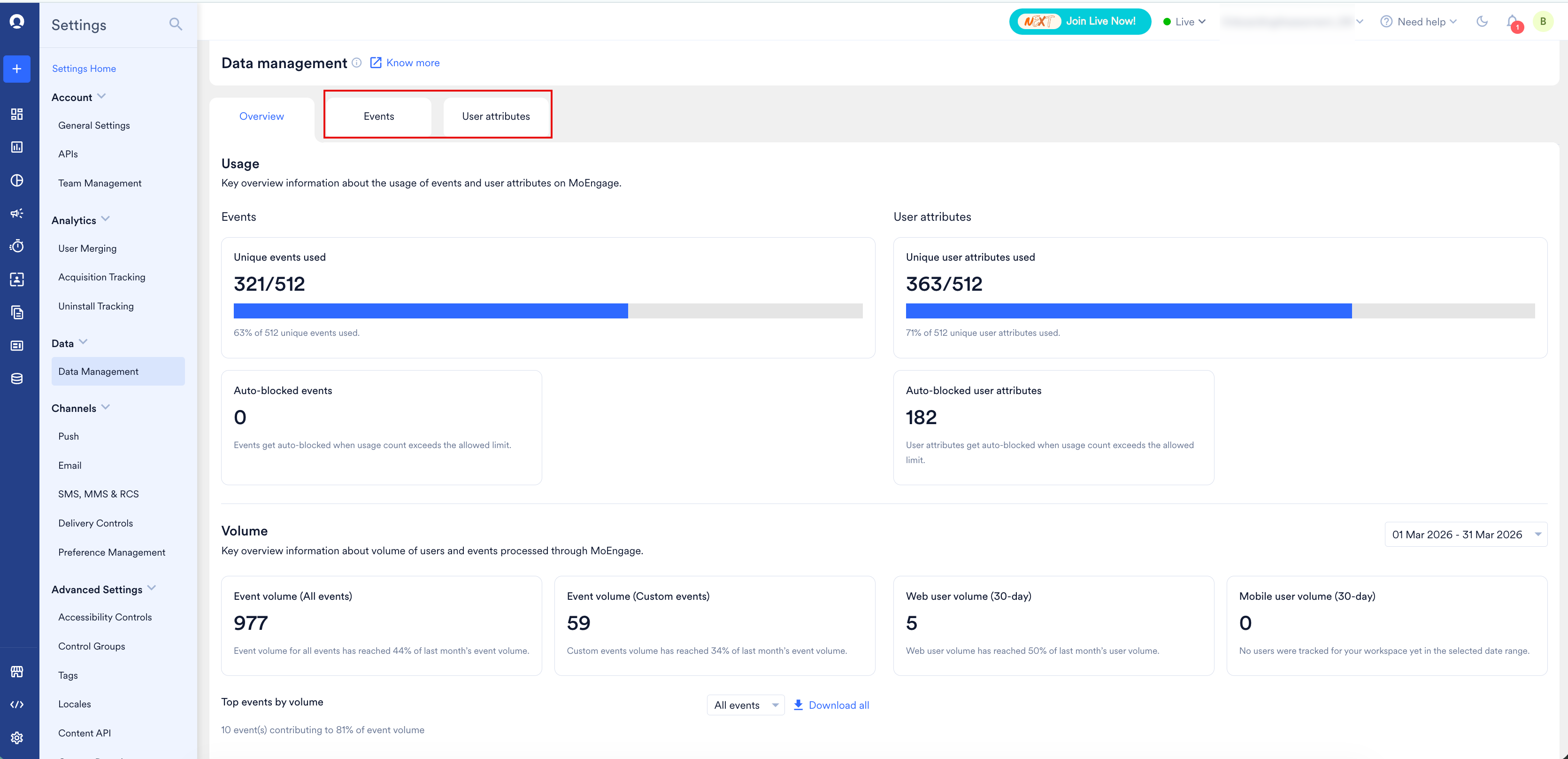 4. Locate the attribute, click the **ellipsis (⋯)** icon, and select **Edit attribute**.
5. Turn on the **Encrypt attribute** toggle. This automatically enables the **Mask attribute** toggle on.
6. Click **Save and Continue**.
**Warning**
After encryption is enabled for an attribute, it cannot be disabled. MoEngage only encrypts data ingested after enablement; historical data remains unencrypted.
# Key Rotation
Key rotation is a manual process. To rotate your maste[AWS Management Console](https://aws.amazon.com/console/)r key, raise a request with [MoEngage Support](https://help.moengage.com/hc/en-us/requests/new) and provide your new key or ARN. MoEngage will re-encrypt all stored Data Keys by using the new master key.
# BYOK vs. MoEngage-Managed Keys
The following table compares the features of the available variants:
| Feature | MoEngage-Managed | Customer-Provided | Cross-Account KMS |
| :-------------- | :--------------- | :---------------- | :---------------- |
| **Key storage** | MoEngage AWS KMS | MoEngage AWS KMS | Your AWS KMS |
| **Audit trail** | Internal | Internal | AWS CloudTrail |
| **Revocation** | Not applicable | Not directly | Yes, via policy |
# Limitations
The BYOK feature has the following limitations:
* AWS KMS is the only supported provider; Google Cloud KMS and Azure Key Vault are not currently supported.
* Automated AWS KMS rotation schedules are not yet supported; rotation is a manual process.
* Applies to field-level encryption only; disk-level and database-level encryption are managed separately.
* BYOK is a workspace-wide setting; you cannot mix BYOK and MoEngage-managed keys in one workspace.
# Frequently Asked Questions
No. Your master key never leaves your AWS account.
MoEngage will be unable to decrypt PII once the cache expires (30 minutes).
MoEngage uses AES-256-GCM.
4. Locate the attribute, click the **ellipsis (⋯)** icon, and select **Edit attribute**.
5. Turn on the **Encrypt attribute** toggle. This automatically enables the **Mask attribute** toggle on.
6. Click **Save and Continue**.
**Warning**
After encryption is enabled for an attribute, it cannot be disabled. MoEngage only encrypts data ingested after enablement; historical data remains unencrypted.
# Key Rotation
Key rotation is a manual process. To rotate your maste[AWS Management Console](https://aws.amazon.com/console/)r key, raise a request with [MoEngage Support](https://help.moengage.com/hc/en-us/requests/new) and provide your new key or ARN. MoEngage will re-encrypt all stored Data Keys by using the new master key.
# BYOK vs. MoEngage-Managed Keys
The following table compares the features of the available variants:
| Feature | MoEngage-Managed | Customer-Provided | Cross-Account KMS |
| :-------------- | :--------------- | :---------------- | :---------------- |
| **Key storage** | MoEngage AWS KMS | MoEngage AWS KMS | Your AWS KMS |
| **Audit trail** | Internal | Internal | AWS CloudTrail |
| **Revocation** | Not applicable | Not directly | Yes, via policy |
# Limitations
The BYOK feature has the following limitations:
* AWS KMS is the only supported provider; Google Cloud KMS and Azure Key Vault are not currently supported.
* Automated AWS KMS rotation schedules are not yet supported; rotation is a manual process.
* Applies to field-level encryption only; disk-level and database-level encryption are managed separately.
* BYOK is a workspace-wide setting; you cannot mix BYOK and MoEngage-managed keys in one workspace.
# Frequently Asked Questions
No. Your master key never leaves your AWS account.
MoEngage will be unable to decrypt PII once the cache expires (30 minutes).
MoEngage uses AES-256-GCM.