

Introduction
Mixpanel makes analytics self-serve for your product teams and enables everyone to answer questions around user conversion, retention, and activation.Scope
The MoEngage and Mixpanel integration allow you to import Mixpanel Cohorts into MoEngage to create segments that can be used to target users in future campaigns. You can also leverage MoEngage streams to export your campaign events to Mixpanel to drive deeper analytics into conversions, retention, and product usage.Benefits and Use Cases
Analyze your users in Mixpanel and engage with them using MoEngage. The following use-cases provide integration value addition to your analytics + user engagement activities:E-commerce
Understand the seasonal changes in purchase trends that are happening and send rich push notifications to such users via MoEngage. For example, target the cohort of users who purchase high-value items during summers and send rich push notifications with similar recommended items.Travel
You can create a cohort in Mixpanel of millennial users who are also premium users of your app and send them popular and unique holiday destination recommendations via MoEngage emails.E-learning
Understand where your users are dropping off while watching a video series on your platform and bring them back with engaging campaigns! Through insights into user behavior, you are armed with a holistic picture of exactly what actions can trigger a user to return to the app.Integration
PrerequisitesEnsure you have login credentials for MoEngage and Mixpanel.
Cohort Sync from Mixpanel to MoEngage
Mixpanel to MoEngage integration allows you to export cohorts in Mixpanel to MoEngage and send personalized campaigns to all the users under this cohort from MoEngage.Streaming MoEngage Events to Mixpanel
MoEngage to Mixpanel integration allows you to export the campaign interaction events generated after your users engage with the MoEngage campaigns to Mixpanel.Setting up MoEngage integration on Mixpanel
To setup MoEngage Integration on Mixpanel, follow the below steps:-
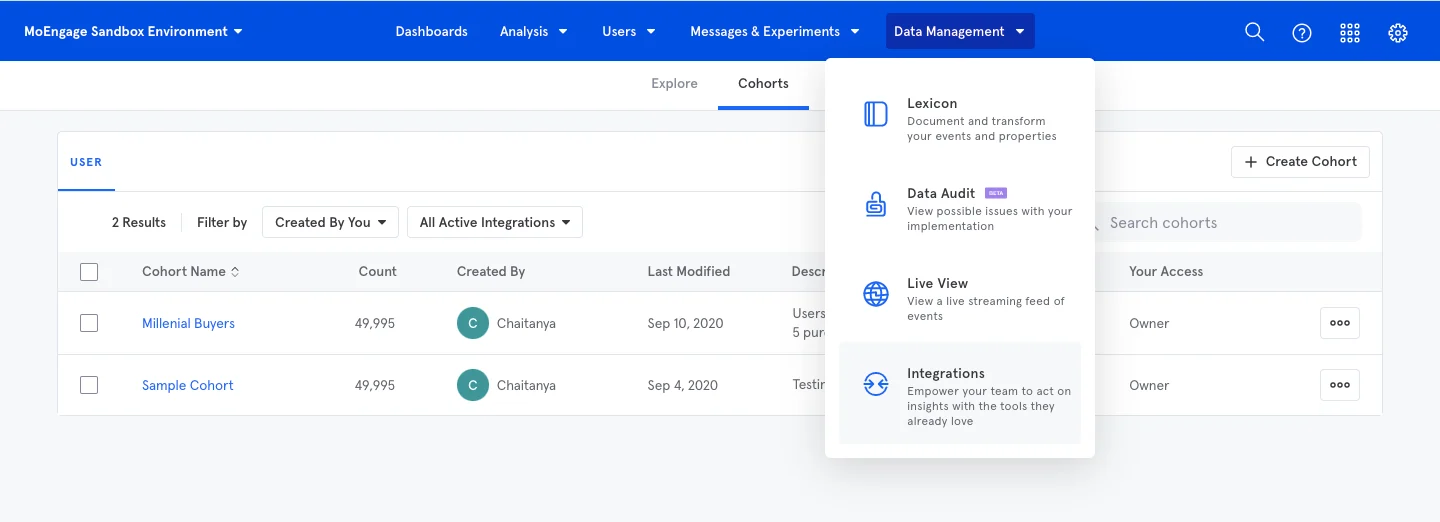
Log in to Mixpanel and navigate to Data Management > Integrations.
-
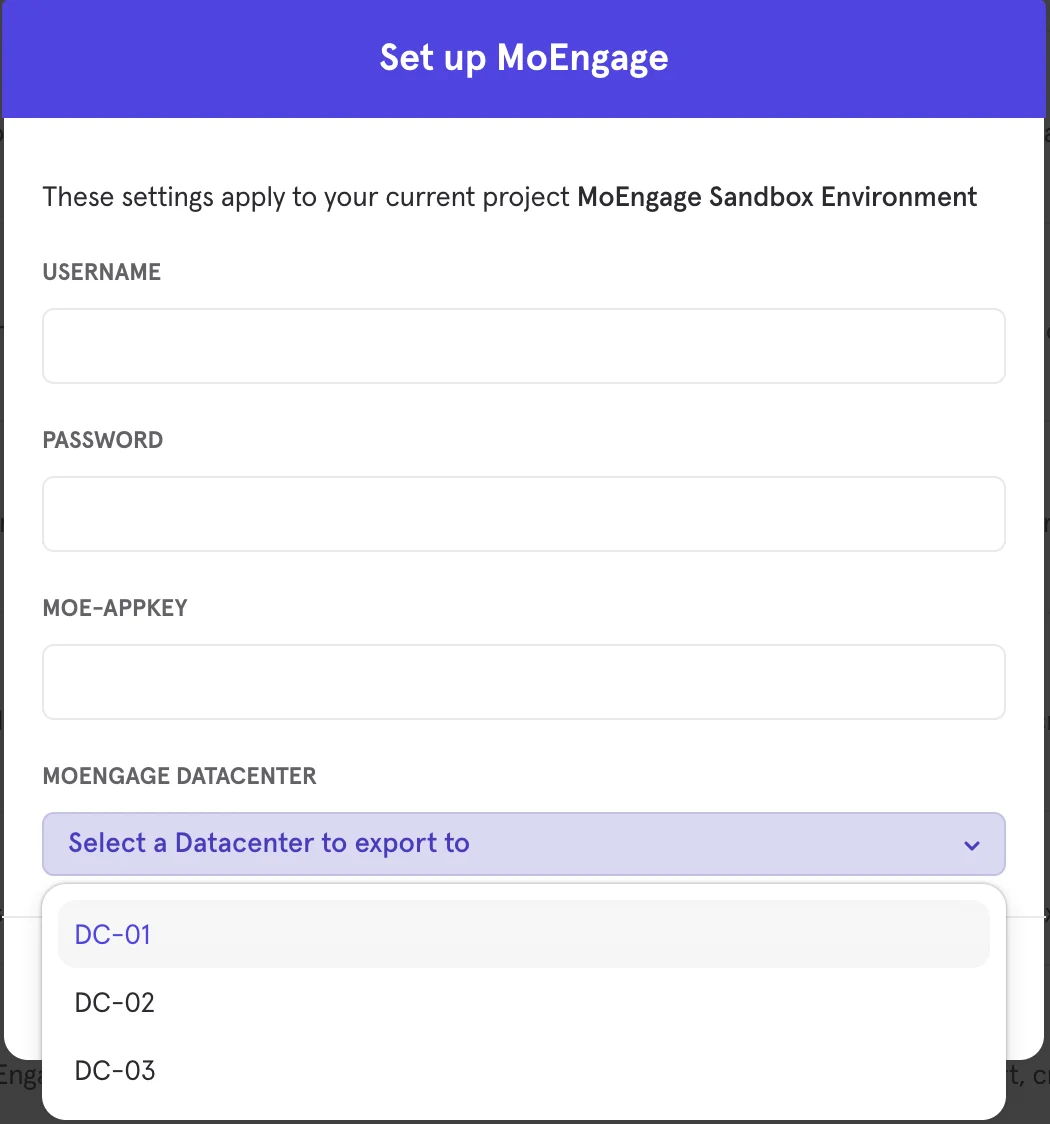
On the Integrations page, search MoEngage and click on the CONNECT button. You will see a pop-up to enter the MoEngage credentials as described:
-
Fill the following fields from the MoEngage dashboard by navigating to Settings > Account > API Settings:
Field Action USERNAME Type or copy and paste the Data API ID. The Data API ID and the Workspace ID of your MoEngage account are the same. PASSWORD Type or copy and paste the Data API Key. The Data API key of your MoEngage account is available in the following navigation: Settings > Account > APIs > API keys > Data API settings. MOE-APPKEY Type or copy and paste the Workspace ID. The Workspace ID of your MoEngage account is available in the following navigation: Settings > Account > APIs > Workspace ID. MOENGAGE DATACENTER MoEngage data center that you signed with you on MoEngage. For more information about the data center that you signed up with, please refer to Data centers in MoEngage. 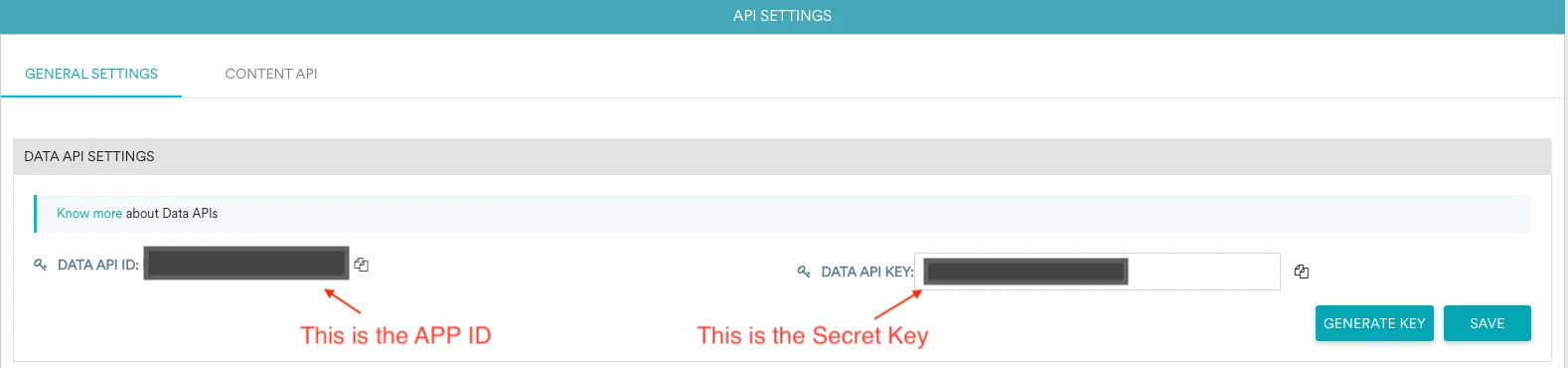
- Click save on continue to connect MoEngage as an integration.
Exporting Cohorts from Mixpanel to MoEngage
Ensure your cohort name starts with a period (.) and must not contain the following restricted characters:
|, *, ?, \, :, <, >, =, $, ".-
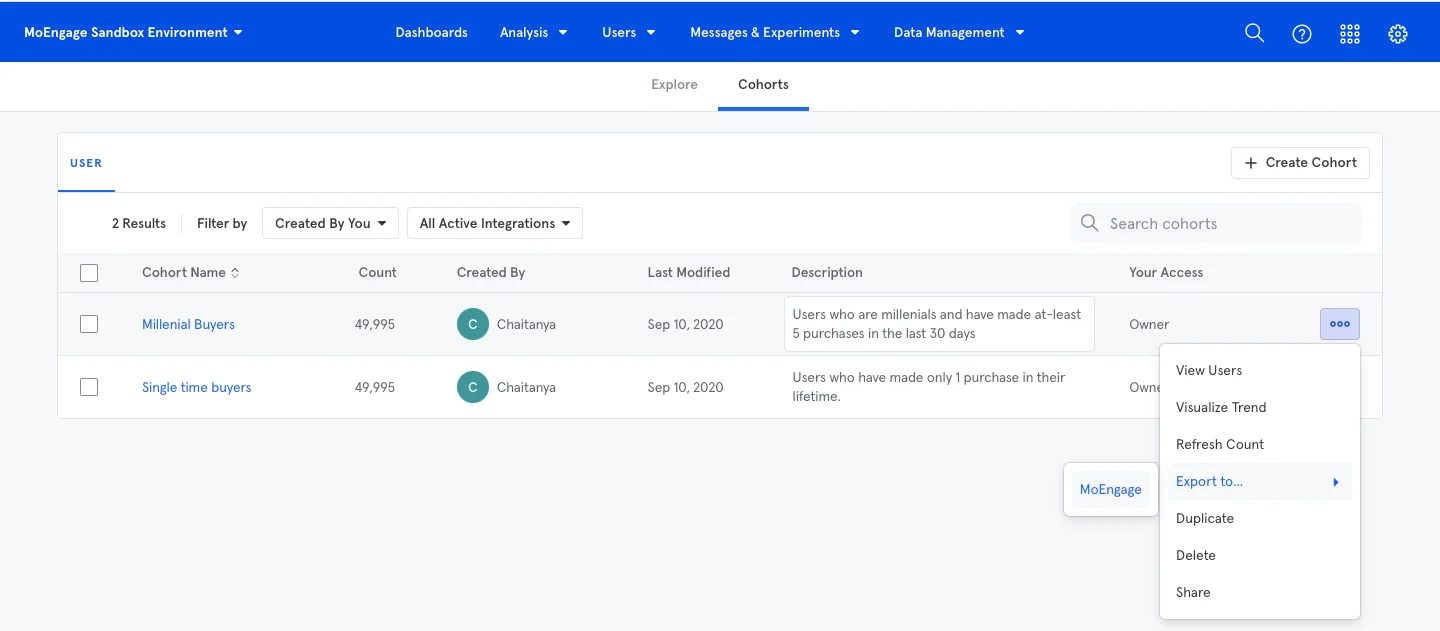
Navigate to the cohorts page on Mixpanel dashboard.

-
Click on the three dots menu on the right-hand side of any cohort and use the Export to option to export the particular cohort to MoEngage.
-
In the Export to MoEngage pop-up, select one of the following:
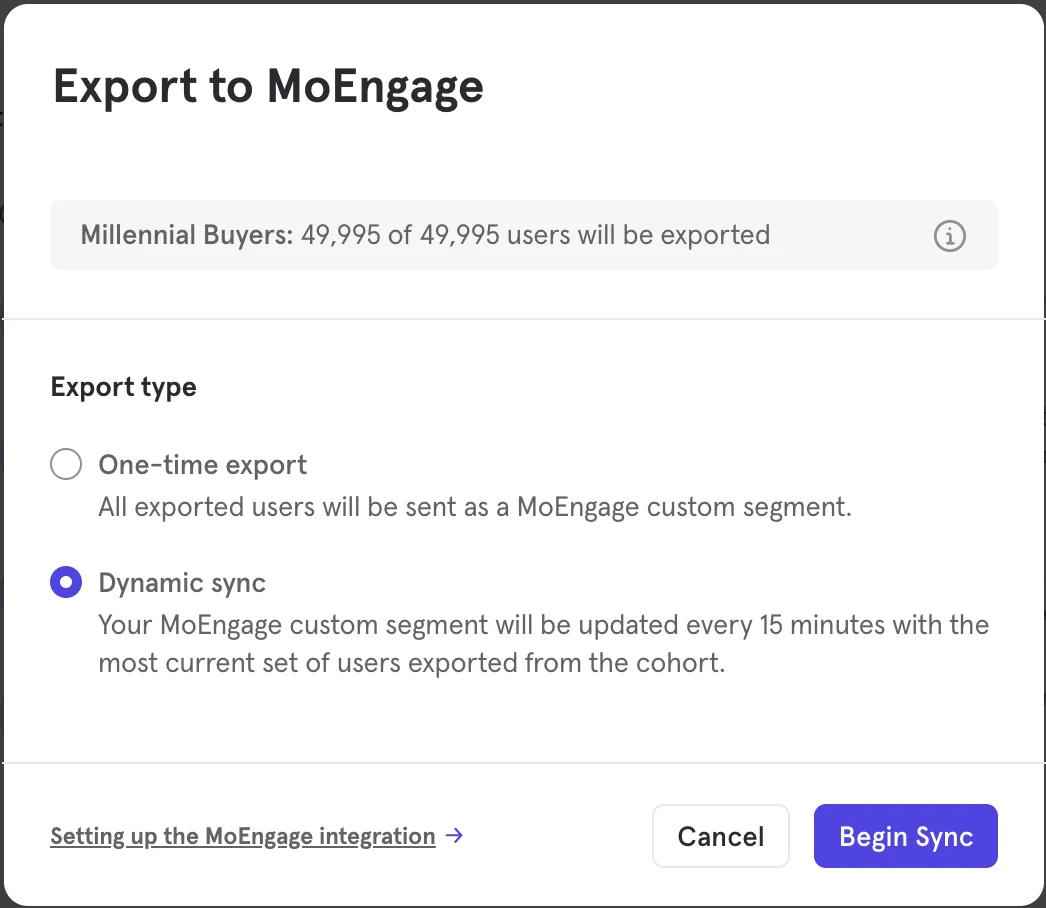
Selection Description One-time export Only export the users under the cohort to MoEngage once and the cohort will not sync thereafter. Dynamic sync Ensure that the updated information of the cohorts like the new users who qualify for this cohort and the existing users who are removed from the cohort are sent to MoEngage every 15 minutes. - Click Begin Sync to export.
-
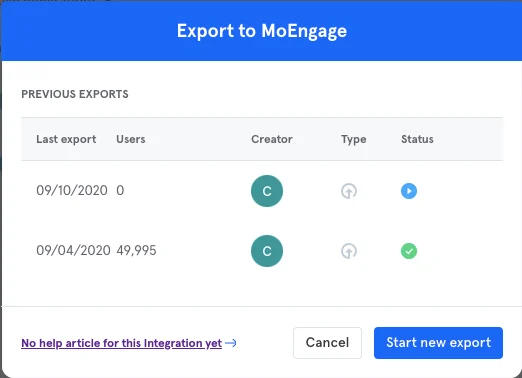
Check the export status after you export the cohort as described.
Using Cohorts in MoEngage Campaigns
Once an export is complete, you will be able to see the cohort as a custom segment in MoEngage as in the following image: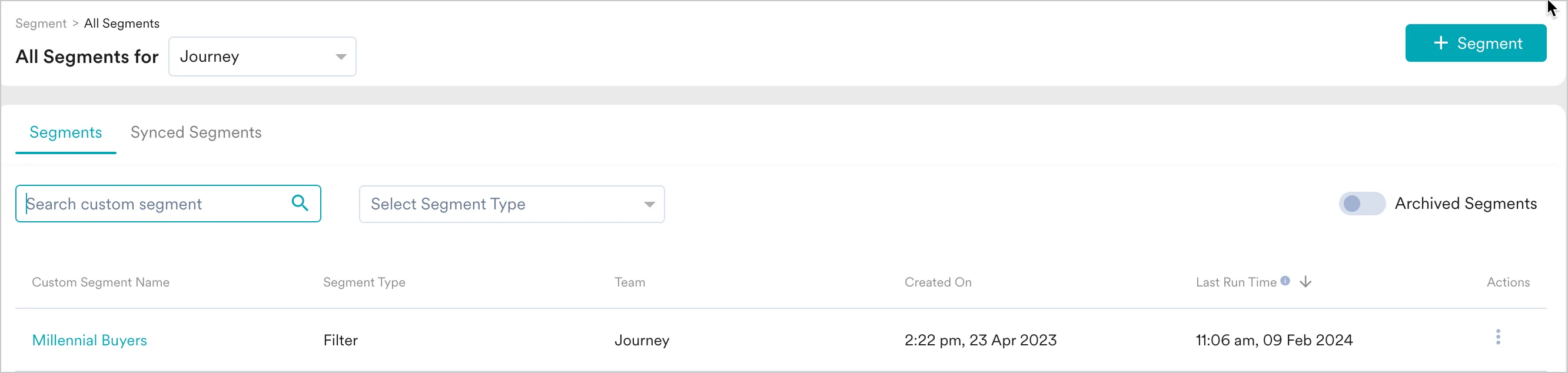
User Mapping between Mixpanel and MoEngage
When you are exporting cohorts from Mixpanel to MoEngage, all users in your Mixpanel cohort will be attempted to be mapped with unique user profiles in MoEngage. We will be relying on a unique user identifier that will be present across Mixpanel and MoEngage users for mapping. This identifier will also be used when sending campaign events from MoEngage to Mixpanel. You need to ensure that you are adding an alias for your Mixpaneldistinct_id and that the same identifier is used as ID (unique user id) in MoEngage.
For more information on tracking unique user id in MoEngage, refer to:
Exporting Campaign Data from MoEngage to Mixpanel
PrerequisitesExports to Mixpanel makes use of MoEngage Streams, which is an add-on.
- Click on + Add Integration to add a new integration.
-
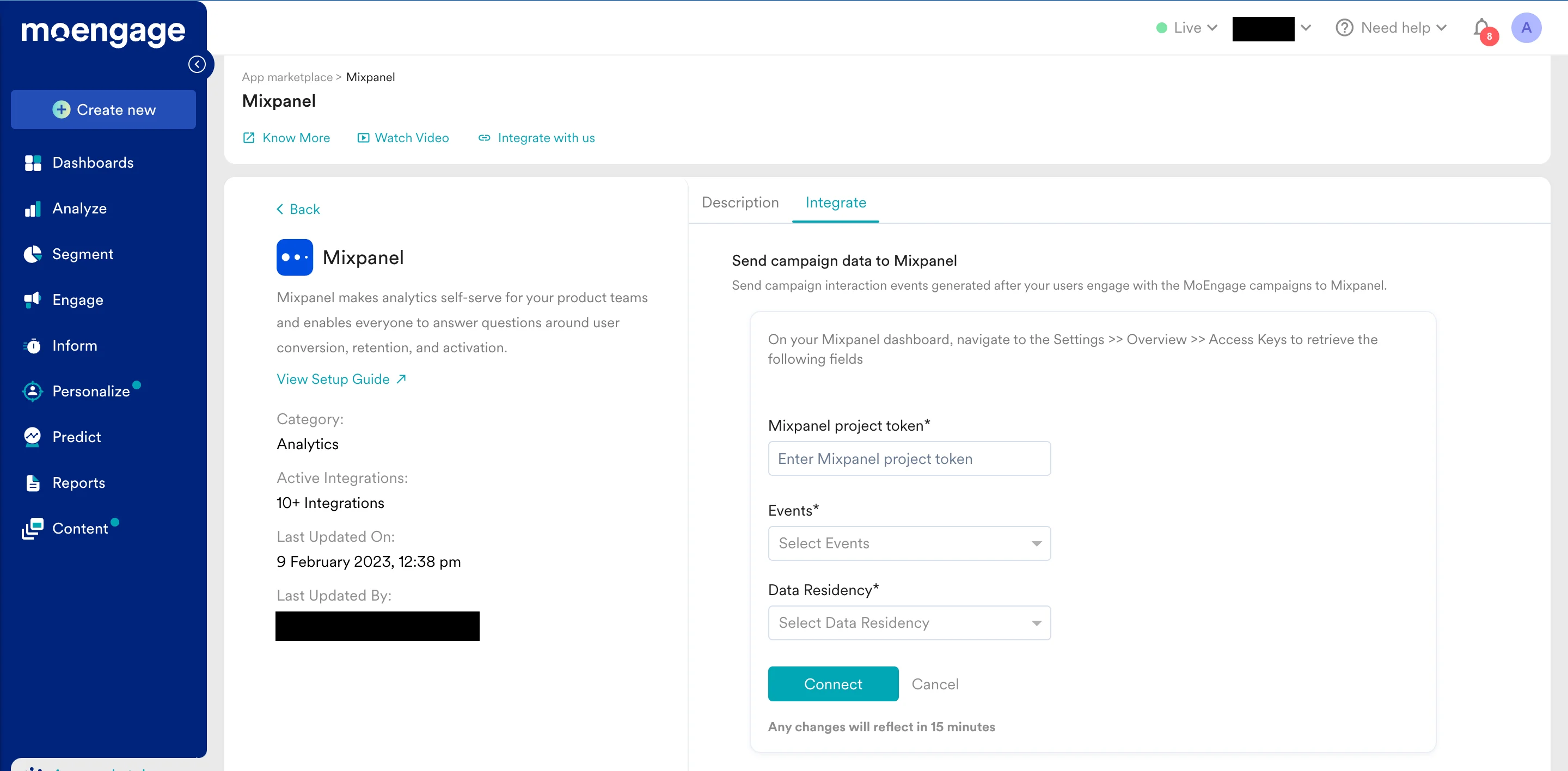
Fill out the form.
-
Mixpanel project token - This is available on your Mixpanel Dashboard > Settings > Overview > Access Keys > Project Token as shown below:
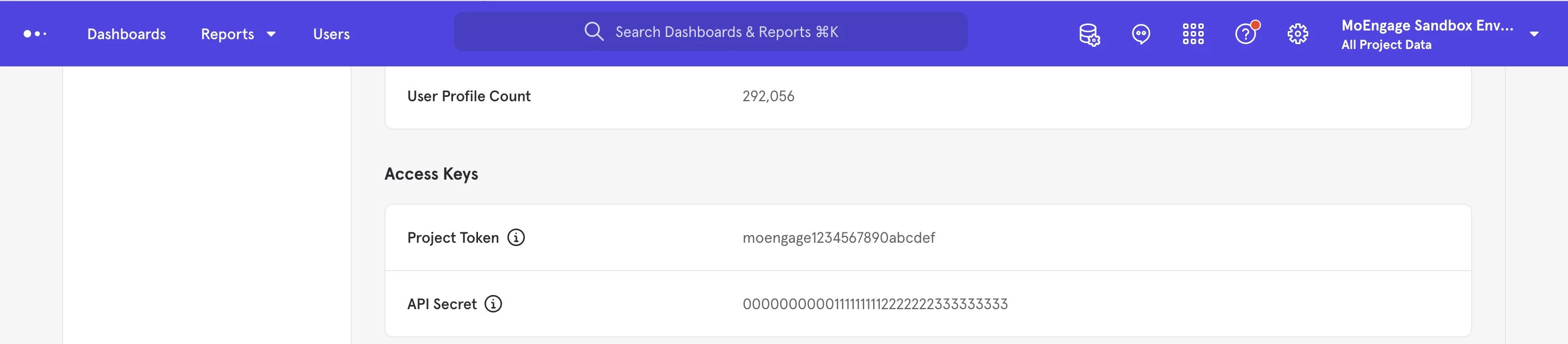
- Select the events you want to forward. By default, MoEngage will be sending the data points mentioned in the next section to Mixpanel.
- Click on Connect to save the integration.
$source = MOENGAGE. These events are sent to Mixpanel in near real-time and use the Mixpanel distinct_id for mapping user profiles between MoEngage and Mixpanel.
Ensure that you are setting the
mixpanel_distinct_id as the unique user id in MoEngage.Export Data
The following data points are by default sent to Mixpanel:| Event Name | Event Code | Type (for reference only) | Channel | Description |
|---|---|---|---|---|
| Card Sent | n_c_s | Delivery | Cards | Tracked when a Card notification is sent to the user, doesn’t indicate if the notification is delivered to the App Inbox |
| Card Delivered | MOE_CARD_CAMPAIGN_DELIVERED | Delivery | Cards | Tracked when a Card is delivered to the App Inbox after the user has opened the Inbox |
| Card Viewed | MOE_CARD_CAMPAIGN_VIEWED | Delivery | Cards | Tracked when the user views a Card or scrolls down to it in the App Inbox |
| Card Clicked | MOE_CARD_CAMPAIGN_CLICKED | Interaction | Cards | Tracked when the user clicks the Card in the App Inbox |
| Connector Sent | MOE_CONNECTOR_SENT | Delivery | Connector | Tracked when a connector was sent successfully. |
| Email Sent | MOE_EMAIL_SENT | Delivery | Tracked when our system sends an email to a user. | |
| Email Deferred | MOE_EMAIL_DEFERRED | Delivery | Tracked when the receiving server is unable to accept your request, email sending will be re-tried in this case | |
| Email Delivered | MOE_EMAIL_DELIVERED | Delivery | Tracked when an email is delivered in an inbox | |
| Email Dropped | MOE_EMAIL_DROP | Delivery | Tracked when a user opens an email. | |
| Email Bounced | MOE_EMAIL_HARD_BOUNCE | Delivery | Tracked when a user clicks on any link in the email. | |
| Email Soft Bounced | MOE_EMAIL_SOFT_BOUNCE | Delivery | Tracked when an email is dropped. Email is dropped when it’s part of the bounce list, the unsubscribe list, or the spam report list. | |
| Email Opened | MOE_EMAIL_OPEN | Interaction | Tracked when our system finds an email is soft bounced. Typically happens when there is a temporary delivery issue. | |
| Email Clicked | MOE_EMAIL_CLICK | Interaction | Tracked when our system finds an email is hard bounced. Typically happens when email address doesn’t exist. | |
| Email Unsubscribed | MOE_EMAIL_UNSUBSCRIBE | Interaction | Tracked when a user marks the email as spam. | |
| Email Spam Complained | MOE_EMAIL_SPAM | Interaction | Tracked when a user unsubscribes from receiving emails. | |
| In-App Shown Android | IN_APP_SHOWN | Interaction | In-App | Tracked when an In-App message is shown to the user on Android device. |
| In-App Clicked Android | IN_APP_CLICKED | Interaction | In-App | Tracked when a user clicks In-App message on Android device. |
| In-App Closed Android | IN_APP_CLOSE_CLICKED | Interaction | In-App | Tracked when a user dismisses In-App message by clicking on close button on Android device. |
| In-App Shown iOS | iOS_IN_APP_SHOWN | Interaction | In-App | Tracked when an In-App message is shown to the user on iOS device. |
| In-App Clicked iOS | iOS_IN_APP_CLICKED | Interaction | In-App | Tracked when a user clicks In-App message on iOS device. |
| In-App Closed iOS | iOS_IN_APP_CLOSE_CLICKED | Interaction | In-App | Tracked when a user dismisses In-App message by clicking on close button on iOS device. |
| Mobile In-App Shown | MOE_IN_APP_SHOWN | Interaction | In-App V3 | Tracked when a user is shown an in-app version 3 campaign |
| Mobile In-App Clicked | MOE_IN_APP_CLICKED | Interaction | In-App V3 | Tracked when a user clicks an in-app version 3 campaign |
| Mobile In-App Dismissed | MOE_IN_APP_DISMISSED | Interaction | In-App V3 | Tracked when a user closes an in-app version 3 campaign |
| Notification Received Android | NOTIFICATION_RECEIVED_MOE | Delivery | Push | Tracked when a user receives a notification on an Android device. |
| Notification Clicked Android | NOTIFICATION_CLICKED_MOE | Interaction | Push | Tracked when a user clicks notification on an Android device. |
| Notification Sent iOS | n_i_s | Delivery | Push | Tracked when a user receives a notification on an iOS device. |
| Notification Received iOS | NOTIFICATION_RECEIVED_IOS_MOE | Delivery | Push | Tracked when App in foreground and user receives the notification on iOS. |
| Notification Clicked iOS | NOTIFICATION_CLICKED_IOS_MOE | Interaction | Push | Tracked when a user clicks notification on an iOS device. |
| Notification Received Web | NOTIFICATION_RECEIVED_WEB_MOE | Delivery | Push | Tracked when a user receives a notification on a browser. |
| Notification Clicked Web | NOTIFICATION_CLICKED_WEB_MOE | Interaction | Push | Tracked when a user clicks notification on the browser. |
| On-site Message Shown | MOE_ONSITE_MESSAGE_SHOWN | Interaction | On-site | Tracked when an on-site messaging campaign is shown to a user |
| On-site Message Clicked | MOE_ONSITE_MESSAGE_CLICKED | Interaction | On-site | Tracked when an on-site messaging campaign is clicked by a user |
| On-site Message Closed | MOE_ONSITE_MESSAGE_CLOSED | Interaction | On-site | Tracked when an on-site messaging campaign is closed by a user |
| Web Personalization Message Shown | MOE_WEBP_MESSAGE_SHOWN | Interaction | Web Personalization | Tracked when a web personalization campaign is shown to a user |
| Web Personalization Message Clicked | MOE_WEBP_MESSAGE_CLICKED | Interaction | Web Personalization | Tracked when a web personalization campaign is clicked by a user |
| Web Personalization Message Closed | MOE_WEBP_MESSAGE_CLOSED | Interaction | Web Personalization | Tracked when a web personalization campaign is closed by a user |
| SMS Sent | SMS_SENT | Delivery | SMS | Tracked when our system sends SMS to a user. |
| SMS Delivered | SMS_DELIVERED | Delivery | SMS | Tracked when our system receives a delivery receipt for the SMS sent to a user. |
| User Entered Flow | USER_ENTERED_FLOW | Delivery | Flows | Tracked when a user falls in the target audience and has qualified for entry in the Flow. |
| User Exited Flow | USER_EXITED_FLOW | Delivery | Flows | Tracked when a user exits from a Stop Cell of the Flow. |
| User Added To Control Group | MOE_CAMPAIGN_CONTROL_GROUP | Delivery | All Campaigns | Tracked when a user is added to a control group |
| User Removed From Control Group | MOE_USER_REMOVED_FROM_CONTROL_GROUP | Delivery | All Campaigns | Tracked when a user is removed from a control group |
| User Removed From Campaign Due to Control Group | MOE_CAMPAIGN_USER_REMOVED_DUE_TO_CONTROL_GROUP | Delivery | All Campaigns | Tracked when a user is removed from a campaign due to the user being a part of the control group |
Troubleshooting
The user count for the segment is 0?
Please check if the custom segment name is “All users”. All users is reserved for MoEngage and cannot be used as the custom segment name.The segment is not showing up on MoEngage dashboard?
Please check archived segments on MoEngage. You can check your archived segments here. Please unarchive your segment and then retry.Frequently Asked Questions
How soon will I start getting the data?
How soon will I start getting the data?
It typically takes up to 30 minutes for the automated data exports to be set up for your account and for you to start seeing data there.
Can I export additional events at a later time?
Can I export additional events at a later time?
Yes, if you need to export new events at a later time, you can always edit your configuration on the App Marketplace and get the new events added to your exports.
Can I export historical data using Automated Data Exports?
Can I export historical data using Automated Data Exports?
As of now, you cannot export historical data using Automated Data Exports. Once configured, you will start seeing data for each event from the time you enabled your exports.
Is there any pricing involved for Automated Data Exports?
Is there any pricing involved for Automated Data Exports?
If your billing plan does not cover this already and you need to get this enabled at a later time, you would need to work with your Customer Success Manager to get this included in your billing plan. Based on the amount of data that MoEngage will place in your Data warehouse/Partner/API on a monthly basis, this could lead to additional charges.