

MoEngage × Mailercloud
The integration of MoEngage and Mailercloud empowers businesses to leverage Mailercloud’s reliable email delivery engine while managing, analyzing, and optimizing campaigns directly within MoEngage. By connecting through SMTP, you ensure your campaigns reach customers effectively while maintaining end-to-end visibility of engagement metrics in MoEngage analytics. With this integration, you can:- Deliver emails using Mailercloud’s optimized SMTP infrastructure.
- Receive real-time callbacks for delivery, bounces, spam complaints, and unsubscribes directly in MoEngage.
- Securely send emails using Transport Layer Security (TLS) encryption and authenticated SMTP.
Use Cases
Integrating Mailercloud with MoEngage helps you with the following use cases:- Enhanced deliverability: Improve inbox placement rates by utilizing Mailercloud’s advanced delivery infrastructure for your MoEngage campaigns.
- Centralized reporting: View campaign performance, including opens and clicks, directly within the MoEngage dashboard without losing event data.
- Simplified workflow: Manage customer engagement strategies in MoEngage while offloading the technical complexities of email delivery to Mailercloud.
Integration
Prerequisites
Before you begin the configuration, ensure you have the following:
Before you begin the configuration, ensure you have the following:
- A verified sender domain in Mailercloud [with Sender Policy Framework (SPF)/ DomainKeys Identified Mail (DKIM) records configured].
- Your Mailercloud SMTP credentials (Host, Username, and Password).
- Access to your MoEngage workspace with permissions to configure Email and Webhooks/Callbacks.
Step 1: Configure MoEngage to Use Custom SMTP
To configure MoEngage to use custom SMTP, perform the following steps:- On the left navigation menu in the MoEngage UI, click Settings > Channel > Email.
- On the Email page, select the Sender configuration tab.
- Click Add Connector and select Custom/Generic SMTP.
- Enter the following details in the configuration form:
| Field | Value |
|---|---|
| SMTP Host | Enter your Mailercloud host address. |
| Port | 587 |
| Security | TLS |
| Authentication | ON |
| Username | Enter your Mailercloud username. |
| Password | Enter your Mailercloud password. |
| From Email | Enter a verified sender email address from Mailercloud. |
- Click Save.
- (Optional) If a test option is available, send a test email to verify that the credentials are correct.
Step 2: Retrieve the MoEngage Callback URL
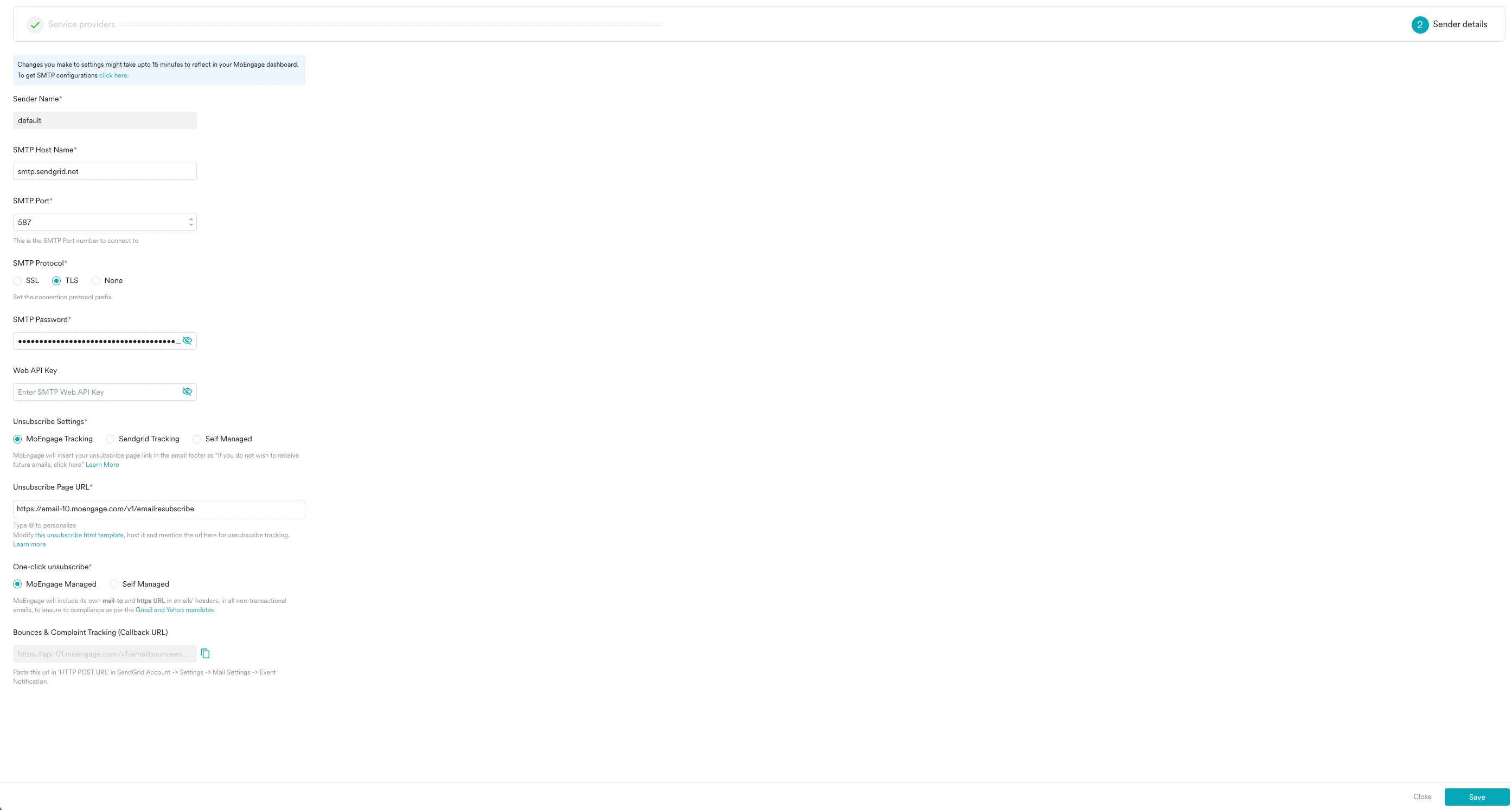
To ensure that MoEngage tracks delivery statuses (such as bounces or unsubscribes), you must configure a webhook. To configure the webhook, perform the following steps:- On the left navigation menu in the MoEngage UI, click Settings > Channel > Email.
- On the Email page, select the Sender configuration tab.
- Click Add Sender in the top-right corner.
- Click Continue in the warning pop-up, then select Custom Connector from the list of sender options.
- Fill in the required SMTP Settings (Sender Name, Host Name, Port, Protocol, and Authentication).
- Scroll to the Unsubscribe Settings section and copy the Callback URL provided. Keep this URL accessible for the next step.
Step 3: Configure Webhooks in Mailercloud
To send event data back to MoEngage, add the Callback URL to your Mailercloud account. To configure webhooks in Mailercloud, perform the following steps:- Log in to your Mailercloud account.
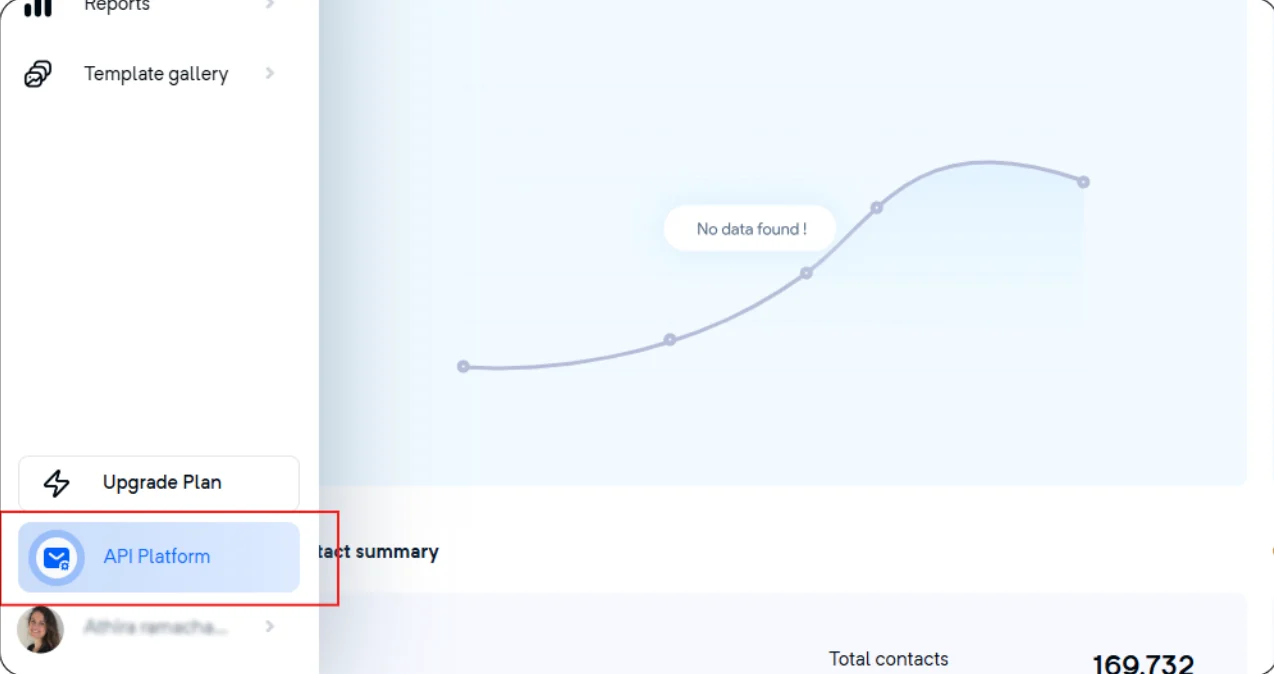
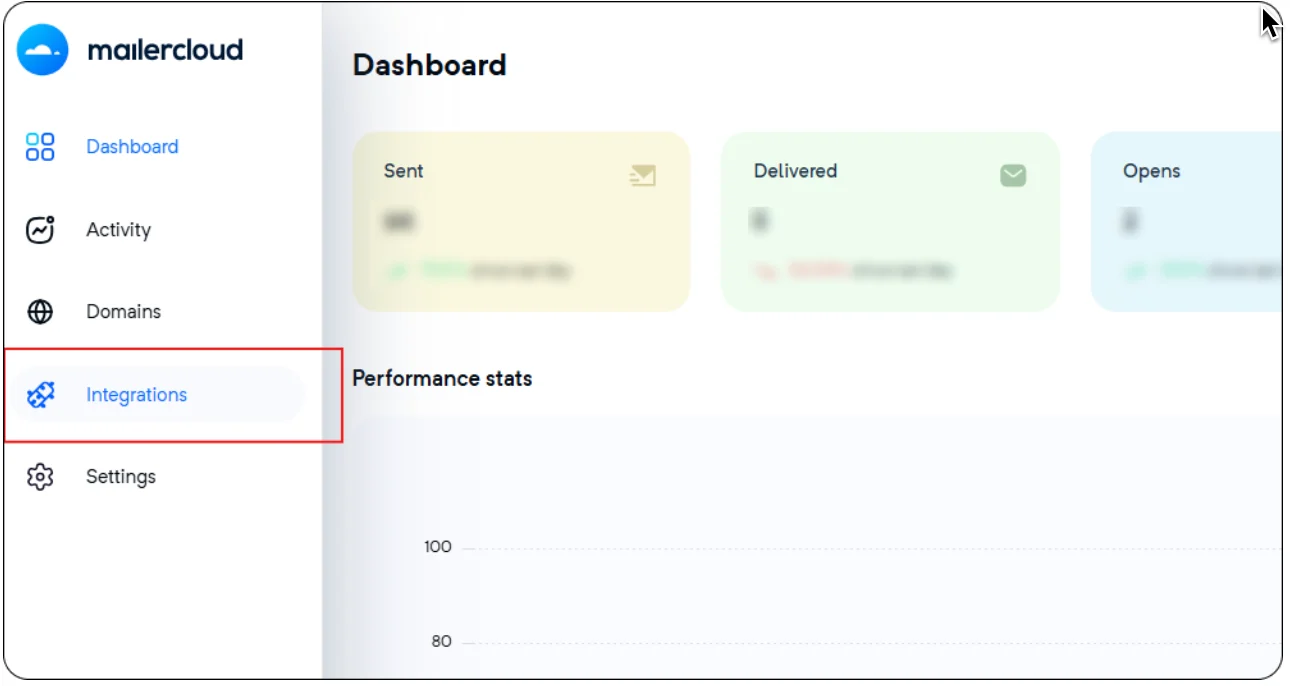
- Navigate to API Platform > Integrations.
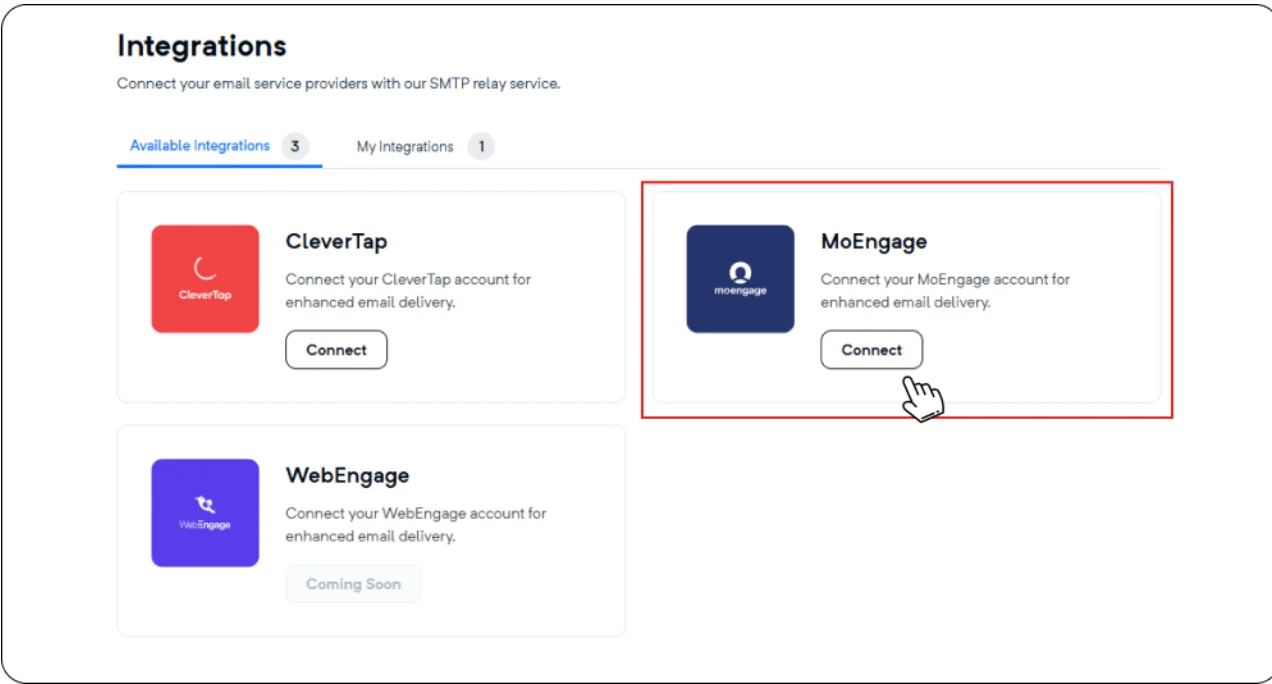
- On the Available Integrations tab, locate the MoEngage card and click Connect.
- In the Integration Name box, enter a name for your integration.
- In the Callback URL box, paste the Callback URL you copied from MoEngage.
- Click Complete Integration.
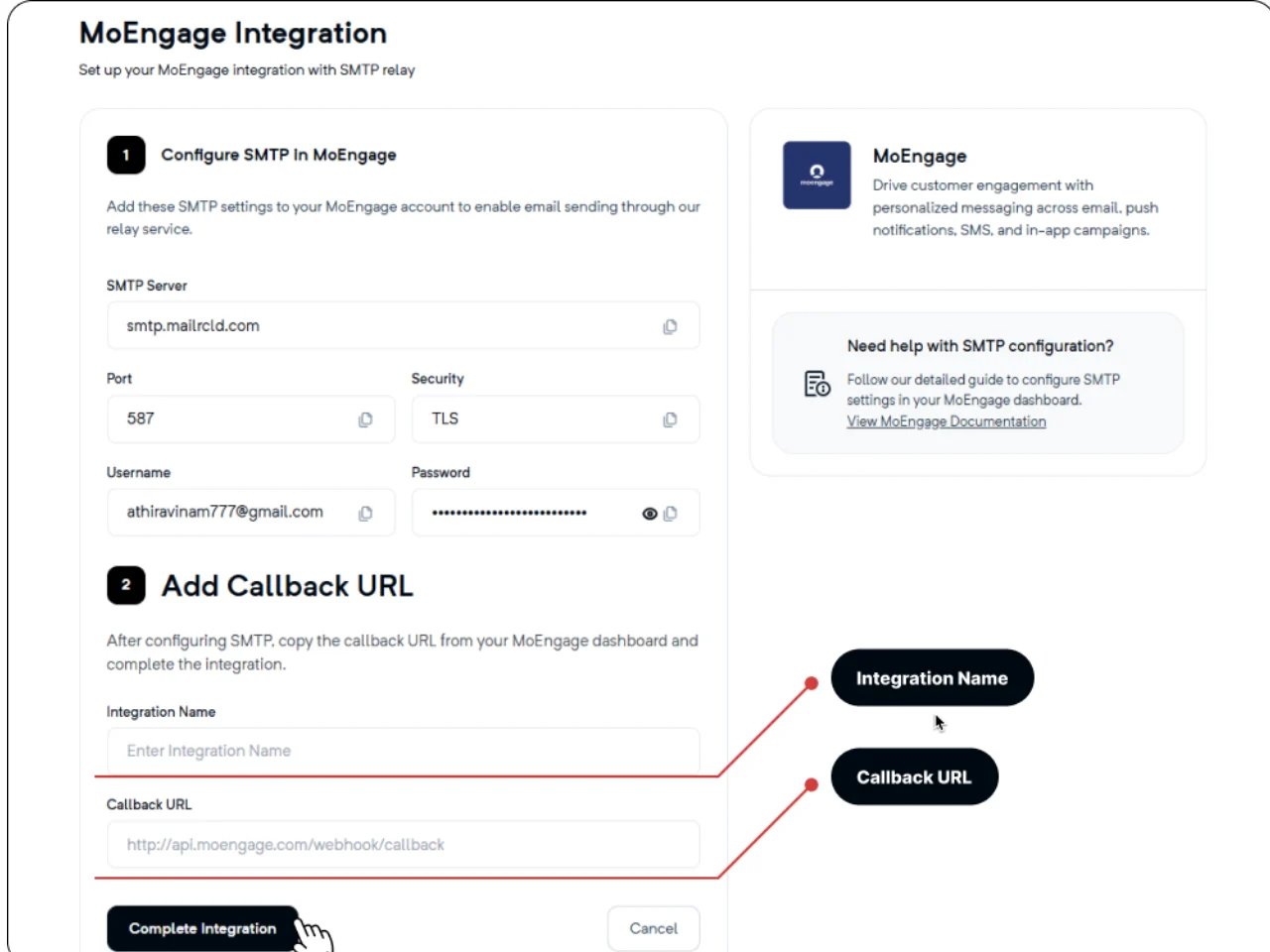
Ensure that the callback URL is copied completely, without extra spaces, to guarantee that analyzing data syncs correctly between the platform.
If you encounter issues during setup, verify your SMTP credentials in Mailercloud or contact our support team for assistance.