

Introduction
Swipe Pages is a landing page builder that lets you create faster, mobile-optimized landing pages. It uses a powerful drag-and-drop builder with 25+ elements and 80+ pre-built blocks to assist you with the page-building process.MoEngage and Swipe Pages
With the MoEngage and Swipe Pages integration, you can capture your landing page inputs and send personalized, targeted campaigns through MoEngage to drive conversions. With this integration, you can:- Create or update users in MoEngage when a form is submitted.
- Create events with the details submitted from the form.
Integration
Prerequisites
- Ensure you have access to your Swipe Pages webhooks.
Step 1: Get your MoEngage endpoint
To get a dedicated endpoint for your integration, contact the MoEngage Support team. In your request, specify the common identifier used to link user profiles between MoEngage and the partner platform.Step 2: Set up the webhook in Swipe Pages
Follow the Swipe Pages guide to create a webhook. On your Swipe Pages dashboard:- Click Add Global Webhooks.

- Fill in the webhook details:
- Name: Enter
MoEngage integrationor any name of your choice. - Webhook endpoint URL: The dedicated MoEngage endpoint you received in Step 1.
- Webhook Method:
POST. - Webhook Event:
Form Submitted.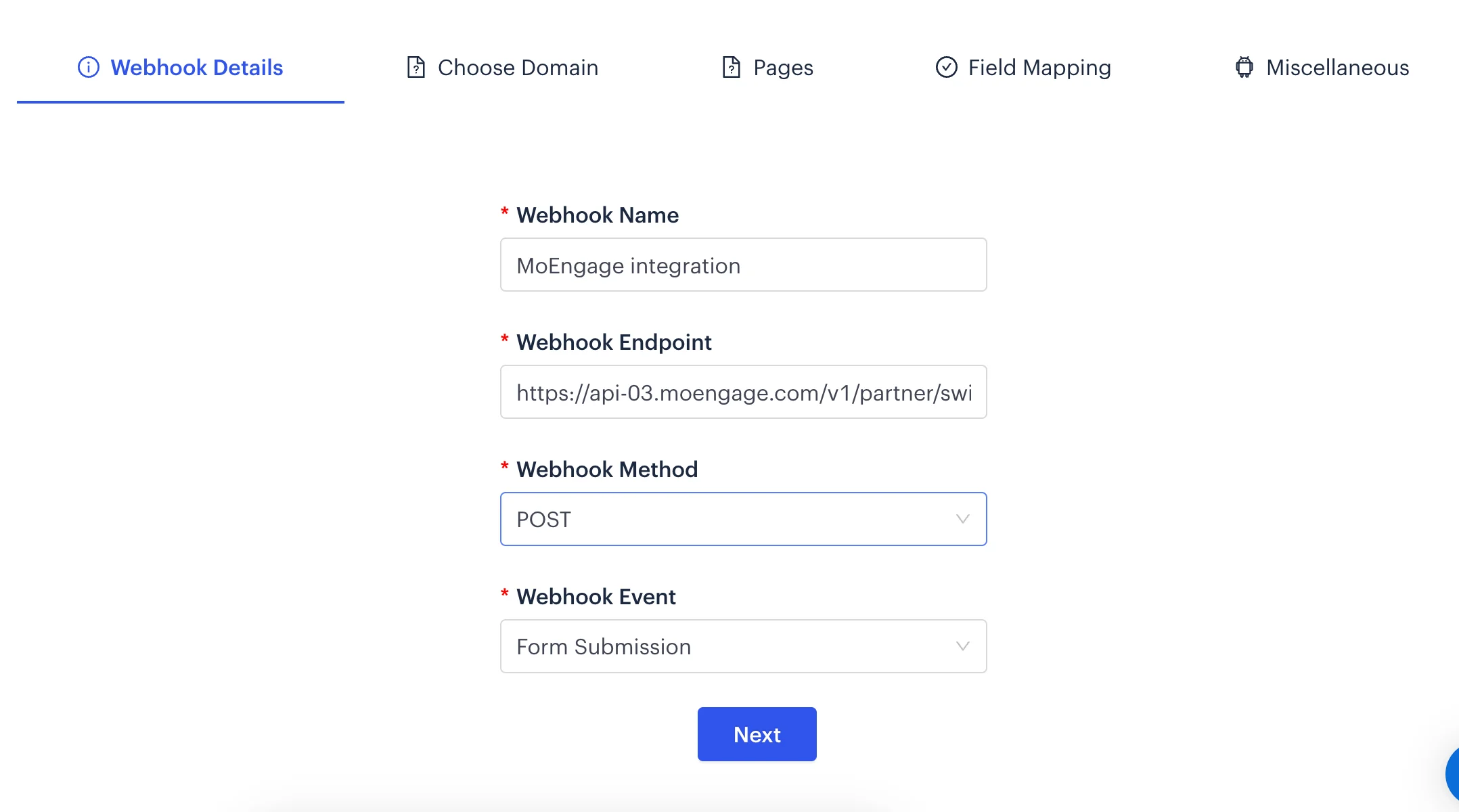
- Name: Enter
- Click Next.
- Select the pages tied to the selected domain.
- Map the Swipe Pages form fields to the appropriate webhook fields. Select the fields you want to send to MoEngage.
Mandatory fields:
customer_id: The unique identifier between MoEngage and Swipe Pages. It can be email, mobile number, or any other field captured in the form.- Standard MoEngage fields: MoEngage has fixed keys for some standard fields that must be mapped as-is for the user profile to update correctly. These fields are
first_name,last_name,email, andmobile_number. - Other form fields: Any other data captured in the form. You can map these to any keys, and they appear in MoEngage as event attributes.
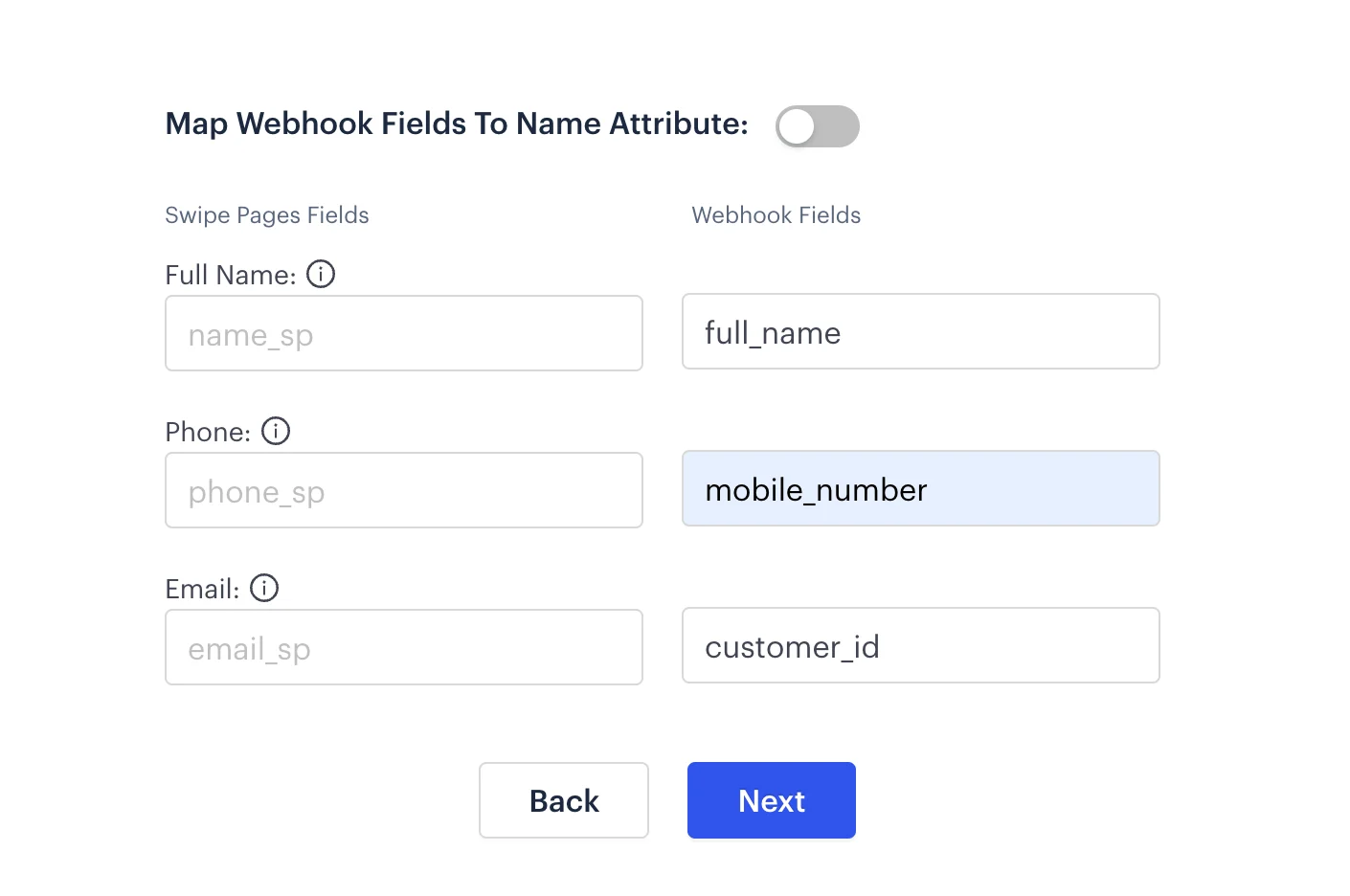
- Configure miscellaneous options:
- Webhook Format:
Raw. - HTTP headers:
- Use a Basic Auth Header Generator tool.
- Enter your Workspace ID as the username and your Data API Key as the password.
To find your credentials, on the MoEngage dashboard, navigate to Settings > Account > APIs.
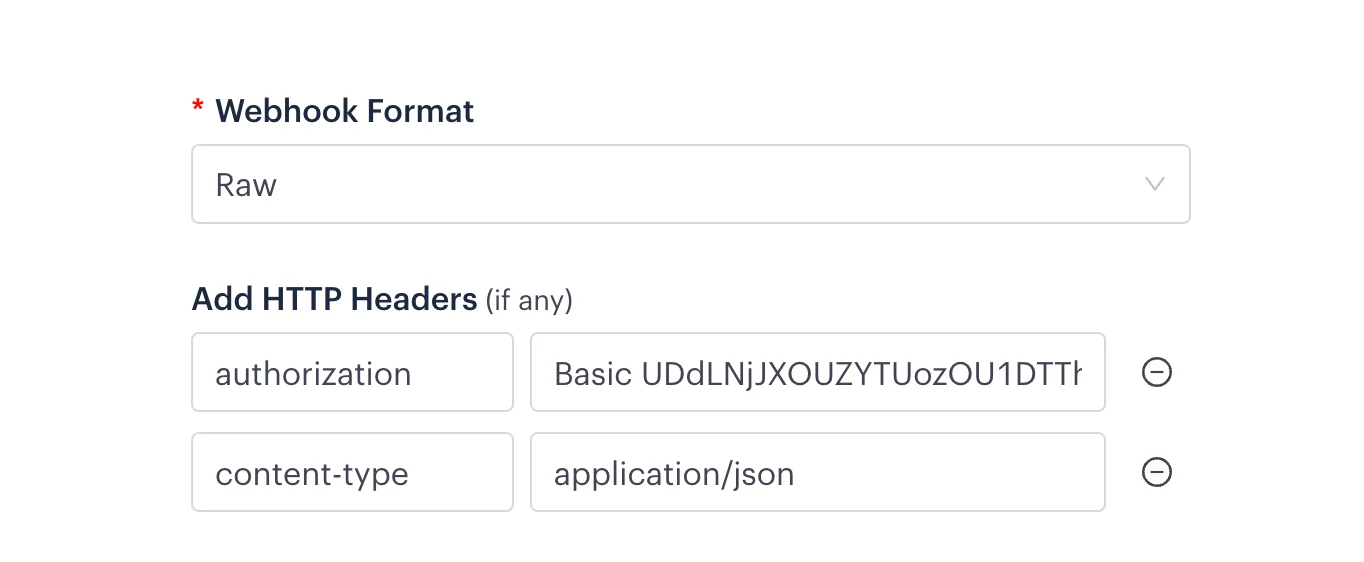
- Webhook Format:
- Click Create Webhook.
Step 3: Test your webhook
Add leads to your landing page, then click Run a test.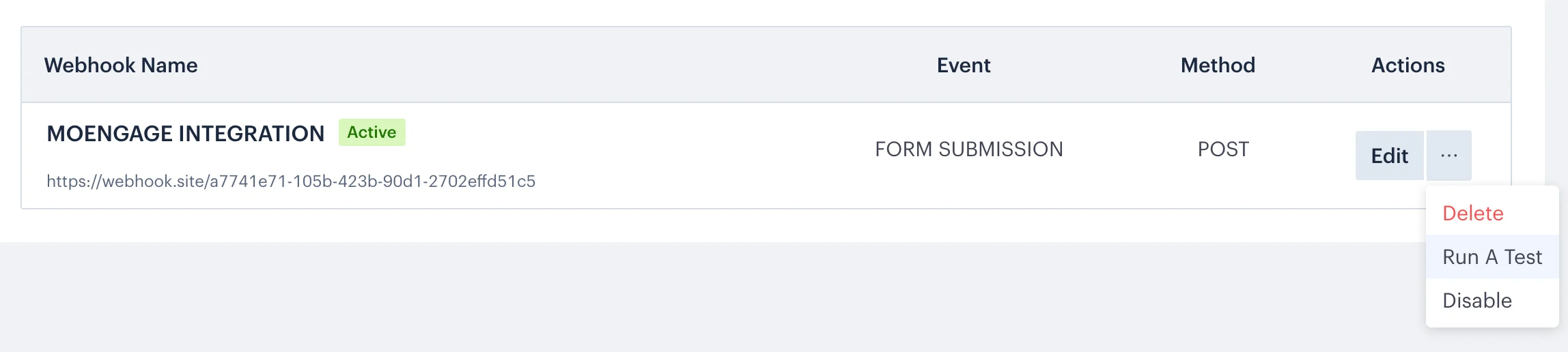
Step 4: View details on MoEngage
Your users and events should start showing up in MoEngage. You can validate them from the user profile. The event name appears asSwipePages Form filled. You can now run event-triggered campaigns to your users.
The test lead appears as a user in MoEngage with the
SwipePages Form filled event tracked.