Status
The following table describes all the statuses of a WhatsApp campaign.
For more information, refer to Campaign Approval Workflow.
View
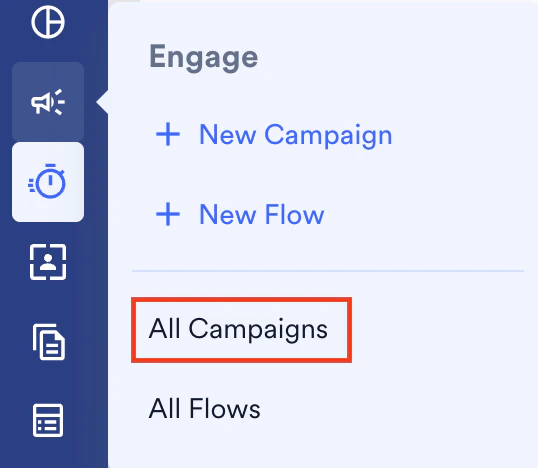
- On the sidebar menu in MoEngage, hover over the Engage menu item
 . The Engage menu appears.
 - Click All Campaigns.
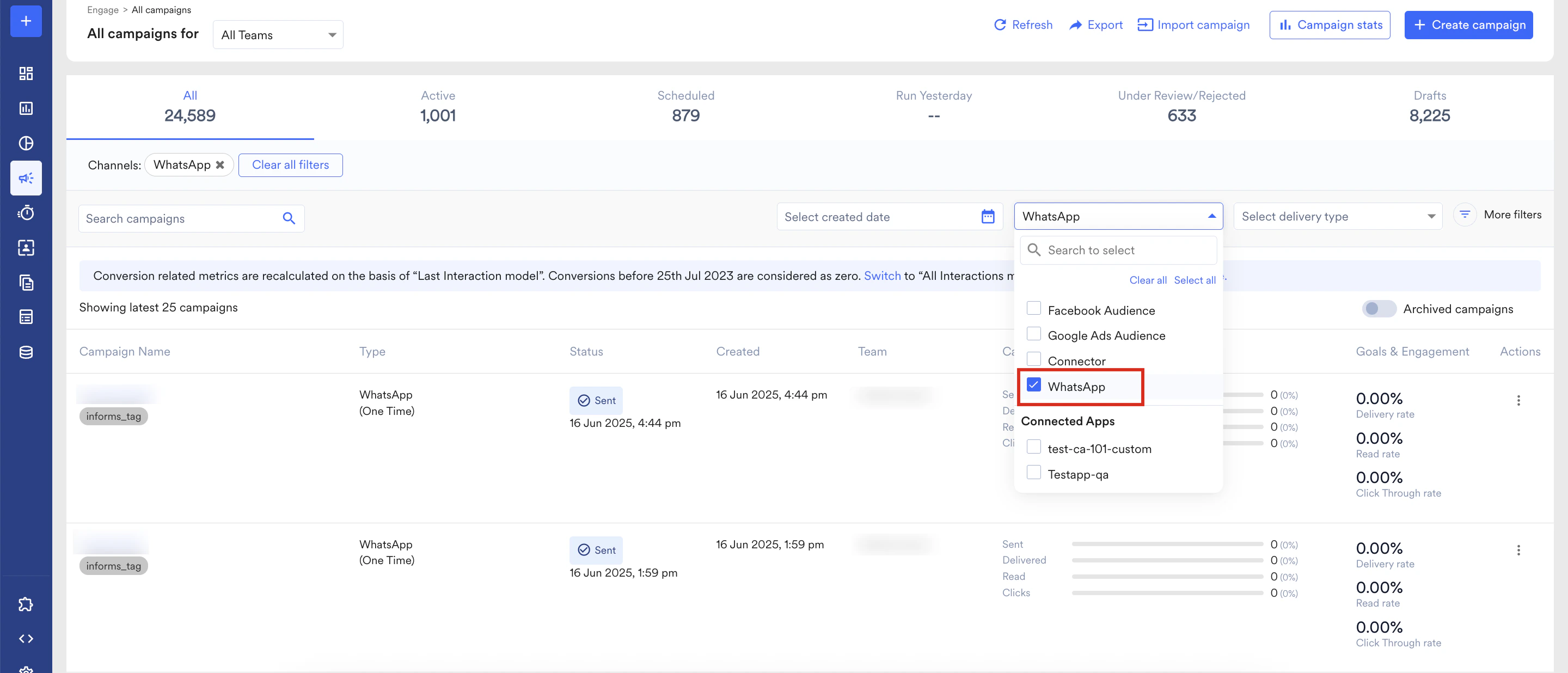
- Use the filters to search for the campaigns you want to view. MoEngage also provides you with a channel filter that lets you view all of the WhatsApp campaigns that you created.
-
- Click the ellipsis icon on the right-hand side and select View.
- Click the campaign row to open the Campaign Info page.
Duplicate
Duplicate the WhatsApp campaign using one of the following methods:- On the All campaigns page, click the ellipsis icon and click Duplicate.
- Click the campaign to open the Campaign Info page. On this page, click the
 button.
Delete
You can only delete campaigns that are in a draft state. To access these campaigns, you can click Draftsat the top of the All campaigns page.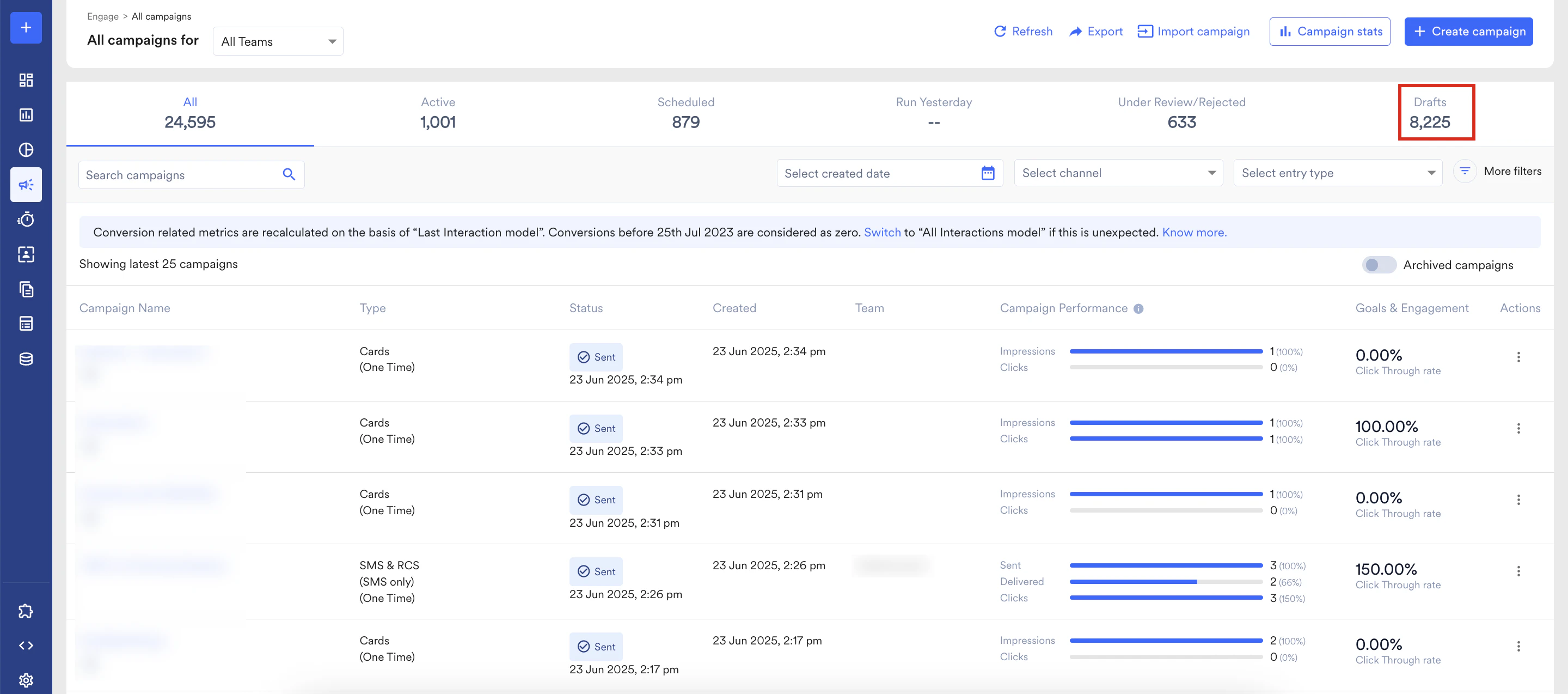
- On the All Campaignspage, click Drafts in the upper-right corner.
- Click the ellipsis icon in the Actions column for the campaign that you want to delete and then click Delete.
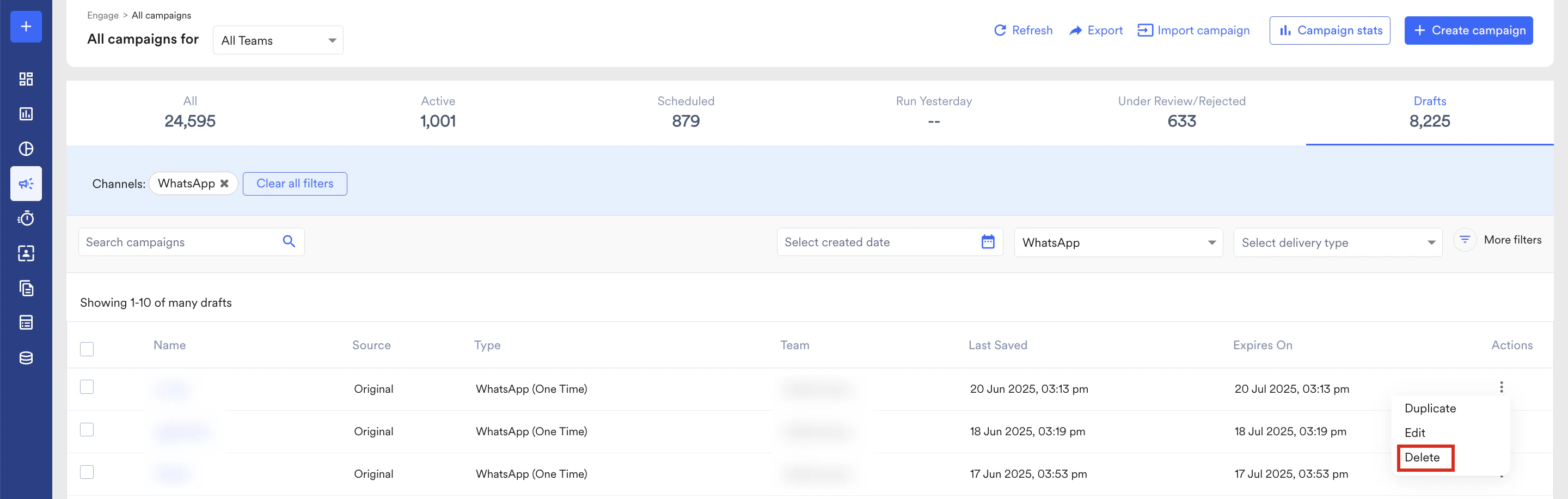
- On the Confirmation pop-up window, click Confirm.
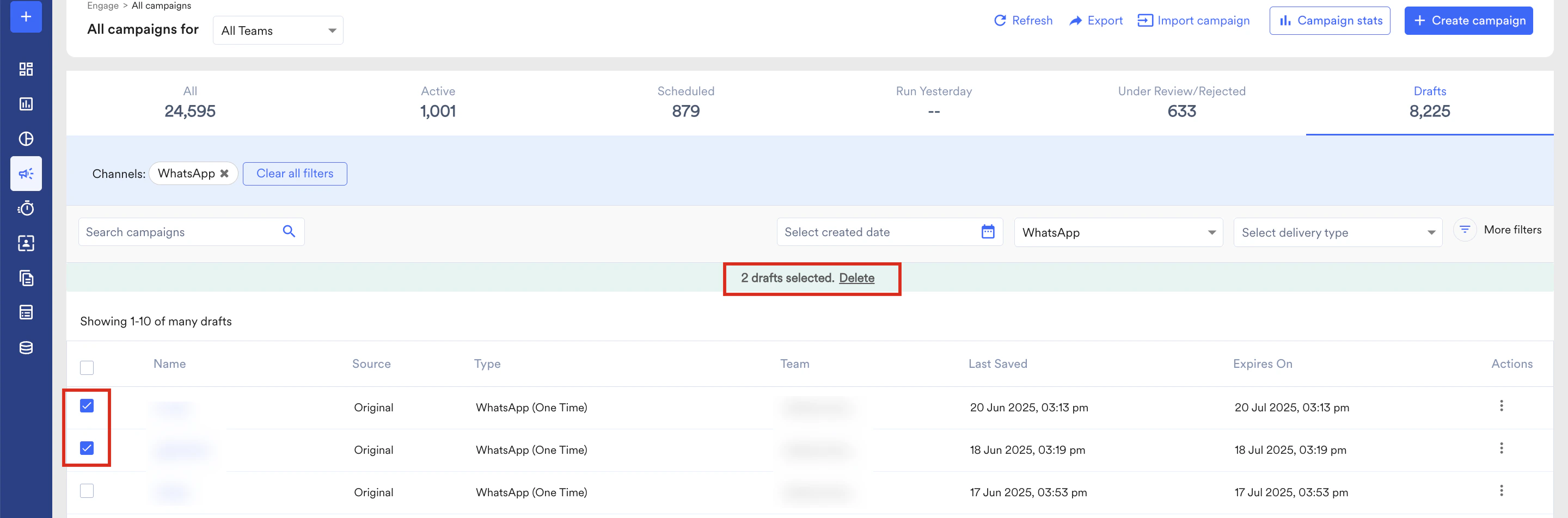
You can also select the check box for the campaign you want to delete. Click Delete at the top bar as shown below: