

Overview
MoEngage allows you to import users and events through tables in your Databricks databases.Types of Imports
MoEngage supports the following types of imports from your Databricks data warehouse:- Registered Users: Users who are already registered on MoEngage.
- Anonymous Users: Users who are not yet registered on MoEngage.
- Events (standard and user-defined): MoEngage can import standard events like campaign interaction events and your user-defined events.
Prepare the Data
MoEngage does not require a specific table schema for imports; all columns in the table can be skipped or mapped individually on the MoEngage dashboard. However, certain considerations must be addressed before configuring the imports.- User Imports
- Event Imports
When users configure periodic User Imports on MoEngage, MoEngage syncs data that has been changed since the last synchronization by referencing the
updated_at timestamp column. You can assign any name to this column as long as it accurately reflects the time of the data modification. If you’re assigning this column by a different name in your table, you can configure this mapping separately on the MoEngage dashboard.Required Access Permissions
MoEngage requiresREAD access to your database so that we can fetch data into MoEngage. You can grant the following permissions to an existing database user or create a new dedicated database user for MoEngage:
Query 1 (Required)
GRANT SELECT ON SCHEMA \catalog_name`.`schema_name` TO `[email protected]`;`
The query above grants the SELECT permission on all tables within the schema schema_name in the catalog catalog_name to the user with the email [email protected].
Granting the SELECT permission enables MoEngage to perform the following actions within the schema:
- Read data from all tables within the schema.
- Execute
SELECTqueries on any table. - View the contents of tables without the permission to modify the underlying data.
Query 2 (Required)
GRANT USE SCHEMA ON SCHEMA \catalog_name`.`schema_name` TO `[email protected]`;`
The query above grants the USE SCHEMA permission on all tables within the schema schema_name in the catalog catalog_name to the user with the email [email protected].
The USE SCHEMA permission grants a user the ability to:
- Access and view the schema’s metadata.
- Set the schema as their active working context (for example, using
USE SCHEMA). - View the schema in schema listings.
- Utilize the schema name when referring to fully-qualified object names.
USE SCHEMA: This permission is required to access and reference the specified schema.SELECT: This permission allows data to be read from tables within that schema.- Without the
USE SCHEMApermission, a user cannot access the schema, even if they haveSELECTpermissions on its tables. Query 2 explicitly grants theUSE SCHEMApermission to enable schema access.
<catalog_name>: The name of your catalog.<schema_name>: The name of your database/schema.<[email protected]>: The email ID of the user who created the token.
Import Datetype Attributes
Importing Datetype attributes requires additional steps. For more information, refer here.Set Up Imports from Databricks
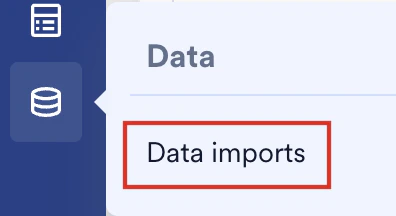
To set up Databricks Imports, perform the following steps:- On the sidebar menu in MoEngage, hover over the Data menu item

- Click Data imports.
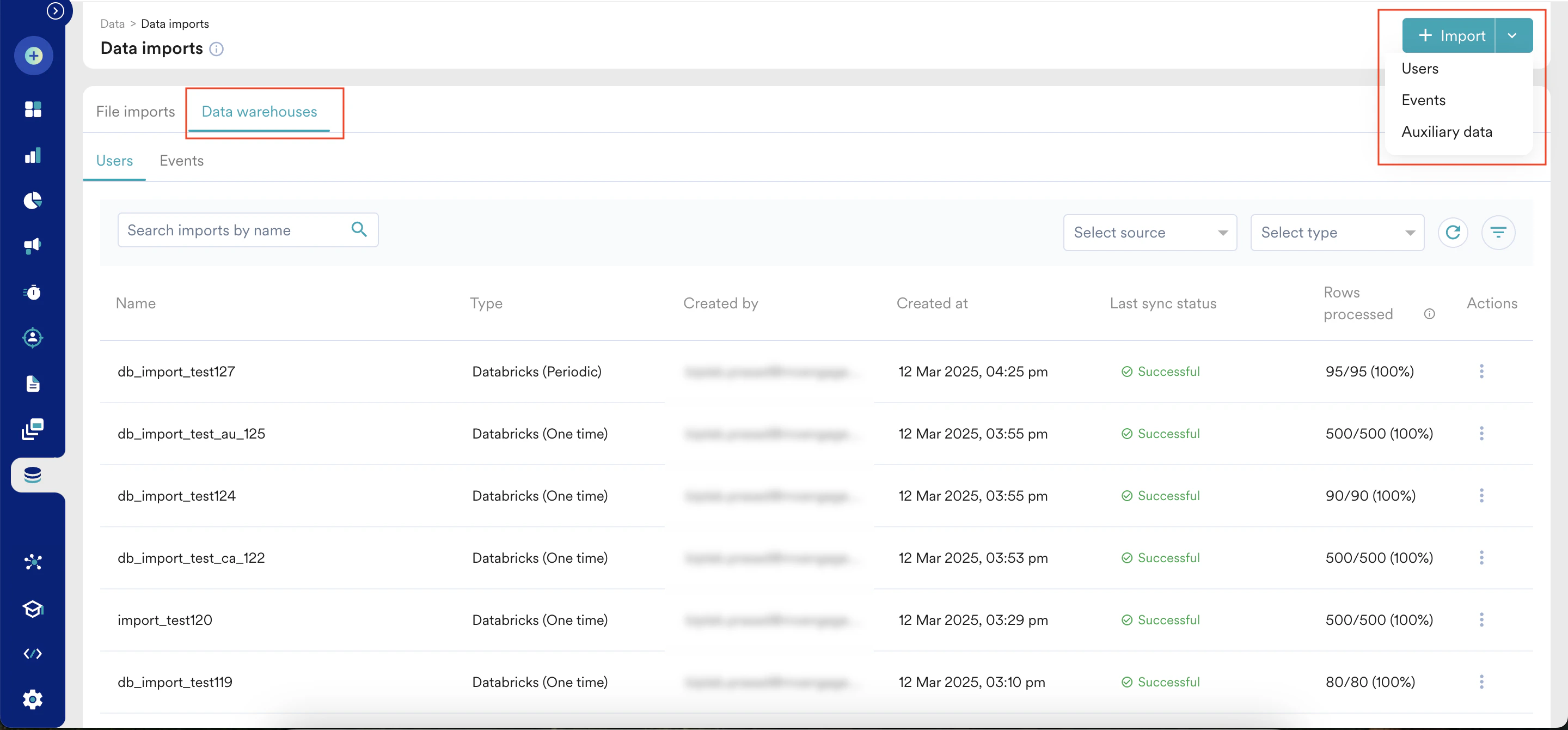
- On the Data imports page, click the Data warehouses tab.
- Click + Import in the upper-right corner and select Users or Events to create a new import.
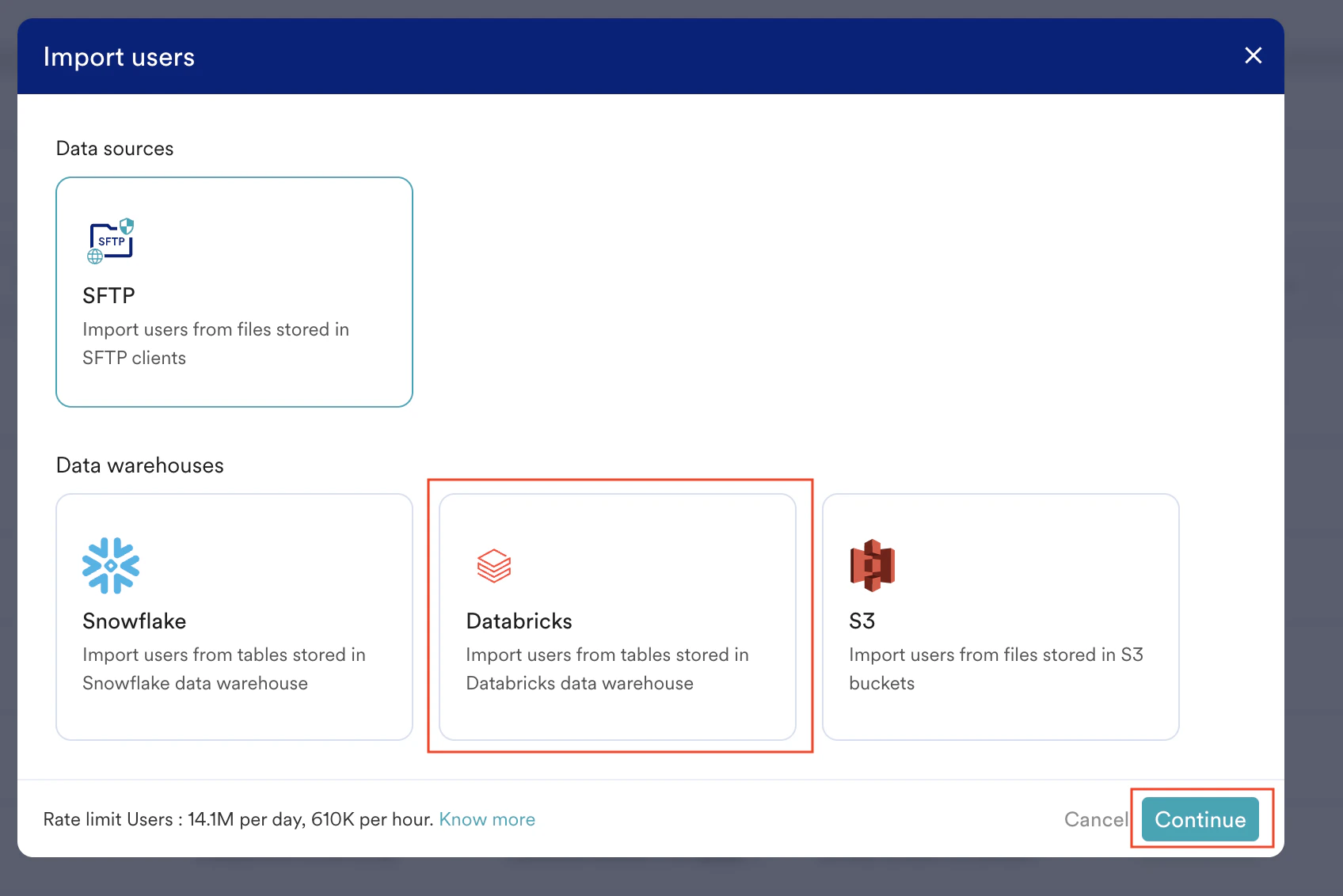
- Click the Databricks tile.
- Click Continue.
Step 1: Select Your Databricks Connection and Table Source
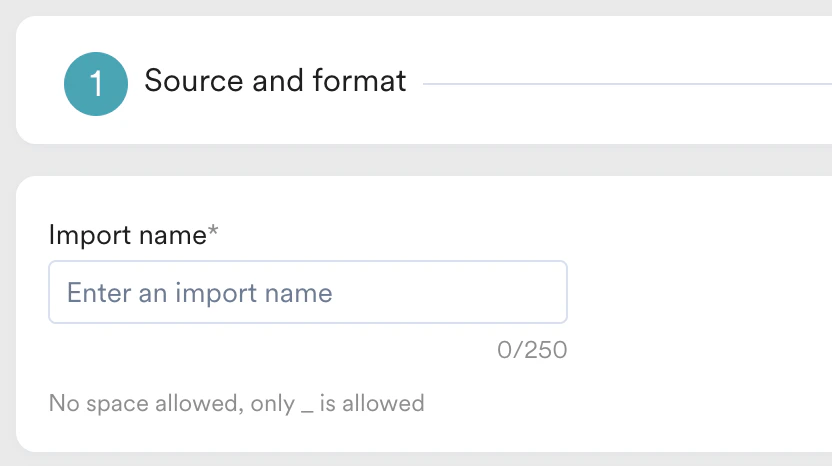
Import Name
- User Imports
- Events Imports
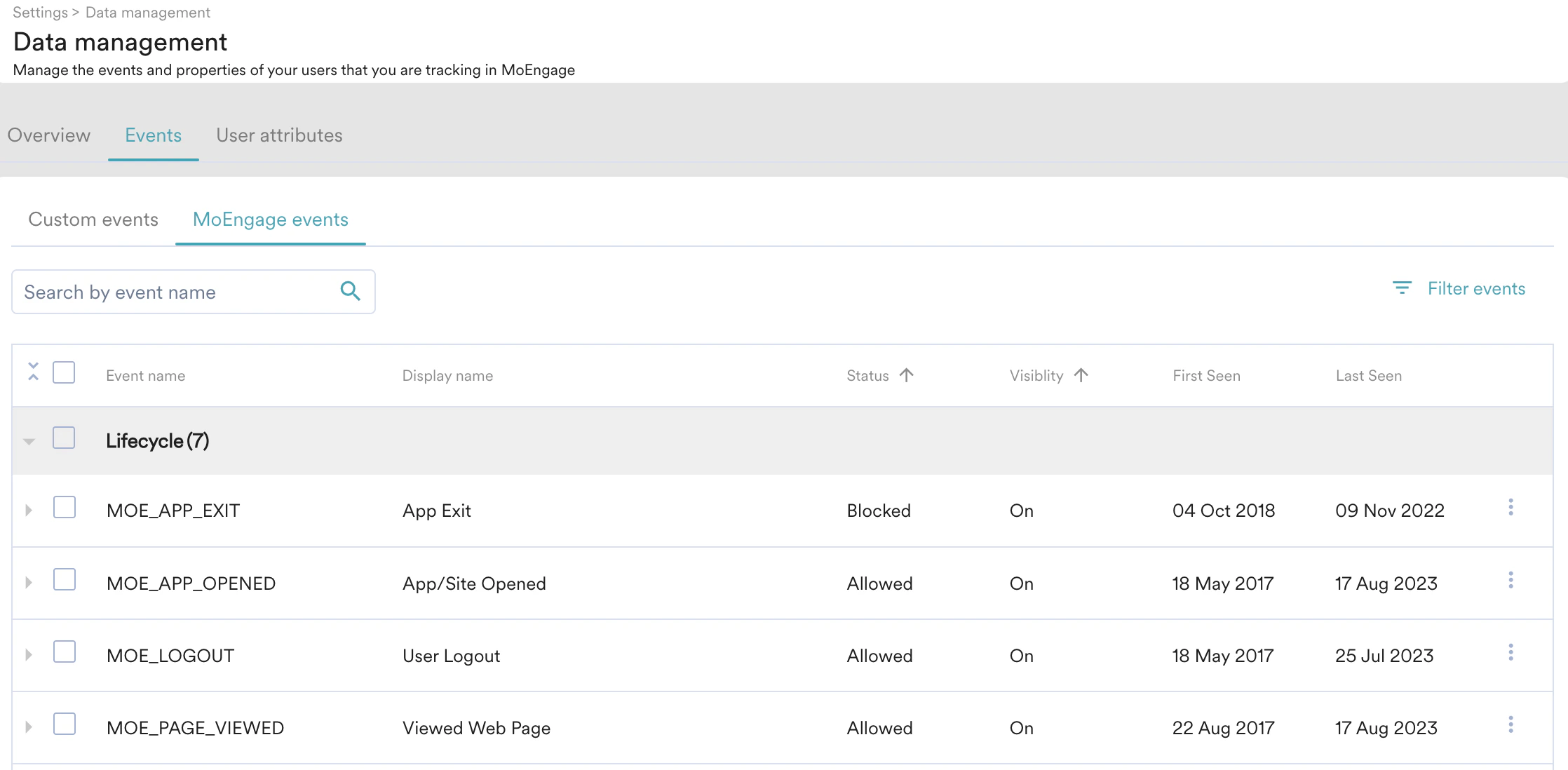
You can now select whether to import Registered users or Anonymous users. You can also choose to import both together:.png?fit=max&auto=format&n=ug1DZn3QSotOzs8r&q=85&s=05df7939a46afdf1d10559814be4b341)
.png?fit=max&auto=format&n=ug1DZn3QSotOzs8r&q=85&s=17b8c70bb9142590ba48c4a4176cb12c)
Import Source
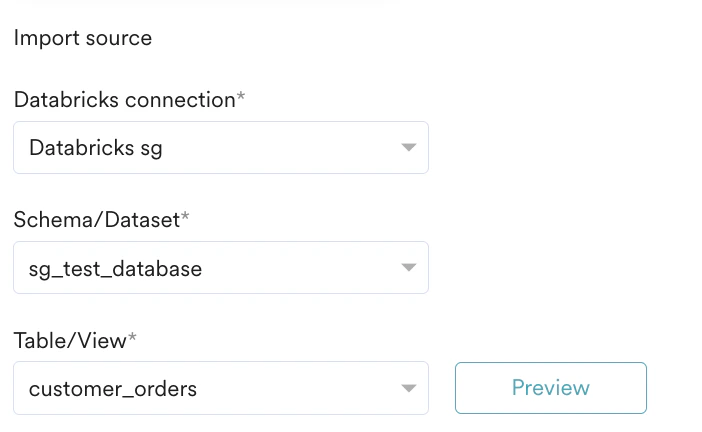
In this first step, Source and format, you must specify MoEngage, which Databricks connection to use, and the table from which to import. To get started, perform the following steps:- In the Databricks connection list, select a connection to use for this Import. If you have not already created a Databricks connection, click + Add connection at the end of the Databricks connection list, and you will be redirected to the App Marketplace to set it up. You can learn more about connecting your Databricks warehouse to MoEngage here.
- After you have selected your Databricks connection, the Schema/Dataset and Table/View lists are displayed.
- In the Schema/Dataset, select the schema/dataset. Note: Ensure that MoEngage has been granted the necessary permissions detailed in the Prerequisites if your schemas are loading incorrectly.
- In the Table/View list, select table/view to import data from.
Event Imports
In addition to the above steps, MoEngage provides additional support for tables containing multiple events. If your table contains multiple events, you must first Preview the table and then select the Table contains multiple events check box.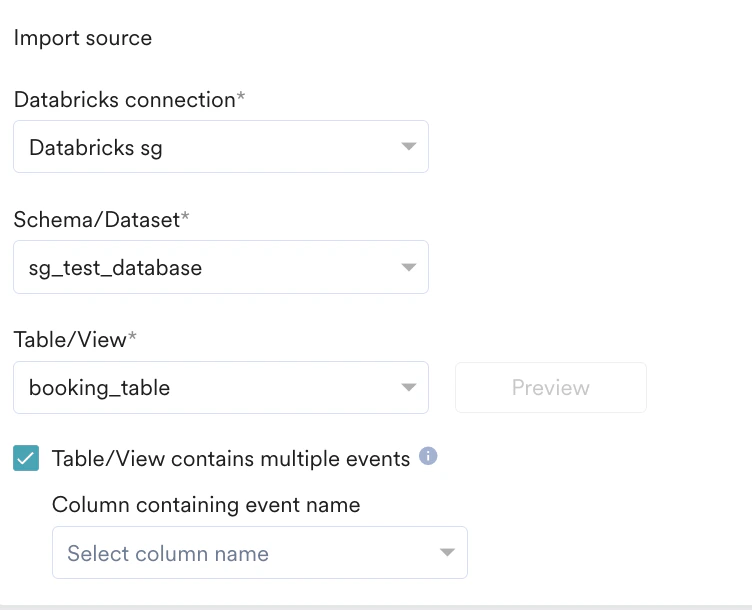
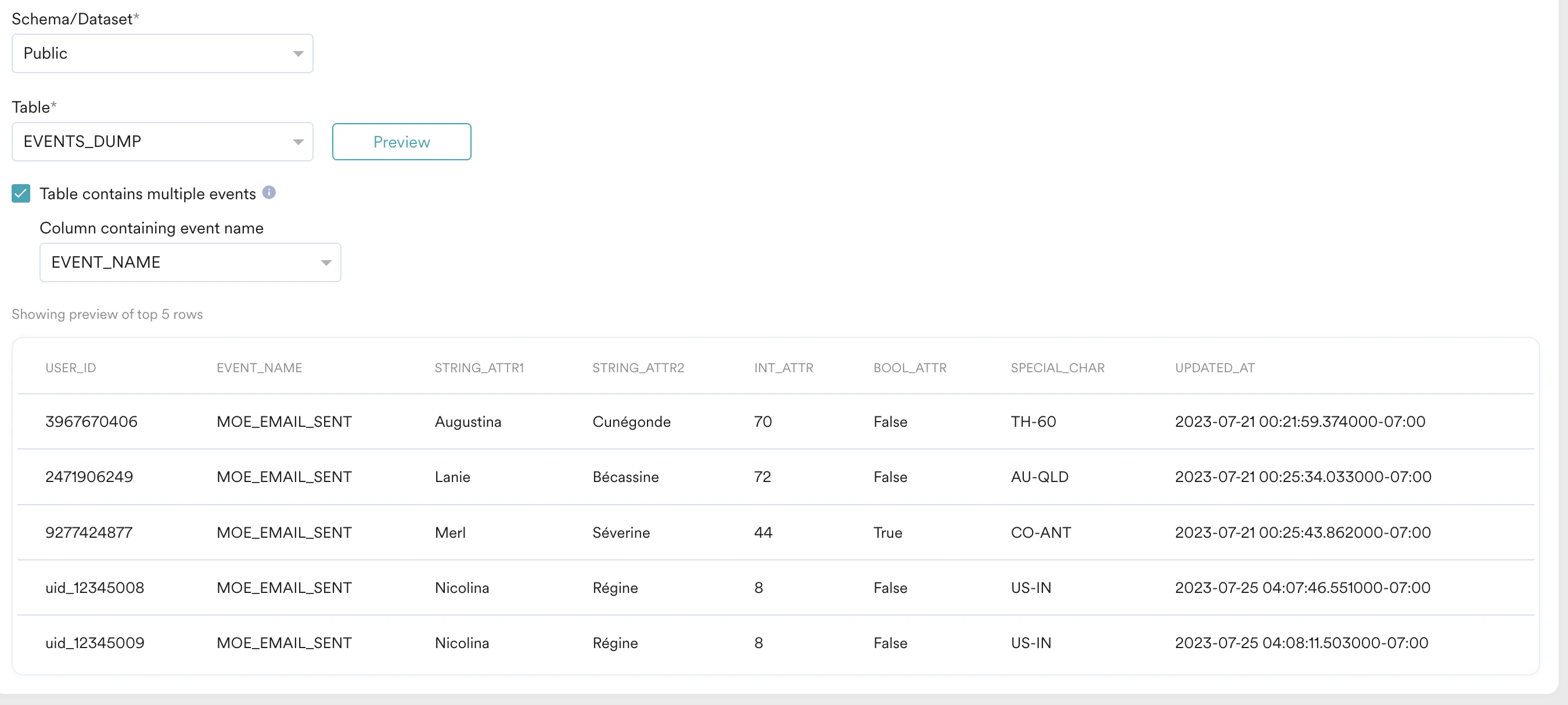
Step 2: Map Your Columns to MoEngage Attributes
In this step, you need to map the columns of your table to the attributes present in MoEngage. All your columns are shown one below the other: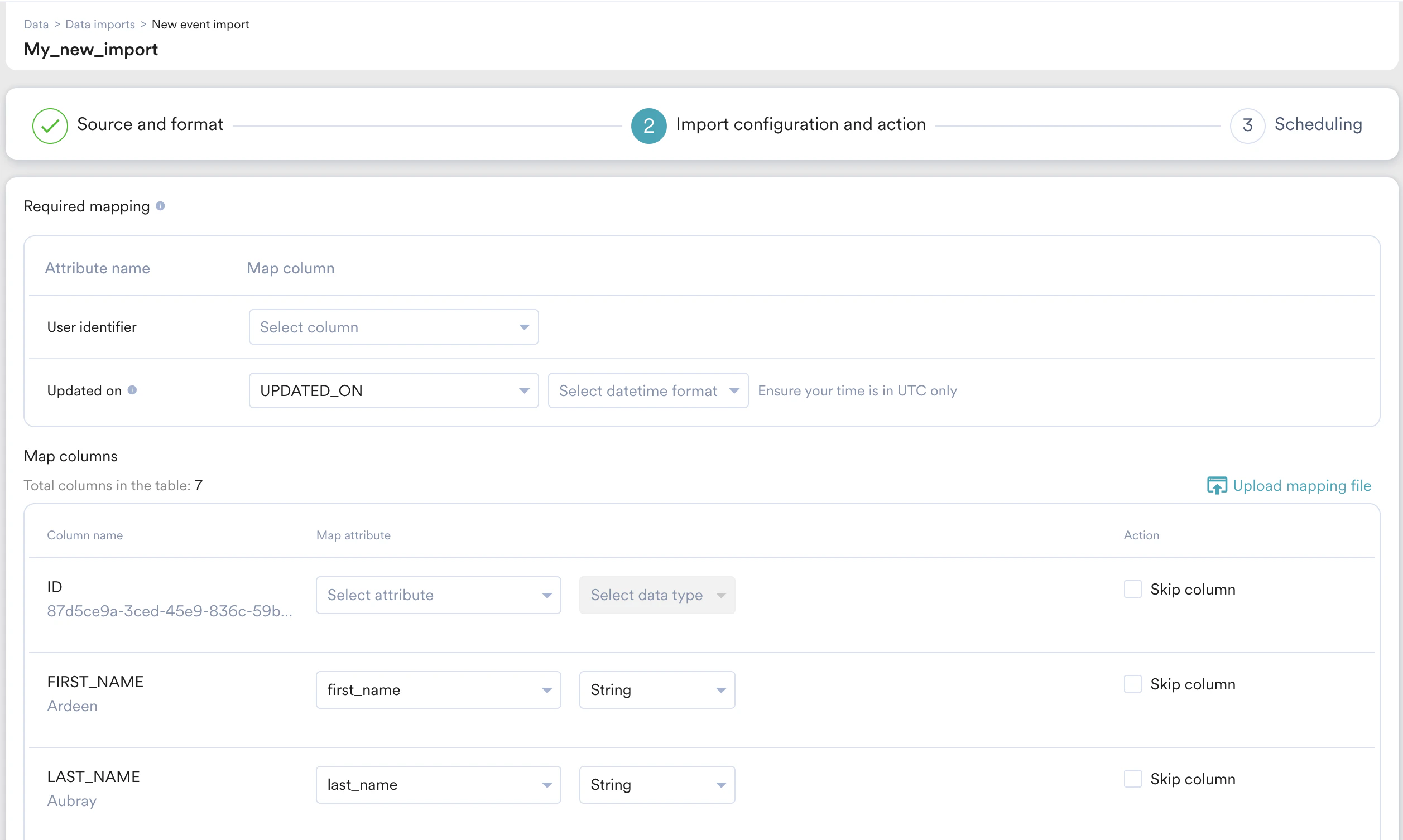
- Column name: This specifies the column name to be mapped. Below the column name, MoEngage also displays a sample value (picked from the first row of the fetched table in the previous step) for your reference.
- Map attribute: This specifies the MoEngage attribute you want to map the table column to. You can also choose to create a new attribute. Some attributes support ingestion from multiple data types, so you need to pick the column’s data type as well. For the datetime columns, you must pick the format. For more information, refer here.
- Action: You can optionally choose to skip the column. The skipped column will not be imported.
User Imports
User Imports
- Registered Users
- Anonymous Users
- All Users
Event Imports
Event Imports
| Mapping | Description |
|---|---|
| User ID | This column matches MoEngage user IDs to your events. |
| Event time | Map the column that contains the timestamp (date+time) of when the event occurred. MoEngage uses this column to sync new events. Ensure that this timestamp (date+time) is in the UTC time zone. The column type must be TIMESTAMP. The Event Time of the imported event will be converted to the timezone chosen in your MoEngage dashboard settings.  For the complete list of supported datetime formats, refer to this section. For the complete list of supported datetime formats, refer to this section. |
| Updated on | MoEngage uses this column to determine which rows were added or updated since the last sync. Use this column to import backdated events or manage delays in upstream pipelines. Ensure that this timestamp (date and time) uses the UTC time zone. If you do not have this column, select Use same as Event time. The column type must be TIMESTAMP. For the complete list of supported datetime formats, refer to this section. |
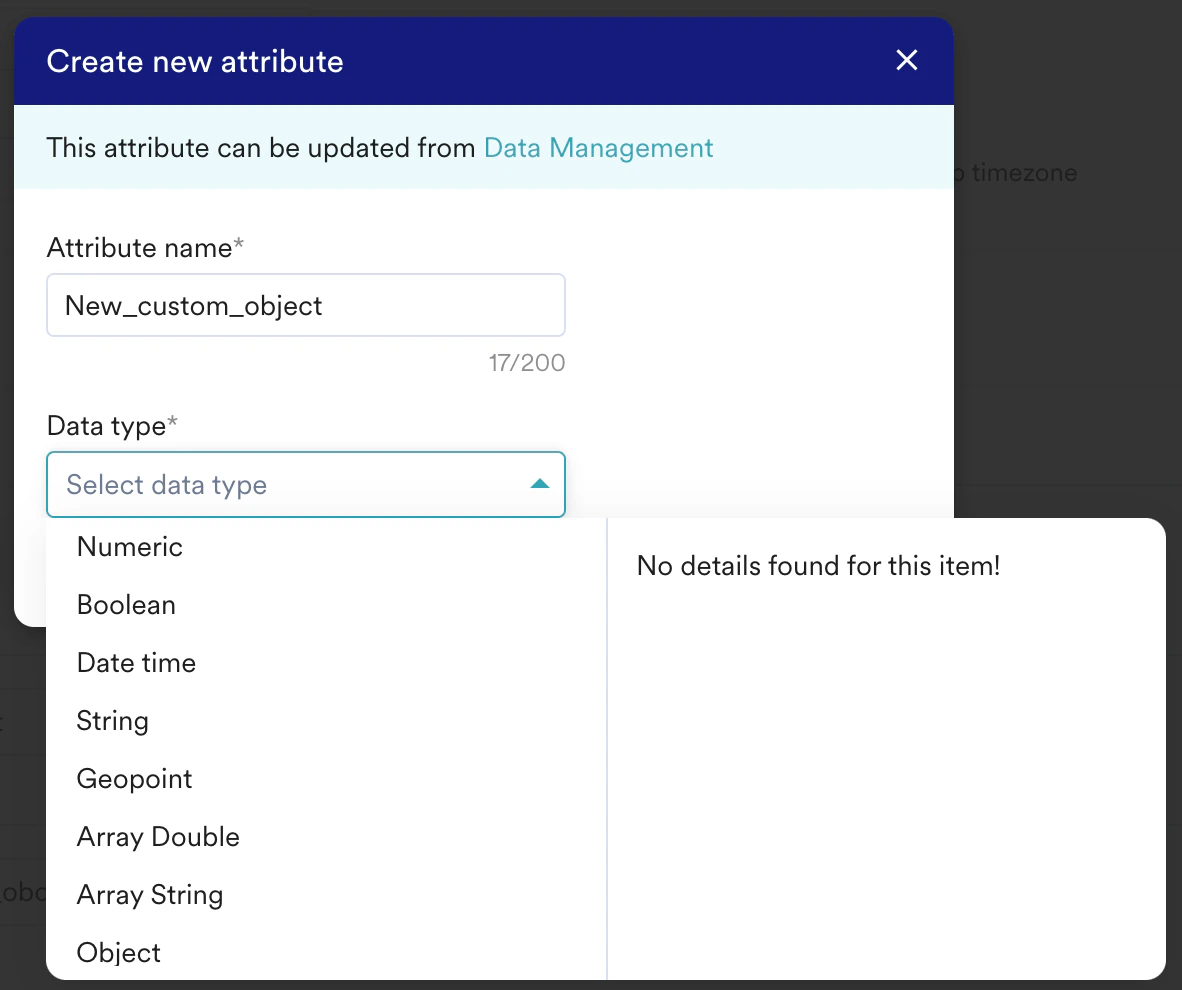
- Click + Create attribute available in the Select attribute list. The Create new attribute dialog box is displayed.
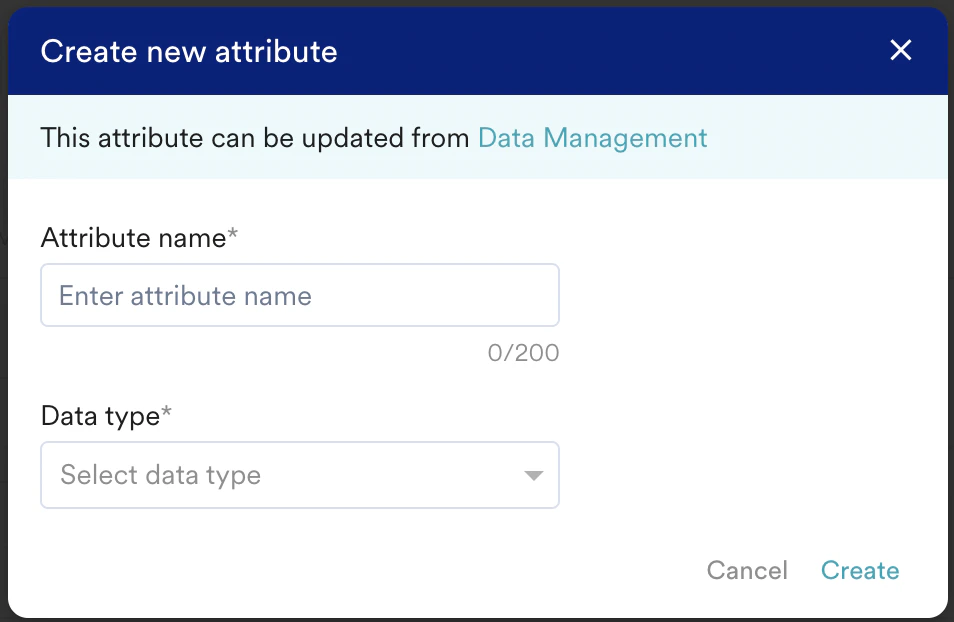
- In the Attribute name box, type a name for your attribute.
- In the Data type list, select a data type. You can edit this and existing attributes from the Data Management page.
The newly created user attributes will not appear on the Data Management page until the initial import is successful.
Manifest Files
Optionally, you can choose to auto-map these columns by uploading a Manifest file. To upload a manifest file:- Click the Upload mapping file in the upper-right of the mapping table.
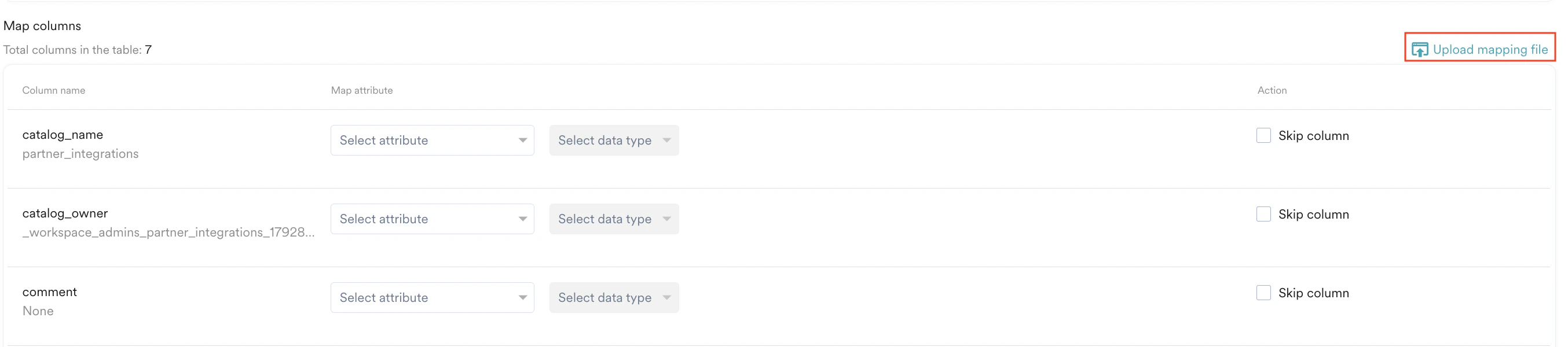
- On the Upload mapping dialog box, upload your manifest file.
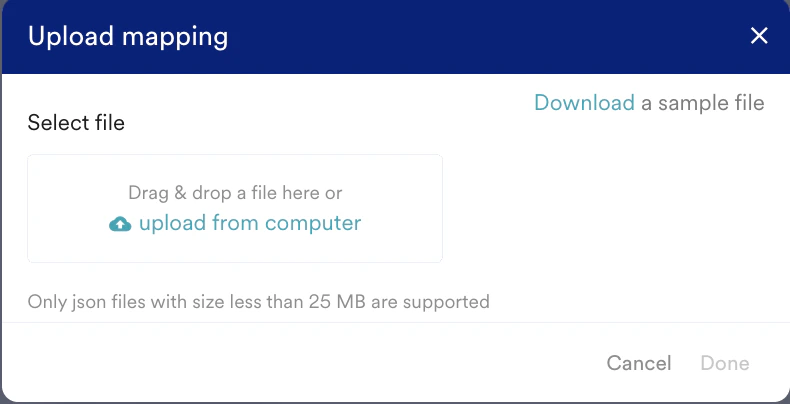
- Click Done.
If a column in the manifest file is mapped to a non-existent MoEngage attribute, the mapping will be blank, and you will need to manually create a new attribute from the UI and then map it.
Support for Object Data Type
The Object data type is supported in Databricks as well.Store Compatible JSON Data in Databricks
To store JSON data inside Databricks, you must change the data type of the column to VARIANT type. For more information, refer here. The JSON stored inside Databricks should be a valid JSON; otherwise, the values will not be written as JSON. Here is an example JSON column:Import JSON Data via Databricks
The JSON data can be imported into Databricks by associating existing attributes in the MoEngage platform that have been designated as Object type with columns in Databricks.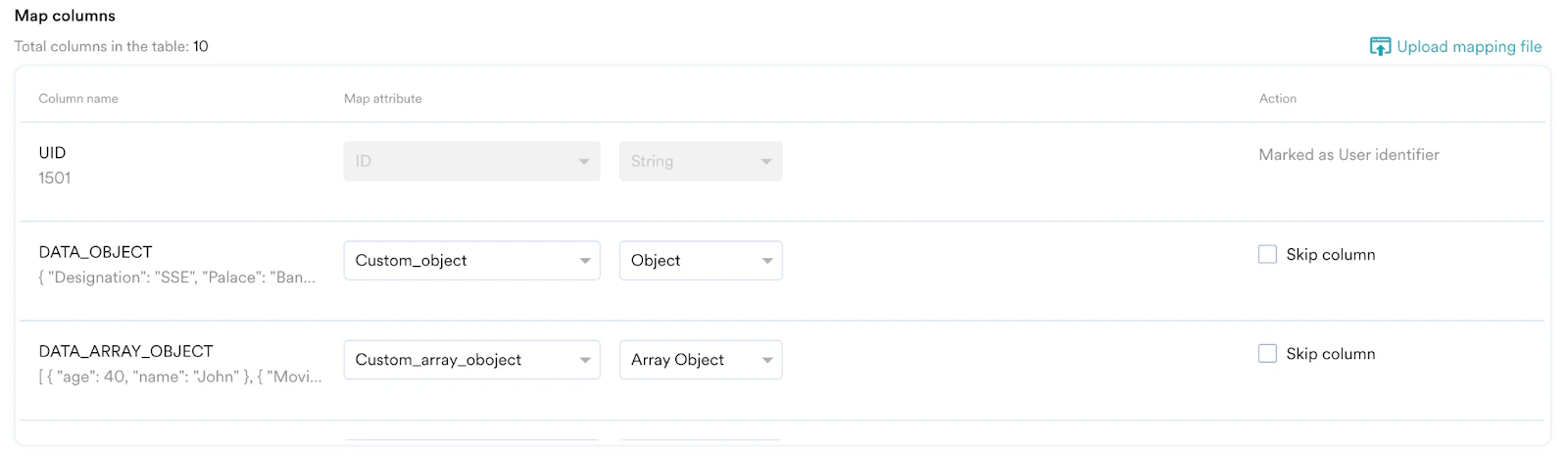
MoEngage does not support mapping with nested attributes. Only top-level attributes are available to map.
Save Users as a Segment
When importing users, you can include them in a custom segment in MoEngage. The imported users are consistently added to this segment with each sync, and no users will be removed. To save imported users as a custom segment, perform the following steps:- Turn the Save as a custom segment toggle on to save your imported users in a custom segment and send tailored campaigns to the same.
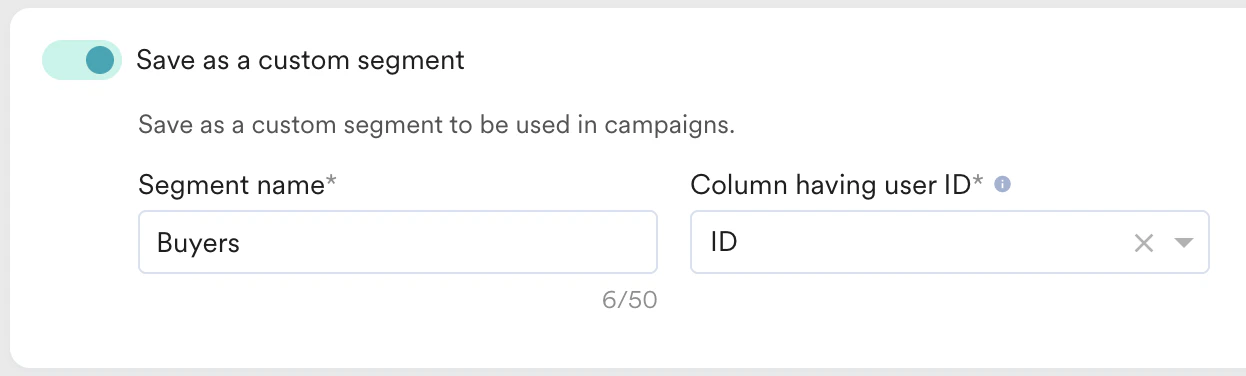
- In the Segment name box, type a name for your segment.
- In the Column having user ID list, select the Identifier column in your table.
Import Behaviour
In the case of User Imports, you can also choose to update existing users only. This is helpful when you want to bulk update users’ attributes in MoEngage without creating any new users. To enable this, select the Update existing users only check box under Import Behaviour: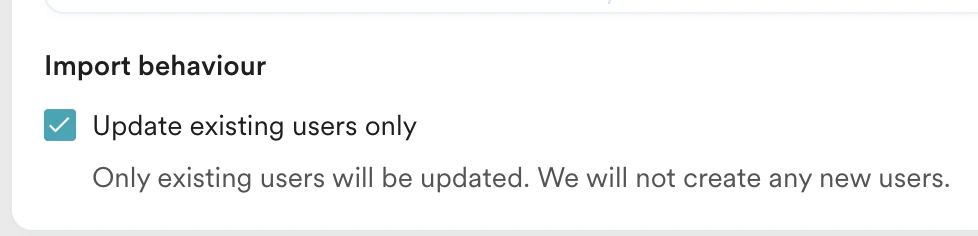
Send Import Notifications
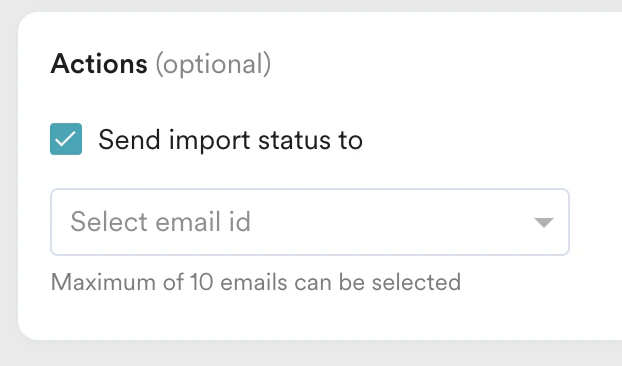
You can choose to be notified about the status of your imports via email. To do so:- Select the Send import status to check box.
- In the Select email id list, select the email ID. You can select up to 10 emails to send the status emails to.
- An import was created
- An import was successful
- An import failed
Step 3: Select the Import Frequency
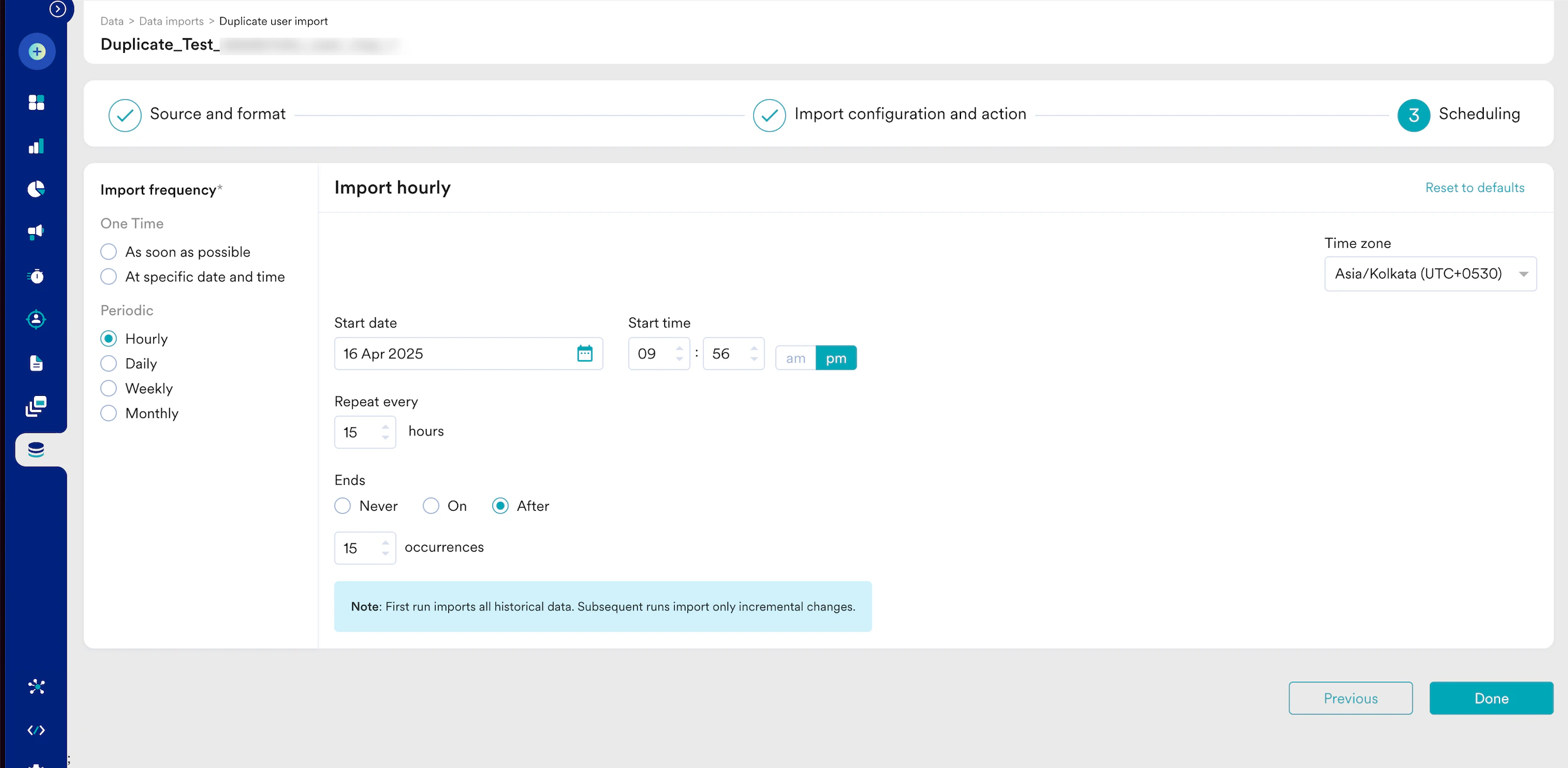
- One-Time: You can run the import as soon as possible or at a later date and time (scheduled). All existing rows that match the import criteria are imported.
- Periodic: You can run your imports hourly, daily, weekly, or monthly, or with intervals and advanced configurations.
Duplicate Imports
A duplicate import is considered when the:- Users/ Events import types are the same.
- Event name/ Registered/ Anonymous/ All users import subtypes are the same.
- Event name/ Registered/Anonymous/All users import types with the same Databricks connection.
- Event name/ Registered/Anonymous/All users import types with the Schema/Dataset and Table/View are the same.
Import Failure Policy
In the event of a connection failure, a recurring Databricks import will retry up to 10 times. If all retries fail, the import is marked FAILED. The following table outlines the behavior and required action when a recurring Databricks import fails due to connection issues (for example, credentials, network, or warehouse unavailability).Restart a Failed Import
Any import that has FAILED requires your manual intervention:- You must investigate and resolve the underlying issue on your Databricks side (for example, update credentials, check permissions, or ensure warehouse availability).
- After resolving the issue, you must manually duplicate the import from the MoEngage UI to restart it.
- The first successful execution of any new recurring import is always a historical import (it fetches all the data from the configured table/view).
- Duplicating a failed import initiates a new historical import. If the original import previously succeeded, this duplication may result in redundant data. To control data flow effectively, MoEngage recommends using views.
FAQ
Does MoEngage support Databricks Unity Catalog connections, and how does the setup differ?
Does MoEngage support Databricks Unity Catalog connections, and how does the setup differ?
Answer: Yes, MoEngage’s Databricks import is built upon the Databricks Unity Catalog. Therefore, the setup process is the same as a standard Databricks connection.
Are there specific version requirements for Databricks or Databricks SQL Warehouses for MoEngage integration?
Are there specific version requirements for Databricks or Databricks SQL Warehouses for MoEngage integration?
Answer: No, there are no specific version requirements for compatibility.
What should the Databricks column data type be for JSON data to import successfully as an Object Data Type into MoEngage?
What should the Databricks column data type be for JSON data to import successfully as an Object Data Type into MoEngage?
Answer: Databricks requires the column type to be
VARIANT during table creation.How does MoEngage handle Databricks TIMESTAMP columns containing local timezones instead of UTC during import?
How does MoEngage handle Databricks TIMESTAMP columns containing local timezones instead of UTC during import?
Answer: MoEngage interprets stored time as UTC, as Databricks lacks a local time concept. Databricks advises storing timestamps in UTC.