

Encrypted Storage
By default, all the data stored by the SDK on the device is inside the application sandbox. This prevents other applications from accessing the data(both read and write). Though due to compliance standards or any other use cases, you might want additionally encrypt the data stored on the SDK. To enable this encryption you need to- Add the below-listed dependencies in your app/build.gradle file.
- Call the configureStorageSecurity() to enable the encryption on the MoEngage.Builder object while initializing the SDK
SDK Installation
Thecom.moengage:security dependency is shared across Encrypted Storage, Encrypted Network Communication, and Network Request Authorization on this page. If you have already added it for another feature, skip ahead to the configuration step.
Installing using BOM
Integration using BOM is the recommended approach; see Install Using BOM to configure it if not done already. Once you have configured the BOM, add the dependency in the app/build.gradle file as shown below.Enabling Encryption
You can enable the storage encryption using the configureStorageSecurity() API in the MoEngage.Builder while initializing the SDK.- If storage encryption is enabled in the initialization without adding the above-mentioned dependencies, SDK wouldn’t function i.e. no events/user attributes would be tracked, push notifications would not be shown, etc.
- Once storage encryption is enabled and a build is released to production(Play Store or other equivalent stores), you should not disable encryption. Disabling the encryption after the build is released will result in a new user being created in the MoEngage system when the user updates the application.
Encrypted Network Communication
By default, we use HTTPS protocol for all requests made from the SDK; HTTPS encrypts the requests by default. MoEngage SDK optionally adds another layer of encryption apart from the encryption done by HTTPS.To enable this additional encryption, you need to
- Add the below-listed dependencies in yourapp/build.gradle file.
- Call the configureNetworkRequest() on the MoEngage.Builder object while initializing the SDK
SDK Installation
If you have enabled Storage encryption, you can skip the installation step and jump to the Enabling Encryption step.Installing using BOM
Integration using BOM is the recommended way of integration, refer to the Install Using BOM document to configure BOM if not done already. Once you have configured the BOM add the dependency in the app/build.gradle file as shown belowEnabling Encryption
You can enable the network encryption using the configureNetworkRequest() API in the MoEngage.Builder while initializing the SDK.Fetch the keys
The key is available on the dashboard. Go to Settings -> APIs -> API Keys and copy the SDK encryption key for the Test and Live environments (Note: Test and Live environments have separate keys and only the key of the current selected environment will be accessible).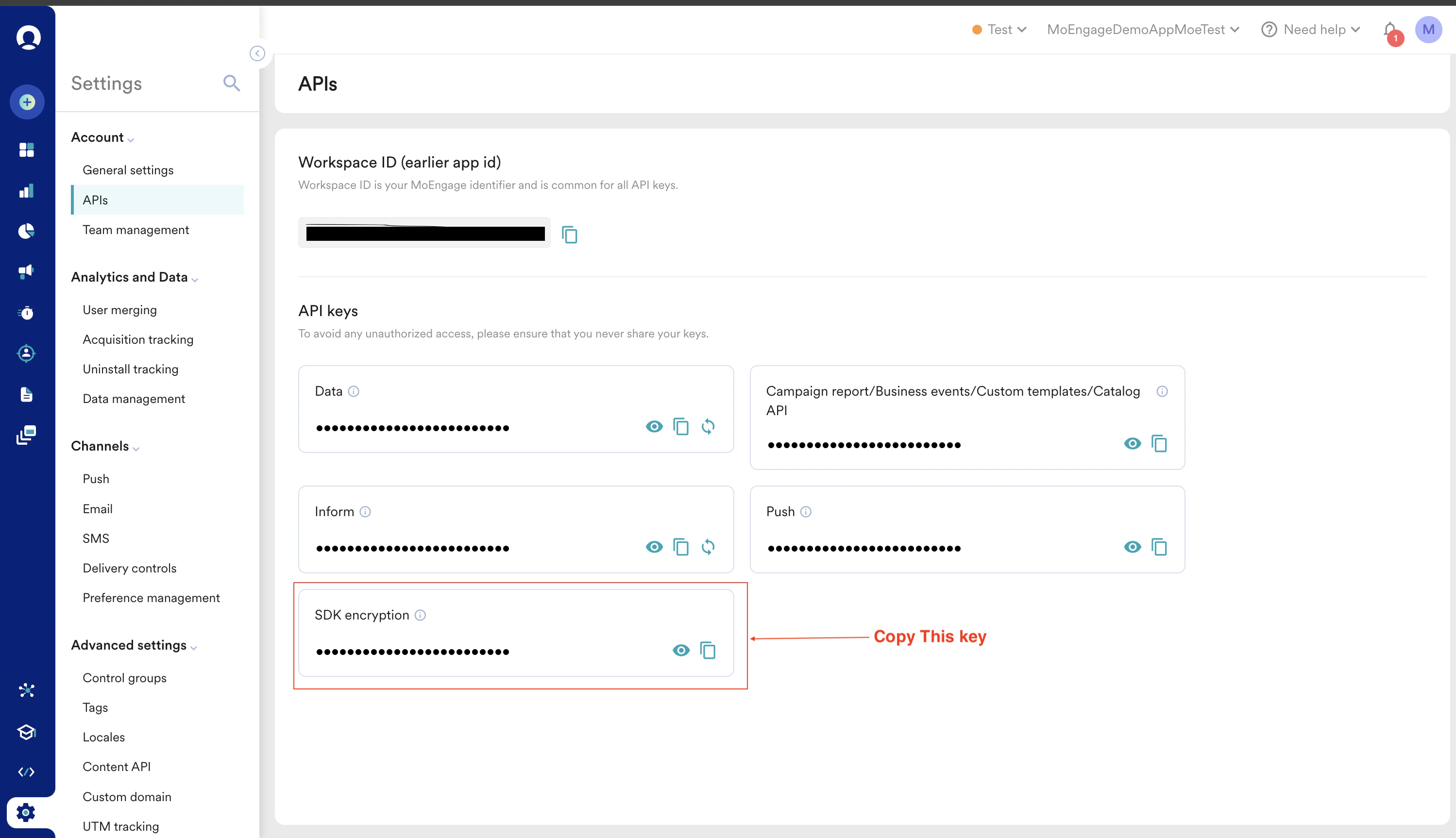
Configure Network Request
Network Request Authorization
To enable the network request authorization you need to- Add the below-listed dependencies in yourapp/build.gradle file.
- Call the configureNetworkRequest() to enable the authorization on the MoEngage.Builder object while initializing the SDK
SDK Installation
If you have enabled Storage encryption or Encrypted Network Communication, you can skip the installation step and jump to the Enabling Authorization step.Installing using BOM
Integration using BOM is the recommended way of integration, refer to the Install Using BOM document to configure BOM if not done already. Once you have configured the BOM add the dependency in the app/build.gradle file as shown belowEnabling Authorization
You can enable the network authorization using the configureNetworkRequest() API in the MoEngage.Builder while initializing the SDK.Adding the above dependency and enabling the flag isn’t enough for this feature to work; there is some additional configuration required on our side to enable this feature completely. In case you want to use this feature, reach out to your account manager or the MoEngage Support team.