

NoteEffective January 15, 2026, MoEngage will deprecate the legacy APNs Provider Certificate (.pem) method. After this date, existing certificates cannot be renewed, and all new uploads must use the APNs Authentication Key (.p8).MoEngage strongly recommends migrating to the .p8 Auth Key as soon as possible to ensure uninterrupted service. This upgrade offers the following benefits:
- Permanent validity: Auth Keys never expire, eliminating the need for annual certificate renewals.
- Faster delivery: Stateless token-based authentication provides faster communication than certificate-based methods.
- Modern feature support: The new standard supports exclusive iOS capabilities, such as Live Activities.
.pem format and uploaded to our dashboard. Follow the steps below to do the same:
Creating APNS Certificate
Generating the Certificate Signing Request (CSR)
First Open Keychain Access on your Mac and choose the menu option Request a Certificate from a Certificate Authority as shown below: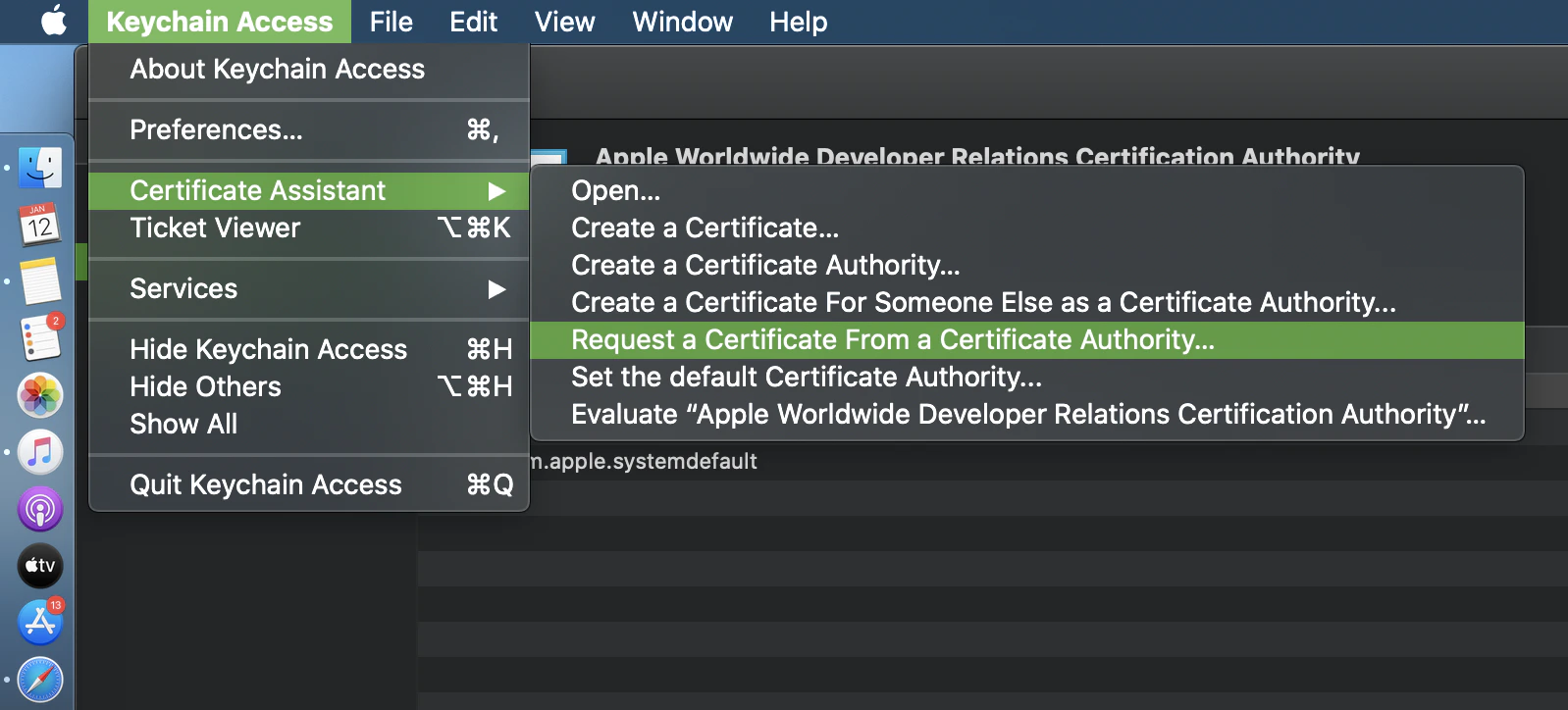
Saved to disk and click Continue. Save the file as “.certSigningRequest”:
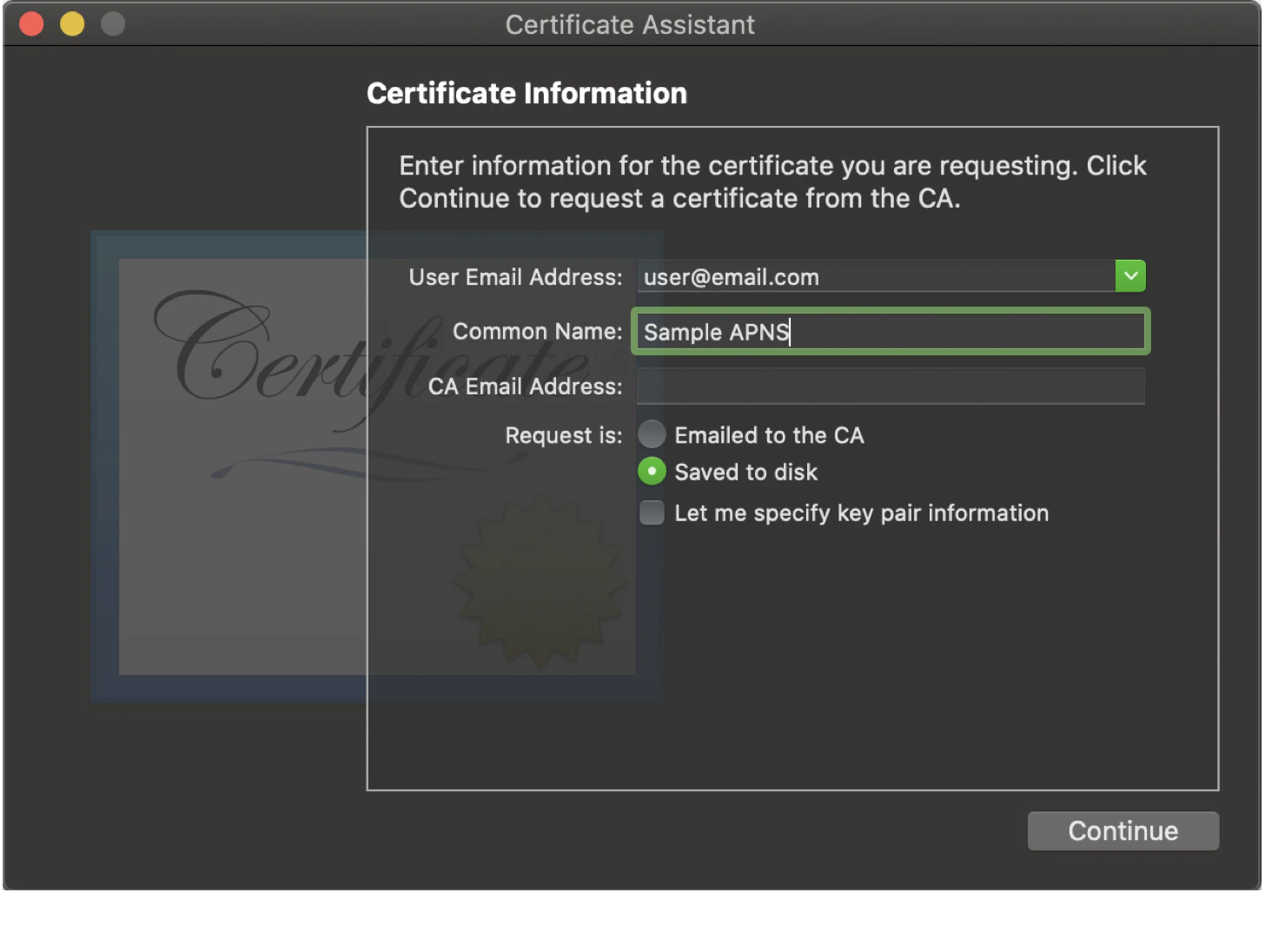
Create an APNS Certificate in Developer Account
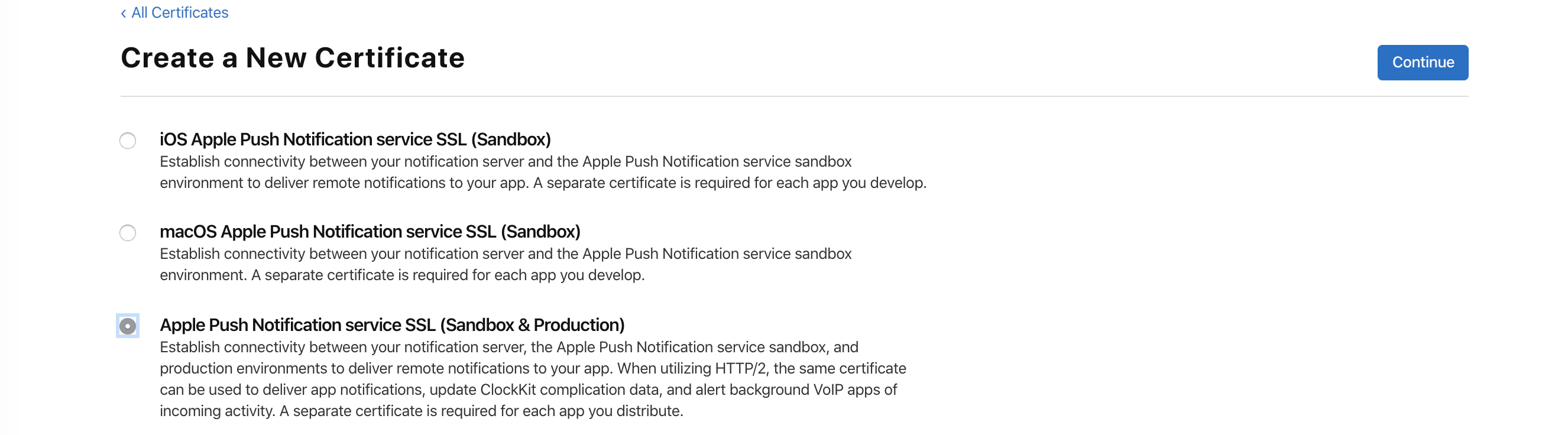
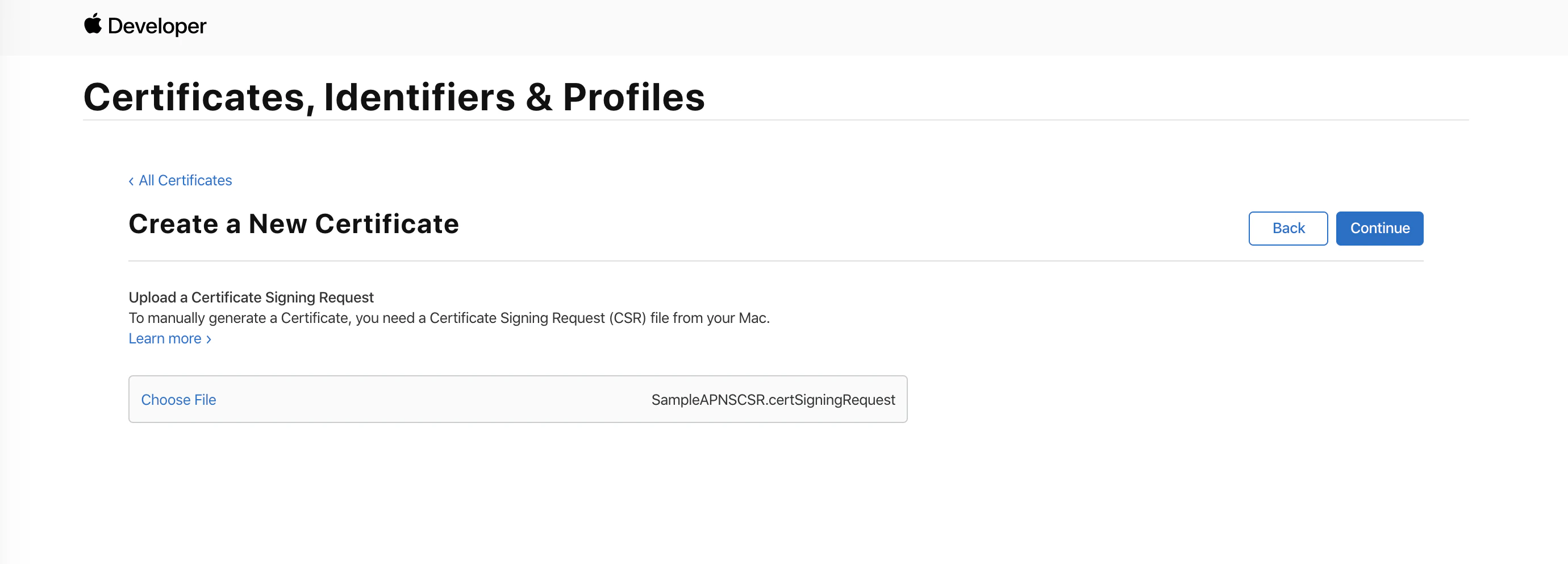
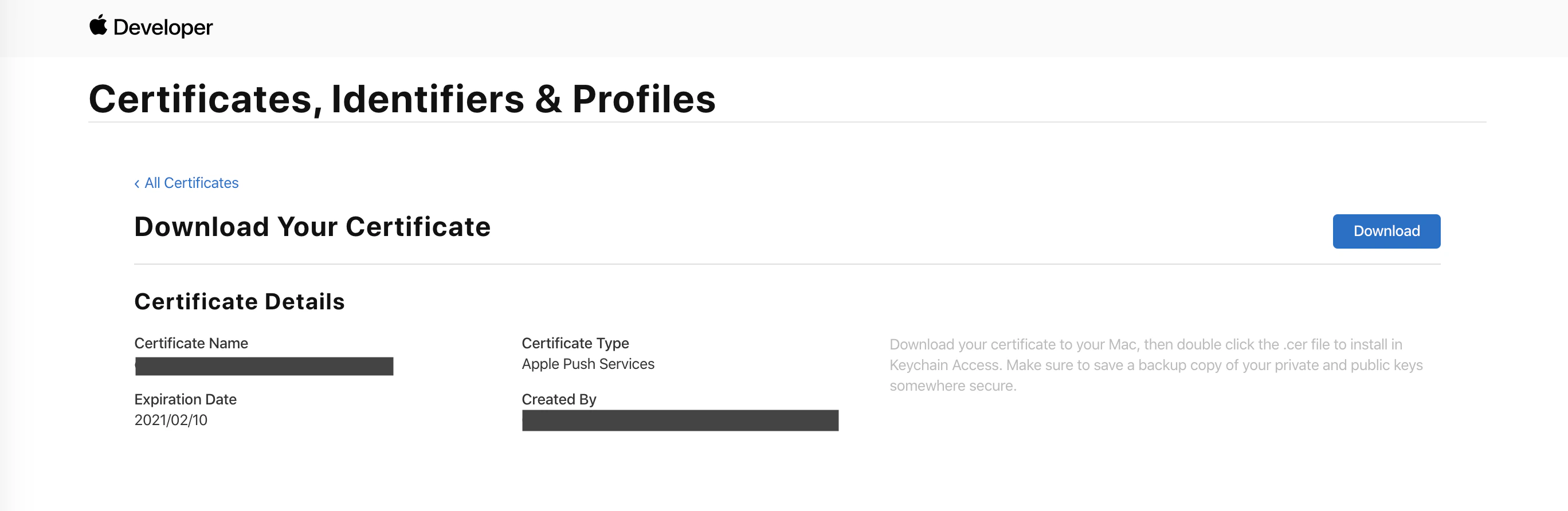
Log-in to your developer account and go to Certificates, Identifiers and Profiles. Select Certificates Section and click on the + icon to create a new certificate. In Create a New Certificate screen selectApple Push Notification service SSL(Sandbox & Production) and click Continue as shown below:
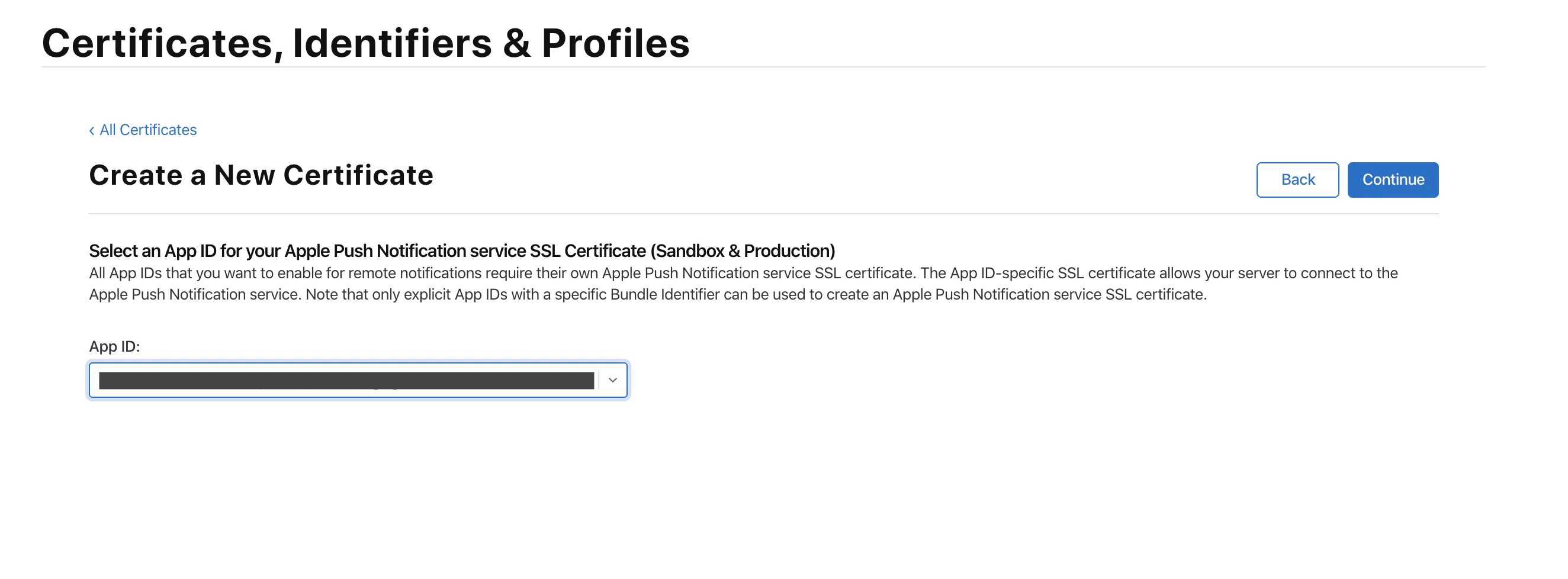
certificate signing request file created in the first step and click Continue as shown below:
Keychain Access
Converting Certificate to PEM format
Follow the below steps to convert the APNS certificate obtained in the previous step to.pem file:
-
First, go to Keychain Access and select your APNS certificate, then right-click on it select Export option. Now export your certificate in
.p12format. You will be prompted to provide a password for.p12, do the same. -
Convert the
.p12file obtained in the previous step into a.pemfile by using openssl commands as shown below, here you will have to provide theImport Password:
NoteYou can also go the SSL Converter here and convert your
.p12 file to .pem.Verify .pem file
Before uploading the certificate to MoEngage Dashboard, verify the.pem file obtained:
-
First, open the
.pemin a text editor to view its content. The certificate content should be in format as shown below. Make sure the pem file contains both Certificate content(fromBEGIN CERTIFICATEtoEND CERTIFICATE) as well as Certificate Private Key (fromBEGIN PRIVATE KEYtoEND PRIVATE KEY) -
Also, you check the validity of the certificate by going to SSLShopper Certificate Decoder and pasting the Certificate Content (from
BEGIN CERTIFICATEtoEND CERTIFICATE) to get all the info about the certificate as shown below:As you can see, the Common Name should contain Apple Push Services and the App’s Bundle ID. Confirm the organization’s information and also the Validity of the Certificate. Once everything is verified, upload the certificate to our dashboard.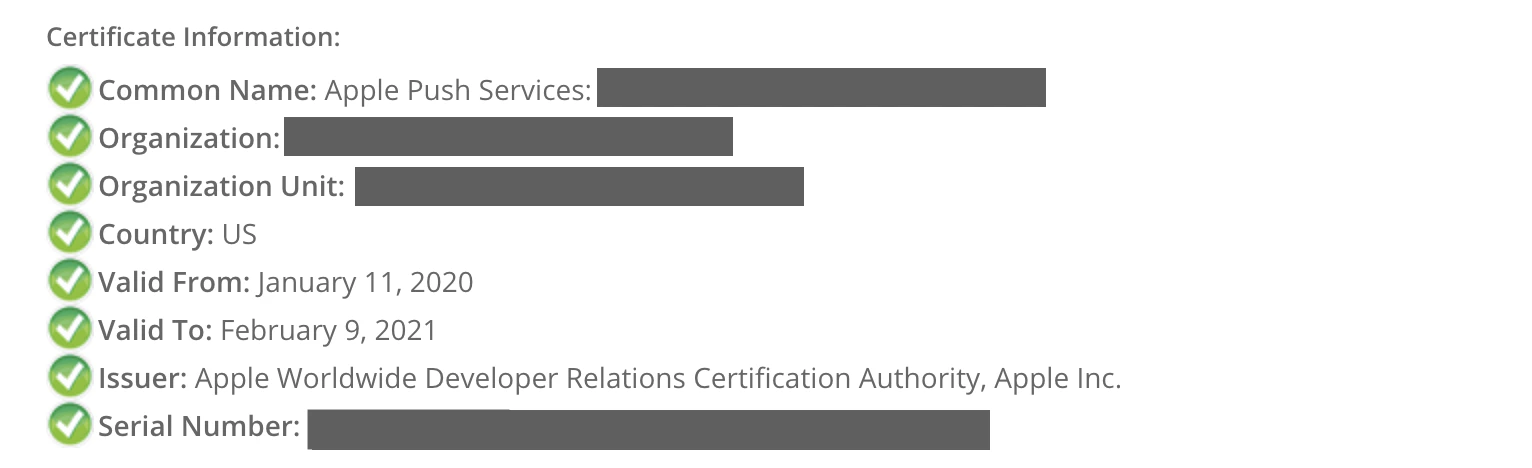
Uploading PEM file to MoEngage Dashboard
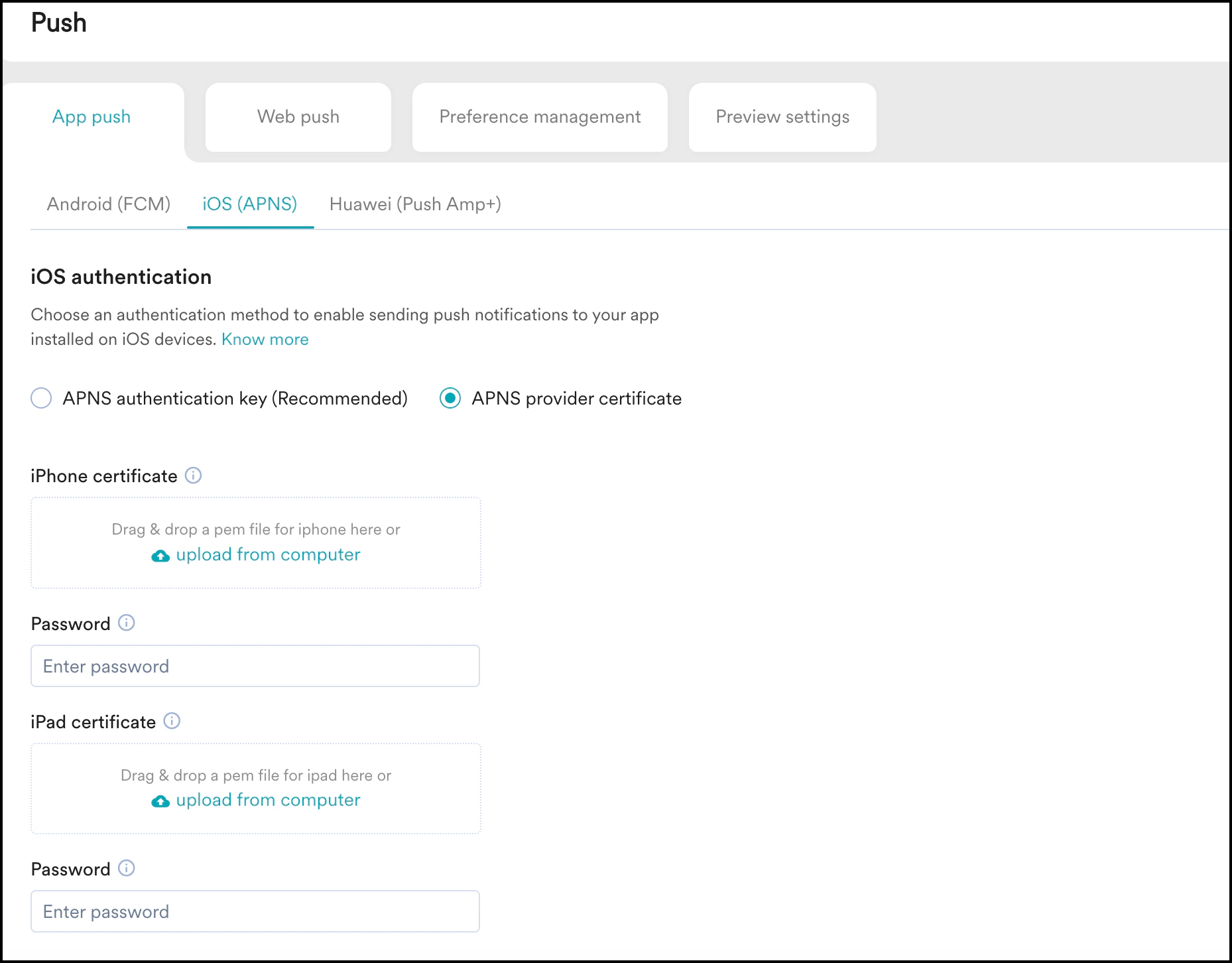
- Navigate to Settings > Channels > Push > App Push.
- Select iOS (APNS) in the Platforms available on the menu at the top.
- Click on APNS provider certificate.
-
Upload the .pem file. Enter the password for the .pem file, or leave it blank if there isn’t any.
iPad SupportIn case you have different apps for iPhones and iPads(Different Bundle IDs), set up certificates for both iOS and iPad separately in the dashboard in order to be able to send the messages to all the devices.
Test/Live Builds
- If you are testing the app on Test Flight or a live app store build, make sure you upload the ad-hoc or production pem to our dashboard. And also in this case you have to send push notifications from the Live environment of your account.
- For the dev build, you can upload the development or production certificate in the dashboard, but make sure that you create your campaign in the Test environment, as you cannot send push notifications to the dev build from the Live environment.