

Implementing Login/Logout
- It’s important to set the User Attribute Unique ID when a user logs into your app.
- This is to merge the new user with the existing user, if any exists, and will help prevent creation of unnecessary/stale users.
- Setting the Unique ID is a critical piece to tie a user across devices and installs/uninstalls as well across all platforms (i.e. iOS, Android, Windows, The Web). Set the USER_ATTRIBUTE_UNIQUE_ID attribute as soon as the user is logged in. Unique ID can be something like an email ID, a username (unique), or a database ID or any Backend generated ID.
- Do not set this for the user who not logged in.
Login
Set a Single Identity
UseMoEngageClient.IdentifyUser() to set a single user identifier:
Set Multiple User Identities
UseMoEngageClient.IdentifyUser() with a dictionary to set multiple user identities at once:
If a network issue prevents the identifier from reaching the MoEngage server, the SDK caches the
identifyUser() call and retries automatically once the network is available or the next time the app opens.Logout
The application needs to notify the MoEngage SDK whenever the user is logged out of the application. To notify the SDK, call the API whenever the user is logged out of the application.Logout Complete Callback
To receive a callback when logout completes, register a listener usingMoECoreHelper.addLogoutCompleteListener():
Updates to SDK functions for User Identification and Session Management
- Forced Logout: The MoEngage SDK no longer automatically logs out the previous user when a new user is detected on the device. Logout should now be explicitly called for workspaces enabled with Identity resolution to avoid data corruption.
- SetUniqueID:
identifyUserfunction supports multiple identifiers, which replaces the need of usingSetUniqueIDfunction for user identification. Note thatSetUniqueIDis marked for removal in the future releases of SDK versions - it is important to useidentifyUserinstead especially if you are using Identity resolution in your workspace. - SetAlias: For workspaces with the Identity resolution feature enabled, MoEngage SDK stores the previous identifier values. When
identifyUserfunction is used to track the new identifier values, MoEngage SDK detects the change in identifier value and reports accordingly.
identifyUser function without logging out, then the existing logged-in user’s ID is updated.identifyUser() multiple times with different identifier names, the SDK will append this identifier to the already set identifiers.
Updating User Attribute Unique Id
Use the method setAlias() to update the user attribute unique id instead of IdentifyUser() with a different value. Using the method IdentifyUser() with a new value creates unintended users in MoEngage.Tracking User Attributes
The SDK provides APIs to track commonly tracked user attributes like First Name, Last Name, Email-Id, etc. Please use the provided methods for tracking these attributes.Tracking Date as user attributes
ISO date UseSetUserAttributeISODate() to track a date attribute using an ISO 8601 string.Date format:
yyyy-MM-dd'T'HH:mm:ss.fff'Z'
SetUserAttributeEpochTime() to track a date attribute using a Unix epoch timestamp (milliseconds).
Tracking Location as user attributes
To track any location as user attributes use the SetUserAttributeLocation(). This API takes the attribute name and an instance of GeoLocation for coordinates as input.Example:
Custom Boolean User Attribute
iOS(optional)
Starting from version 4.x.x of MoEngage.unityPackage, the default tracking for the custom boolean attribute will be changed to bool(true/false) from double(0/1). To configure this, enable should Track Boolean As Number variable of MoGameObject script as shown below to track the boolean as double . By default it is disabled to track boolean as true/false.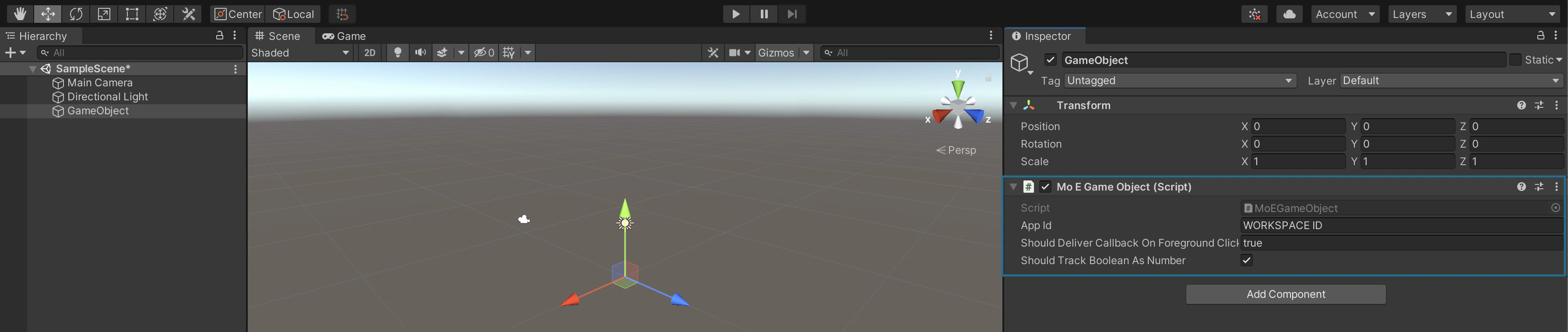
Reserved keywords for User Attributes
Below is the list of keys that should not be used when tracking user attributes.- USER_ATTRIBUTE_UNIQUE_ID
- USER_ATTRIBUTE_USER_EMAIL
- USER_ATTRIBUTE_USER_MOBILE
- USER_ATTRIBUTE_USER_NAME
- USER_ATTRIBUTE_USER_GENDER
- USER_ATTRIBUTE_USER_FIRST_NAME
- USER_ATTRIBUTE_USER_LAST_NAME
- USER_ATTRIBUTE_USER_BDAY
- USER_ATTRIBUTE_NOTIFICATION_PREF
- USER_ATTRIBUTE_OLD_ID
- MOE_TIME_FORMAT
- MOE_TIME_TIMEZONE
- USER_ATTRIBUTE_DND_START_TIME
- USER_ATTRIBUTE_DND_END_TIME
- MOE_GAID
- INSTALL
- UPDATE
- MOE_ISLAT
- status
- user_id
- source