

Quick start
- AI coding assistants (Claude Code, Cursor, etc): Use the MoEngage Docs MCP server for the best experience. It lets your assistant search and fetch documentation from within the IDE.
- Chat interfaces (ChatGPT, Claude.ai): Add
.mdto any docs page URL and share it in your conversation to get plain markdown instead of the full site. - Project rules and custom instructions: Add MoEngage’s llms.txt URL to your AI tool’s rules so it has an index of relevant MoEngage pages.
- Agent capabilities: Use the skill.md URL or
npx skills add https://www.moengage.com/docsso agents know what they can do with MoEngage and what inputs or constraints apply.
MCP server
The MoEngage Docs MCP server gives AI agents and coding assistants direct access to MoEngage documentation and references through the Model Context Protocol. Use it to bring MoEngage knowledge into tools like Claude, Cursor, and other MCP-compatible clients. The MoEngage Docs MCP (Model Context Protocol) server connects your AI agents to MoEngage’s docs and developer resources. Configure the MoEngage Docs MCP server in your IDE or AI chat to get in-context help for your MoEngage integration.For more on the Model Context Protocol, see the MCP documentation.
- Get quick answers about MoEngage APIs, features, and implementation
- Search documentation without leaving your editor
- Find code samples and recommended patterns for typical use cases
- Debug issues using docs and SDK references
- Write code that integrates your app with MoEngage
- Report incorrect or outdated documentation to the MoEngage docs team
Installation
To set up the MoEngage Docs MCP server, use the contextual menu on any page and click Connect.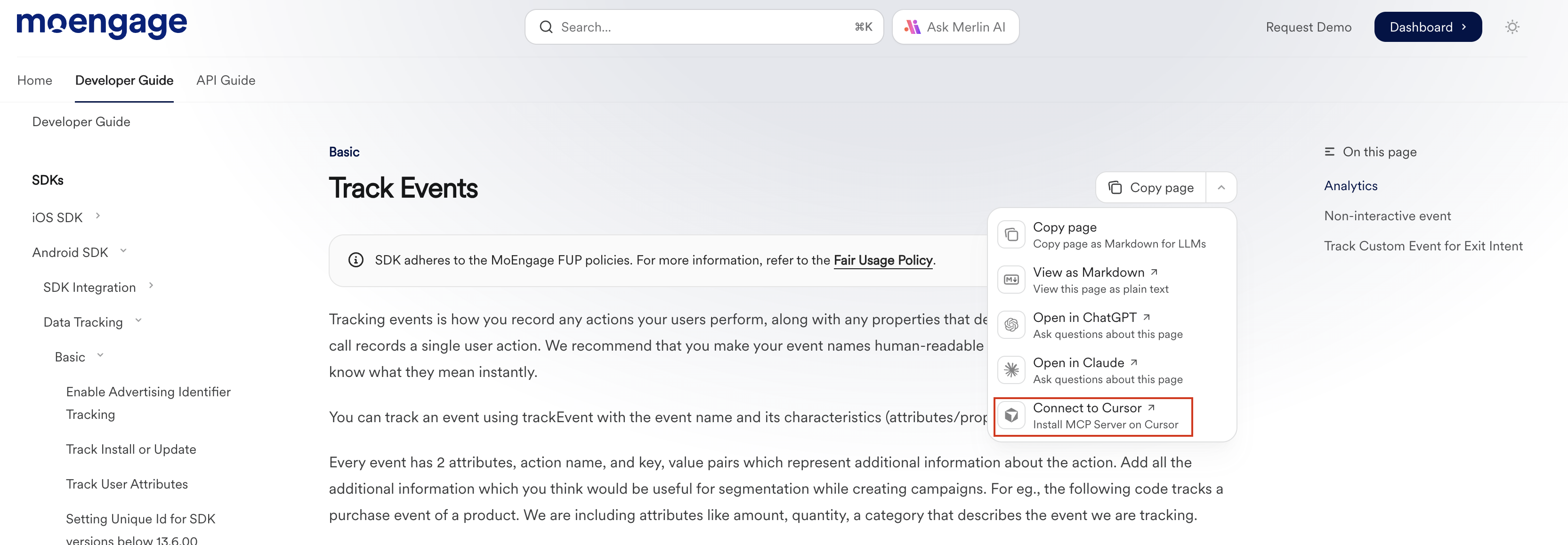
Cursor
Cursor
-
Open Cursor and open the
.cursordirectory in your project root. Create it if it doesn’t exist. This is where Cursor’s project configuration lives. -
Open the
mcp.jsonfile in.cursor. Create it if it doesn’t exist. This file holds MCP server configuration for the project. -
Add the following to
mcp.json:mcp.json - Save the file.
- Restart Cursor.
Claude Desktop (Local)
Claude Desktop (Local)
Claude Desktop uses
npm to run the MoEngage Docs MCP server. You need Node.js installed. See Node.js downloads for details.- Open Claude Desktop.
- Go to File > Settings (Windows) or Settings (macOS).
- Open the Developer tab.
- Click Edit Config.
-
Open
claude_desktop_config.json. This file controls MCP servers for Claude Desktop. -
Add the following to
claude_desktop_config.json:claude_desktop_config.json - Save the file.
- Restart Claude Desktop.
Claude Desktop (Remote)
Claude Desktop (Remote)
Remote MCP in Claude Desktop is currently in beta.
Enterprise and team plans
- Open Claude Desktop.
- Go to Admin settings > Connectors.
- Scroll to the bottom of the section.
- Click Add custom connector.
- Fill in:
- Name: MoEngage Docs MCP
- Remote MCP server URL:
https://www.moengage.com/docs/mcp
- Click Add.
Pro and max plans
- Open Claude Desktop.
- Go to Settings > Connectors.
- Scroll to the bottom of the section.
- Click Add custom connector.
- Fill in:
- Name: MoEngage Docs MCP
- Remote MCP server URL:
https://www.moengage.com/docs/mcp
- Click Add.
Claude Code
Claude Code
Run the following command in your terminal:
VS Code
VS Code
-
Create a
.vscode/mcp.jsonfile with the following content:mcp.json - Save the file.
- Restart VS Code.
Usage (Tools)
The MoEngage Docs MCP exposes the following tools:search_mo_engage— Searches MoEngage’s documentation and knowledge base. Use it for broad or conceptual queries such as “how to authenticate” or “rate limiting”. Results include contextual content with titles and links to the relevant docs.query_docs_filesystem_mo_engage— Runs read-only, shell-like commands (rg,grep,find,tree,ls,cat,head,jq, and other text utilities) against a virtualized filesystem that contains the MoEngage documentation pages and OpenAPI specs. Use it for exact keyword or regex matches, exploring the docs structure, or reading the full content of a page by its path. Nothing runs on your machine or network — the filesystem is an in-memory sandbox backed by documentation content.submit_feedback— Reports a problem with a documentation page to the MoEngage docs team. Use it when a page is incorrect, outdated, confusing, or incomplete, or when an example is broken.
search_mo_engage for conceptual questions, then uses query_docs_filesystem_mo_engage to read the full page (append .mdx to the path returned by search) or to run precise regex searches.
Example Prompts
After you connect the MCP server, ask your AI assistant questions in plain language. The assistant searches MoEngage documentation and answers with citations, so you don’t have to switch to the docs site.- Marketers and Product Teams
- Developers
Use a chat client such as Claude Desktop to get answers about campaigns, segments, and analytics:
- “How do I set up a push campaign with send time optimization?”
- “What is the difference between event-triggered campaigns and Flows? When should I use each?”
- “How do I create a segment of users who purchased in the last 30 days but haven’t opened the app since?”
- “How are conversion goals attributed in campaign reports?”
- “Walk me through setting up a WhatsApp campaign, including the prerequisites.”
Per-page markdown
Append.md to any docs page URL to get a markdown version of that page. You get content only, without HTML, nav, or scripts, which uses fewer tokens than the full page.
For example, for the API Reference introduction in markdown, use:
Site-wide endpoints
These endpoints follow the llms.txt standard. You can use these endpoints for markdown-formatted content.skill.md
Theskill.md file describes what AI agents can do with MoEngage in a structured, machine-readable format. It makes capabilities, required inputs, and constraints explicit so agents can use your product more reliably.
URL: https://www.moengage.com/docs/skill.md
The file follows the skill.md specification and is kept in sync with the documentation so agents stay aligned with current MoEngage features and APIs.
Using skill.md with agents
Agents can load MoEngage’s capabilities into their context with the skills CLI:What’s in skill.md
The MoEngageskill.md file is generated from the documentation and typically includes:
- Metadata — Product name, description, and version.
- Capabilities — What agents can do with MoEngage (e.g. campaigns, segments, SDK integration).
- Skills — Concrete actions grouped by area (APIs, SDKs, data, etc.).
- Workflows — Step-by-step procedures for common tasks.
- Integration — Supported tools and services.
- Context — High-level overview of MoEngage documentation and concepts.