

This feature is part of the Connected Channels paid add-on. To check what’s available for your plan, refer to Plans and Pricing. To enable it for your account, contact your MoEngage Customer Success Manager (CSM) or the Support team.
Introduction
The Snapchat Conversions integration establishes a secure, server-to-server (S2S) connection between MoEngage and Snapchat. By bypassing browser-side obstacles such as cookie restrictions and ad blockers, this integration ensures a consistent and high-quality data stream for accurate attribution. MoEngage supports the following distinct connectors for Snapchat:- Snapchat Web Conversions: Tracks purchase, checkout, and other on-site conversion events that occur on your website.
- Snapchat Offline Conversions: Tracks conversions that happen outside your website in physical stores, over the phone, via email, or through other offline channels.
Use Cases
Integrating Snapchat Conversions with MoEngage allows you to sync event data to support the following use cases:- Signal resilience: Recover “lost” conversions typically blocked by browser privacy settings or ad-blocking software.
- Offline to online attribution: Bridge the gap between physical storefront transactions and digital ad exposure to measure total ROI.
- Return on Ad Spend (ROAS) optimization: Provide high-quality, real-time data to machine-learning algorithms of Snapchat and Meta to lower your Cost Per Acquisition (CPA) and improve ad delivery.
PrerequisitesBefore setting up either connector, ensure you have the following from your Snapchat Ads Manager:
- Snapchat Pixel ID: Your unique Pixel ID that identifies the Snapchat Pixel associated with your ad account.
- Access Token: The Bearer token used to authenticate MoEngage’s requests to the Snapchat Conversions API.
- Active MoEngage account: Contact your MoEngage CSM if Connected Apps is not enabled.
Integration with Snapchat Web Conversions
Step 1: Generate Credentials in Snapchat
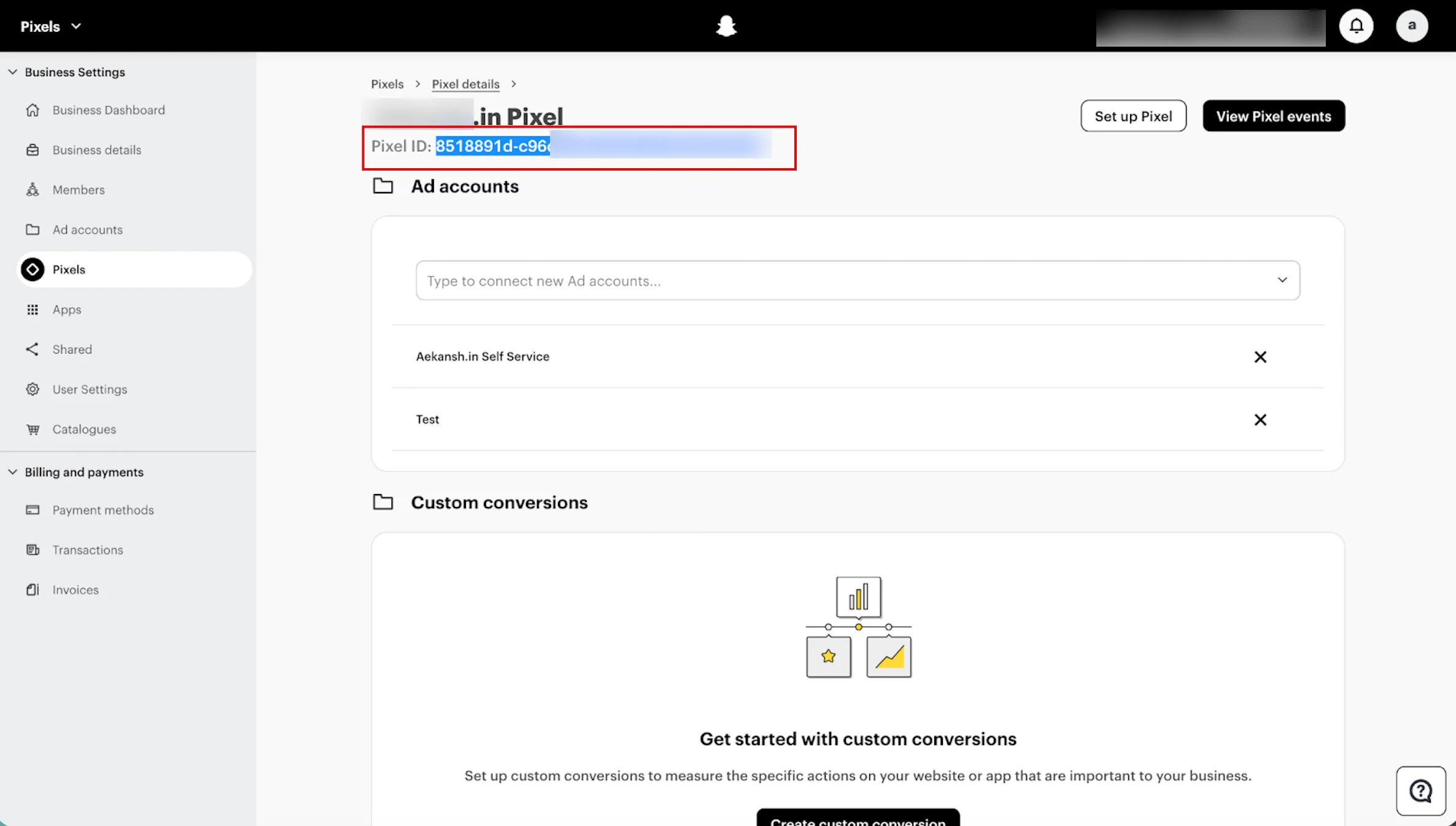
To ensure a stable connection, you must retrieve your Pixel ID and generate an Access Token in Snapchat Ads Manager.Step 1.1: Retrieve the Snapchat Pixel ID
- Log in to Snapchat Ads Manager.
- On the left navigation menu, click Events Manager.
- Select your Pixel. The Pixel ID is displayed at the top of the Pixel detail page.
- Copy the Pixel ID for use in Step 2.
Step 1.2: Generate a Permanent Access Token
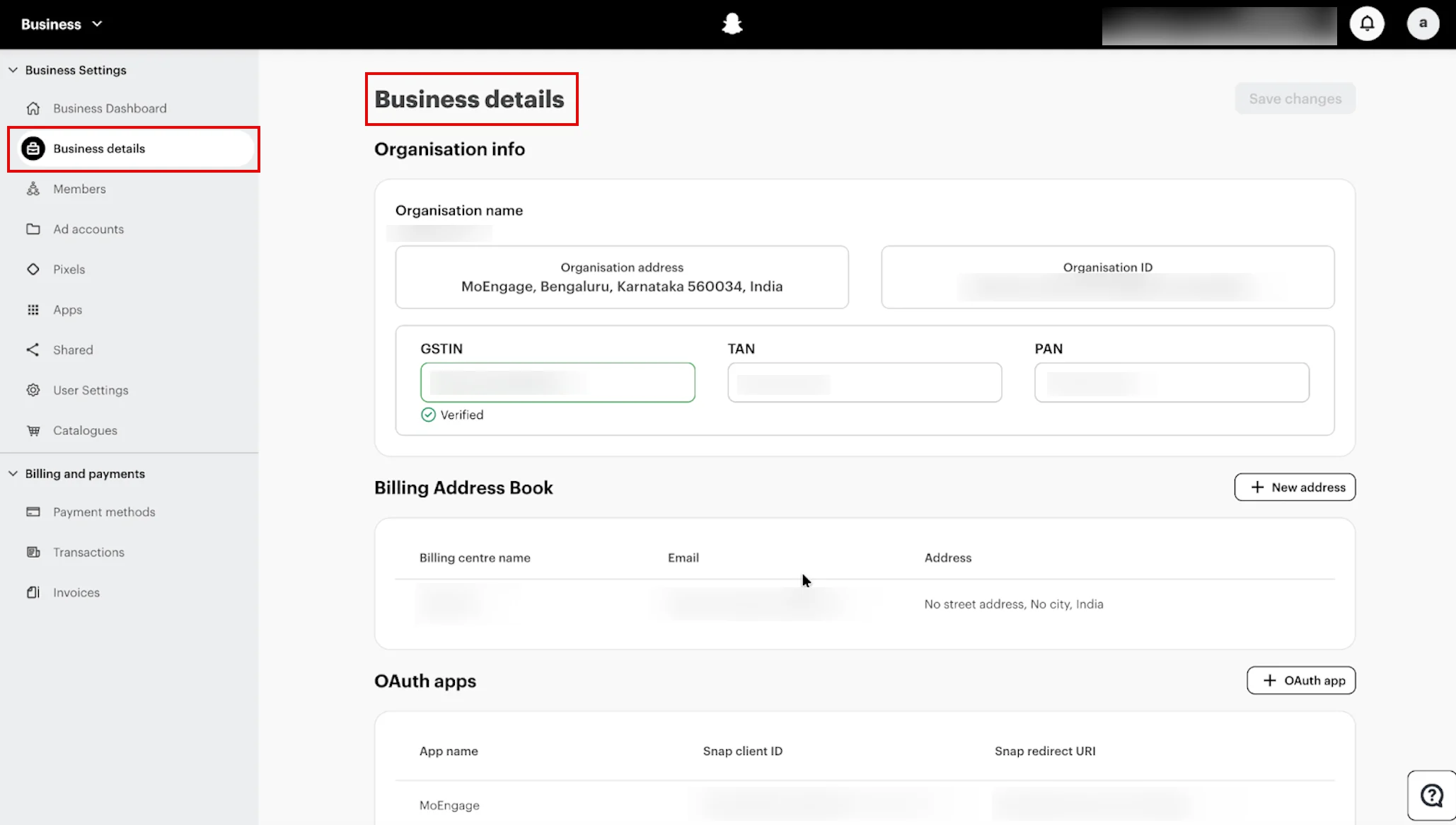
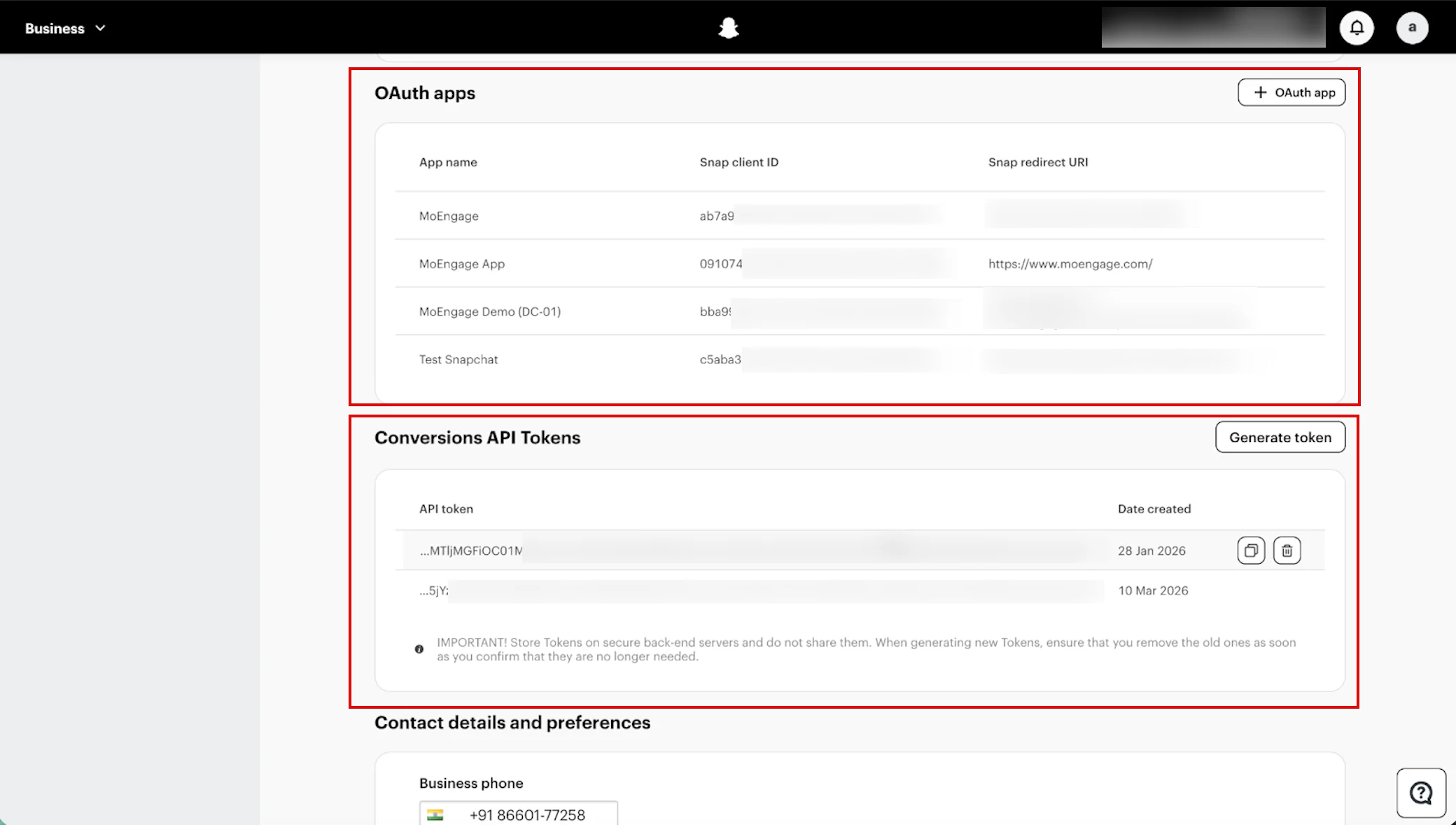
Long Lived Token: This method of authentication does not need the 3-legged OAuth flow and does not expire.- To find your Conversions API Token, go to the Business Details view on your Snap dashboard. You will see a section called Conversions API Tokens. Please note that you must be an Organization Admin to view this section of the page.
-
Generate a new access token or copy an existing one.
Note: Save this token immediately (for security, handle the token as a password). It is not displayed again.
Step 2: Connect Snapchat Web Conversions in the App Marketplace
To connect the Snapchat Web Conversions in the App marketplace, perform the following steps:- On the left navigation menu in the MoEngage UI, click App marketplace.
- On the App marketplace page, search for Snapchat Conversions.
- Click the Snapchat Conversions tile.
- On the Snapchat Conversions page, click the Integrate tab.
- Click the down arrow key, and then click Snapchat Conversions API - Web Events.
-
Enter the following details:
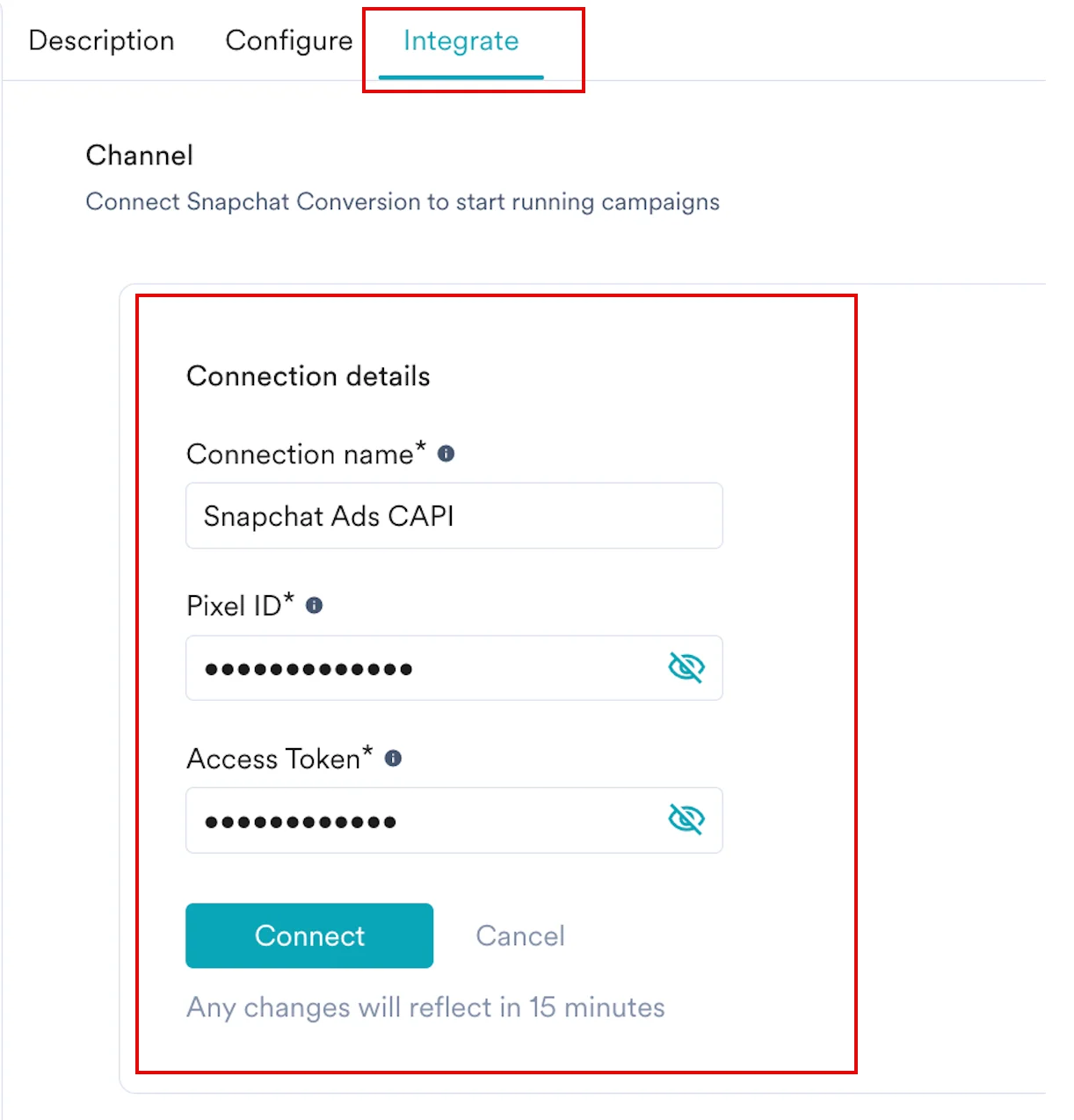
- Click Connect. Your integration is now authorized.
Step 3: Create a Snapchat Web Conversions Campaign
To create a Snapchat Web Conversions campaign, perform the following steps:- On the left navigation menu in the MoEngage UI, click Engage, and then click Campaigns.
- On the All campaigns page, click + Create campaign.
- In the Create campaign dialog box, under Connected Apps, click Snapchat Conversions, and then click the most suitable delivery type.
- In Step 1 (Target Users), select your audience.
- In Step 2 (Content), select your Connector (Snapchat Conversions API - Web Events) and your created connection.
-
Under Conversion Goals, enter the following fields:
 AttributionMoEngage uses specific customer PII fields to attribute conversion events to Snapchat users. These fields are automatically populated from the MoEngage user profile and secured with SHA-256 hashing before transmission—ensuring raw values are never shared.Providing at least one attribution signal (Email or Phone) significantly improves match rates and overall attribution accuracy. For the most precise results, it is recommended to provide both.
 -
Your campaign is now ready to be tested and sent. Using the Test functionality, you can also test your connector configuration.
 If your test user successfully receives the message, your setup is complete.
- Publish the campaign.
Integration with Snapchat Offline Conversions
Step 1: Generate credentials in Snapchat
Follow the same process as the Web Conversions setup to retrieve your Pixel ID (from Step 1.1) and Access Token (from Step 1.2).Step 2: Connect Snapchat Offline Conversions in the App marketplace
- On the left navigation menu in the MoEngage UI, click App marketplace.
- On the App marketplace page, search for Snapchat Conversions.
- Click the Snapchat Conversions tile.
- On the Snapchat Conversions page, click the Integrate tab.
- Click the down arrow key, and then click Snapchat Conversions API - Offline Events.
-
Enter the following details:
- Click Connect. Your integration is now authorized.
Step 3: Create a Snapchat Offline Conversions Campaign
- On the left navigation menu in the MoEngage UI, click Engage, and then click Campaigns.
- On the All campaigns page, click + Create campaign.
- In the Create campaign dialog box, under Connected Apps, click Snapchat Conversions, and then click the most suitable delivery type.
- In Step 1 (Target Users), select your audience.
- In Step 2 (Content), select your Connector (Snapchat Conversions API - Offline Events) and your created connection.
-
Under Conversion Goals, enter the following fields:
 AttributionAt least one of Email or Phone must be provided for offline conversion events. Snapchat requires a customer identity signal to attribute offline conversions to ad exposure. Both fields are automatically populated from the MoEngage user profile and secured with SHA-256 hashing before transmission.For offline events, Snapchat requires at least one attribution signal. Campaigns where neither Email nor Phone is available on the user profile will not result in a successful attribution and will lead to unattributed conversions.
 -
Your campaign is now ready to be tested and sent. Using the Test functionality, you can also test your connector configuration.
If your test user successfully receives the message, your setup is complete.
- Publish the campaign.
Supported Conversion Events
Both the Web and Offline connectors support the following standard Snapchat conversion events:Information
- Data privacy: MoEngage automatically hashes customer PII (Email and Phone) with SHA-256 before transmission to Snapchat. Raw values are never sent.
- Event timestamp: Event time is automatically set to the current timestamp at the time of sending and cannot be backdated.
- Matching signals: At least one matching signal must be present on the user profile. Events without a matching signal may result in zero match rates in reporting.
- Default event name: Purchase is the default event type for both connectors. If your campaign goal is a non-purchase conversion (for example, Sign Up or Download), remember to update the Event Name field in Step 3 of the campaign creation process for both web and offline conversions.