

This feature is part of the Streams paid add-on. To check what’s available for your plan, refer to Plans and Pricing. To enable it for your account, contact your MoEngage Customer Success Manager (CSM) or the Support team.
Introduction
The MoEngage Events Stream integration allows you to send a continuous, real-time stream of your MoEngage engagement events directly into the Zeotap platform. After the data is in Zeotap, it is mapped to a standard catalog and can be used within Zeotap’s activation modules, such as for building audiences or triggering journeys.Step 1: Add MoEngage as a Source on Zeotap
To send MoEngage campaign or event data to Zeotap, you must generate credentials in your Zeotap account and share them with the MoEngage team.Step 1.1: Get Your Zeotap Webhook and Write Key
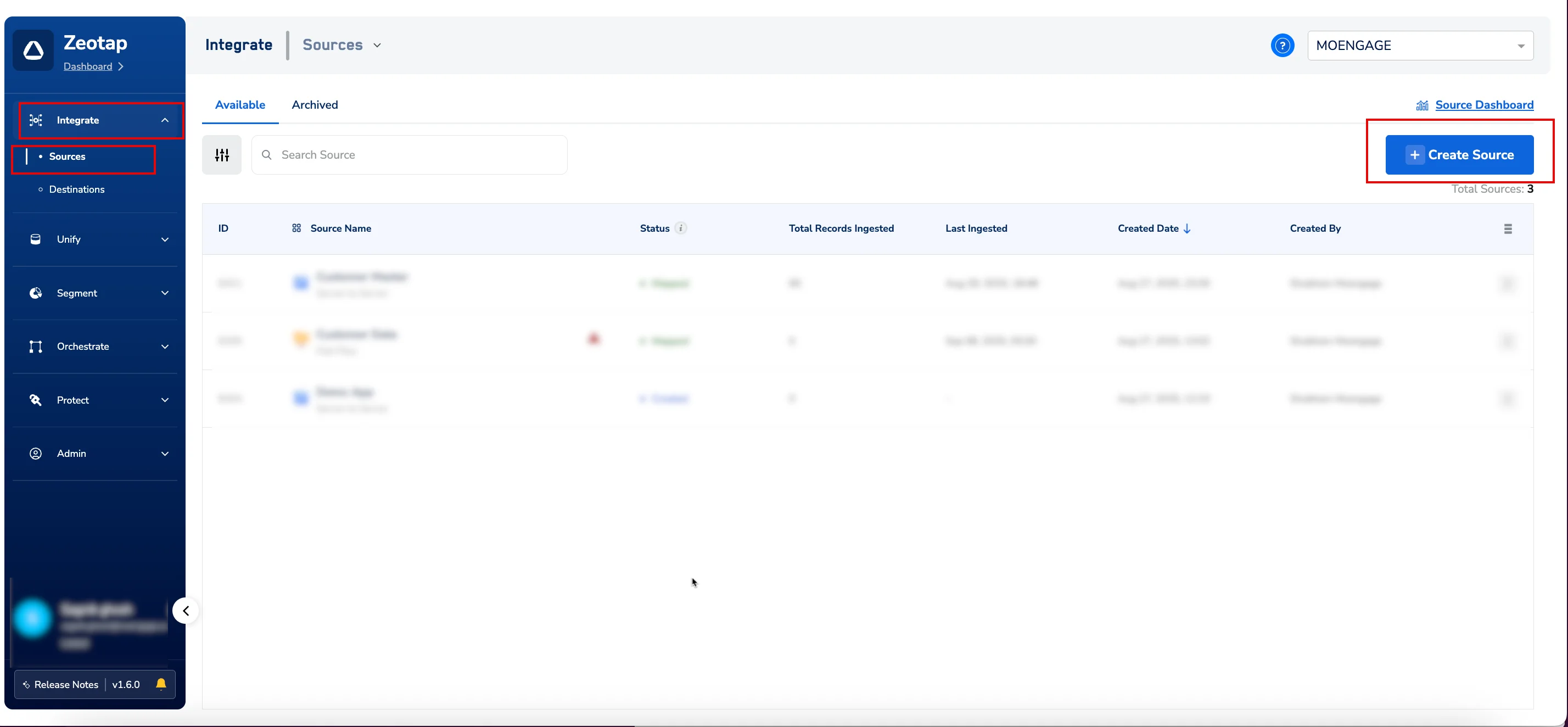
To get the ZeoTap webhook and write key, perform the following steps:- In your Zeotap dashboard, navigate to Integrate > Sources.
- Click + Create Source in the upper-right corner.
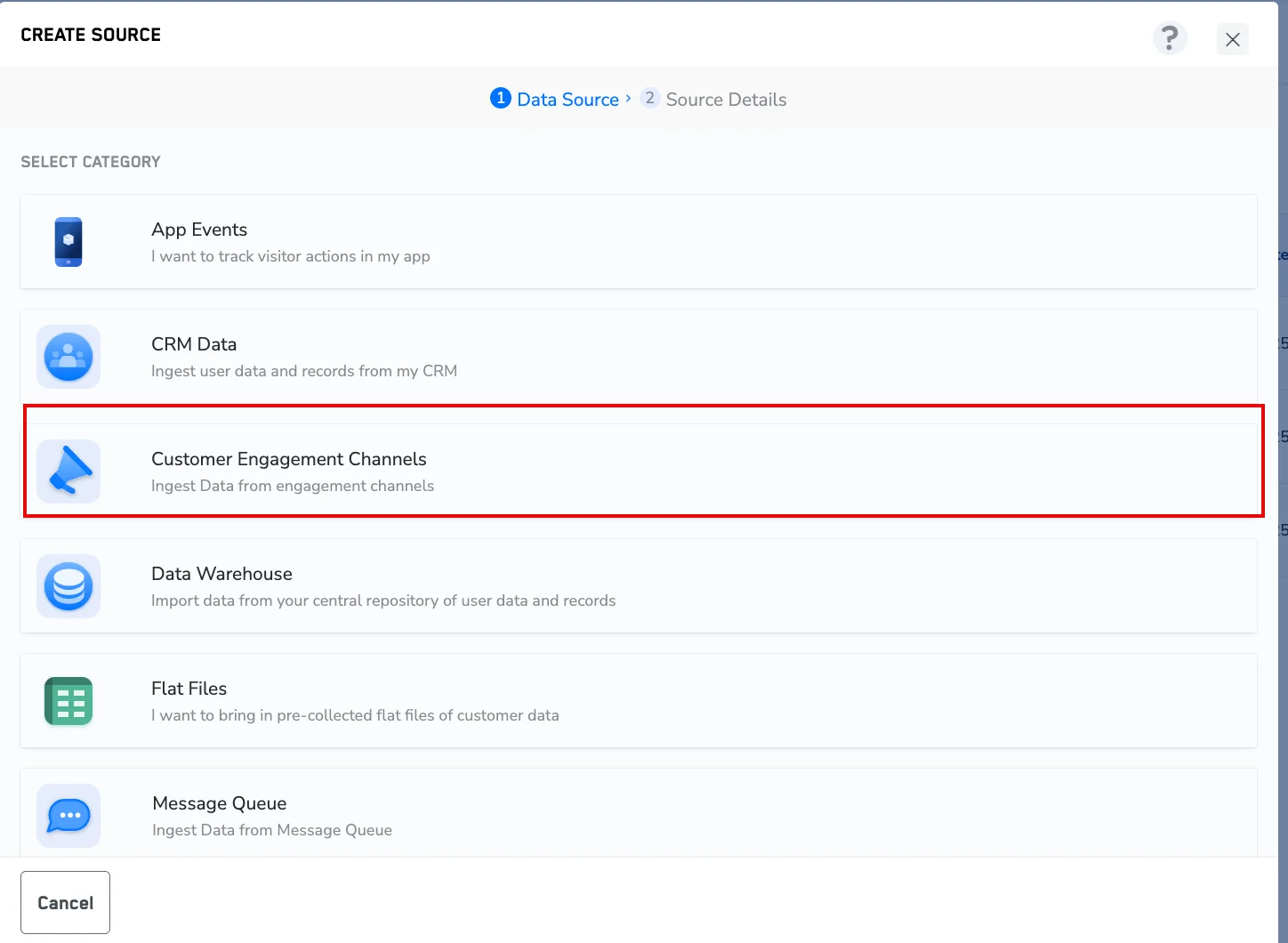
The CREATE SOURCE dialog box appears. - In the Select Category list, click Customer Engagement Channels.
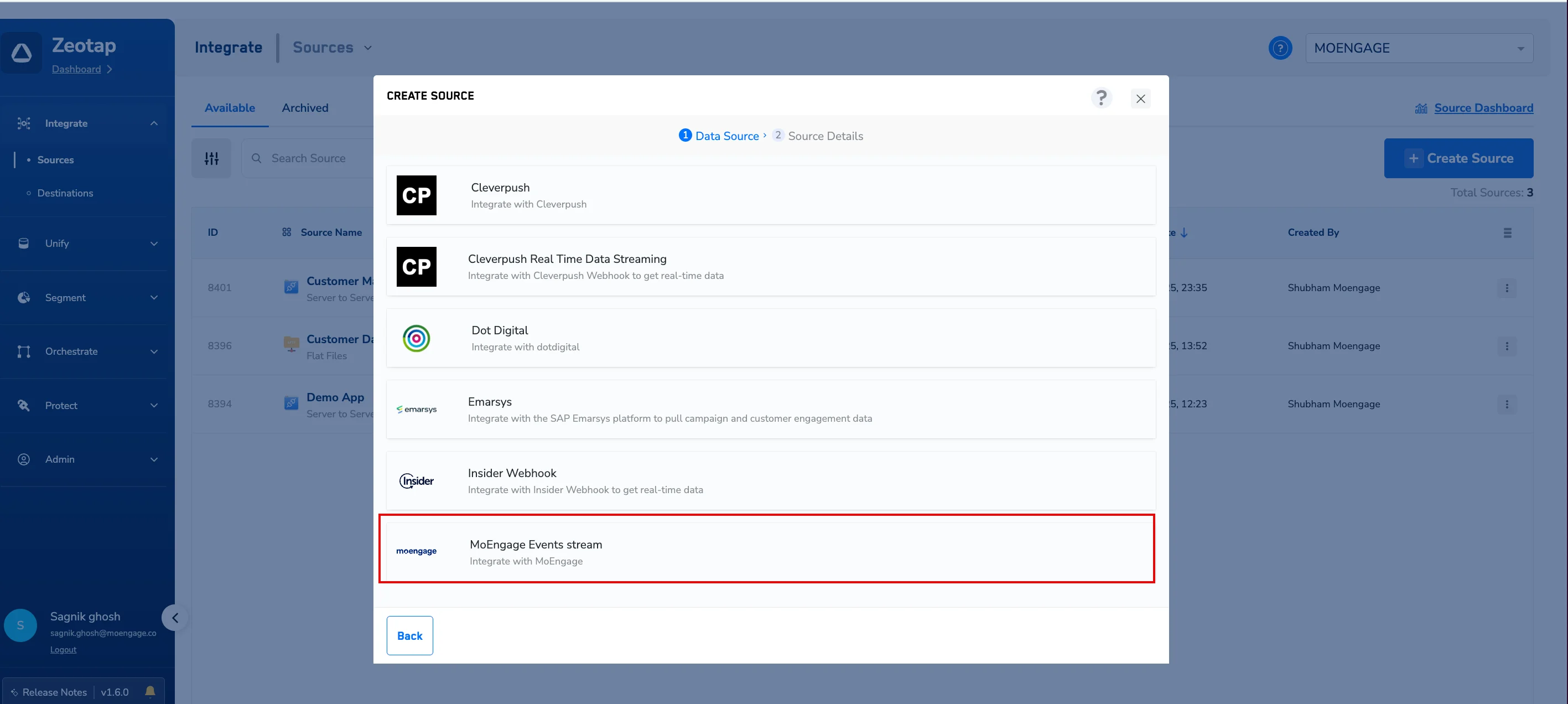
- In the SELECT DATA SOURCE list, find and click MoEngage Events stream.
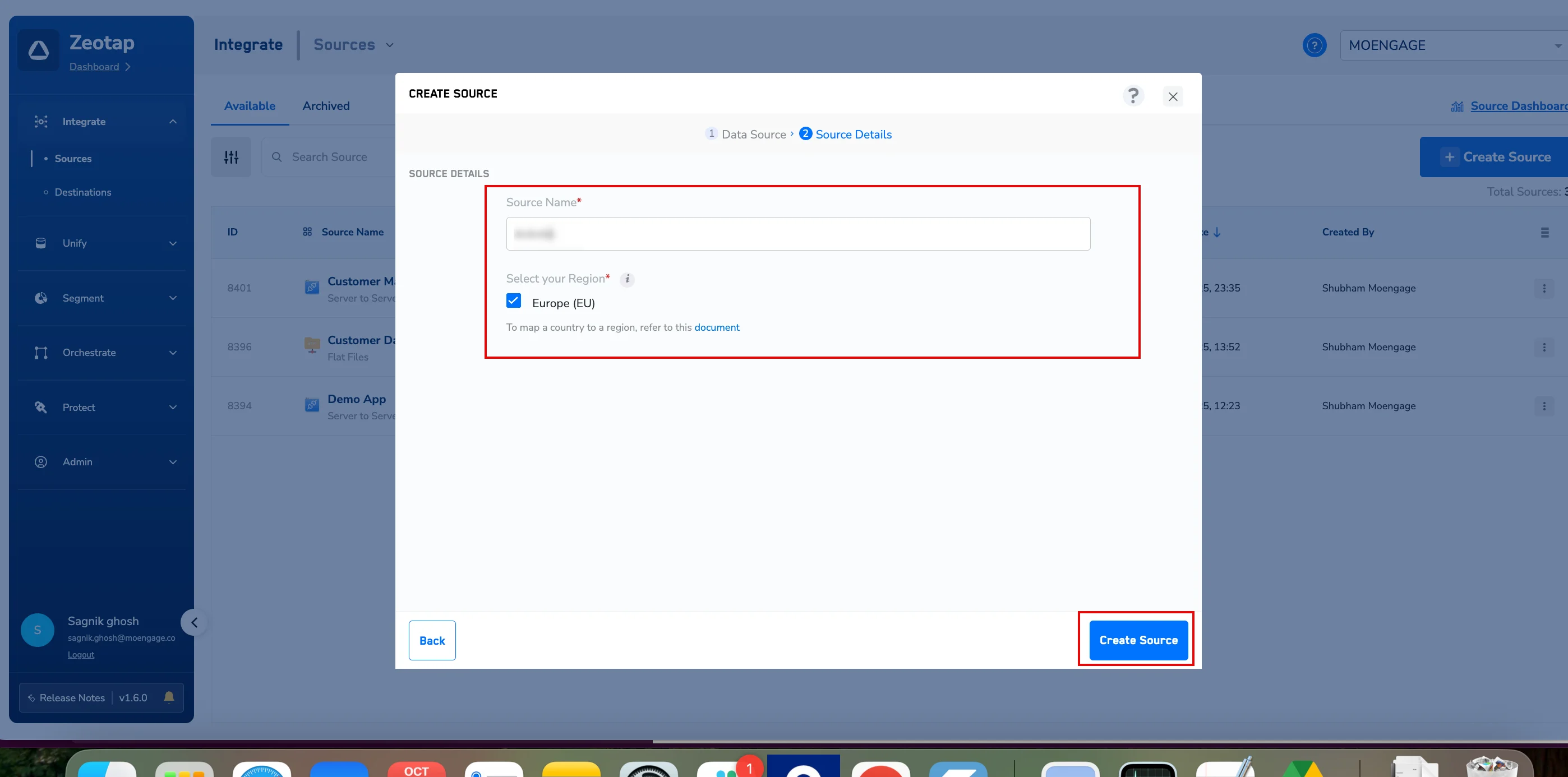
The CREATE SOURCE dialog box appears.- In the Source Name box, enter a descriptive name.
- Under Select your Region , select and check the appropriate region for your account.
- Click Create Source.
You will navigate back to theSources page.
- Find and click the source name you created.
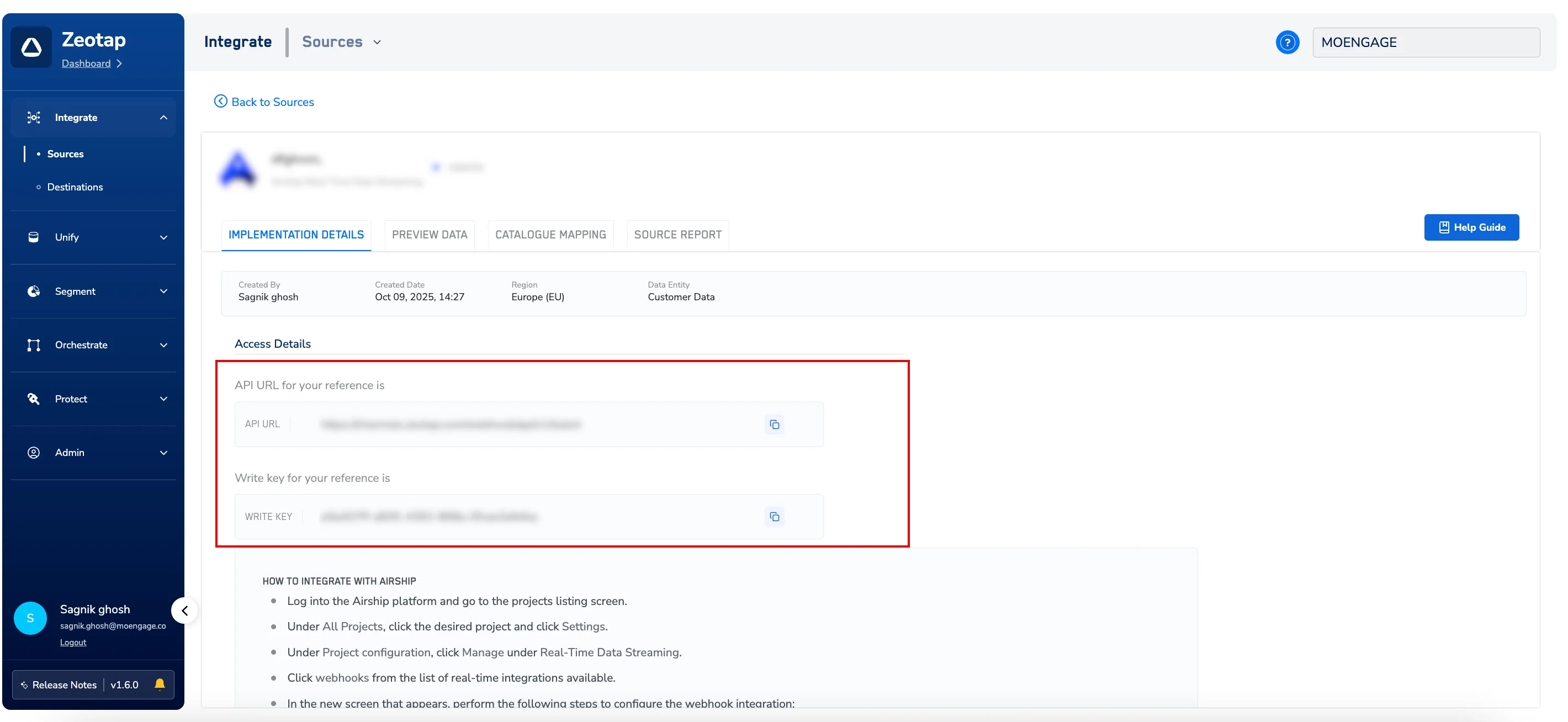
- Click the IMPLEMENTATION DETAILS tab.
- Under Access Details , copy the API URL (Webhook URL) and the WRITE KEY to provide to the MoEngage support team.
Step 1.2: Activate MoEngage Streams
After you have your ZeoTap API URL (Webhook URL) and the WRITE KEY , contact your MoEngage Customer Success Manager (CSM) to activate MoEngage Streams.Step 2: View Your Data in Zeotap
To preview the incoming data in real time, perform the following steps:- Log in to your Zeotap dashboard, navigate toIntegrate > Sources.
- On the Sources page, click the PREVIEW DATA tab.
- Click the data source that you want to preview.
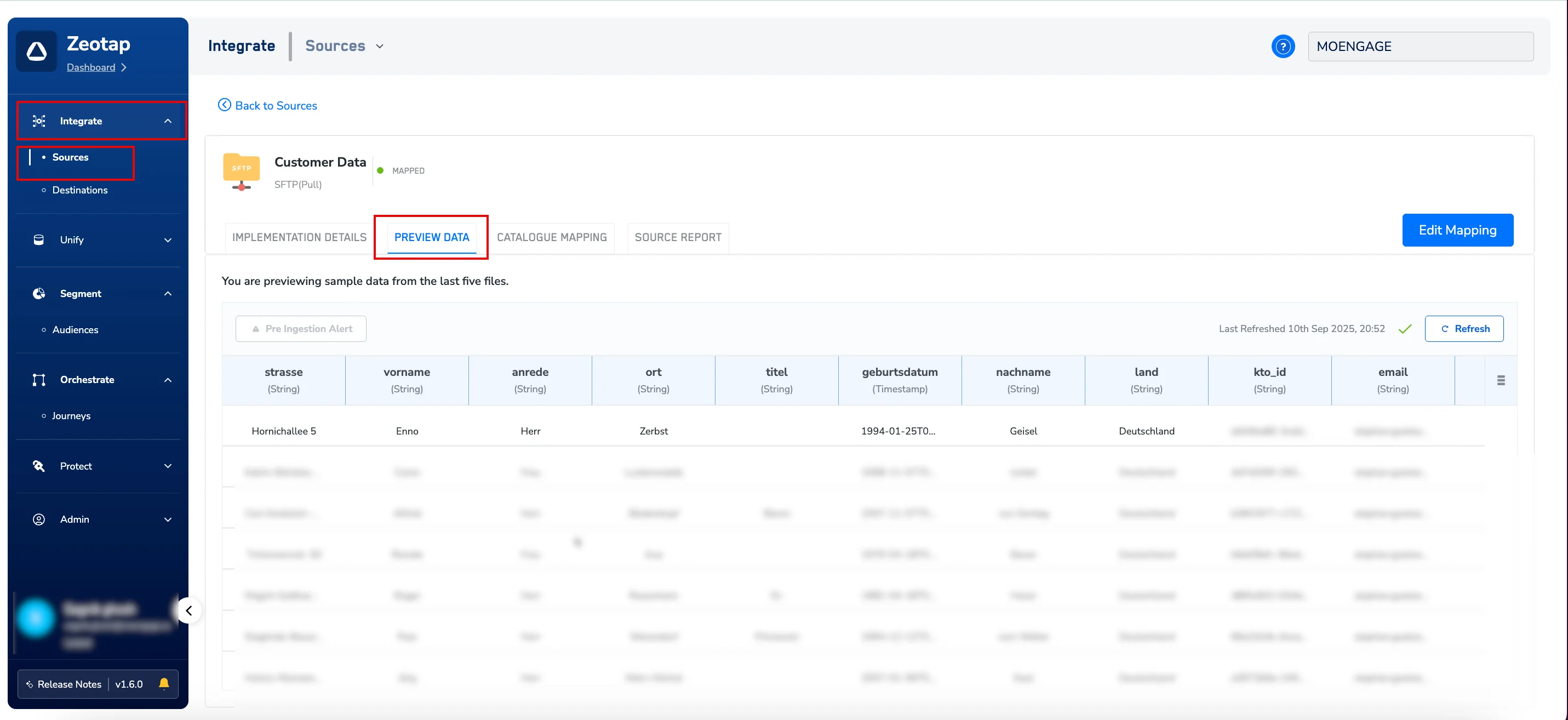
You can now view the latest events and attributes received from MoEngage. The view includes columns such as event_name, uid, event_type, and various flattened user and event attributes.