

Introduction
Google Cloud Storage is an enterprise public cloud storage platform that can house large unstructured data sets.MoEngage × GCS
The MoEngage and GCS integration exports campaign interaction events to your Google Cloud Storage buckets. You can then import these files into BigQuery for further processing and analysis.Integration
Prerequisites
- Ensure you have a Google Cloud Platform account with permission to create a new bucket and a service account.
- Exporting data from MoEngage to Google Cloud Storage uses MoEngage Streams, which is a paid add-on. To check what’s available for your plan, refer to Plans and Pricing. To enable it for your account, contact your MoEngage Customer Success Manager (CSM) or the Support team.
Step 1: Create a dedicated service account for MoEngage
On your Google Cloud Platform console, go to the IAM & Admin console.- From the sidebar, open Service Accounts.
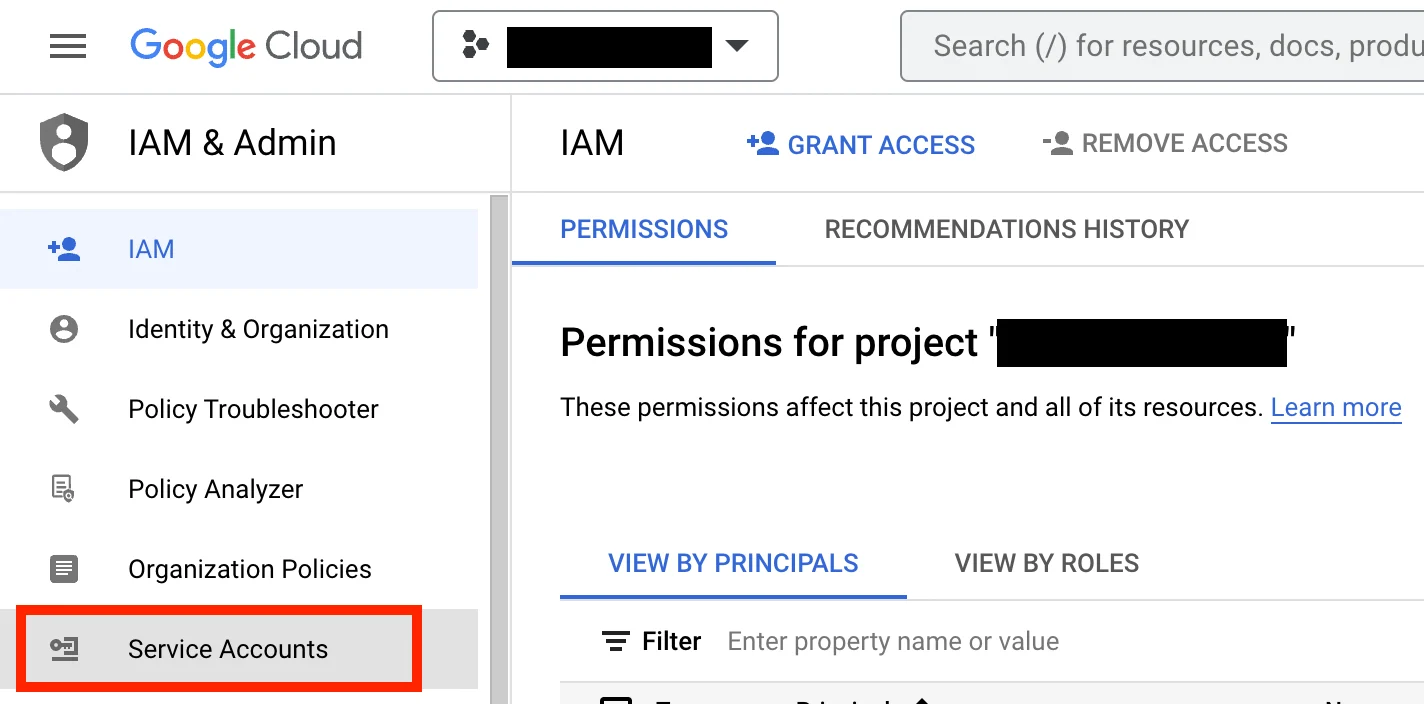
- Click the + Create Service Account button.
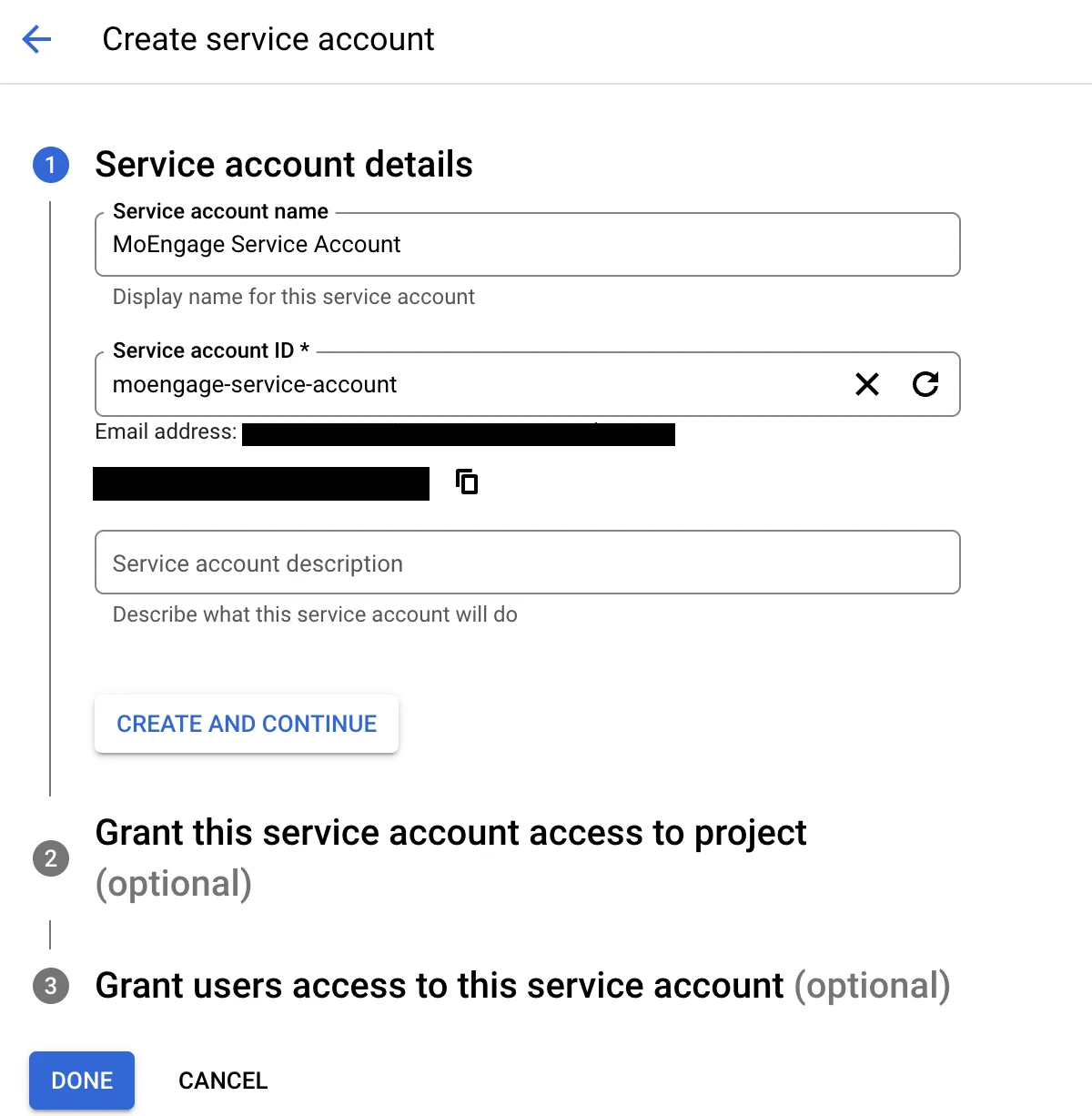
- Give this service account a name, and an optional description.
- Click Create and continue.
- Add the role Basic > Browser to this service account.
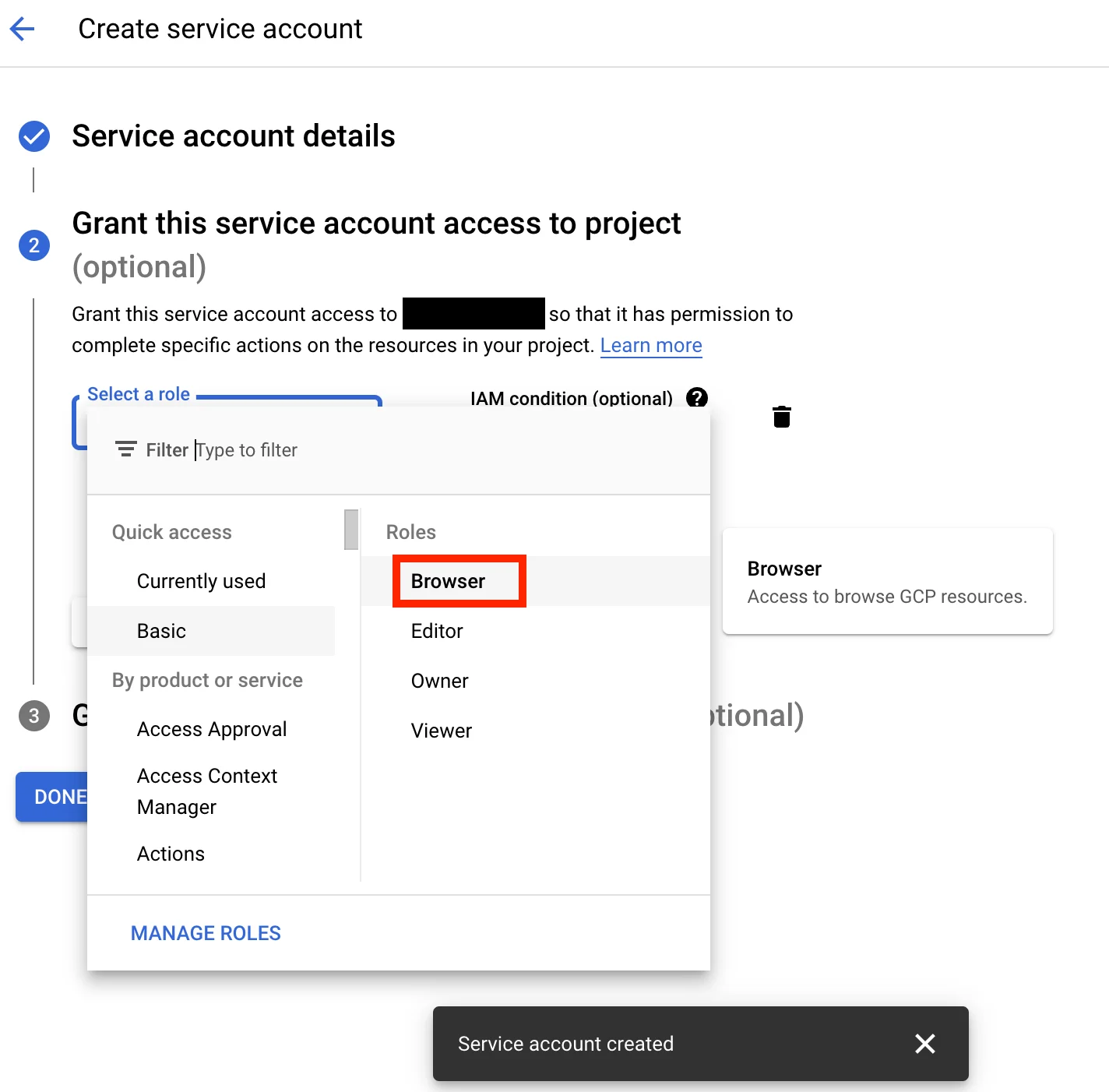
- Click Continue. Optionally, grant users access to this service account.
- Click Done.
- Open the service account from the list of service accounts.
- Go to the Keys tab, click Add Key, and then select Create new key.
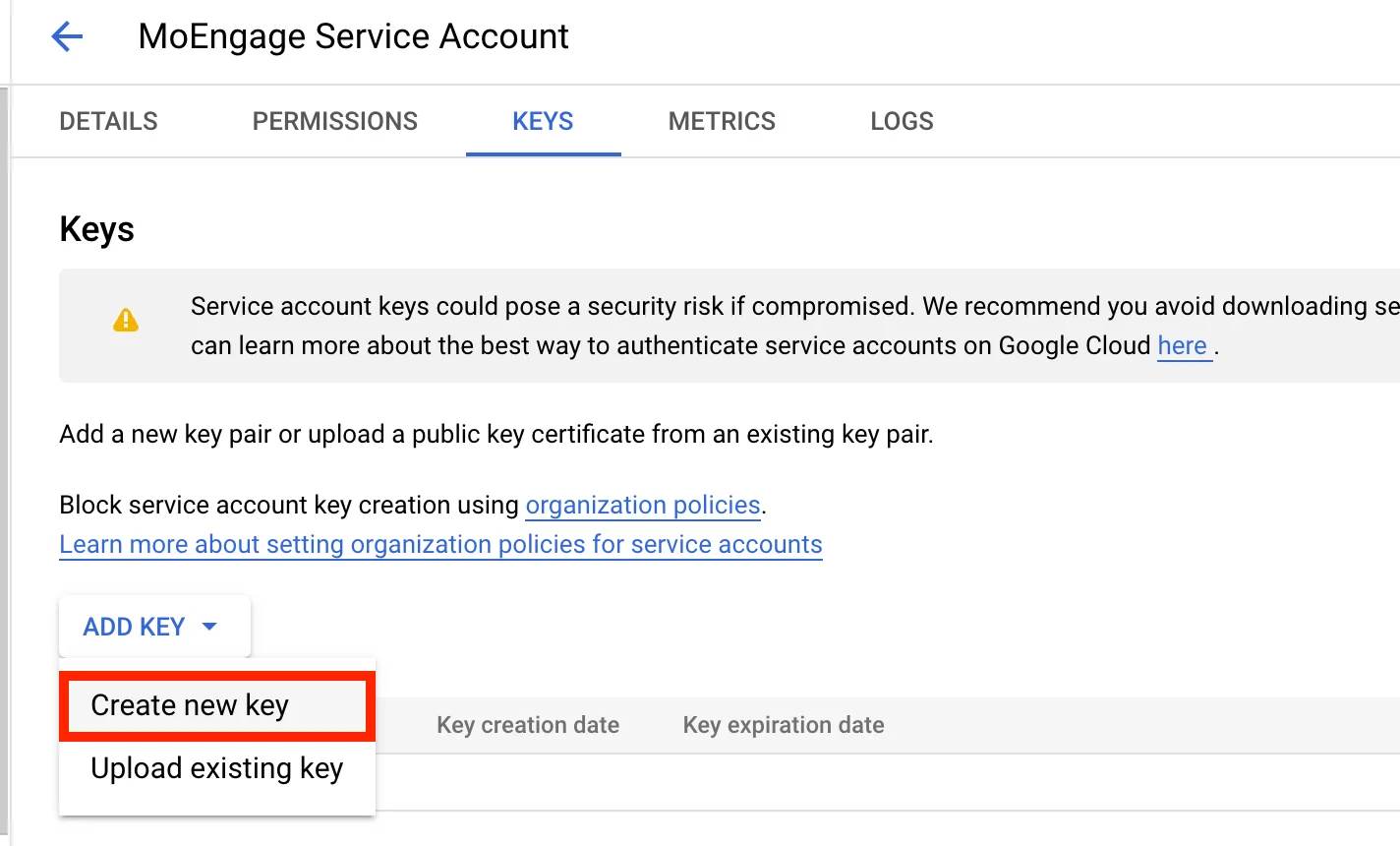
- Select the Key Type as JSON, and then click Create.
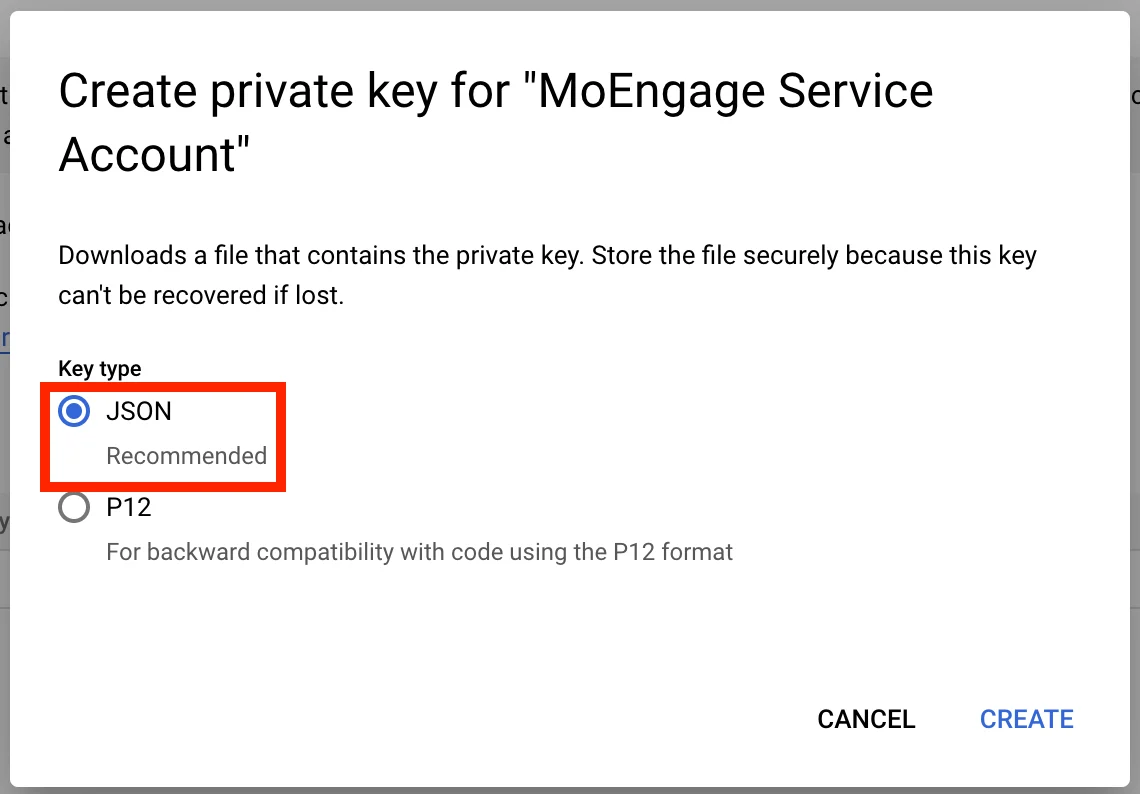
- Your new key is automatically downloaded in JSON format. Store this file safely. You will need to upload it later on the MoEngage dashboard.
Step 2: Grant this service account permissions to your bucket
- On your service account details page, copy the email of your service account.
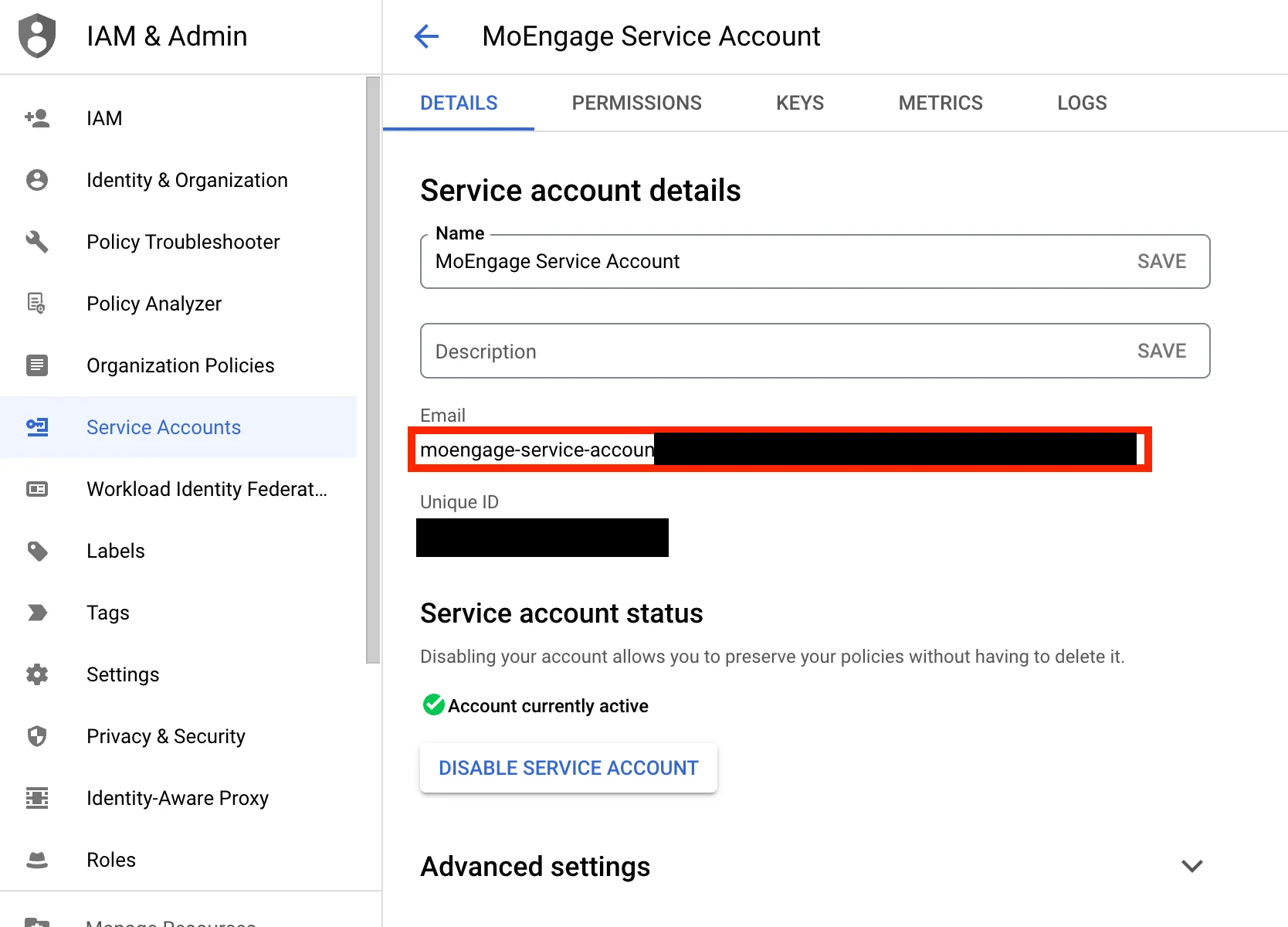
- Go to the Cloud Storage console, and open the bucket in which you want MoEngage to export the events.
- Under the Permissions tab, click Grant Access.
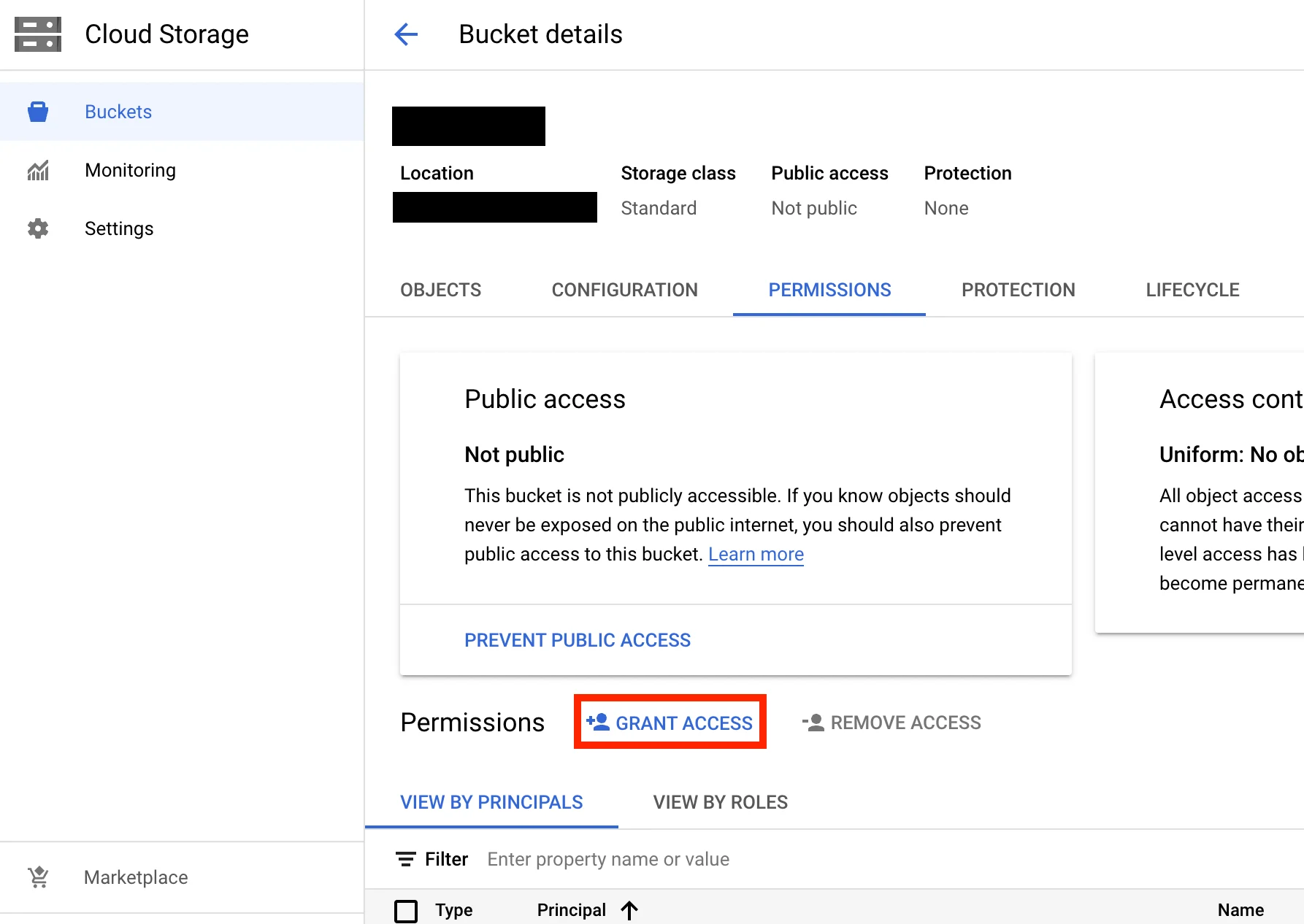
- Paste and select the service account email in the New Principals field.
- Assign the role Cloud Storage > Storage Admin.
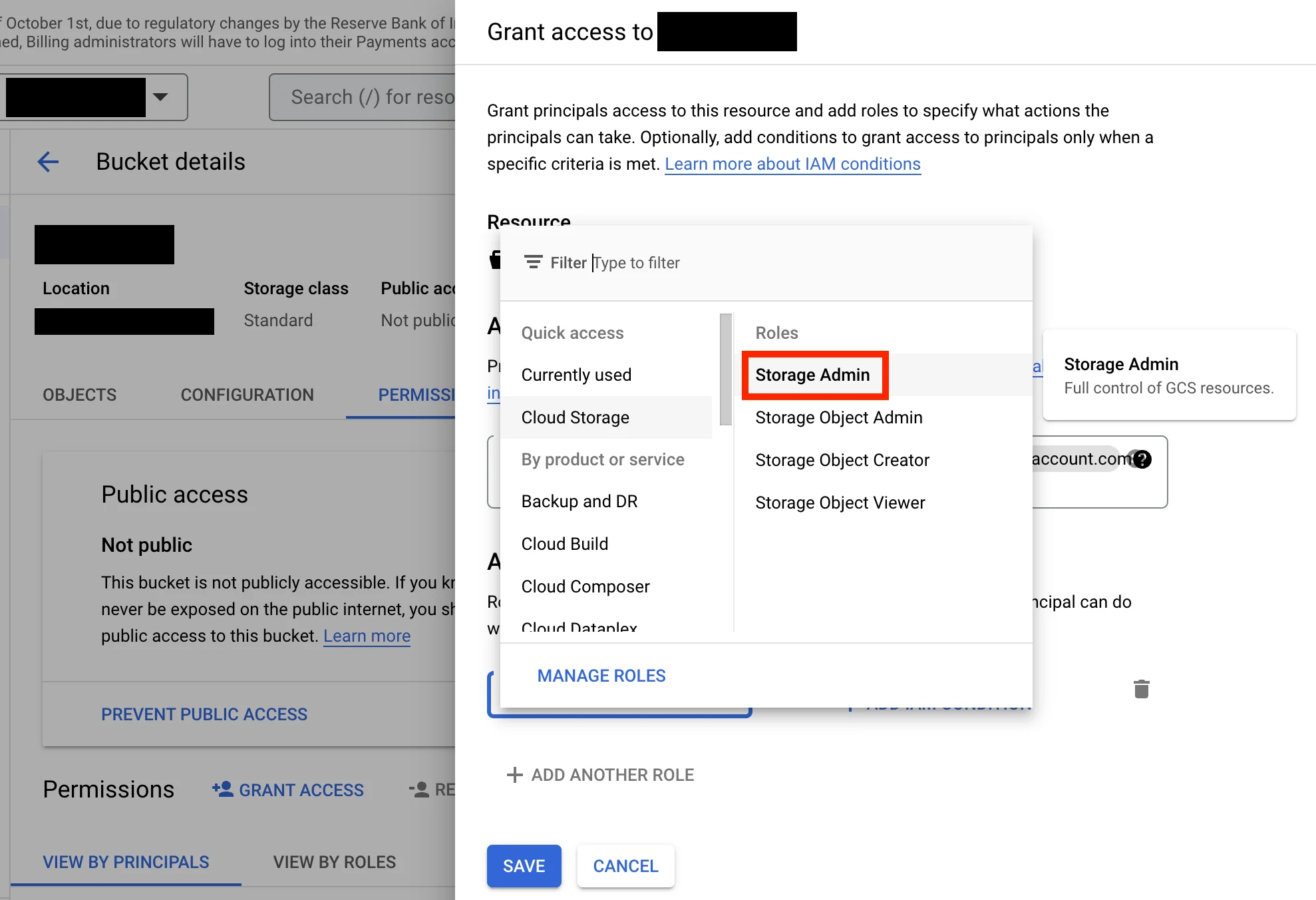
- Click Save.
Step 3: Enable APIs & Services in your GCP account
- In your GCP console, go to APIs & Services, and then click + Enable APIs and Services.
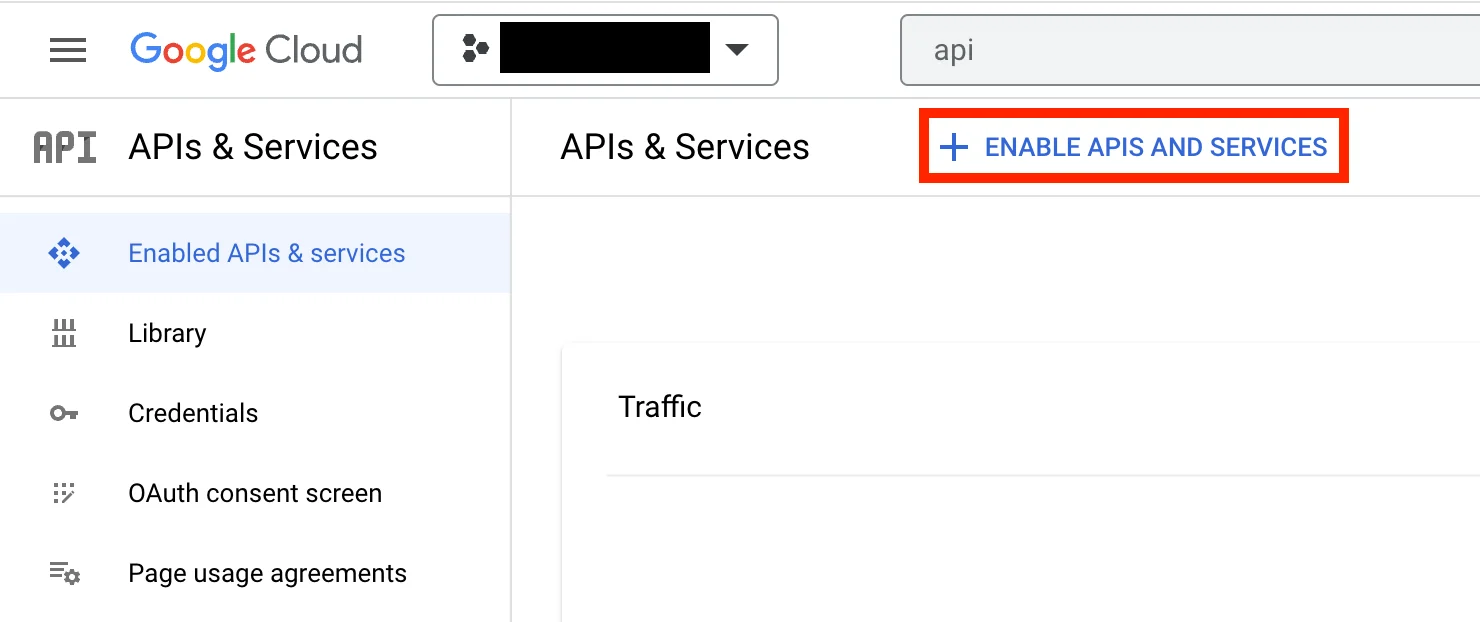
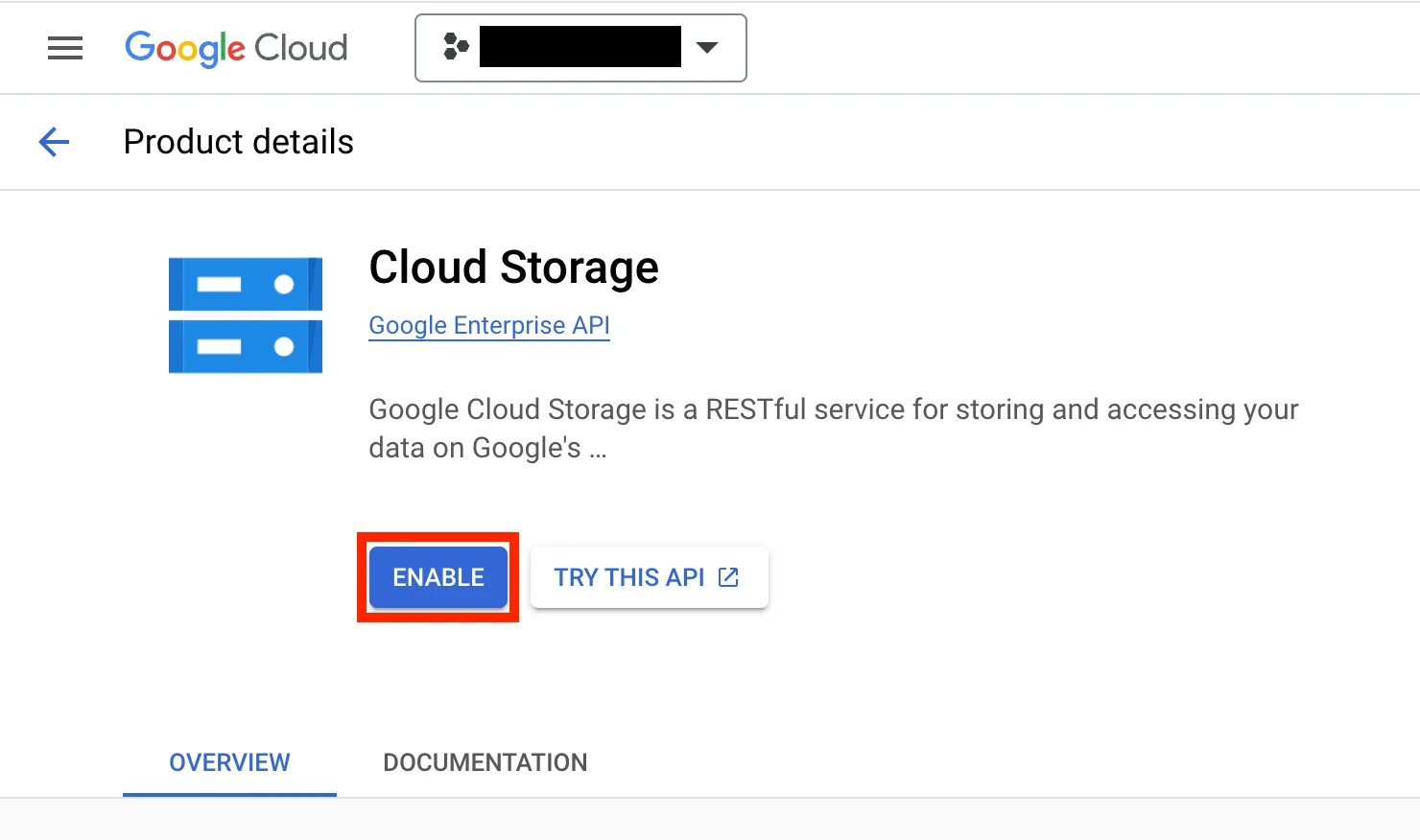
- Search for Cloud Storage and open the API details page.
- Click Enable to enable it.
Note on required permissions
To perform end-to-end testing, MoEngage requires a few additional permissions to be configured. If your IT policy does not allow for these permissions, you can skip them. However, you will not be able to test the connection from the App Marketplace. Skipping these optional permissions does not impact the actual data export in any way.
Feel free to create a custom role that incorporates the mandatory permissions required by MoEngage along with any optional permissions cleared by your IT policy for testing.