Zoho CRM is a customer relationship management platform that uses cloud-based technology to help businesses streamline their sales, marketing, and customer support processes. This enables them to effectively manage customer interactions, track sales pipelines, and drive business growth.

MoEngage × Zoho CRM

The integration of MoEngage and Zoho CRM helps businesses enhance their marketing and sales initiatives through data synchronization. With this integration, you can:
  • Synchronize leads, deals, and more from Zoho CRM to MoEngage.
  • Import sales activities like calls and meetings as behavioral events.
  • Capture custom modules for comprehensive customer profiling.

Use Cases

Integrating Zoho CRM with MoEngage helps you solve the following use cases:
  • Nurture qualified leads: Send personalized MoEngage campaigns based on lead scoring and stage progression in Zoho CRM.
  • Re-engage lost opportunities: Send targeted win-back campaigns when deals are marked as Lost or Closed Lost to re-engage prospects.

Sync Modules

The following table outlines the default sync type for each module:
ModuleMoEngage Sync Type
ContactsUsers
LeadsUsers
AccountsUsers (Synced with Contacts and Deals)
DealsEvents
TasksEvents (custom)
CallsEvents (custom)
MeetingsEvents (custom)
Custom ModulesUsers/Events (custom)
Account Information: The Accounts module is also supported. To ensure your data is always current, associated account information is synced with your Contacts and Deals records, respectively.

Integration

Prerequisites: Ensure you have a Zoho CRM account with the necessary permissions to configure workflows and webhooks.

Step 1: Get Your MoEngage Endpoint

To get a dedicated endpoint for your integration, please contact the MoEngage Support team. In your request, you must specify the common identifier used to link user profiles between MoEngage and the partner platform.

Step 2: Create a Workflow Rule in Zoho CRM

To set up a workflow rule, perform the following steps:
  1. On the Zoho CRM dashboard, navigate to Settings > Automation > Workflow Rules.
  2. On the Workflow Rules page, click Create Rule. Image of Create New Rule dialog box
    The Create New Rule dialog box appears. Now, select the module you want to sync. Note: Zoho workflows are module-specific; you must create a separate workflow for each module.
  3. In the Module list, select the desired module, such as Contacts, Leads, Deals, Calls, Meetings, and so on.
  4. In the Rule Name box, type a name for the rule.
  5. In the Description box (Optional), type a description of the rule’s purpose.
  6. Click Next. Image of Next button Now, configure the trigger.
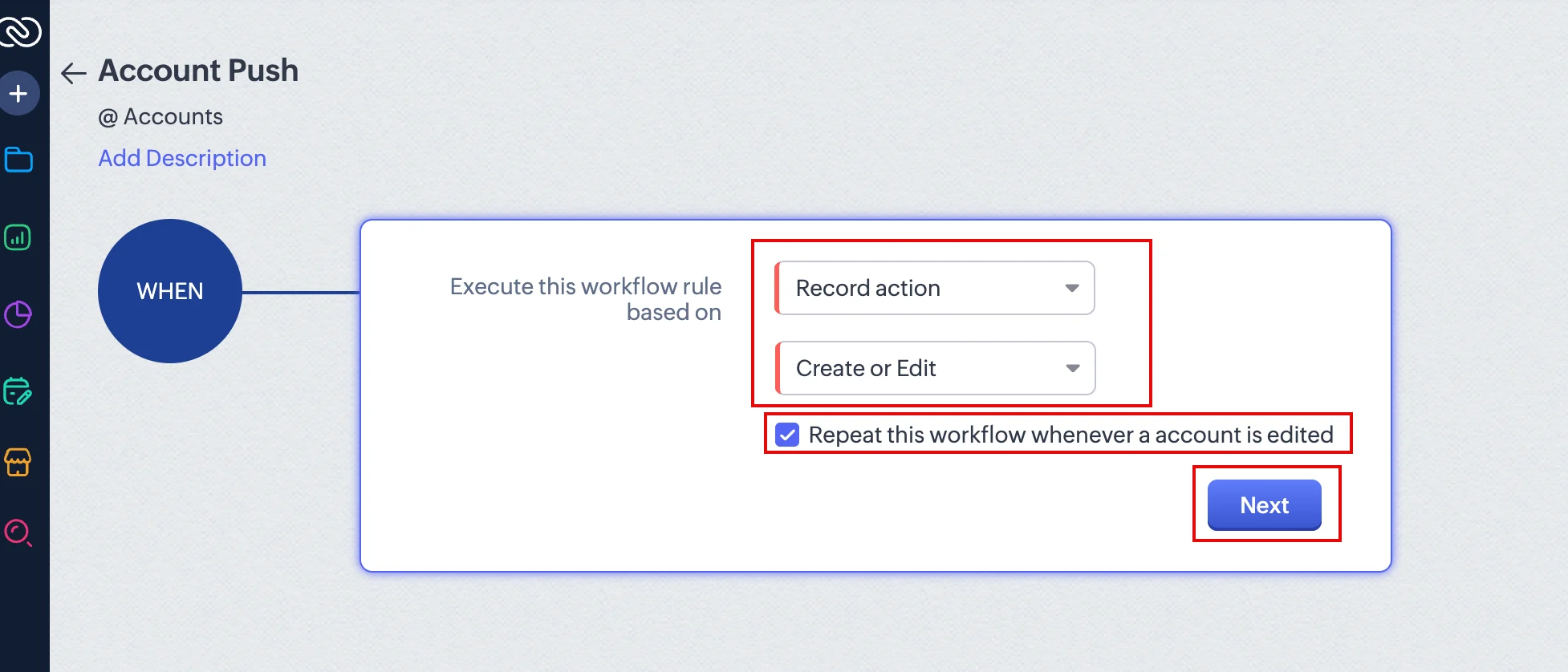
  7. In the WHEN block, click the drop-down list next to Execute this workflow rule based on and select Record action. This selection populates a dependent drop-down list.
  8. In the dependent drop-down list, select an action type, such as Create or Edit.
  9. Select the Repeat this workflow whenever a contact is edited check box (optional) if you want the workflow to repeat every time a record is edited.
  10. Click Next. Image of Next button
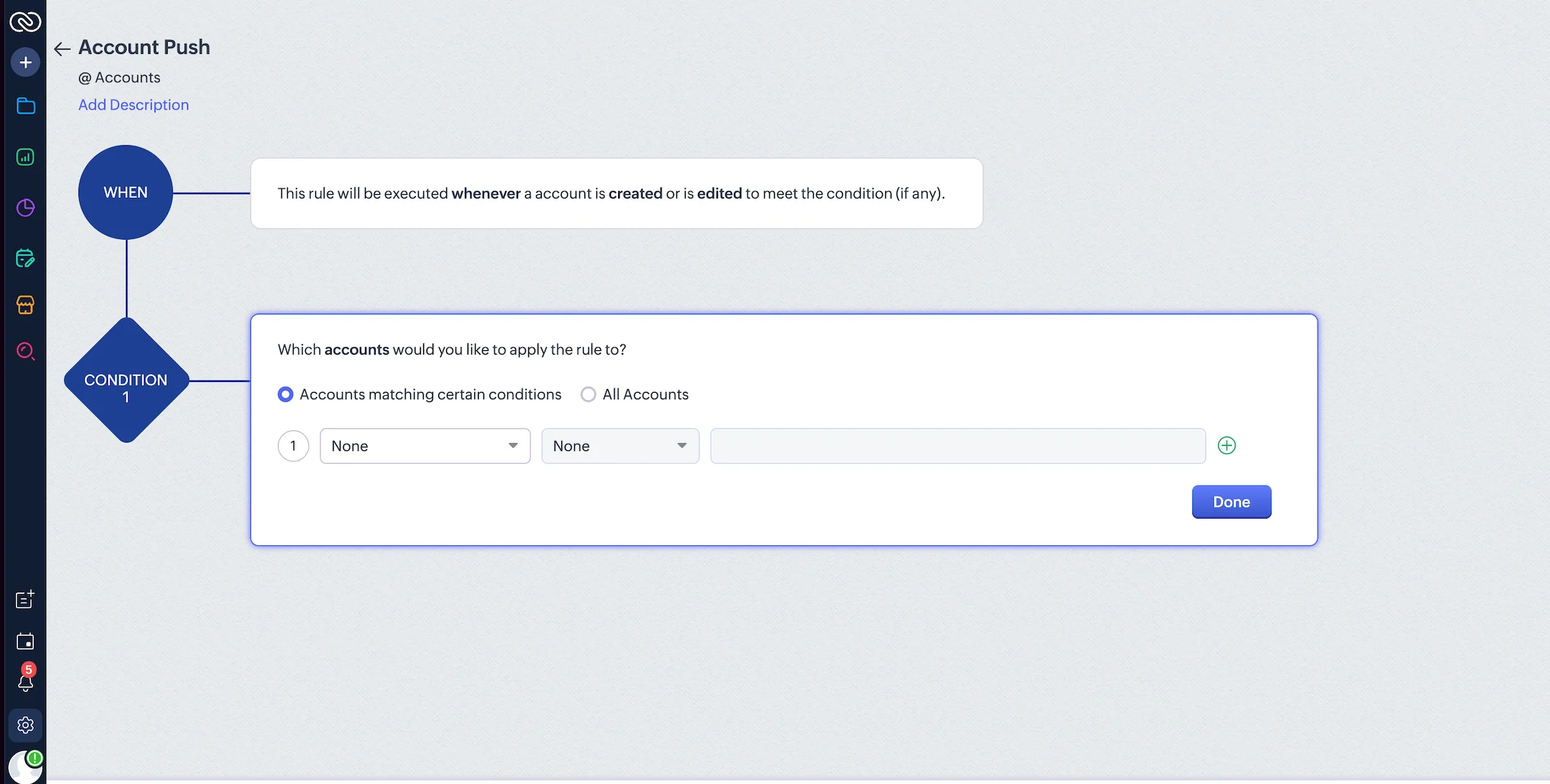
    In the CONDITION block, you can define the workflow rule to execute for all records or add specific filter conditions if needed. Image of CONDITION block
Step 3: Configure a Webhook Action

To configure a Webhook action, perform the following steps:
  1. In the Instant Actions list, select Webhook.
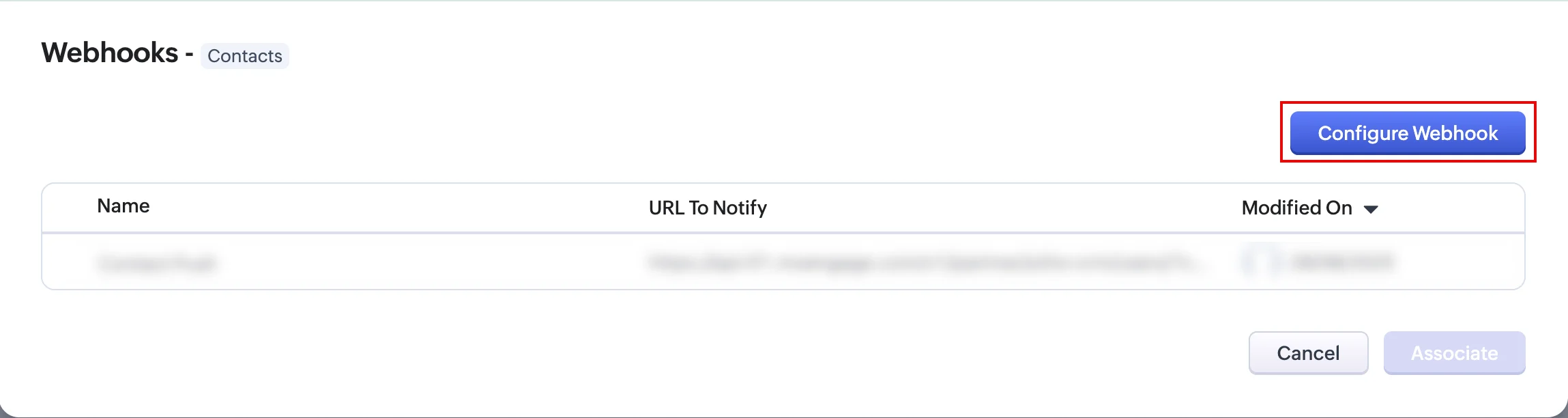
    The Webhook dialog box appears.
  2. Click Configure Webhook.
Image of Configure Webhook button
  1. In the Webhooks page, provide the following details:
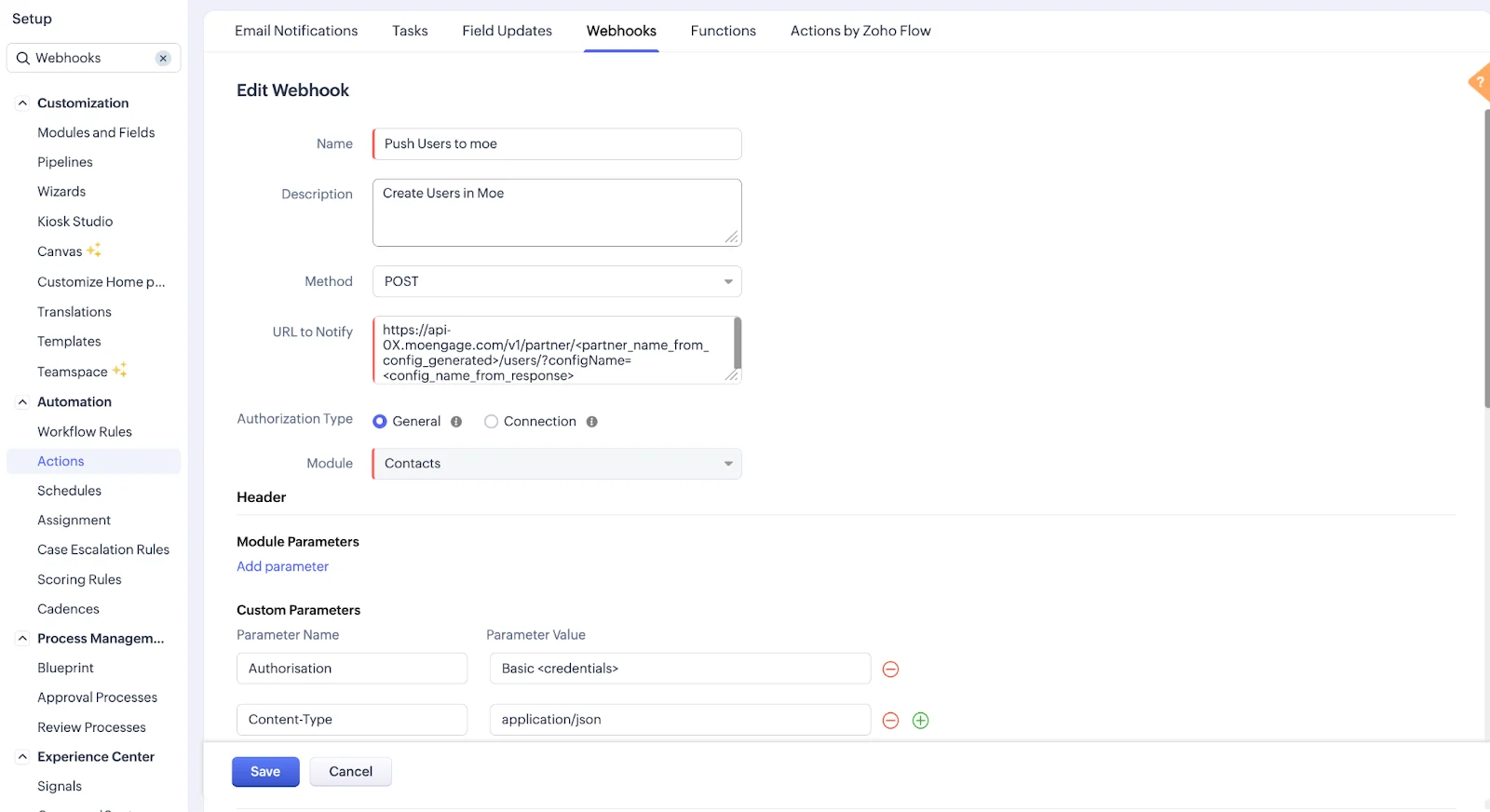
Zoho CRM SectionDescription
MethodPOST
URLEnter the dedicated Webhook URL provided by MoEngage in the following format: https://api-0X.moengage.com/v1/partner/zoho-crm/{events/user}/?configName={config_name}
Custom HeadersAdd the following custom headers:
  • Content-Type: application/json
  • Authorization: Generate a Basic Authentication Token using an online Basic Auth Header Generator tool. You must enter your Workspace ID as username and Data API Key as password. To find your credentials, perform the following steps:

    1. On the MoEngage UI, navigate to Settings > Account > APIs.
    2. Copy the ID under Workspace ID (earlier app id).
    3. Copy the Data under API keys.

    Your Basic Authentication Token is a combination of Workspace ID and Data. For example, paste the following value as your Basic Authentication Token: Basic Qk5CR1NNNUR4eHh4eHhWQ1hSRFJEWTdSOlFsWHVoTHVaeHh4eHh4QWQrQnBYUEotNw==
    Note: Ensure the token is copied completely without extra spaces.

Image of Webhooks page

Step 4: Configure the Webhook Request Body

In the Request Body section, you can select one of the following options:

Boilerplate Templates

{
  "customer_id": "${Unique_Identifier}",
  "first_name": "${Module.First Name}",
  "last_name": "${Module.Last Name}",
  "email": "${Module.Email}",
  "phone": "${Module.Phone}",
  "user_attributes": {
    "type": "Contacts", // or "Leads"
    "modified_time": "${Module.Modified Time}"
    // Add additional fields as needed - see reference tables below
  }
}
{
  "customer_id": "${Unique_Identifier}",
  "event_name": "Deal Updated", // or custom event name
  "user_attributes": {
    "type": "Deals",
    "modified_time": "${Module.Modified Time}"
    // Add user context fields if needed
  },
  "event_attributes": {
    "modified_time": "${Module.Modified Time}"
    // Add event-specific fields - see reference tables below
  }
}

Data Mapping Guidelines

  • Unique Identifier (Customer ID): Use a consistent, immutable unique identifier (like an external_id, email address, or phone number) from your Zoho CRM data. Map this value to the customer_id field in your MoEngage payload. This is critical for data merging and preventing duplicate user profiles.
  • Required Fields: All payloads must include the customer_id, modified_time, and type fields. These are essential for proper data processing, lookups, and segmentation.
  • Type: Specify the record type as “Contacts,” “Leads,” or “Deals” for accurate segmentation and targeting in MoEngage.
  • Date and Time Formatting: Ensure all date and time fields, especially modified_time, are formatted as dd-mm-yyyy HH:MM:SS. This setting is configured in the Zoho webhook.
  • Event Name: Include the event_name in every event to identify and categorize actions in MoEngage. This ensures all events are tracked accurately for analysis and segmentation.
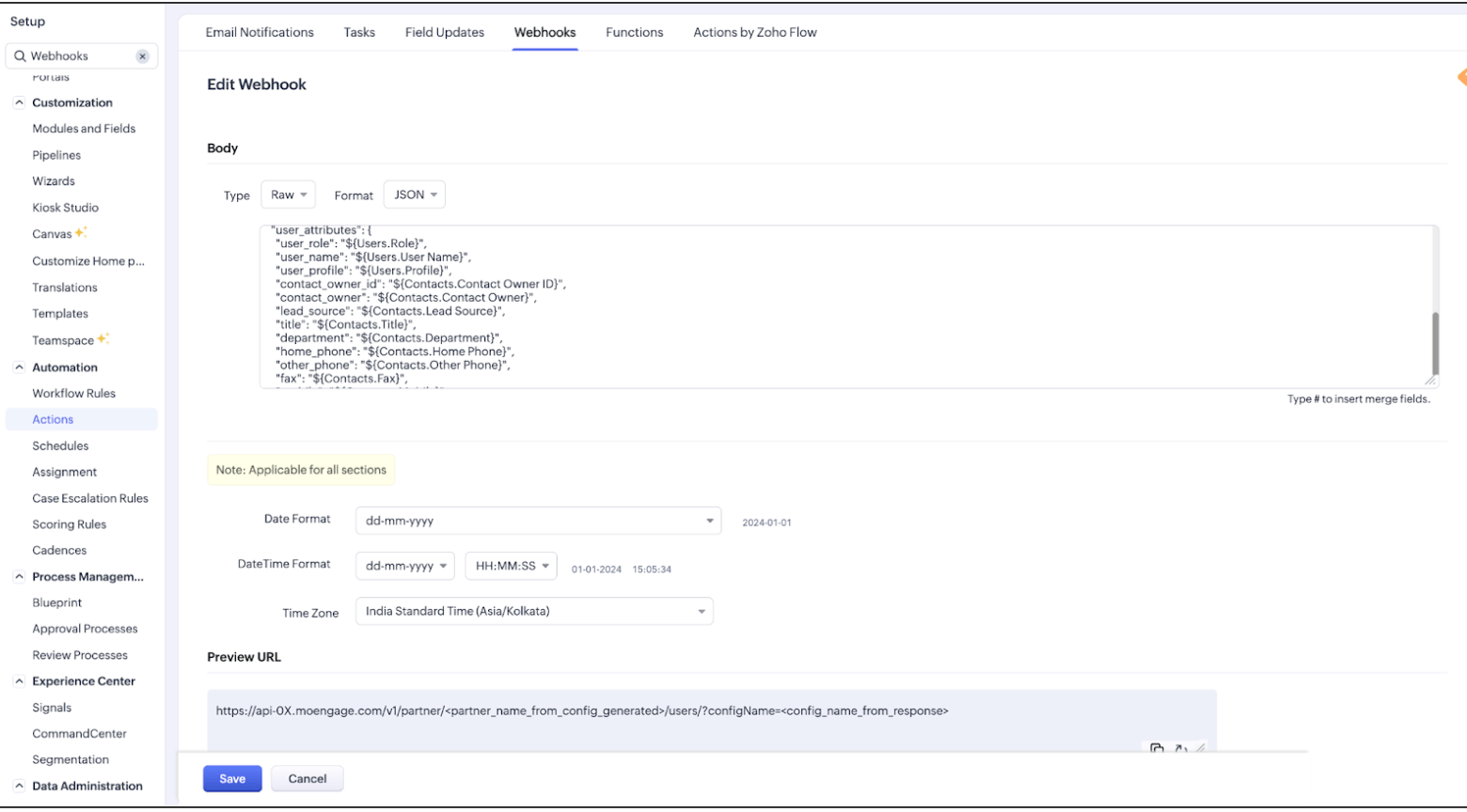
Data mappings for Zoho CRM modules in the webhook request body

Mapping References

The following are the JSON mappings for modules like Contact, Lead, and Deal. You can use these examples or customize them by adding key-value pairs within the user_attributes or event_attributes objects.
{
  "customer_id": "${Unique_Identifier}",
  "first_name": "${Contacts.First Name}",
  "last_name": "${Contacts.Last Name}",
  "email": "${Contacts.Email}",
  "phone": "${Contacts.Phone}",
  "user_attributes": {
    "type": "Contacts",
    "contact_owner": "${Contacts.Contact Owner}",
    "lead_source": "${Contacts.Lead Source}",
    "modified_time": "${Contacts.Modified Time}",
    "account_name": "${Accounts.Account Name}"
  }
}
{
  "customer_id": "${Unique_Identifier}",
  "first_name": "${Leads.First Name}",
  "last_name": "${Leads.Last Name}",
  "email": "${Leads.Email}",
  "phone": "${Leads.Phone}",
  "user_attributes": {
    "type": "Leads",
    "lead_status": "${Leads.Lead Status}",
    "company": "${Leads.Company}",
    "lead_source": "${Leads.Lead Source}",
    "modified_time": "${Leads.Modified Time}"
  }
}
{
  "customer_id": "${Unique_Identifier}",
  "event_name": "Deal Updated", // or custom event name
  "user_attributes": {
    "type": "Deals",
    "modified_time": "${Deals.Modified Time}"
  },
  "event_attributes": {
    "deal_name": "${Deals.Deal Name}",
    "stage": "${Deals.Stage}",
    "deal_amount": "${Deals.Amount}",
    "closing_date": "${Deals.Closing Date}",
    "modified_time": "${Deals.Modified Time}"
  }
}
{
  "customer_id": "${Unique_Identifier}",
  "event_name": "Meeting Scheduled",
  "user_attributes": {
    "modified_time": "${Meetings.Modified Time}"
  },
  "event_attributes": {
    "meeting_subject": "${Meetings.Subject}",
    "meeting_start_time": "${Meetings.Start DateTime}",
    "meeting_owner": "${Meetings.Owner}",
    "modified_time": "${Meetings.Modified Time}"
  }
}
{
  "customer_id": "${Unique_Identifier}",
  "event_name": "Call Logged", // or custom event name
  "event_attributes": {
    "call_id": "${Calls.Call Id}",
    "subject": "${Calls.Subject}",
    "call_type": "${Calls.Call Type}",
    "call_purpose": "${Calls.Call Purpose}",
    "related_to": "${Calls.Related To}",
    "start_time": "${Calls.Call Start Time}",
    "duration_formatted": "${Calls.Call Duration}",
    "duration_in_seconds": "${Calls.Call Duration (in seconds)}",
    "description": "${Calls.Description}",
    "result": "${Calls.Call Result}",
    "outgoing_status": "${Calls.Outgoing Call Status}",
    "agenda": "${Calls.Call Agenda}",
    "created_by": "${Calls.Created By}",
    "modified_by": "${Calls.Modified By}",
    "created_time": "${Calls.Created Time}",
    "modified_time": "${Calls.Modified Time}",
    "last_activity_time": "${Calls.Last Activity Time}"
  }
}
{
  "customer_id": "${Unique_Identifier}",
  "event_name": "Custom Event Name",
  "user_attributes": {
    "modified_time": "${Object.Modified Time}"
  },
  "event_attributes": {
    "specific_details": "${Object.Specific Fields}",
    "modified_time": "${Object.Modified Time}"
  }
}

Field References

The following tables show which fields are supported for each module and their corresponding Zoho CRM merge fields.
FieldZOHO Merge Field
Department${Contacts.Department}
Title${Contacts.Title}
Mobile${Contacts.Mobile}
Fax${Contacts.Fax}
Assistant${Contacts.Assistant}
Email Opt Out${Contacts.Email Opt Out}
Skype ID${Contacts.Skype ID}
Twitter${Contacts.Twitter}
Created By${Contacts.Created By}
Created Time${Contacts.Created Time}
Last Activity${Contacts.Last Activity Time}
Mailing Street${Contacts.Mailing Street}
Mailing City${Contacts.Mailing City}
Mailing State${Contacts.Mailing State}
Mailing Zip${Contacts.Mailing Zip}
Mailing Country${Contacts.Mailing Country}
Description${Contacts.Description}
FieldZOHO Merge Field
Lead ID${Leads.Lead Id}
Lead Owner${Leads.Lead Owner}
Industry${Leads.Industry}
Rating${Leads.Rating}
Annual Revenue${Leads.Annual Revenue}
Employees${Leads.No. of Employees}
Website${Leads.Website}
Street${Leads.Street}
City${Leads.City}
State${Leads.State}
Zip Code${Leads.Zip Code}
Country${Leads.Country}
Secondary Email${Leads.Secondary Email}
Mobile${Leads.Mobile}
FieldZOHO Merge Field
Deal ID${Deals.Deal Id}
Deal Owner${Deals.Deal Owner}
Contact Name${Deals.Contact Name}
Probability${Deals.Probability (%)}
Expected Revenue${Deals.Expected Revenue}
Type${Deals.Type}
Next Step${Deals.Next Step}
Campaign Source${Deals.Campaign Source}
Created By${Deals.Created By}
Sales Cycle Duration${Deals.Sales Cycle Duration}
Reason for Loss${Deals.Reason For Loss}
FieldZOHO Merge Field
Account Name${Accounts.Account Name}
Account Type${Accounts.Account Type}
Industry${Accounts.Industry}
Account Number${Accounts.Account Number}
SIC Code${Accounts.SIC Code}
Rating${Accounts.Rating}
Phone${Accounts.Phone}
Ticker Symbol${Accounts.Ticker Symbol}
Annual Revenue${Accounts.Annual Revenue}
Ownership${Accounts.Ownership}

Meetings

FieldZOHO Merge Field
Subject${Meetings.Subject}
Start DateTime${Meetings.Start DateTime}
Owner${Meetings.Owner}

Calls

FieldZOHO Merge Field
Call Type${Calls.Call Type}
Call Purpose${Calls.Call Purpose}
Duration${Calls.Call Duration}
Result${Calls.Call Result}

Tasks

FieldZOHO Merge Field
Subject${Tasks.Subject}
Status${Tasks.Status}
Priority${Tasks.Priority}
Due Date${Tasks.Due Date}

Rate Limits

To maintain platform stability, MoEngage limits ingestion of Zoho CRM data to a maximum of 500 requests per second (RPS) per workspace. If your workspace exceeds this limit, MoEngage returns an HTTP 429 (Too Many Requests) status code. Refer to Zoho CRM’s default retry policy to understand how rate limiting affects your data flow. Retry Exhaustion: If Zoho CRM exhausts all retry attempts for a batch of data, you must contact the Zoho CRM Support Team to replay the failed requests.