- To find registered users in the system.
- To find anonymous users in the system.
Expected result:
You will be able to see the users who logged in to your application and anonymous users in the system. Registered users inyour system: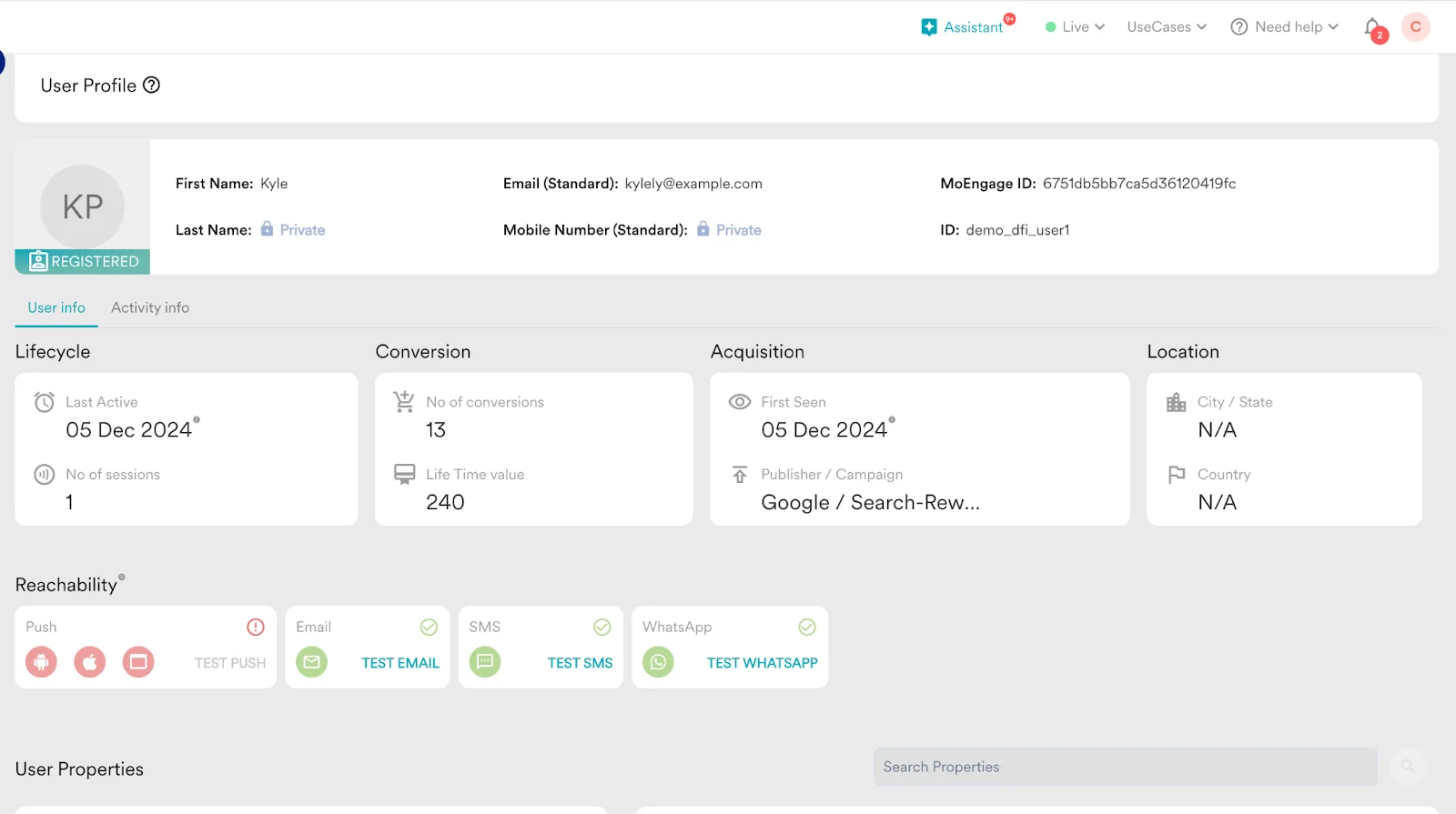
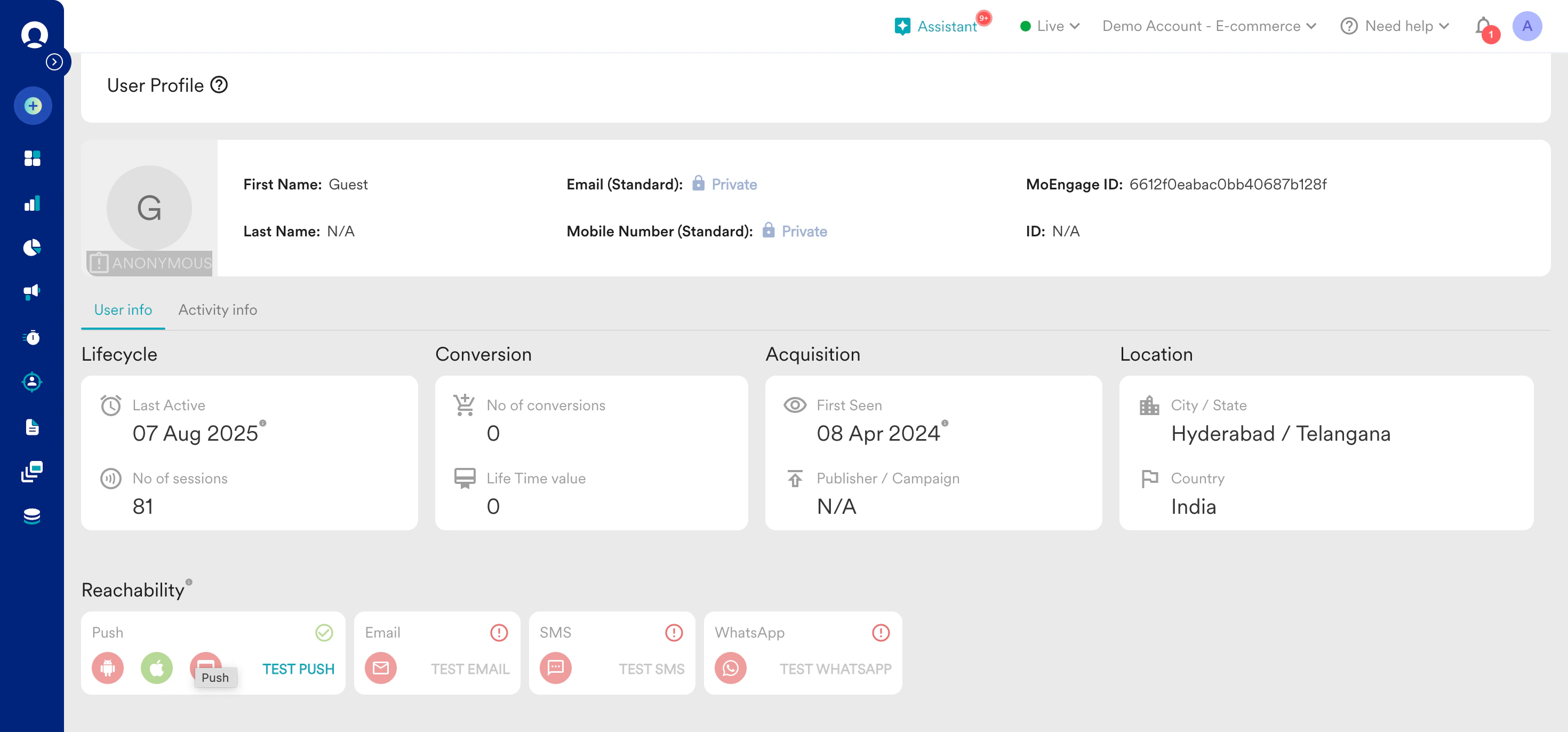
Steps to find a user who logged in to the system
You can search using a mobile number, email address, or MoEngage ID from the search bar. In this example, we will use MoEngage ID.- On the left navigation menu in the MoEngage dashboard, click Segments, and then click Search Users.
- In the search bar, search using Name, Email, Mobile Number, MoEngage ID, or ID.
- Enter one of the parameters in the search box and press Enter. This search presents a list of users matching your input with the parameters.
- Click the user you want to view, and the user profile of the respective user will be displayed.
 Search by MoEngage ID is not supported for a user base below 10k.
 - The same functionality is also present on Create Segments page, click Segments, and then click Create Segment. For more information on creating segments, refer here.
- With Admin and Managers access, you can also provide instructions for their team members on how to look up their users, as shown below:
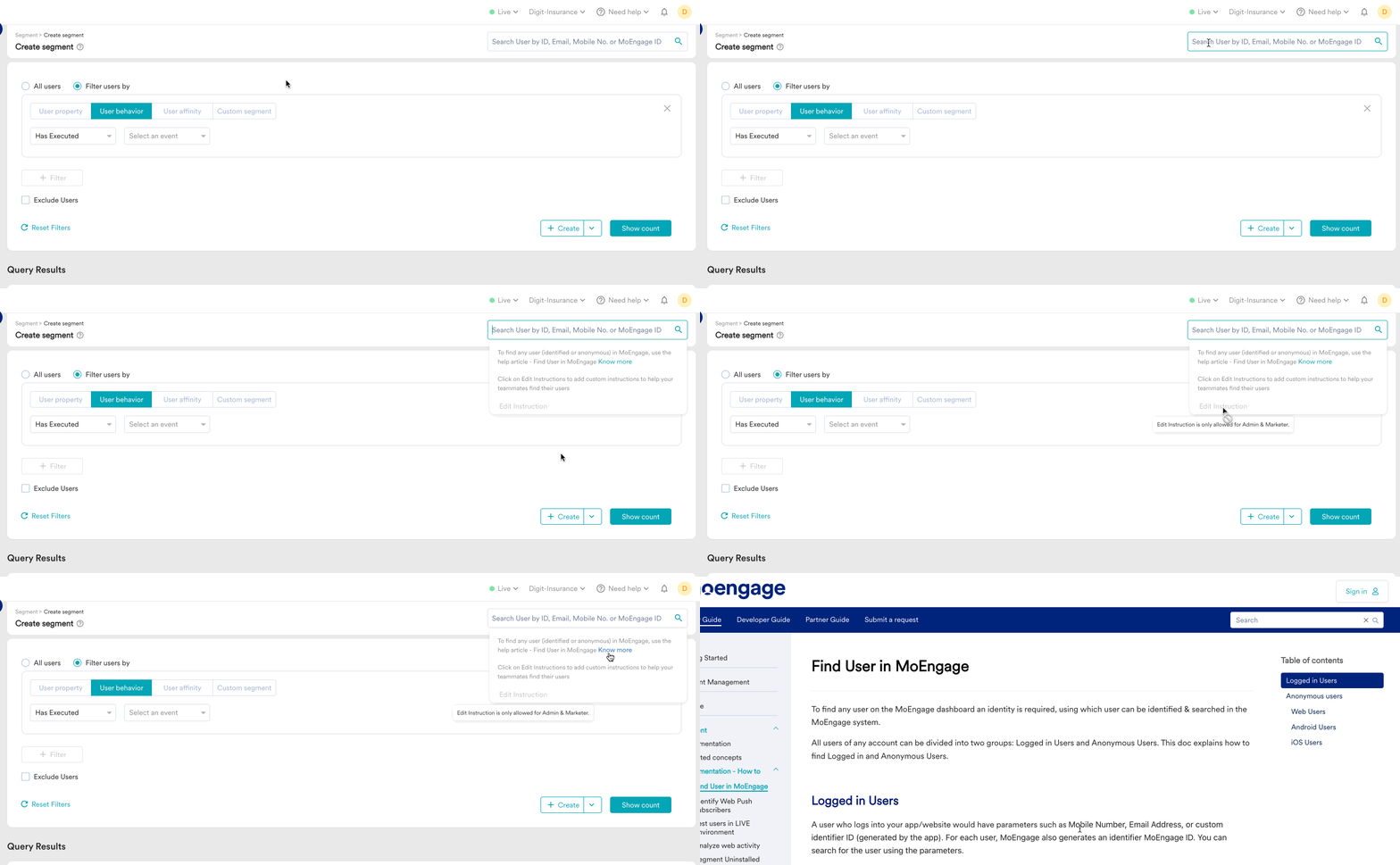
Steps to find anonymous users
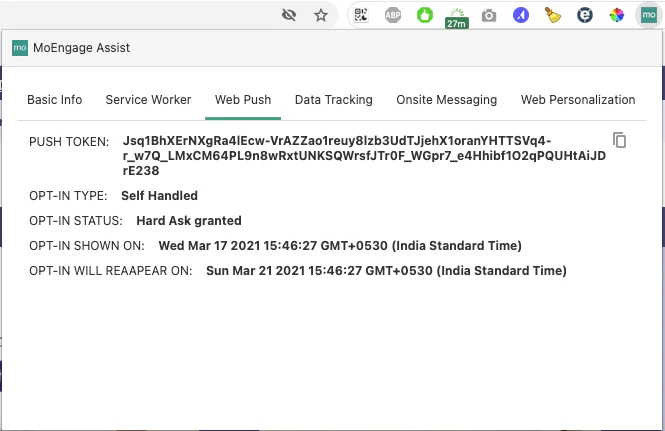
Anonymous users typically have only the MoEngage ID. You can, however, search for them using the advertising identifiers or web push tokens depending on the platform on which the user is available. Perform the following steps to identify users on the respective platforms as mentioned below:- Android Users
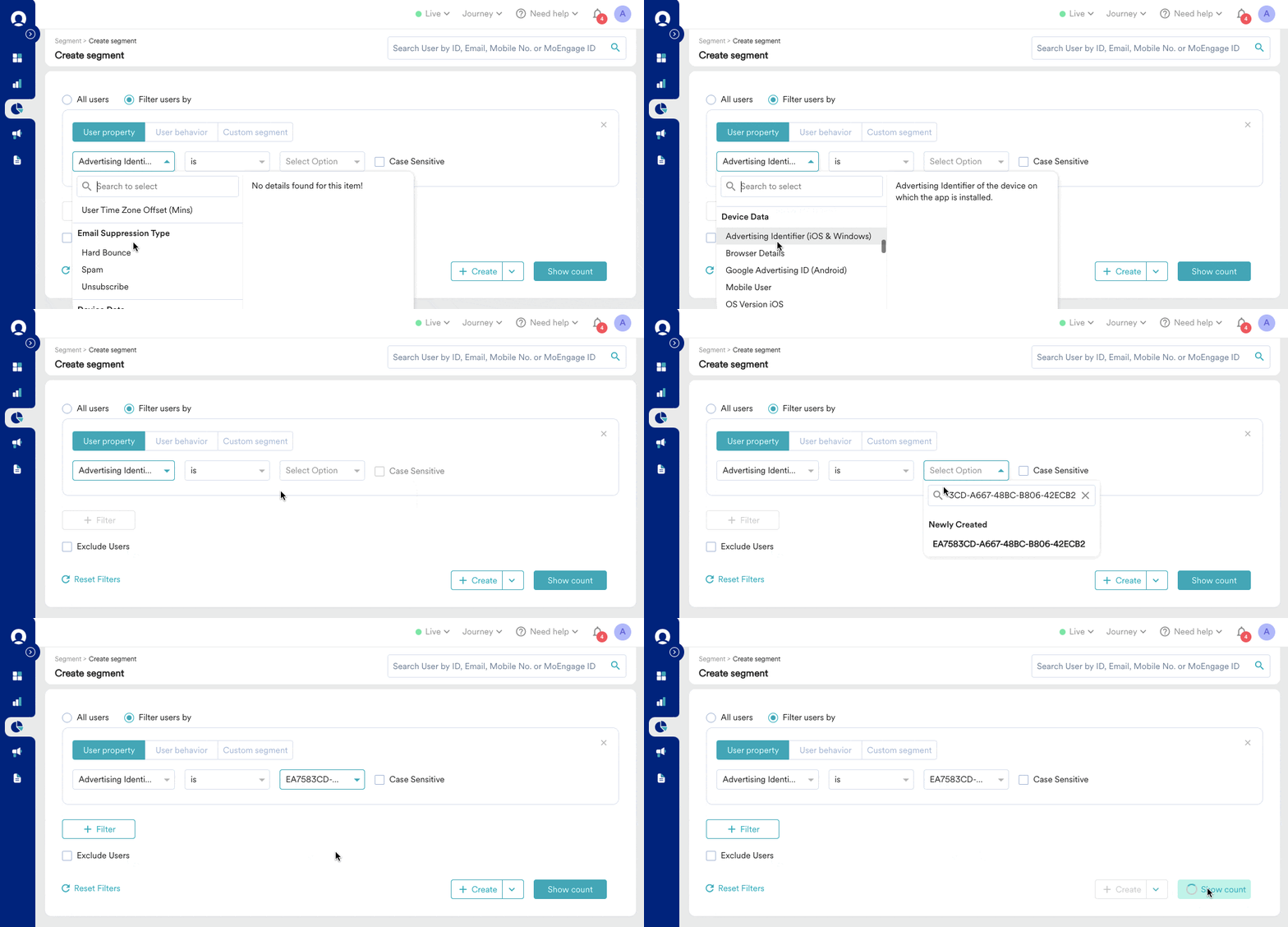
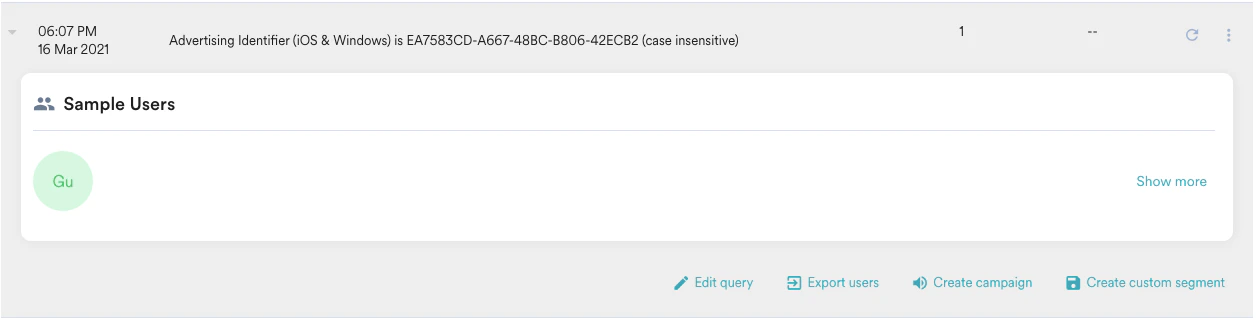
- iOS Users
- Web Users
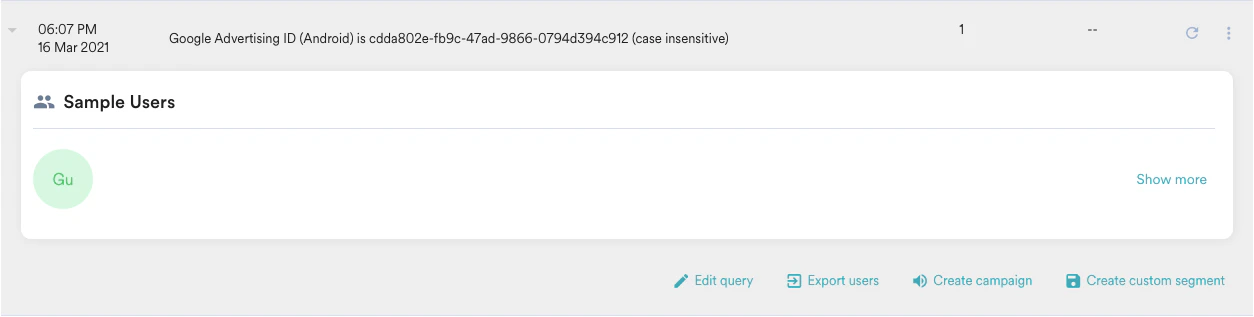
Search a user with GAID
- On the left navigation menu in the MoEngage dashboard, click Segments, and then click Create segment.
- Click the Filter users by option, and then click the User property tab.
- Add the filter criteria with user attributes, Google Advertising ID (Android)
- Select the GAID from the dropdown Select Option.
- Click Show count.
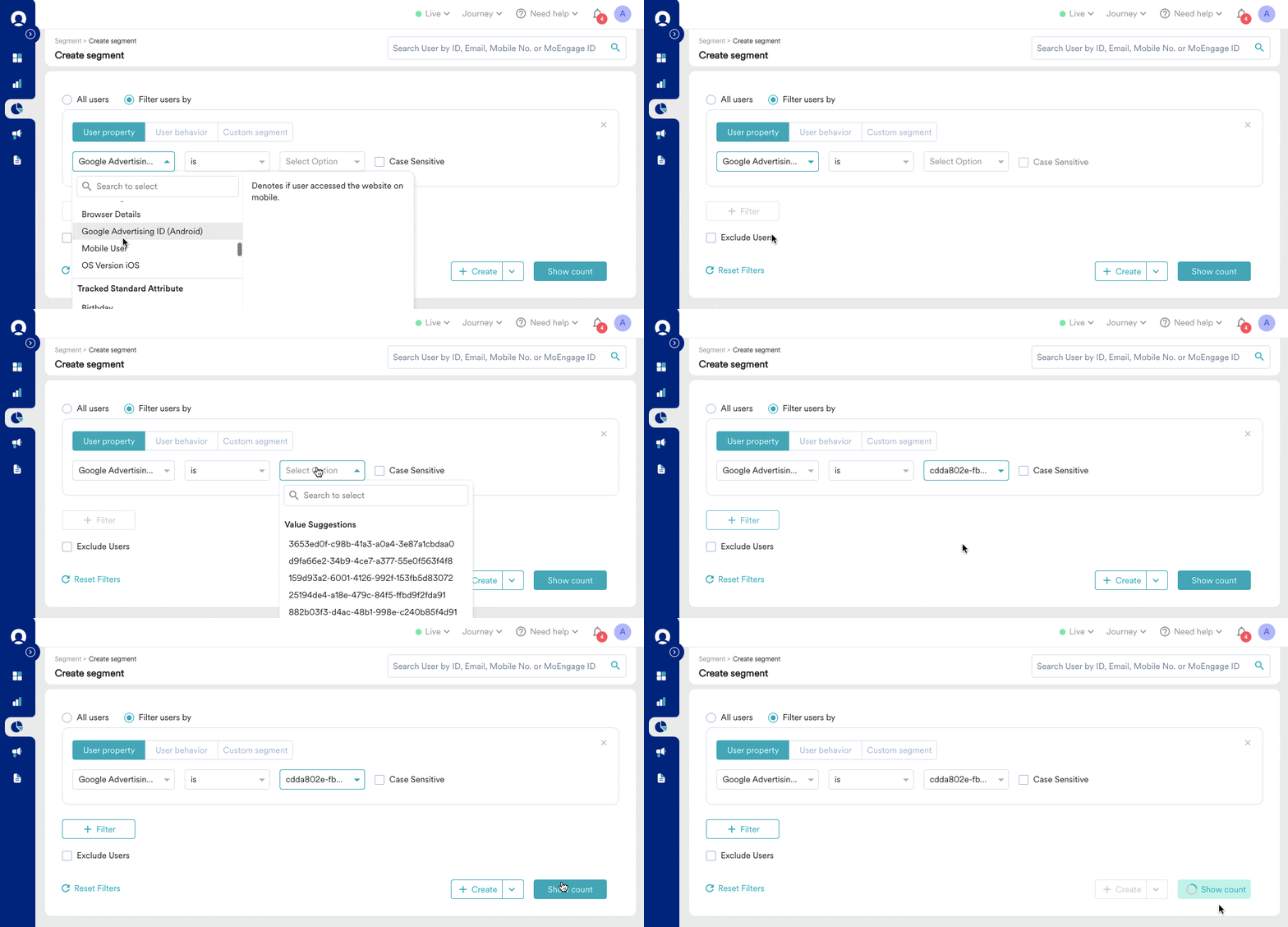
- From the Query result, click on the user icon in Sample users to open the User Profile.