

Getting started
Before you first open Context Hub, Merlin AI extracts your brand and business context in the background, so the results are usually ready and stored by the time you arrive. You receive an email once extraction is complete.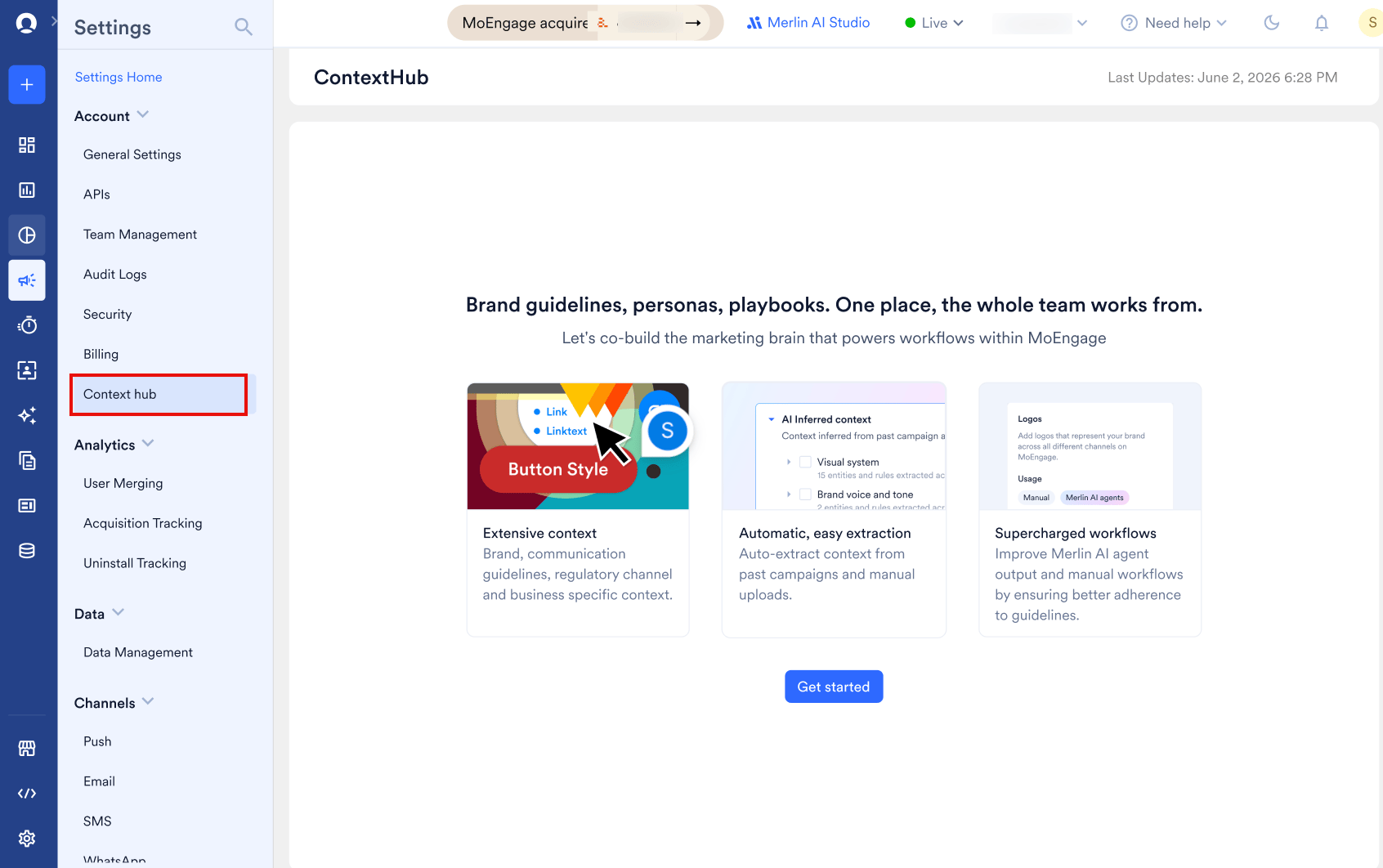
1
Open Context Hub and select Get started
Go to Settings > Account > Context Hub and select Get started. In most cases, Merlin AI has already extracted your context.
2
Review the AI Inferred context panel
The extracted results appear as the AI Inferred context panel at the top of the page. See Review and add AI-inferred context.
How Merlin AI extracts context
Merlin AI automatically surfaces brand and business information for you to review and add to Context Hub.How it extracts information
- It extracts from your past campaign activity and platform usage.
- If Merlin AI identifies your brand’s website from your past campaign data, it also runs a web search to gather more brand information.
What is extracted
Merlin AI organizes the context it extracts into categories, each holding specific entities:- Visual system — logos, colours, fonts, typography, buttons, hyperlinks, visual style guidelines, imagery rules, iconography, accessibility rules.
- Identity — brand story, approved taglines.
- Brand voice and tone — tone of voice, brand voice rules, prohibited words, brand voice exemplars.
- Formatting — naming conventions, punctuation and number formatting.
- Others — regulatory disclaimers, channel brand adaptations.
When it runs
- Merlin AI runs automatically in the background, without any manual trigger.
- It runs on a fixed cadence: after one week, or after 50 campaigns are published, whichever happens first.
How it handles what you add or leave out
- Nothing is selected by default. You choose which categories to add.
- Leaving a category unselected is not a permanent rejection. Merlin AI treats it as “not interested at the moment” and surfaces that content again on every later run.
- For a category you have already added, if a later run finds no new information about that entity, it stops appearing in the results.
Page structure
Once Context Hub contains information, the page shows a Last Updated timestamp at the top. Content sits under the Brand tab, with an in-page navigation list on the left: Visual system, Identity, Brand voice and tone, Formatting, and Others. Each section groups related entries — for example, Visual system contains Logos and Colours. A section with no entries yet shows “No context added.”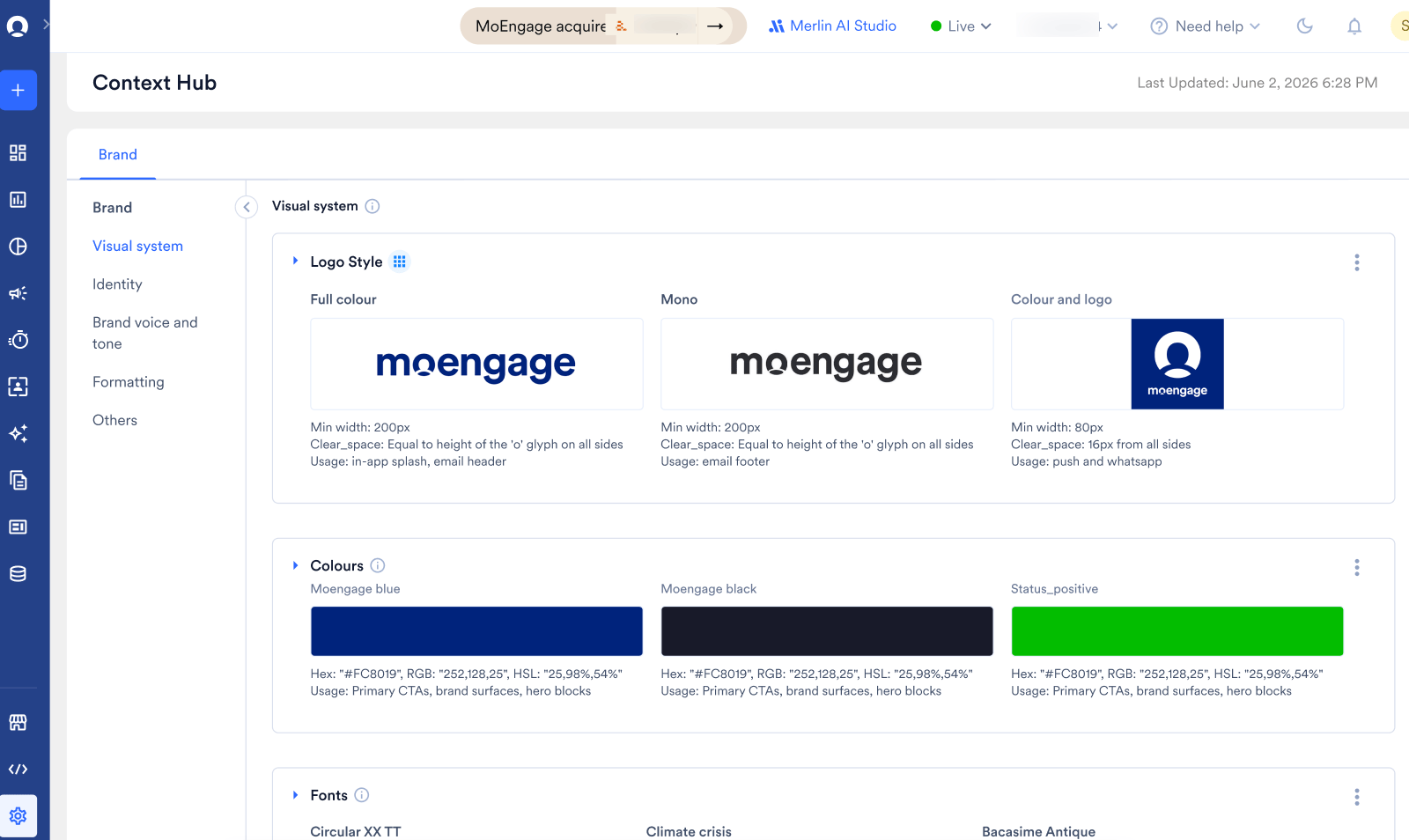
Review and add AI-inferred context
When Merlin AI finishes extracting information, the AI Inferred context panel appears at the top of the page, labeled “Context inferred from past campaign activity and platform usage.”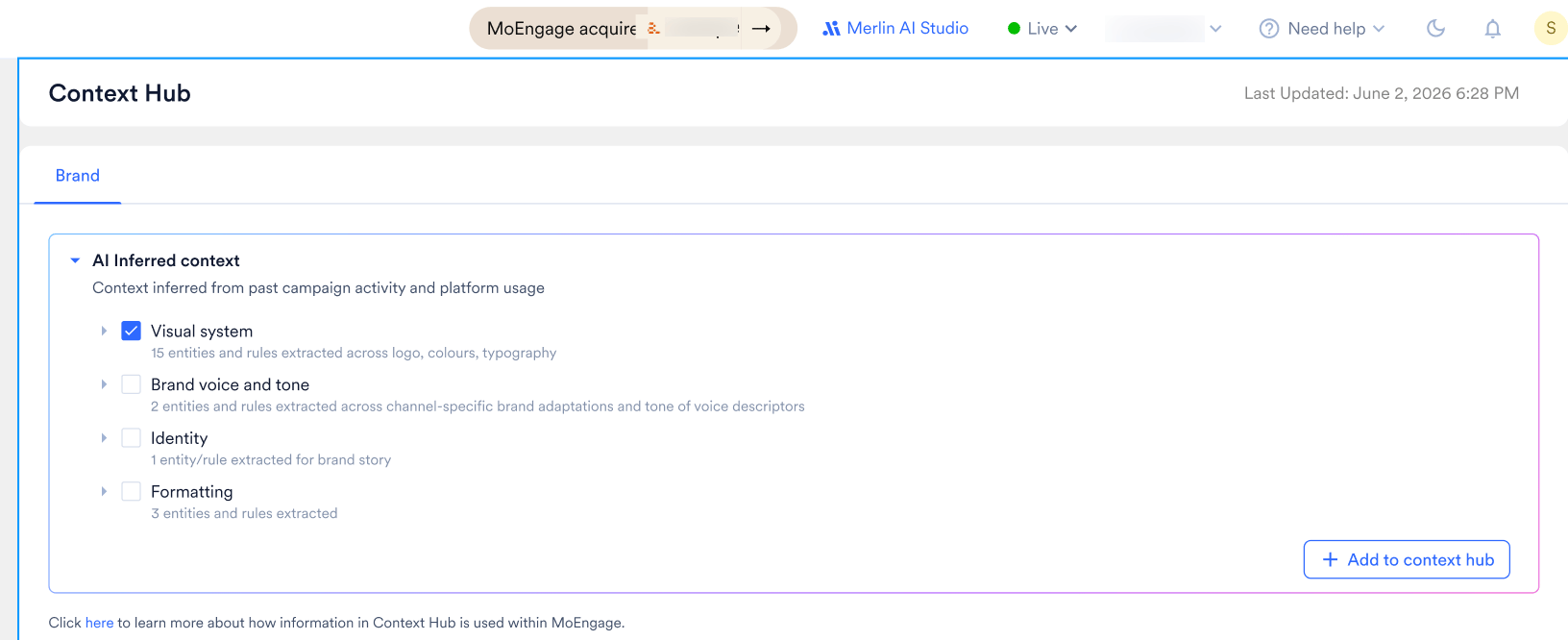
1
Review the categories
Review the categories listed — for example, Visual system, Brand voice and tone, Identity, and Formatting. Each category shows a short description of what was extracted, and you can expand it to see the individual items it contains.
2
Select what you want to add
Select the checkbox next to a category to add everything in it, or expand the category and select individual items. Nothing is selected by default, and + Add to context hub stays disabled until you select at least one item.
3
Add your selection
Click + Add to context hub to confirm your selection.
Categories you do not select remain available. You can return at any time and add them. The content in an unselected category may update after a later extraction.
Add context using Merlin AI
You can also add context on demand by chatting with Merlin AI. You share information as text, files, or a website. Merlin AI extracts the relevant context, shows it to you for review, and adds what you approve.Accessing the chat agent
1
Open Context Hub
Go to Settings > Account > Context Hub.
2
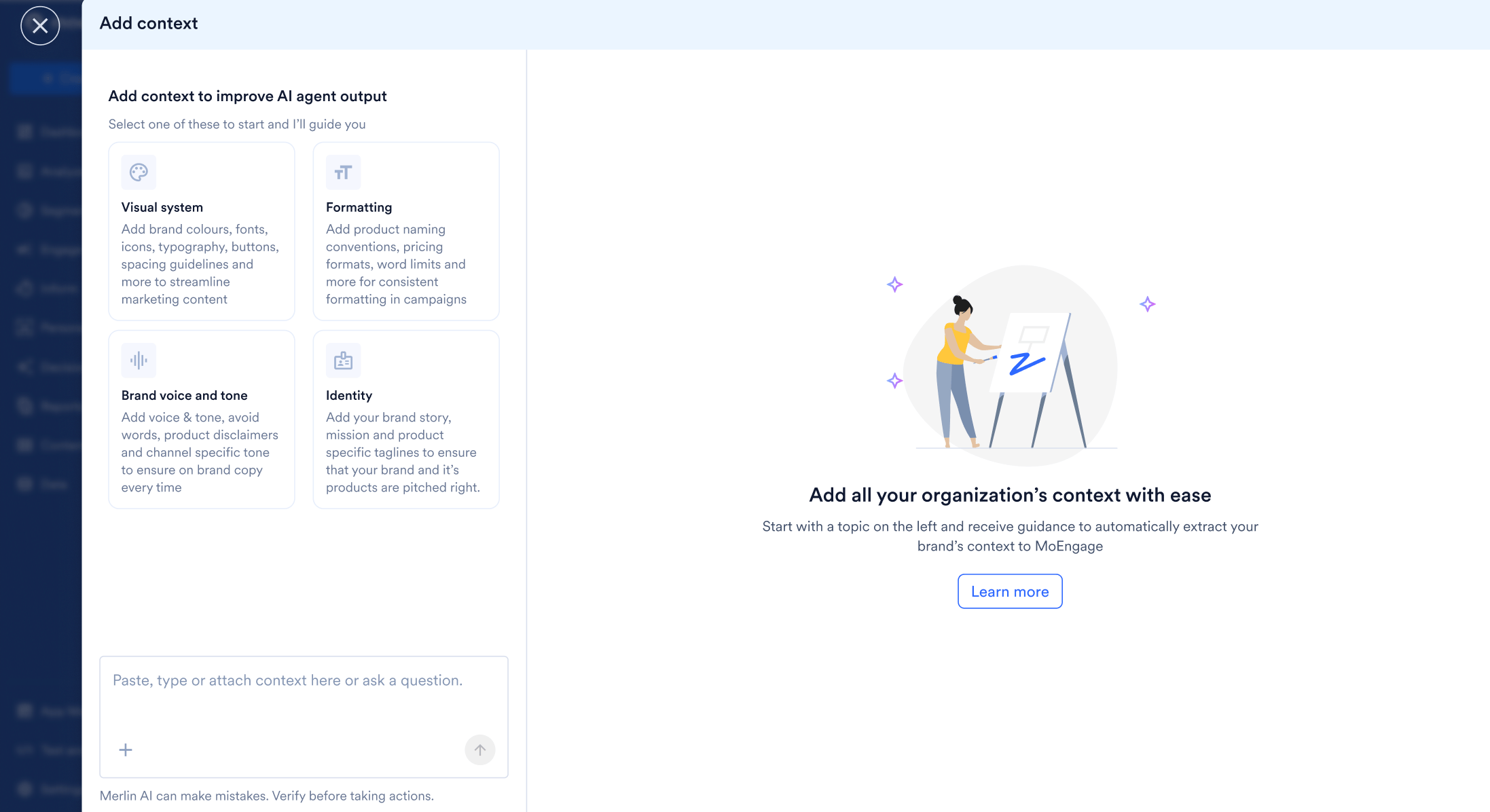
Open the Add context drawer
On the Context Hub page, open the Add context drawer.
Provide your sources
Give Merlin AI the information you want it to extract from. Use the input box at the bottom of the chat, labeled “Paste, type or attach context here or ask a question.” You can:- Type or paste text, such as a list of do’s and don’ts for copywriters.
- Attach a document, such as a brand guidelines PDF. Select the + button to attach a file.
- Share a website. Paste a URL, such as your brand’s website.
- Ask Merlin AI to search the web for information, such as about your brand.
You can also ask Merlin AI a question about what is already in Context Hub. It answers using the stored context without adding anything.
Review the extracted information
After you send a request, the extracted context appears in the Extracted information panel on the right, grouped by category. The panel shows when the information was last extracted. Merlin AI compares what it extracts against what is already stored and separates the results into two tabs:- New additions — context that is new to Context Hub.
- Updates — context that changes a value already stored in Context Hub.
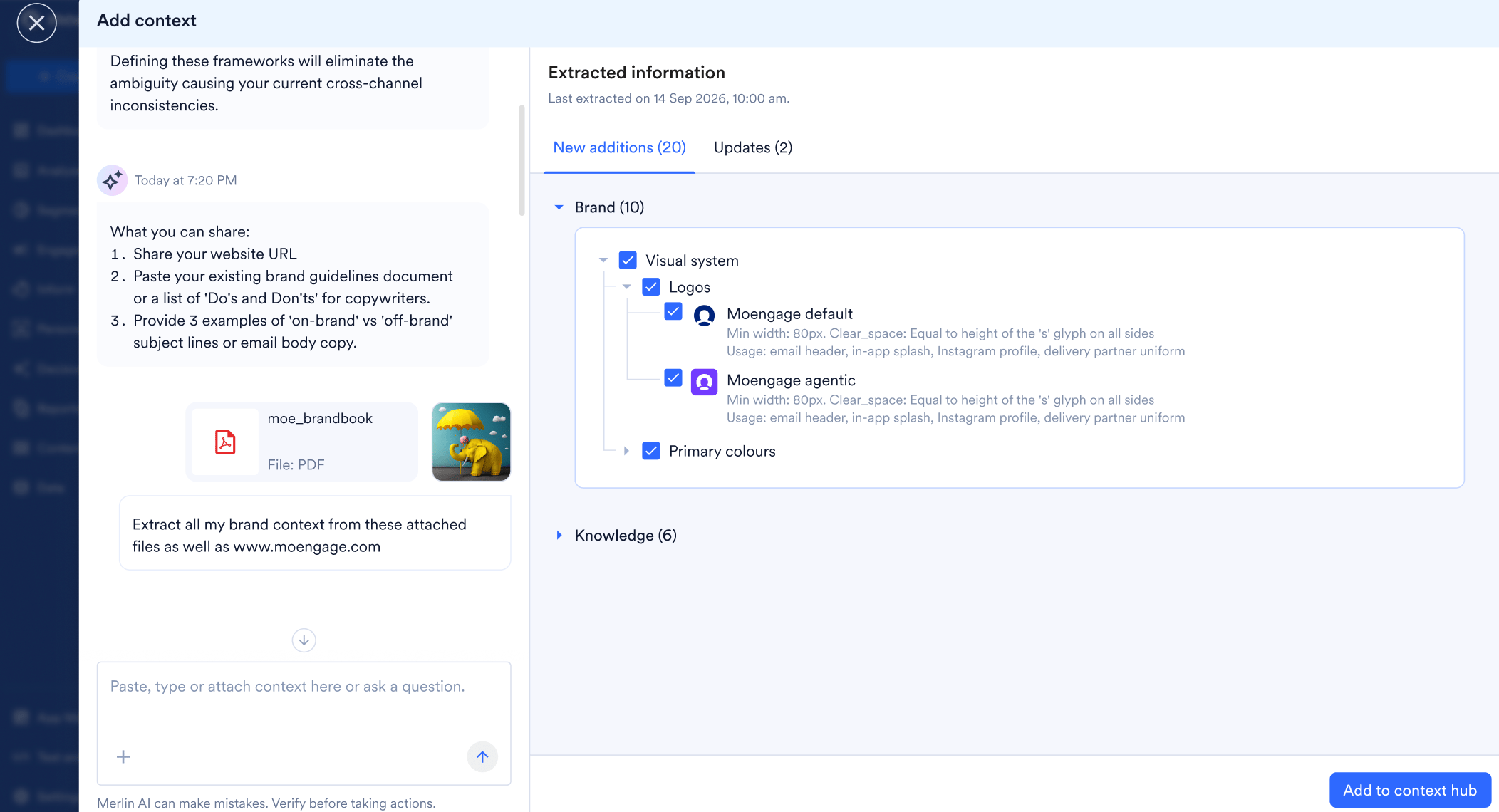
Only the items you select are added to Context Hub. Review the extracted items and select only the ones you want — nothing is saved to Context Hub until you select Add to context hub.
Add to Context Hub
Once you have reviewed your selection, select Add to context hub. The selected new additions and updates are saved to Context Hub. Items you do not select are not added.Context extracted during a session but not added to Context Hub is available only while you are logged in. If you log out, you need to chat with Merlin AI again to extract the information from your sources.
Conversation history
Merlin AI retains your conversation history for 30 days.Manually edit added context
1
Find the entry
Locate the entry you want to edit. Use the in-page navigation list (Visual system, Identity, Brand voice and tone, Formatting, Others) to jump to the relevant section if needed.
2
Expand the entry
Click the entry to expand it. The entry opens in an editable state.
3
Make your changes
Edit the content directly in the expanded entry. Your changes save automatically.
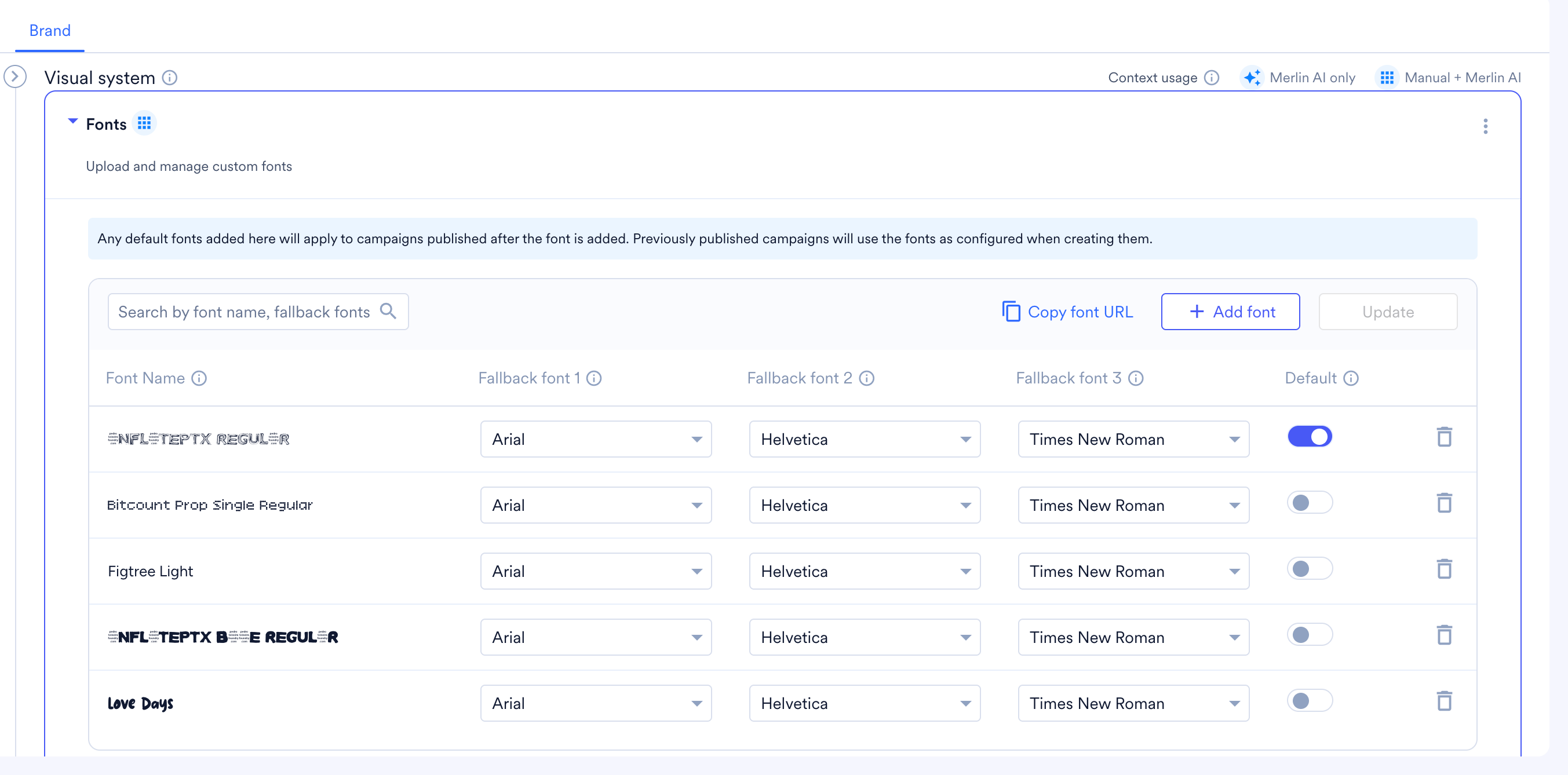
Some entries have their own fields. For example, the Fonts entry under Visual system lets you set fallback fonts and add fonts. Default fonts you add apply to campaigns published after the font is added; previously published campaigns keep the fonts they were created with.
Clear or delete context
Context Hub includes a standard set of information, and you can also add your own custom information. Each entry has a three-dot menu with options to clear or delete it. To clear an entry:1
Find the entry
Locate the entry you want to clear.
2
Open the entry menu
Click the three-dot menu on that entry.
3
Clear the content
Select Clear content.
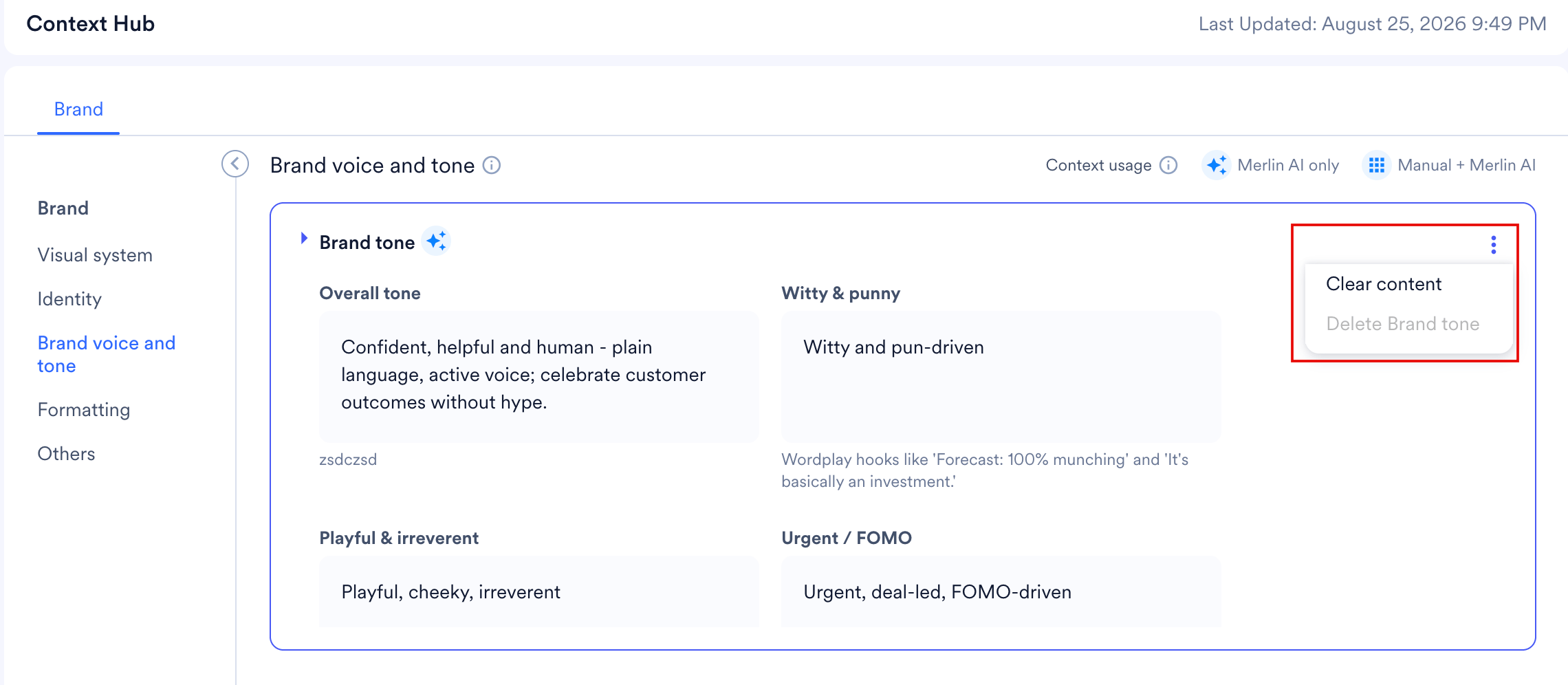
Applicability
Applicability is a layer on top of every entity in Context Hub. It determines how that entity is used in downstream, MoEngage-native surfaces. There are two kinds of downstream usage:- Manual usage — the specific channels where the entity is applied directly: Email, In-app, OSM, and Landing pages.
- Merlin AI usage — the MoEngage AI features that may draw on the entity, such as Custom agents, Flows assist, Email agent, In-app agents, and Segment assist.
Applicability matrix
The Applicability matrix lists each entity by sub-category and marks where it applies across the manual channels and Merlin AI features. To open it, use either of these:- Select here in the help link at the top of the page: “Click here to learn more about how information in Context Hub is used within MoEngage.”
- Hover over the grid (dots) icon on an entry to open its usage popover, then select View usage for all data points.
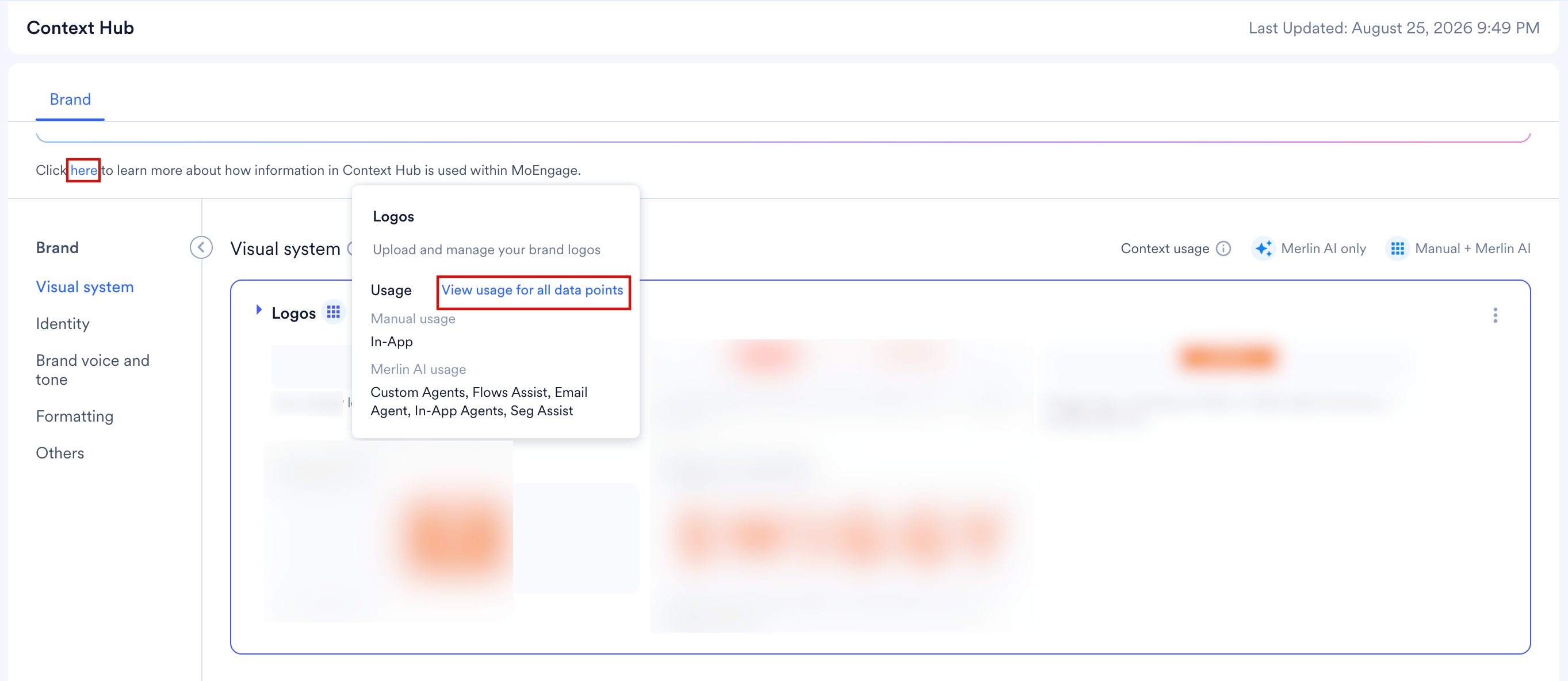
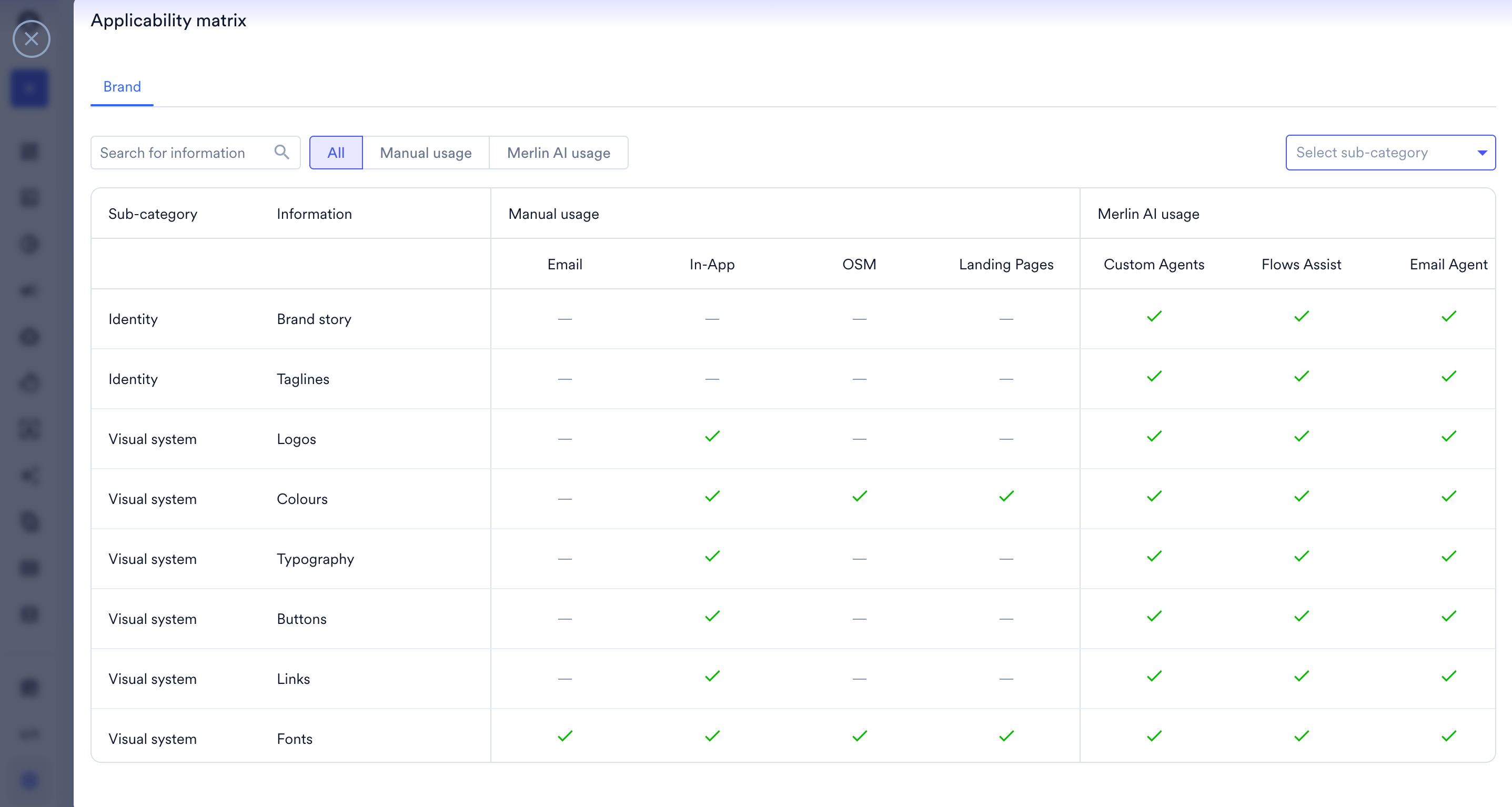
- Sub-category — the category the entity belongs to, such as Identity or Visual system.
- Information — the specific entity within that sub-category, such as Brand story, Approved taglines, Logos, Colours, Typography, Buttons, Hyperlinks, or Fonts.