

The Merlin AI Template Generator allows you to create In-App message templates using text prompts. You can create HTML designs that are accessible, responsive, and equipped with standard tracking capabilities.Documentation Index
Fetch the complete documentation index at: https://moengage.com/docs/llms.txt
Use this file to discover all available pages before exploring further.
Use Cases
Merlin AI can be used to generate various types of In-App templates. You can use Merlin AI to:- Create gamified templates: Build interactive components like “Spin the Wheel” to drive user participation and reward distribution.
- Highlight time-sensitive offers: Generate countdown timers to emphasize sales deadlines or registration windows.
- Capture user leads: Design pop-ups with input fields to collect information such as email addresses or phone numbers.
- Collect customer feedback: Build multi-option survey forms to track user preferences or net promoter scores (NPS).
- Announce product updates: Create full-screen or partial pop-ups to communicate new feature launches or seasonal sales.
Feature Specifications
- Tracking: Automatically includes event tracking for close buttons, form submissions, and primary CTA clicks.
- Responsiveness: Templates adapt to both portrait and landscape orientations by default.
- Accessibility: Designs follow accessibility standards for inclusive user interaction.
Generate a Template
To generate an In-App template with Merlin AI, follow these steps:- Navigate to the Content step of the In-App campaign creation flow.
- In the Merlin AI template generator section, click + Create new.

- Specify your requirements using one of the following methods:
- Select a Suggestion: Choose a pre-defined use case, such as a Spin the wheel pop-up or Survey form.
- Custom Prompt: Enter technical or design requirements in the input field.
- Reference Image: Click the Add image with your prompt icon next to the prompt field to attach a PNG reference (for example, a screenshot or a Figma export). For more details, see Use a reference image.
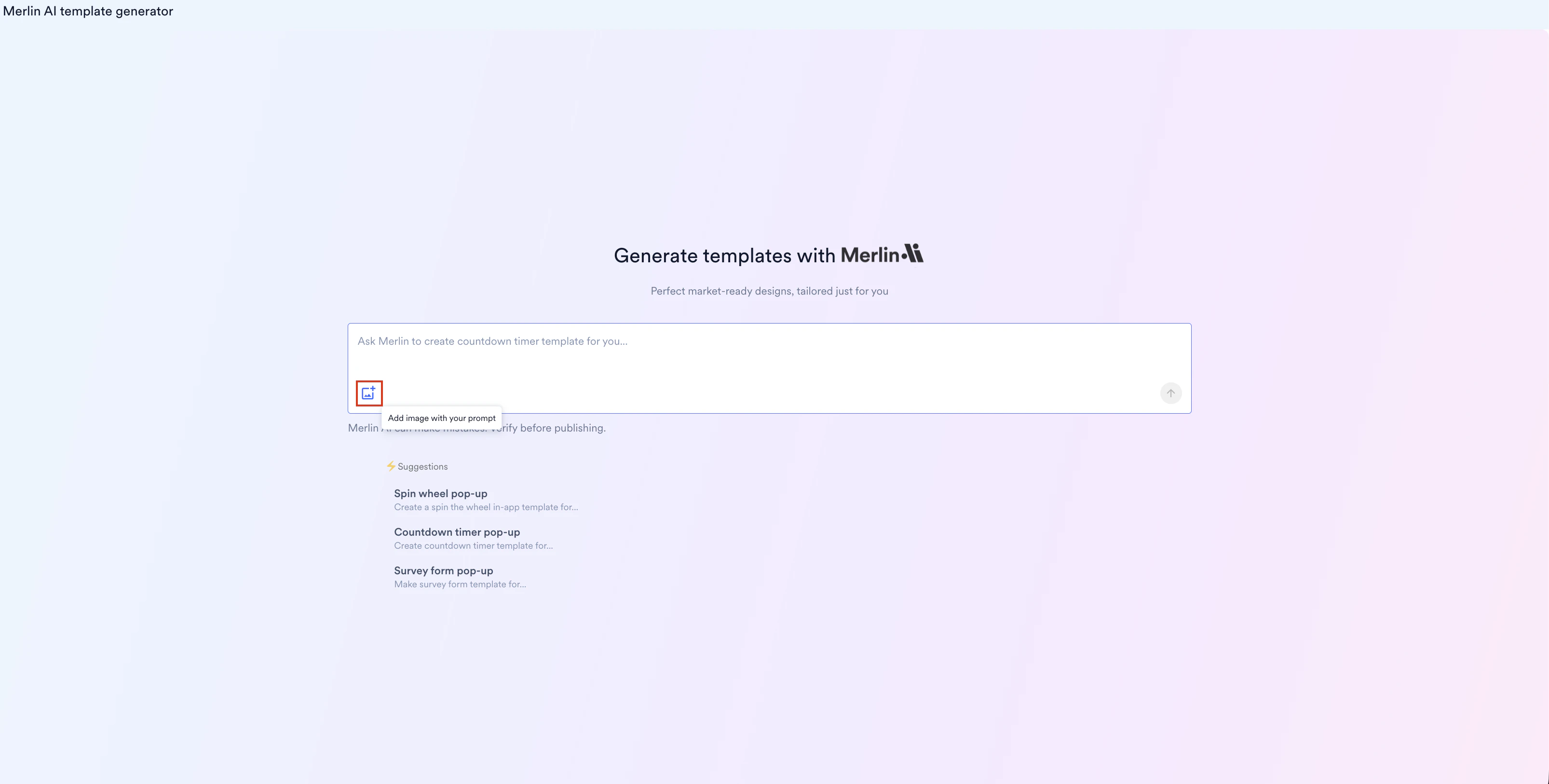
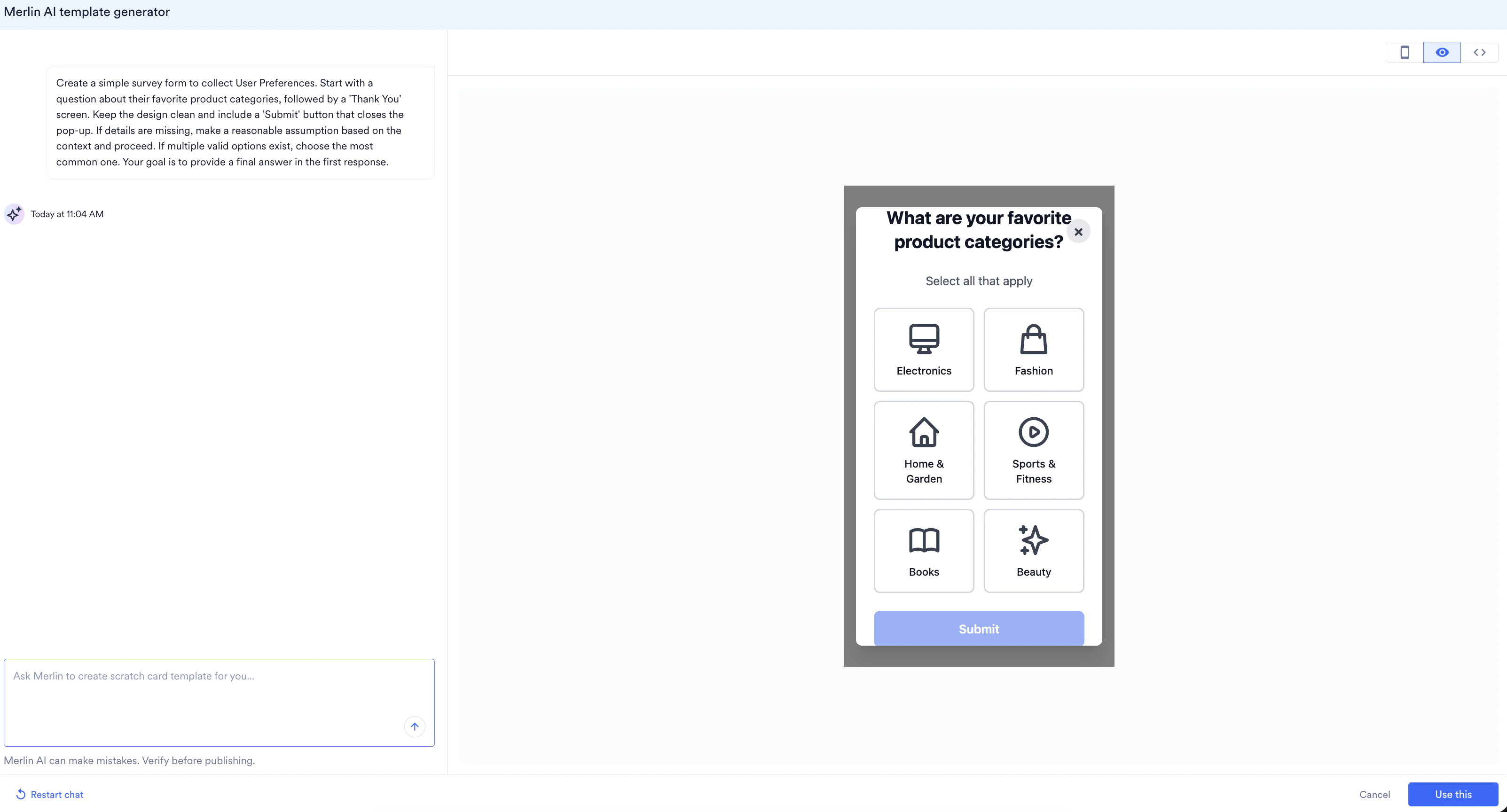
- Click the Send icon to generate the template.
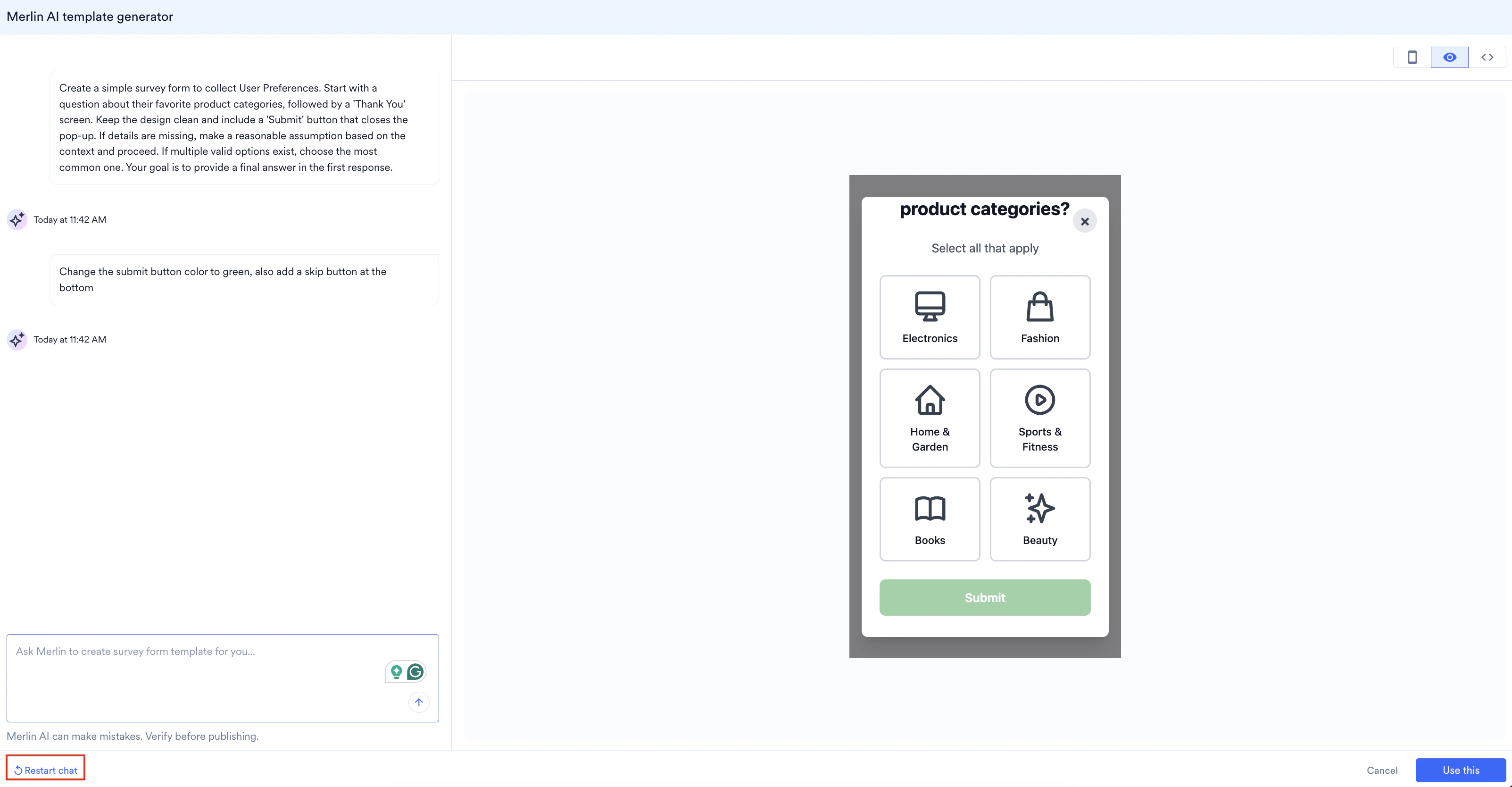
- Review the generated design using the preview tools:
- Device Preview: Click the Phone icon to view the layout on a mobile screen.
- Preview: Click the Eye icon to preview the generated template.
- Code Inspector: Click the Code icon to view the underlying HTML code.
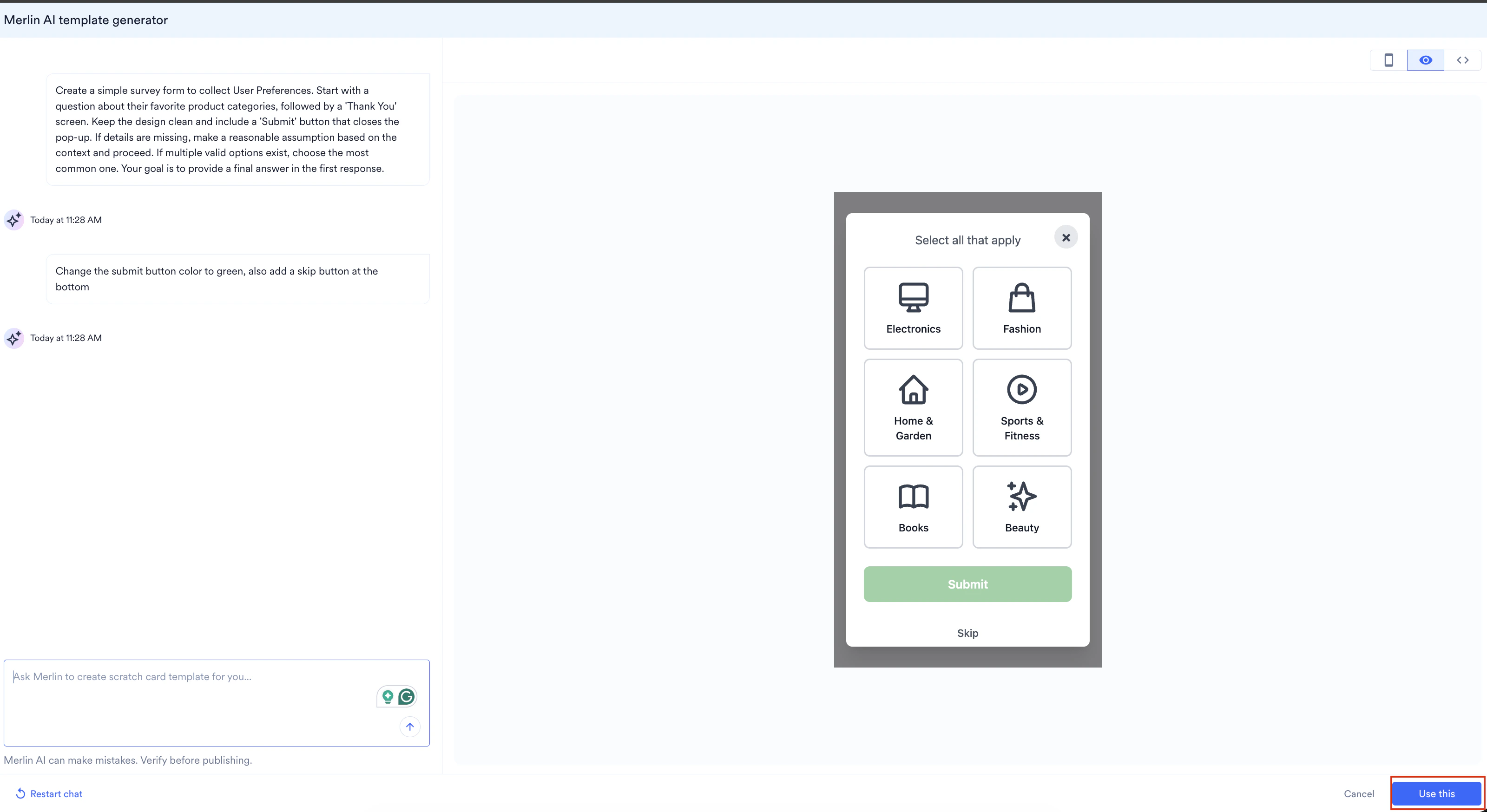
- To refine the design, provide additional instructions in the prompt field (for example, “Change the ‘Submit’ button color to green” or “Add a ‘Skip’ option at the bottom”).
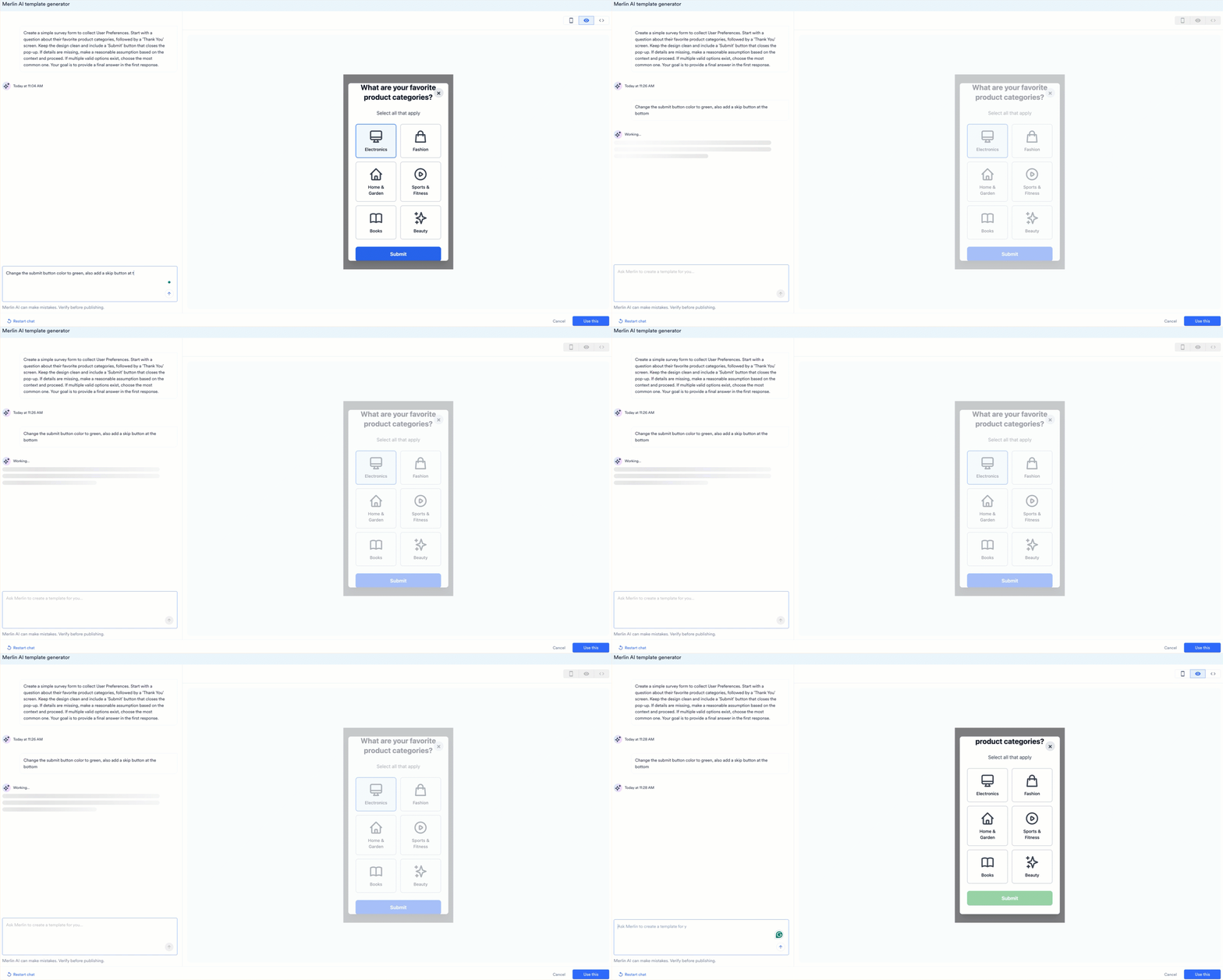
- Each iteration creates a new Version card in the chat history.
- Preview Versions: Click any version card (for example, Version 0, Version 1) in the chat to view that specific design in the preview pane.
- Edit a Version: Click the Pencil icon on a version card to select it as the base for further prompt-based edits.
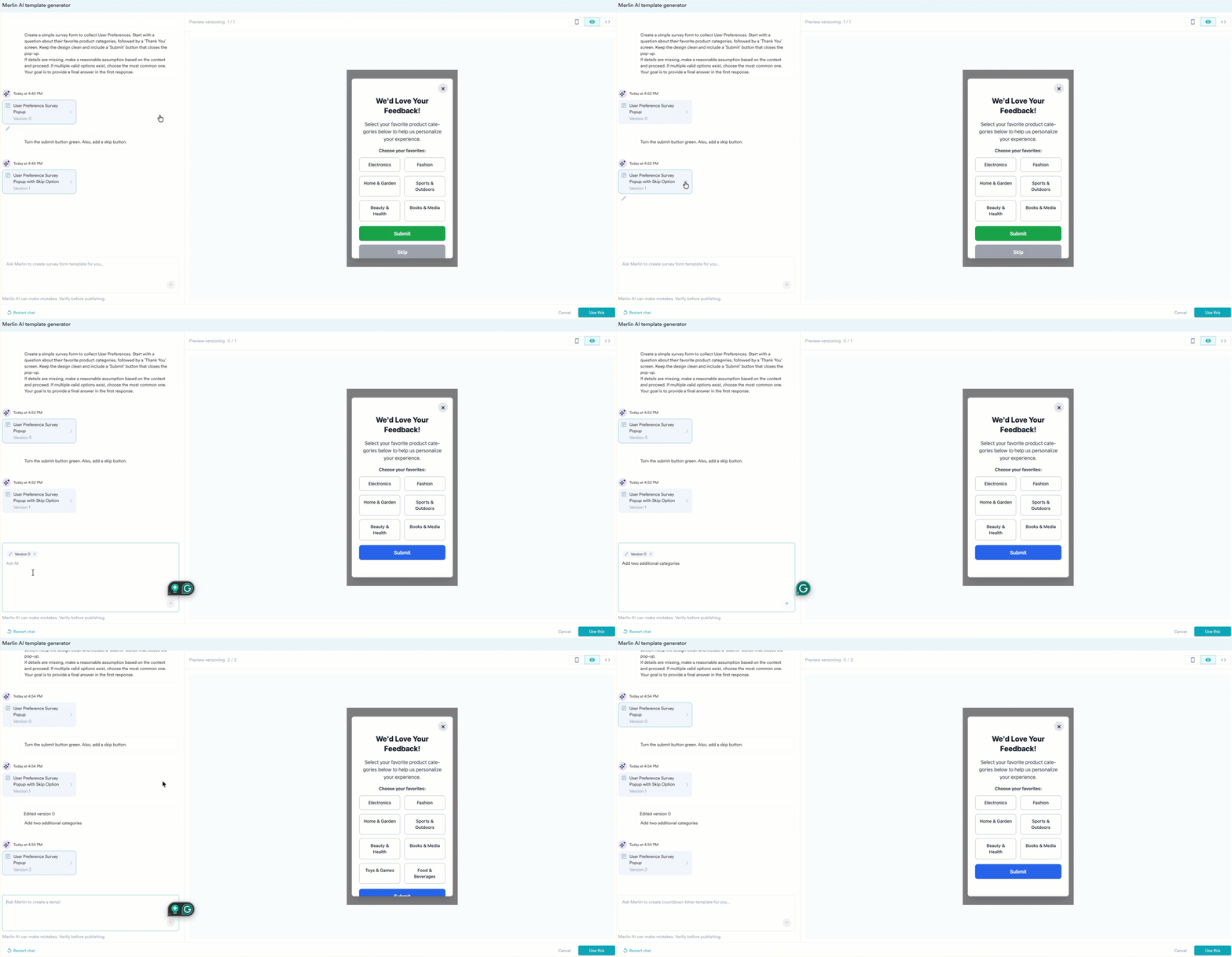
- Click Use this to apply the generated HTML to your campaign.
Use a Reference Image
You can attach a reference image alongside your prompt to generate a template that mirrors an existing design. This is useful when you want to replicate a screenshot, recreate a template you’ve seen elsewhere, or convert an approved design from a tool like Figma into an In-App template. To generate a template from a reference image:- In the Merlin AI chat, click the Image icon next to the prompt field.
- Upload a PNG file of the design you want to replicate.
- Enter a prompt describing what you want (for example, Create a similar template).
- Click the Send icon. Merlin AI generates an HTML template based on the reference image and your prompt.
- Refine the output using follow-up prompts, the same way you would with a text-only generation.
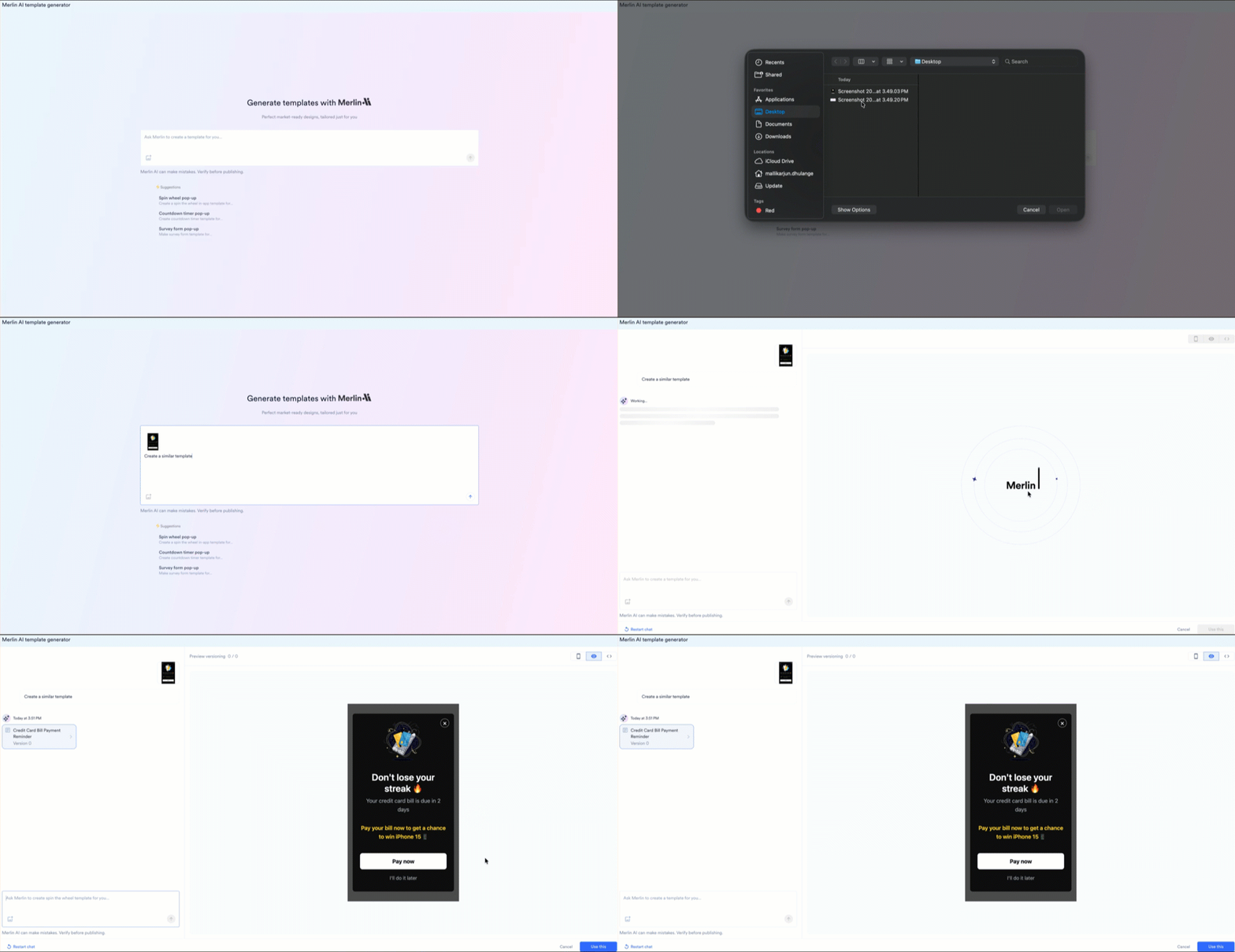
Image Upload Limits
- You can attach one image per prompt.
- You can upload up to 10 images per session.
Prompt Guidelines
To ensure accurate output, provide specific details on the layout and components. Refer to the following structure:Template Type: Full-screen, Nudge, or Bottom sheet.Use Case: Lead generation, Promotional, or Feedback survey.Core Components: Input fields, countdown timers, or interactive wheels.Functional Elements: Specific CTA text, hex color codes, and close button placement.
Example: Structured Prompt
The following is an example of a comprehensive prompt for a “Spin the Wheel” campaign:Type: FullscreenUse Case: Lead GenCore Component: Spin wheel with 6 slices containing the following prizes:
- Slice 1: 10% Off (Coupon Code: SUMMER10)
- Slice 2: 20% Off (Coupon Code: SUMMER20)
- Slice 3: Free Shipping (Coupon Code: FREESHIP)
- Slice 4: 15% Off (Coupon Code: SUMMER15)
- Slice 5: Buy 1 Get 1 50% Off (Coupon Code: SUMMERBOGO)
- Slice 6: Better Luck Next Time (No coupon code)
- Dismiss button (X) in top-right corner.
- Email input field for lead capture before spinning.
- Winning overlay screen: prize name, coupon code, and a “Shop Now” button.
- Losing overlay screen: “Better Luck Next Time” text with a “Browse Anyway” button.
Template Management
Save for Future Use
Generated templates can be saved for use in other campaigns:- To transfer the generated design to the HTML editor, click Use this.
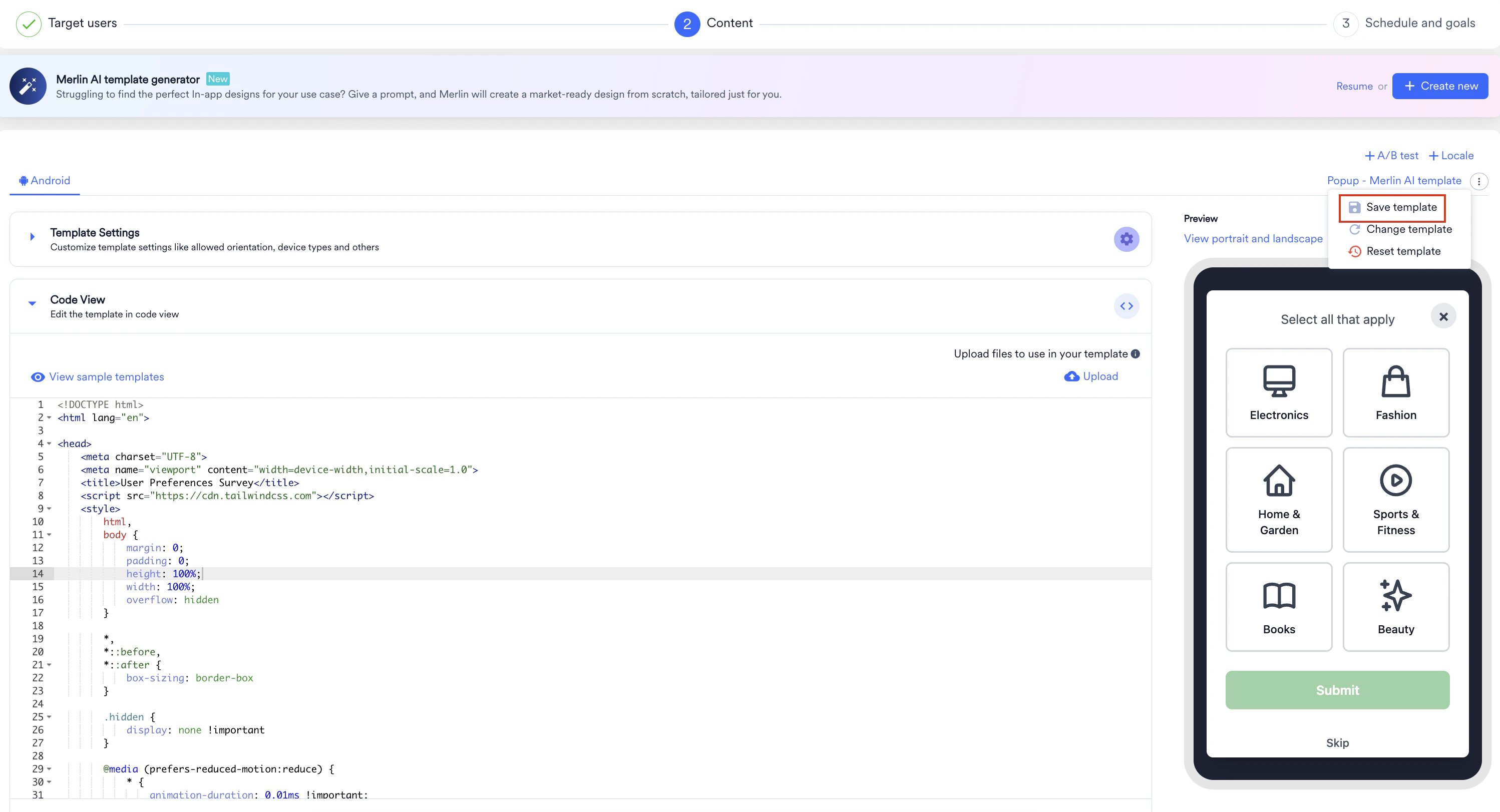
- On the Content page, click the three dots menu.
- Click Save Template. The Save as template for future use dialog box appears.
- In the Save as box, enter a desired name for your template.
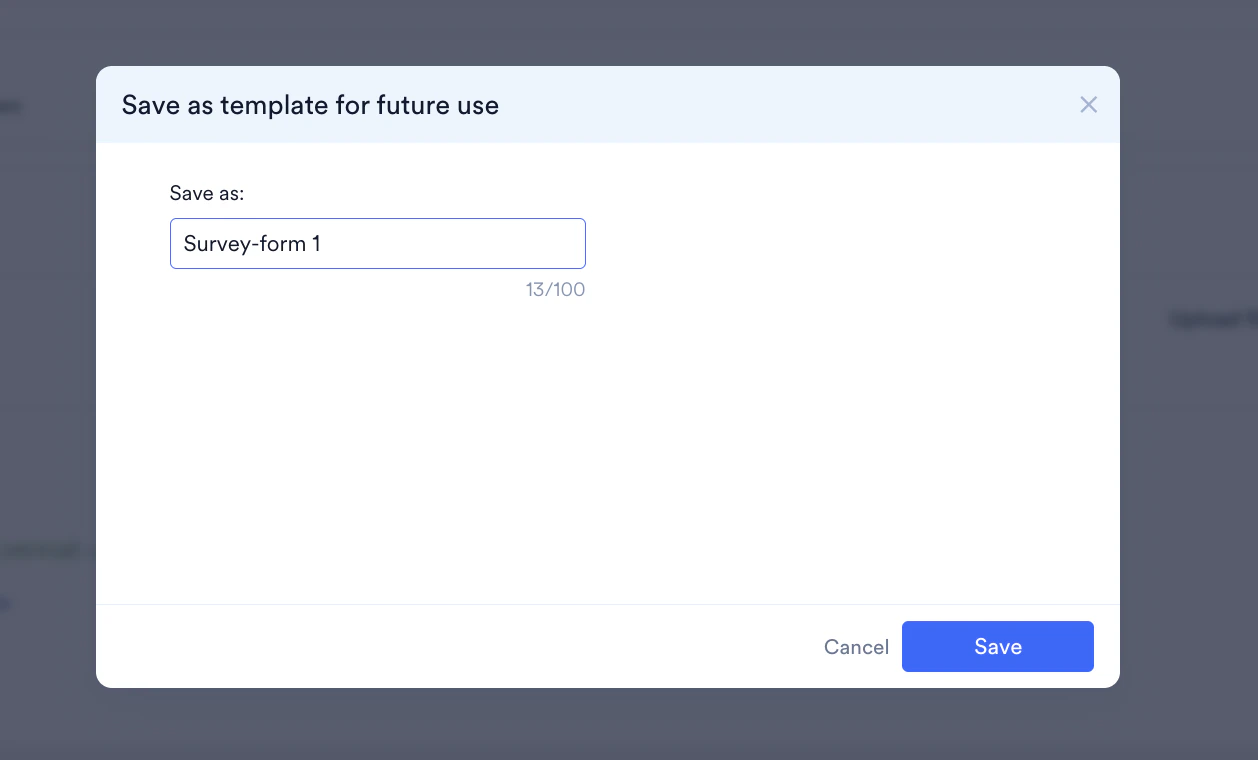
- Click Save.
Navigation Actions
- Resume: Returns to the active generation session if you have navigated to other parts of the dashboard within the same session.

- Restart Chat: Clears all current session data to initiate a new prompt sequence.
FAQs
How do I use a Figma design as a reference for the template?
How do I use a Figma design as a reference for the template?
If your design team works in Figma, you can use the exported design as a reference image:
- In Figma, select the frame containing your In-App design.
- Export the frame as a PNG file.
- In the Merlin AI chat, click the Add image with your prompt icon and upload the exported PNG.
- Enter a prompt such as Create a similar template and click the Send icon.
What image formats and limits apply to reference uploads?
What image formats and limits apply to reference uploads?
Reference images must be PNG files. You can attach one image per prompt, and up to 10 images per session.
Where can I find prompt examples for my industry?
Where can I find prompt examples for my industry?
See In-App Template Use Cases by Industry for ready-to-use prompts across retail and e-commerce, BFSI, entertainment and media, and travel and hospitality.
Are my generated templates saved automatically?
Are my generated templates saved automatically?
No. Merlin AI chat data is persisted for the current session only. To keep a generated template for reuse, click Use this, then save it from the Content page using Save Template. See Save for Future Use.