

- Measure user activity in new environments.
- Tie online to offline behavior.
- Send data from both the client and server.
Measurement Protocol (Google Analytics 4)
Google Analytics 4 only supports POST calls. To send an event, make aHTTP POST request to the following endpoint:
- Query parameters
- A
JSONPOSTbody
Query Parameters
Read more about the required query parameters of the Measurement Protocol.
JSON POST body
The payload of your request depends on the events and attributes that you want to track. Below are the required fields:
Read more about the required JSON post-body parameters of the Measurement Protocol.
Setting up a connector campaign
To create a connector campaign on MoEngage,- On the sidebar menu in MoEngage, hover over the Engage icon
 . The Engage menu appears.
 - Click + New Campaign.
 You can also click All Campaigns on the Engage menu and then click + Create campaign on the All campaigns page.
 - On the New Campaign dialog box, under Connectors, click Event Triggered.
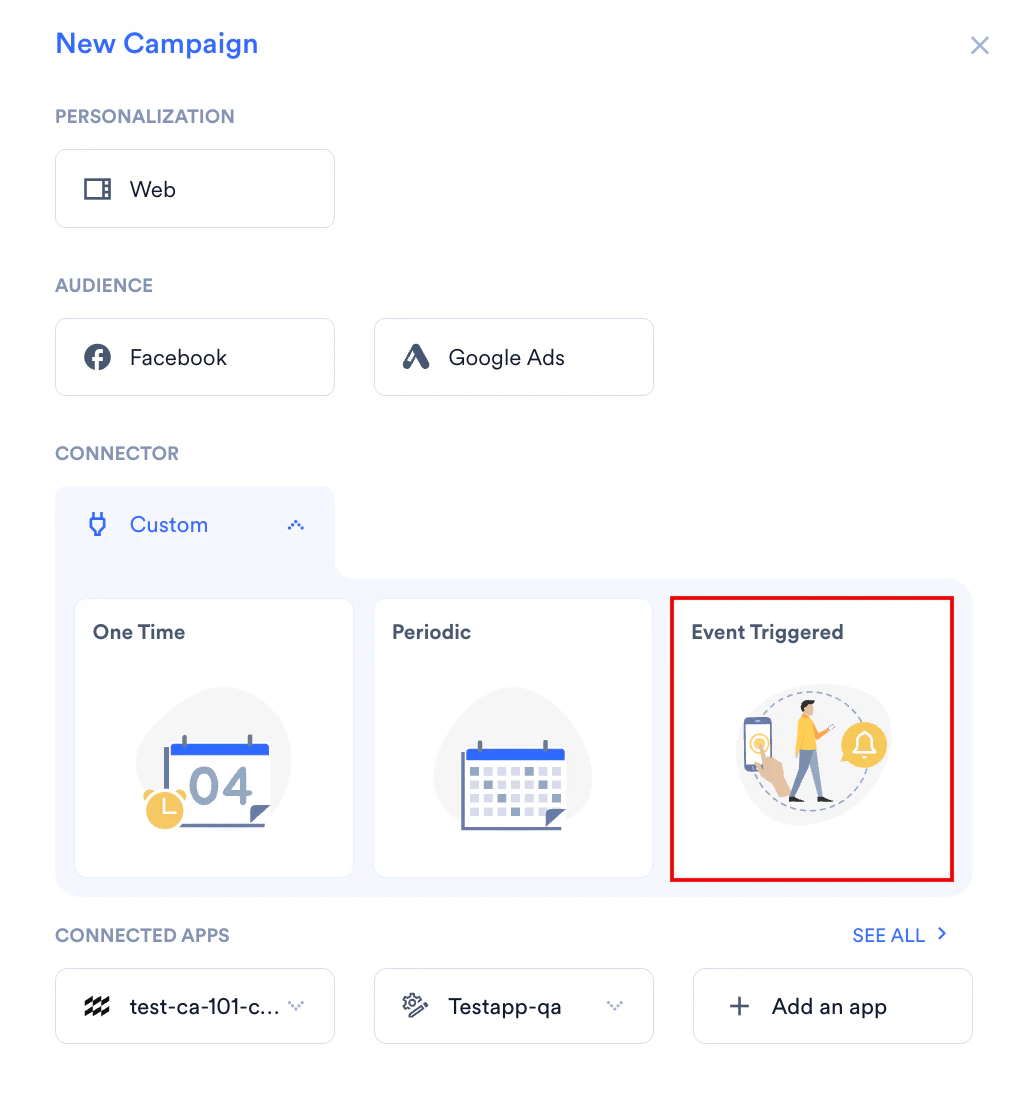
- Give your campaign a name and relevant tags.
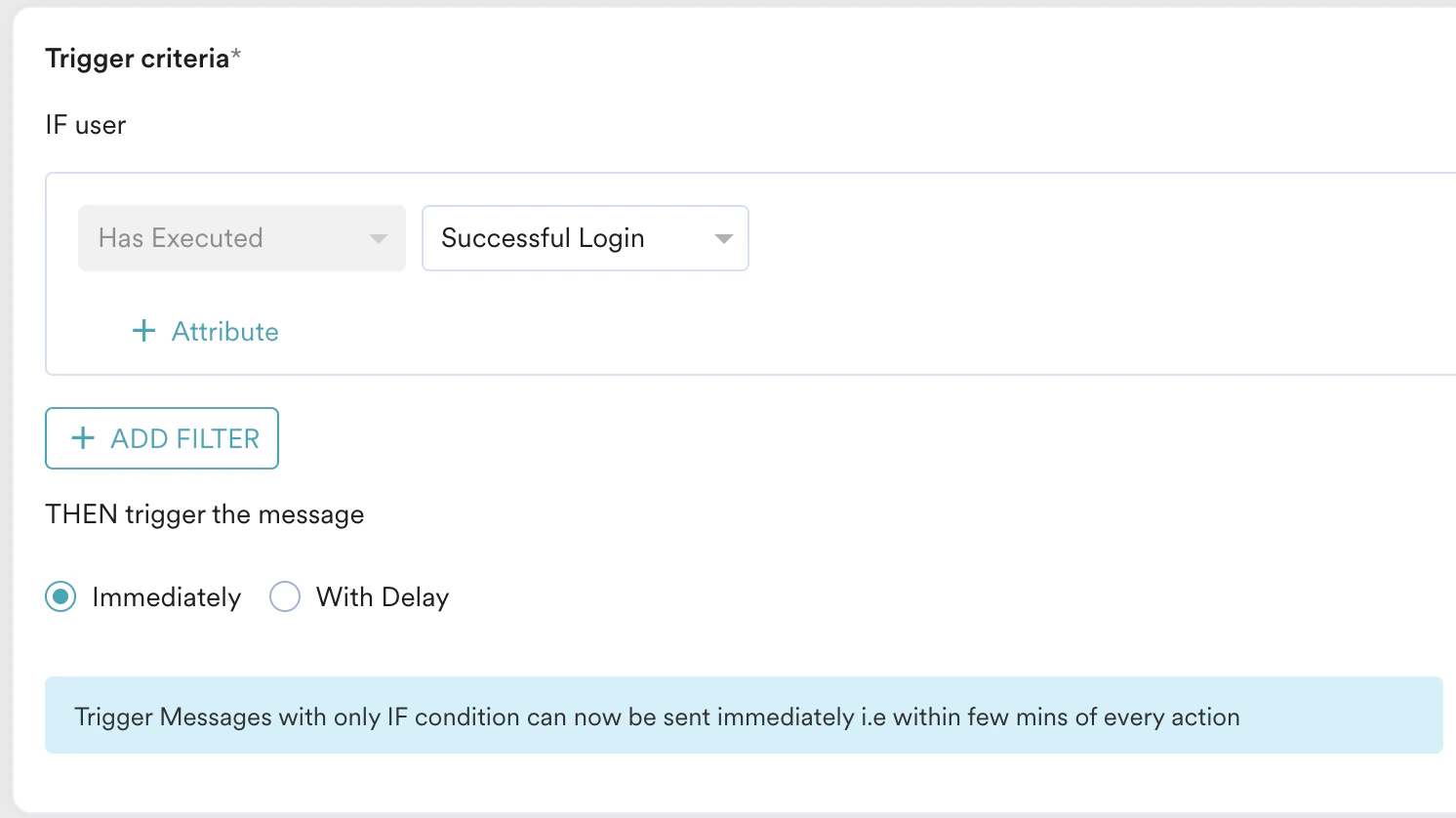
- Configure your trigger criteria. You can optionally choose to add a delay as well.
- Choose your target audience. You can also check the count of your audience.
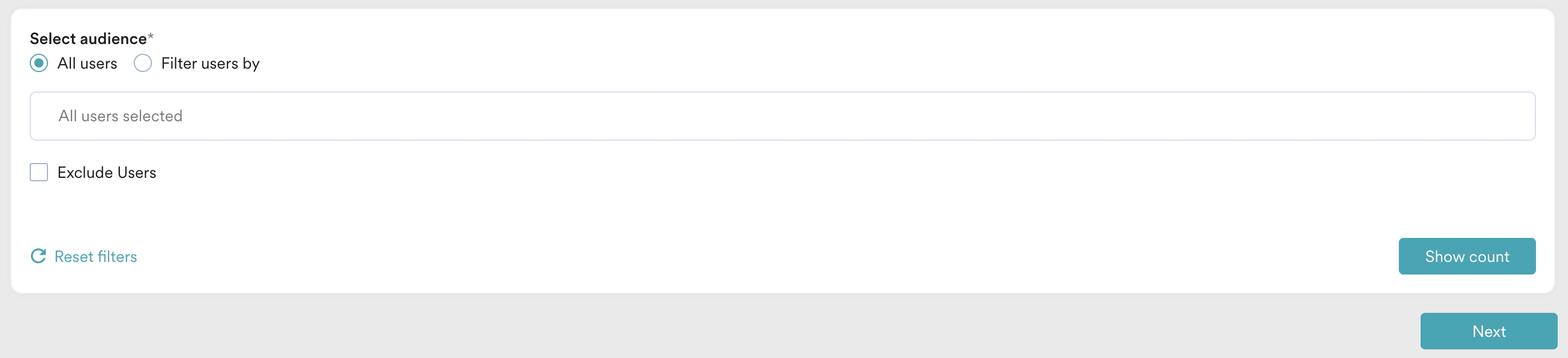
- Click next to proceed to the next step.
- On step 2 of the campaign,
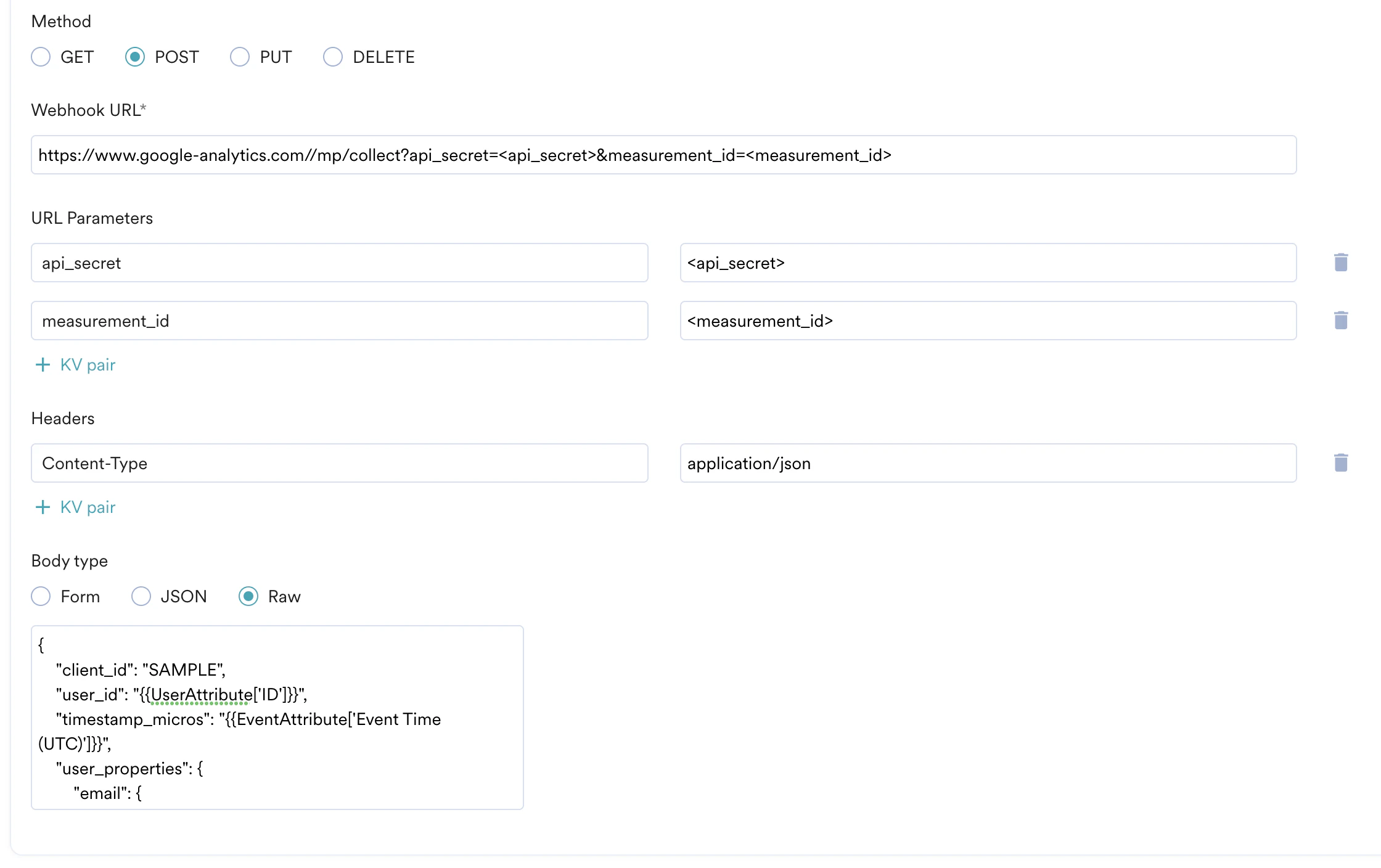
- Select the method as POST.
- Add Webhook URL as :
https://www.google-analytics.com//mp/collect?api_secret=<api_secret>&measurement_id=<measurement_id> - The URL parameters list should auto-populate. Replace
<api_secret>with your API Secret Key. You can swap this parameter withfirebase_app_idif you’re using a Firebase app. Replace<measurement_id>with the ID of your Data Stream. - In Headers, add
Content-Typeasapplication/json. - In Body, choose Raw and use the content depending on what events you want to send to Google Analytics. Below is an example:\
- Make sure to replace
<client_id>with the client ID (if usinggtag.js). You can also swap this key withapp_instance_idif you’re using a Firebase app.
- Make sure to replace
- At this point, your campaign should be ready to test and send. You can also test your connector configuration using the Test functionality available in Step 2 of Create Connector Campaign.
