

Steps
- On the sidebar menu in MoEngage, hover over the Segment menu item. The Segment menu appears. Click Create New. The Create segment page appears.
- Select Filter users by, then click the User behavior tab.
-
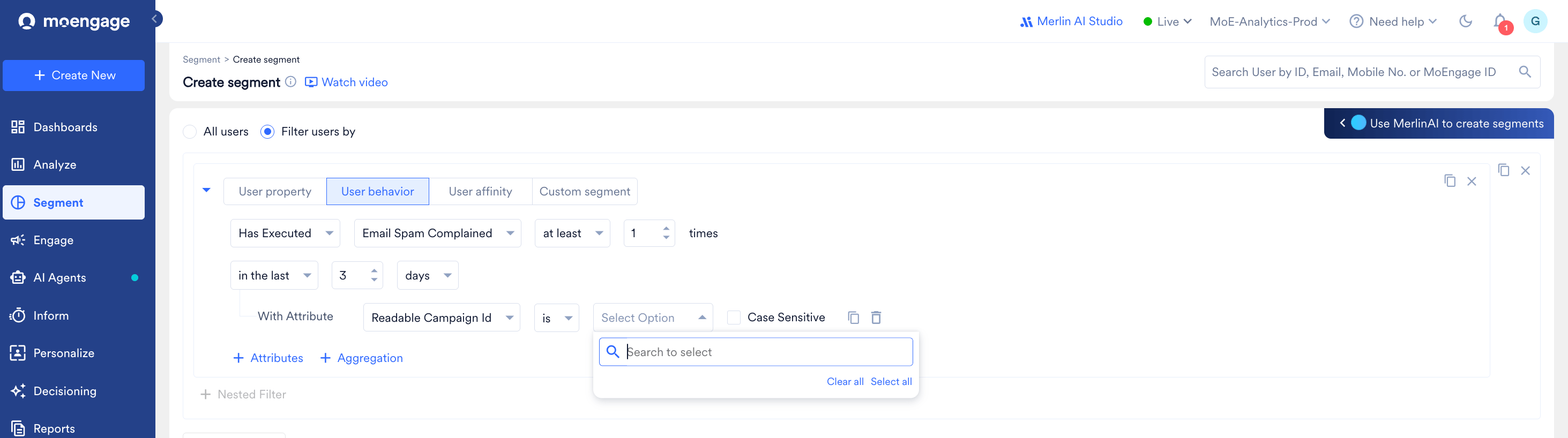
In the first dropdown, leave the condition as Has Executed, then select Email Spam Complained from the event dropdown.
-
Set how many times and over what period the event should have occurred:
- Choose a frequency comparator (e.g., at least) and enter the number of times (e.g., 1).
- Choose a time window (e.g., in the last 3 days) — increase this if you want to capture complaints going further back.
-
(Optional) Narrow the segment to complaints tied to a specific campaign or condition:
- Click + Attributes.
- Select an attribute, such as Readable Campaign Id, from the dropdown.
- Set the condition (e.g., is) and search for or select the value in the Select Option field.
-
(Optional) Add more rules or refine the segment further:
- Click + Filter to add another condition (combine with AND/OR).
- Check Exclude Users if you want to use this as an exclusion rule instead of an inclusion rule (for example, to exclude spam complainers from a campaign’s target audience).
- Click + Nested Filter to group conditions.
- Click Show count to preview how many users currently match this segment before saving.
- Name and save the segment once you’re satisfied with the criteria.
Using the Same Steps for Bounces and Unsubscribes
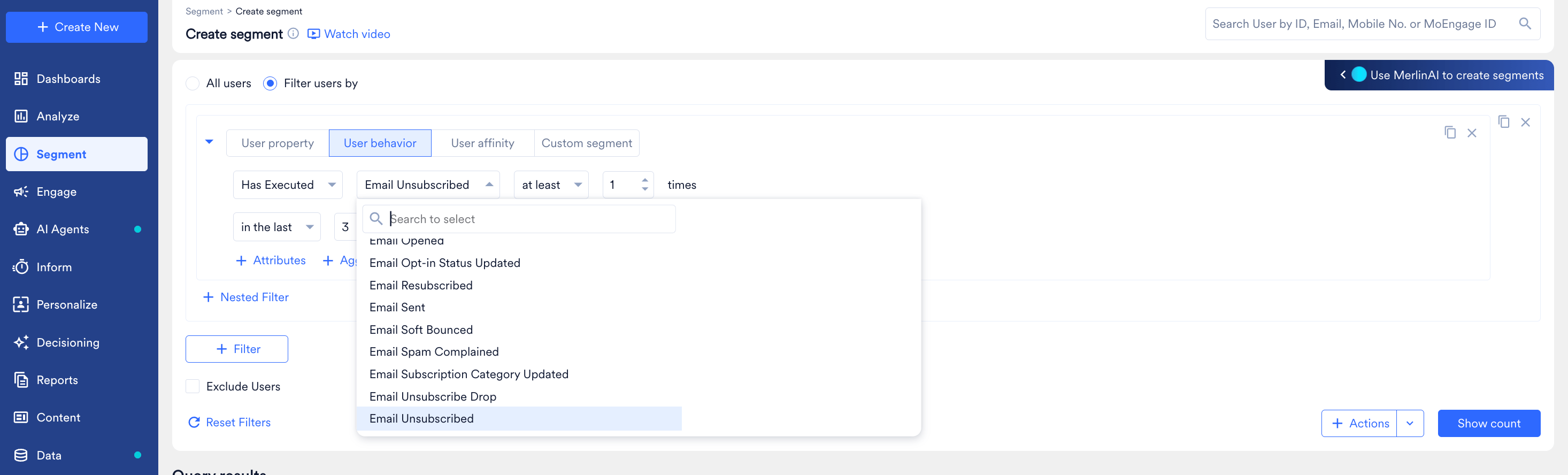
The User behavior tab lists other email-hygiene events alongside Email Spam Complained — including Email Bounced, Email Soft Bounced, and Email Unsubscribed. You can build the equivalent segment for either of these by repeating the same steps and swapping the event in step 3:-
For hard bounces, select Email Bounced. To combine hard and soft bounces in a single segment, see How to Find Users With Bounced Emails?.

-
For unsubscribes, select Email Unsubscribed.
What This Segment Is Useful For
- Suppression / list hygiene: Use the segment (with Exclude Users) to keep recent spam complainers, bounces, or unsubscribes out of upcoming campaigns.
- Root-cause investigation: Narrow by Readable Campaign Id to check whether complaints are concentrated around a specific send, so you can review its content, frequency, or targeting.
- Compliance reporting: Track complaint volume over a rolling window (e.g., last 3, 7, or 30 days) to monitor whether your complaint rate is trending toward mailbox provider thresholds.