Campaign Analytics
MoEngage calculates and displays all metrics in your app’s time zone.
Setting a Conversion Goal is optional during campaign creation. MoEngage tracks and displays these conversion metrics only when you set a Conversion Goal.
Understanding Campaign Data by Delivery Type
Standard Campaign Metrics
The metrics described in the table above apply to all campaign delivery types.Periodic Campaign Metrics
For periodic campaigns, you can view overall metrics for the parent campaign. A separate table displays metrics for each child campaign (each instance the campaign ran).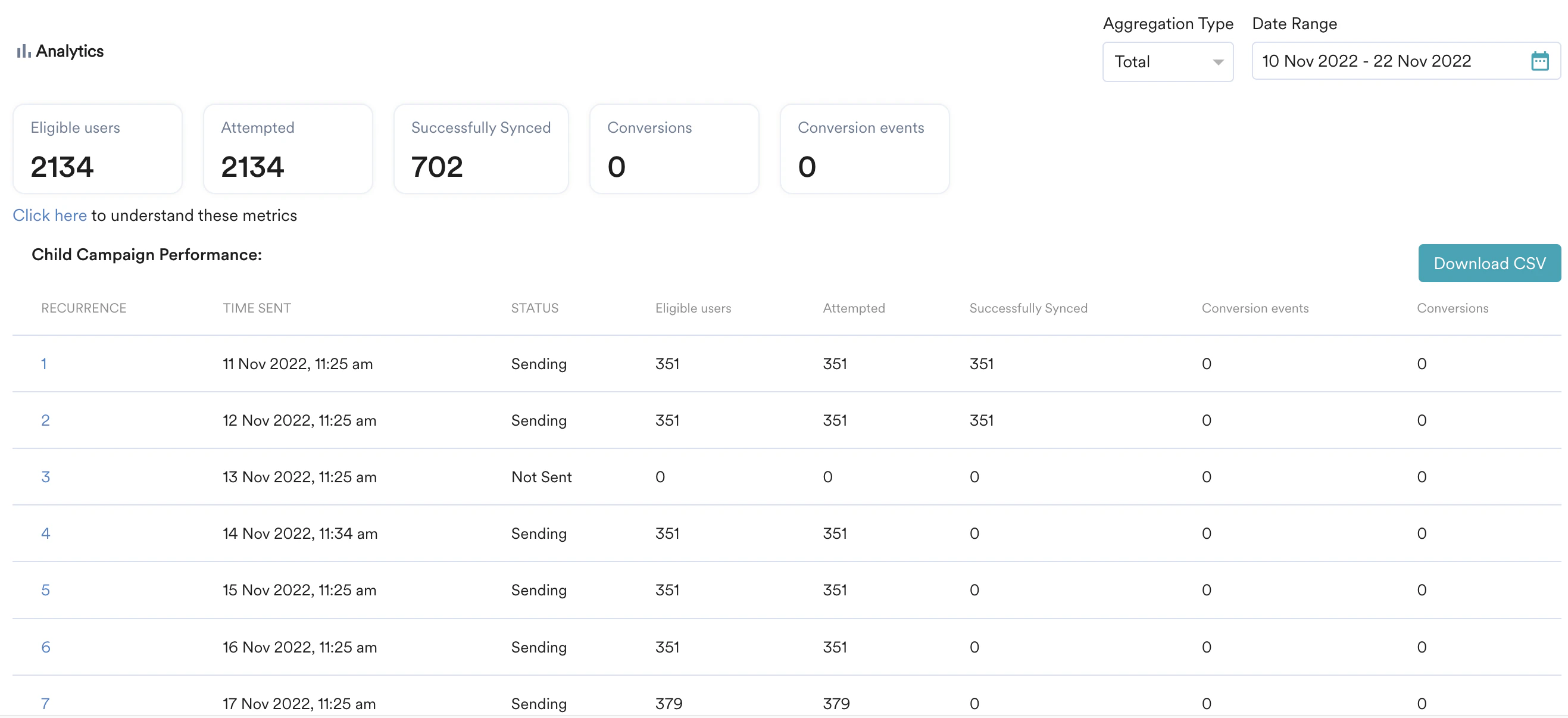
Analyzing Campaign Performance
Filter Campaign Statistics
You can filter campaign statistics for periodic and event-triggered campaigns using the following options:- Aggregation Type: Select Total or Average.
- Date Range: Choose the period for which to view campaign instance data.
View Time Trends
The Time Trends section displays how campaign metrics evolve over time, including attribution window details.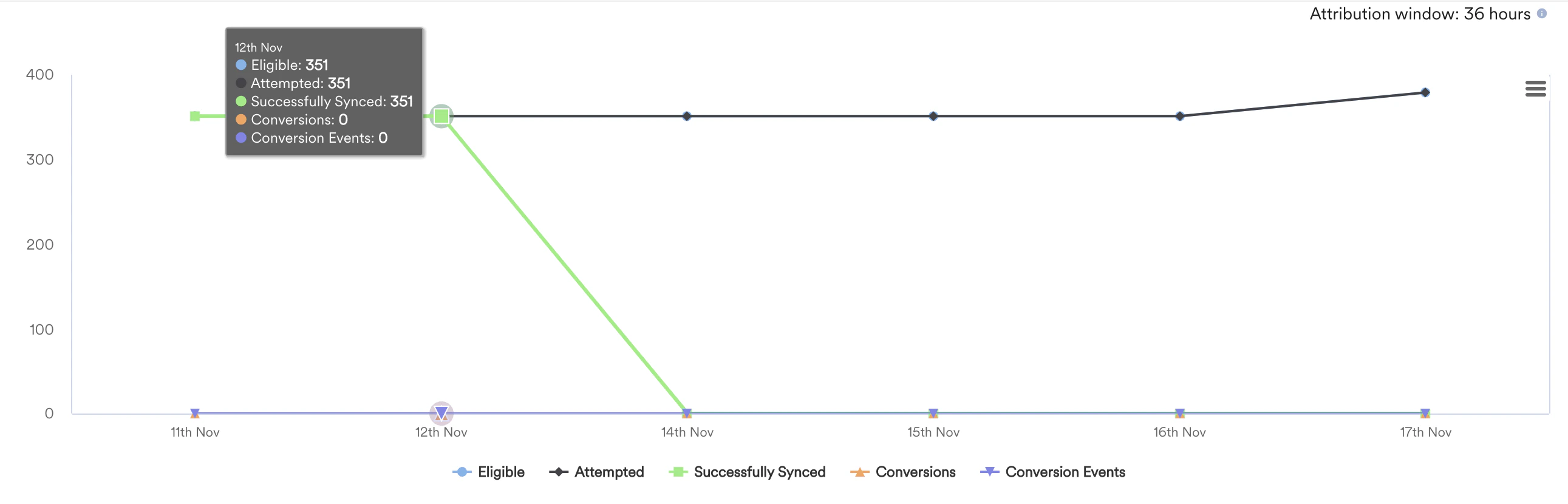
Understand Campaign Failure Breakdown
When a campaign fails for any user, the Campaign Failure Breakdown section shows you the reasons for the failure, displayed in an error table.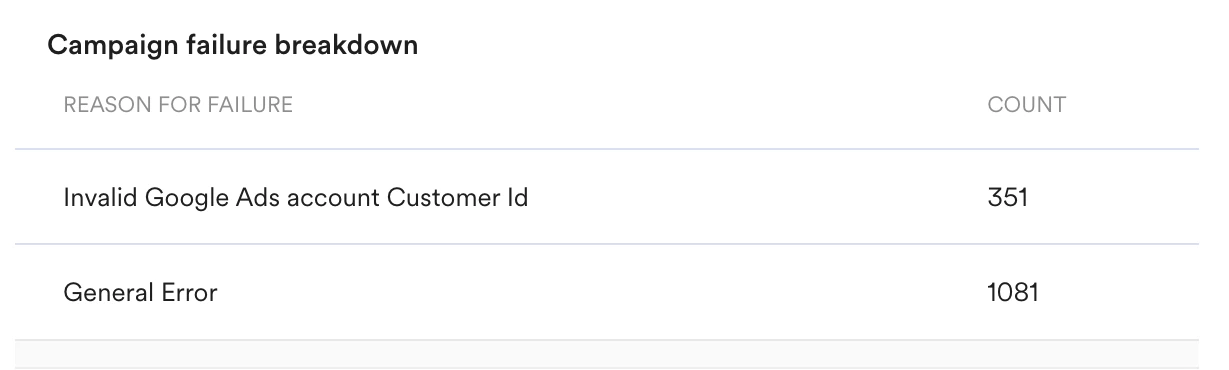
Common Failure Reasons
This section lists the types of errors that can cause a campaign to fail:Access and Login Errors
- Google login is invalid.
- Access token is expired or invalid.
- Permission to access the Google Ads account is denied.
- Insufficient Google Ads permissions. Check your Google Ads access scope.
Data-Related Failures
- No users are eligible for Google Ads Audience Sync.
- The Google Ads account Customer ID is invalid.
API/Service-Related Errors
These failures can occur due to issues when uploading data to Google, generic errors returned by Google, or connection problems. This includes service outages at either MoEngage or Google.Campaign Info
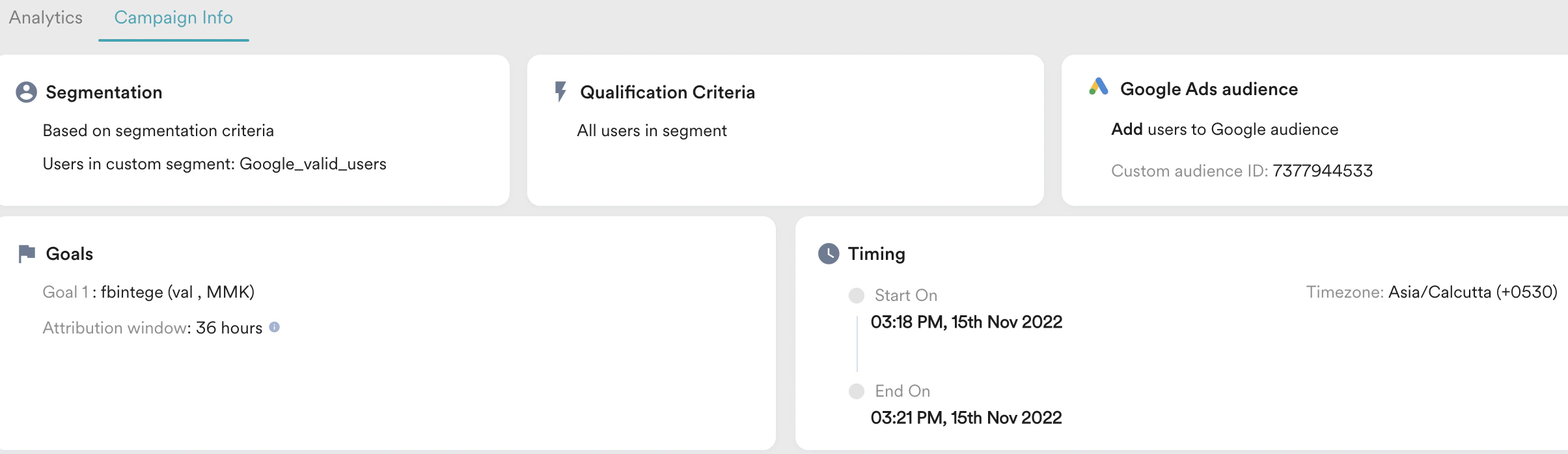
The Campaign Info section provides the following details about your campaign:
This image shows the Campaign Info section for a Google Ads Audience Sync campaign where an audience has been added.