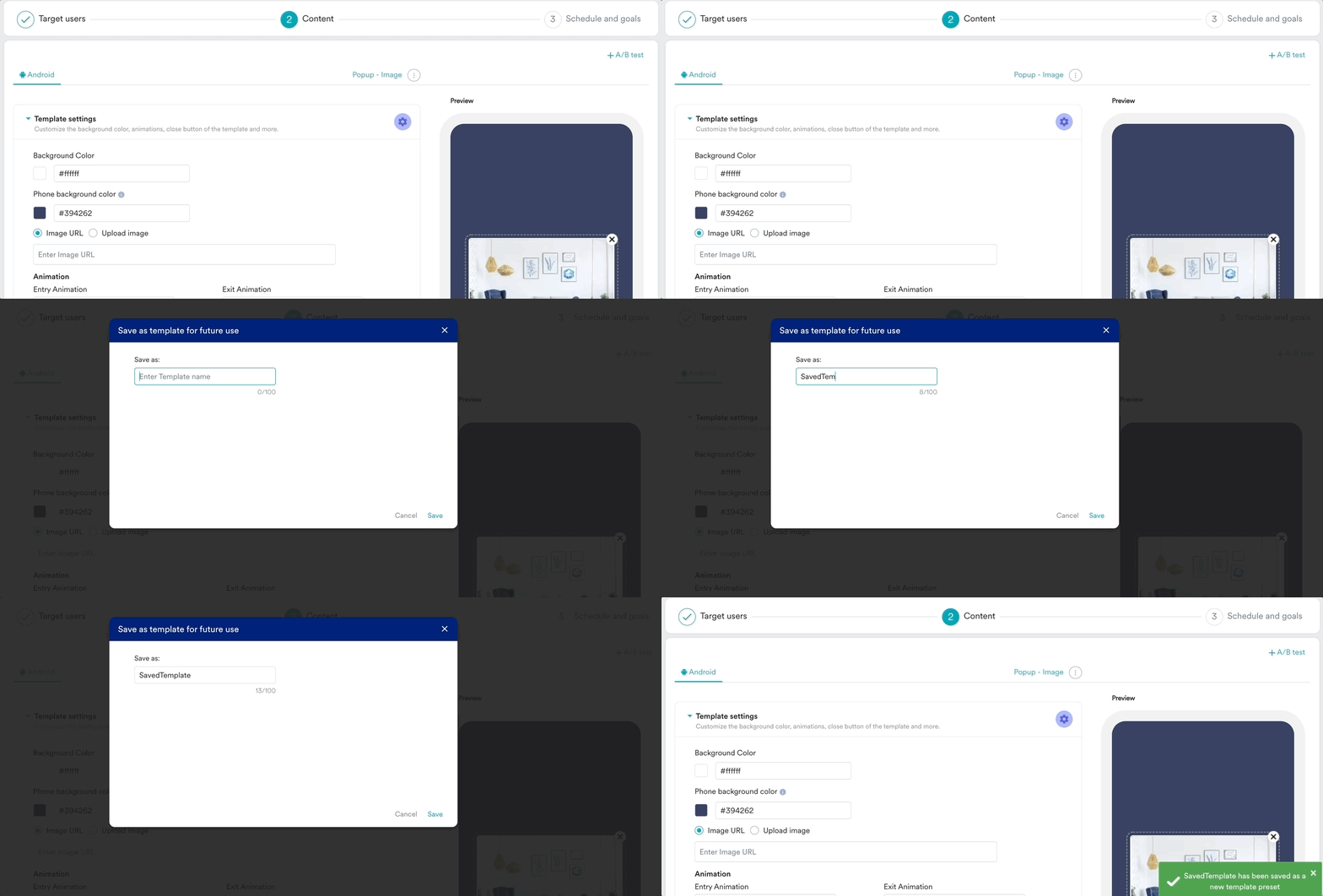
Saving a template
While editing a template, you can save it too. To save a template:- Open the pre-built or custom template you wish to keep.
- Click .
- Click Save.
You can save up to 40 templates as presets per account.
- When editing and saving a default template, you can only save it as a new template preset.

- When editing and saving a saved template, you can either save this as a new template preset or overwrite the existing template preset.
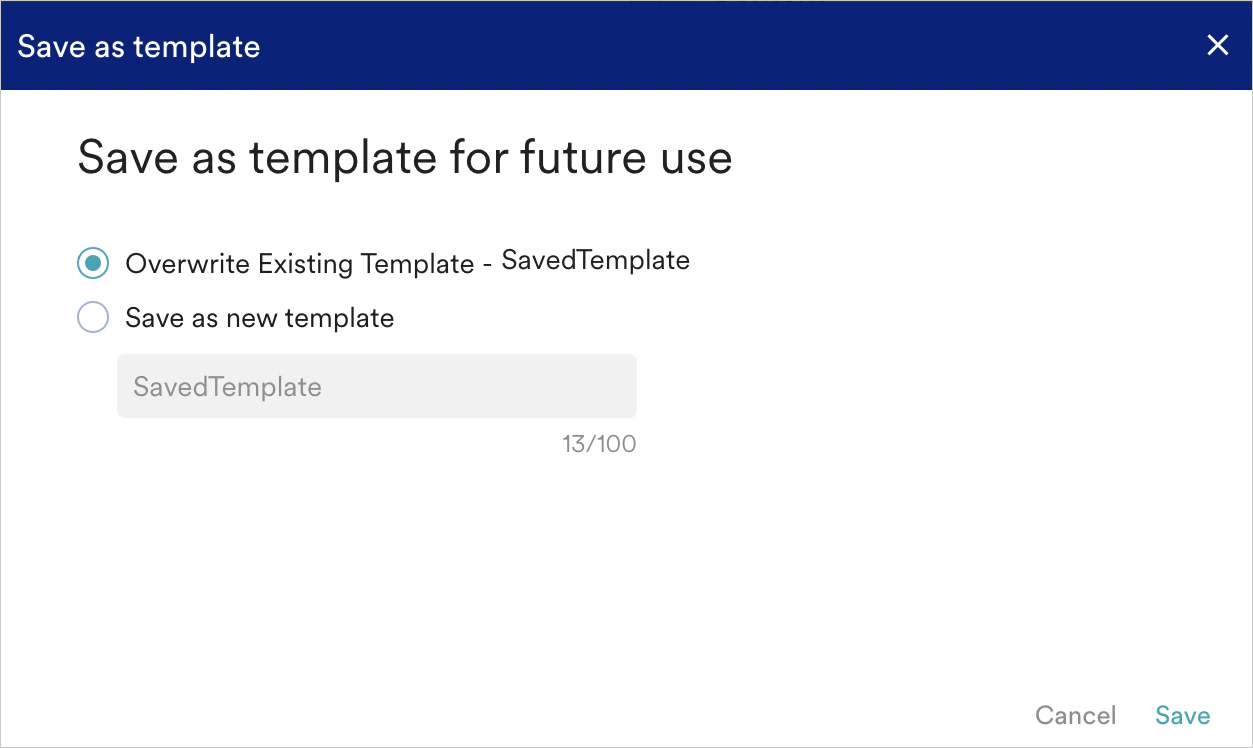
- The user preview of the saved template is available.
Use, Delete, and Rename Template
-
To use a template preset, navigate to the Saved Templates tab in the template selection page and select the template to be used for campaign creation.
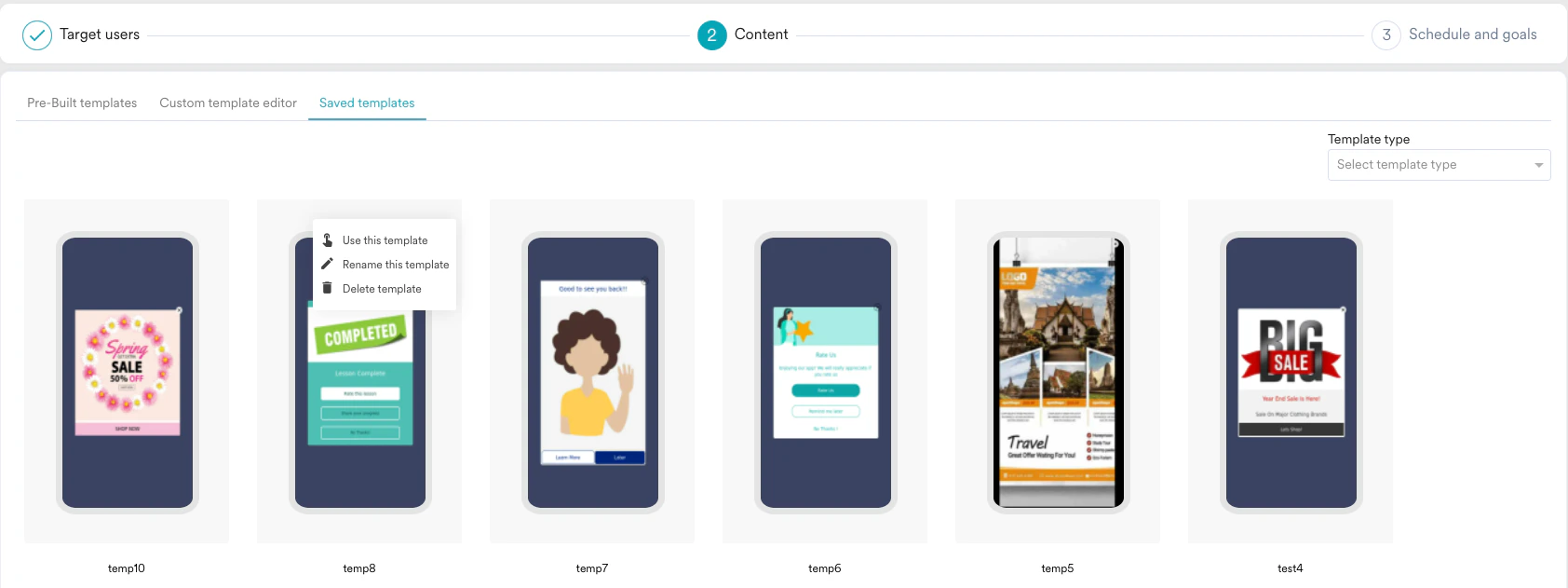
-
To delete a template, do the following:
- Navigate to the Saved Templates tab in the template selection step.
- Hover over the template you want to delete.
- Click on the three horizontal dots to view the options available.
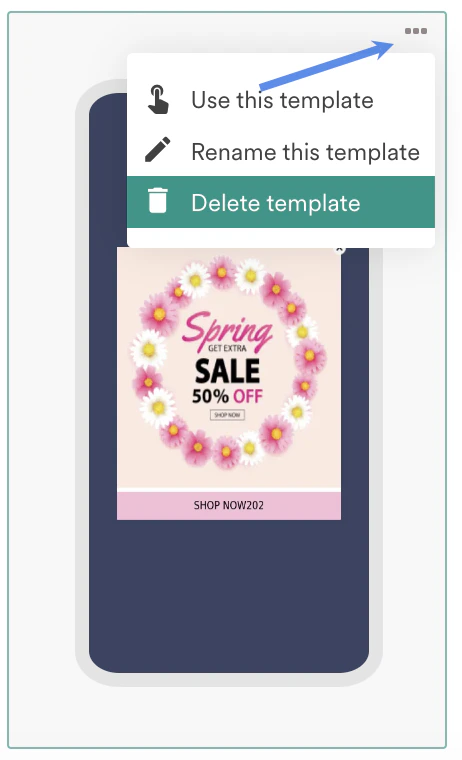
- Select Delete template.
- You can have up to forty template presets per MoEngage account; hence, it might be essential for you to delete presets that are no longer relevant. Note: Admins, Managers, and Marketers can delete a preset.

-
To Rename a Template, do the following:
- Navigate to the Saved Templates tab in the template selection step.
- Hover over the template you want to rename.
- Click on the three horizontal dots to view the options available.

- Select Rename this template in the popup that opens.