

Overview
RCS helps elevate brand trust and increase business engagement. It allows you to send personalized messages and visual media to customers, improve efficiency, and enable automated notifications. You can send RCS messages using Rich Card, Simple Text , or Carousel message types. Businesses can communicate with customers interactively through RCS messages created using exciting templates. Templates are pre-designed components that can be easily customized and reused to create RCS messages efficiently. They allow for quick and seamless content creation, saving time and aiding in the development of engaging and visually appealing messages. For users outside India, template approval is not needed, and sending free-form RCS messages is allowed. Although the use of RCS templates is not mandatory for these users, it is still recommended for the convenience of reusing message content.The template approval process is required only while sending RCS messages to users in India. These templates are linked with the RCS agents created through your RCS providers.
- This is an add-on feature. To enable it for your account, contact your MoEngage CSM (customer success manager) or the support team.
- RCS Carousel support depends on your RCS service provider and may not be available for all providers. If you don’t see Carousel as an option when selecting your template type, check with your provider to confirm whether it’s supported.
Use Cases
RCS can be used in multiple use cases. To refer to RCS use cases, read Introduction to RCS.Template Management
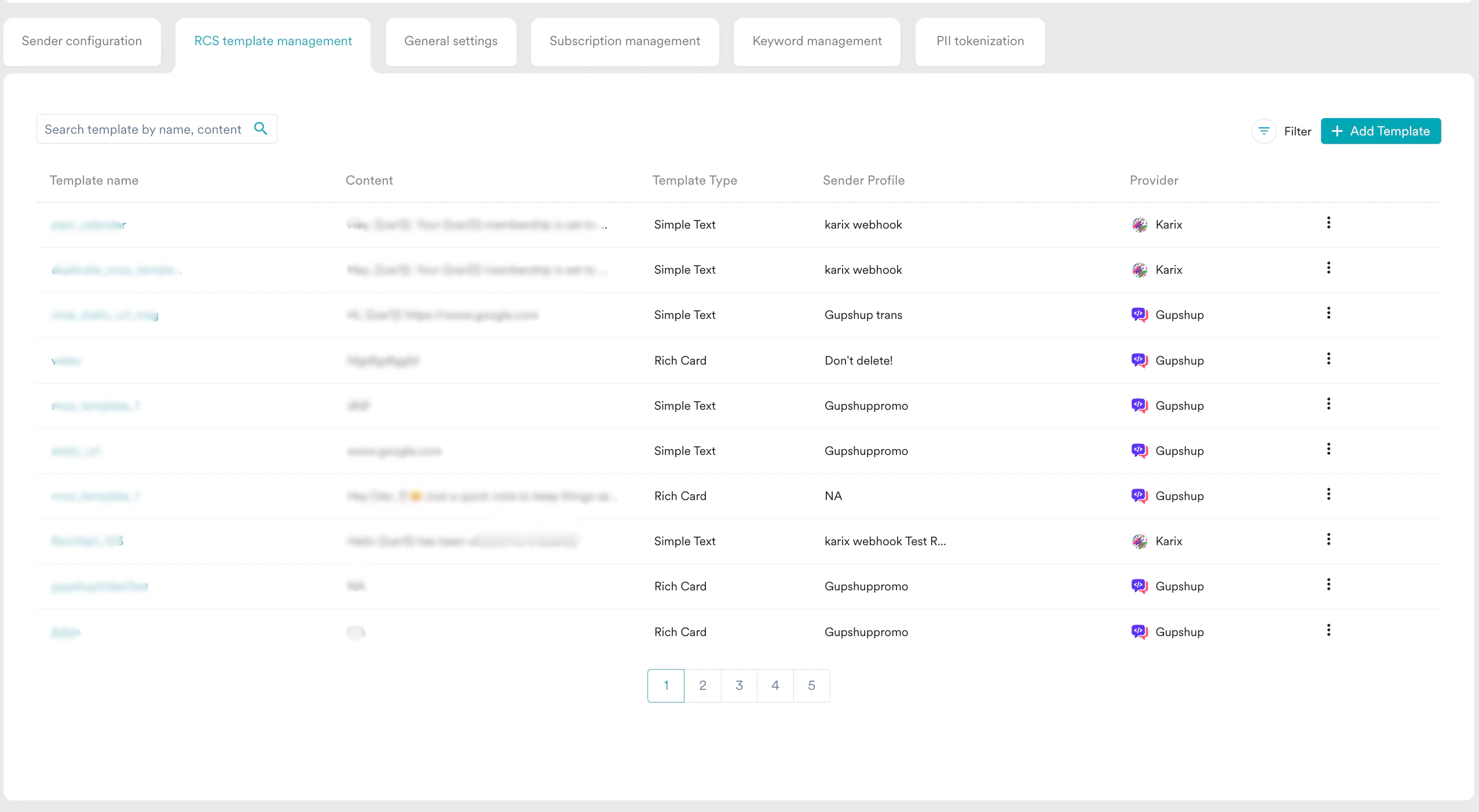
On the RCS template management page, MoEngage allows you to create additional templates, search for existing templates, filter templates, edit, view, duplicate, and delete templates. To manage all your RCS Templates:-
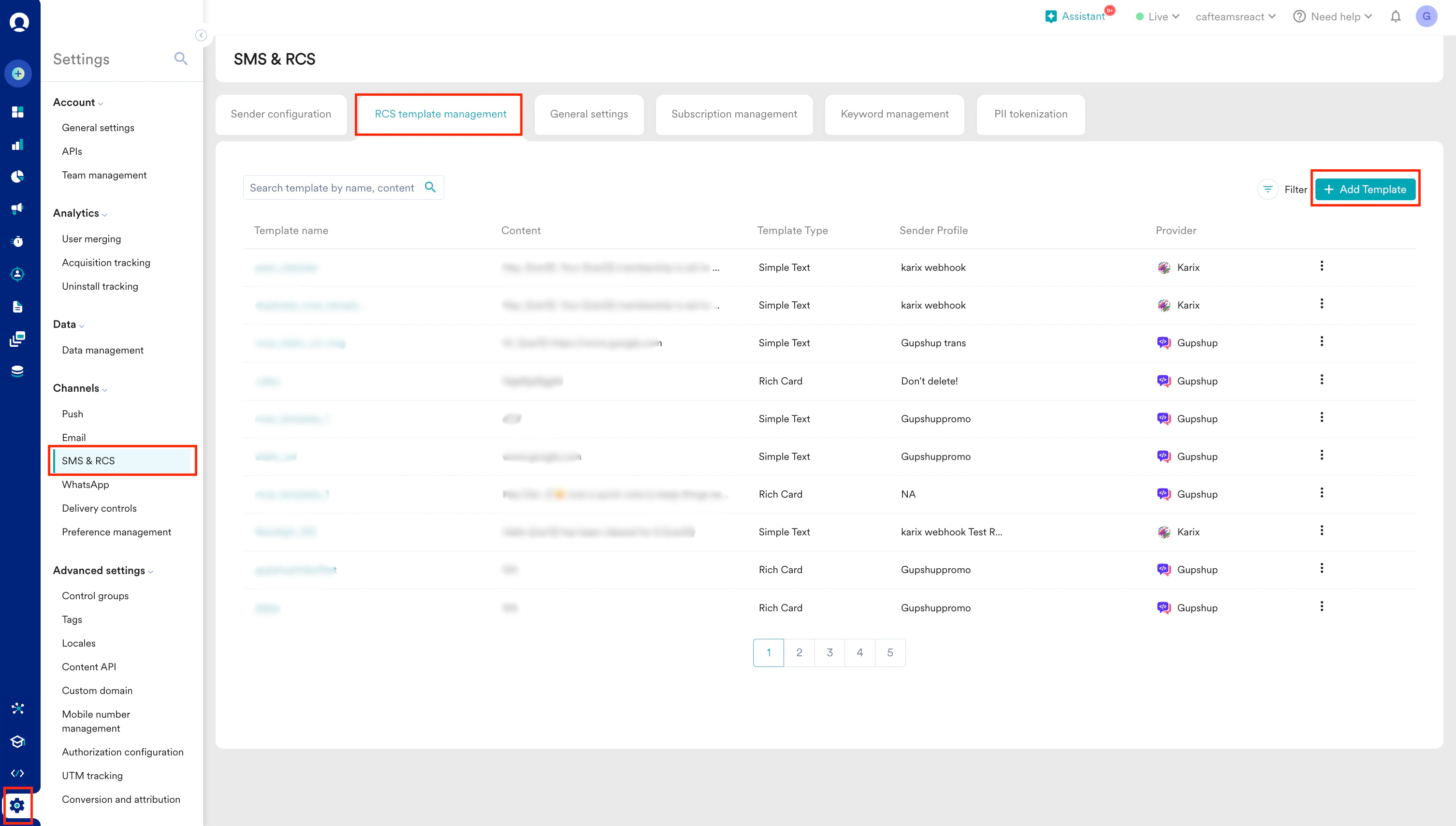
In the MoEngage dashboard, navigate to Settings > SMS, MMS & RCS > RCS template management.
-
On the RCS template management page, you can see the following fields:
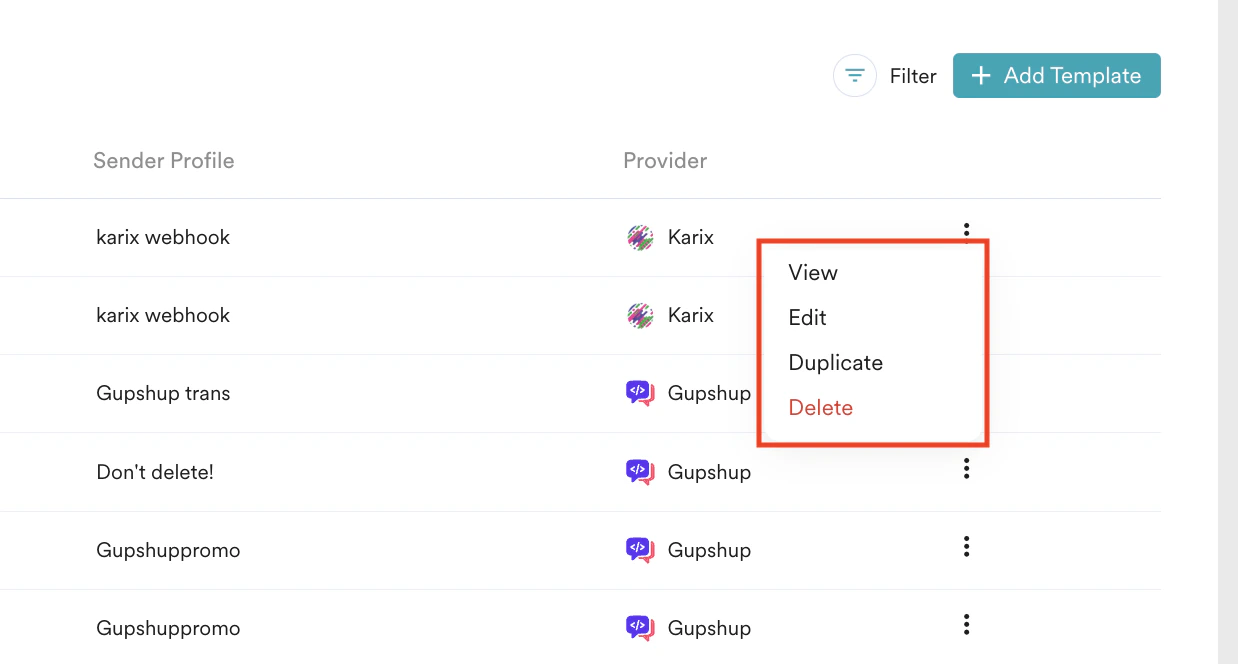
You cannot delete the template if an active campaign is using it, as deleting the template can affect the campaign. Therefore, you should stop the campaign before deleting the template.
Add Templates in MoEngage
To add templates in MoEngage, perform the following steps:- Navigate to Settings > SMS & RCS > RCS template management. Click + Add Template.
- On the Add template page, under the template Settings section, enter the following details:
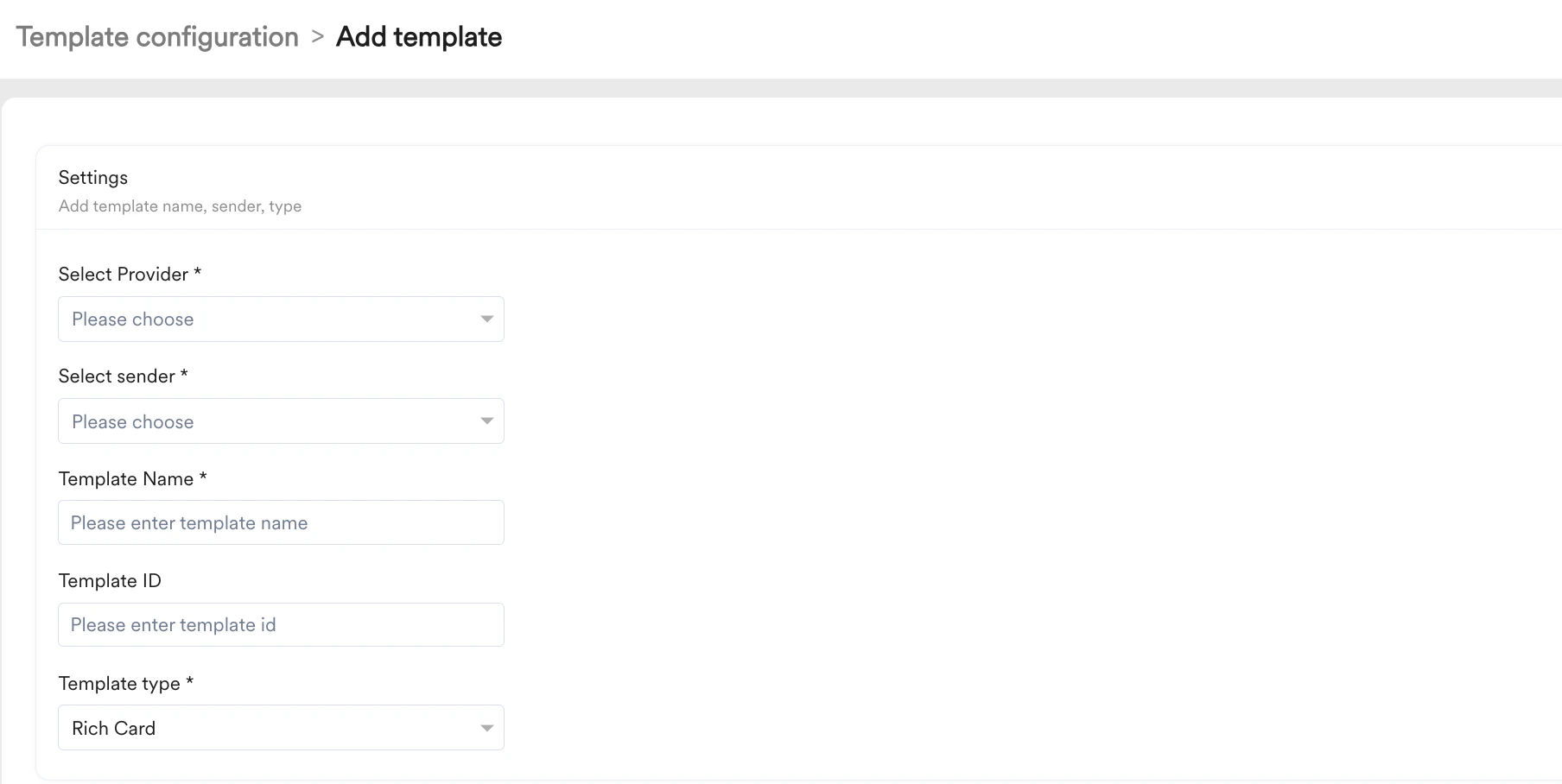
The Template Name and Template ID should match the information in your provider dashboard if you send the RCS message to Indian customers.
-
On the Add templates page, under the Content section, enter the following details. You can add the content of the message to be conveyed to the customers.
- Simple Text
- Rich Card
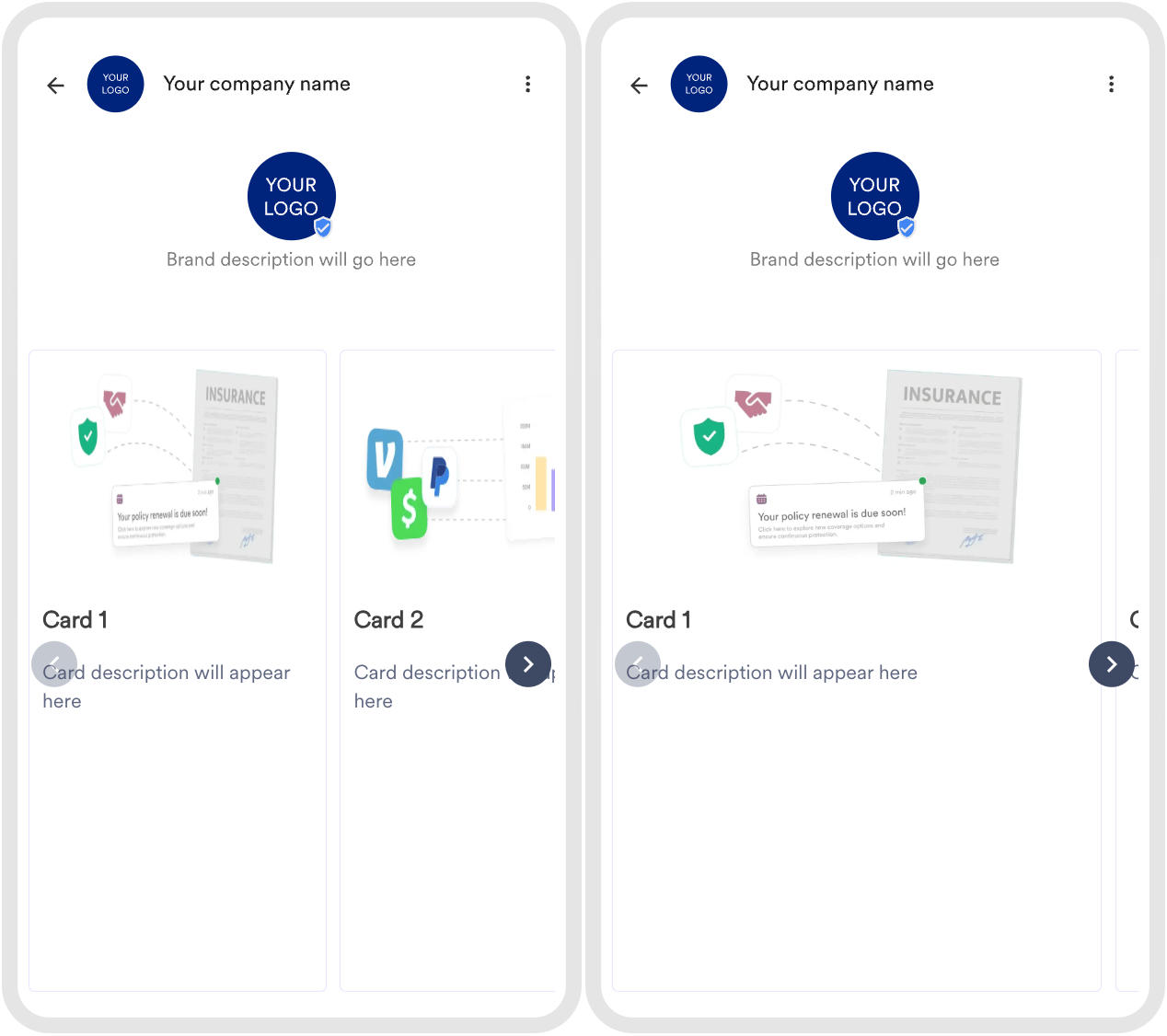
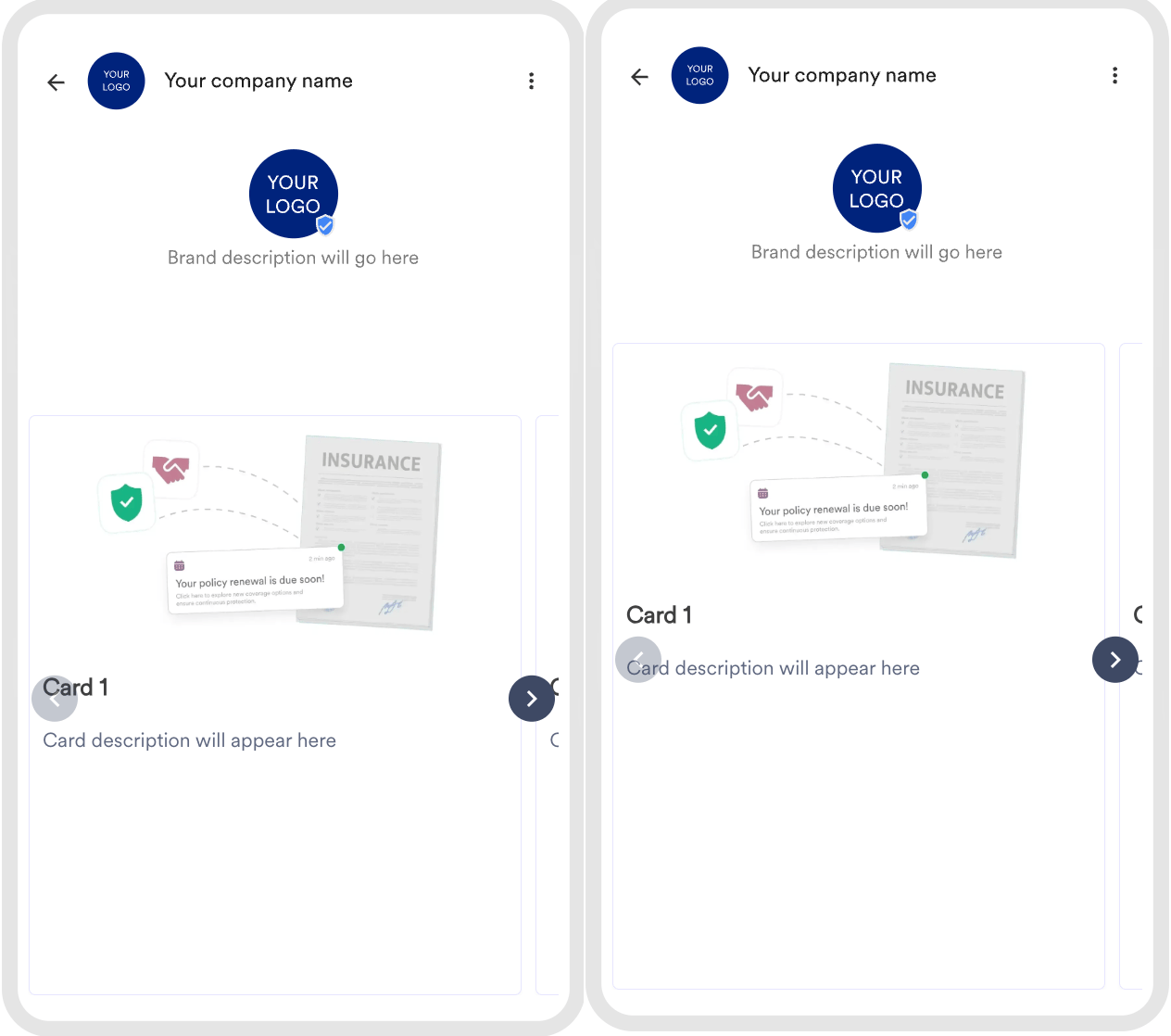
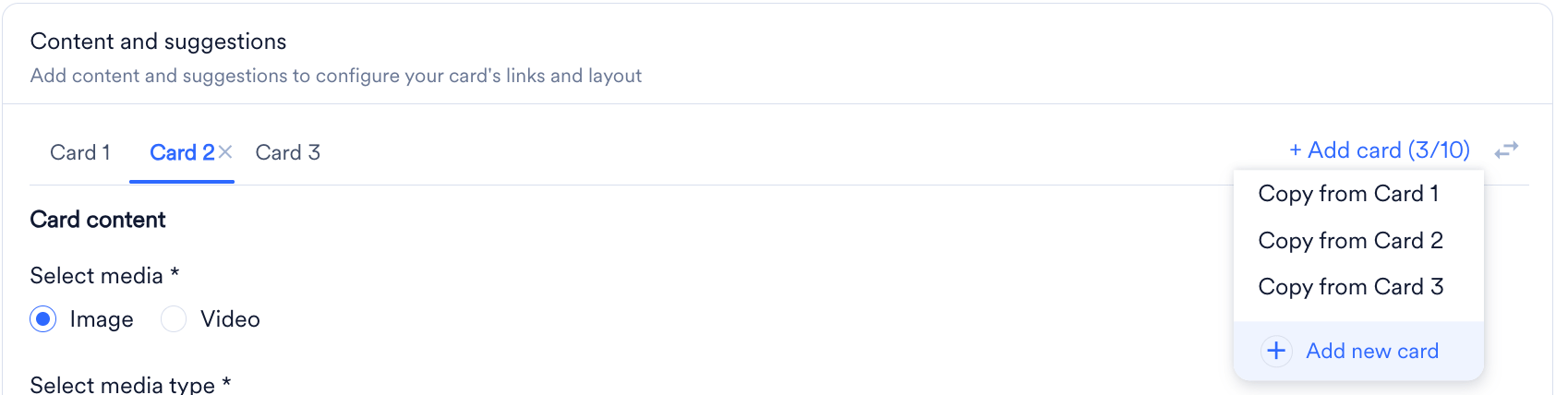
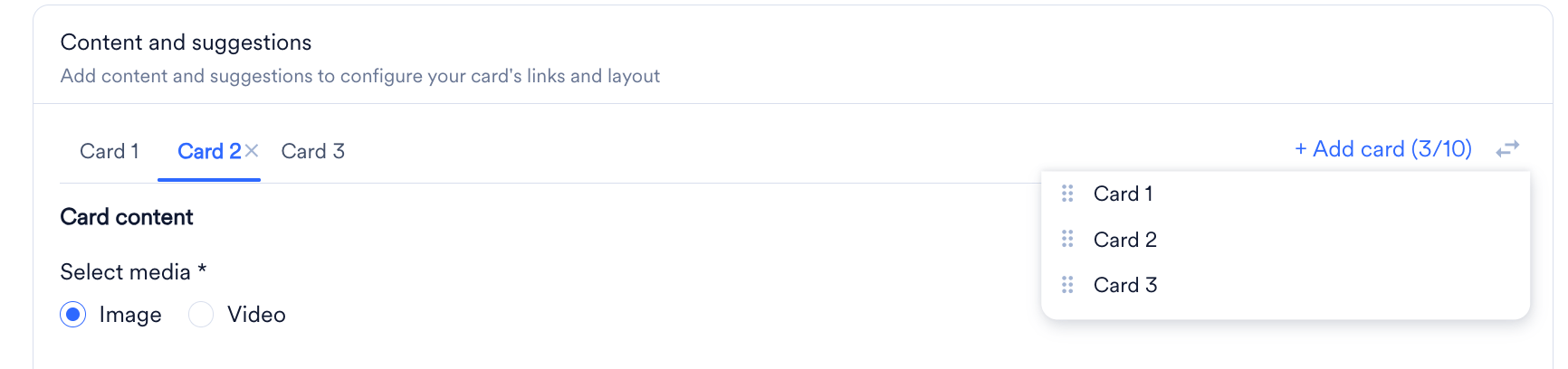
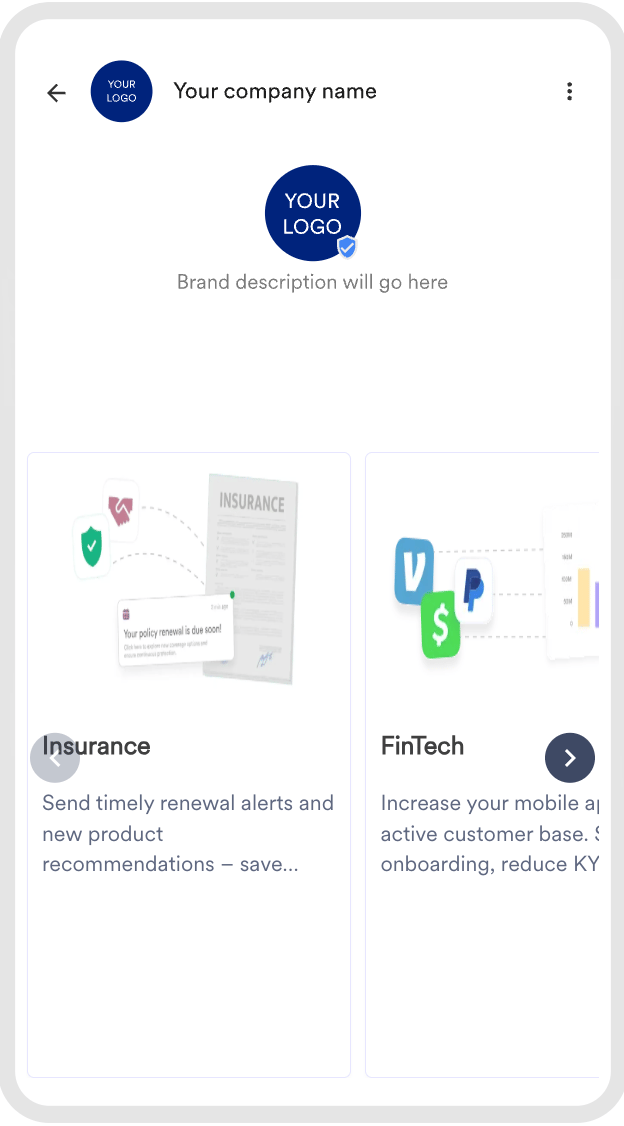
- Carousel
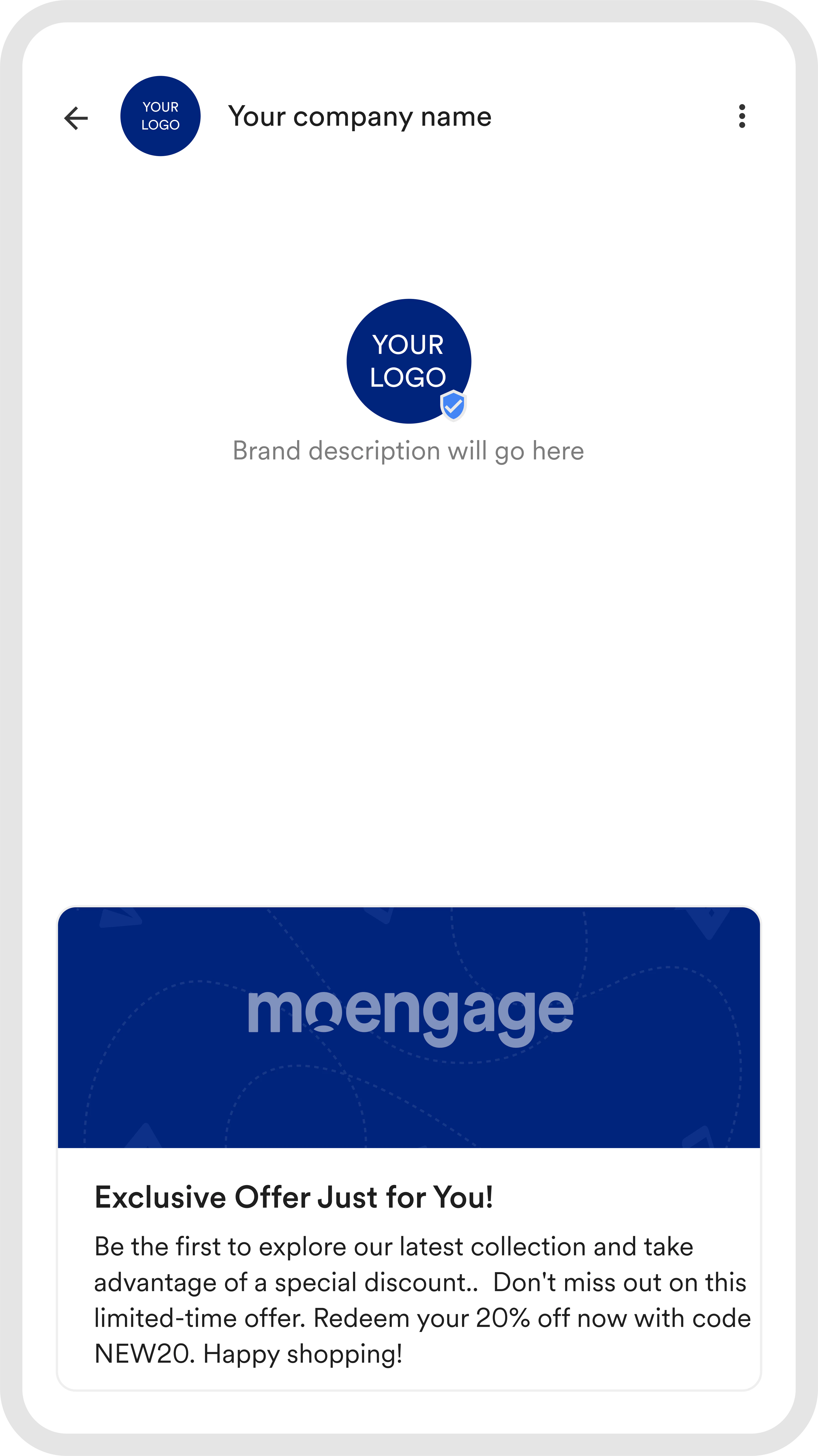
A Simple Text template is a basic text-only message type that allows for detailed communication without images or videos. It can include a verified checkmark for credibility and your brand’s logo for brand recognition. If the Template type is set as Simple Text, you can add up to 11 suggestions. The following image illustrates how the Content section appears in a Simple Text template type. The following image shows an example of an RCS message that uses the Simple Text template.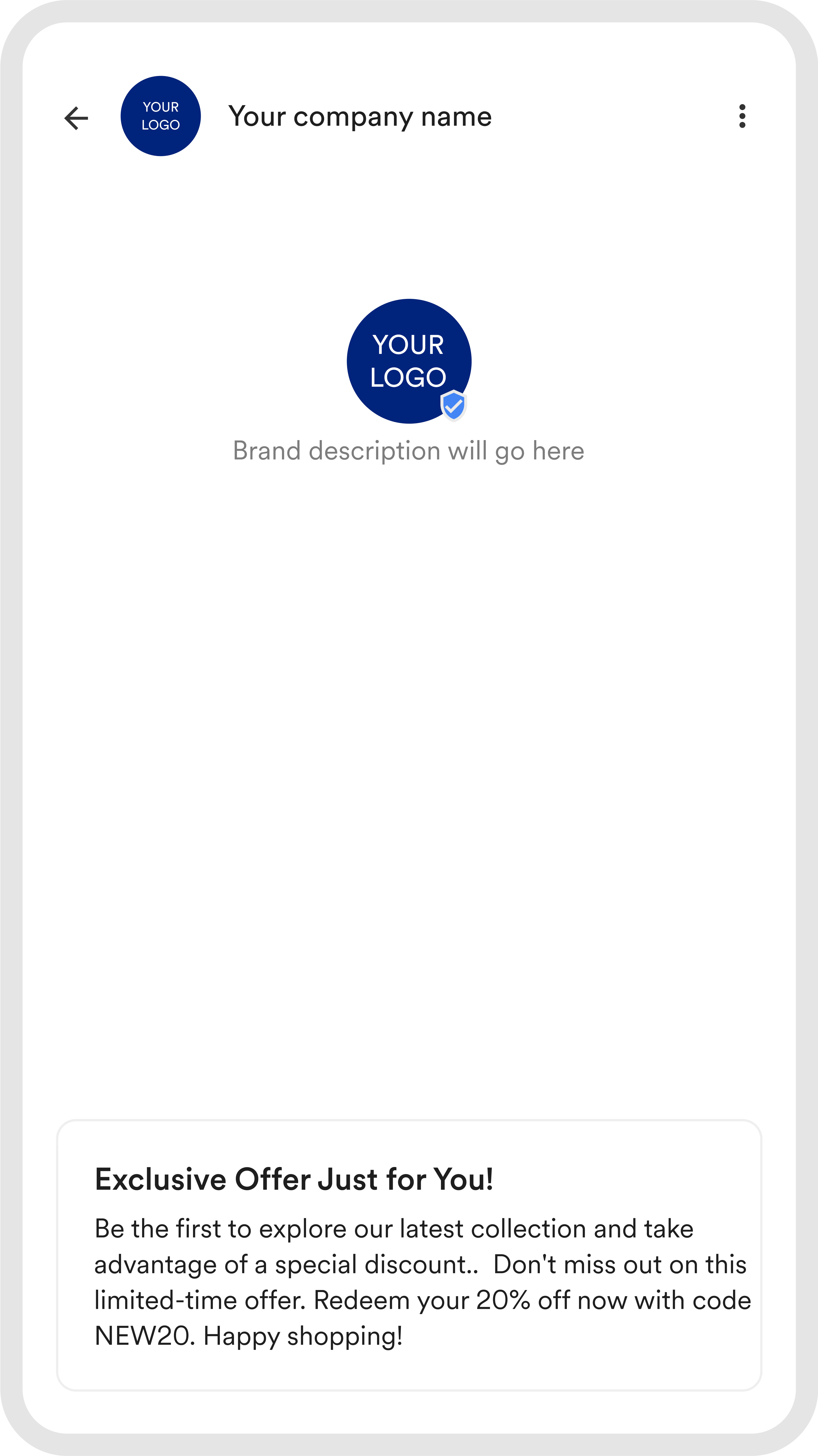
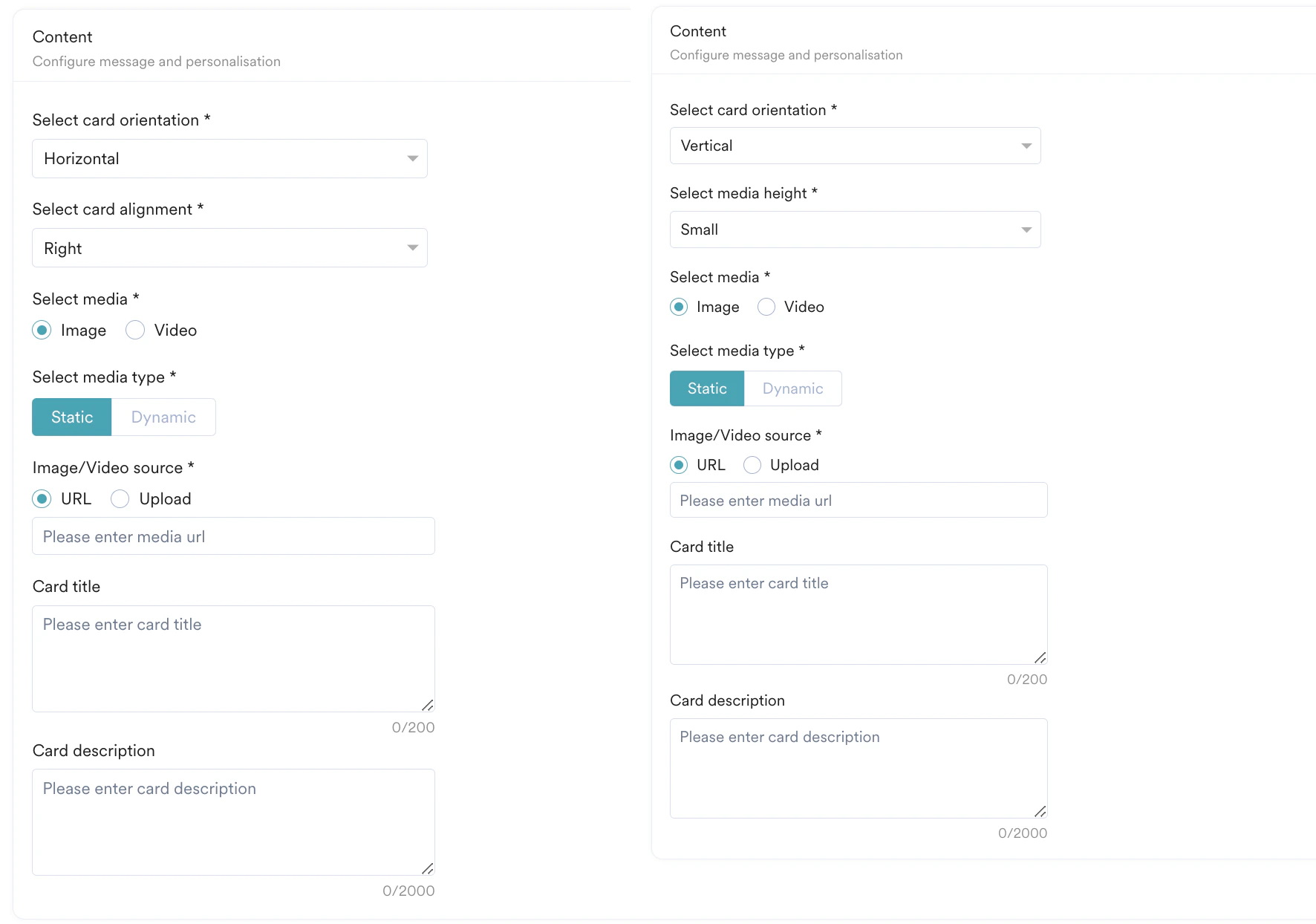
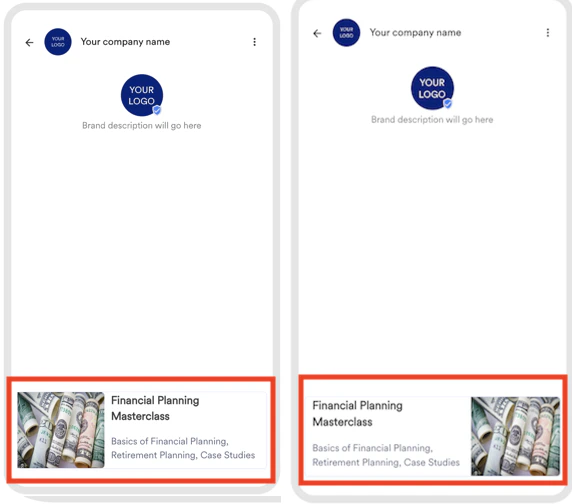
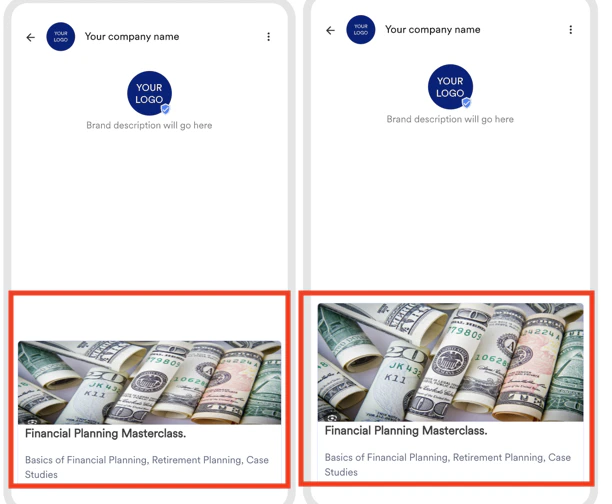
-
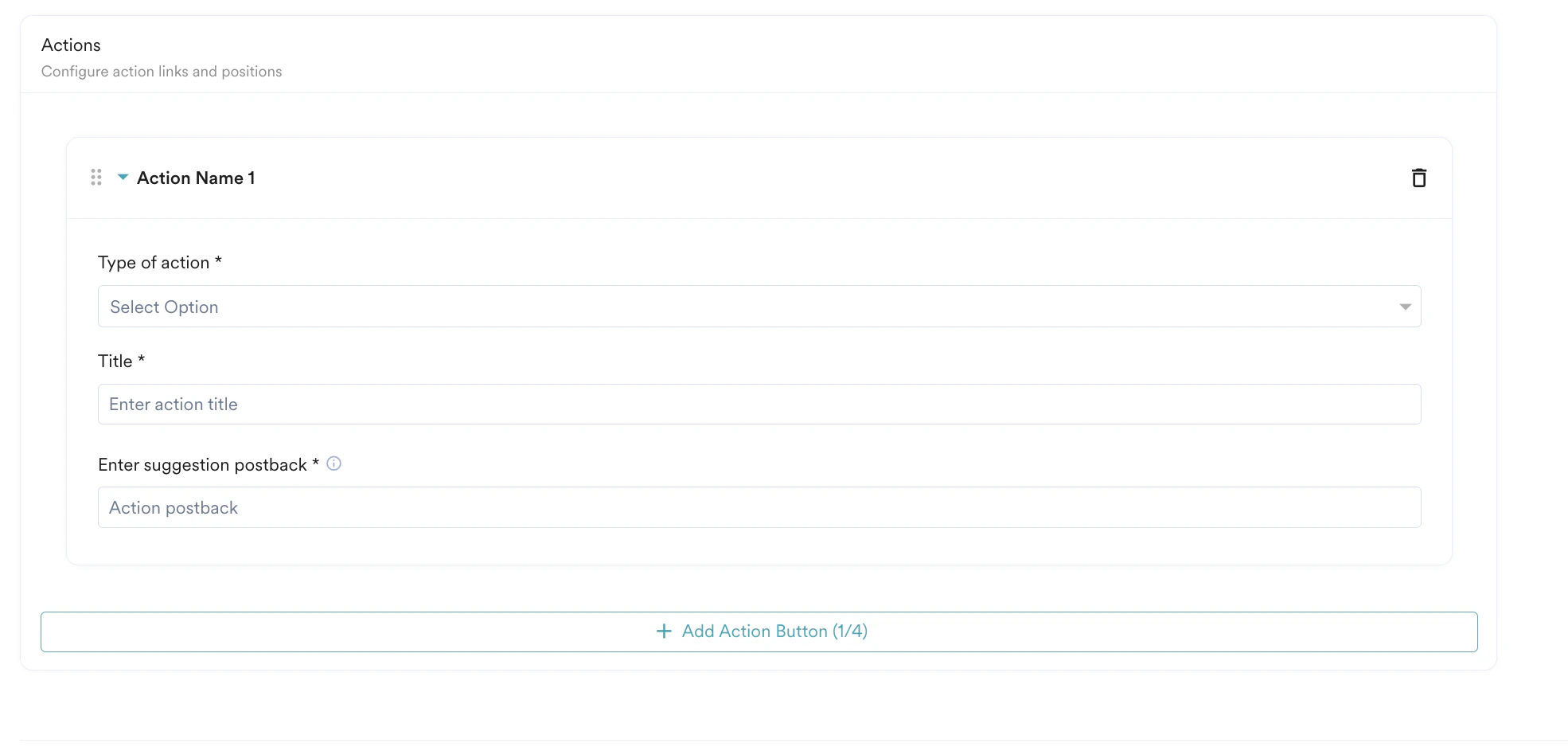
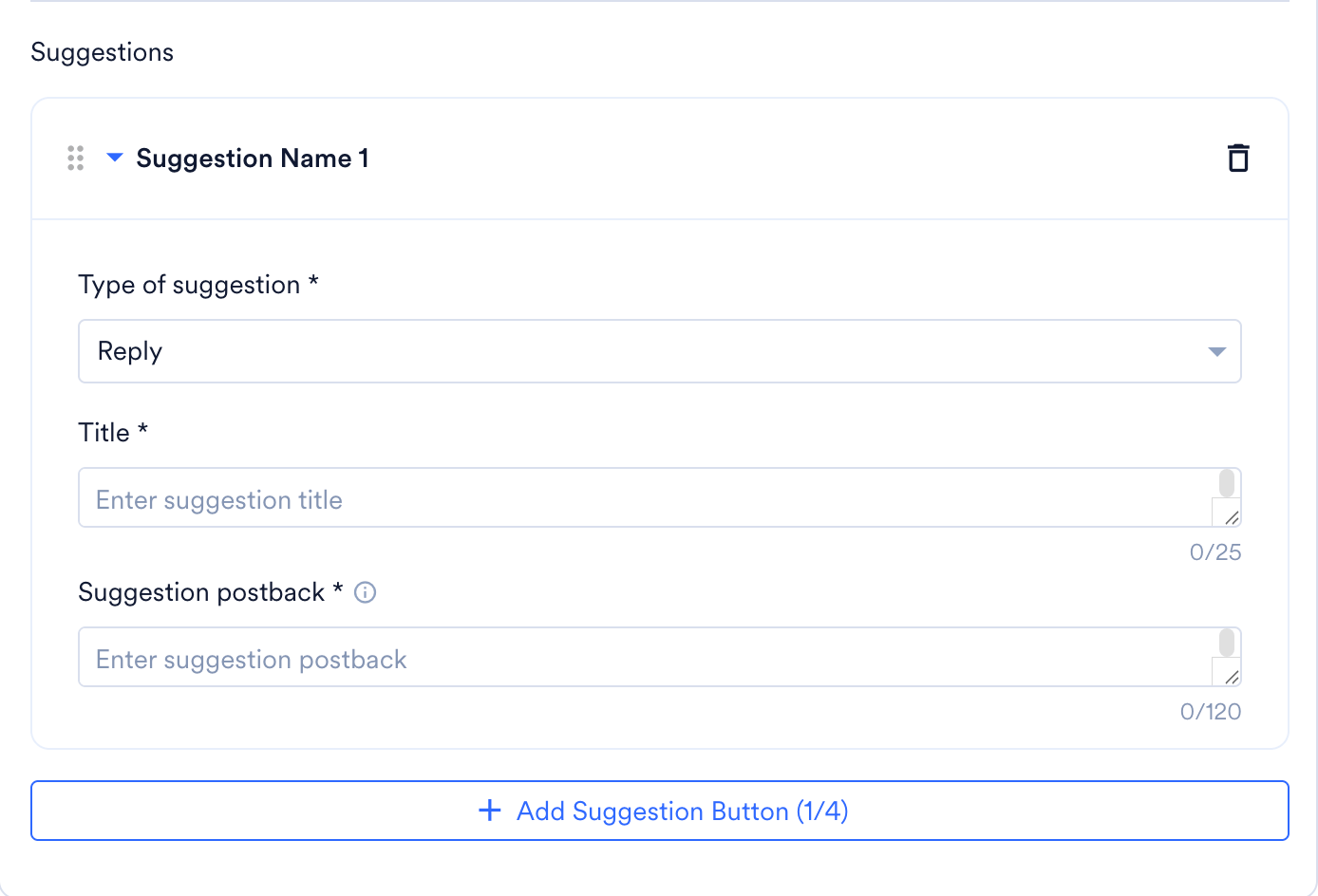
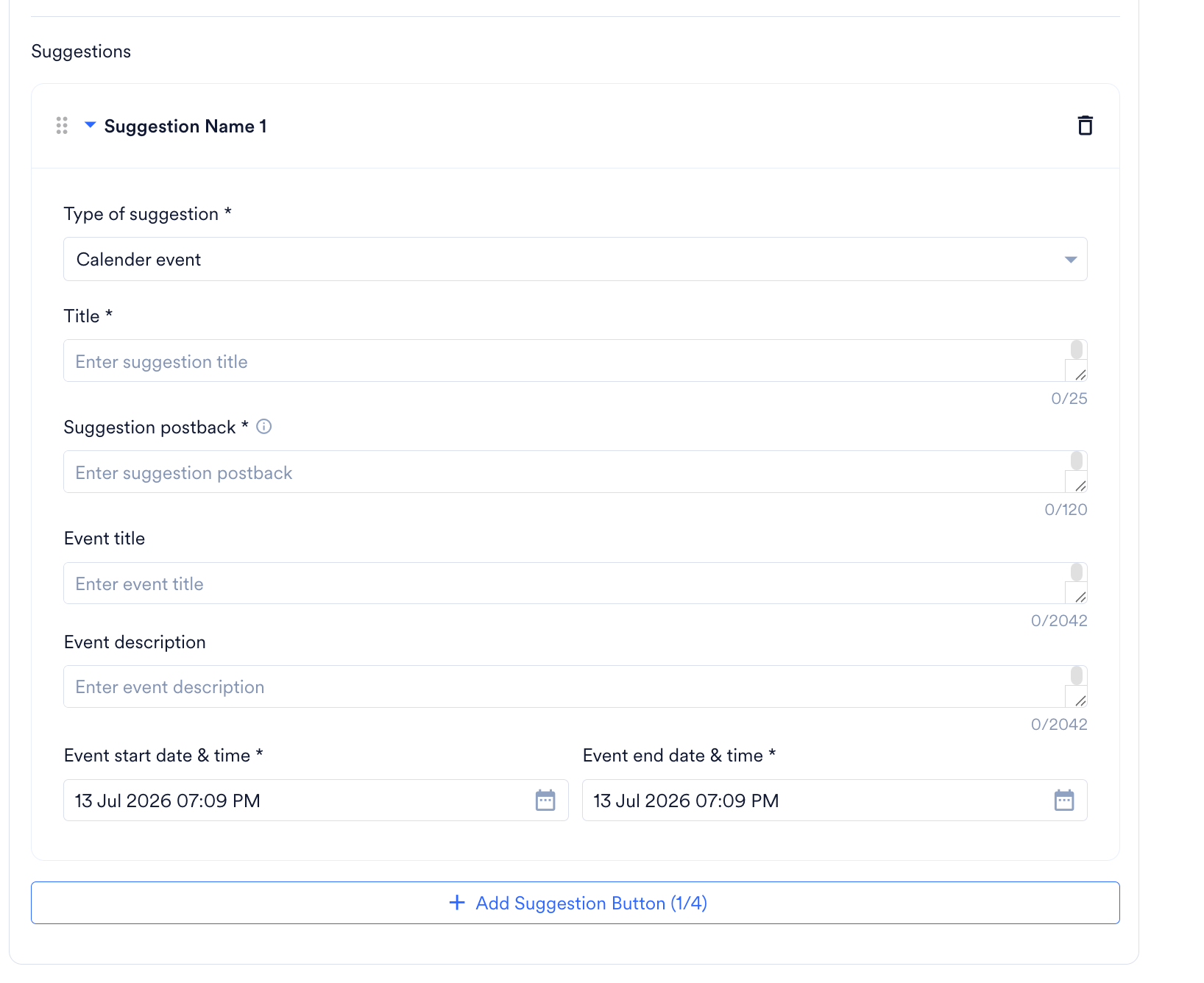
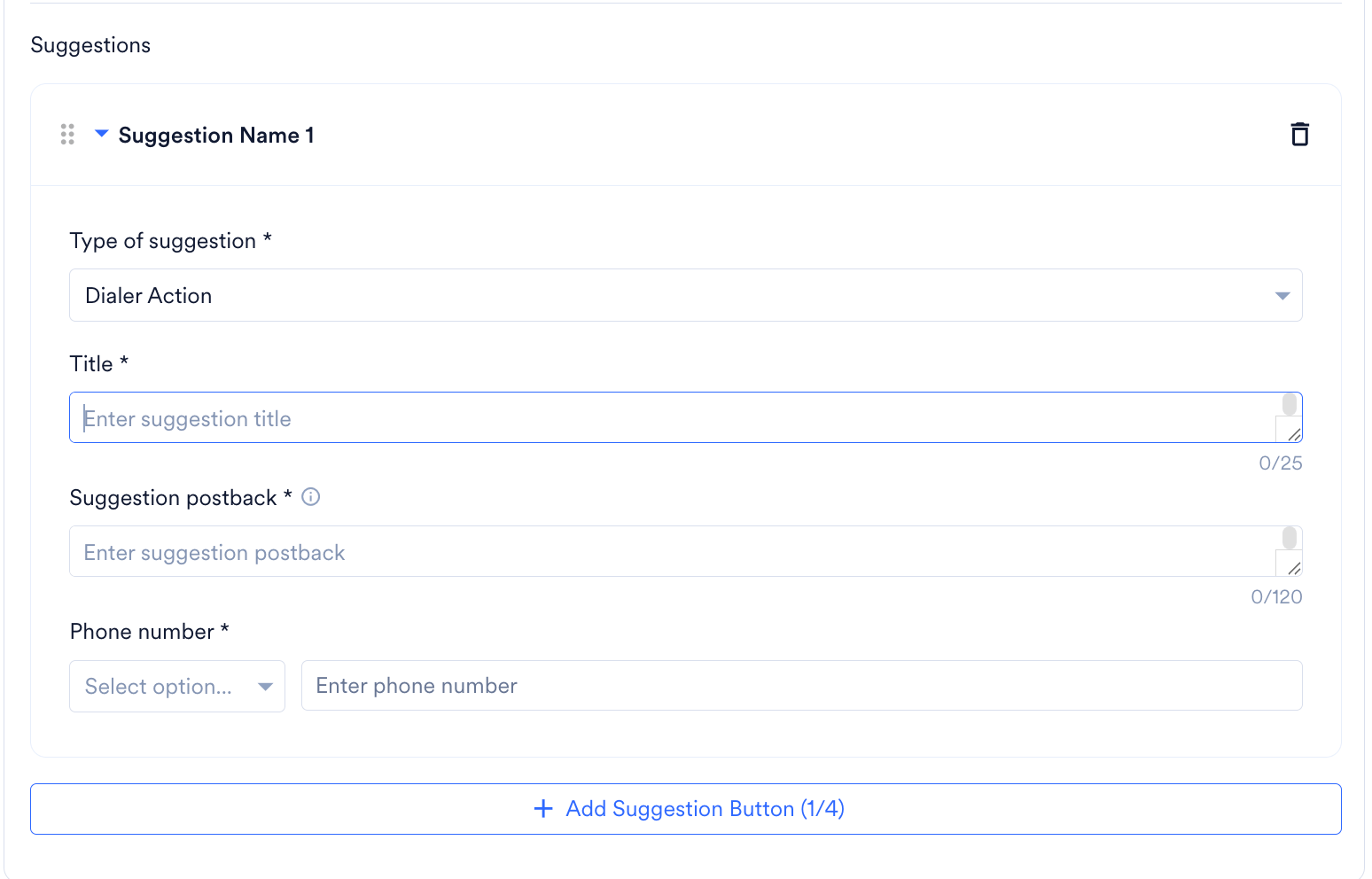
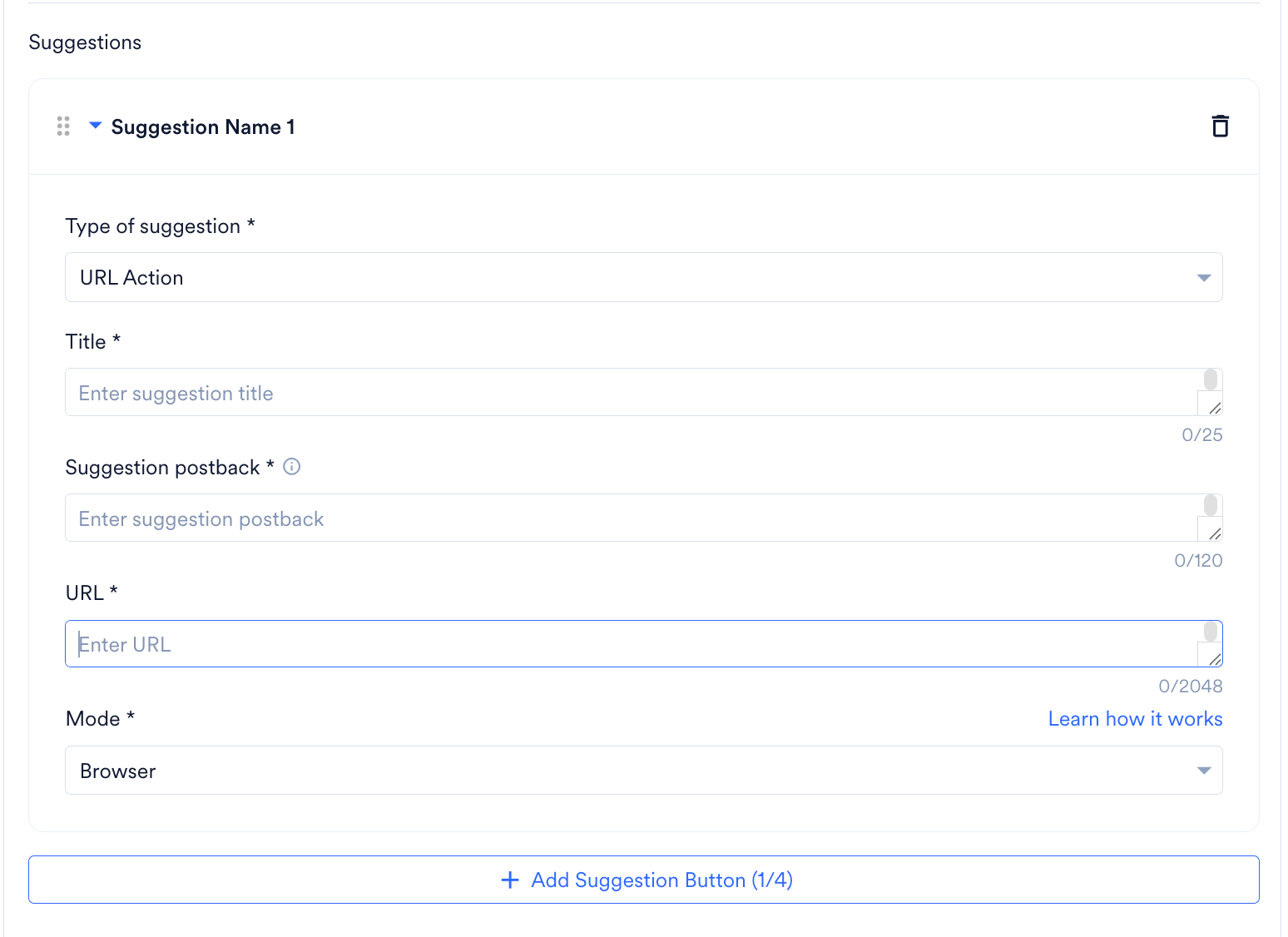
You can add suggestions that allows the customers to interact with the brand. There are multiple different types, they can either reply, set a reminder, click to call, or click on URL. On the Add template page, under the Suggestions section, enter the following details.
If the Template type is set as Simple Text, you can add up to 11 suggestions; if it is set as Rich Card or Carousel, you can add up to 4 suggestions.
- Reply
- Calendar Event
- Dialer Action
- URL Action
- After completing all configurations, click Save.
Personalizing RCS content
MoEngage uses a specific personalization format. Always use double curly braces ({{ }}) for all personalized fields, including the title, description, CTA titles, and so on.If you are creating content on a platform that uses a different syntax, update the variables to use double curly braces before saving the template in MoEngage. Otherwise, the variables will be sent as plain text.
Ensure that variable names contain only alphanumeric characters, underscores, and curly braces. For example:
{{v1}}, {{custom_param}}.
For more information, refer to Personalize RCS Campaigns.