

Test Recommendation Panel
You can open the test panel in the following two ways:- While you create a recommendation. The last step of the setup includes the Test recommendation panel, so you can test the recommendation before you save it.
- From the Recommendations list. Open an existing recommendation and click Test recommendation.
-
On the sidebar menu in MoEngage, hover over the Content menu item
 . The Content menu appears.
- Click Recommendations. The Recommendations page appears.
-
Find your recommendation in the list and click the edit icon under Actions. The recommendation opens.
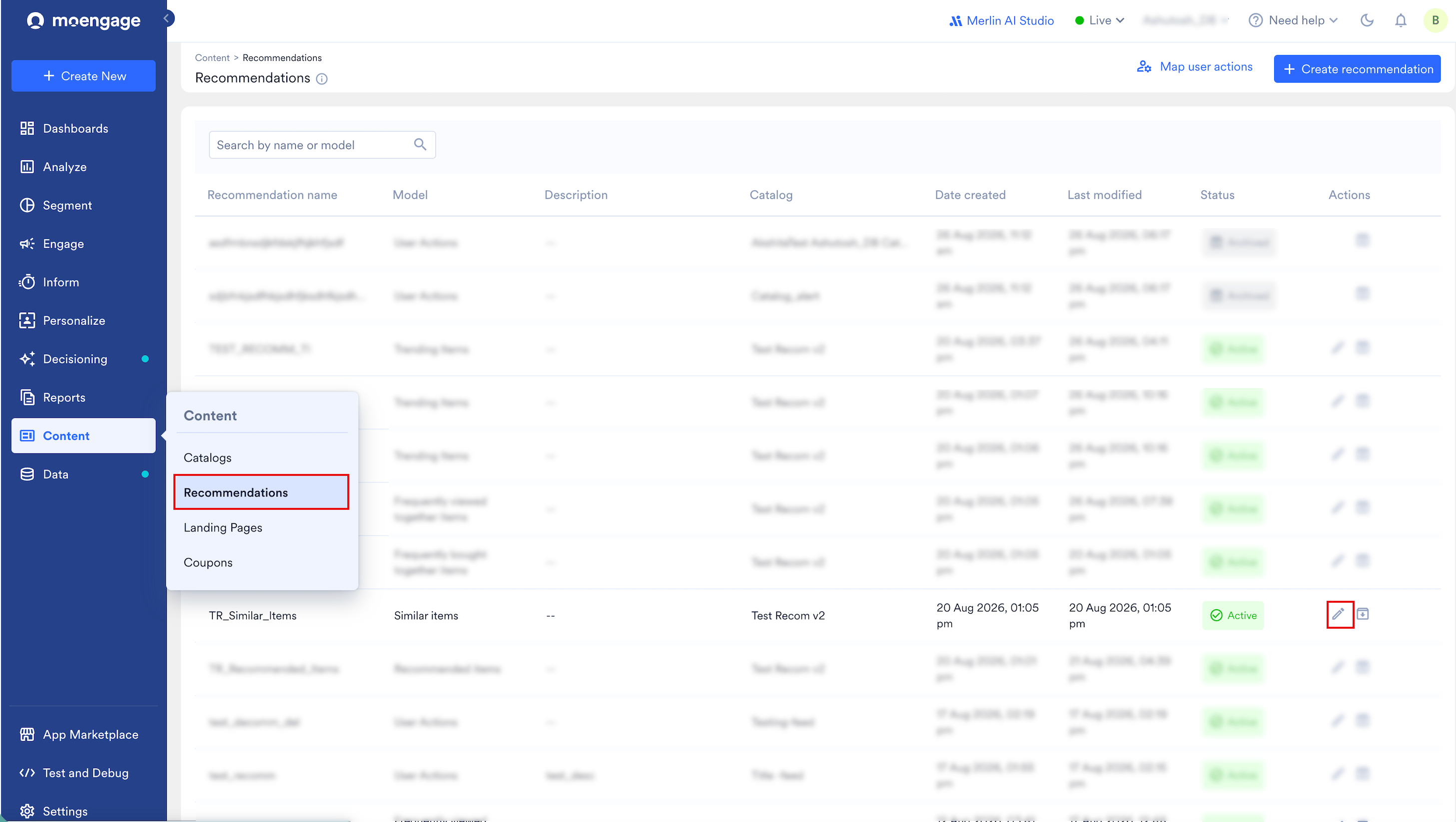
-
Scroll down to the Test recommendation section, and then click Test recommendation. The test panel opens as a popup.
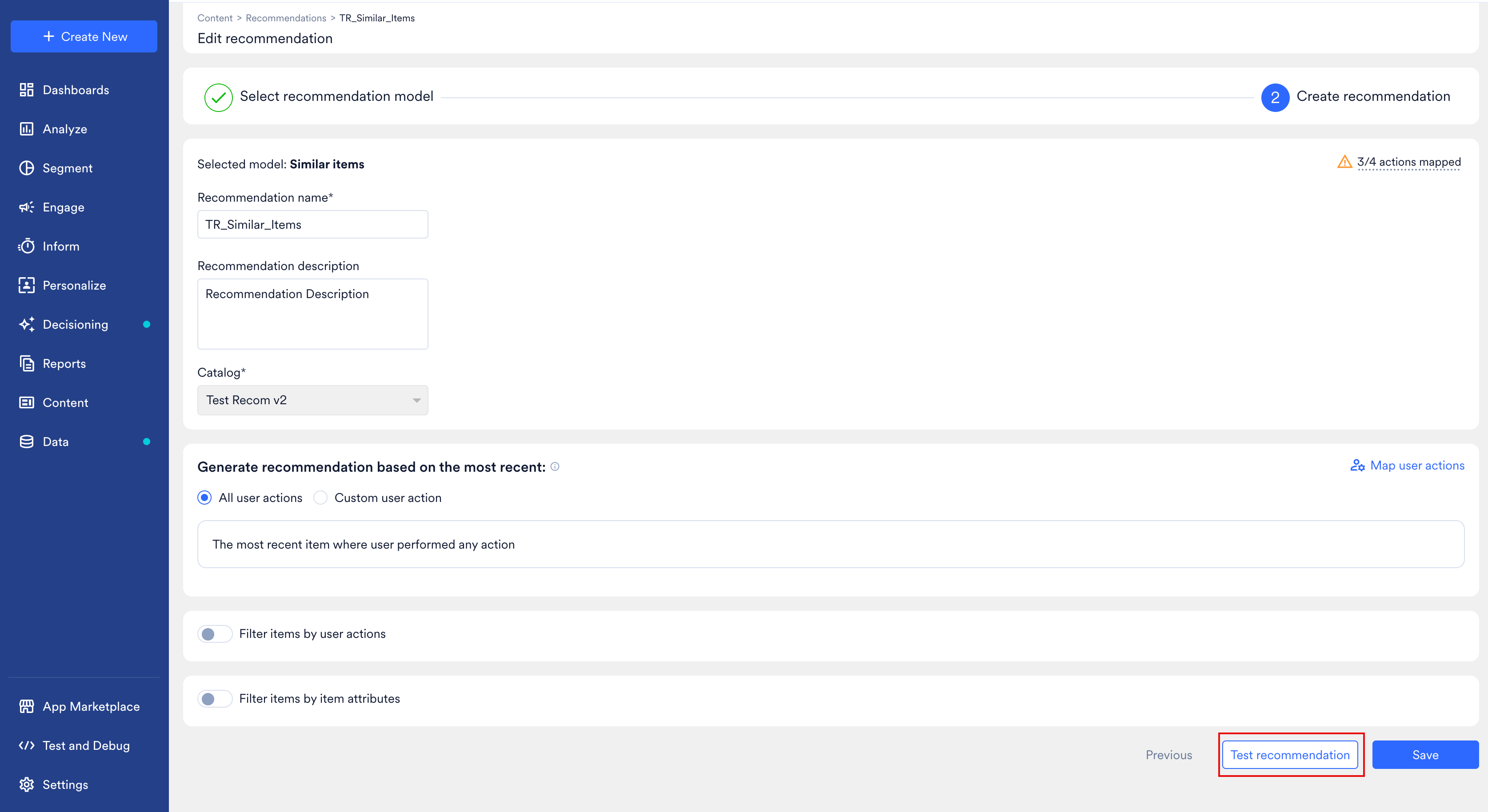
Panel Layout
The test panel has the following three areas:
The panel also has the following controls:
Test Modes
MoEngage offers the following three ways to preview results:By item is available only for Similar Items, Frequently Bought Together Items, and Frequently Viewed Together Items, because these models take a product ID as their input. Recommended Items takes a user ID, so test that model by user instead.
Test by Specific User
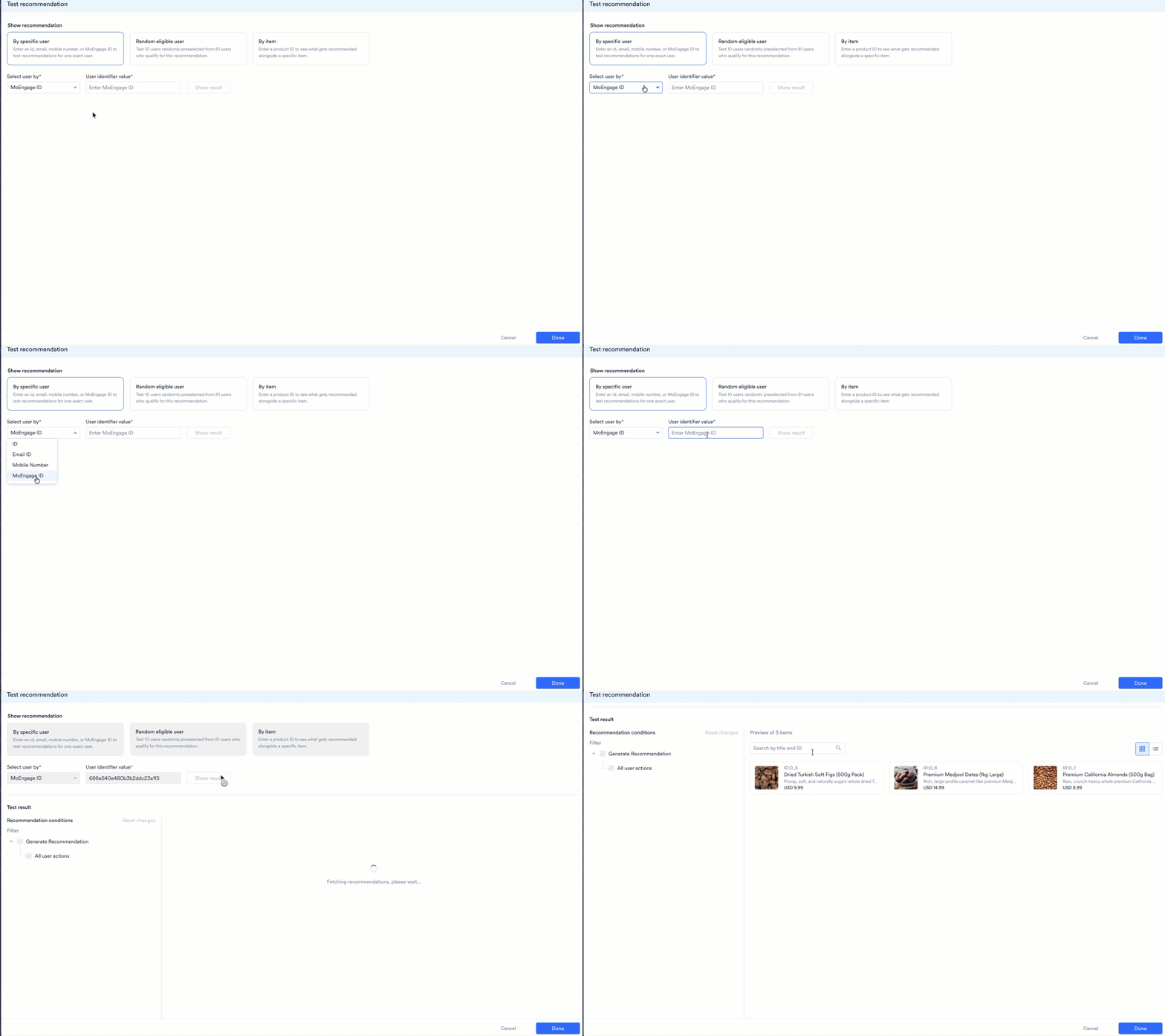
To test a recommendation for a specific user, perform the following steps:- In the test panel, click By specific user.
- In the Select user by drop-down list, select ID, Email ID, Mobile Number, or MoEngage ID.
- In the User identifier value box, enter the value for the identifier you selected in the Select user by list.
- Click Show result. The recommended items appear under Test result.
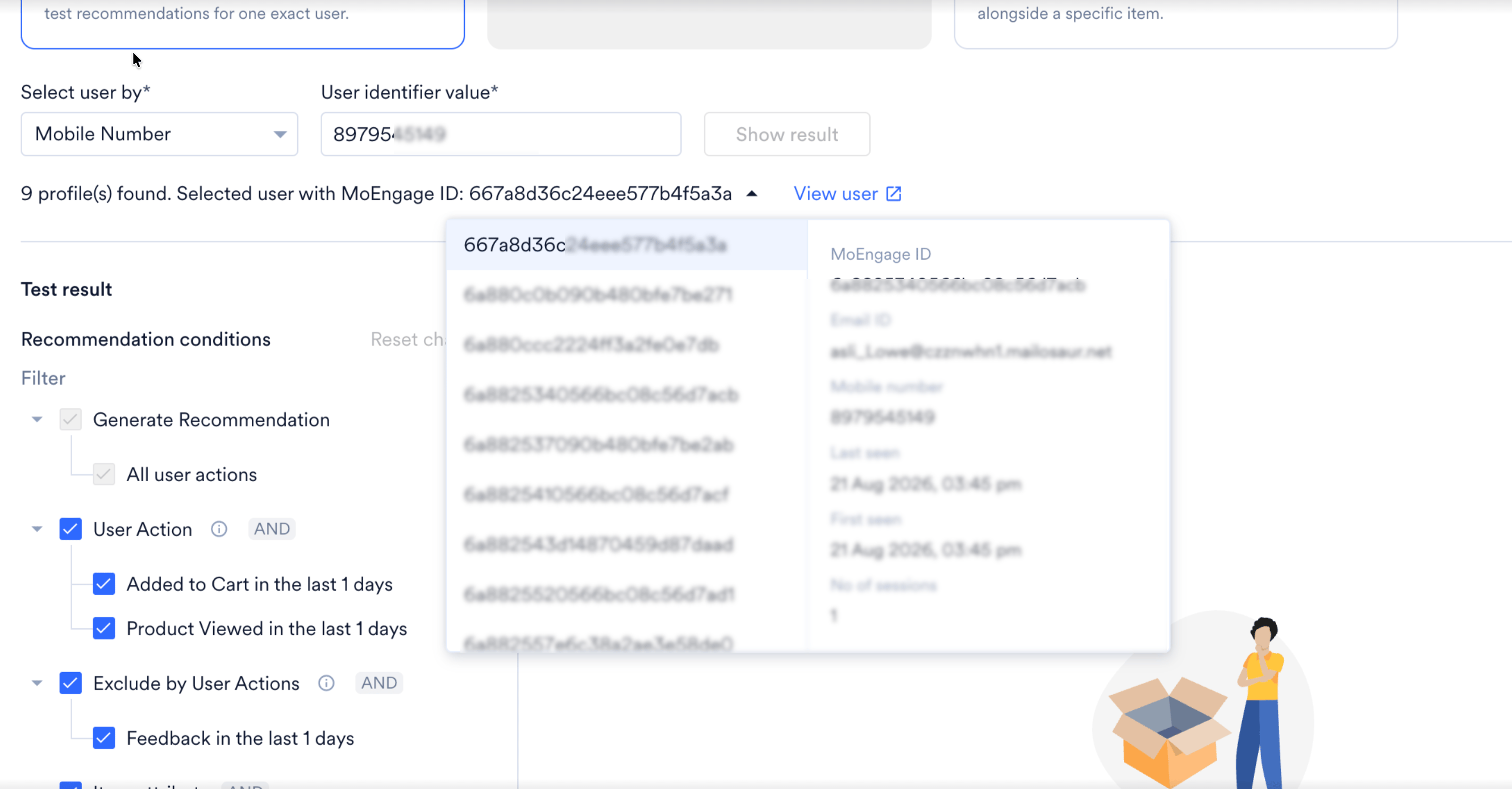
If more than one profile matches what you entered, MoEngage shows how many profiles it found and which one it selected. Use the drop-down list next to that message to switch to any of the other matched profiles, and click View user to open the selected profile and confirm it is the right one.
Test with a Random Eligible User
To test a recommendation with a random eligible user, perform the following steps:- In the test panel, click Random eligible user. MoEngage samples 10 users at random from everyone who qualifies for the recommendation, so you do not need to enter anything.
- Click a user to see the recommendation results for that user.
- Click Test for another user to switch to a different user from the sample.
- Click View user to open the selected user’s full profile.
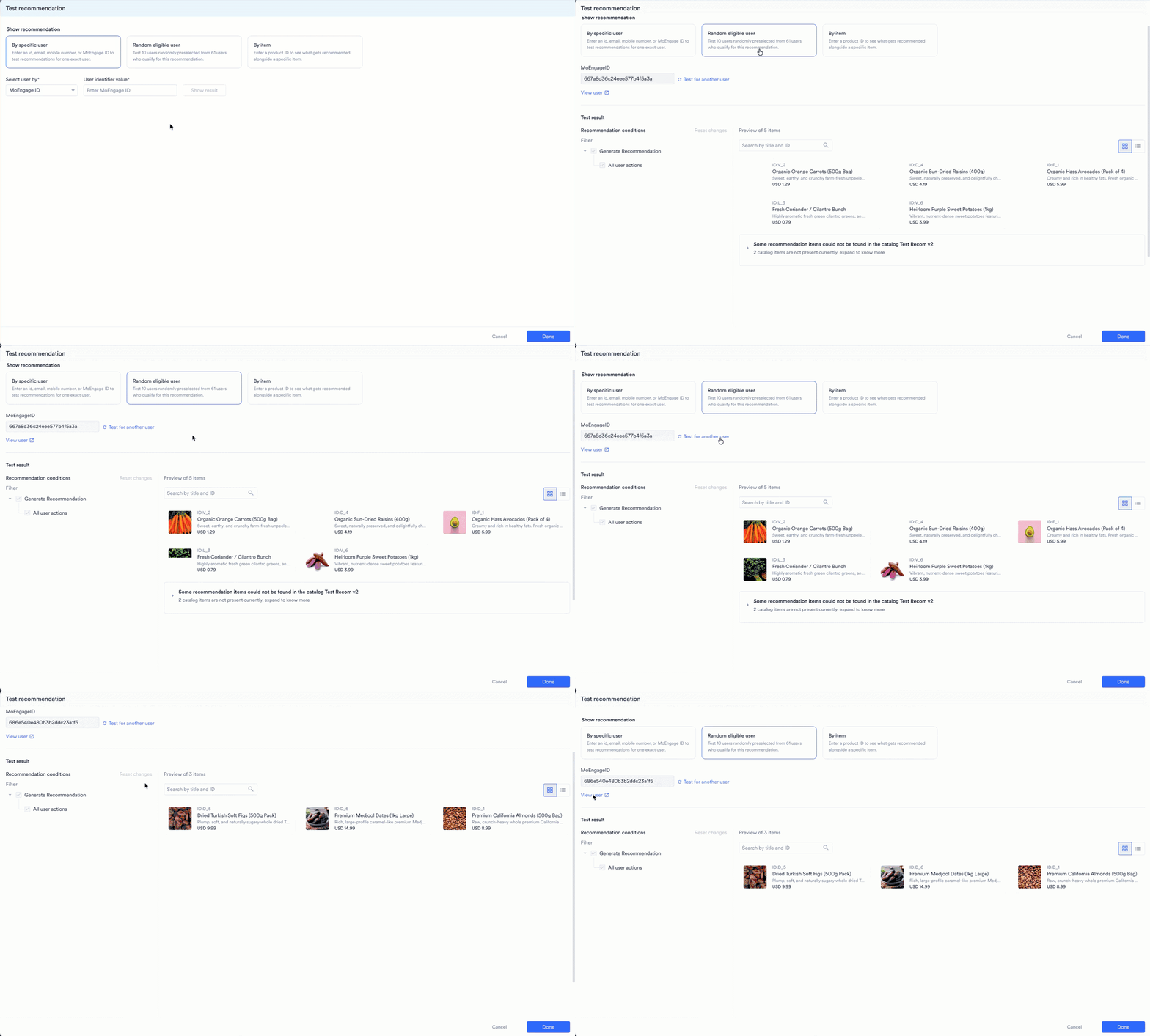
If Random eligible user returns no users at all, a filter on the recommendation excludes everyone. To widen the eligible pool, clear the filter in step 2 of the recommendation setup, and then test the recommendation again.
Test by Item
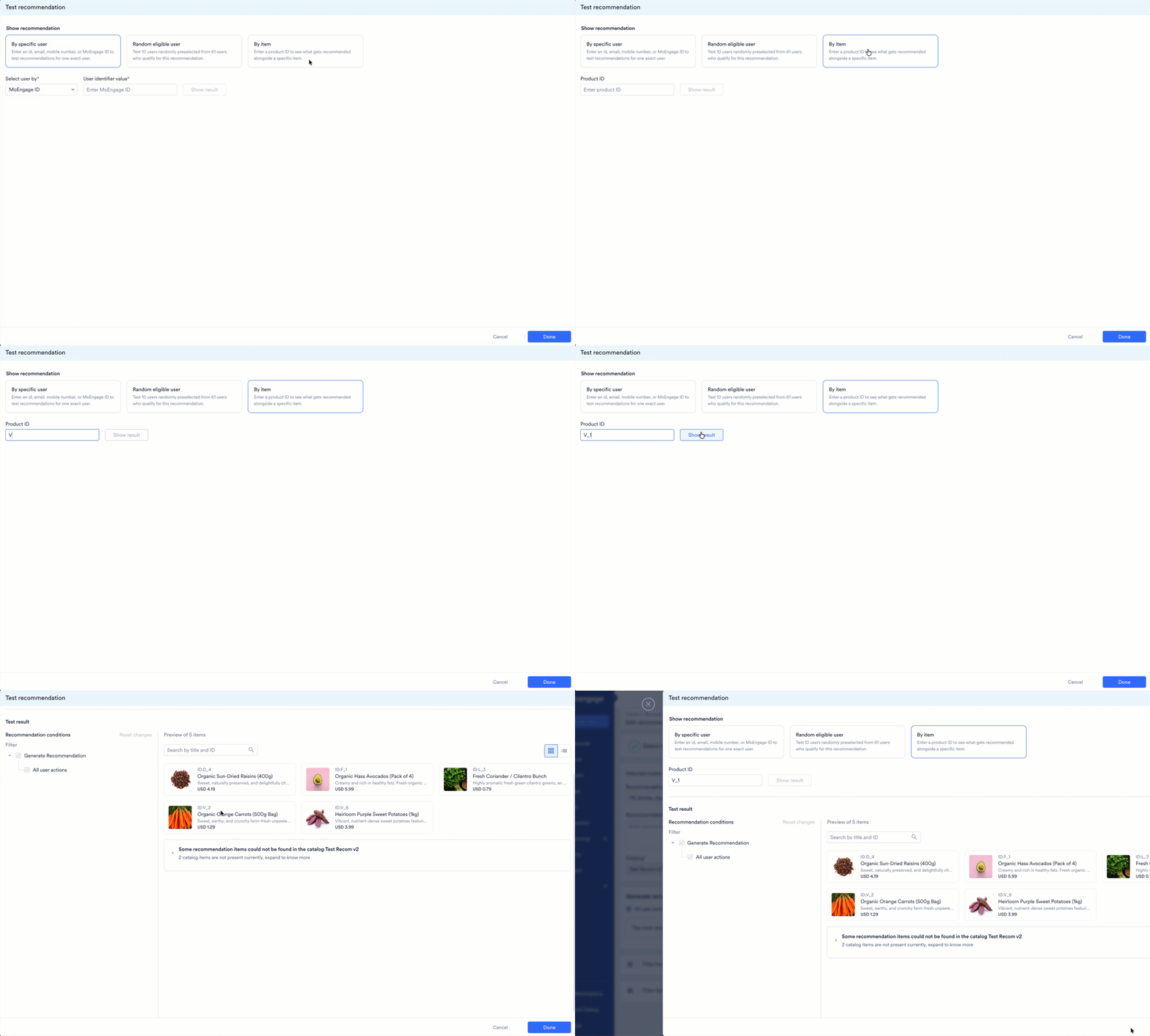
To test a recommendation against a specific product, perform the following steps:- In the test panel, click By item.
- In the Product ID box, enter the product ID.
- Click Show result. The items MoEngage recommends alongside that product appear under Test result.
Recommendation Results
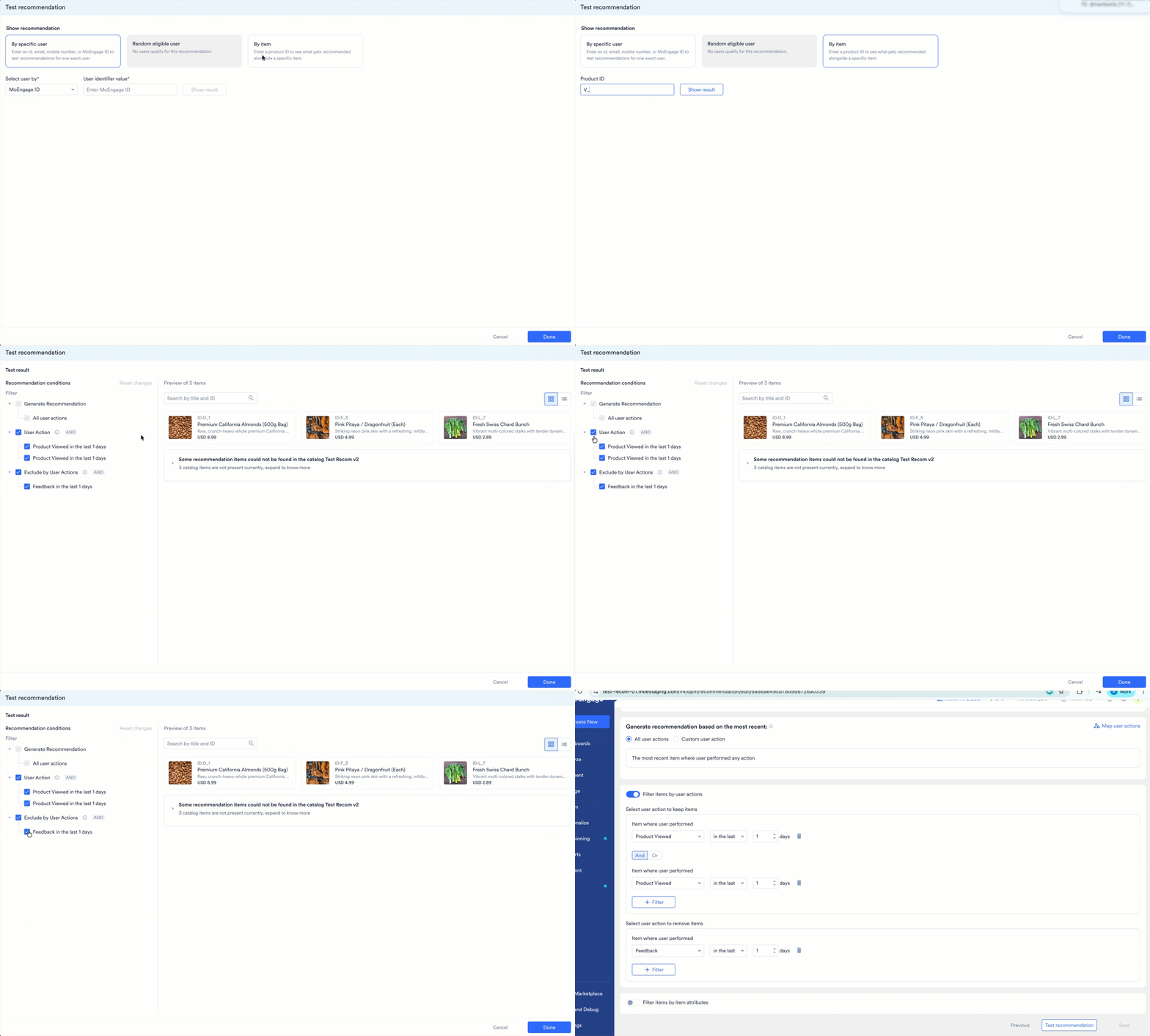
The Test result pane, headed Preview of [X] items, shows the items MoEngage recommends for the user, item, or sample you selected. In this pane, you can perform the following actions:- Search the results by title or ID in the Search by title and ID box.
- Switch between grid view and list view using the view icons at the top right of the pane. Grid view shows the items as cards, and list view shows them as rows.
- Review each item’s ID, name, short description, and price, exactly as a campaign displays them.
Dropped Items
Dropped items are items that the model recommended but that have since been deleted from the catalog. When this happens, the preview shows an expandable notice telling you how many items are missing and listing the exact missing catalog item IDs. To resolve dropped items, check that those IDs exist in an active feed, and that they match the attribute mapped as the item ID. This is the most direct way to find a catalog or event ID mismatch.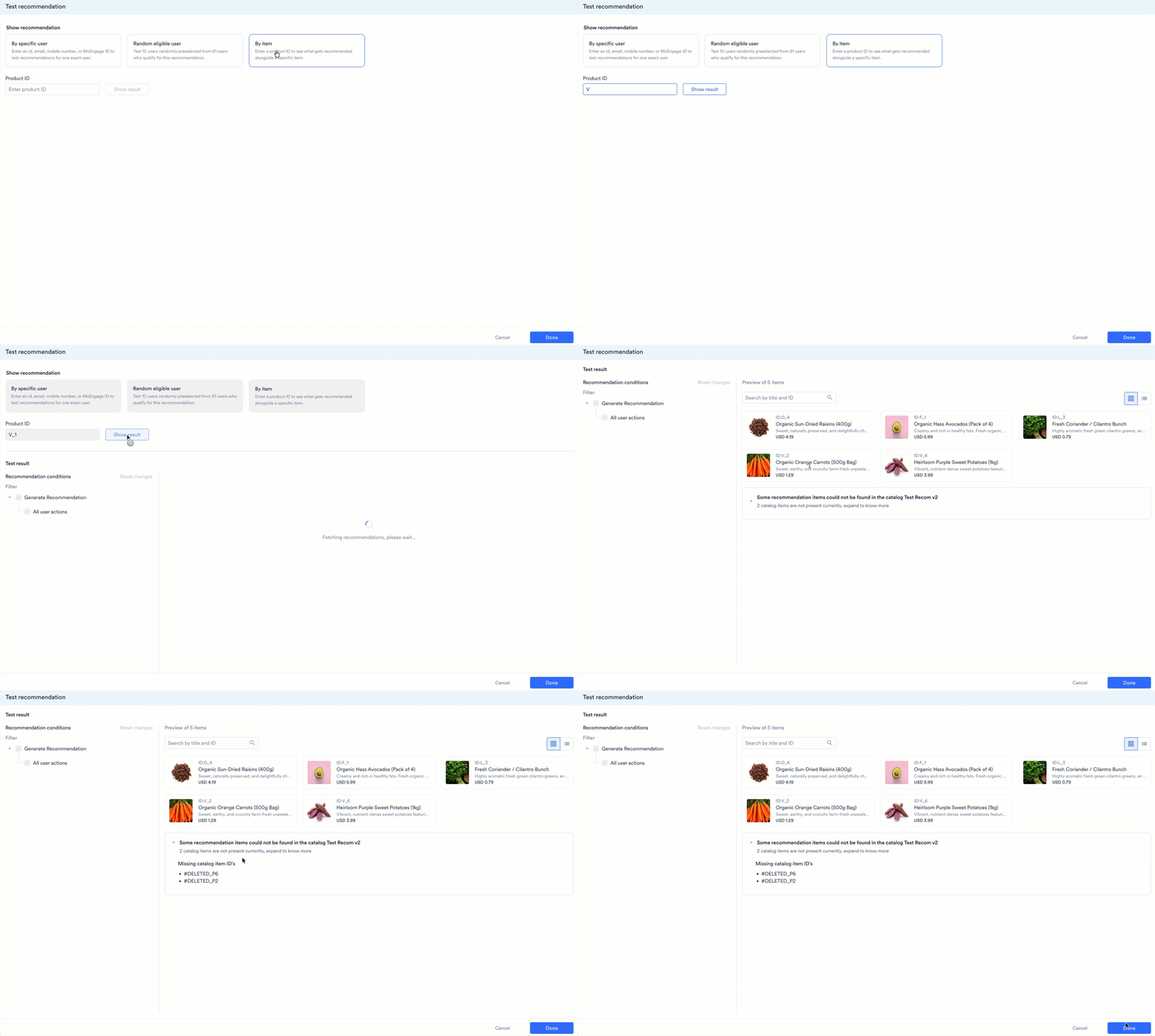
Trending Items Configuration
For Trending Items recommendations, the test panel also displays the trend configuration in use, as described in the following table:
For attribute trends, the By item and By attribute value options appear only when you select User Property in the value drop-down list. If you select Custom value instead, only the standard trending options appear.
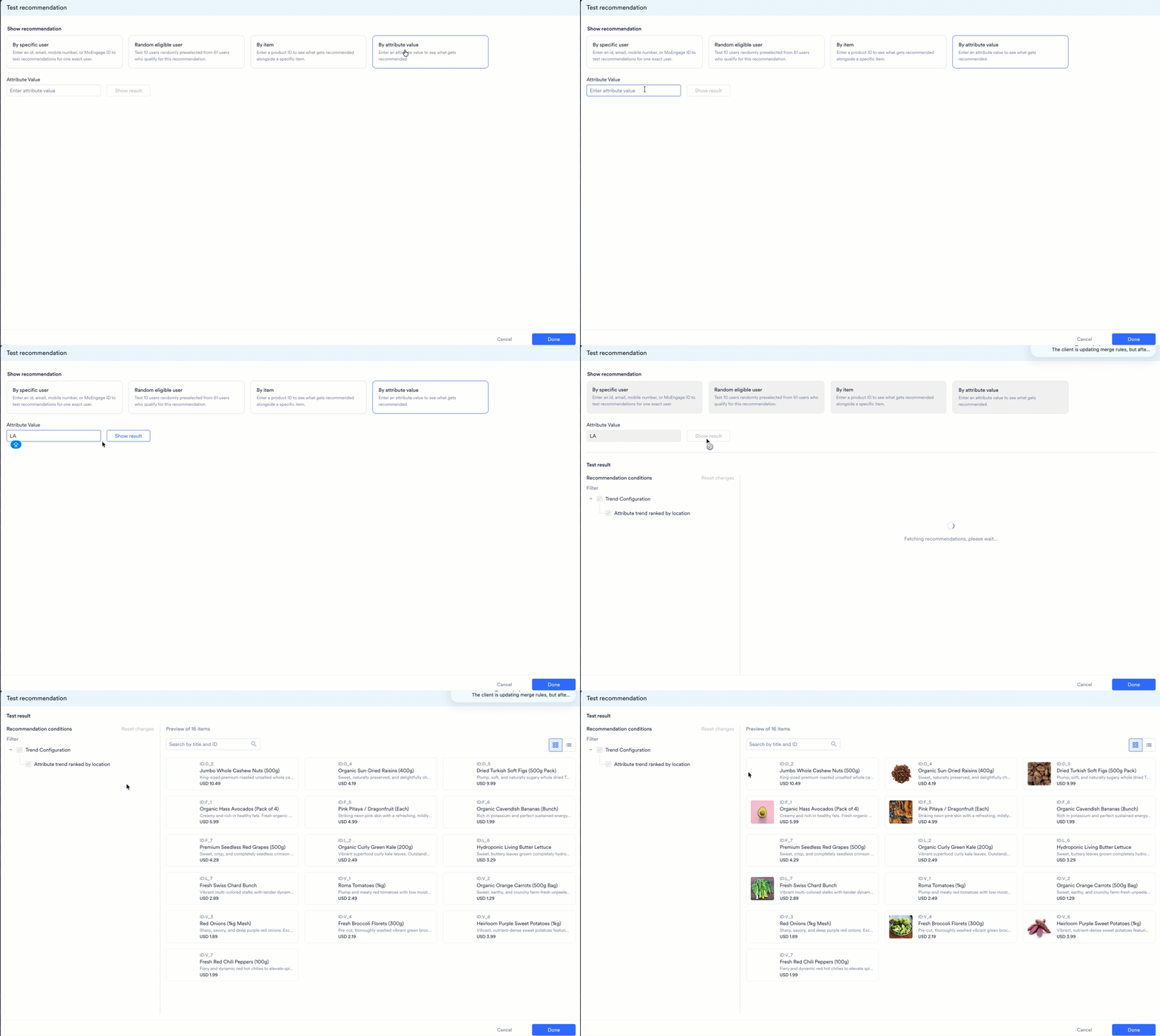
Recommendation Conditions
The Recommendation conditions pane has two parts. Generate Recommendation shows the settings the model uses to produce results, and is read-only in the test panel. Filter lists every filter currently applied, and you can change these while you test. MoEngage groups the filters under User action, Exclude user action, Item attribute, each marked AND or OR, and Sort Recommendation. To see how a condition affects the results, perform the following steps:- Click the arrow next to a group to expand its individual conditions.
- Select or clear the checkbox for a group or an individual condition. The preview on the right updates immediately.
- Click Reset changes to revert everything to the saved configuration. This link becomes active only after you change something.
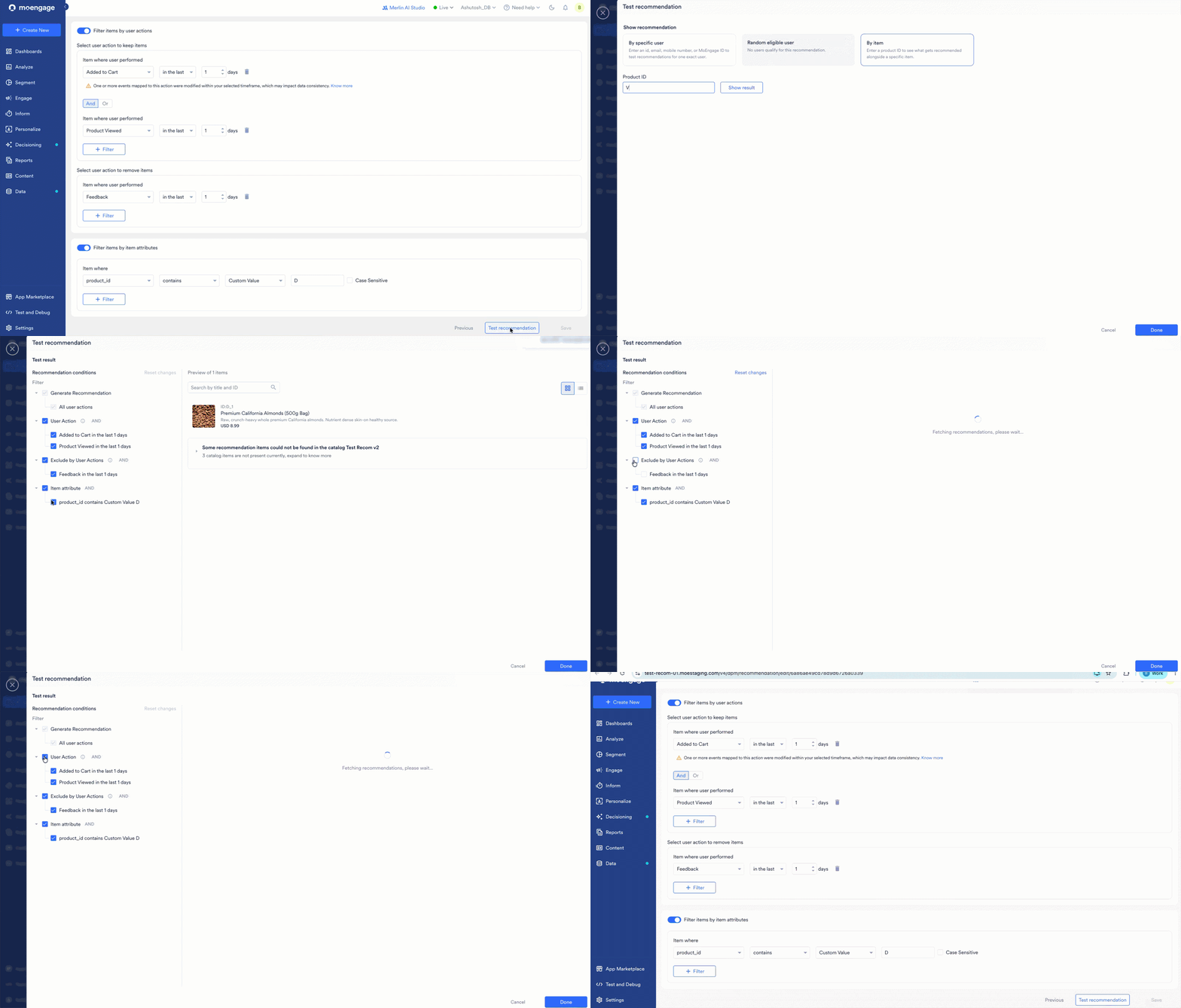
Apply or Discard Filter Changes
After you finish testing, click Done. If you changed any conditions, MoEngage asks whether to apply the configuration to the recommendation, and warns that applying replaces the saved configuration.- Click Apply filters to save your test-time changes as the recommendation’s new live configuration.
- Click Don’t apply to close the test view and keep the recommendation exactly as it was saved.
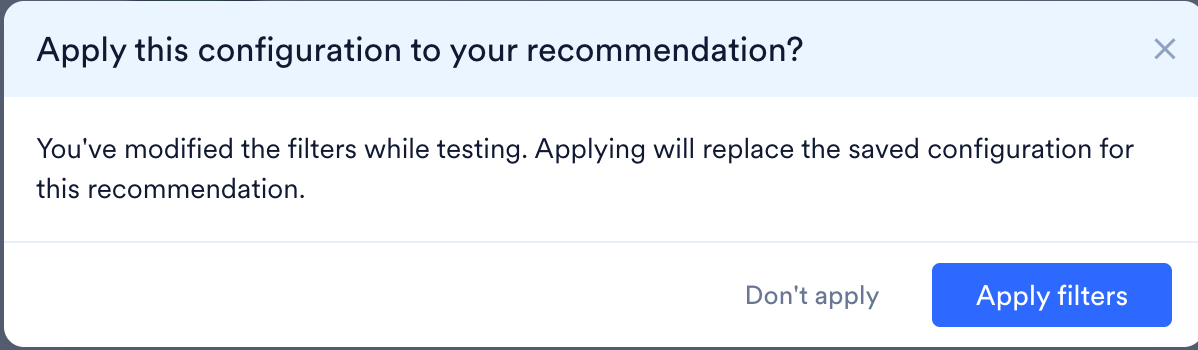
Troubleshoot Zero Results
A recommendation can return no results even when it is configured correctly, usually because of timing or a data mismatch. Check the following causes, in order:- The interaction happened before you mapped the event. MoEngage starts counting an event toward recommendations from the moment you save its user action mapping, and does not backfill anything from before that point. If your test user’s only relevant activity predates the mapping, test again with more recent activity.
- The item ID in your interaction event does not match any item ID in your catalog. Check that the attribute mapped as the item ID has identical values in both the event and the catalog feed, with the same casing, no extra spaces, and the same string or number format. This is the same mismatch that produces dropped items, but when every interacted item is mismatched you get zero results instead of a partial list.
- No user action is mapped yet for the model you are testing. At least one of the four user actions must be mapped. Map user actions before you test a User Actions model or an AI-personalized model.
- The test user no longer exists, or has been merged into another profile. Test with the surviving MoEngage ID instead.
- You searched with an identifier type your account has no data for. Confirm that the type you chose in the Select user by list actually has activity for this user.
- The catalog used by this recommendation was deleted. Reconnect a catalog before you test again.