

Introduction
An item catalog is a prerequisite for creating and using recommendations. It is a comprehensive list of all your business offerings with their relevant details, such as products, services, flights, article properties, restaurants, dishes, and social media feeds.Catalog
With the Catalog feature, you can create and manage item catalogs. You can connect your item catalog to MoEngage and use the item information in your campaigns.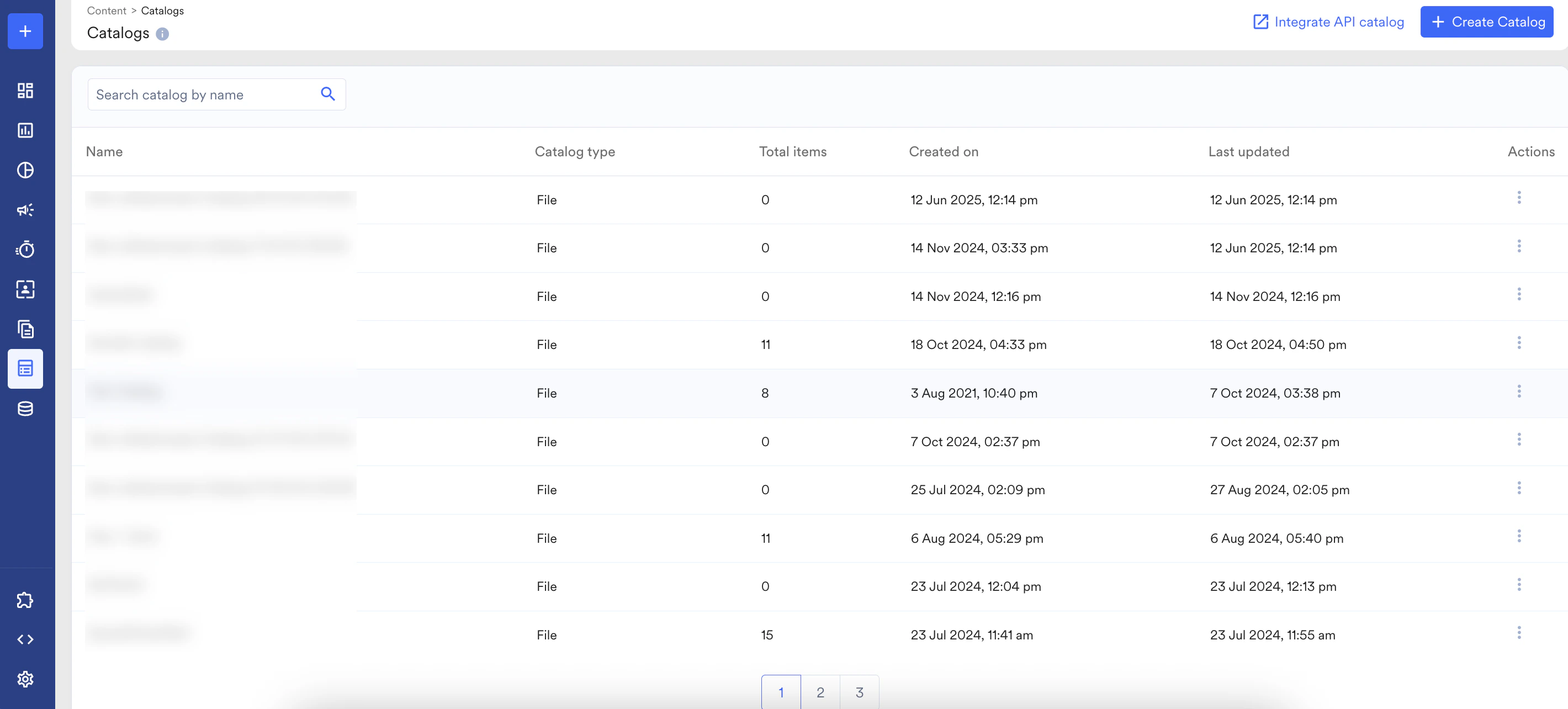
Create Catalog
To create an item catalog, follow these steps:- On the sidebar menu in MoEngage, hover over the Content menu item
 . The Content menu appears.
 - Click Catalogs.
 The Catalogs page appears.
 - Click + Create Catalog. The Create catalog dialog box appears.
- In the Catalog name box, type a name for the catalog.
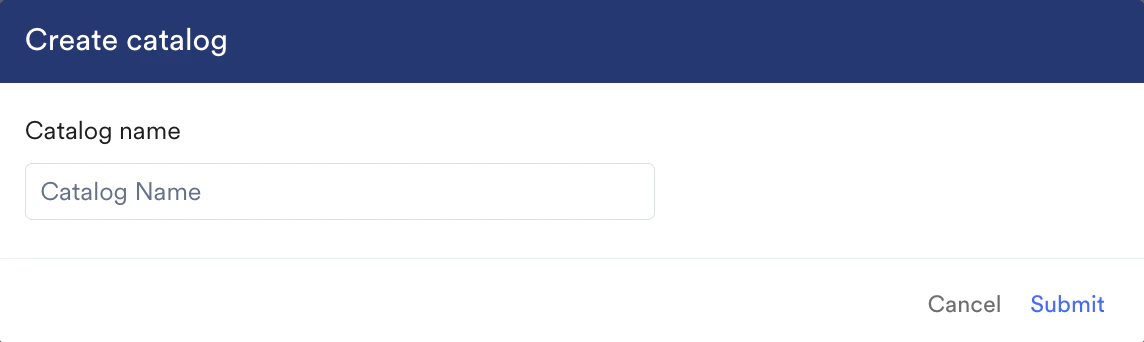
- Click Submit.

File-based catalogs and API-based catalogs are not interoperable. You cannot update a file-based catalog through the API, or update an API-based catalog through a file upload.
Feeds
Feeds act as the data source for item information in the catalog. You can use feeds to upload, update, or sync item information. Each feed contains a set of items from a source.MoEngage supports both a single feed for all items and multiple feeds for different purposes.
Types of Feeds
Feeds provide detailed attributes of the items, such as ID, title, link, and image link. The following are the feed options:- Manual Upload: With Manual Upload, you can upload a CSV file containing item listings. Use this method when you want to perform a one-time upload of your item information.
-
URL Upload: With URL Upload, you can connect your external catalog to MoEngage by providing the catalog source URL. This keeps your item attribute information synchronized and up to date. You can schedule daily, weekly, or hourly sync intervals to keep your item information current in MoEngage. Use this option for catalogs that require frequent or near real-time updates.
Note If you prefer not to make your catalog feed URL public, import it using SFTP-based ingestion. Whitelist the following MoEngage IPs:
- DC-01: 52.1.205.204
- DC-02: 18.195.110.23, 3.77.101.97
- DC-03: 3.6.251.95
- DC-04: 18.217.73.1
Add Feeds to a Catalog
To add feeds to catalogs, follow these steps:-
On the sidebar menu in MoEngage, hover over the Content menu item
 . The Content menu appears.
-
Click Catalogs.
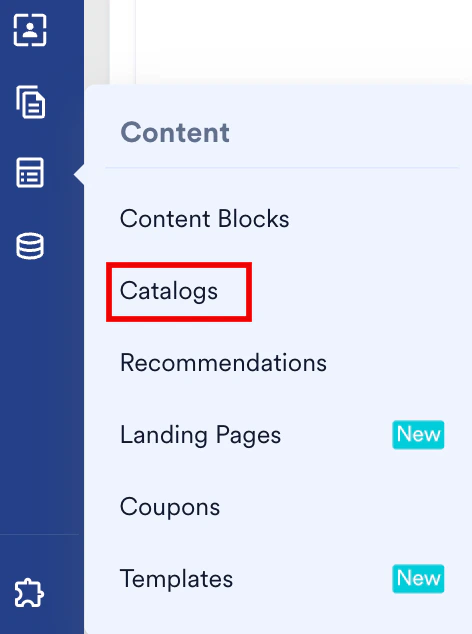 The Catalogs page appears.
-
Click the ellipsis icon for the desired catalog and then click Add feed.
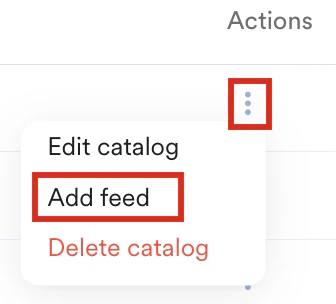
- The Add feed page appears.
- In the Feed name box, type a name for the feed (maximum 100 characters).
- From the Currency dropdown, select the currency for your catalog items.
-
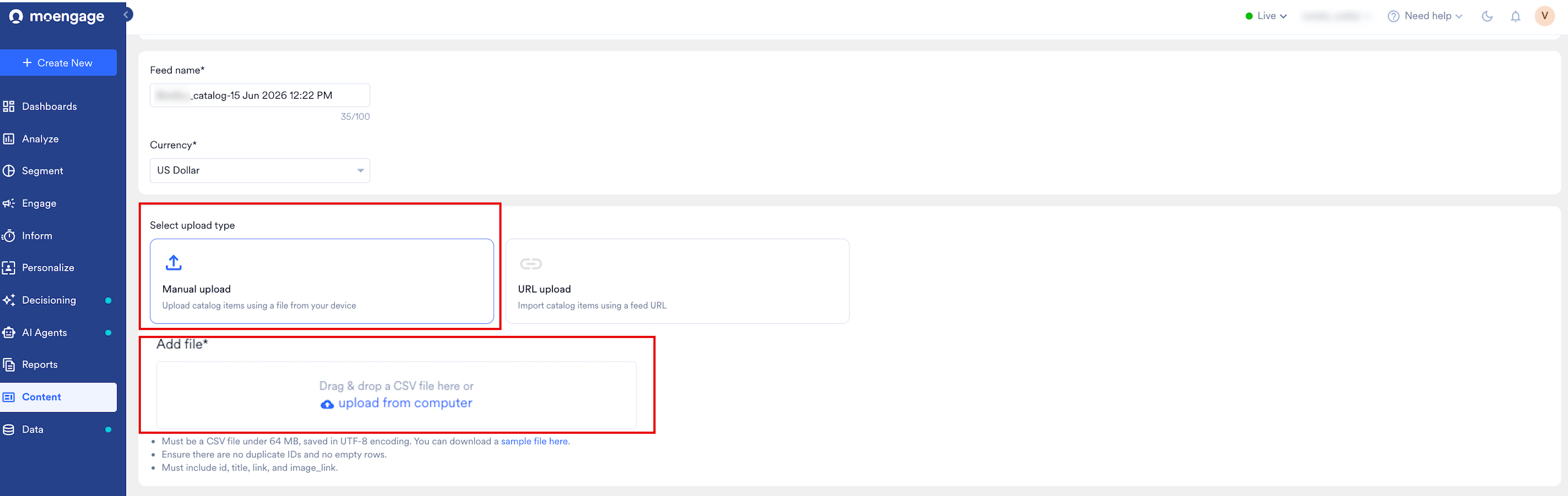
Under Select upload type, choose one of the following options:
- Manual upload: Select Manual upload to upload a CSV file from your device. In the Add file section, drag and drop your file or click upload from computer to select it from your computer.
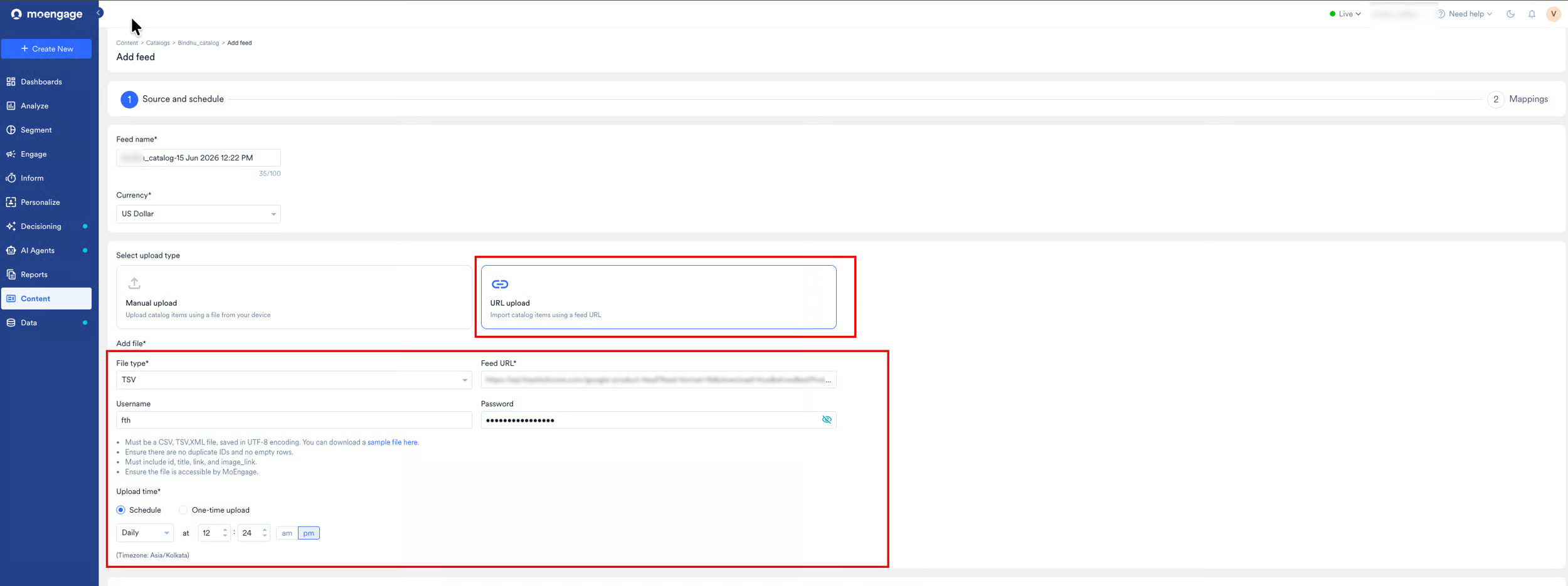
- URL upload: Select URL upload to import catalog items from an external feed URL. Complete the following fields:
- File type: Select the format of your feed file: CSV, TSV, or XML.
- Feed URL: Enter the URL of your catalog feed. MoEngage supports HTTP, HTTPS, FTP, and SFTP URLs.
- Username and Password (optional): Enter your credentials if your feed URL requires authentication.
- Upload time: Select Schedule to sync the feed on a recurring basis (daily, weekly, or hourly), or select One-time upload to perform a single import.
MoEngage expects the following mandatory attributes with every feed:- id
- title
- link
- image_link Click this sample CSV file for a catalog that supports feeds.
idfield when you set up a catalog. If your use case requires the Variation ID as the identifier, contact your Customer Success Manager. - Manual upload: Select Manual upload to upload a CSV file from your device. In the Add file section, drag and drop your file or click upload from computer to select it from your computer.
-
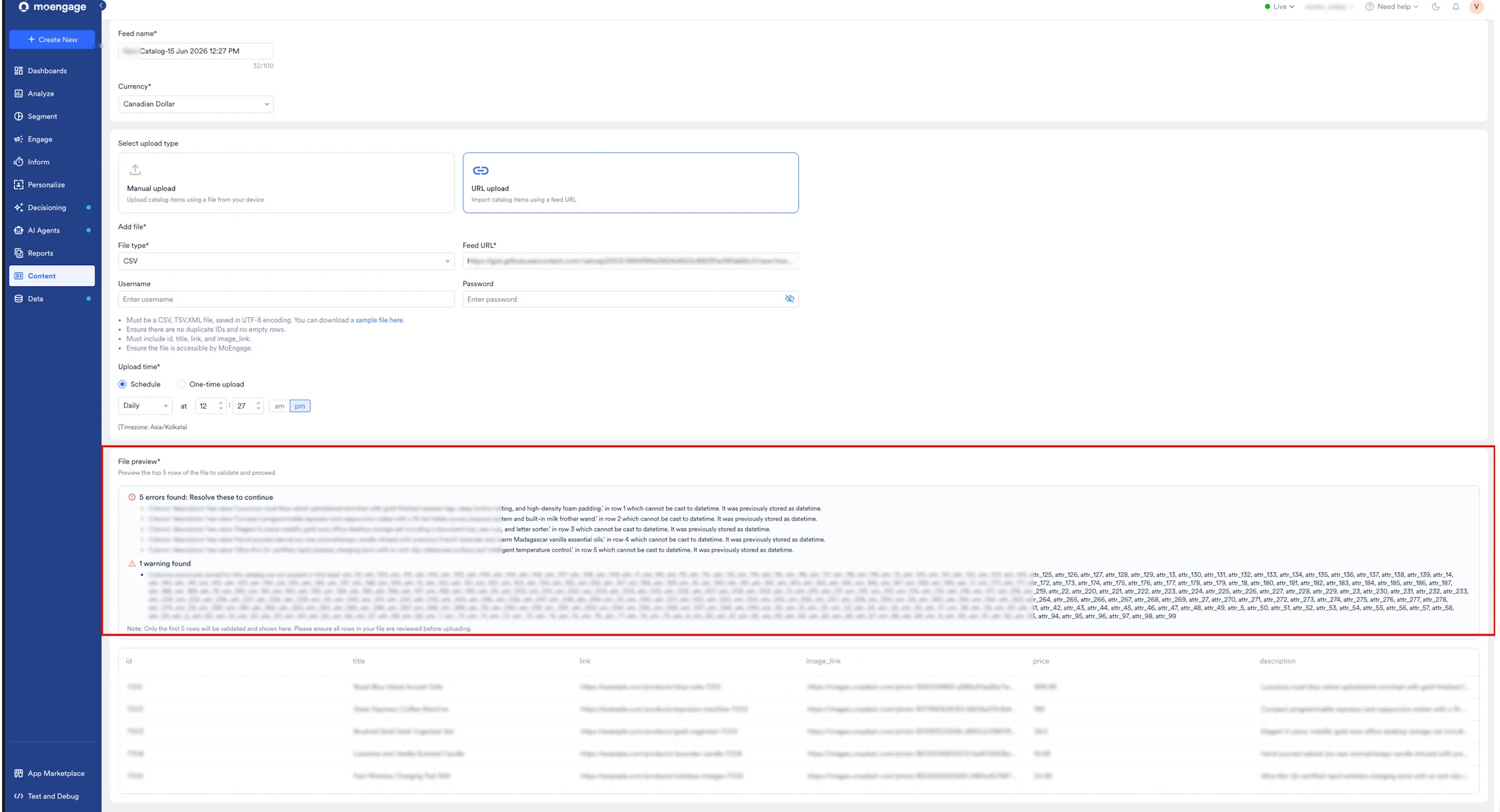
Review the File preview section, which displays the top 5 rows of your feed for validation. Based on the preview results, do one of the following:
- If errors are found: Resolve the issues in your file and re-upload it. Errors block you from proceeding to the next step.
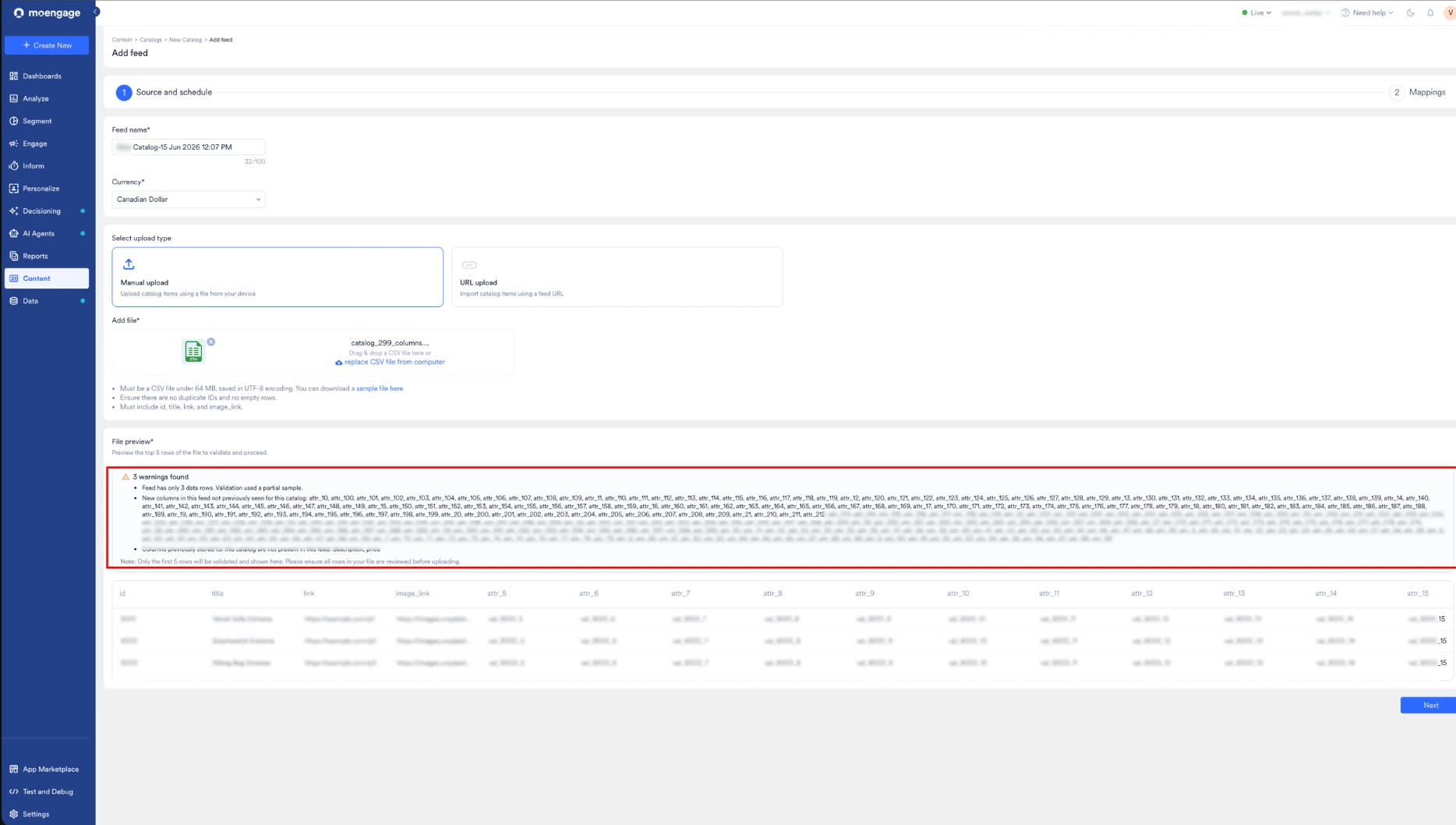
- If warnings are found: Review the warnings and proceed to the next step. Warnings do not block the upload. Common warnings include:
- The feed has fewer than five rows of data.
- The current feed contains more columns than the previous feed.
- Columns from the previous feed are missing in the current feed.
- If errors are found: Resolve the issues in your file and re-upload it. Errors block you from proceeding to the next step.
-
Click Next.
The Mappings page appears. -
In the Map columns section, set the data type for each column in your feed. You can search for a column by name using the search bar. Available data types are String, Numeric, Date Time, Boolean, and Geopoint.

- Price and stock/inventory fields must contain numeric values for price drop and back-in-stock alerts to function correctly.
- By default, MoEngage automatically selects a data type for each column based on the attributes in your feed. You can still change these values from the drop-down list.
- The data types for the required attributes (id, title, link, and image_link) are fixed and cannot be changed.
- If you select a data type that does not match the previously stored type for a column, the system displays a warning. You can still submit, but the mismatch may cause errors during processing.
- After a data type is set and a feed is processed, it is locked for all future feeds in that catalog, even if the original feed is deleted.
-
Click Submit.
MoEngage processes your feed.
Feed Upload States
After you add a feed to a catalog, the feed upload action can have the following states:- Success: The feed uploaded successfully and is available for use in the catalog.
- Pending: MoEngage is processing the feed.
- Processed with Error: Some items in the feed contain errors. MoEngage partially uploads the feed, skipping items with errors.
- Error: The feed upload failed. MoEngage did not upload the feed.
- Total items: The current total number of items in the catalog.
- Total feeds: The number of data source feeds configured to populate and update the catalog.
- Last updated on: The date and time of the most recent catalog update. For catalogs with multiple feeds, this reflects the most recent feed update time.
- Last updated status: The status of the most recent catalog update. For catalogs with multiple feeds, this shows the status of the most recently processed feed.
- Next update on: The next scheduled update for the catalog. For catalogs with multiple feeds, the last and next updates can come from different feeds.
Items
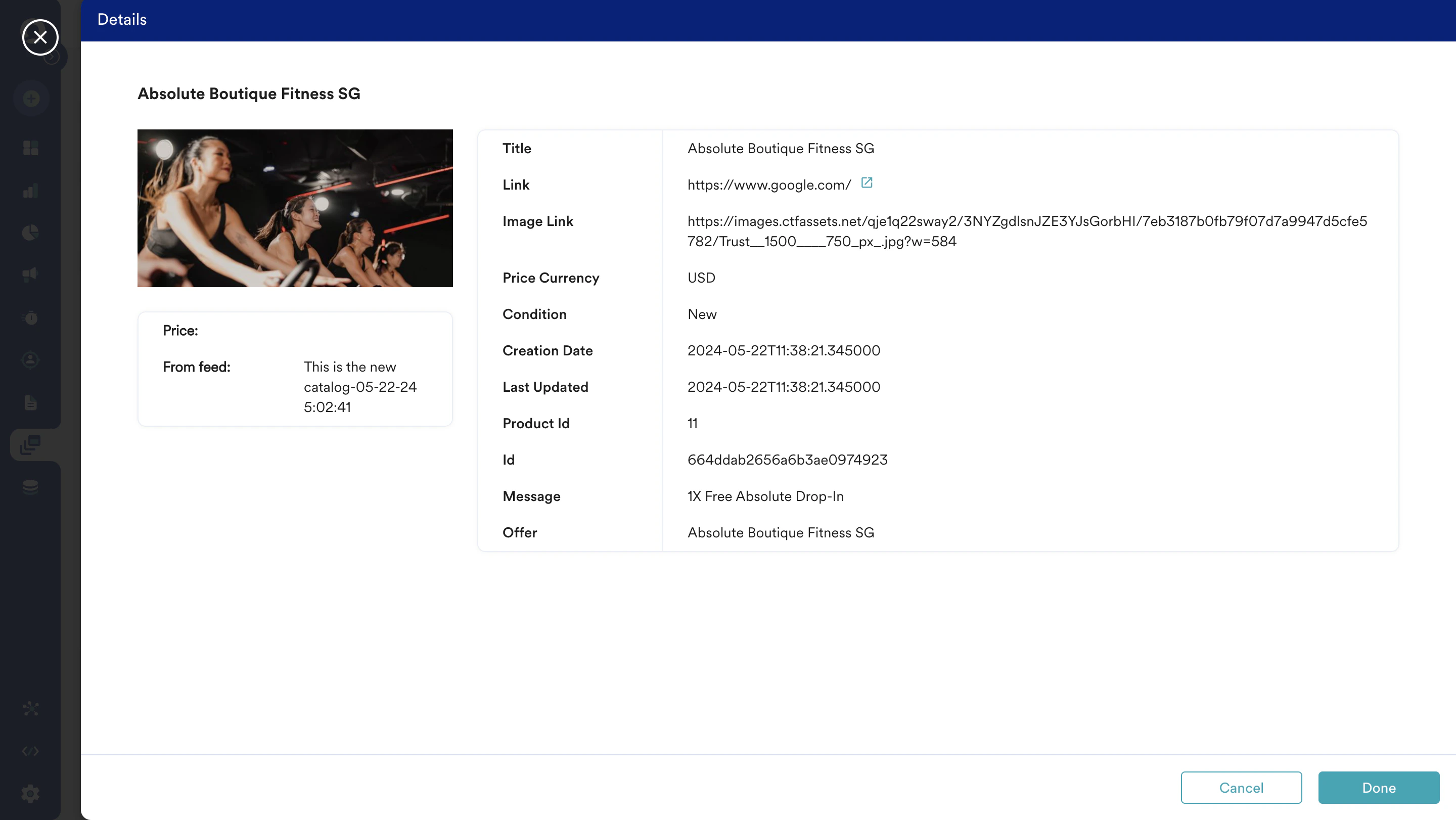
After successfully uploading the feed(s) to the catalog, navigate to the Items tab to view a comprehensive list of items. The Items tab shows item details for up to 200 sample items. To find a specific item, use the search bar in the Items tab.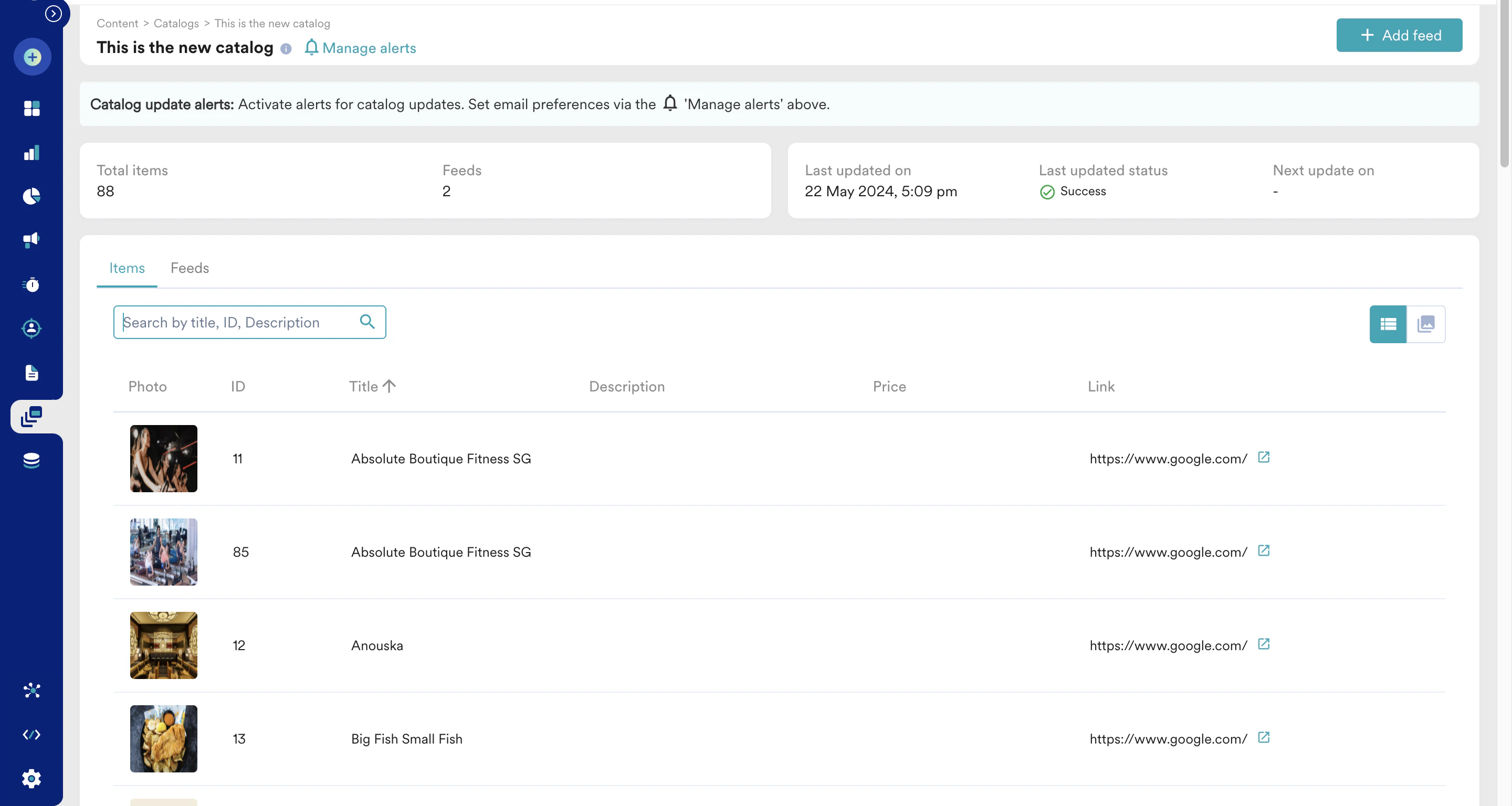
Search Items
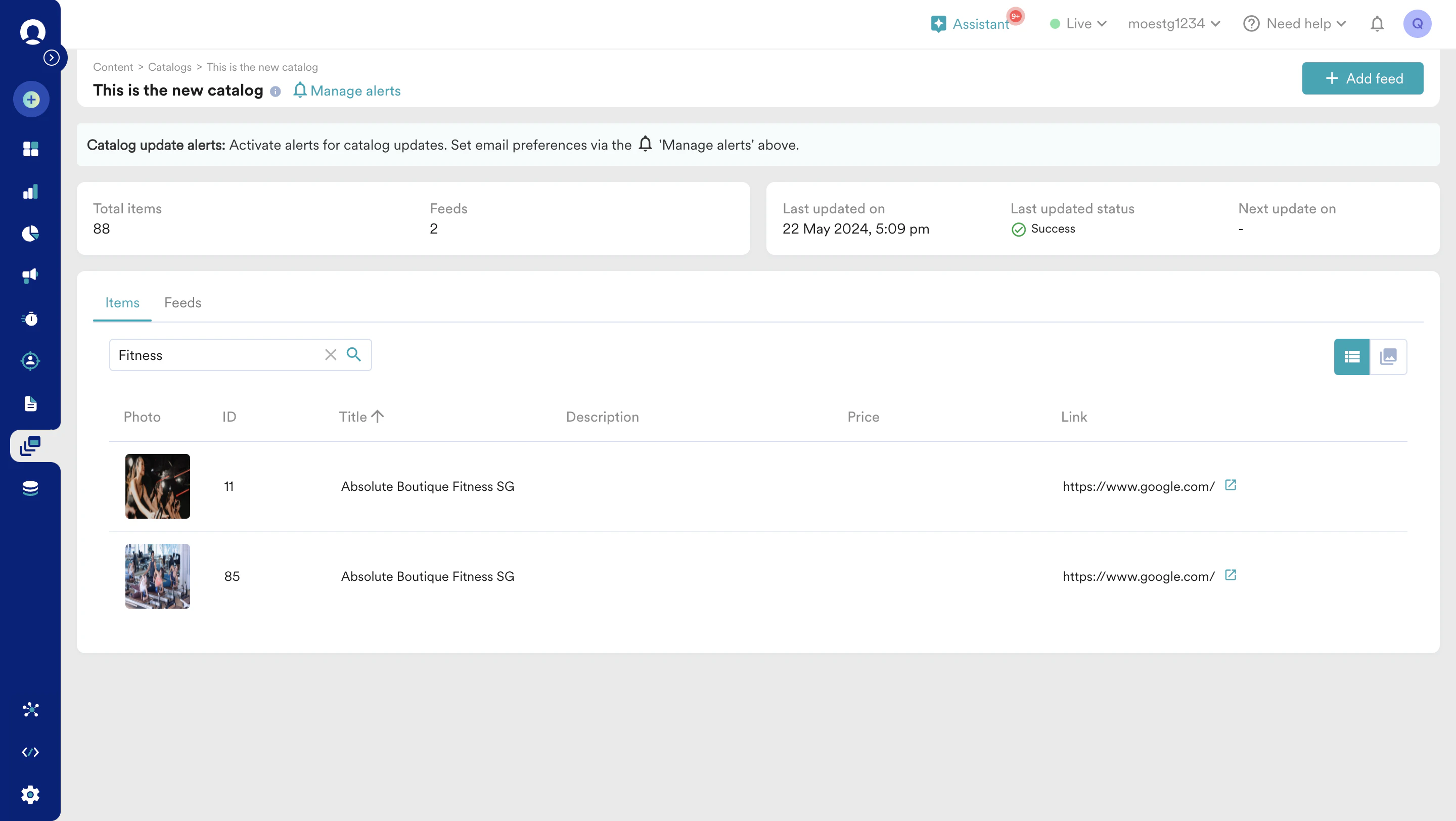
The Items tab includes a search bar that helps you find items quickly. To search for items in your catalog:- In the Items tab, find the search bar.
- Type the item’s unique ID, title, or description in the search bar.
- Press Enter on your keyboard.
Catalog Update Alerts
MoEngage tracks catalog updates and notifies you about their status. It sends notifications for completed updates and error messages for failures. Use these error messages to maintain data quality and resolve issues. Catalog update alerts trigger when feed processing succeeds or fails:- When MoEngage processes a feed successfully, it sends an email with completion statistics, including the count of newly added, updated, or deleted items. If some items could not be processed, the email also includes a report listing the unprocessed items and the reasons.
- If feed processing fails, MoEngage sends error messages that explain what went wrong so you can fix the issue.

Manage Alerts
- On the sidebar menu in MoEngage, hover over the Content menu item . The Content menu appears.
- Click Catalogs. The Catalogs page appears.
- Click the catalog for which you want to configure update alerts.
- On the catalog page, click Manage alerts in the top section. The Catalog update alerts pop-up window appears.
- In the Email address box, type the email addresses to subscribe to update alerts. Press Enter after adding each address. You can add a maximum of 50 email addresses.
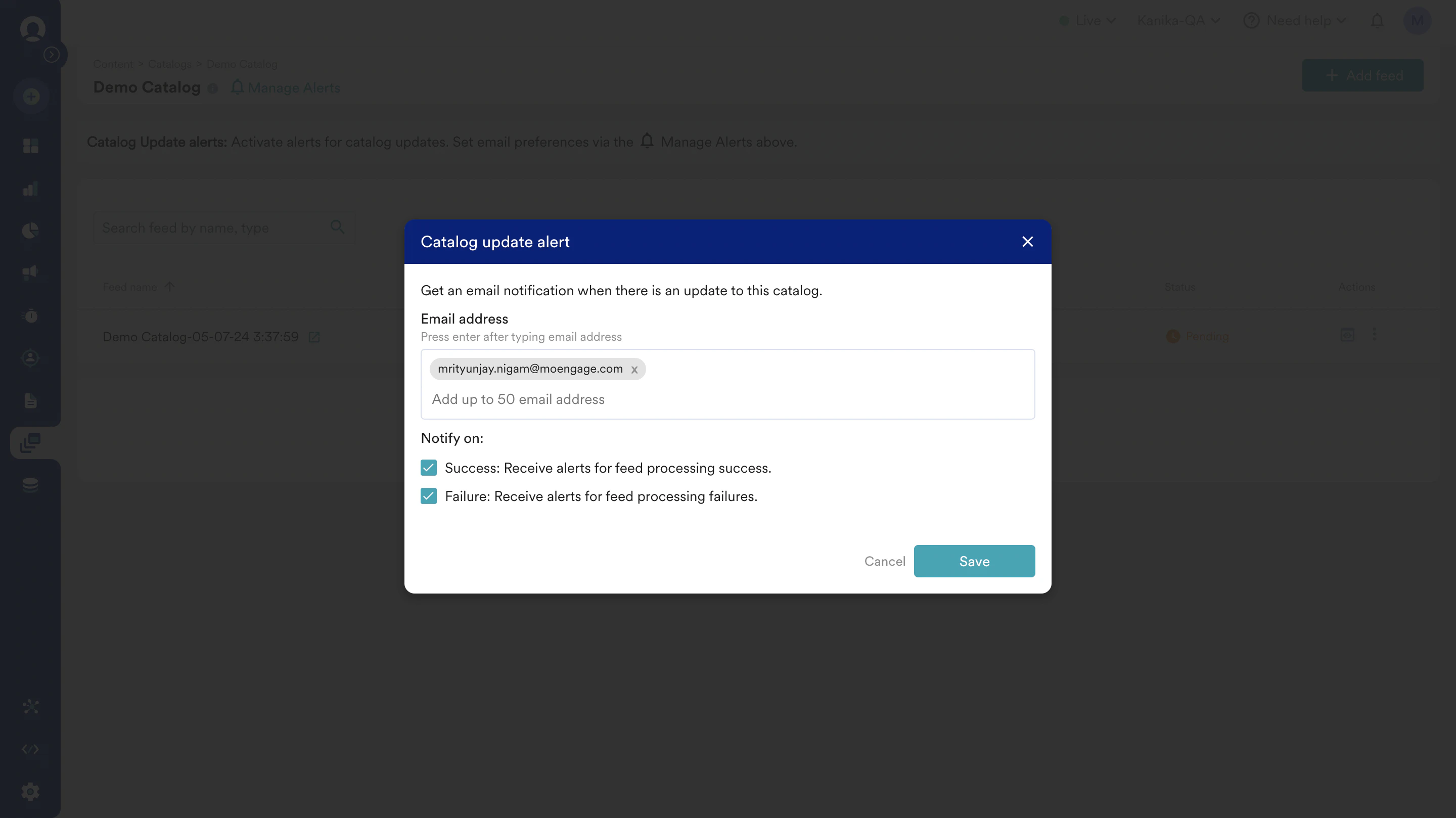
- Under Notify on, select the checkboxes for the alert types you want to receive.
- Click Save to save the subscription preferences.
When you create a new catalog, MoEngage automatically subscribes your email address to catalog update alerts. To update your preferences, go to Manage alerts on the catalog page.
FAQs
What is the maximum number of items, catalogs, and feeds an account can have?
What is the maximum number of items, catalogs, and feeds an account can have?
An account can have a maximum of one million items for a monthly tracked user (MTU) of less than one million or an account can have a maximum of five million items for an MTU of less than five million. An account can have a maximum of 30 catalogs. A catalog can have a maximum of 200 feeds.
If your catalog size exceeds 5 million items, contact your account manager.
Which feed file format types are supported?
Which feed file format types are supported?
MoEngage supports feeds in CSV, TSV, and XML(RSS 2.0-compliant) formats. The character encoding must be UTF-8.
What is the maximum number of columns a catalog can have?
What is the maximum number of columns a catalog can have?
MoEngage supports feeds having a maximum of 50 columns.
What is the maximum size of a feed that can be imported with Scheduled URL?
What is the maximum size of a feed that can be imported with Scheduled URL?
You can upload a file size of up to 2.5 GB for each scheduled feed either as a one-time scheduled upload or with a daily or weekly refresh frequency. However, for an hourly refresh, MoEngage supports feed files up to 200 MB.
What is the maximum size of a feed that can be uploaded manually?
What is the maximum size of a feed that can be uploaded manually?
MoEngage supports manual feed upload of file sizes up to 64MB.
What happens if my feed URL server is down?
What happens if my feed URL server is down?
MoEngage attempts to fetch the feed every 10 minutes and stops after five failed attempts.
Is there any limitation with respect to column names?
Is there any limitation with respect to column names?
Column names cannot contain a period (.) or dot operator.
Which types of feed URLs are supported?
Which types of feed URLs are supported?
MoEngage supports feed upload via HTTP, HTTPS, FTP, or SFTP URLs.
Can we use Google Sheets to update Feeds?
Can we use Google Sheets to update Feeds?
Yes, you can use Google Sheets to update feeds.
- Select Feed update through the Scheduled URL option.
- In Google Sheets, set the sharing settings to public.
- Add the Google Sheet with the URL params as export?format=csv. For example:
https://docs.google.com/spreadsheets/d/Google_Sheet_ID/export?format=csv.
How can I import a catalog feed into MoEngage without making the feed URL public?
How can I import a catalog feed into MoEngage without making the feed URL public?
Whitelist the following MoEngage IPs and import your feed via SFTP-based ingestion:
- DC-01: 52.1.205.204
- DC-02: 18.195.110.23, 3.77.101.97
- DC-03: 3.6.251.95
- DC-04: 18.217.73.1