Problem
Events are missing on the MoEngage dashboard for a small set of specific users, while the rest of your user base is unaffected.Explanation
When events are missing for only a few users, those users have likely breached the Fair Usage Policy (FUP) limits. FUP limits apply per user. When a single user ID sends a high volume of data requests in a short window and crosses a MoEngage safety threshold, MoEngage temporarily blocks data tracking for that user ID to protect platform stability. Data for all other users continues to be tracked as normal, which is why the impact is limited to specific users. If a specific user breaches any of the following thresholds, tracking for that user is temporarily blocked. Limits differ depending on whether the data comes from an SDK or a non-SDK source. SDK Sources
Non-SDK Sources
Applies to file imports, partner integrations, and Data APIs. Limits are cumulative across all non-SDK sources.
For the complete policy, including limits on user profile activity info and the number of devices per user, refer to Fair Usage Policy Limits and Actions.
Missing events can also be caused by an event being blocked or hidden globally in Data Management, which affects your entire user base rather than specific users. To rule that out, see Why Are New Events or User Attributes Not Reflected on the Dashboard?.
Solution
Use Behavior analysis to confirm whether a specific user breached an FUP limit.Prerequisites:
- Access to Analyze > Behavior and Settings > Data Management.
- The affected user ID.
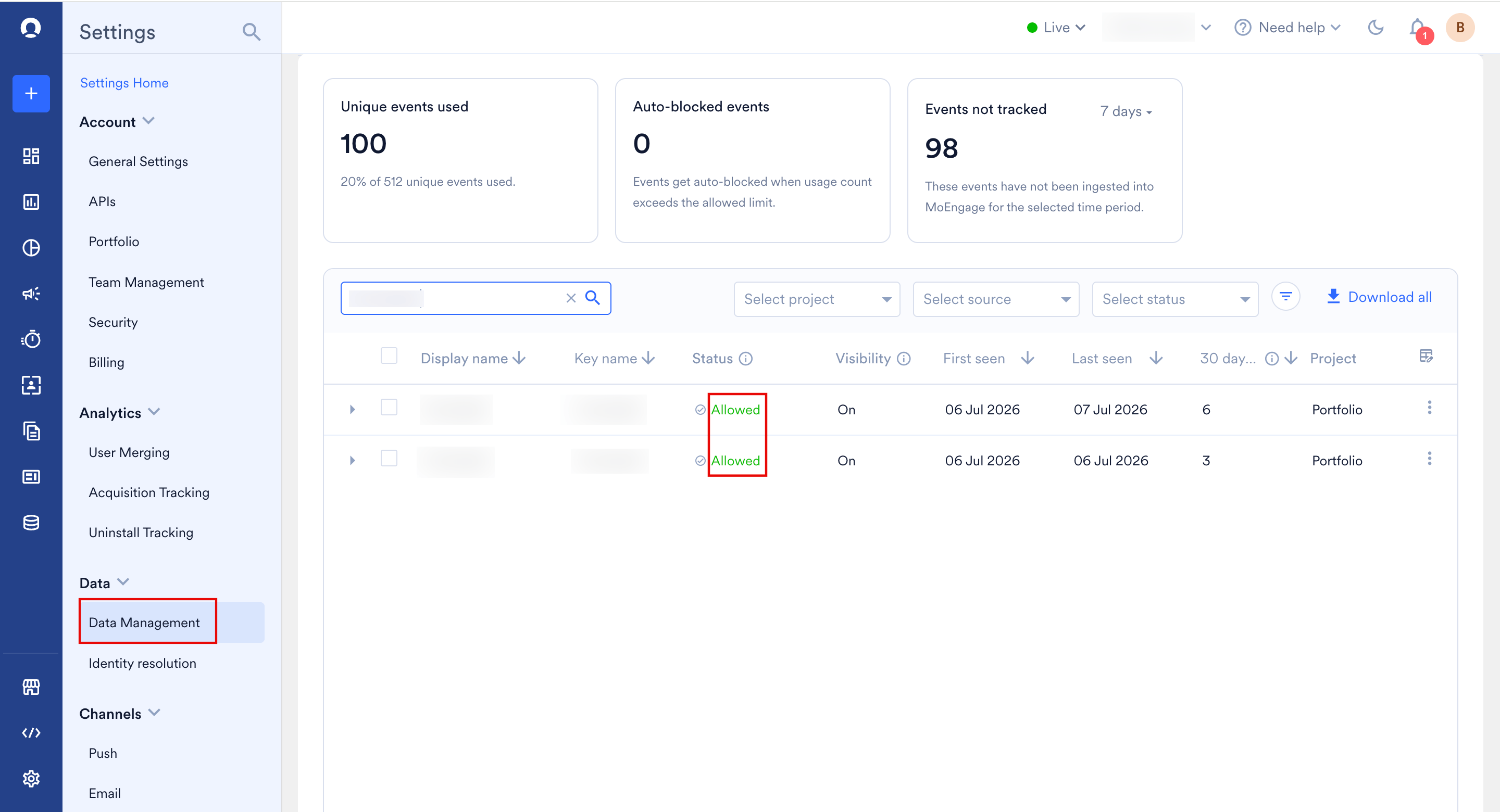
- Confirm the event is active and not blocked globally. Go to Settings > Data Management and verify the event Status is Allowed. If you do not have access to Data Management, contact your workspace admin. For more information, refer to Overview - Data Management.
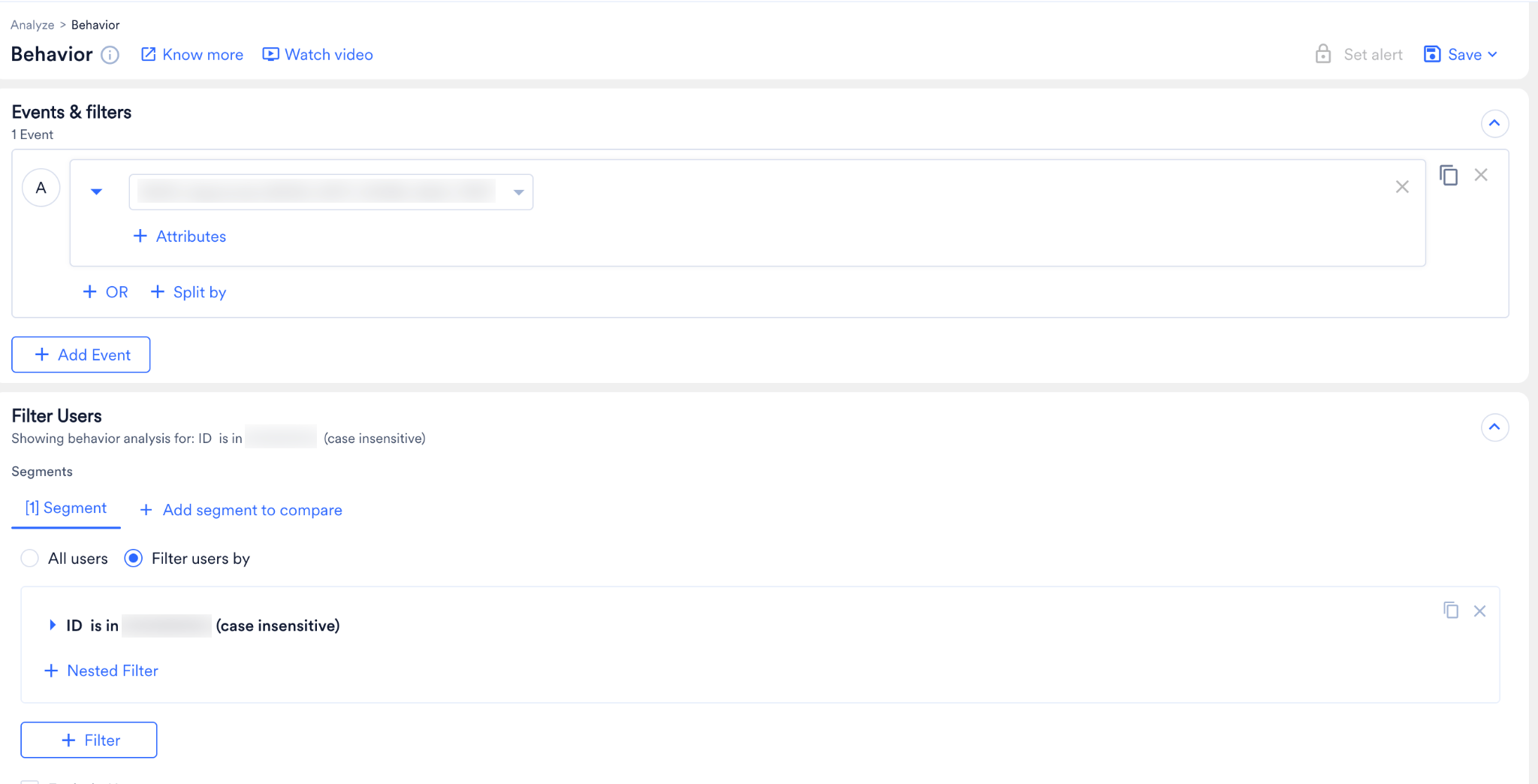
- Go to Analyze > Behavior. In the Events & filters section, select the event that appears to be missing for the user.
- In the Filter Users section, select Filter users by. In the Filter users by list, click ID and enter the affected user ID.
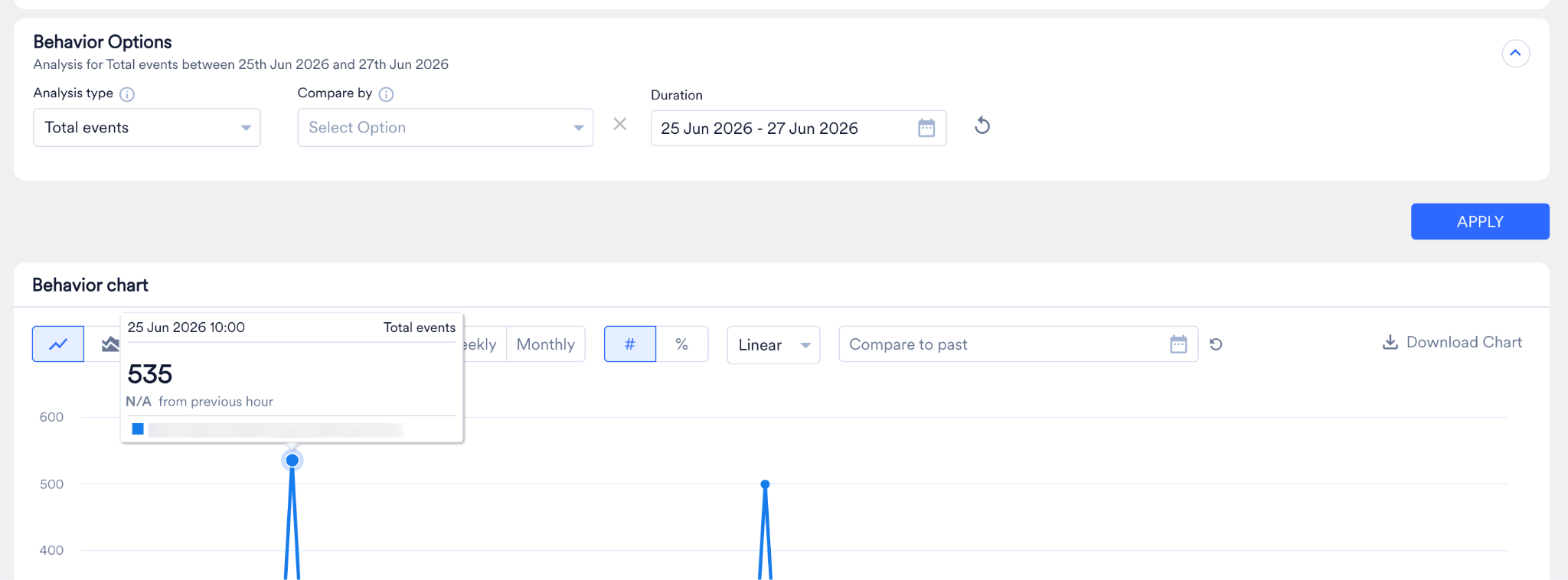
- In the Behavior Options section, in the Analysis type list, click Total events.
- In Duration, select the period when the events went missing, and then click Apply.
- Review the Behavior chart. Hover over the spikes to view the hourly or minute-by-minute breakdown of events.