

Overview
MoEngage Flows run on shared infrastructure, where every workspace on a cluster draws from the same underlying processing capacity. Until now, there was no enforced ceiling on how much of that capacity any one workspace could draw on: a sustained spike from one workspace could degrade performance for every other workspace sharing the same cluster, including yours, even when your own usage was well within normal patterns. The Fair Usage Policy (FUP) is designed to give every workspace a guaranteed, predictable share of that infrastructure, sized to its contracted Monthly Active Users (MAU), so no other workspace’s spike can degrade your performance, and yours is equally protected from ever being the cause. The result is more consistent, more reliable flow processing for your workspace, regardless of what else is happening on the cluster.Fewer than 3% of workspaces currently exceed their FUP limit. For the large majority of workspaces, this policy has no practical impact on day-to-day usage.
Why Flow Entries Have a Separate Limit
MoEngage already governs usage in two other ways: rate limits at the Data API layer, and billing based on Monthly Active Users (MAU). Neither is designed to catch this specific pattern:
What makes flow entry volume expensive isn’t just the number of successful entries. It is everything evaluated in the backend. For roughly every 1 successful entry, about 11 trigger events are processed (the other ~10 fail eligibility checks but still consume system resources). Once a user is in a flow, the system runs an average of 20 decision checks (branching logic, wait conditions, and message eligibility) before their journey ends. A single high-frequency trigger like App Opened or Product Viewed, configured across multiple flows, can generate far more processing load than its entry count alone suggests.
The FUP sets a limit on the number of successful flow entries within a rolling 60-minute window, per workspace. FUP makes that shared capacity predictable and fair for every workspace on the platform.
The FUP currently applies to Event-Triggered Flows only. Each workspace has its own independent limit. Multiple workspaces under the same account do not share a limit.
Your FUP Limit
Your FUP limit is derived from your workspace’s contracted Monthly Active Users (MAU). MoEngage recalculates it automatically at the start of each billing month, so your limit can change from month to month. No manual action is required. To see your current limit and how much of it you have consumed, open the FUP Stats Hub. If you have purchased a limit extension (see Increasing Your FUP Limit), your total effective limit is your MAU-based limit plus the purchased extension. The monthly recalculation does not affect extensions.How the Limit Is Tracked
The FUP uses a rolling 60-minute window, not a fixed clock-hour reset. At any given moment, the system counts all successful flow entries in the last 60 minutes and compares this against your limit. What counts as an entry: A user is counted as an entry only when they successfully pass all eligibility checks:- The trigger event is executed.
- The user meets the Target Audience criteria for the flow.
- The user has not exceeded the flow’s configured entry frequency.
Evaluating a trigger event uses processing capacity even when the user fails an eligibility check. That is why the limit exists, but it does not change what the limit counts: only successful entries count against your FUP limit.
Enforcement
Once your workspace reaches its FUP limit within the rolling 60-minute window, new flow entries are blocked immediately. Entries are not queued, retried, or recovered automatically. Set up a Threshold Alert so your team has advance notice and time to review flow architecture before entries start getting blocked.Dropped Entries
Entries dropped once the limit is reached cannot be recovered. A dropped user will only enter the flow again if they re-qualify and re-trigger the entry condition, subject to the flow’s re-entry settings.Alerts
All FUP alerts are managed in Settings > Alert Management. This page has two tabs:- System Alerts: FUP system alerts are auto-added here by default.
- All Alerts: A combined view of system alerts and custom alerts in your workspace.
Threshold Alert
This is a custom alert that notifies your team when usage crosses a threshold you define. You must create it, because it is not added by default. To create this alert, click Create Alert in the FUP Stats Hub. Alert Management opens in a new tab with Create Alert on pre-filled as FUP for event triggered flows.
Each alert email includes:
- The number of times usage crossed your configured threshold during the window.
- The top 5 flows by consumption, each linked to the respective flow page.
- Suppressed entries per flow during the same window.
- A direct link to the FUP Stats Hub.
Limit Reached Alert (100%)
This system alert is automatically added to your workspace, so no setup is required. It is triggered the moment your workspace reaches 100% of its FUP limit and confirms that new flow entries are now being blocked. This alert does not include flow-level diagnostic detail. Use the Threshold Alert or the FUP Stats Hub for per-flow detail. The following permissions apply to this alert:FUP Stats Hub
The FUP Stats Hub shows live and historical FUP consumption for your workspace. To access it:- On the left navigation menu in the MoEngage UI, click Engage > All Flows.
- On the Flows page, click the % of entries used indicator to access the Stats Hub.
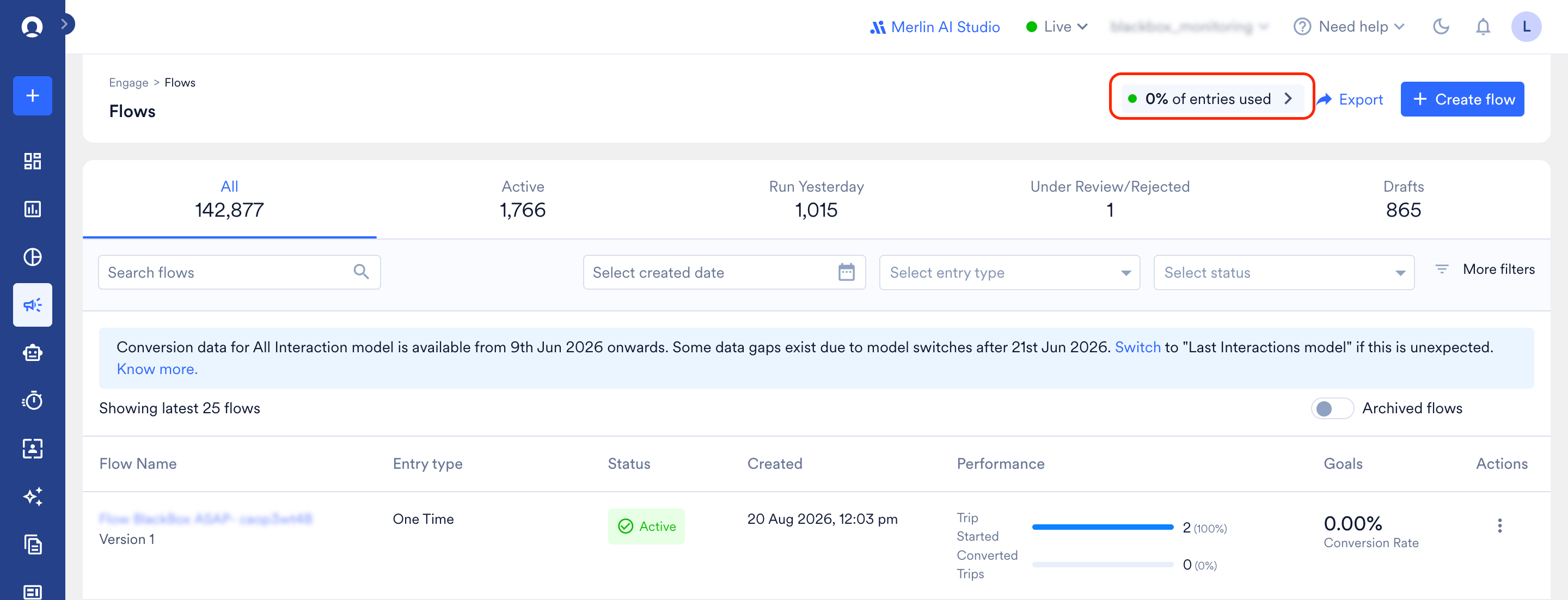
You can also access the FUP Stats Hub from any FUP alert email.
Increasing Your FUP Limit
If your workspace consistently operates near or above its limit, you can purchase a temporary or permanent limit increase in increments of 100,000 entries/hr. To request an increase, contact your Customer Success Manager and specify:- The number of 100,000 entries/hr increments needed.
- The start date.
- The intended duration, or indicate that you need a permanent increase.
FAQ
Which flows does the FUP apply to?
Which flows does the FUP apply to?
The FUP currently applies to Event-Triggered Flows only. One-time and Periodic Flows are not in scope.
If the same user enters the same flow multiple times, does each entry count?
If the same user enters the same flow multiple times, does each entry count?
Yes. Each successful entry counts individually, including repeat entries by the same user.
Can dropped entries be recovered?
Can dropped entries be recovered?
No. Dropped entries cannot be recovered automatically. A user will only enter the flow again if they re-qualify and re-trigger the entry condition, subject to the flow’s re-entry settings.
What happens to my FUP limit when my MAU changes?
What happens to my FUP limit when my MAU changes?
Your base limit is recalculated automatically at the start of each billing month based on your updated MAU, so it can change from month to month. If you have a purchased extension, the recalculation does not affect it. Your total limit is always your base limit plus the extension.
What happens to the FUP limit during a MoEngage-side incident?
What happens to the FUP limit during a MoEngage-side incident?
If a MoEngage-side infrastructure issue or delay causes a backlog of queued requests, the FUP is temporarily paused during the catch-up window, so that clearing the backlog doesn’t count against your limit.