

How does this help?
MoEngage values your suggestions and keeps you in the loop when we review or update your ideas or requests. It also allows you to:- Get timely feedback on requests from product decision-makers
- Gain greater insight into upcoming releases
- Increase your impact on feature development
Submit a product idea
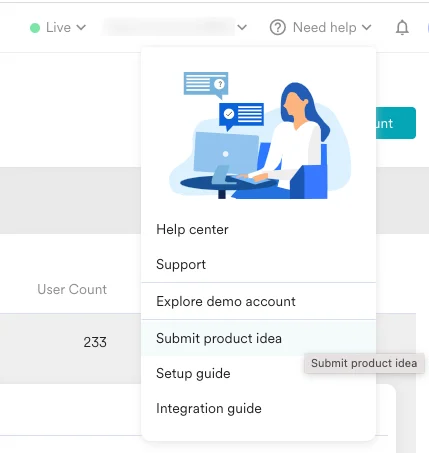
Perform the following steps to suggest a feature or a product idea:- On the MoEngage Dashboard, click Need help on the top navigation bar.
- Click Submit product idea. You are taken to the Feedback Portal.
- In the left navigation panel, you see three sections:
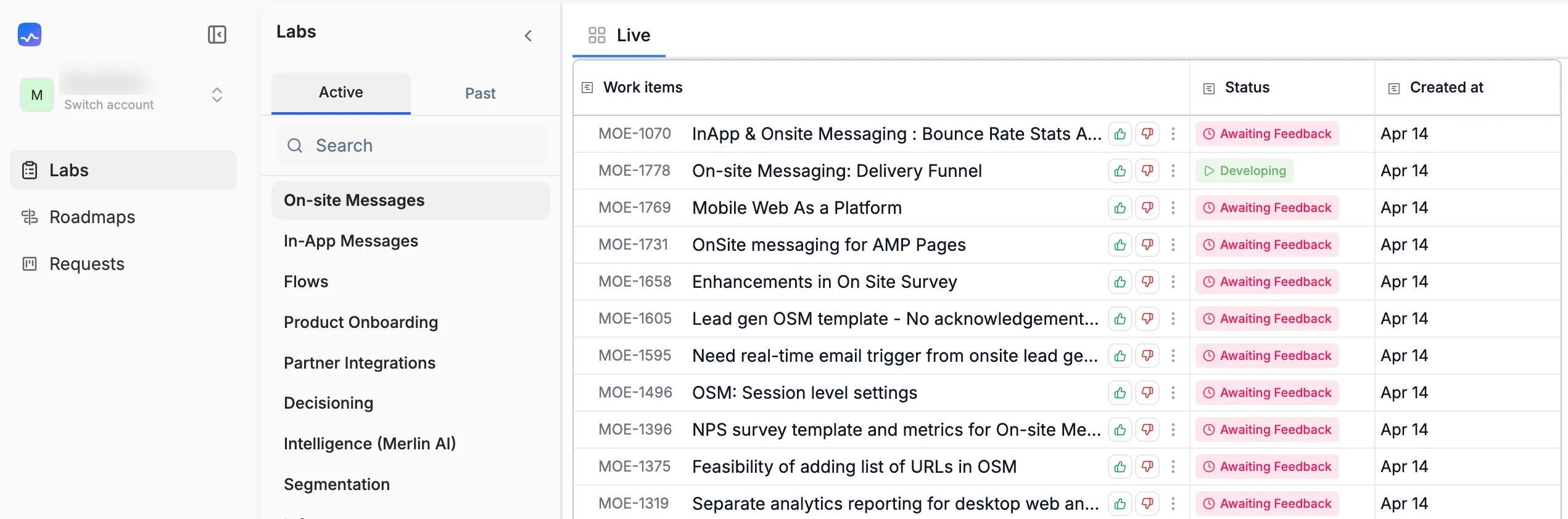
- Labs: View submitted requests that have been converted into work items, organized by product areas. You can filter by Active or Past items, search for specific work items, and upvote or comment on them.
- Roadmaps: View the roadmap of features and enhancements planned for future quarters for any product area.
.png?fit=max&auto=format&n=ZgomJfGJJyXhJzbf&q=85&s=843cbde27b5b09de5163efbf5d55bccd "Image (6)")
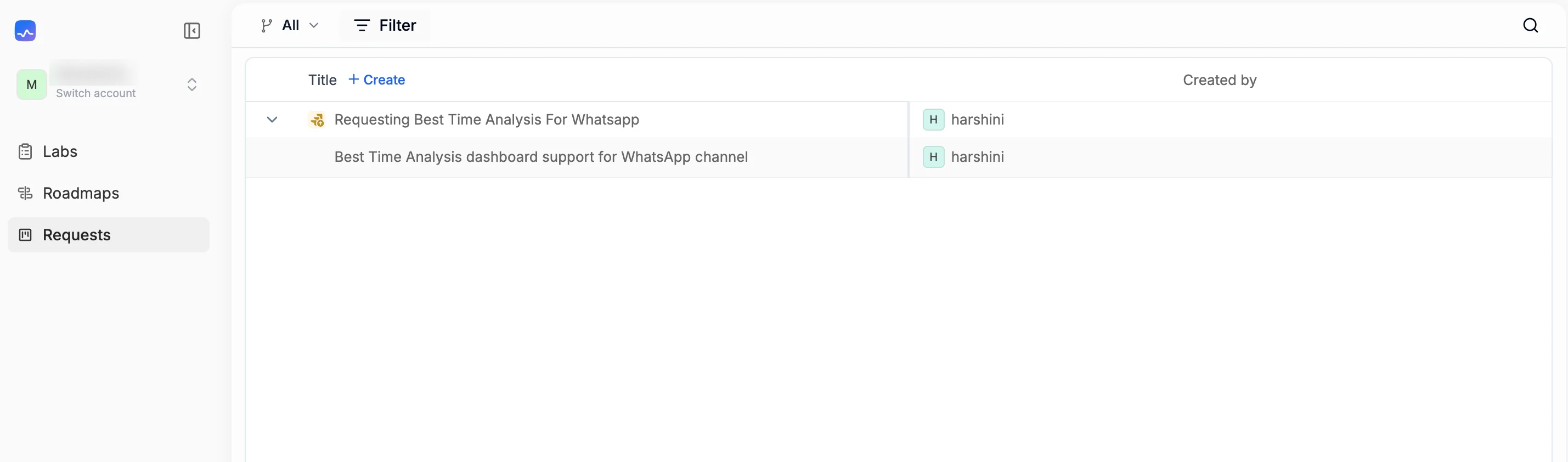
- Requests: View all submitted requests for your workspace and create new ones. Each request shows the title, created date, insights count, and the name of the requester.
Create a request
To submit a new feature request or product idea:- On the MoEngage Dashboard, click Need help on the top navigation bar.
- Click Submit product idea. The Feedback Portal opens.
- In the left navigation panel, click Requests. A list of all previously submitted requests for your workspace appears.
- Click + Create. The Create a ticket window appears.
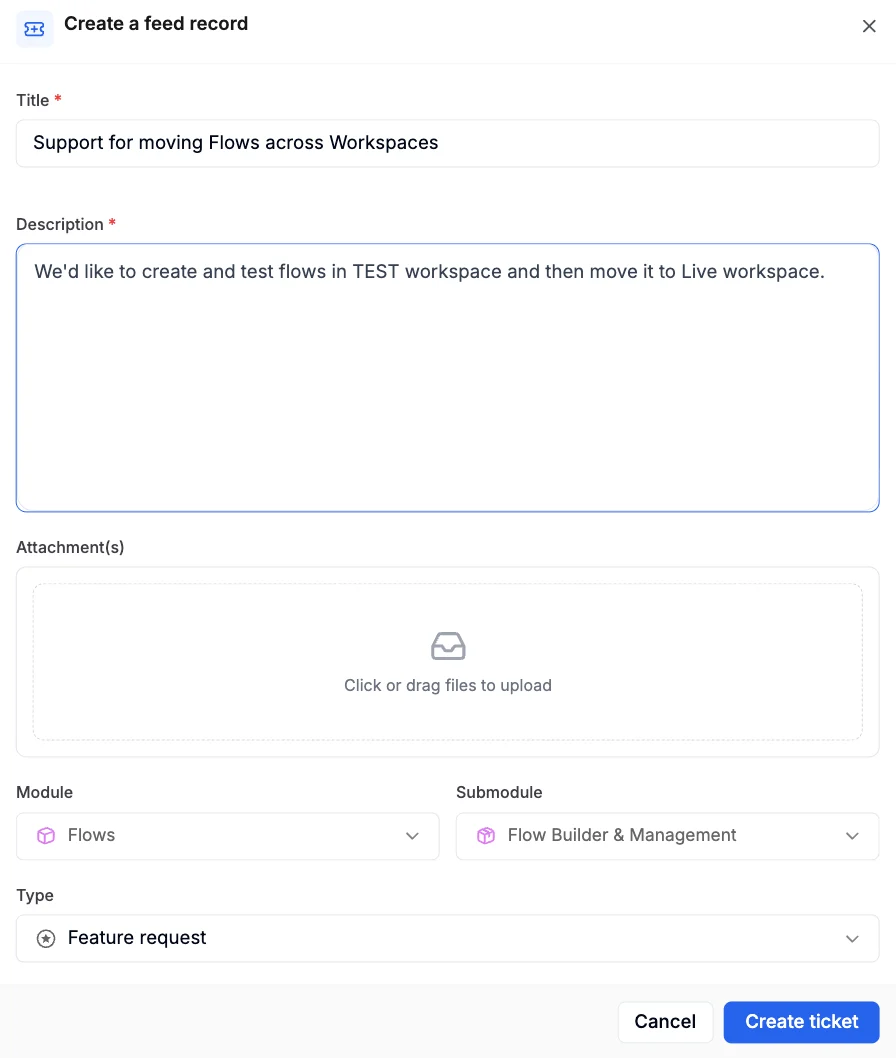
- Fill in the following fields:
| Field | Required | Description |
|---|---|---|
| Title | Yes | Enter a concise title that summarizes your request. |
| Description | Yes | Provide a detailed description of the feature or idea, including the use case and expected outcome. |
| Attachment | No | Click or drag files to upload any supporting documents, screenshots, or reference materials. |
| Module | No | Select the relevant product module from the dropdown. Available options include Campaigns, Flows, Push Notifications, Email, SMS, MMS & RCS, WhatsApp, Inbound Channels, Cards, Data, Account Management, Analytics, and more. |
| Submodule | No | Select a submodule if applicable. The available submodules depend on the module selected. For example, selecting SMS, MMS & RCS shows submodule options such as SMS, MMS, RCS, and TCPA & SMS compliance. |
| Type | No | Select the type of request: Feature request, Issue, or Other. |
| Requester email | No | The email address of the requester. |
| Created by | No | Enter the user ID or name of the person creating the request. |
- Click Create ticket. The ticket is created and appears in the Requests list.
View and track requests
After submitting a request, you can track it from the Requests section. The requests list shows the following details for each entry:| Column | Description |
|---|---|
| Title | The title of the submitted request. Click to expand and view the full description. |
| Created at | The date when the request was submitted. |
| Insights | The number of insights or interactions associated with the request. |
| Created by | The name of the user who submitted the request. |
Labs
- Click Labs in the left navigation panel to view requests that have been converted into work items.
- Use the Active and Past tabs to switch between ongoing and completed work items.
- You can search for specific items, upvote work items you find valuable, and add comments to share additional context.
Roadmaps
Click Roadmaps in the left navigation panel to view the planned features and enhancements for upcoming quarters.Feature status
The following are the statuses you see for every feature request you have submitted.| Status | Meaning |
|---|---|
| Awaiting feedback | Your request stays here while we gauge demand from our other customers. |
| Planned | This request is on our roadmap but we have not started on it yet. |
| Building | This request is currently under development. |
| Released | This request is complete. See the status message for how to use it. |
| Declined | This request was not clear, already exists, or is not aligned with where we are taking our product. See the status message for more information. |