

Overview
Merlin AI can automatically generate descriptions for your custom events and attributes. These descriptions help you to quickly understand the purpose of an attribute, leading to more accurate and effective segmentation. Instead of dealing with confusing or similarly named attributes, you get clear, concise explanations directly within the segmentation UI.Enable AI-Generated Descriptions
To begin using AI-generated descriptions, an Admin or Manager must first enable the feature in your workspace settings. To enable, perform the following steps:- On the left navigation menu in the MoEngage dashboard, click Settings > Data > Data Management.
- In the header section, click AI Description.
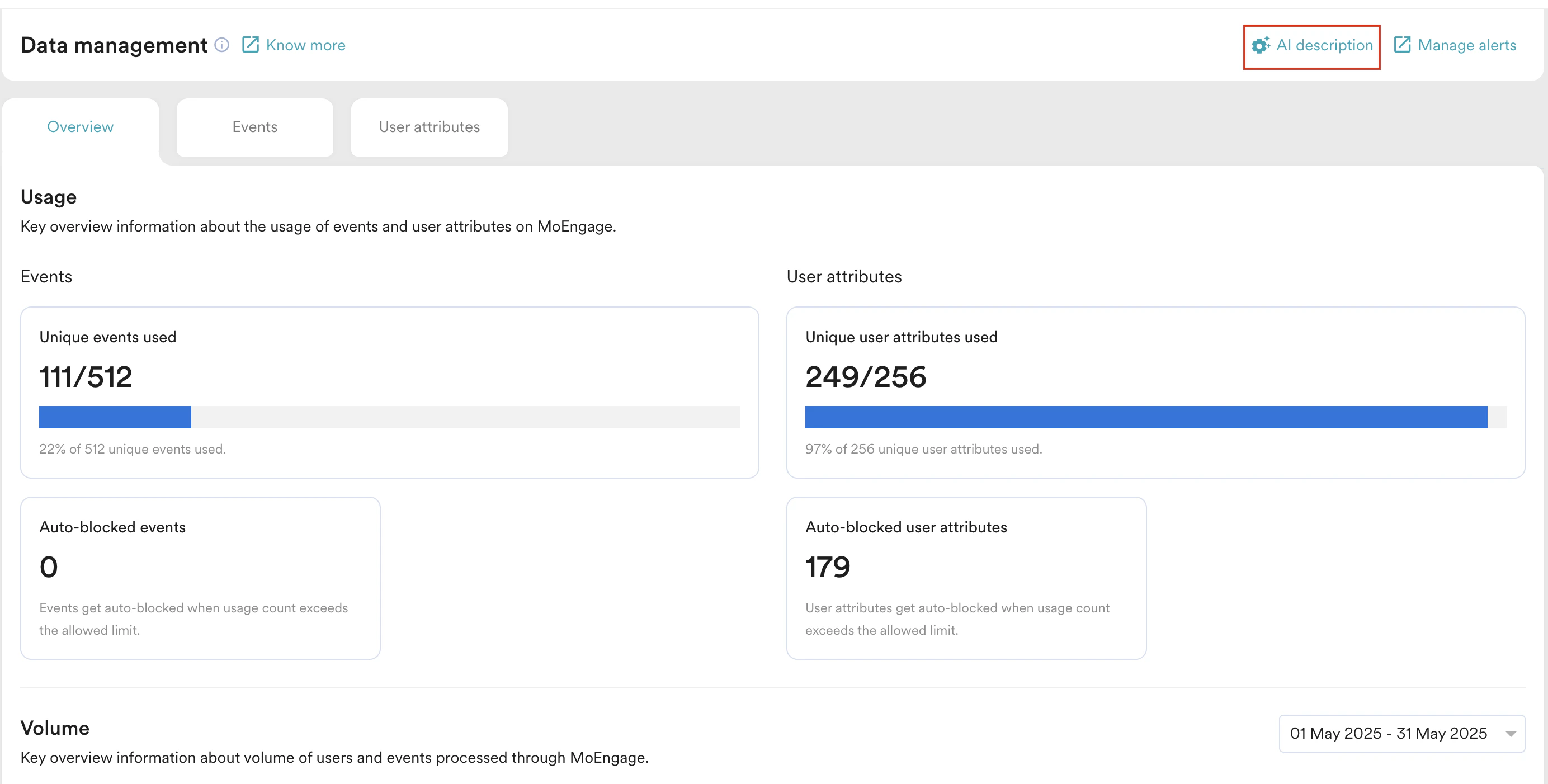
- Turn the MerlinAI description toggle on.
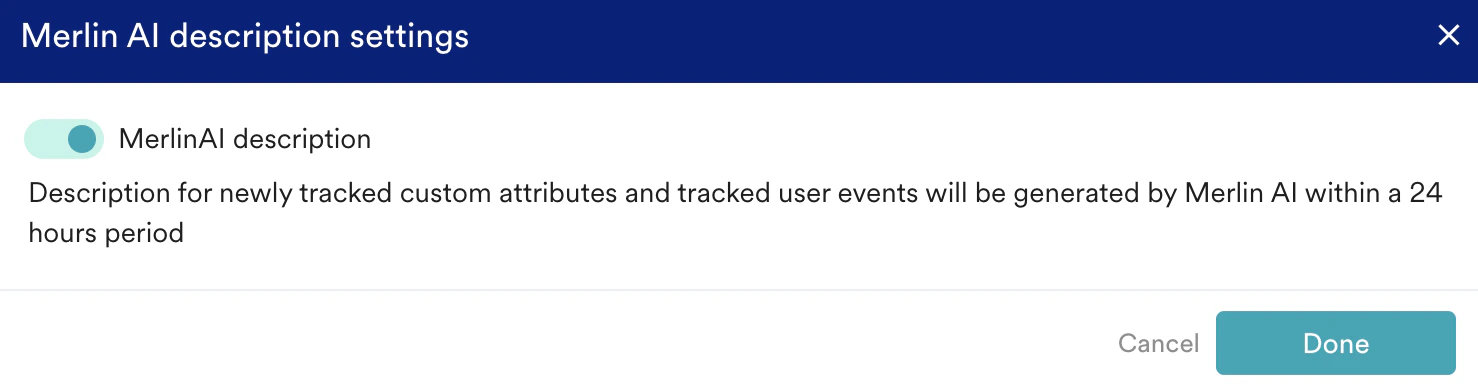
- Click Done.
Standard attributes provided by MoEngage are not affected by AI-generated descriptions. For other custom events and attributes, Merlin AI generates a description based on the readable name and data type.
Use AI Descriptions in Segmentation
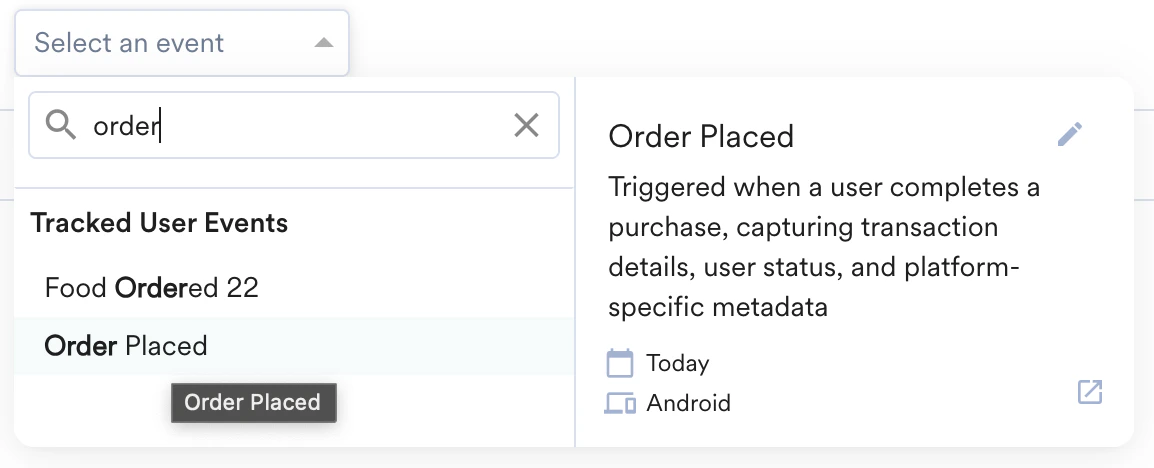
Once Merlin AI description is enabled for your workspace, the AI-generated descriptions appear directly in the attribute selection drop-down list in the sections below:- Segment filters in Segmentations
- Filter users section in MoEngage Analytics
- Target audience section in campaign creation pages
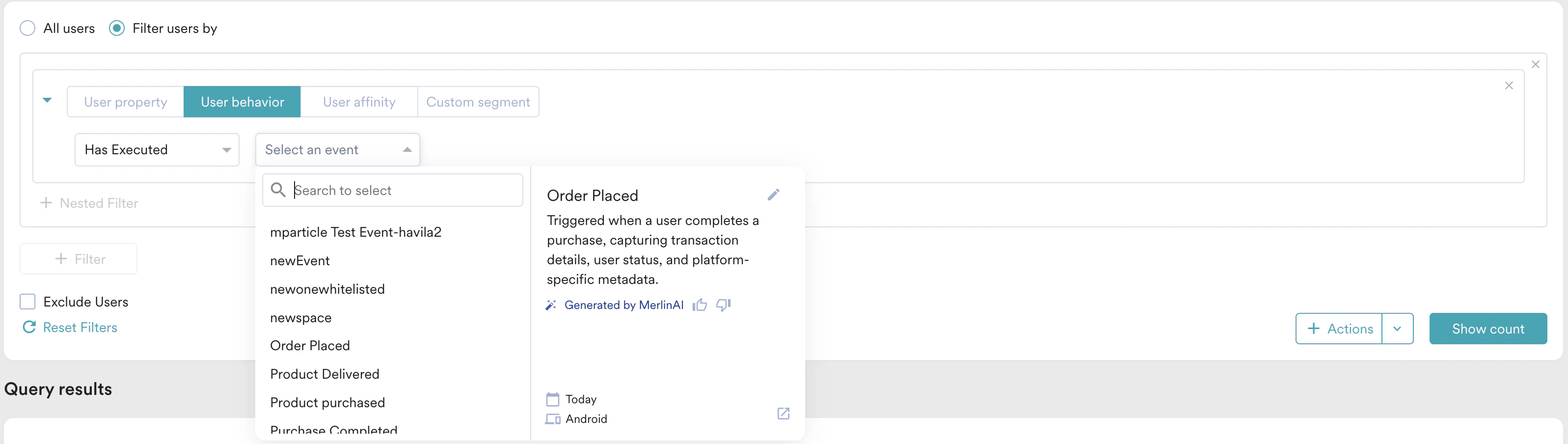
- Description: A short, AI-generated explanation of the attribute’s purpose.
- Generated by Merlin AI tag: Appears next to descriptions created by Merlin AI.
Edit a Description
If you need to refine an AI-generated description or add more context, users with an Admin or Manager role can edit it. To edit:- Click the edit icon that appears.
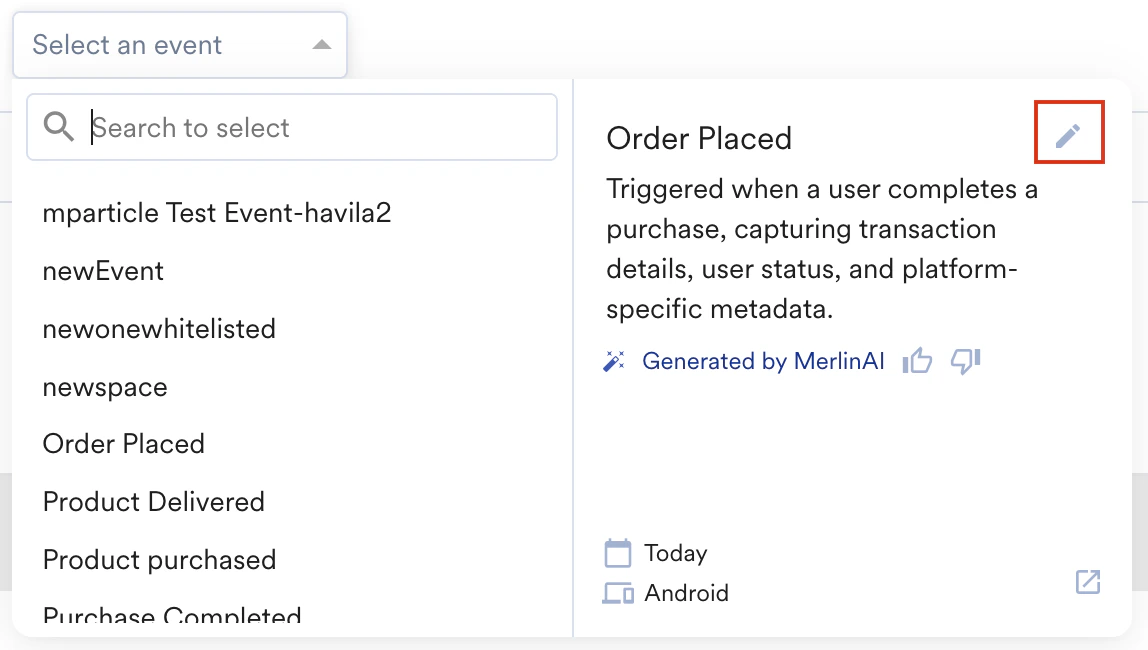
- Edit the text in the Description box.
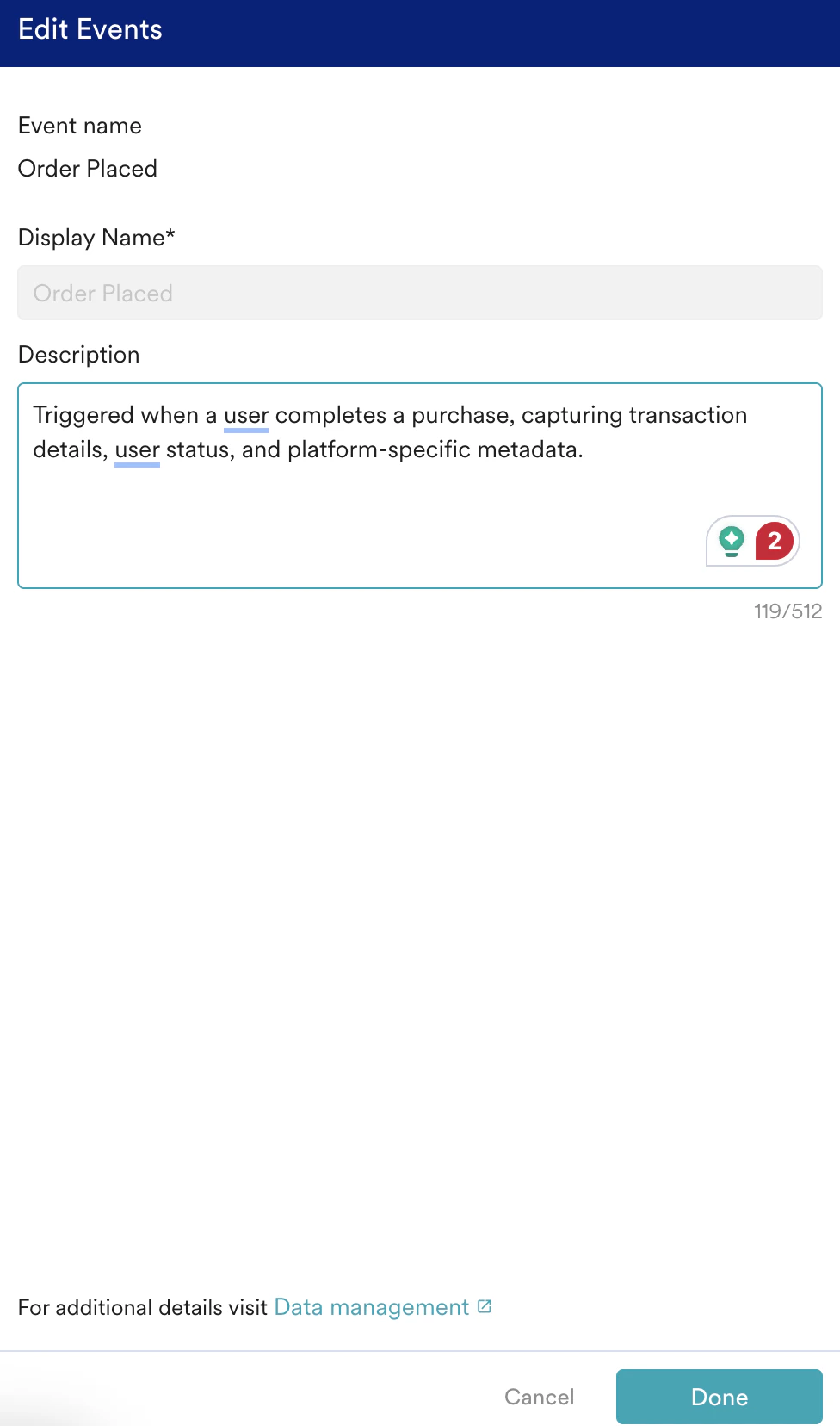
- Click Done.
Add a Manual Description
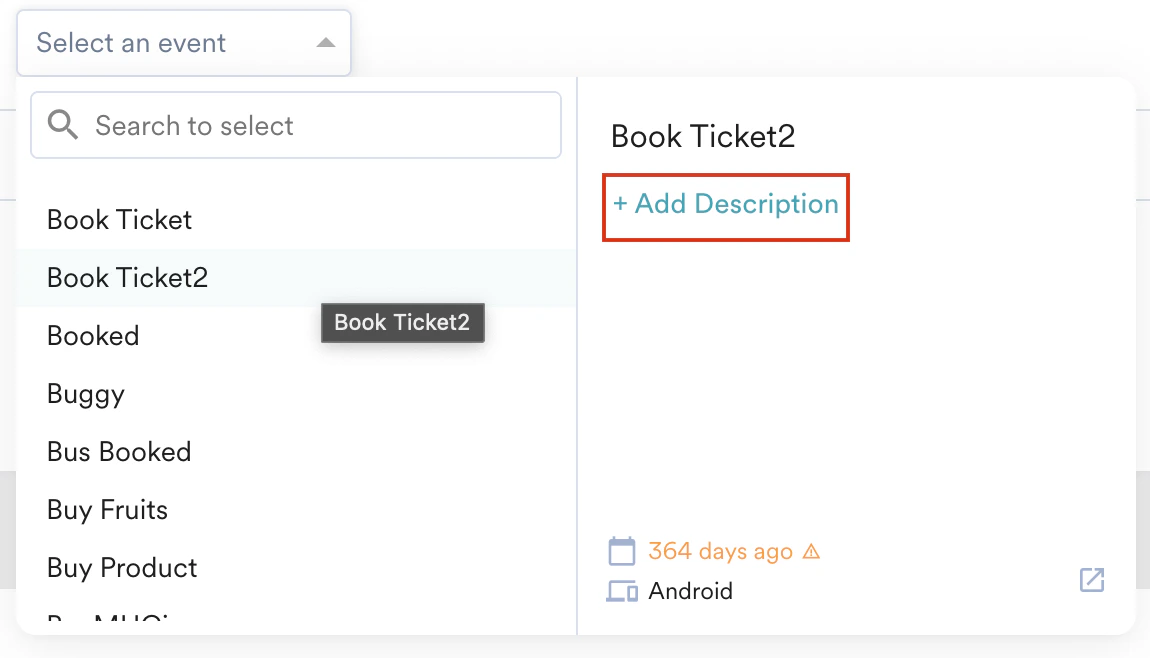
For custom attributes where Merlin AI did not generate a description (or for which a description was manually deleted), users with an Admin or Manager role can add one manually. To do so, perform the following steps:- Hover over the attribute that has no description.
- Click + Add description.
- In the Description box, type your custom description.
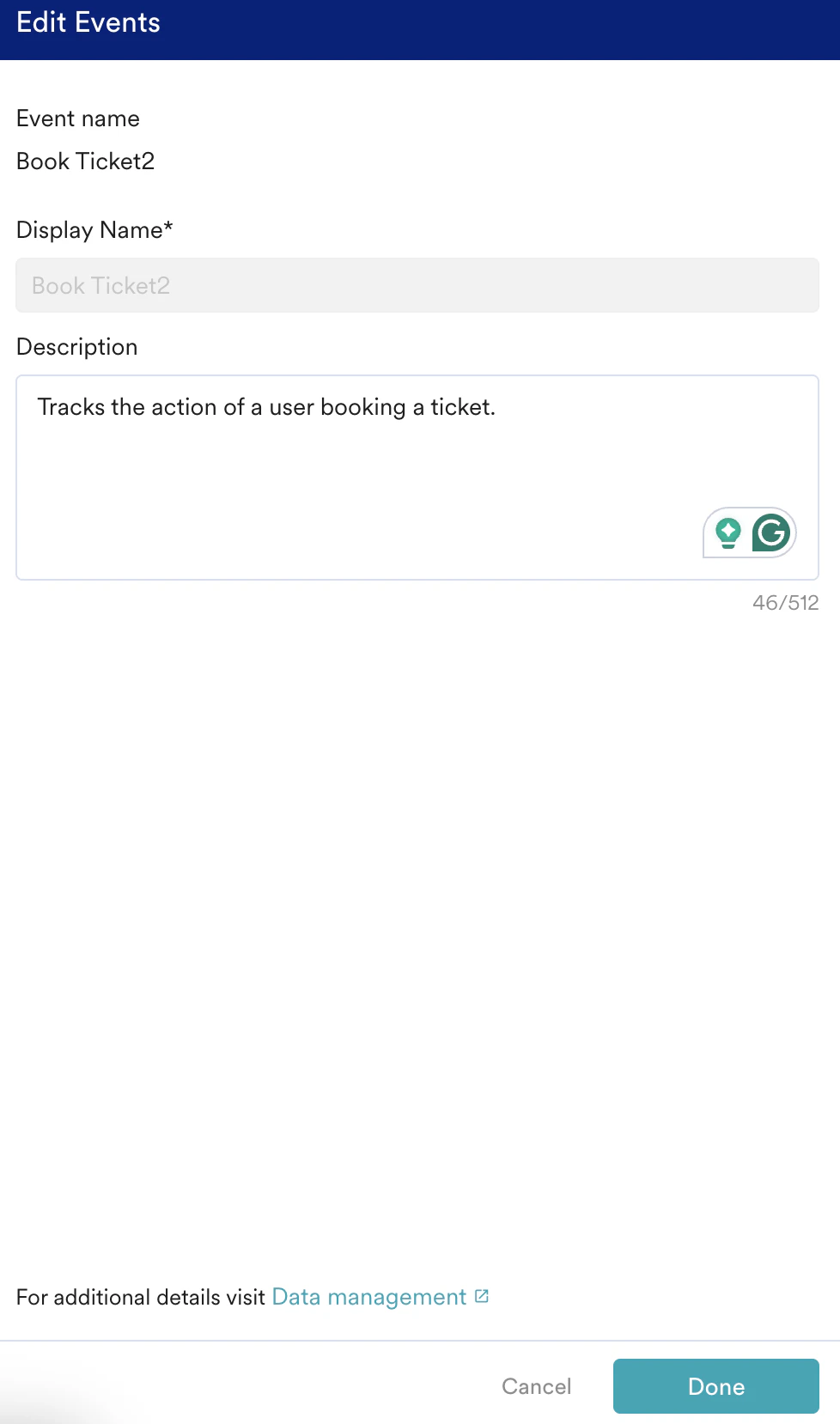
- Click Done.
Provide Feedback
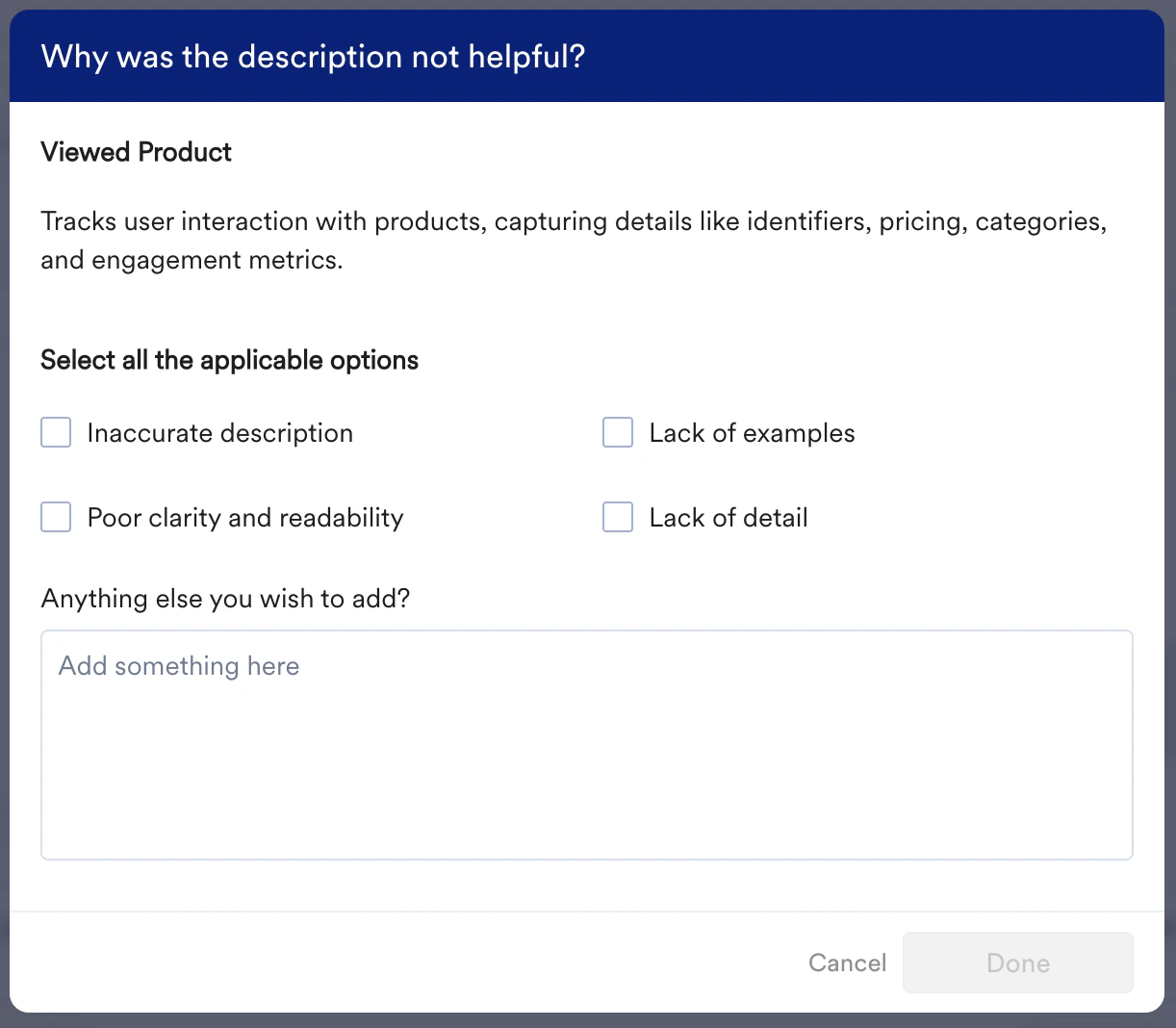
Your feedback is valuable for improving the quality of AI-generated descriptions. For any description generated by Merlin AI, you can provide feedback using the thumbs-up or thumbs-down icons.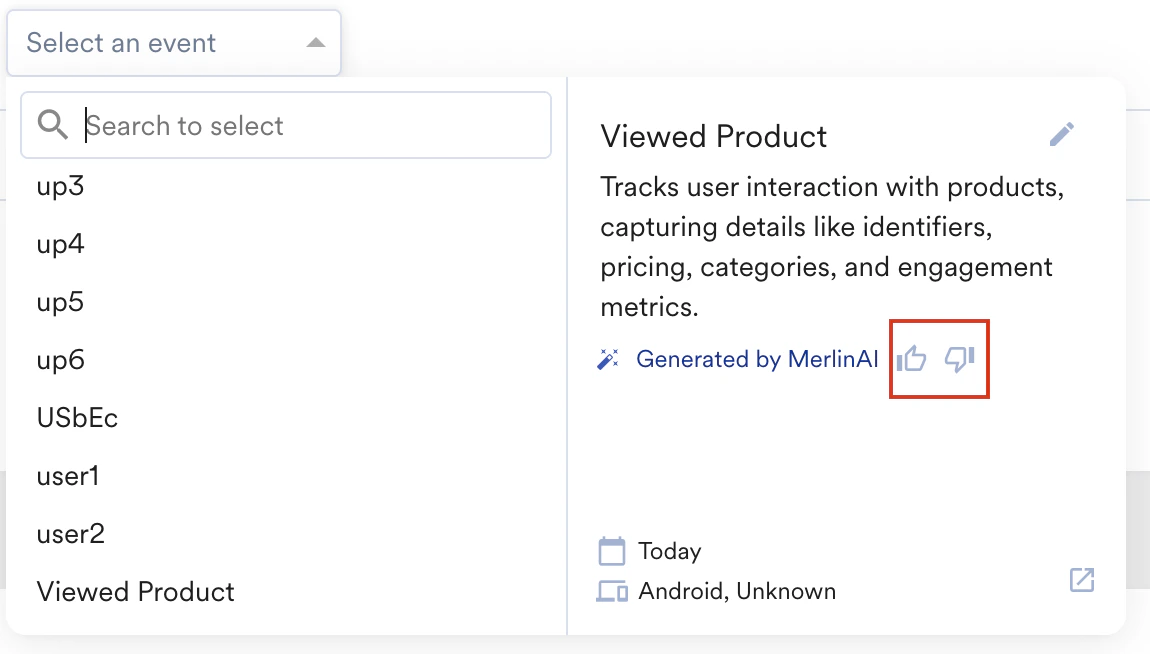
FAQs
Why don't all of my custom attributes have an AI-generated description?
Why don't all of my custom attributes have an AI-generated description?
Merlin AI only generates descriptions in cases where it has high confidence in the accuracy and relevance of the output. If an attribute is new, has unclear naming conventions, or has not received recent data, a description may not be available. Admins and Managers can manually add descriptions for these attributes.
Who can enable and edit AI descriptions?
Who can enable and edit AI descriptions?
Only users with Admin or Manager roles can enable the AI Descriptions feature from the settings page. These roles are also the only ones who can edit or manually add descriptions. All user roles can view the descriptions.
If I edit a description, will Merlin AI overwrite it later?
If I edit a description, will Merlin AI overwrite it later?
No. Once a description has been edited or added manually by a user, Merlin AI will not change or overwrite it in the future.
Where will these descriptions appear?
Where will these descriptions appear?
The descriptions and associated metadata (last received time, platform) will be visible in any user or event attribute drop-down list within the Target audience component. This includes creating segments on the Segmentation page, as well as in Analytics and Campaign creation flows.