

Introduction
Google Cloud Storage is an enterprise public cloud storage platform that can house large unstructured data sets.MoEngage × GCS
The MoEngage and GCS integration exports campaign interaction events to your Google Cloud Storage buckets. You can then import these files into BigQuery for further processing and analysis.Integration
Prerequisites
- Ensure you have a Google Cloud Platform account with permission to create a new bucket and a service account.
- Exports to GCS are part of the Streams add-on. Contact your dedicated MoEngage CSM (customer success manager) to enable it for your account.
Step 1: Create a dedicated service account for MoEngage
On your Google Cloud Platform console, go to the IAM & Admin console.- From the sidebar, open Service Accounts.
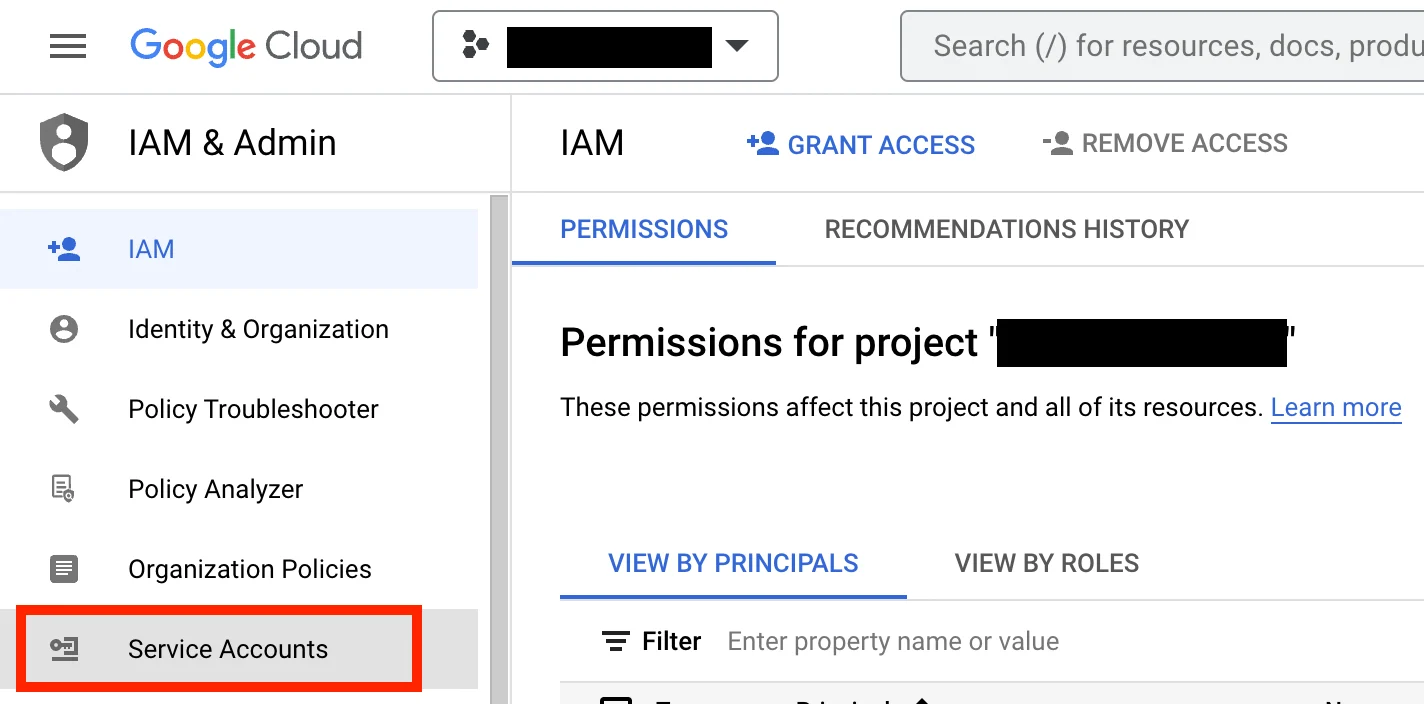
- Click the + Create Service Account button.
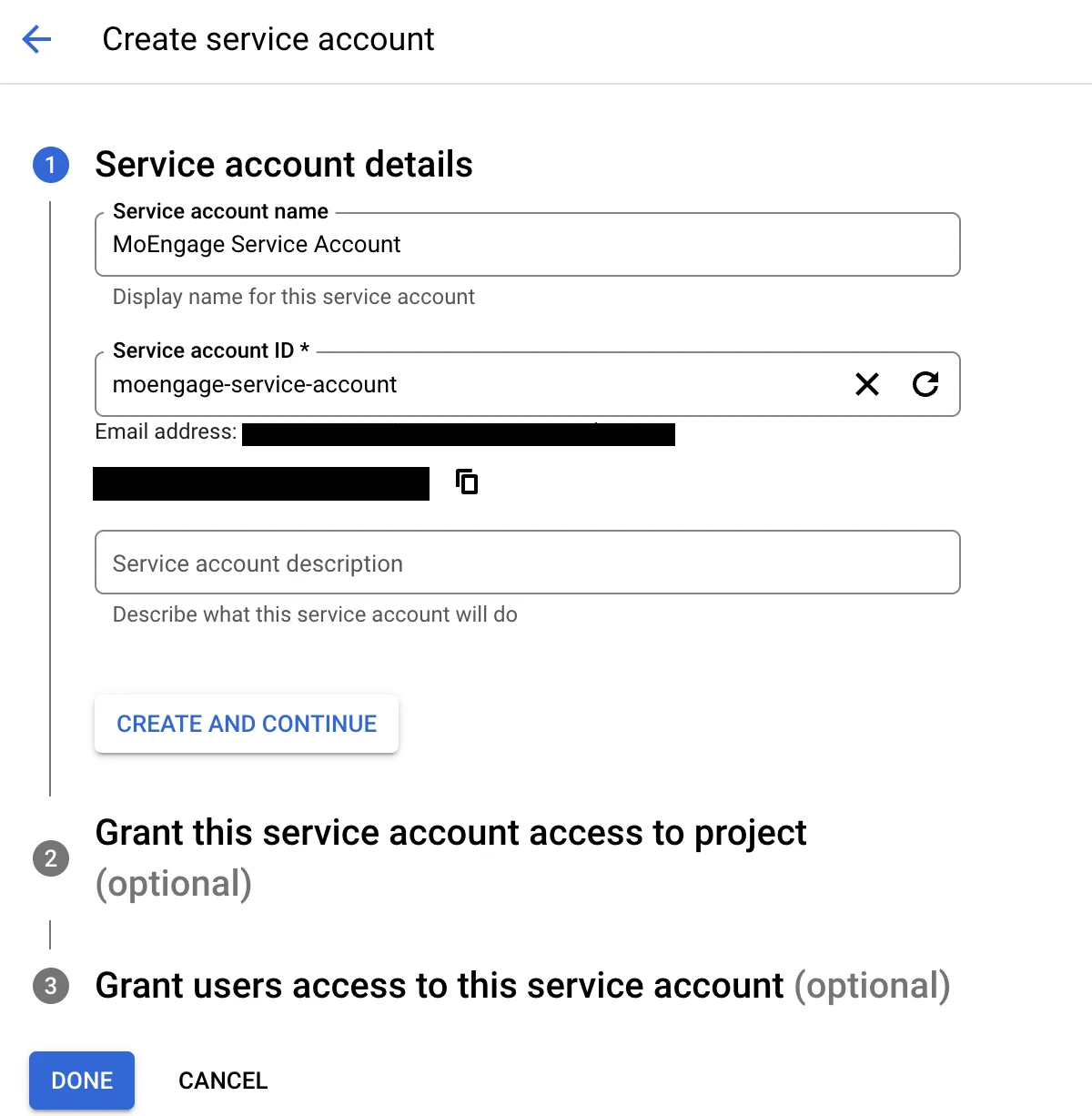
- Give this service account a name, and an optional description.
- Click Create and continue.
- Add the role Basic > Browser to this service account.
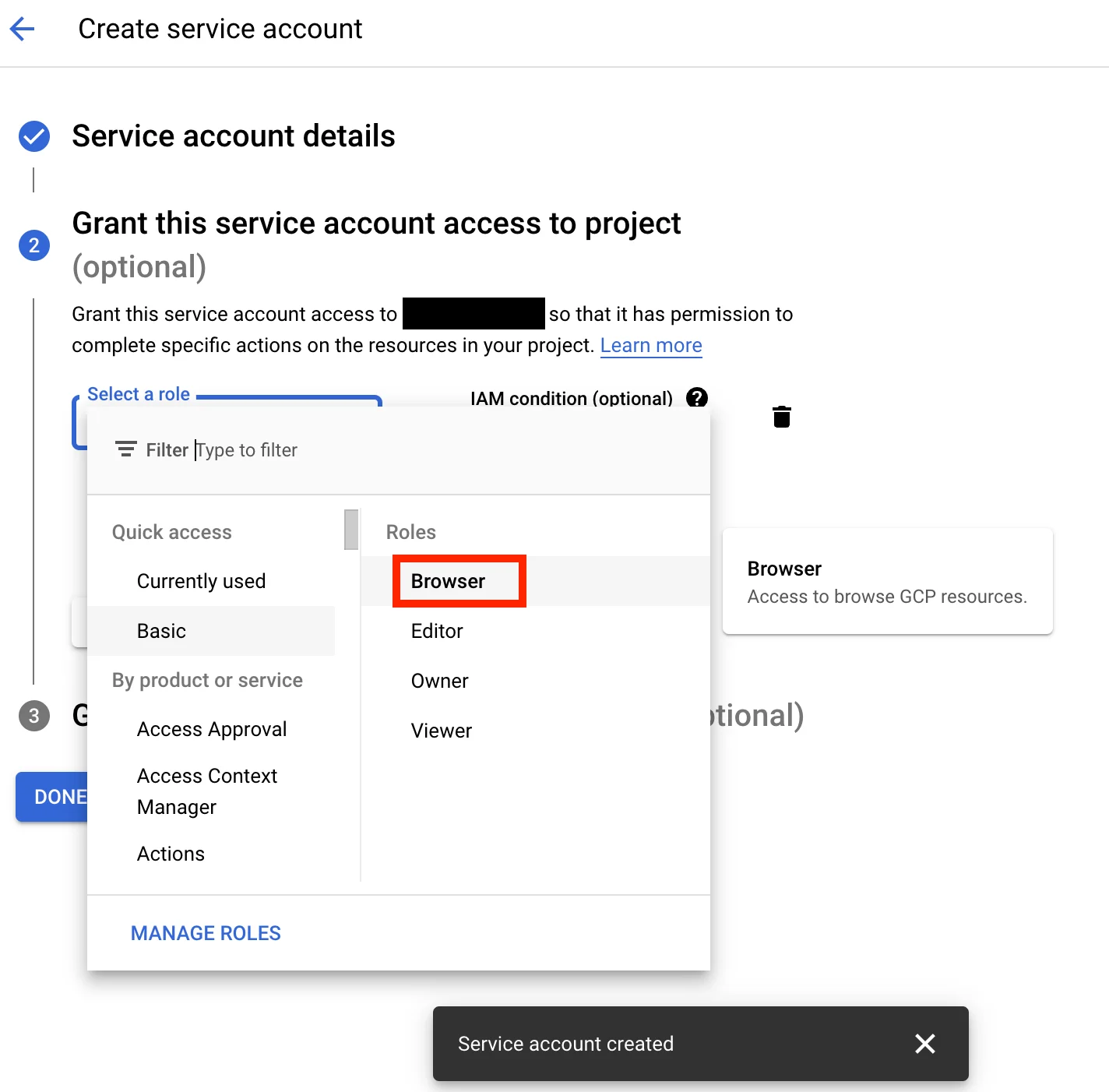
- Click Continue. Optionally, grant users access to this service account.
- Click Done.
- Open the service account from the list of service accounts.
- Go to the Keys tab, click Add Key, and then select Create new key.
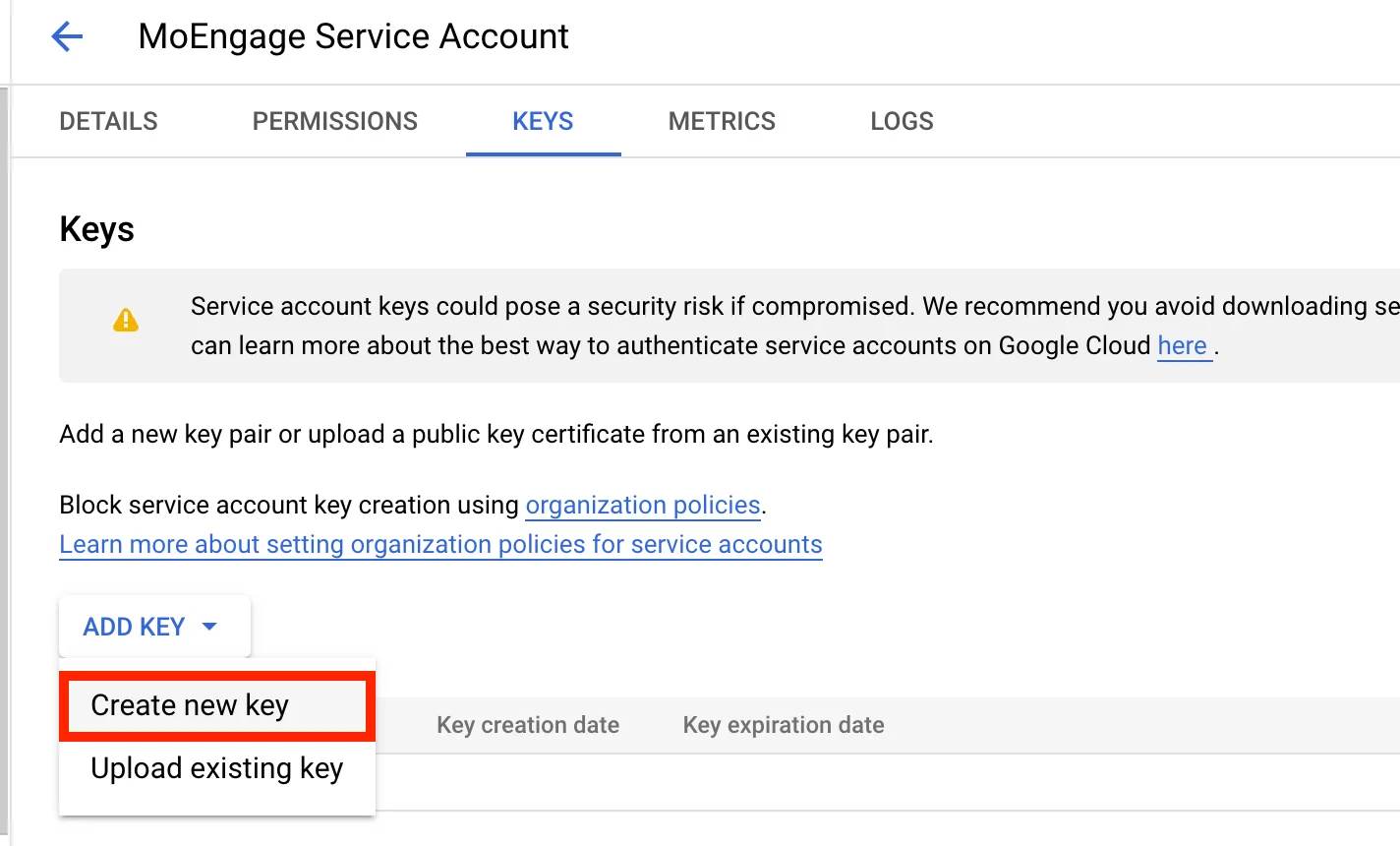
- Select the Key Type as JSON, and then click Create.
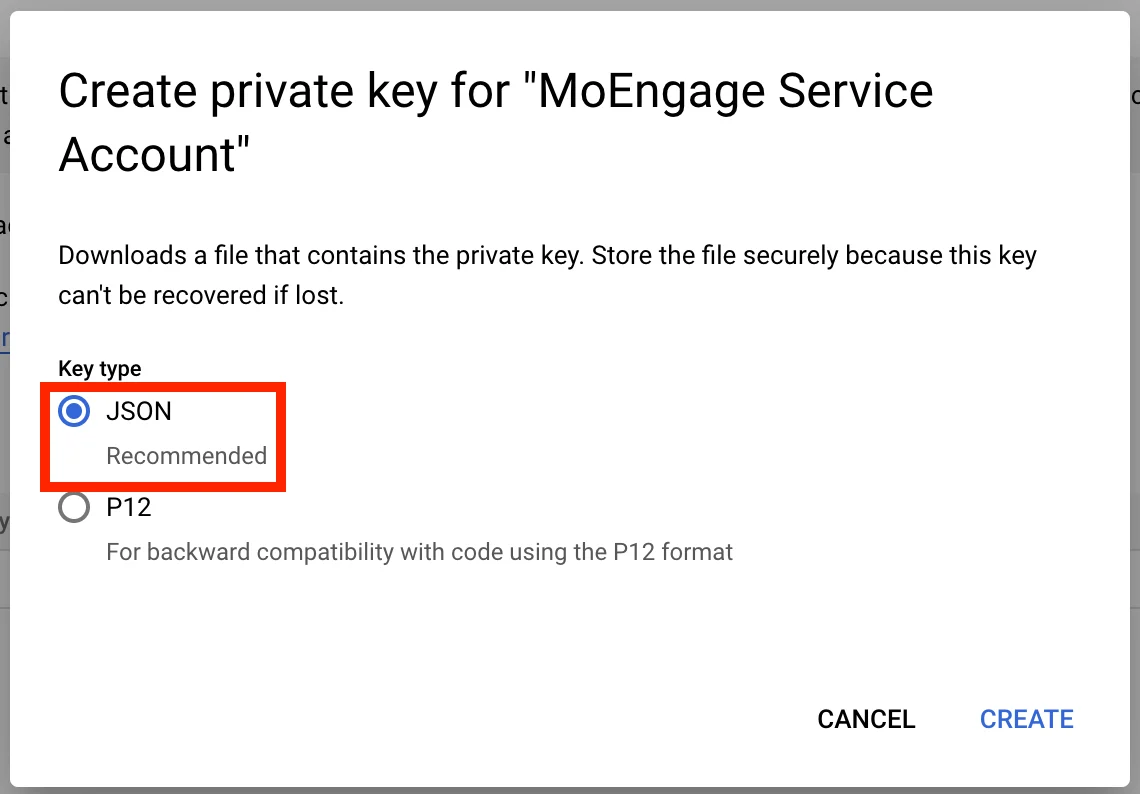
- Your new key is automatically downloaded in JSON format. Store this file safely. You will need to upload it later on the MoEngage dashboard.
Step 2: Grant this service account permissions to your bucket
- On your service account details page, copy the email of your service account.
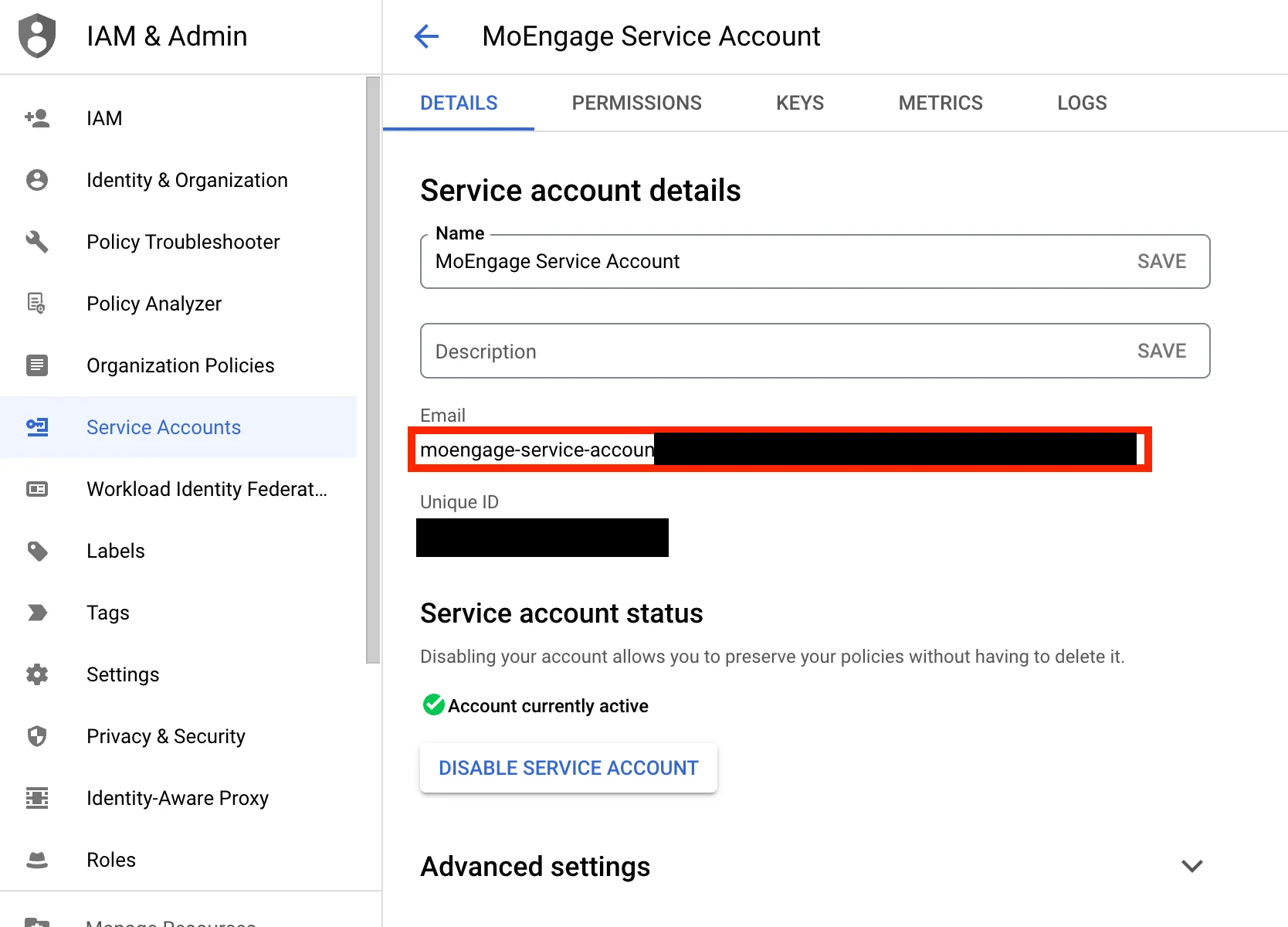
- Go to the Cloud Storage console, and open the bucket in which you want MoEngage to export the events.
- Under the Permissions tab, click Grant Access.
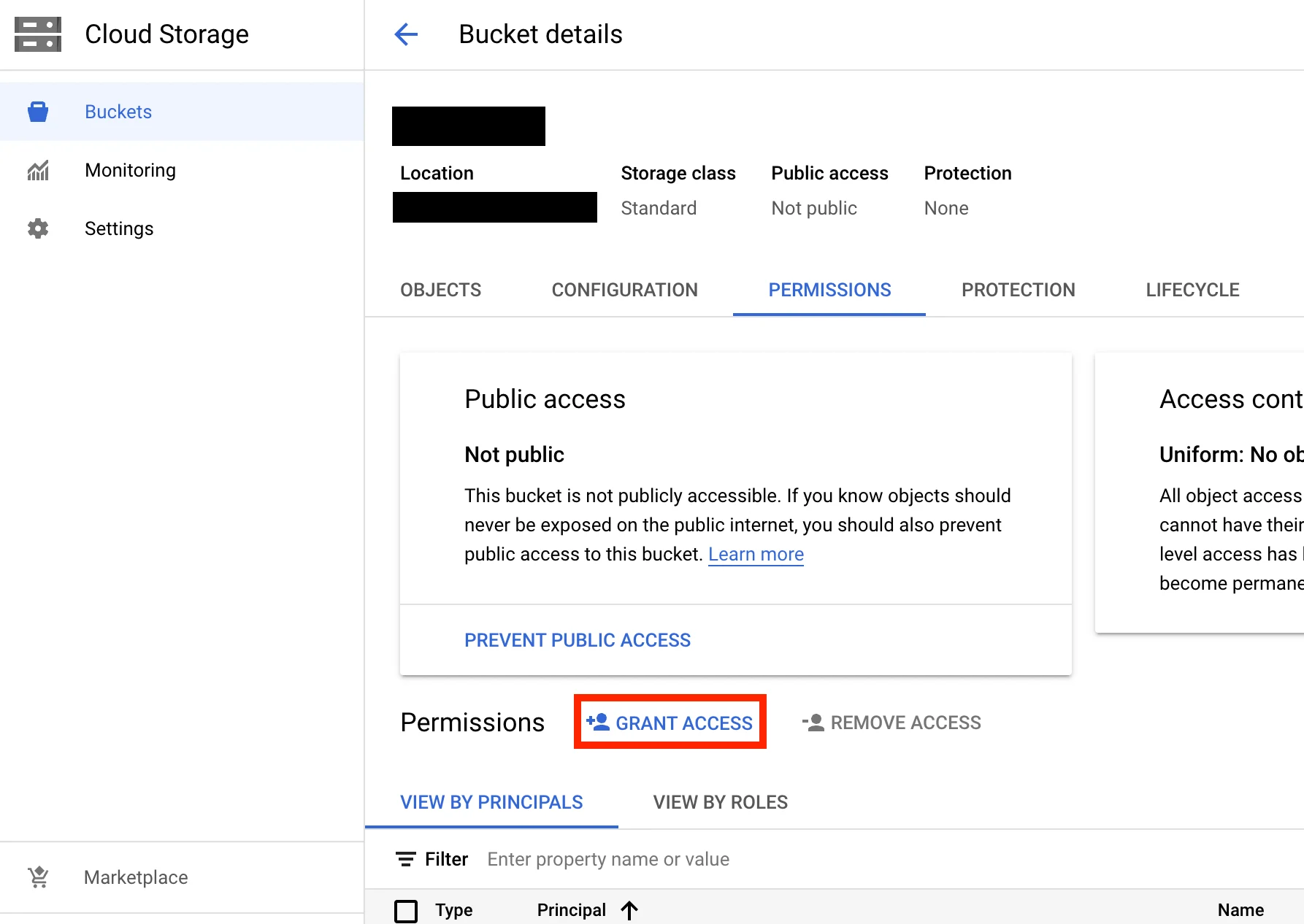
- Paste and select the service account email in the New Principals field.
- Assign the role Cloud Storage > Storage Admin.
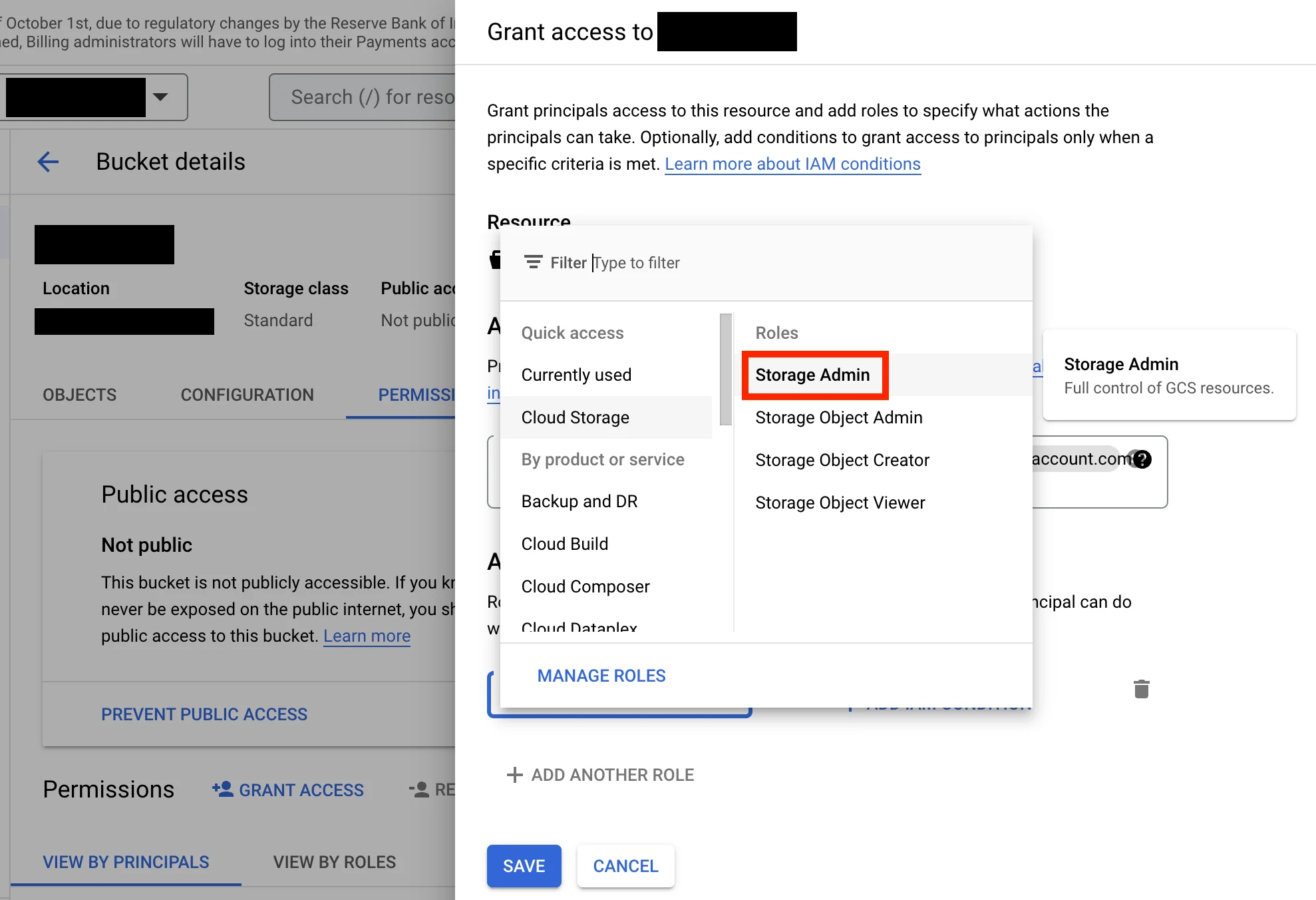
- Click Save.
Step 3: Enable APIs & Services in your GCP account
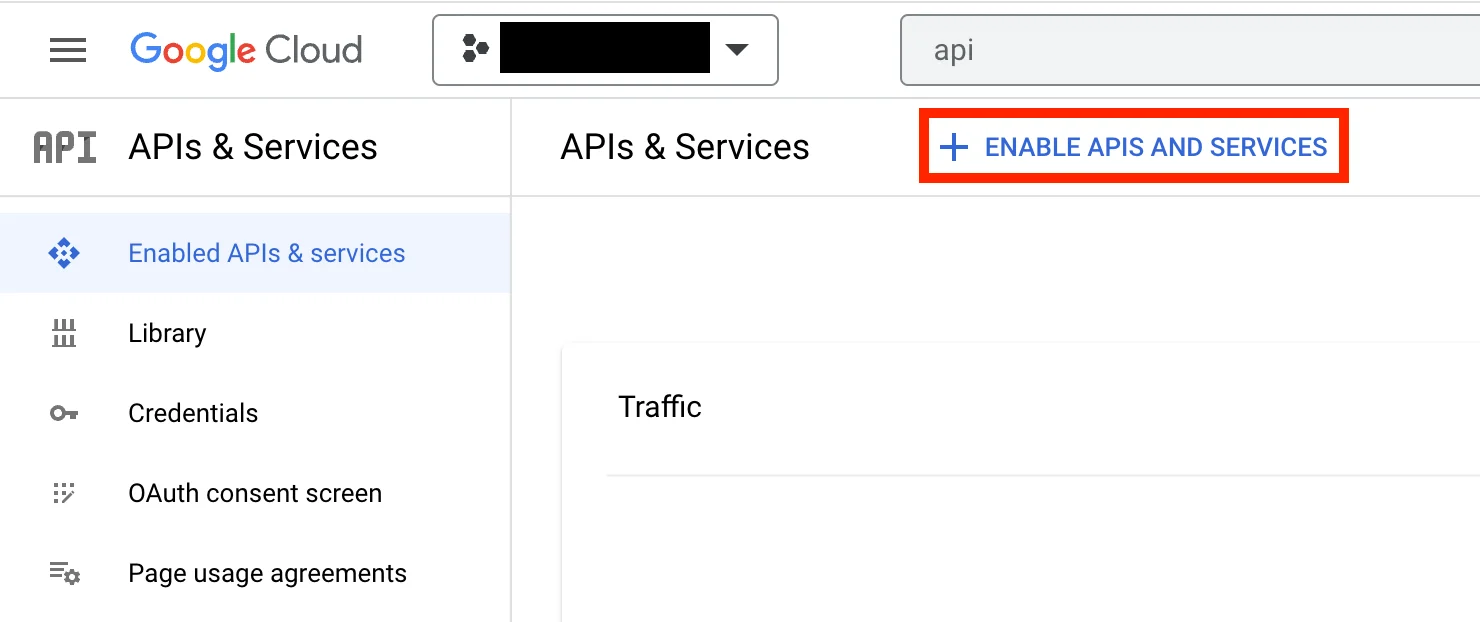
- In your GCP console, go to APIs & Services, and then click + Enable APIs and Services.
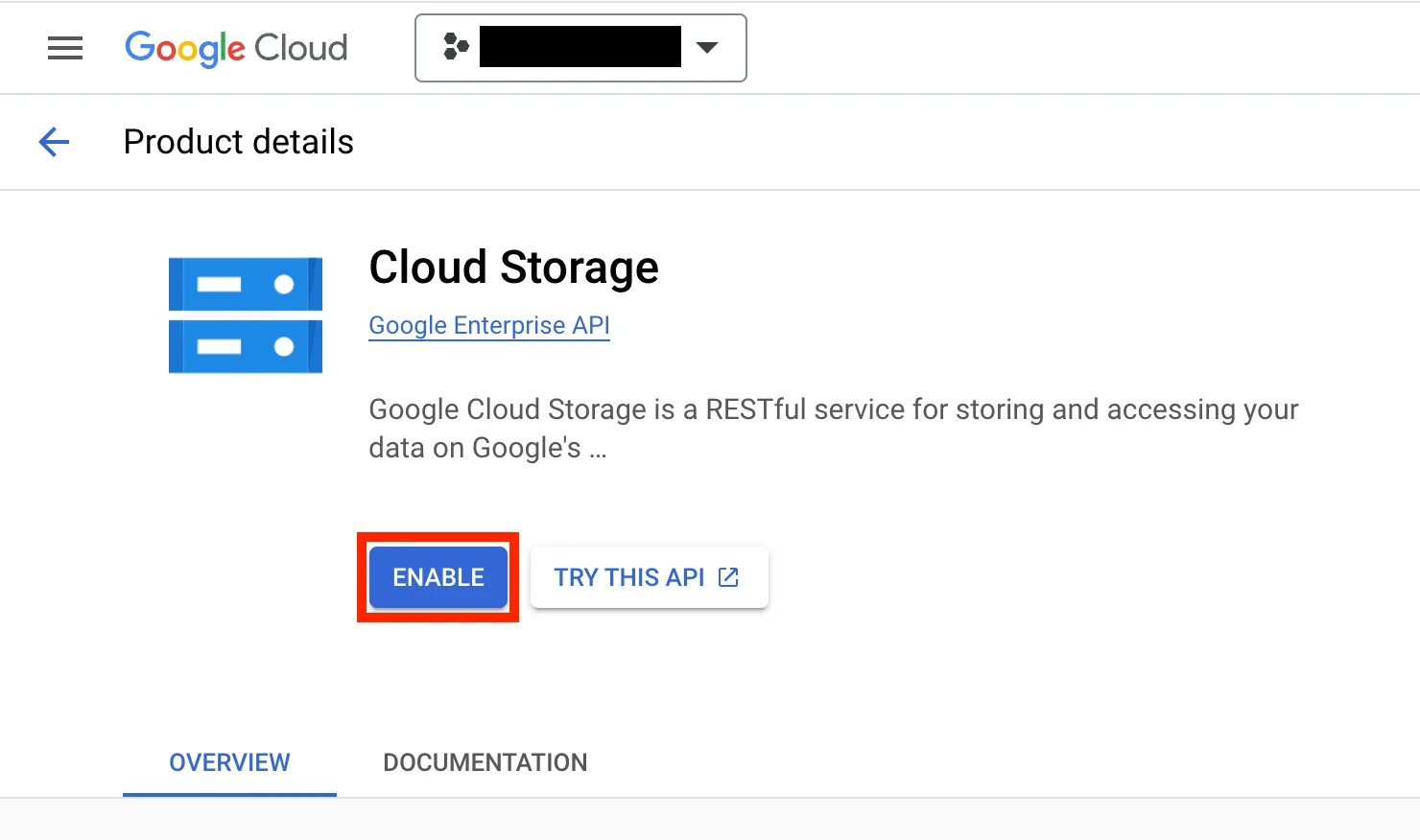
- Search for Cloud Storage and open the API details page.
- Click Enable to enable it.
Step 4: Set up the GCS integration on the App Marketplace
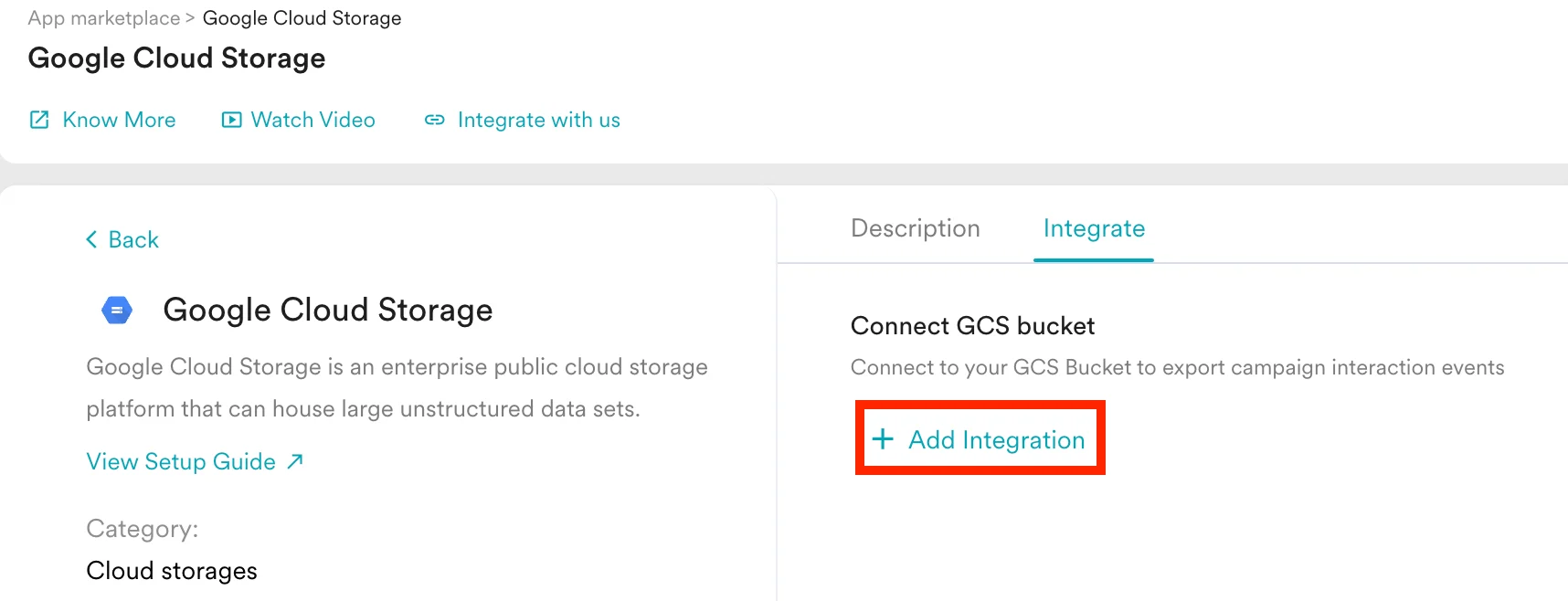
- On your MoEngage dashboard, go to the App Marketplace.
- Search for Google Cloud Storage.
- Go to the Integrate tab, and click + Add Integration.
- Give your connection an identifiable name.
- Enter your bucket name.
- Optionally, select your bucket region. You can find this on your Bucket Details page.
- Upload the service account credential JSON file that you downloaded earlier. You can verify your Client ID and Client Email upon upload.
- Select which events you want to export. By default, each event is exported with standard attributes.
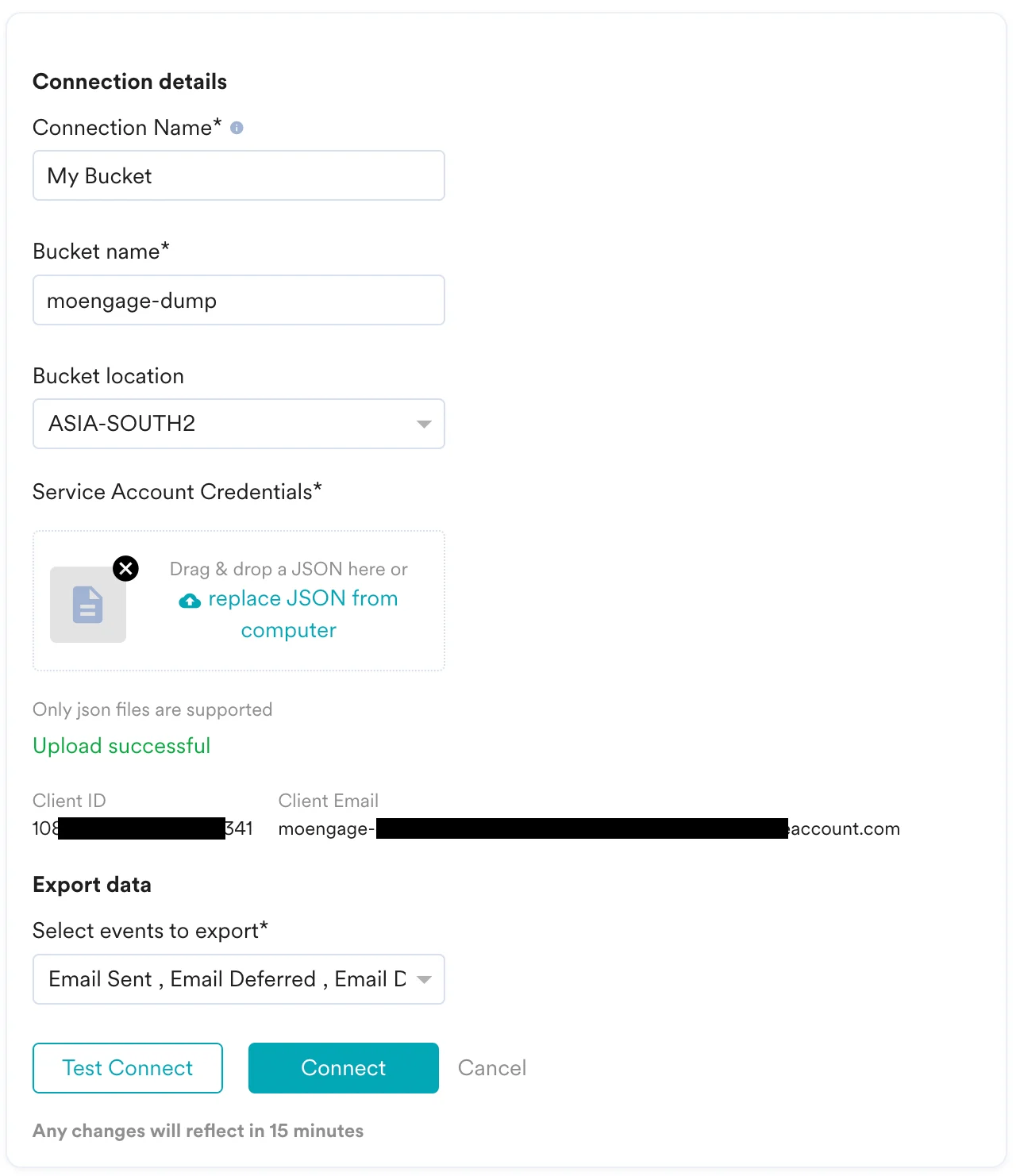
- Optionally, you can test the connection. MoEngage attempts to verify whether the details you entered are correct. If there is an issue, an error is displayed that you can rectify.
Note on required permissions
To perform end-to-end testing, MoEngage requires a few additional permissions to be configured. If your IT policy does not allow for these permissions, you can skip them. However, you will not be able to test the connection from the App Marketplace. Skipping these optional permissions does not impact the actual data export in any way.| Permission | Required | Description |
|---|---|---|
resourcemanagement.projects.get | No | Allows the user to view metadata for a project in Google Cloud Resource Manager. MoEngage uses this permission to access your service account during testing. |
resourcemanagement.projects.getIampolicy | No | Allows the user to view the IAM policy for a project in Google Cloud Resource Manager. MoEngage uses this permission to check whether you have assigned the right policy to your bucket. |
storage.bucket.get | No | Allows the user to view metadata for a Google Cloud Storage bucket. MoEngage uses this permission to check whether the bucket that you have provided during configuration actually exists. |
storage.object.create | Yes | Allows the user to create objects (files) in a Google Cloud Storage bucket. MoEngage requires this permission to create files in your bucket. |
storage.object.get | Yes | Allows the user to read the contents of objects (files) in a Google Cloud Storage bucket. MoEngage requires this permission to verify whether the files are correctly created in your bucket. |
storage.object.update | Yes | Allows the user to modify the contents of objects (files) in a Google Cloud Storage bucket. MoEngage requires this permission to update files in case of any discrepancies. |
Verify if you are receiving the data correctly
MoEngage uploads files using the following path structure:
Export Frequency
MoEngage dumps the data at hourly intervals.Sample File
The exported files are in the.json.gz format. Download a sample file to inspect the structure. The exact contents will differ based on the events and attributes you opt to export.
JSON
Frequently Asked Questions
How soon will I start getting the data?
How soon will I start getting the data?
It typically takes up to 30 minutes for the automated data exports to be set up for your account and for you to start seeing data.
Can I export additional events at a later time?
Can I export additional events at a later time?
Yes. If you need to export new events at a later time, you can edit your configuration on the App Marketplace and add the new events to your exports.
Can I export historical data using Automated Data Exports?
Can I export historical data using Automated Data Exports?
You cannot export historical data using Automated Data Exports. Once configured, you will start seeing data for each event from the time you enabled your exports.
Is there any pricing involved for Automated Data Exports?
Is there any pricing involved for Automated Data Exports?
If your billing plan does not cover this already and you need to enable it later, you will need to work with your Customer Success Manager to include it in your billing plan. Based on the volume of data MoEngage places in your data warehouse, partner, or API destination each month, this could lead to additional charges.
Does Data Exports guarantee the latest user attributes?
Does Data Exports guarantee the latest user attributes?
No, Data Exports is primarily built to export your Events in near real-time and user attributes in MoEngage are updated asynchronously so it is currently not possible to guarantee the latest values of user attributes in the exports.