  • You should have an active Google Ads Account.
  • Users Logging-in to the Ads account should have either admin or standard access.
  • The Google Ads Account should satisfy the following criteria laid down in Google’s Customer Match Policy:
    • There should be a minimum of 90 days of Google Ads usage in the account.
    • The account should have at least $50000 in lifetime spends.

Integration Steps

You can integrate your Google Ads Audience account with MoEngage by doing the following:
  1. Navigate to the App Marketplace in the MoEngage dashboard.
  2. Choose Google Ads Audience and select the integrate tab.
  3. Click on ‘Connect with Google’.
  4. You can choose the google account you want to connect to MoEngage.
  5. You can click continue to view the details of the Ads accounts to which you have direct access.
  6. Select the default ad account to be displayed while creating the campaigns.
  7. If you want to target customers using the device id in customer match, you should add the App ID for your app. You can add it for either iOS or Android. This option is turned off by default and can be enabled by clicking the checkbox. For more information, refer to find your App ID.
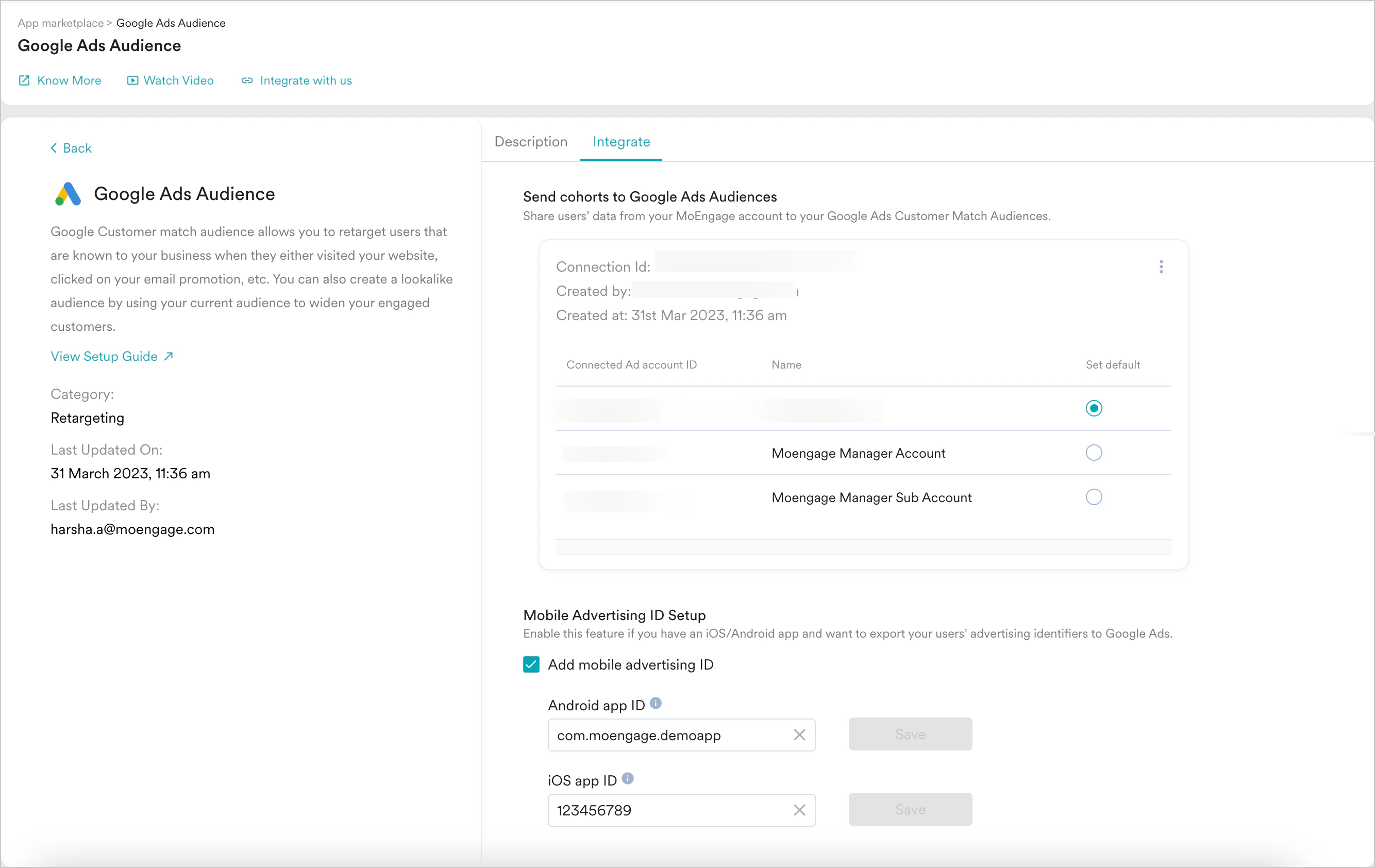
Once you’ve set it up, your page will look as shown below. GoogleAdsAudience_Integrate.png

Common setup errors and their solutions

Your integration can fail due to authentication errors, access control-related errors, incorrect App ID details for your PlayStore/ App Store account, and so on. Here is a list of the errors that you might encounter while integrating your Google Ads Account.