

You can follow the process outlined hereafter to add the coupons to your campaigns. This article guides you through the process of creating coupon-based email marketing campaigns. You can follow a similar approach to add coupon references in other campaign channels.
Create the Coupon list you intend to use in the campaign before following the steps mentioned below. You can use only the active Coupon list in campaigns. Learn how to create coupons.
- Target users
- Content
- Schedule and goals
Create an Email Campaign with Coupons
To create an Email campaign with coupons, perform the following steps:- On the sidebar menu in MoEngage, hover over the Engage menu item
 . The Engage menu appears.
 - Click + New Campaign.
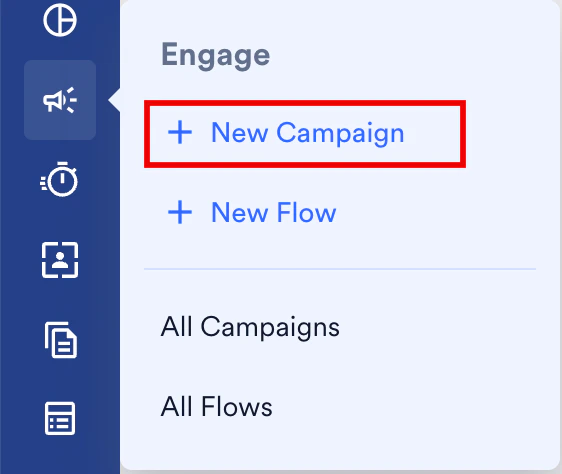 You can also click All Campaigns on the Engage menu and then click + Create campaign on the All campaigns page.
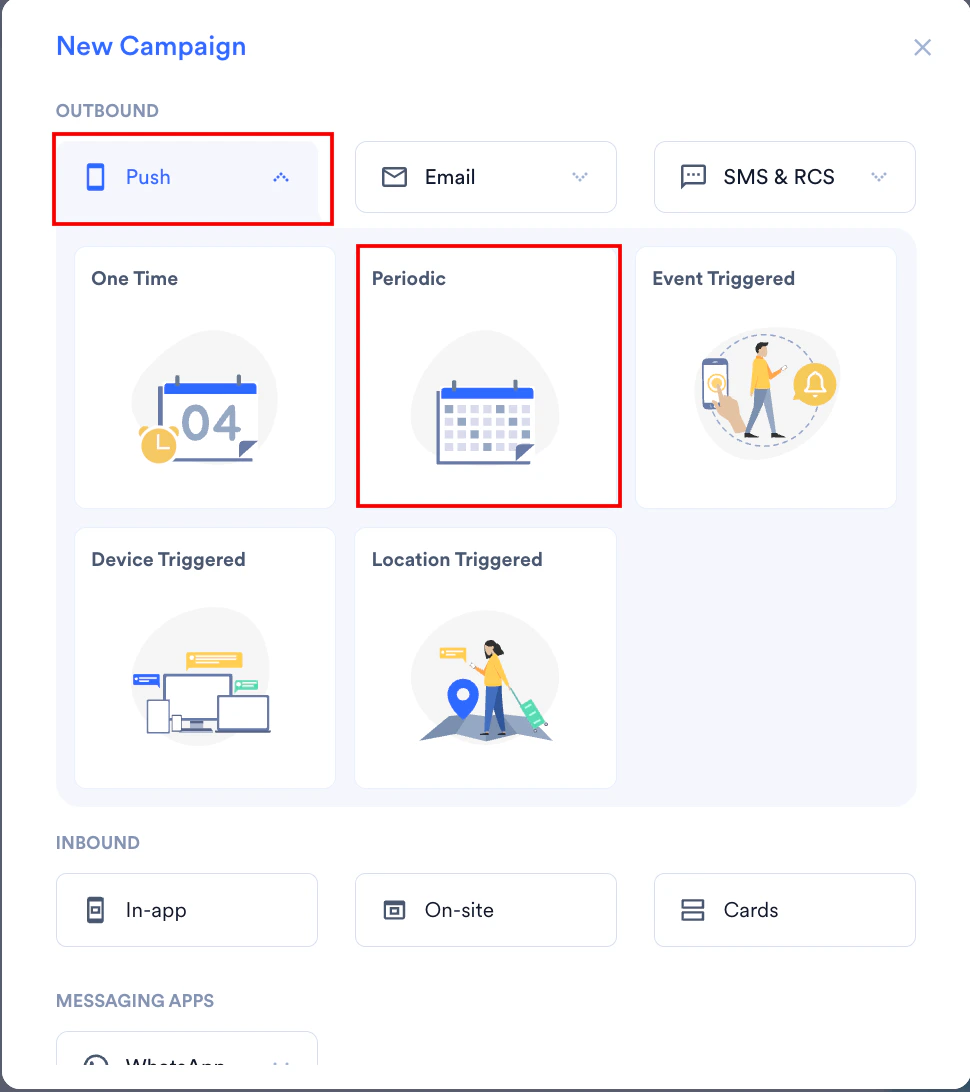
 - On the New Campaign dialog box, under OUTBOUND, click Email.
- Click **Periodic **campaign, and you can follow the same steps for any other email campaign type. For more information about delivery types, refer to Delivery Types.
- In step 1, Target users, enter the basic campaign details and define the audience and click Next.
- In step 2, Content, enter a subject and other basic campaign details and scroll down to the Template Editor section.
- If you are creating content using the Drag and drop editor:
- Start with your saved template, blank template, or a template from the pre-built templates section that can be customized as desired.
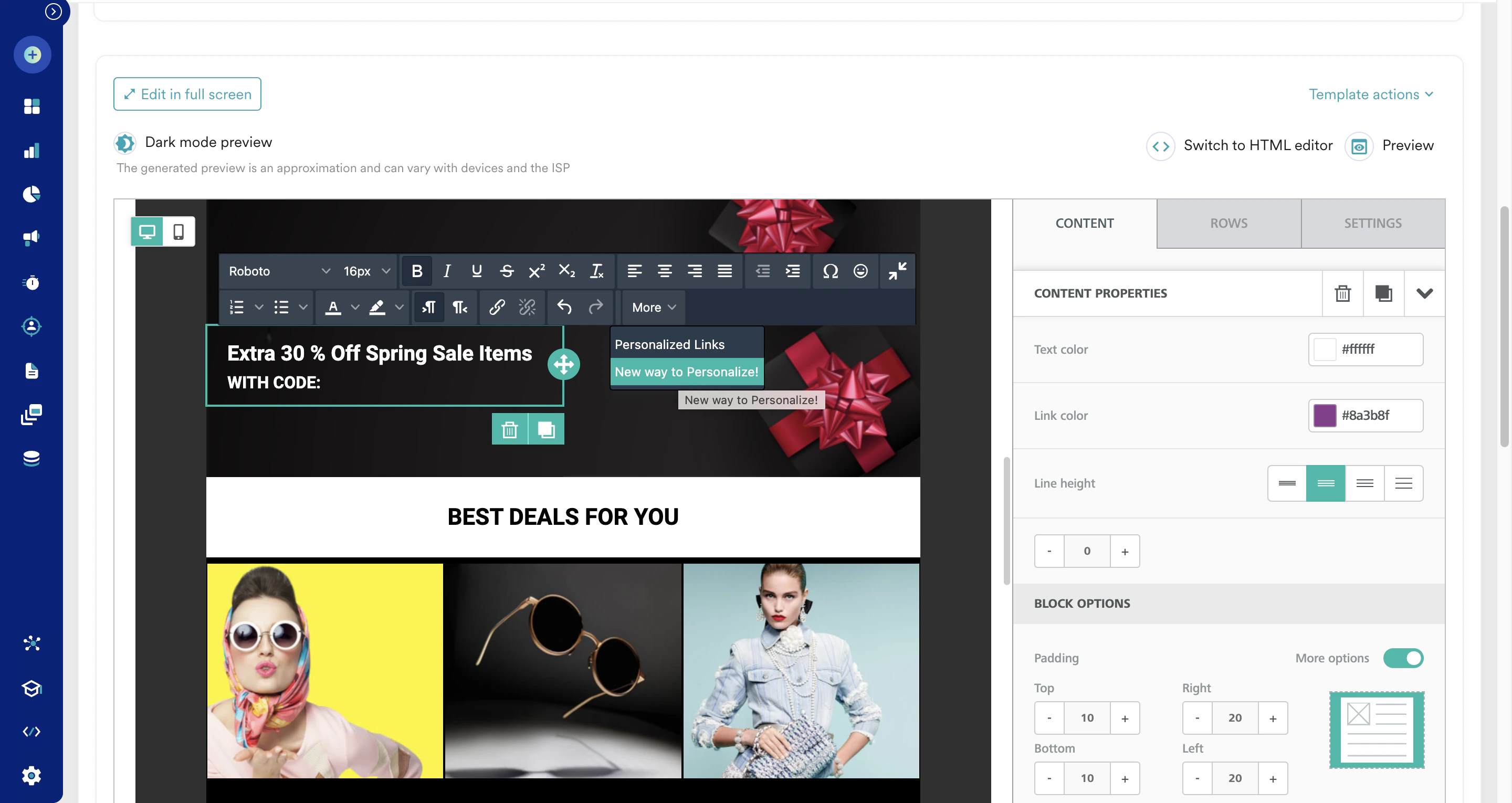
- Customize the template by adding your branding elements, images, and text. You can also personalize the email content using dynamic variables. For more information, refer to How to use the Template editor.
- Select the text section where you want to place the coupon code reference in the email body and click New way to Personalize.
- In the Email Personalization dialog box, on the Coupons tab, search for the coupon list from which you want to retrieve the coupons.
An alert icon will appear if the coupon count in the list is below the defined shortage threshold of coupon list settings. It’s a prompt to check audience size, coupon count, and restock before sending the campaigns.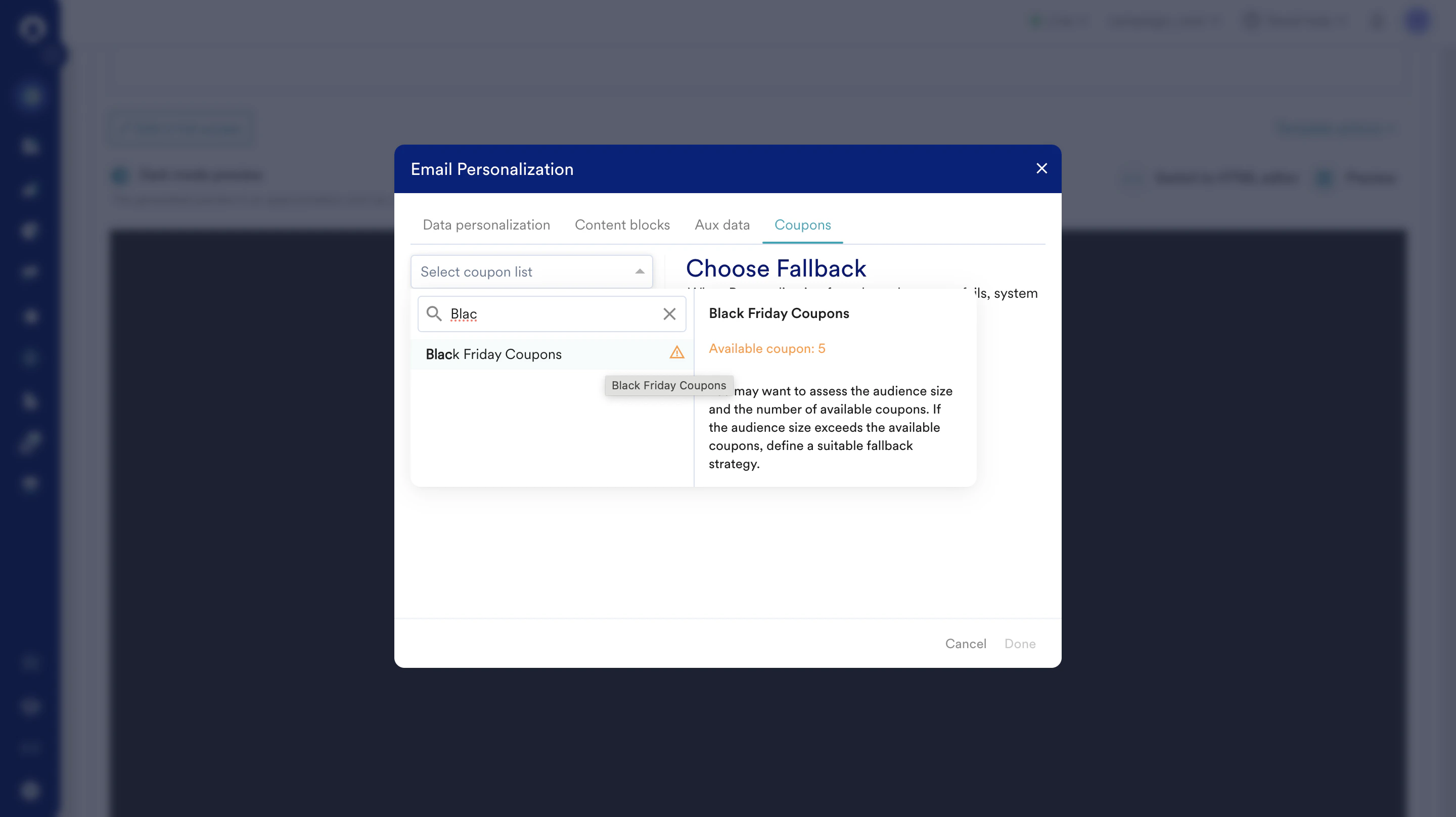
- Select the coupon list and choose a fallback to define what happens if the coupon list doesn’t retrieve coupons. Selecting Do not send Email will stop any email from being delivered without the coupon code. You can also use a static fallback coupon code as an alternative.
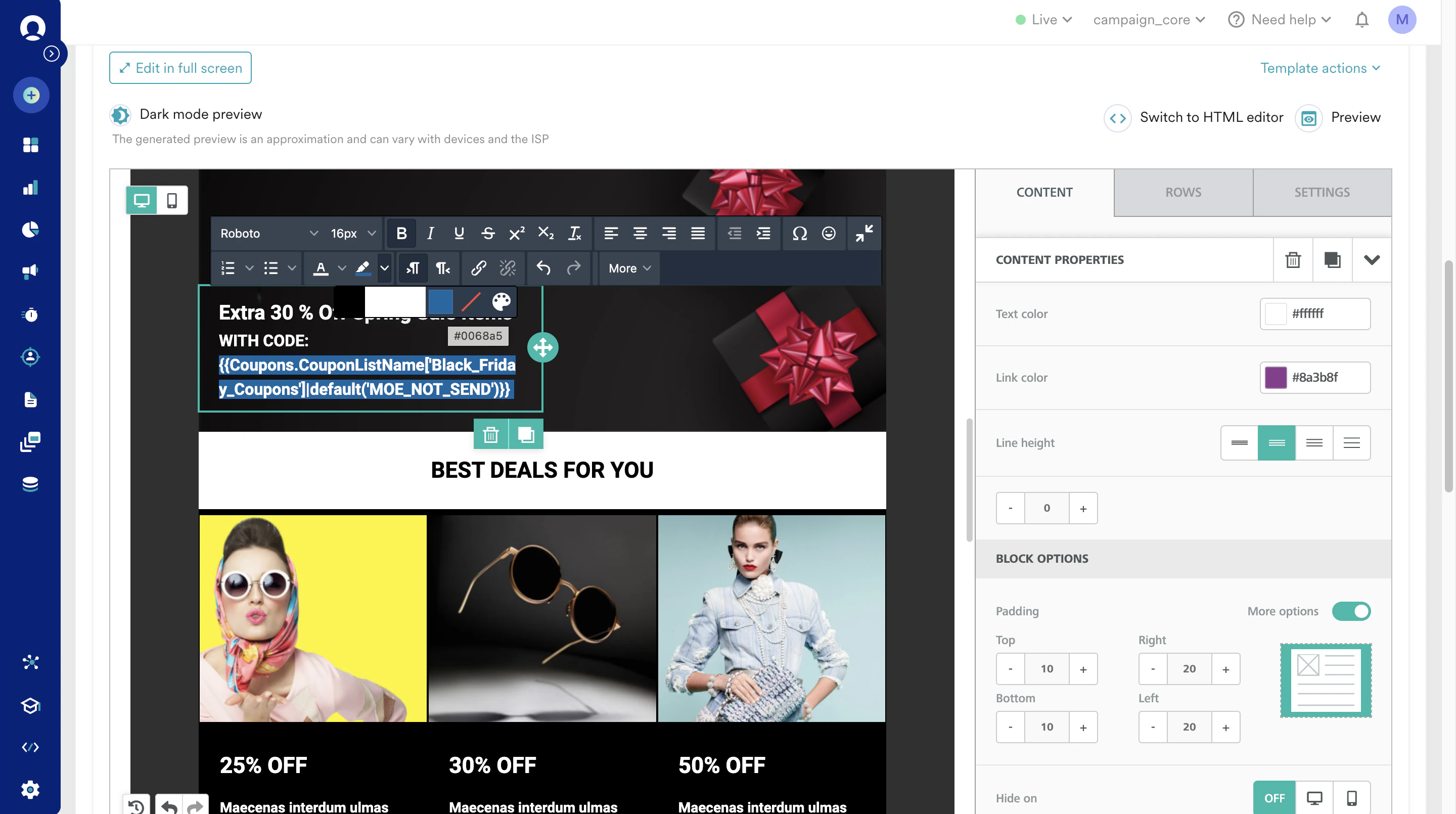
- Click Done. This action adds the Jinja reference in the selected text section of your email body as desired.
You can also paste the personalization snippet here directly.- Jinja reference for a coupon list without a fallback:
- Jinja reference for a coupon list with the Do not send fallback:
- Jinja reference for a coupon list with static fallback coupon code:
- Jinja reference for a coupon list without a fallback:
- Further, you can add a style to highlight the coupon code within the email body.
- If you are creating content using the Custom HTML editor:
- Paste or import your HTML code into the editor.
- Select the text area where you want to place the coupon code reference and type @.
- In the Email Personalization dialog box, on the Coupons tab, search for the coupon list from which you want to retrieve the coupons.
An alert icon will appear if the coupon count in the list is below the defined shortage threshold of coupon list settings. It’s a prompt to check audience size, coupon count, and restock before sending the campaigns. - Select the coupon list and choose a fallback to define what happens if the coupon list doesn’t retrieve coupons. Selecting Do not send Email will stop any email from being delivered without the coupon code. You can also use a static fallback coupon code as an alternative.
- Click Done. This action adds the Jinja reference in the selected text section of your email body as desired.
You can also paste the personalization snippet here directly.- Jinja reference for a coupon list without a fallback:
- Jinja reference for a coupon list with the Do not send fallback:
- Jinja reference for a coupon list with static fallback coupon code:
- Jinja reference for a coupon list without a fallback:
- After the setup is complete, click Preview to ensure it appears as intended.
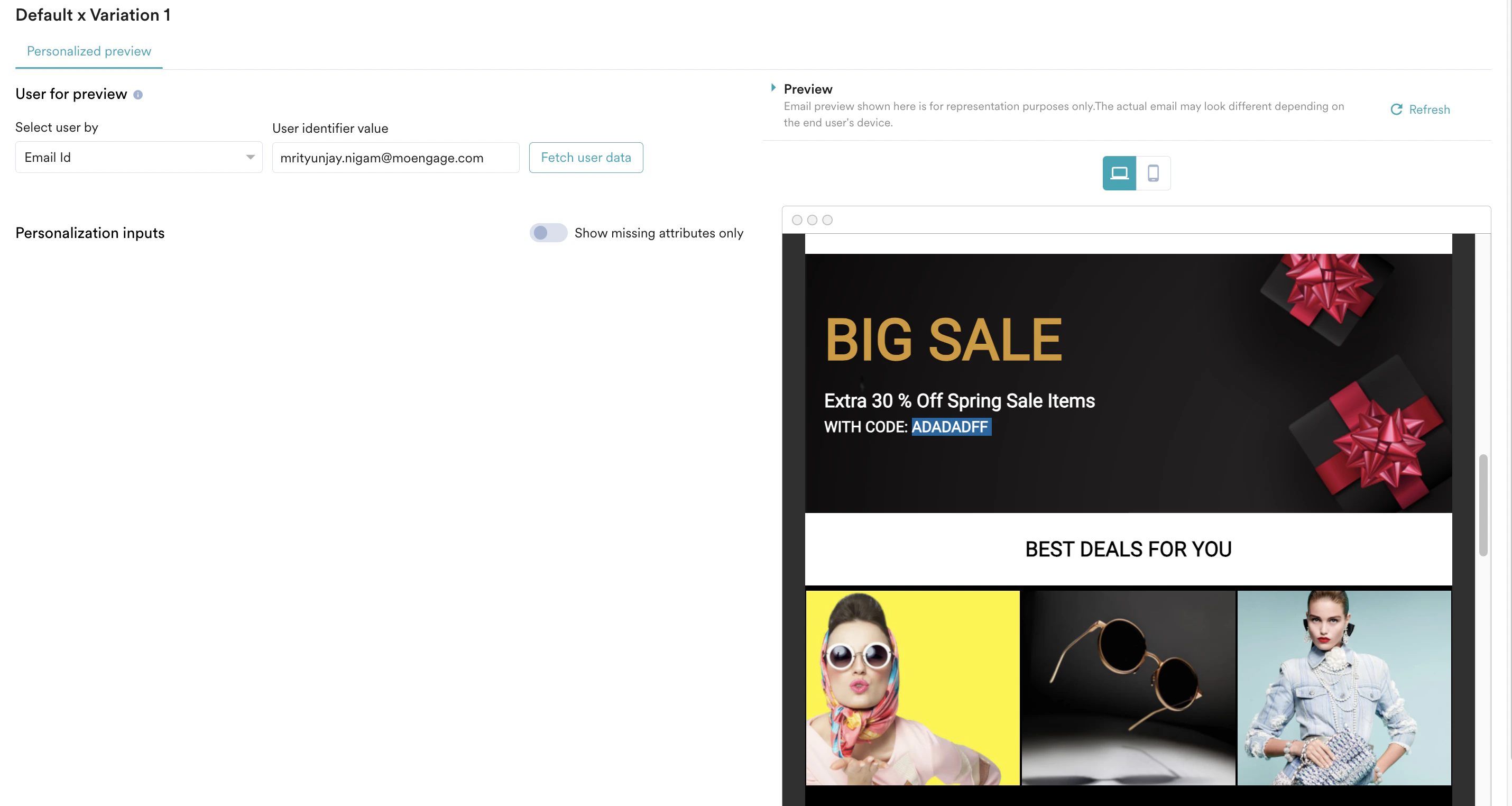
- You can also deliver a test campaign to ensure end-to-end delivery before scheduling it for all users.

- After the content setup with the coupon list is complete, click Next to move to step 3 of campaign setup, Schedule and Goals.
- Configure the appropriate schedule and goals, and publish the campaign.
- A campaign that uses single-use coupons can have throttling up to a maximum of 100K PRM.
- To ensure that coupons are not wasted during preview and test, the preview section and test campaign lock only one of the coupons from the coupon list for all test users.
- The coupon shown in the preview or test campaign is not marked as used. Hence this coupon will be available to be distributed in the live campaign.