This is an Early Access feature. To enable it for your account, please contact your MoEngage Customer Success Manager (CSM) or the Support team.
Overview
The Decisioning Agent Analytics page provides a centralized view to evaluate your AI Agent’s performance across multiple campaigns. It measures the “Incremental Value” of AI by comparing a Agent Treatment Group versus the Agent Control Group. Use this UI to:- Track how the AI adapts to user behavior in real-time.
- Quantify the impact of AI-optimized delivery and timing.
- Identify which channels and campaigns drive the highest engagement uplift.
InformationMoEngage calculates and displays all metrics based on the timezone configured in your app settings. Data is updated automatically when you change the global date range filter.
Access the Decisioning Analytics Page
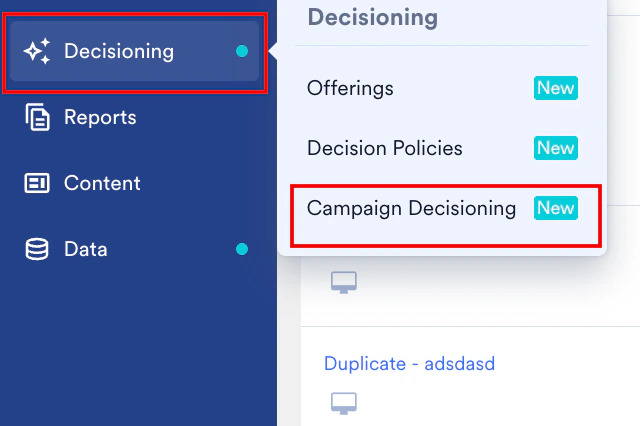
To view the performance metrics for a specific Campaign Decisioning Agent, perform the following steps:- On the sidebar menu in MoEngage, hover over the Decisioning menu item
 . The Decisioning menu appears.
 - Click Campaign Decisioning.
The Campaign Decisioning page appears.
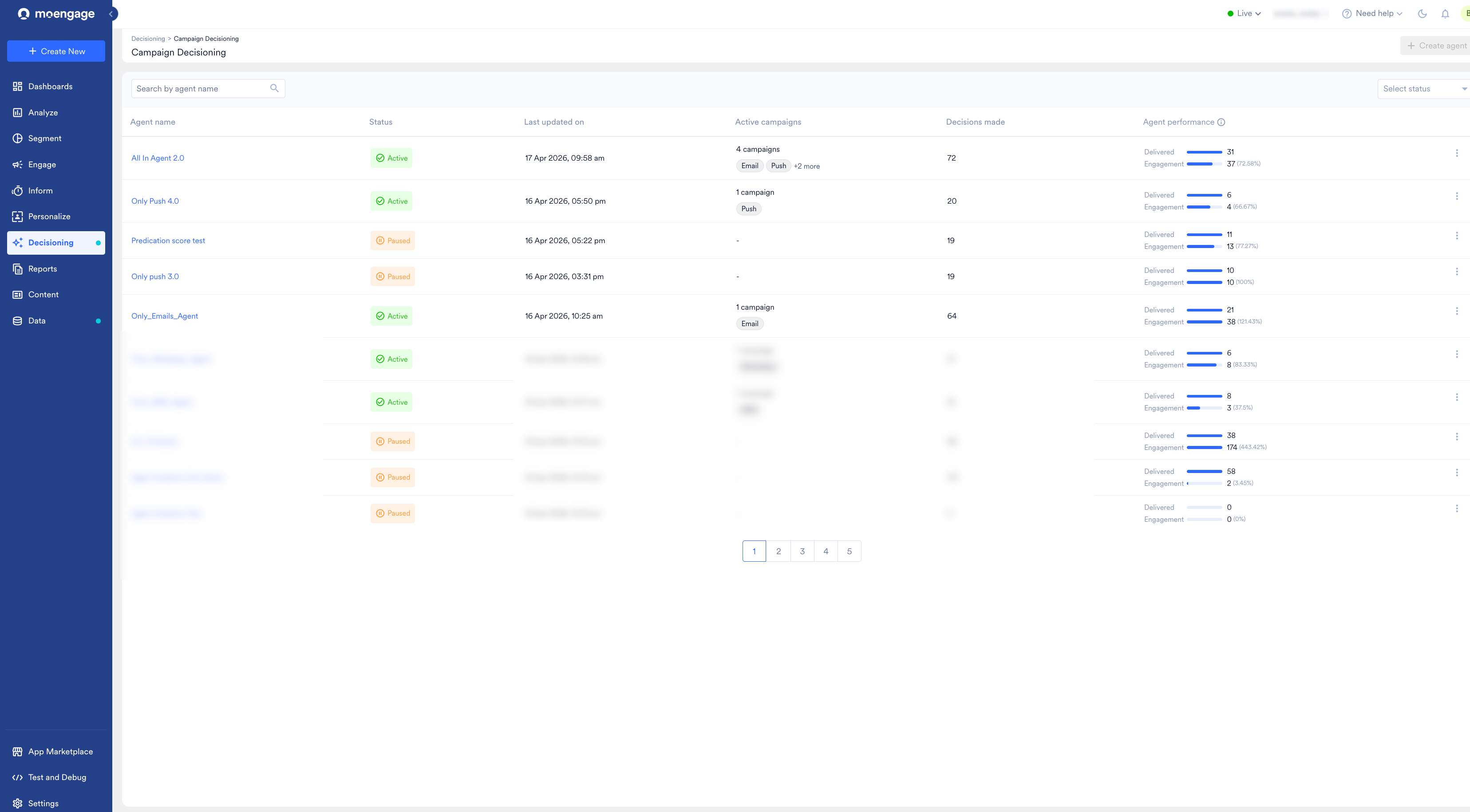
- From the list, click the Agent you want to analyze.
- Click the Analytics tab.
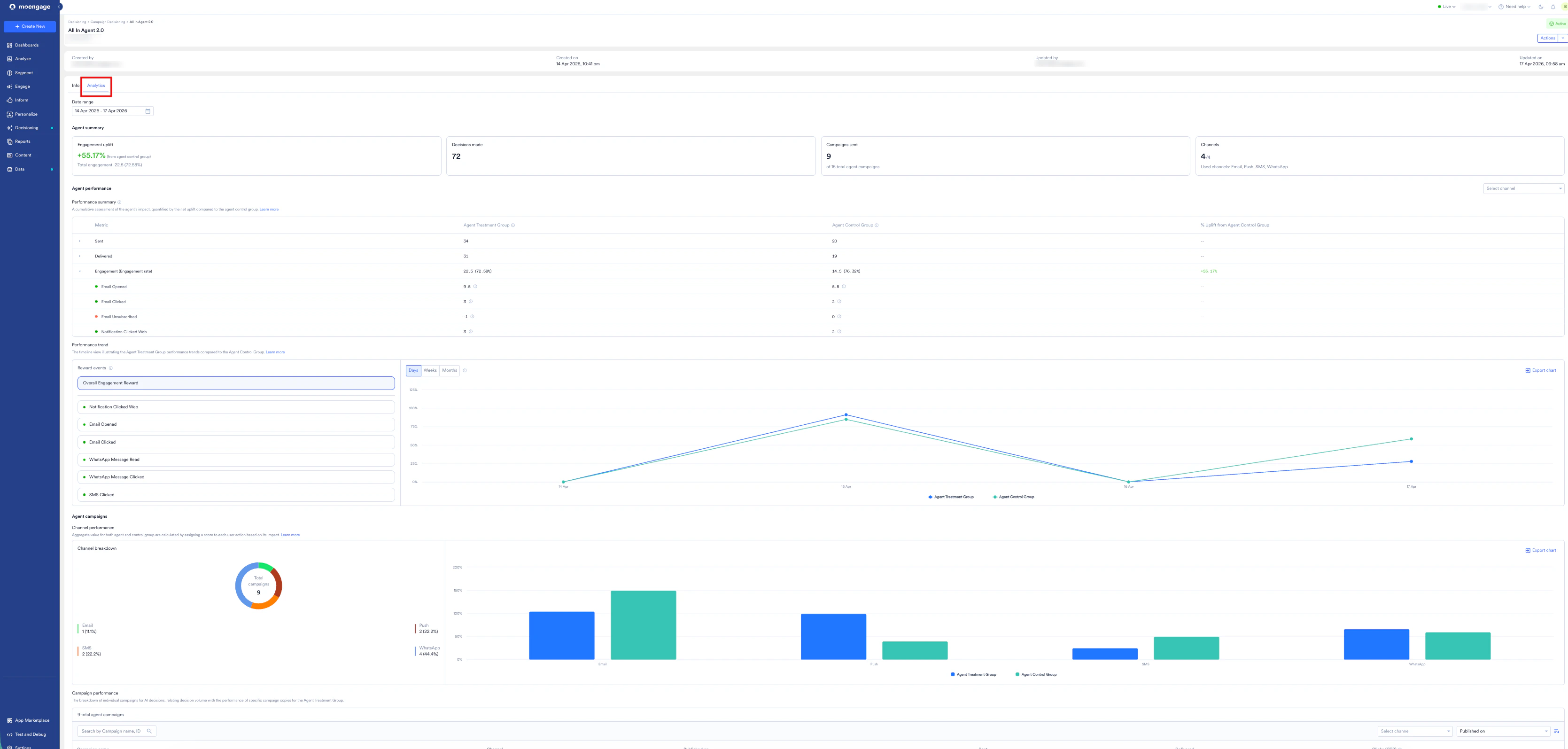
Terms to Know
Refer to the following glossary for information on the entities related to Decisioning Agent Analytics:Analyze Agent Performance
The Analytics tab allows you to visualize data patterns and validate the effectiveness of your AI strategy. This section explains how to use the filters and controls to interpret your data.Step 1: Filter Your Performance Data
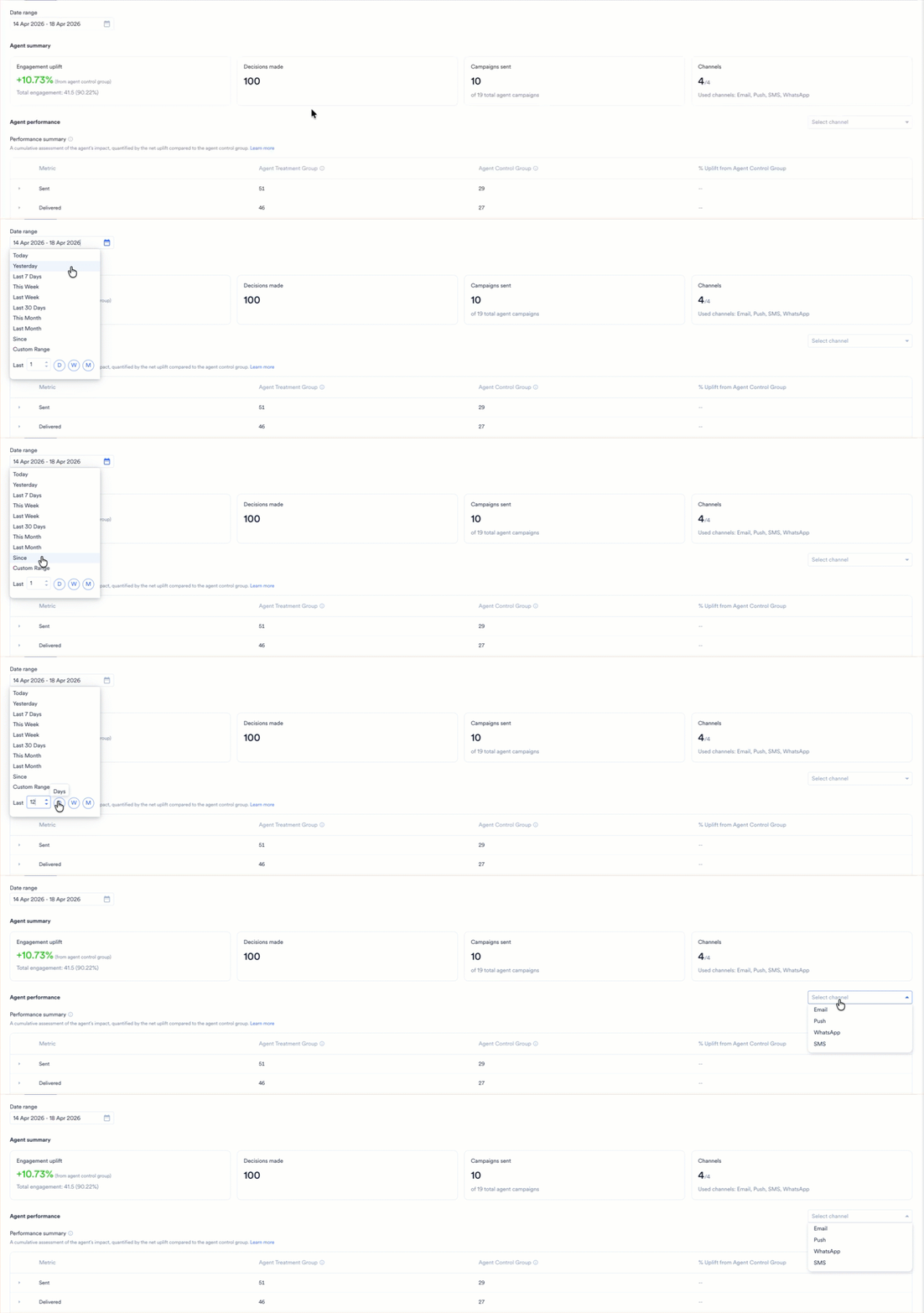
Select the data you want to analyze using the following filters at the top of the page:- Date Range: Define the time period for the analysis. You can select predefined options such as Today, Yesterday, Last 7 Days, Last 30 Days, This Week, Last Week, This Month, Last Month, or Since. To define a specific duration, select Custom Range. You can also view a rolling duration by entering a number in the Last input box and clicking D (days), W (weeks), or M (months). All summary cards and charts on the page are updated automatically to reflect your selection.
- Select Channel: Choose a specific platform (Email, Push, SMS, or WhatsApp) to isolate performance metrics for that channel.
Step 2: Review Operational Scale and Achievement
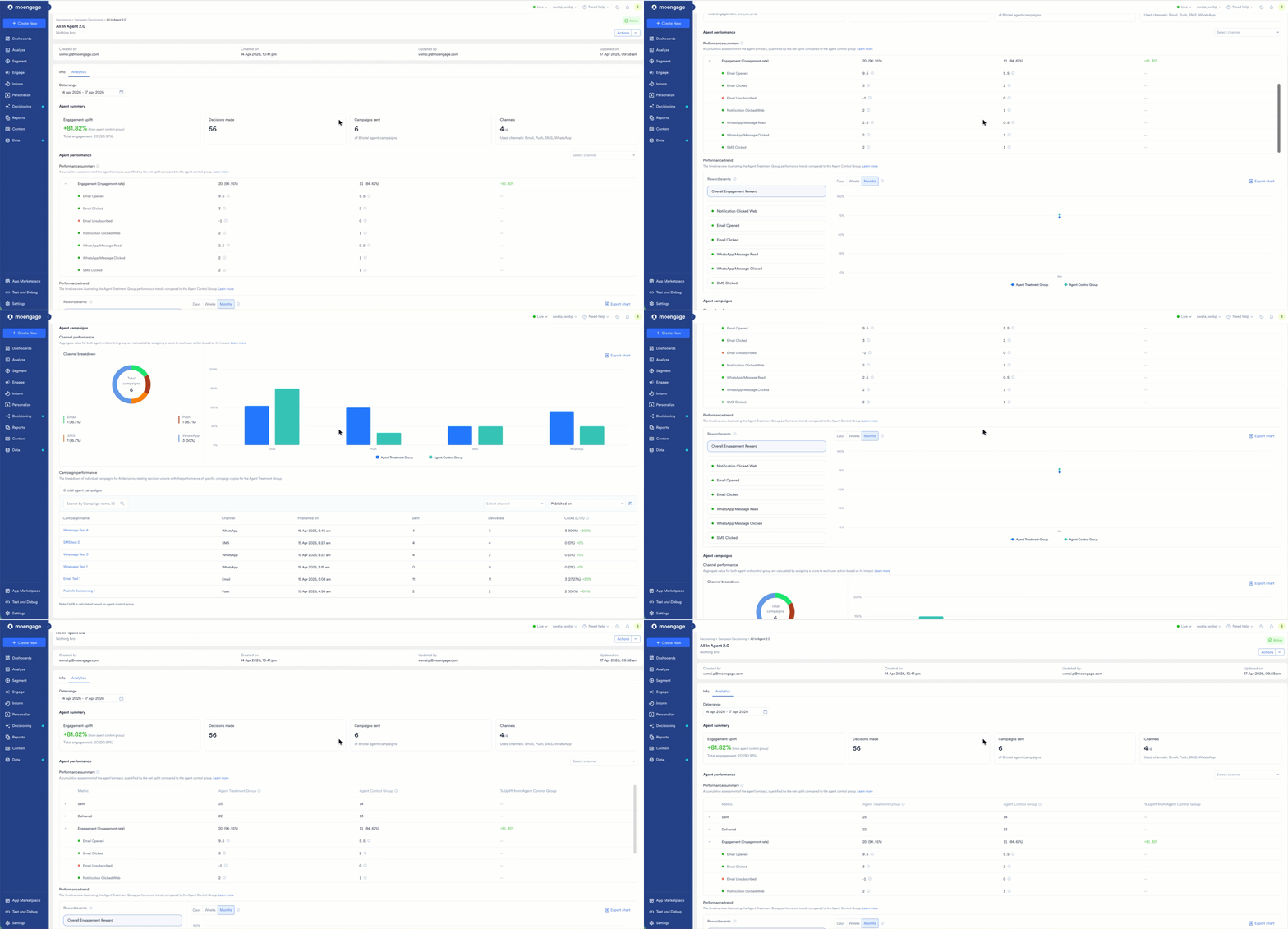
The following Agent summary cards provide high-level metrics that help you monitor the Agent’s operational status and overall effectiveness:- Engagement Uplift: Displays the net percentage increase in engagement compared to the control group.
- Decisions Made: Shows the total volume of individual 1:1 choices processed by the AI engine.
- Campaigns Sent: Lists the number of unique campaigns successfully delivered from the total eligible pool.
- Channels: Indicates the count of active channels currently in use (for example, 4/4).

Step 3: Analyze Performance Summary
The Performance Summary table provides a detailed comparison of the Agent Treatment Group versus the Agent Control Group. This view updates dynamically based on your global filter selections to show relevant metrics. For example, to view the performance of a specific channel, perform the following steps:- In the Date Range list, select the time period you want to analyze.
- In the Select channel list, select a channel (for example, Email). The table is updated to show reward events for that channel, such as Email Opened and Email Clicked.
- Review the Sent, Delivered, and Engagement metrics for both groups.
- Click the arrow icon
 next to the Engagement row to expand and view granular event data.
Note: Reward events are indicated with green dots (Positive Events) or red dots (Negative Events) as defined in your reward strategy.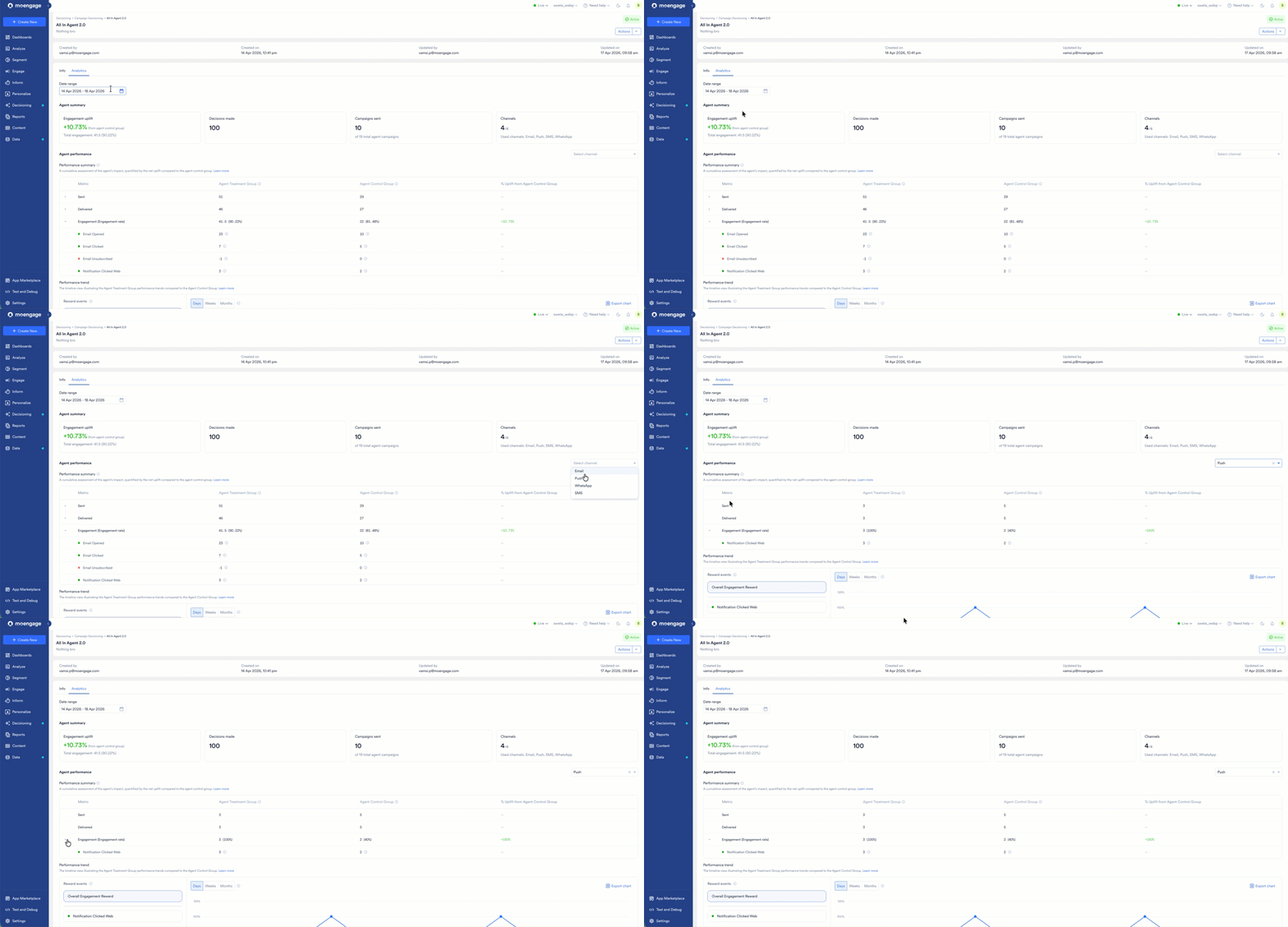
Formula
- Engagement Rate = (Engagement weighted score / Number of Delivered communications) * 100.
- Engagement uplift = ((Engagement rate of agent target group − Engagement rate of control group )/ (Engagement rate of control group))*100.
Step 4: Visualize Optimization Trends
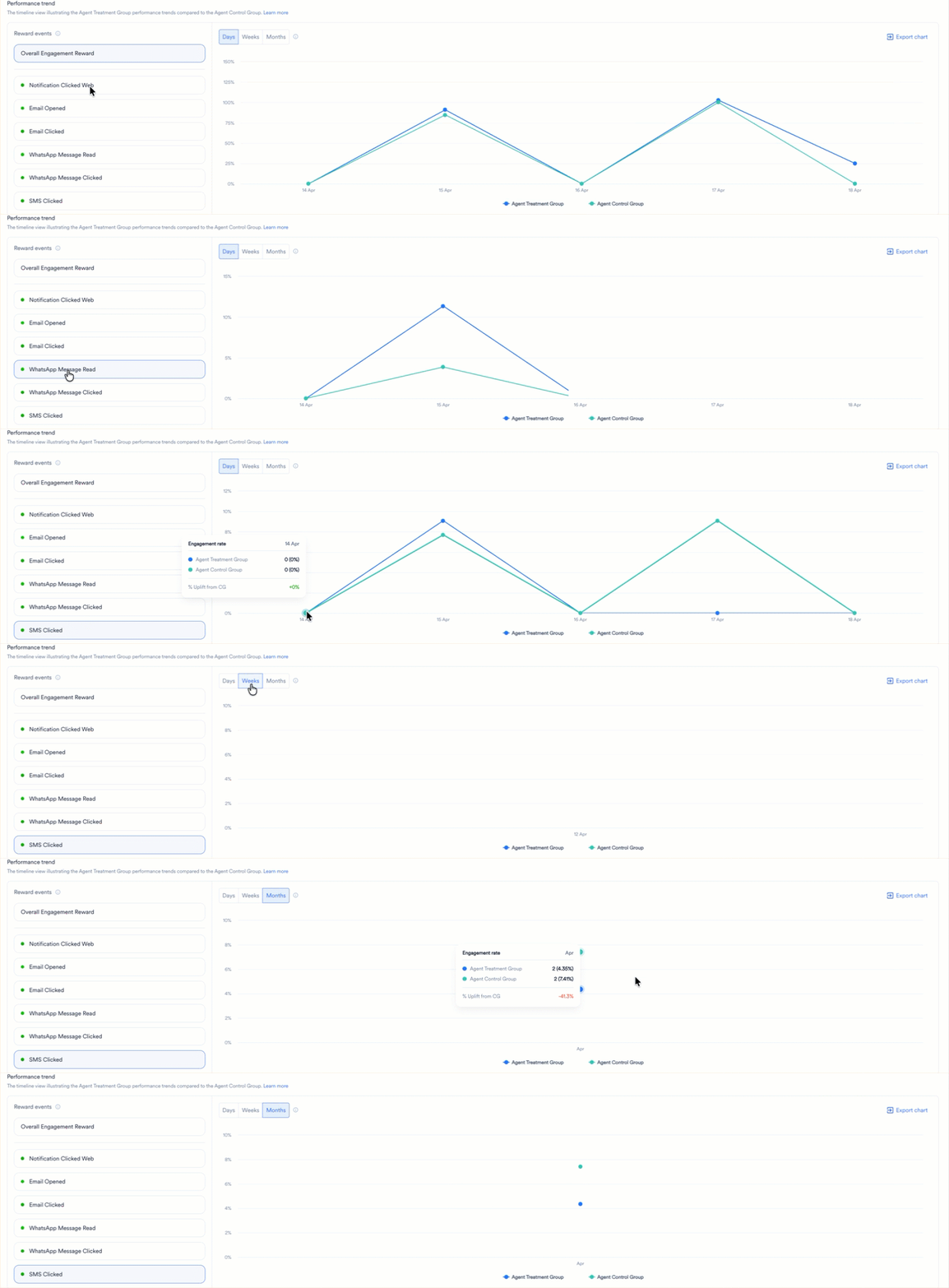
The Performance Trend section allows you to visualize how the AI model optimizes results over time.- Reward Selection: Use the left sidebar to select specific events and isolate their trends in the line chart.
- Granularity: Switch the timeline view between Days, Weeks, or Months.
- Export: Click Export chart to download the current visualization as a PNG file.
Step 5: Review Channel and Campaign Performance
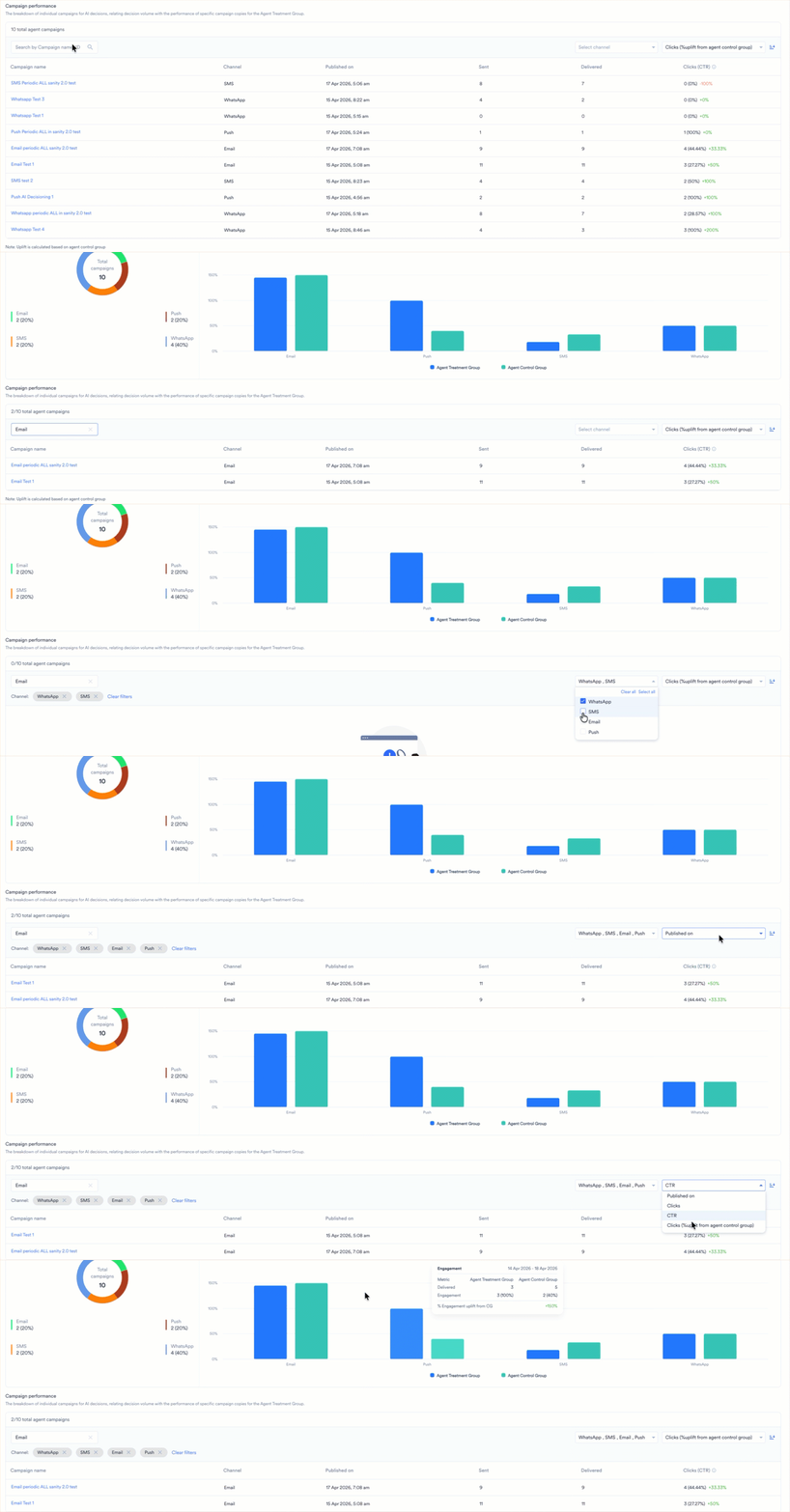
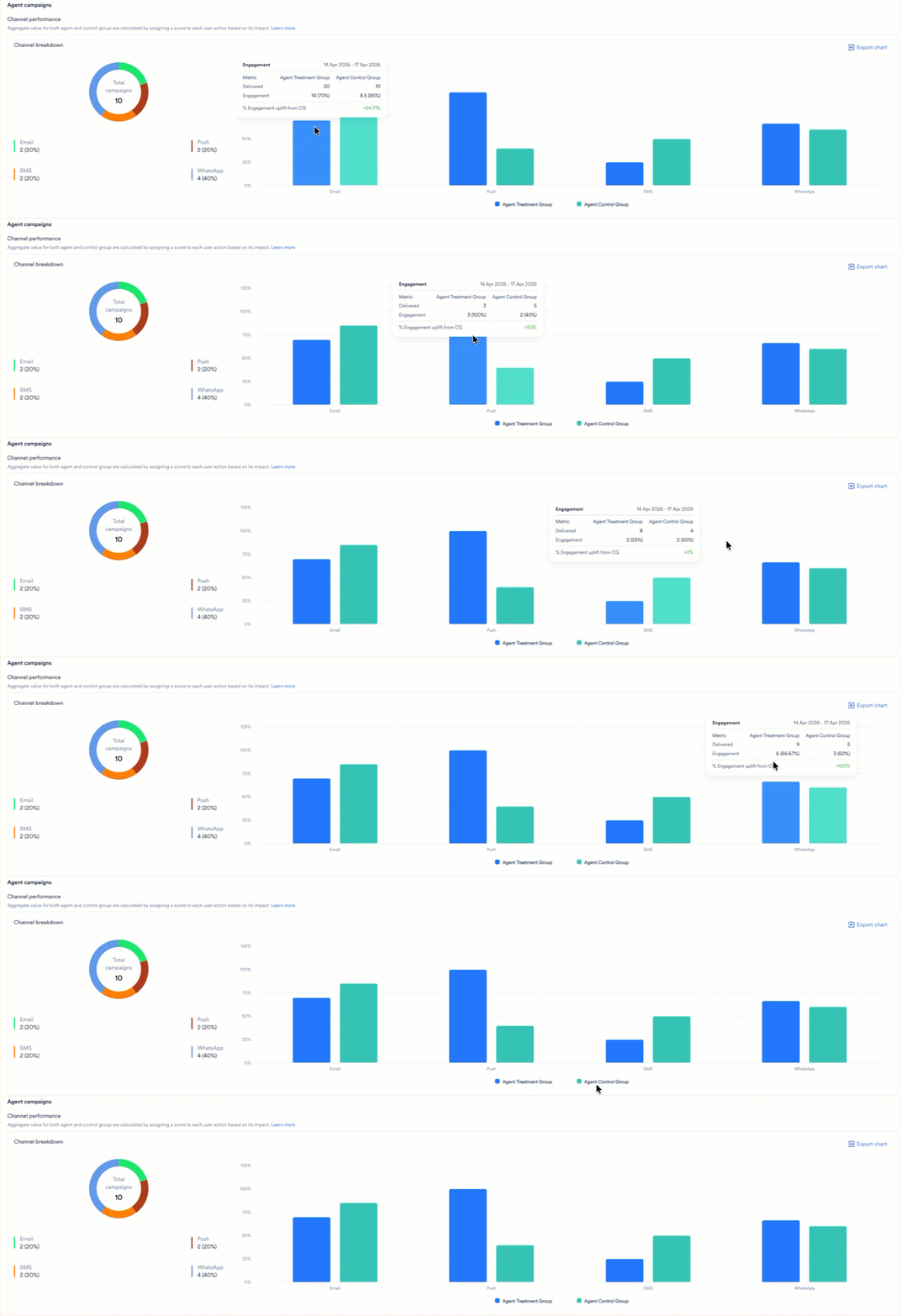
The channel and campaign performance sections provide the following detailed metrics that help you identify the specific segments of your strategy that drive the most impact:- Channel Breakdown: Review the donut chart to see the percentage distribution of campaigns across used channels.
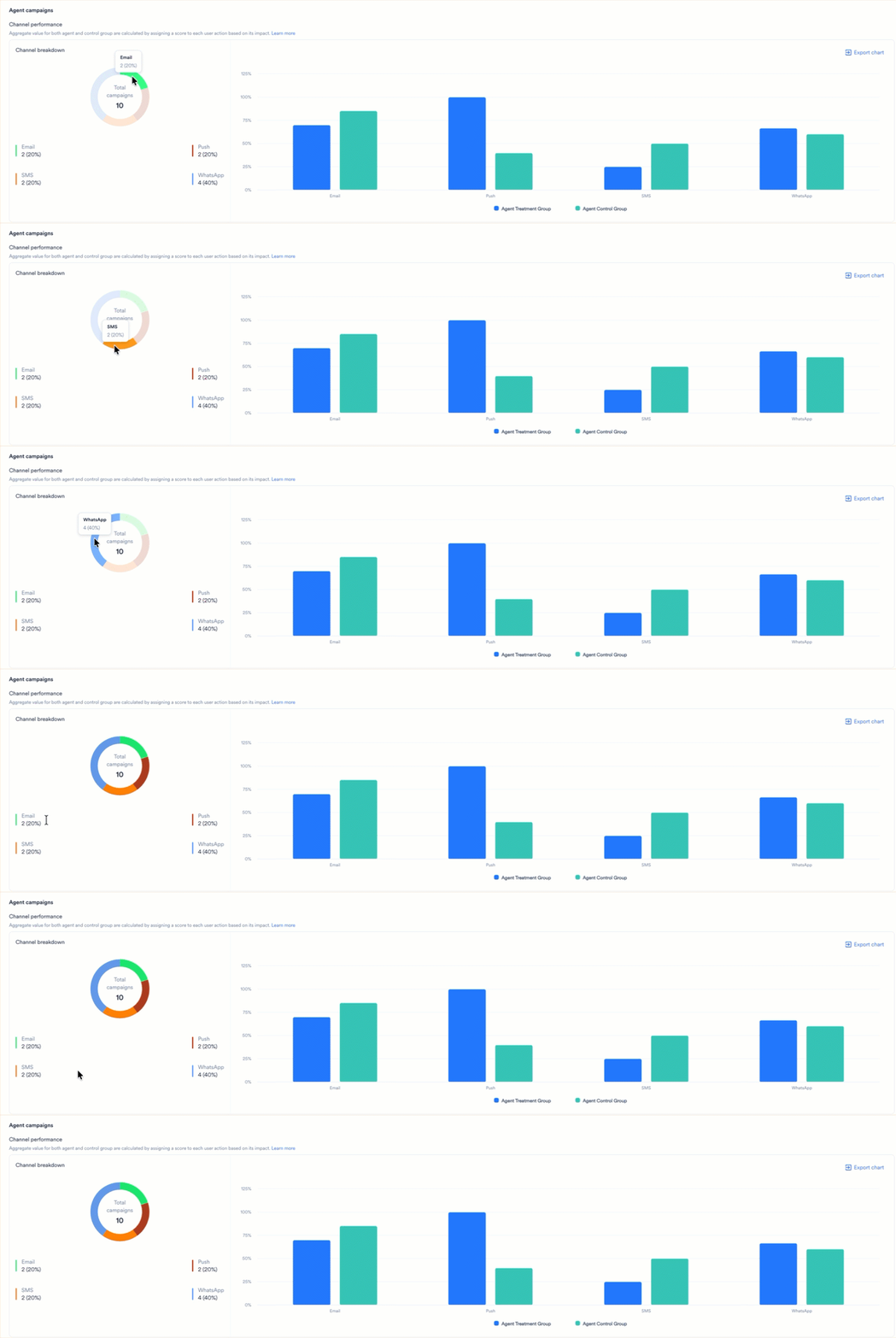
- Channel Performance: Use the bar chart to compare Agent Treatment Group and Agent Control Group performance for each used channel.
- Campaign Performance Table: A granular list of all campaigns managed for the Agent Treatment Group. You can sort this list by Sent, Delivered, or CTR to identify winning variations.
- In the Search by Campaign name, ID box, type the name or identifier of a specific campaign.
- In the Select channel list, select one or more channels to filter the table.
- In the Published on list, select a date or timeframe to see campaigns released during that period.
- Click the sort icon
 to organize the list by Sent, Delivered, or Clicks (CTR).