

What are Offerings?
Offerings in MoEngage are defined promotions that include:- User Eligibility: Rules that determine which users are eligible for the offering (for example, customers on a specific plan, in a certain location).
- Schedule: The period during which the offering is active.
- Priority: A manually assigned score that indicates importance. A higher value means higher importance.
- Usage Limits: Controls for how many times an offering can be used, both overall and by individual users, with options for periodic resets (for example, daily, weekly, monthly).
- User Interface & Content: The actual content the user sees, such as images, descriptions, and legal terms.
Create Offerings
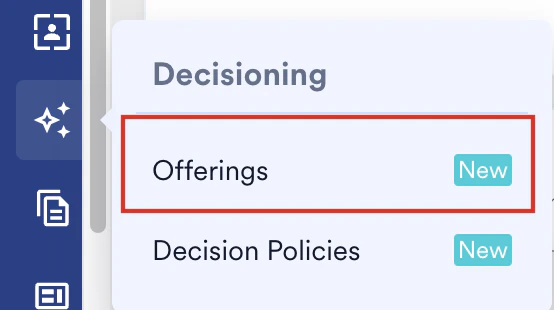
To create offerings in MoEngage:- On the sidebar menu in MoEngage, hover over the Decisioning menu item
 . The Decisioning menu appears.
 - Click Offerings.
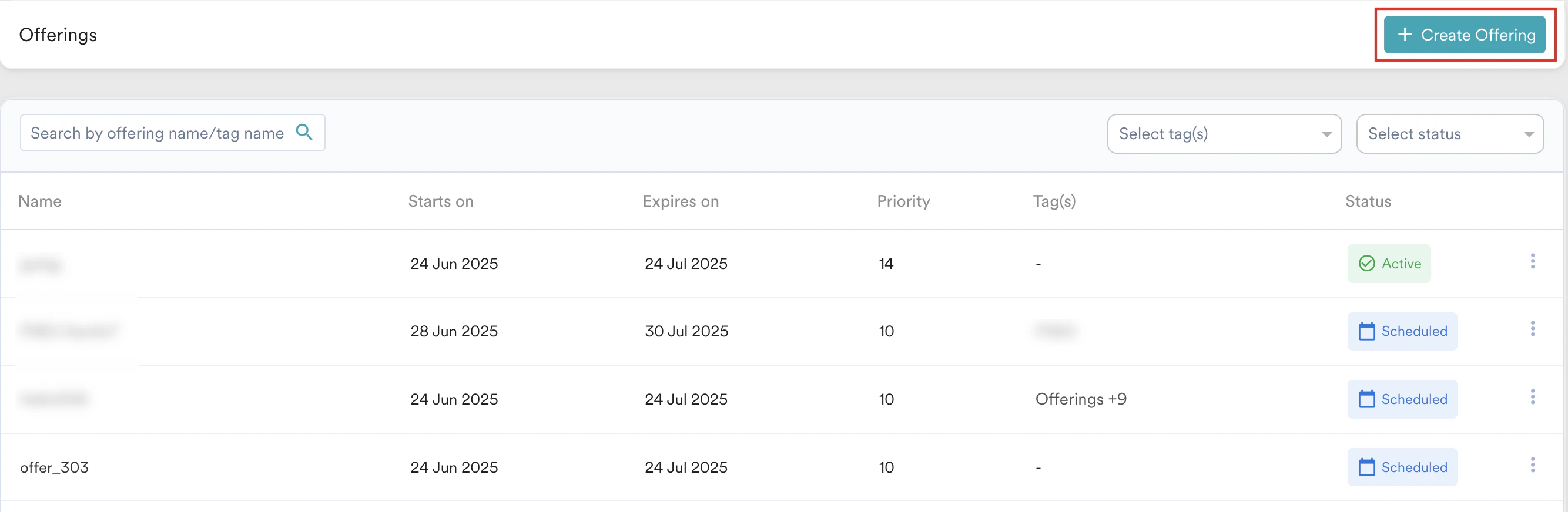
- On the Offerings page, click + Create Offering.
Step 1: Basic Details, Eligibility & Controls
In the Basic Details section, define the basic details of your offering using the following fields: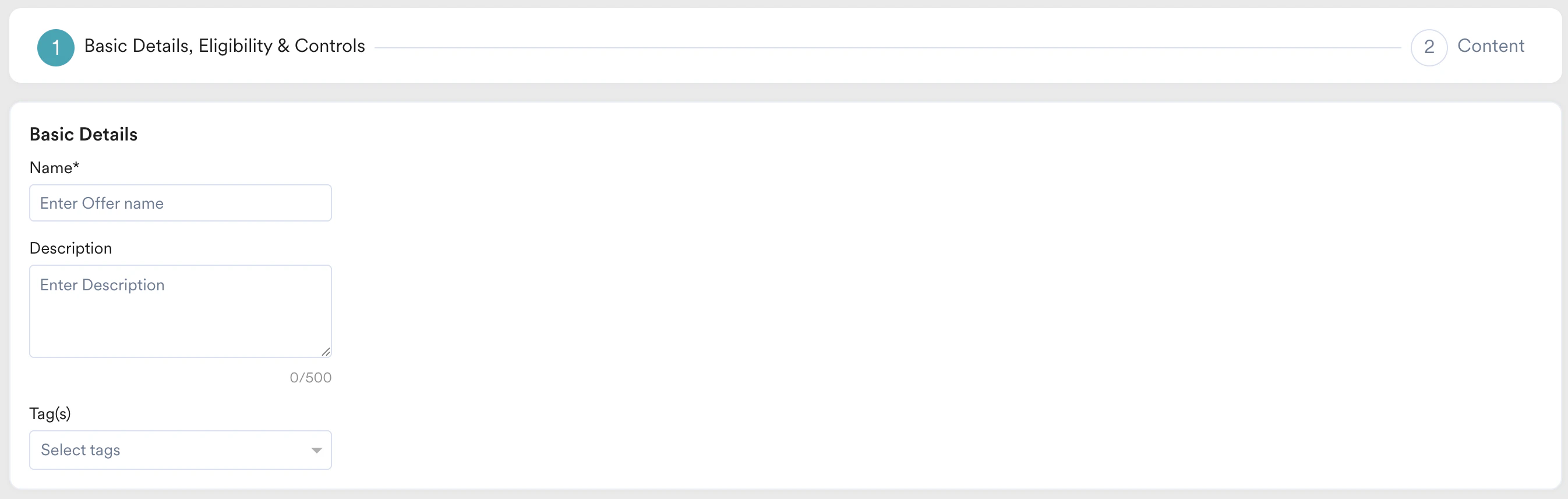
- Name: Type the offering name to identify and manage your offer.
- Description: Type a summary of the offer’s purpose, key features, or terms.
- Tags: Select or create tags to categorize and easily filter your offerings. Tags are crucial as they facilitate the grouping of multiple offerings. A tag can be integrated into a decision policy, allowing the strategy to select from all policies with a specific tag.
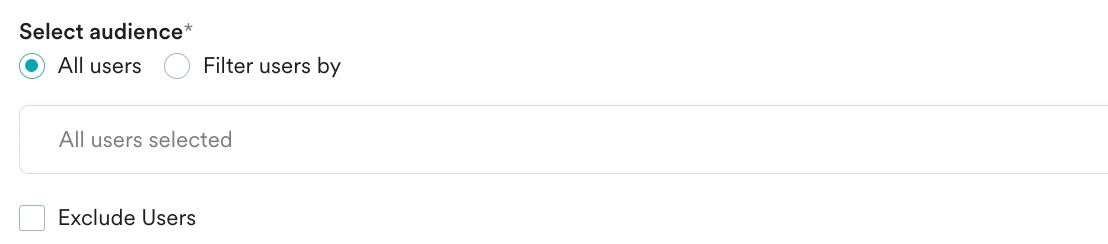
- Select the desired attribute in the drop-down list. This enables the filters based on the attributes selected. For example, attributes that are numbers can have filter conditions such as ‘is equal to’, ‘is not equal to’, ‘is between’, and so on, while string attributes have different filters.
- Enter the filter value(s) to create the desired user segment.
- Click + Nested Filter to add a filter to create nested AND or OR conditions. (This is optional)

- Select the execution condition and the desired user activity (event).
- Enter the event frequency and time duration for the event execution.
- Click + Attributes and add an event attribute with a filter condition.
- Enter the filter value(s) to create a rule.
- Use the + Aggregation button to add the aggregation functionality. For more information, refer to Aggregation Operations.
- Click + Nested Filter to add a filter to create nested AND or OR conditions. (This is optional)

- Select the desired user event or attribute.
- Select the user affinity parameter from the following:
- Predominantly: Select an affinity attribute with a filter condition and provide the affinity values.
- For a minimum of: Select an affinity attribute with a filter condition and provide the affinity values.
- Most no. of times: Enter a value or use the arrows to provide the top percentage of users.
- Least no. of times: Enter a value or use the arrows to provide the bottom percentage of users.
- Enter or use the arrows to provide the time duration for the event execution.
- Click + Attribute to add more attributes to the filter.
- Click + Nested Filter to add a filter to create nested AND or OR conditions. (This is optional)

- Select a custom segment as the target audience from the list of custom segments available.
- Click + Nested Filter to add a filter to create nested AND or OR conditions. (This is optional)

- Start Date: Select the date when your offering becomes active.
- End Date: Select the date when your offering expires.
 In the Priority section, select your offer’s display priority using the Priority Score list. A higher score ensures your offering is more likely to be displayed when a user is eligible for multiple offerings at the same time.

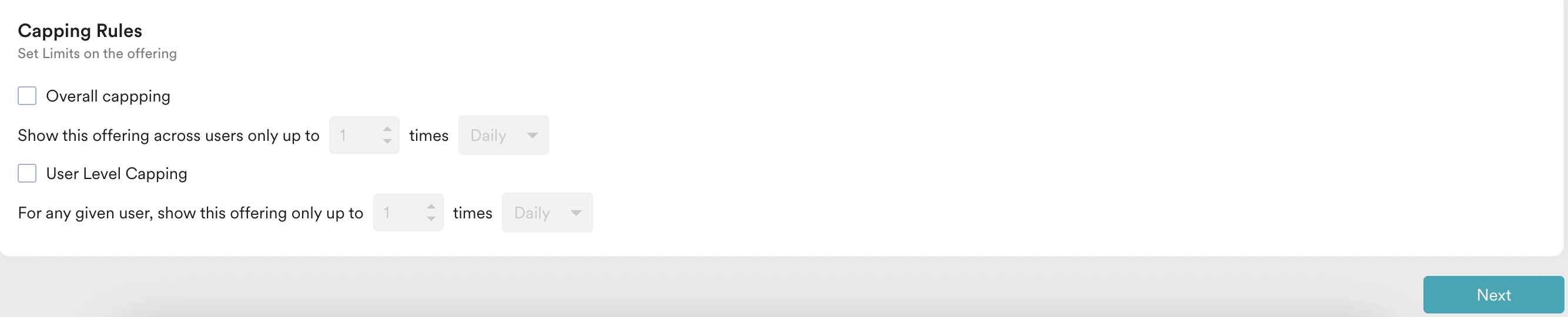
- Overall Capping: This limit specifies how many times this offering can be claimed across all users in the targeted segment. You can also specify the maximum number of times the offering can be used and choose a reset frequency from: Daily, Weekly, or Monthly.
For example, if you want an offering to be shown only 100 times in a day, set the Overall Capping to 100 with a “Daily” frequency. After the 100th view, the offering will stop being served to anyone until the daily reset occurs. - User Level Capping: This limit specifies how many times a single user who is part of the targeted segment can claim the offer. You can also specify the maximum number of times a user can claim it and choose a reset frequency from: Daily, Weekly, or Monthly.
For example, to limit an offering so each user can claim it only once per week, set the User Capping to 1 and the Frequency to “Weekly”. A user who claims the offering will not be eligible again until the cap resets at the start of the next week.
Step 2: Content
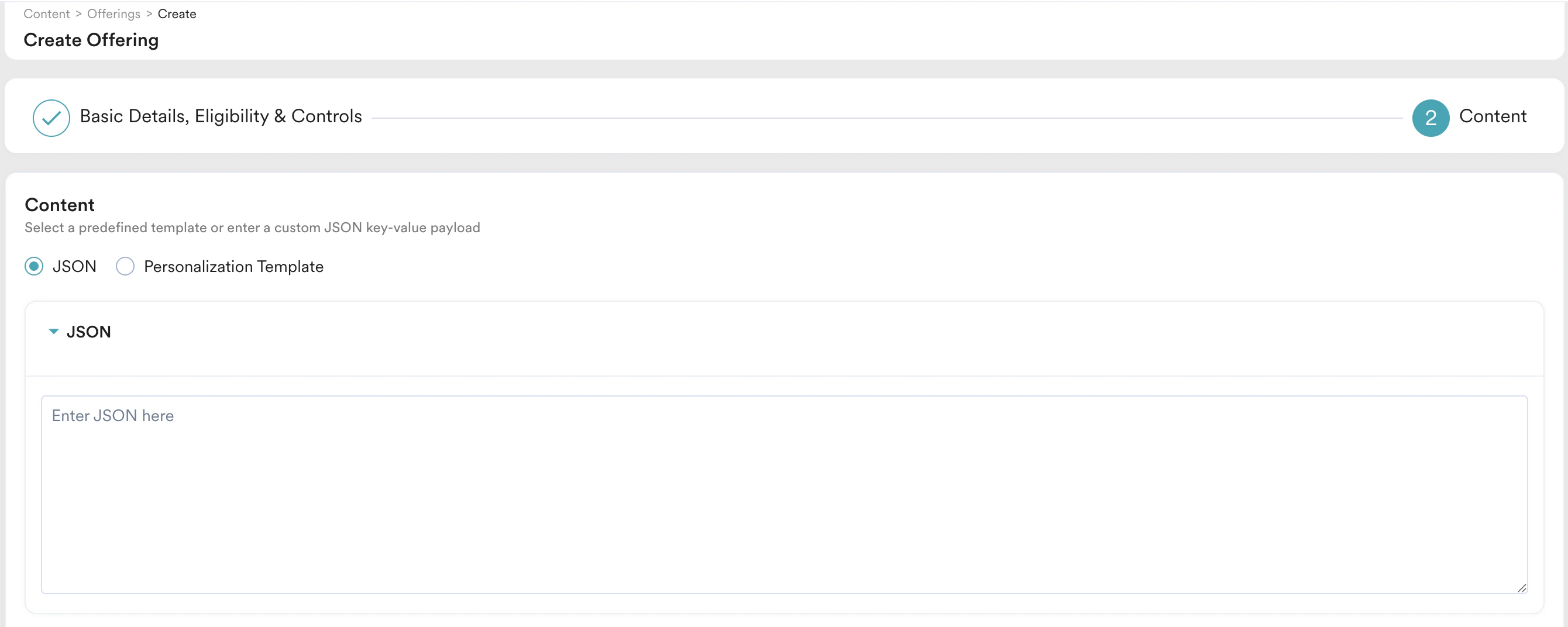
In this step, you define the actual content that your users will see. MoEngage provides two options to help you build your offering content: JSON and Personalization Template. Additionally, you should consider tailoring your content for various communication channels and placements to maximize its effectiveness.- JSON: The JSON option gives you complete control over your offer’s content.You can select the JSON option and directly input the JSON content that defines your offer’s structure and data. This method is ideal for users who need custom layouts, and dynamic content, or wish to utilize pre-existing JSON structures..
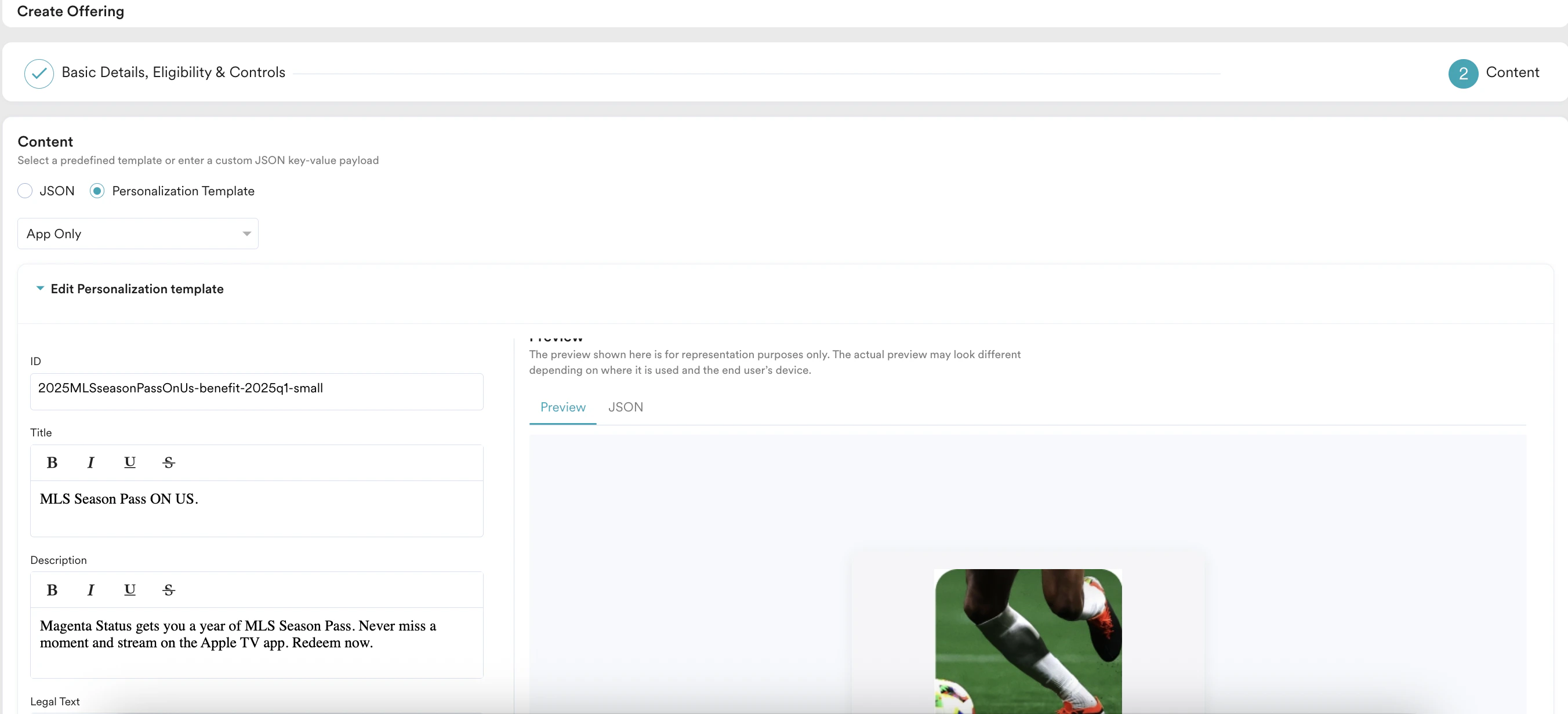
- Personalization Template: This option simplifies content creation by providing pre-designed structures. This is ideal for marketers who want to populate an offering without writing code. To create content using templates, perform the following steps:
- Select the Personalization Template option.
- Choose the desired template from the list of available templates.
- Fill in the required fields based on the selected template. You can see a live preview of how the promotion will look to the end-user.
- To view the underlying JSON structure generated by your template selections, navigate to the JSON tab at any time.
View and Manage Created Offerings
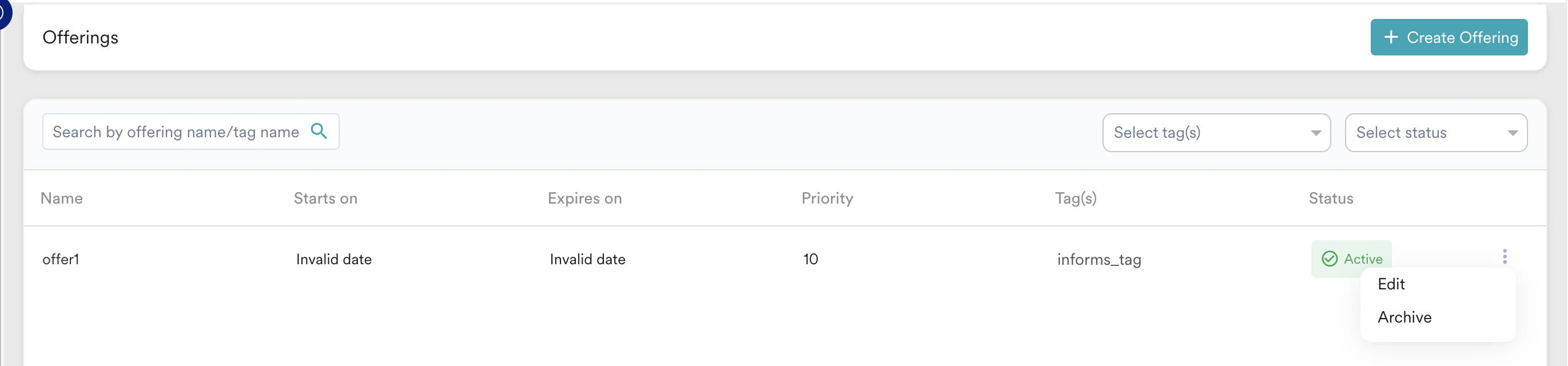
- Search for the offering using name or tags.
- Filter the offerings based on tags and status.
- Edit or Archive the offering by clicking the ellipsis (
 ) icon against that offer.
For more information, refer to FAQs on Offerings.
Next Step
After creating your offerings, a decision policy then determines how MoEngage intelligently selects and displays them to your users. For more information, refer to Decision Policy.Create a Coupon List
- Click Coupons.