

Overview
This is a paid add-on feature. To enable it for your account, contact your MoEngage Customer Success Manager (CSM) or the Support team.
Use Cases
Adopting a Portfolio structure helps marketers solve several critical business challenges:- Unified customer view: Consolidate user data from all your apps and websites into a single, comprehensive profile for each user, allowing you to understand the complete customer journey.
- Cross-brand segmentation: Build powerful audience segments based on user behavior across different projects. For example, you can identify customers active in multiple sub-brands and send a single loyalty campaign rewarding their cross-brand engagement.
- Cross-project trigger campaigns: Trigger a campaign from one brand to suggest a similar product when a user abandons their cart on another. For example, you can target buyers from one product line with complementary offers from another (cross-sell), or trigger a reactivation offer when a user becomes inactive in one app but remains active in another (churn prevention).
- Centralized campaign management: Manage and deploy Push Notification campaigns to any of your projects from a single dashboard, streamlining your operations.
- Holistic analytics: Gain a portfolio-level understanding of user engagement, conversion, and campaign performance across all your digital properties.
- Controlled user communication: Manage communication frequency (Frequency Capping) and Do Not Disturb (DND) hours for users across your entire brand portfolio to prevent message fatigue. For example, you can ensure you send only the single most relevant breaking news push from the most appropriate app, avoiding redundant notifications.
Manage Your Portfolio
A Project is a single app or website in your portfolio. Your workspace can support approximately 20 projects.Add Project
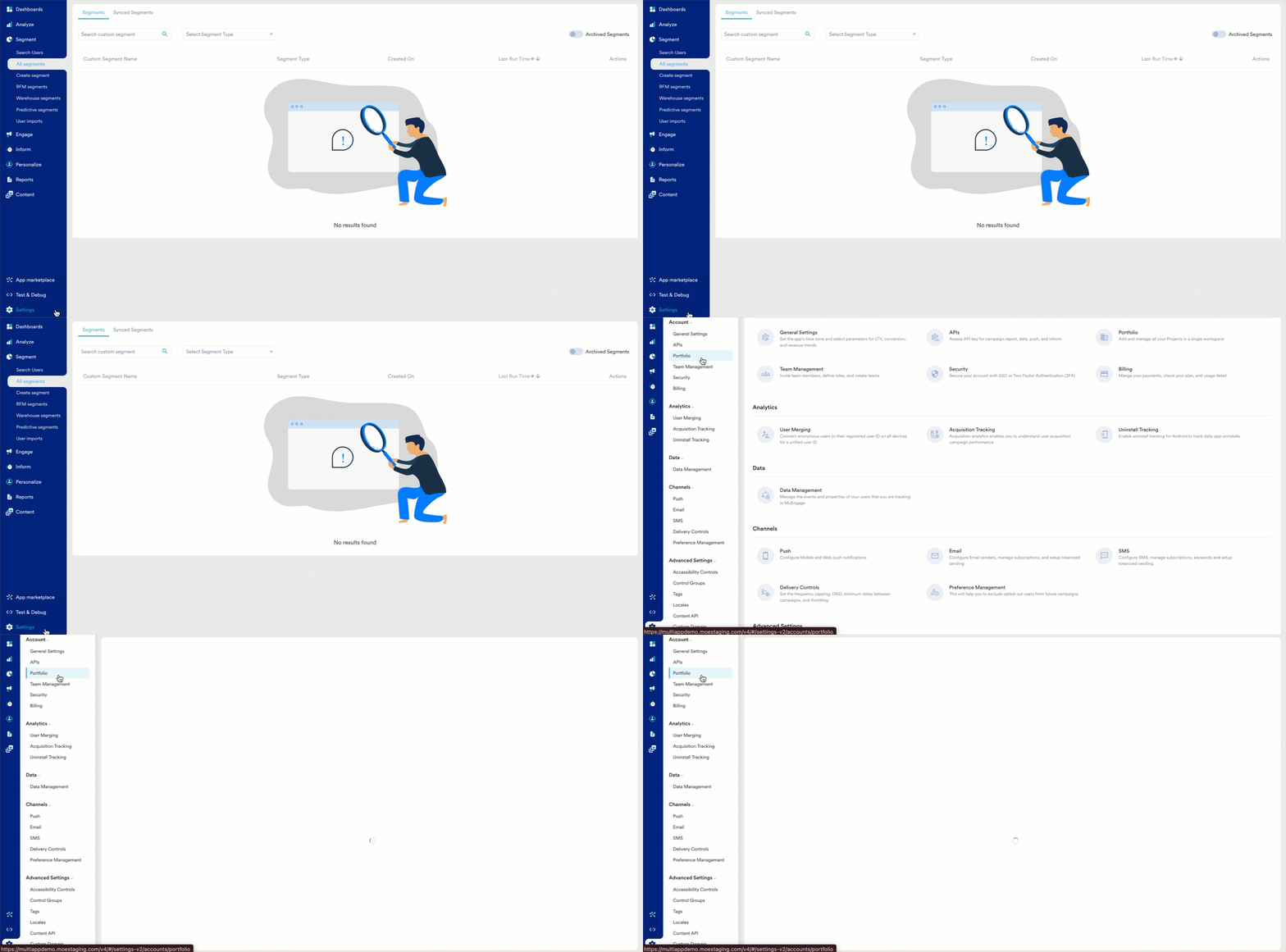
- On the left navigation menu in the MoEngage UI, click Settings > Account > Portfolio.
- On the Portfolio page, click + Add Project.
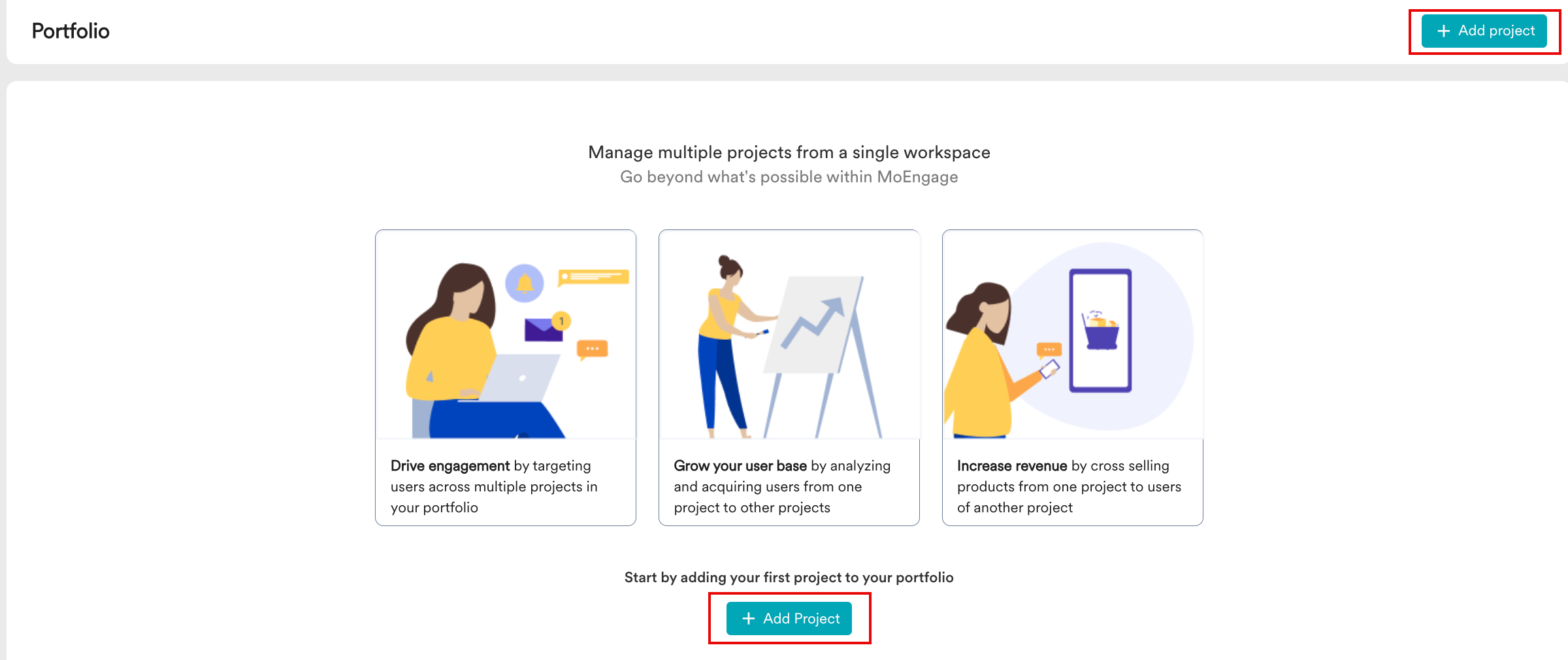
- On the Add a new Projectwindow, enter the following values:
Field Description Project Name This field specifies the name for the new project. It is mandatory. The project name must be a maximum of 25 alphanumeric characters and begin with a letter. Spaces and special characters are not allowed. Project Icon This field specifies the icon to represent the project. It is optional. For correct visibility on MoEngage, ensure to upload an image with a minimum resolution of 72x72 pixels. Supported file types are: - PNG
- GIF
- WebP
- ICO
- CUR
- BMP
Type of Business This field specifies the business model for the configured project. It is mandatory. The available options are: - Offline / Storefront
- Online
Platform(s) This field specifies the platform(s) for the configured project. It is mandatory and is visible only when the Type of Business field value is set to Online. Supported platforms are: - Android
- iOS
- Web
- Click Save.
You can now see the project details on the Portfolio page.
Analyze Project
The Portfolio page offers a comprehensive overview of all configured projects, enabling detailed analysis of project-related information. You can view the following details: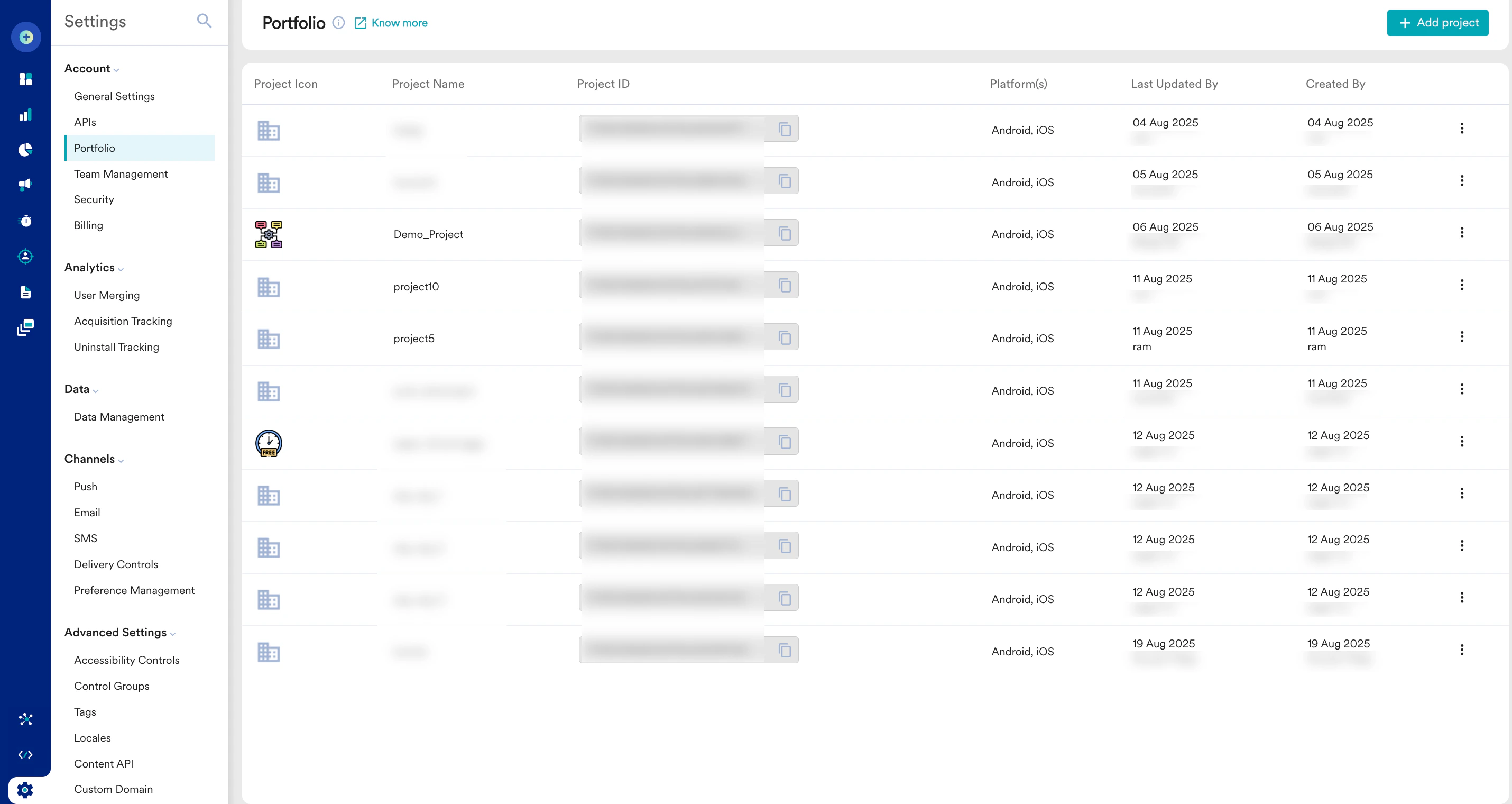
- Project Icon: Specifies the icon associated with this project. A default icon is shown if no custom one is uploaded.
- Project Name: Specifies the unique name assigned to this project.
- Project ID: Specifies the unique ID automatically generated for the project, used to direct incoming data.
- Platform(s): Specifies the target platform(s) for the project (for example, iOS, web, or Android).
- Last Updated By: Displays the date and the user who last modified the project. Project modification permissions are based on the app configuration level. For more information, see Permission Levels.
- Created By: Specifies the user who originally created the project and the creation date.
Edit Project
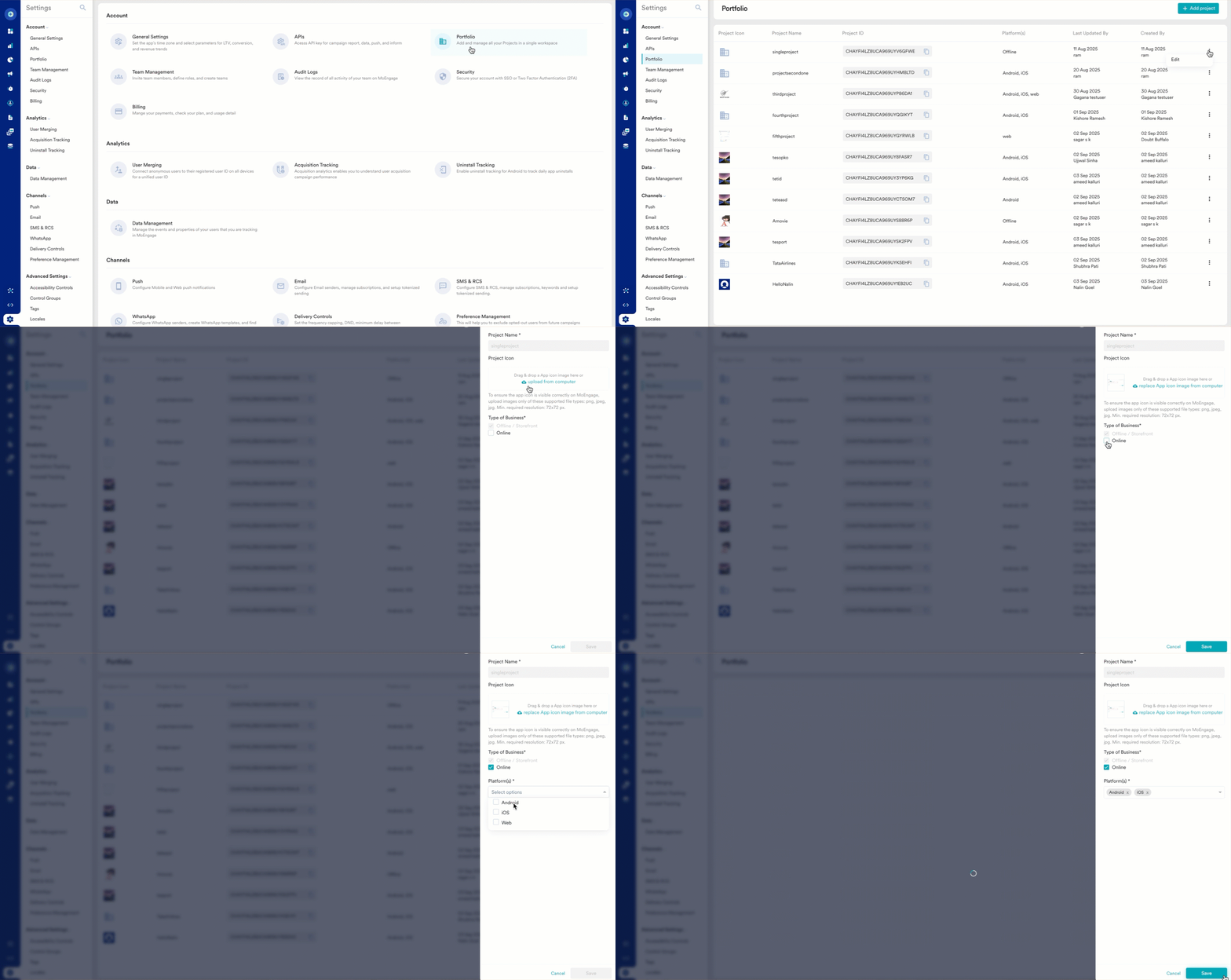
To edit a project, perform the following steps:- Navigate to the Portfoliopage, search for the relevant project row.
- Click the Ellipsis ( ) icon against the preferred entry, and then click Edit.
- On the Add a New Projectwindow, make the required changes.
- Click Save.
- Note the following points regarding project modifications:
- The Project Icon is editable at any time.
- You can add new platforms, but you cannot remove existing platforms.
- The MoEngage support team handles project archival and deletion to ensure data integrity. For further assistance, please contact your MoEngage Customer Success Manager (CSM) or the Support team.
Impact of Portfolio On
The Portfolio feature changes how you interact with key areas of MoEngage.Data and User Profiles
The Portfolio feature centralizes your data and user profiles, allowing you to manage attributes and events at both the project and portfolio levels. This feature has the following impact on data ingestion and management in MoEngage:- Portfolio and project-specific attributes: MoEngage enables project-level tracking of custom, standard user attributes, and events.
- Standard attributes such as basic details, including First name, Last name, Mobile number, and other such standard attributes, are tracked as portfolio-level standard attributes.
- Custom user attributes can be tracked at both the project and portfolio levels.
- Standard and custom events are tracked at the project level.
To understand user attributes tracked at the project and portfolio level, refer to Derived User Attributes Behaviour.
- User profile view: For users who exist in more than one project, a drop-down menu appears on their profile page, allowing you to view their attributes and activity for each specific project.
- Data management: The Data Management section provides a portfolio-level overview of unique events and user attributes. This allows you to manage data across projects, with a default limit of 1024 unique events and 1024 unique user attributes for the entire portfolio.
- Data ingestion: You can ingest data into the portfolio using Data APIs and SDKs.
Segmentation
The segmentation tool allows you to build rules that span multiple projects. You can combine behaviors from different apps and websites to create highly specific audiences for cross-targeting.- Cross-project rules: When building a segment, a Project drop-down list appears for each rule, allowing you to filter users based on behavior in one project and attributes in another.
- Portfolio-level filtering: For user events, you can select Portfolio to find users who performed an action (like Purchase) in any of your projects, creating a broad “OR” condition.
- Reachability calculation: It is important to understand that the reachability count shown in the segment builder is a global count (users reachable on at least one project). When you use that segment in a campaign, the count becomes project-specific, showing only users reachable for the single project you are sending the campaign to.
Push Settings
The Portfolio feature centralizes key configurations to ensure your Push campaigns are always brand-consistent and contextually relevant through the following capabilities:- Project-specific configurations: Apply unique settings for Mobile App Push, Web Push, and Push Previews to each project individually within your portfolio.
- Contextual personalization: Maintain brand consistency by automatically filtering available user attributes during campaign creation to only show data relevant to the sending project.
In-app Messaging Settings
The Portfolio feature centralizes configurations to ensure your In-app campaigns are delivered in the correct application context while maintaining brand consistency through the following capabilities:- Project-specific delivery: Control which mobile application hosts your campaign by selecting a specific project and platform (iOS/Android) during creation.
- Contextual personalization: Maintain brand integrity by automatically filtering user attributes to show only those relevant to the target project or global data.
On-site Messaging Settings
The Portfolio feature centralizes configurations to ensure your web overlays are domain-accurate and contextually relevant through the following capabilities:- Project-specific targeting: Ensure your OSM campaigns appear only on the correct website by selecting the specific project and web platform for each campaign.
- Contextual personalization: Prevent cross-brand data leakage by automatically filtering the personalization list to show only attributes from the sending project and global attributes.
Campaigns
The Portfolio feature unifies customer data across multiple projects to enhance how you segment, personalize, and analyze campaigns through the following key capabilities:The Portfolio feature is not supported for campaigns created via the Push API, Campaigns API, or those using dynamic conditions.
- Project-specific targeting: Control which project sends a campaign to ensure all branding and deep links are contextually correct for that specific brand. This is supported for Push, In-app, and OSM channels.
- Cross-project segmentation: Create precise audiences by building rules that combine user behaviors and attributes from any of your associated projects.
- Cross-project trigger campaigns: Trigger a campaign from one project based on a user’s real-time actions in another, enabling automated cross-promotional strategies. This is not applicable in In-app and OSM channels.
- Individual project analytics: Analyze and compare push notification opt-in rates for each project separately using unique reachability attributes. This is only supported for the Push channel.
- Aggregated reachability: Determine a user’s overall reachability based on their status across all projects. A user is considered reachable if they are opted-in to notifications from at least one project.
Global Frequency Capping
The Portfolio feature enables you to manage communication frequency across your entire brand portfolio. This prevents message fatigue by setting a Global Frequency Capping that limits the total number of communications a user receives from all your projects.- You can set a master frequency capping at the portfolio level. This limit is enforced on a per-user basis and applies to the total number of communications sent from all projects within the workspace.
For example, if a global capping is set to five communications, a user in three different projects will receive a maximum of five communications combined across all three brands. - While the global capping controls the overall volume, tag-based frequency capping allows for more granular, project-specific control.
For example, to limit messages from a specific project to three, you can:- Add a unique tag to all campaigns running for that specific Project.
- Set a frequency capping rule that limits communications with that specific tag to three.
Supported Features by Channel
The availability of key Portfolio features, such as reachability and cross-project triggers, varies by communication channel. The following table lists the features supported for each channel.*Not Supported: Portfolio user interface elements are unavailable for these channels on the workspace.
| Channel | Reachability Level | Cross-Project Segmentation | Cross-Project Event Triggers |
|---|---|---|---|
| Push | Project | Supported | Supported |
| Portfolio | Supported | Supported | |
| SMS & RCS | Portfolio | Supported | Supported |
| Portfolio | Supported | Supported | |
| In-App Messaging | Not Applicable | Supported | Not Applicable |
| On-site Messaging | Not Applicable | Supported | Not Applicable |
| Cards | Not Applicable | Supported | *Not Supported |
| Connectors | Not Applicable | Supported | Supported |
| Facebook Audience | Not Applicable | *Not Supported | *Not Supported |
| Google Ads Audience | Not Applicable | *Not Supported | *Not Supported |
| Web Personalization | Not Applicable | Supported | *Not Supported |
| Inform | *Not Supported | *Not Supported | *Not Supported |
| Flows | Not Applicable | *Not Supported | *Not Supported |
- Project-level reachability: A user’s opt-in status is tracked separately for each project.
- Portfolio-level reachability: A user’s opt-in status applies to all projects in the portfolio. There is no project-specific opt-in status.
- Not Applicable: These channels do not have a concept of opt-in reachability in the same way as Push or Email.
- *Not Supported: The dashboard does not provide portfolio UI elements for these channels.
- To use cross-project segmentation, you can:
- Use a custom segment to target your campaign across projects.
- Create the segment using the project-level user attribute, and for event-based segmentation, select the project name event attribute specifying the project’s name as the value.
- You can use cross-project event triggers by selecting the project name event attribute, specifying the project’s name as the value.
- To use cross-project segmentation, you can:
FAQs
If the same person uses two of my apps, will MoEngage treat them as one unified user?
If the same person uses two of my apps, will MoEngage treat them as one unified user?
Yes. The primary goal of the Portfolio feature is to consolidate data from all your apps and websites (Projects) into a single, comprehensive profile for each user, giving you a unified view of their entire journey across your brands.
How are user details and actions (attributes and events) handled across different projects?
How are user details and actions (attributes and events) handled across different projects?
Standard details like “First Name” and “Mobile Number” are tracked at the portfolio level (one value for the user). Custom attributes can be set at either the portfolio or project level. However, all user actions (events) are tracked at the project level, meaning you always know which app or website an action occurred on.
I created a powerful segment using data from multiple projects. Why did the audience size drop when I tried to use it in a campaign?
I created a powerful segment using data from multiple projects. Why did the audience size drop when I tried to use it in a campaign?
This is the expected behavior. The segment builder shows you a global count of users who meet your criteria and are reachable on at least one of your projects. When you use that segment in a campaign for a specific project, the count becomes project-specific, showing only the users who are reachable for that particular project.
Are there any limits or permanent choices I should be aware of when setting up my Portfolio?
Are there any limits or permanent choices I should be aware of when setting up my Portfolio?
Yes, there are two key things to know:
- A workspace can only support approximately 20 projects.
- When adding platforms (like iOS or Android) to a project, that choice is permanent. You cannot remove a platform after it has been added.
How do I delete a Project I no longer need?
How do I delete a Project I no longer need?
You cannot delete or archive a project yourself from the dashboard. For further assistance, please contact your MoEngage Customer Success Manager (CSM) or the Support team to ensure data integrity.