- API Settings - displays the Workspace ID and API SECRET.
- User Property Settings - allows you to enable or disable user properties to be used as fallbacks for personalizing the Alert.
API Settings
To access the Inform API settings, navigate to MoEngage Dashboard -> Settings -> APIs -> General Settings -> Inform. The following parameters are available:- Workspace ID - When you create an account in MoEngage, you will be assigned a unique identifier called the Workspace ID. This value will be used for identifying your account and authenticating it.
- API SECRET- API SECRET is the authentication key provided along with your Workspace ID. You can regenerate the API SECRET by clicking on the Regenerate API Secret icon. Note: MoEngage does not recommend regenerating the key unless there is a security breach. Once you generate and save a different API SECRET, API calls using the older SECRET won’t work.
User Property Settings
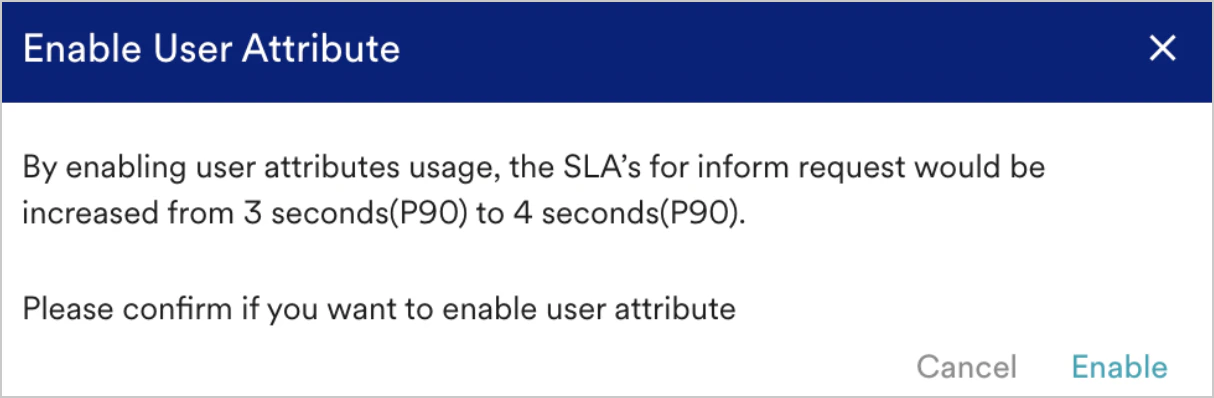
The User Properties available in MoEngage’s user profile can be added as fallbacks for personalization in Inform. For example, if you want to send ‘name’ as a parameter in your alert and its value is not passed in the API request (as the microservice didn’t know the value for ‘name’) while sending the alert, you can define a fallback. You can configure the fallback to be fetched from the user property (that contains the value for the ‘name’ parameter in the request) of the user for whom the alert is being sent. If this fallback is not available for the requested user, you can define a default value to be used for completing the request. Note: If User Properties are enabled, the SLAs for an Inform request will increase from 3 seconds (p90) to 4 seconds (p90). To utilize user properties as part of Text personalization fallbacks, do the following:- Navigate to MoEngage Dashboard -> Settings -> Inform -> User Properties.
- Turn on the Enable user properties toggle.
-
Click Enable in the popup to confirm the higher SLA for further Inform requests.