

Overview
This article covers how to install and configure the MoEngage app on your Shopify store. Complete the steps below to authenticate, initialize, and configure the integration before you begin tracking events or syncing data.Step 1: Install the MoEngage App
To install the MoEngage app, perform the following steps:- In your MoEngage UI, navigate to the App Marketplace.
- Search for Shopify 2.0, and then click the tile.
-
Navigate to the Integrate tab, and then click Install MoEngage app on your Shopify store. Use the MoEngage listing in the Shopify App Marketplace to add the app to your store.
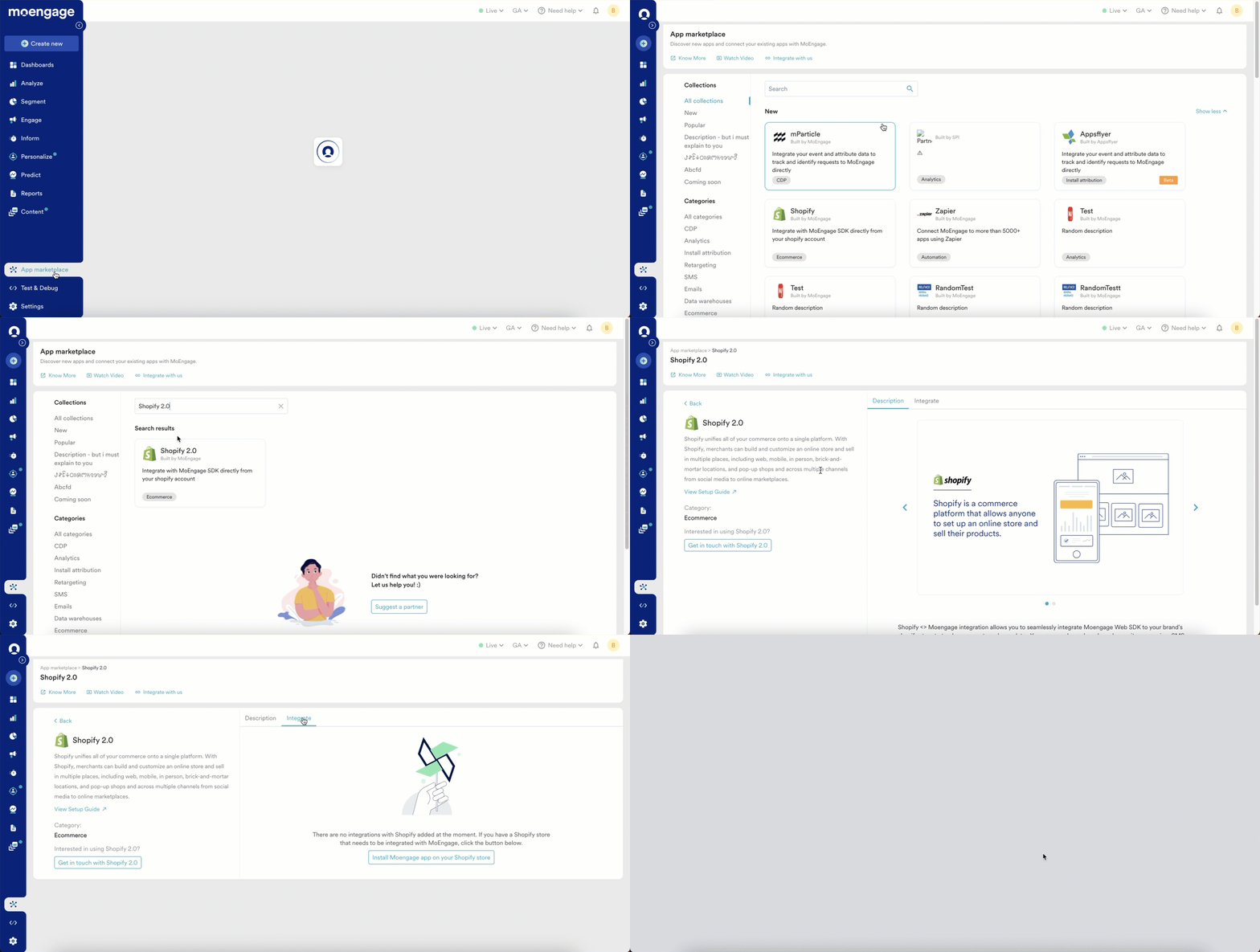
- Click Open to redirect to the Shopify admin UI and complete the installation.
Step 2: Authenticate
After successful installation, to authenticate, perform the following steps:- Navigate to the MoEngage App Integration tab.
-
Enter the following credentials from your MoEngage account.
-
Click Authenticate and then click Continue.
Information Newly generated API keys can take up to 10 minutes to be activated. If authentication fails after entering new credentials, wait 10 minutes and then try again before raising a support ticket.
Step 3: Configure Initialization Settings
NoteThe following steps must be performed for MoEngage to track user data and events.
- On the Initialization Settings, navigate to Theme Settings in your Shopify admin.
- Turn the MoEngage Shopify app embed setting toggle on.
- Click Save.
Step 4: Configuration Settings
MoEngage tracks all standard Shopify events for every store. You do not need to select them. For the list of events, refer to Events and User Data Tracking.PrerequisiteMoEngage sets up Identity Resolution for your workspace when you save the configuration for the first time. Identity Resolution can only be set up on a workspace with 1,000 users or fewer. If your workspace has more users, the save fails. Raise a support ticket, and then save the configuration again after the support team resolves it.
-
Go to the Configuration tab. The Configure tracking section lists the user events, user properties, and user identifiers that MoEngage tracks.
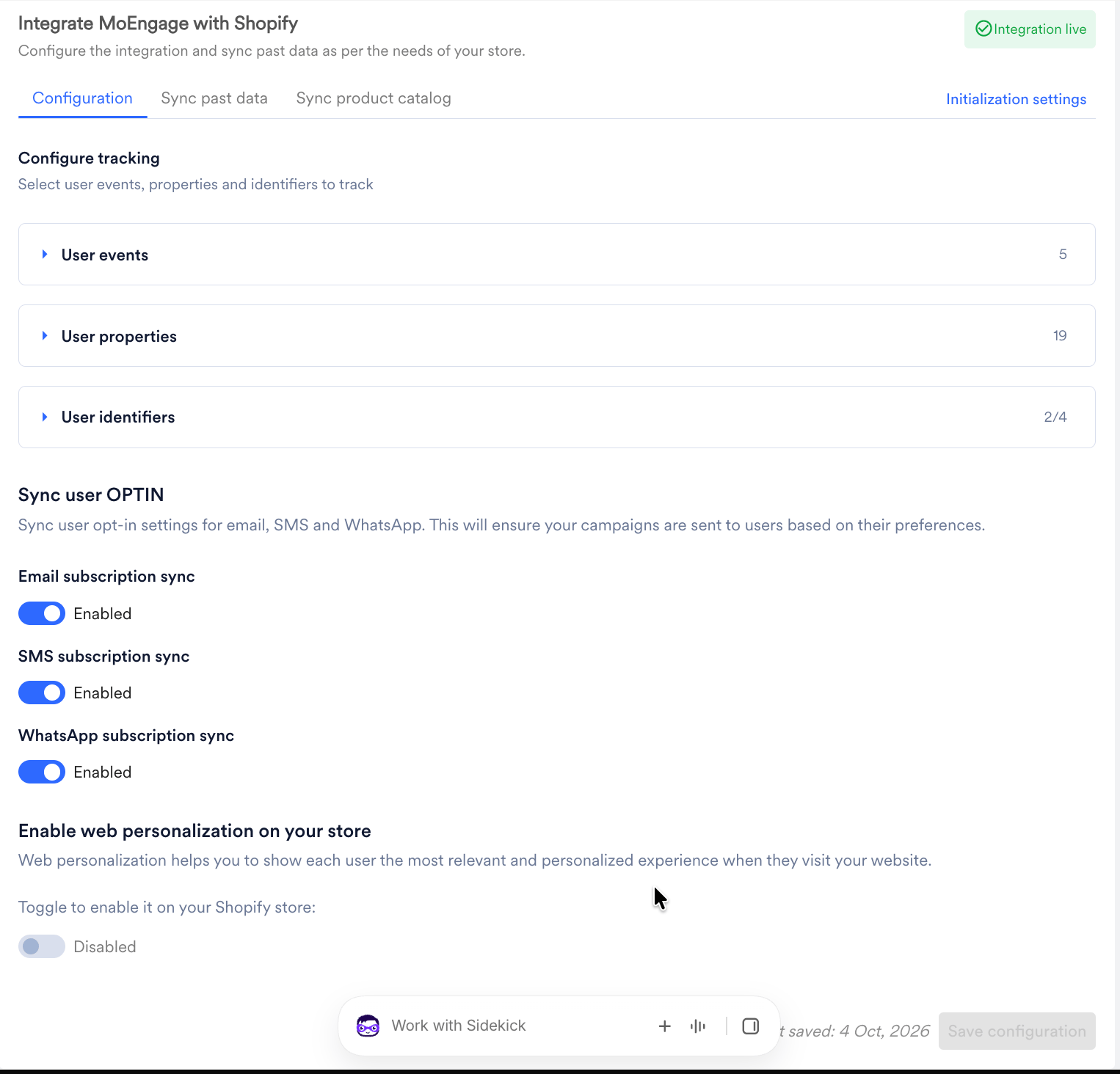
- Expand User events to review the events and event attributes that MoEngage tracks. All events are tracked by default and cannot be deselected.
-
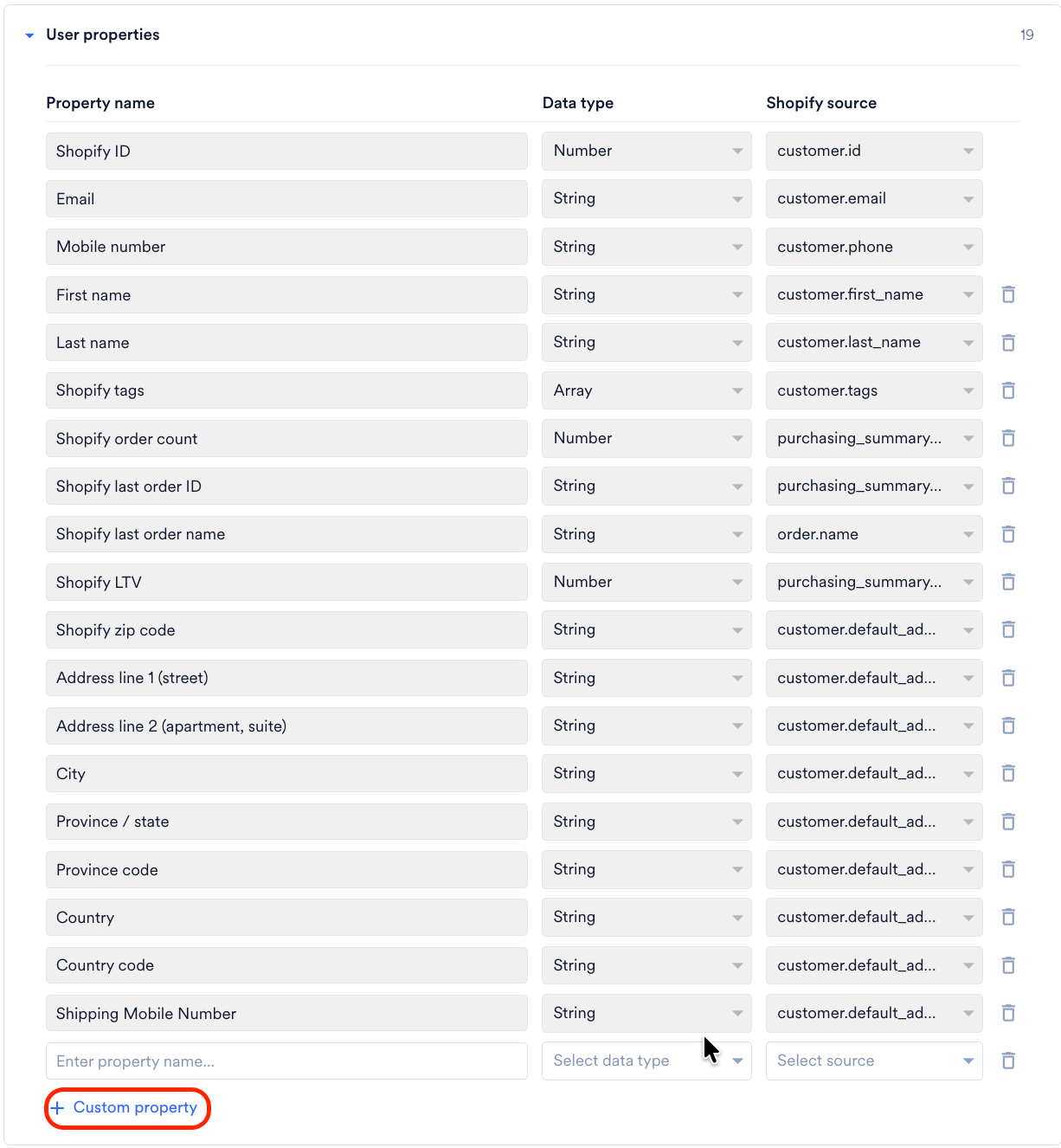
Expand User properties to review the user attributes that MoEngage syncs to user profiles. For the full list, refer to Tracked User Attributes.
- To stop syncing a property, click the delete icon next to it. You cannot remove Shopify ID, Email, or Mobile number.
- To sync an additional property, click + Custom property, enter a property name, select a data type, and then select a Shopify source.
-
Expand User identifiers and select your user identifiers. MoEngage uses these identifiers to recognize users and merge their profiles across sessions, devices, and Shopify updates. You can select up to four identifiers:
- Shopify ID is always selected and cannot be cleared.
- Email and Mobile number are selected by default. Keep at least one of them selected.
- To add a fourth identifier, select the checkbox in the last row, and then select an attribute from the Select option list. You can select a custom property that uses a Shopify customer metafield of type single-line text, URL, ID, integer, or decimal.
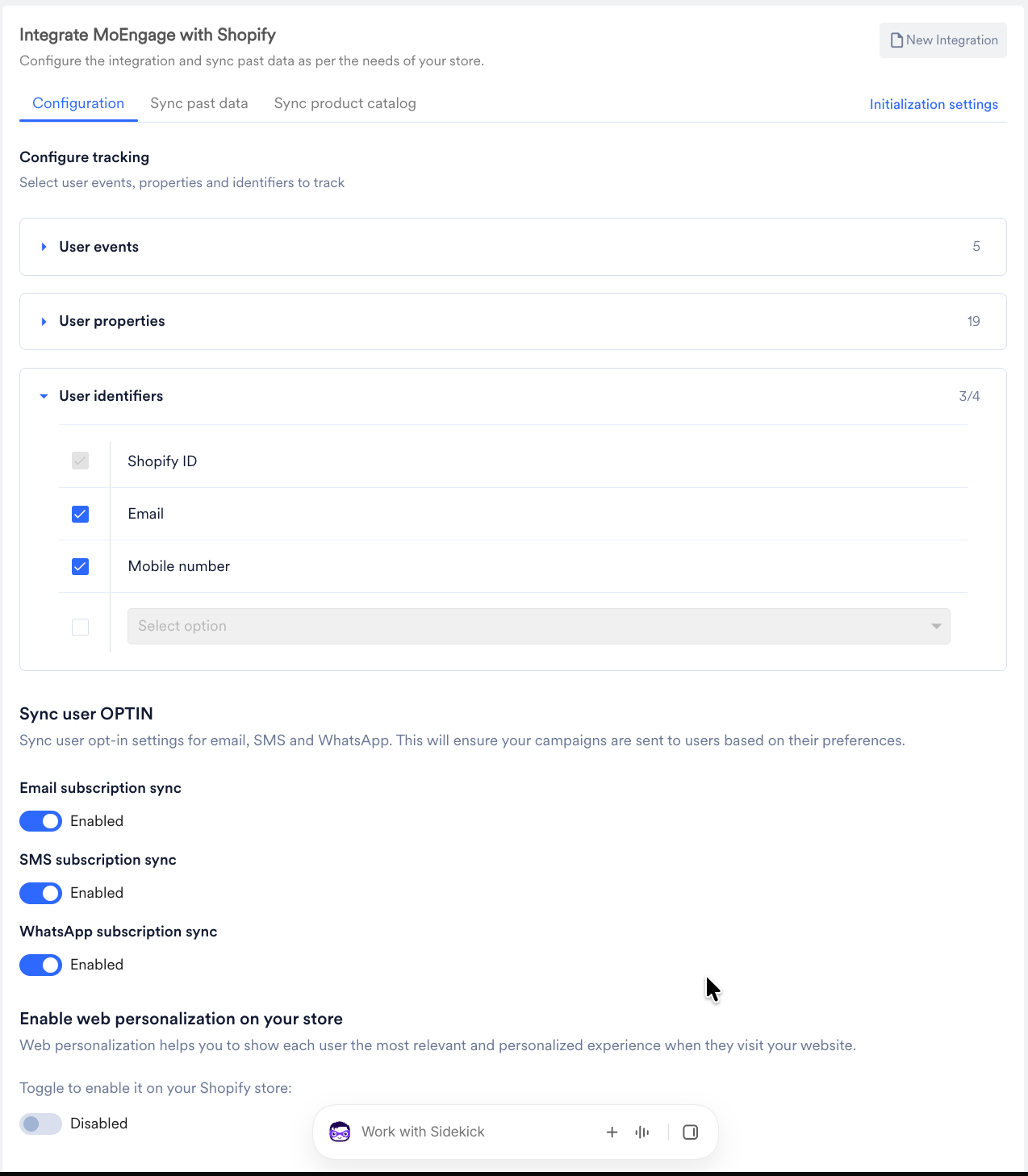
- Under Sync user OPTIN, turn on the Email subscription sync, SMS subscription sync, and WhatsApp subscription sync toggles for the channels whose marketing consent you want to sync from Shopify. For more information, refer to Marketing Consent Mapping.
- Click Save configuration.
The MoEngage app requests permission to read Shopify customer merges. If your store installed the app before this permission was added, Shopify prompts you to approve it the next time you open the app.
Existing Stores
If you configured the MoEngage app before multiple identifiers were available, the following applies to your store:- Your store keeps the identifier you selected during setup (Email or Phone Number).
- You can save the configuration again to update your user properties and opt-in sync settings without changing your identifier.
- Profile sync requires Identity Resolution on your workspace. If it is not enabled, contact your Customer Success Manager or the support team.
- To add Shopify ID or other identifiers to your store, contact the support team. Until Shopify ID is added, MoEngage does not sync Shopify tags, Shopify LTV, Shopify order count, Shopify last order ID, or Shopify customer merges for your store.
Step 5: Enable Web Personalization (Optional)
To enable web personalization, perform the following steps:- Confirm that Web Personalization is enabled for your MoEngage account. If it is not, contact your Customer Success Manager or the support team.
-
On the Configuration tab, turn the Enable web personalization on your store toggle on.
