

Introduction
Zendesk is an AI-powered customer service platform that unifies conversations from all channels into a single view. The MoEngage integration uses Zendesk Webhooks and Triggers to sync real-time user and ticket data directly to the MoEngage platform. This empowers teams to launch personalized campaigns based on customer support activities.MoEngage × Zendesk
The integration of MoEngage and Zendesk empowers businesses to enhance their customer engagement and support initiatives through seamless data synchronization. With this integration, you can:- Synchronize users and ticket event data from Zendesk to MoEngage.
- Automate the creation of support tickets in Zendesk from MoEngage campaigns.
- Import support activities like ticket state updates as behavioral events in MoEngage.
- Trigger contextual campaigns based on support interactions and user lifecycle events.
Use Cases
Integrating Zendesk with MoEngage helps you solve the following use cases:- Support-driven engagement : When a new ticket is created in Zendesk, push the lead or user data to MoEngage to trigger contextual support follow-up campaigns, like a “Thanks for contacting support, we are working on your issue” message.
- Ticket state-based campaigns : When ticket states are updated (e.g., resolved or closed), push this data to MoEngage to automatically send satisfaction surveys (CSAT), upsell campaigns, or re-engagement messages.
- Push leads and user data : Automatically sync newly created users and leads from Zendesk to MoEngage using Outbound Series workflows for targeted marketing campaigns and unified user profiles across platforms.
Sync Data to MoEngage
This section describes how to import user and ticket data from Zendesk into MoEngage. The integration uses Zendesk webhooks and triggers to automatically push real-time data to the MoEngage platform.Ensure you have the following:
- Administrator access to your Zendesk account.
- A Zendesk plan that includes access to Triggers and Webhooks.
- A common identifier (such as an email address or external ID) to link user profiles between Zendesk and MoEngage.
Sync Modules
The following table outlines the default sync type for each module:| Module | MoEngage Sync Type |
|---|---|
| Users | Users |
| Companies | Users (synced with Users and Events) |
| Tickets | Events |
| Custom Objects | Events (custom) |
The Companies module is supported, and associated company information is synced with your user data to ensure all profiles are up to date.
Step 1: Get Your MoEngage Endpoint
To get a dedicated endpoint for your integration, please contact the MoEngage Support team. In your request, you must specify the common identifier used to link user profiles between MoEngage and the partner platform. For example, the common identifier is typically the user’s email address or phone number.Step 2: Create a Webhook in Zendesk
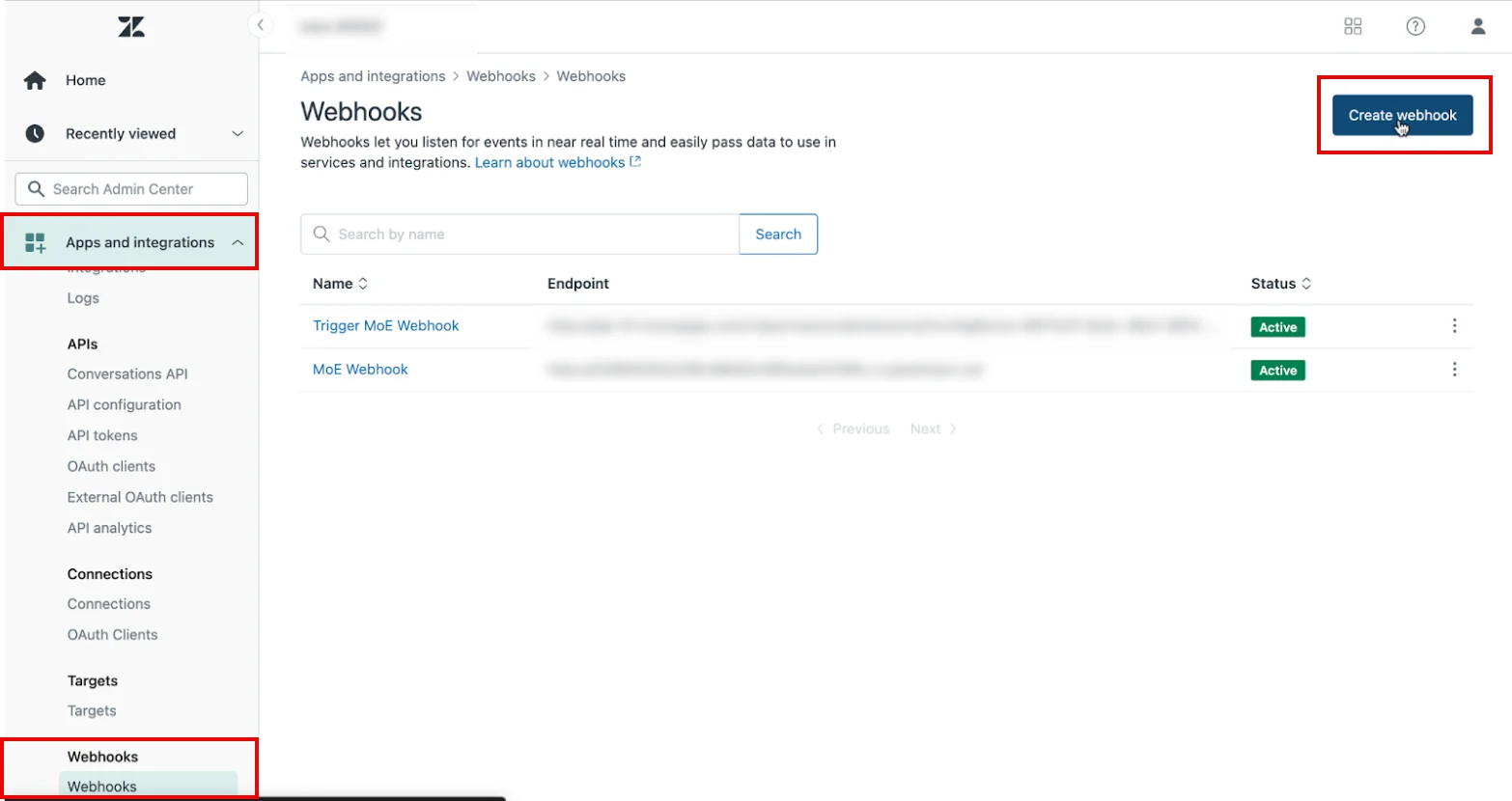
To create a webhook in Zendesk, perform the following steps:- Log in to your Zendesk Admin Center dashboard.
- On the left navigation menu, click the Apps and integrations list.
- In the menu that appears, under the Webhooks section, click Webhooks.
- On the Webhooks page, click Create webhook in the upper-right corner.
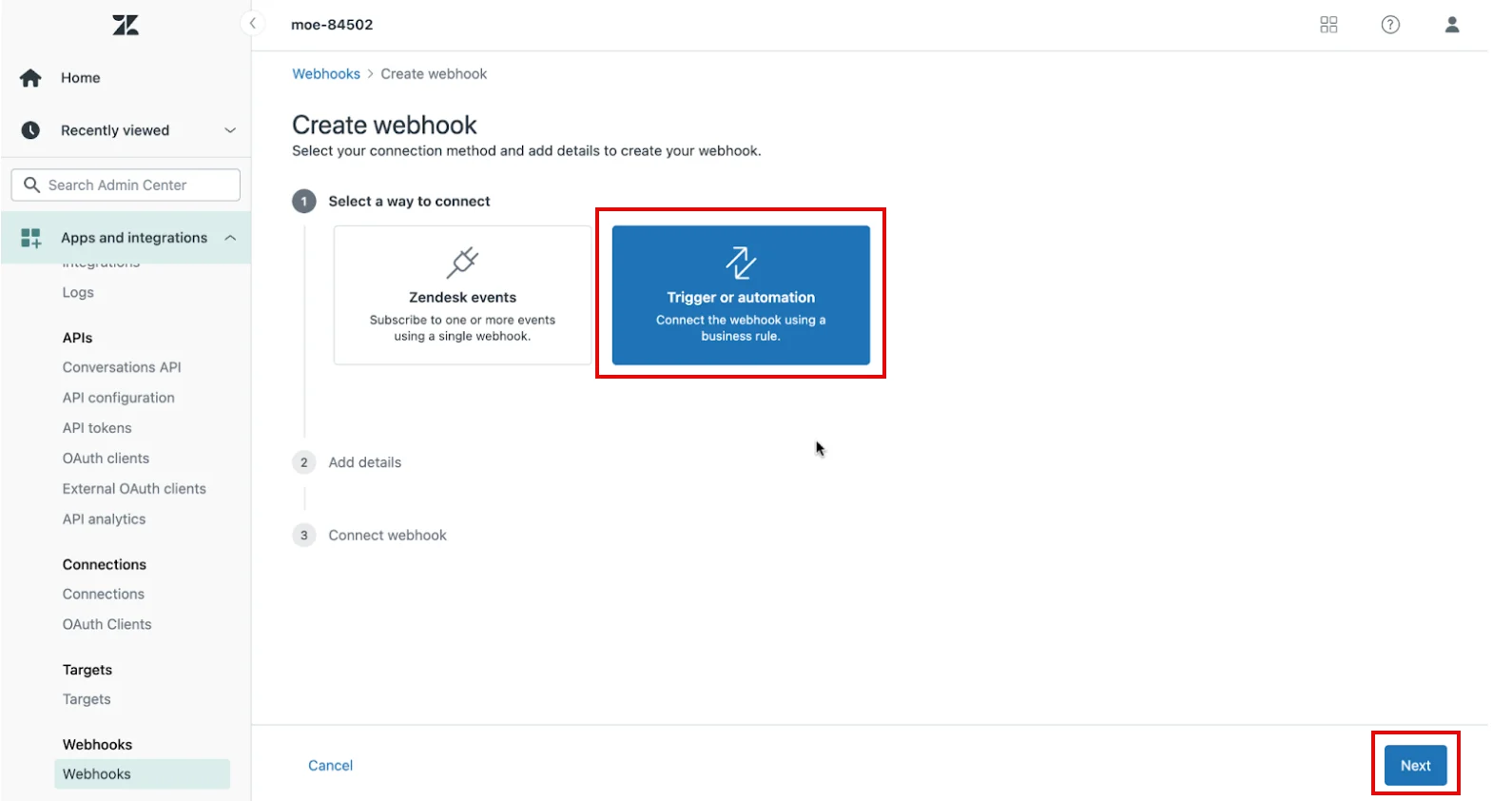
- On the Create webhook page, under Select a way to connect , click the Trigger or automation Connect the webhook using a business rule tile.
- Click Next.
Step 3: Configure the Webhook
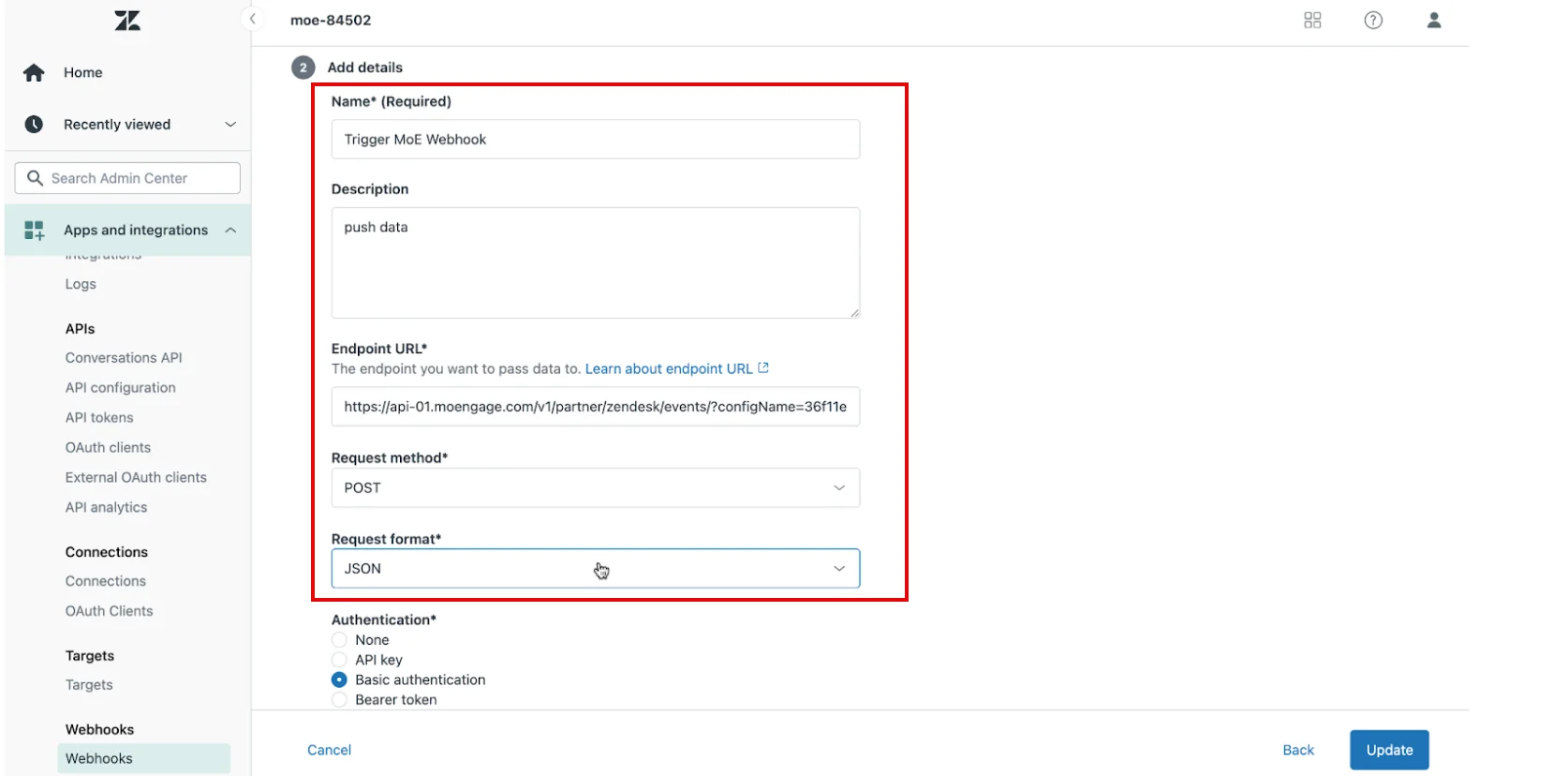
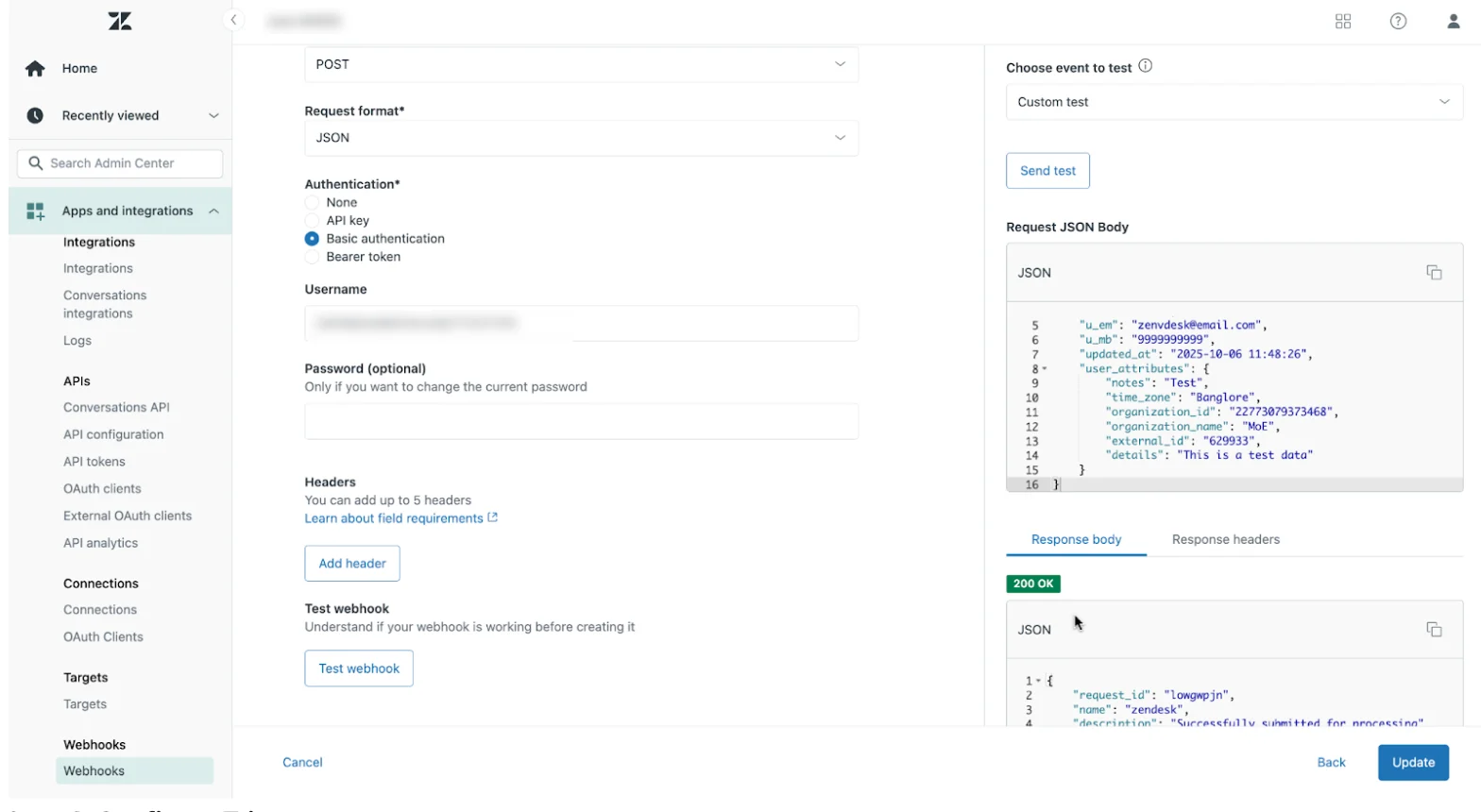
To configure the webhook, perform the following steps:- On the Create webhook page, under the Add details section, provide the following details:
- In the Name (Required) box, type a name for the destination (for example, MoEngage_Ticket_Events).
- In the Description box (optional), add a brief explanation of the webhook’s purpose.
- In the Endpoint URL*(required), enter the webhook URL provided by the MoEngage team. The format is:
https://api-0X.moengage.com/v1/partner/zendesk/{events/user}/?configName={config_name} - In the Request method* list, click POST.
- In the Request format* list, click JSON.
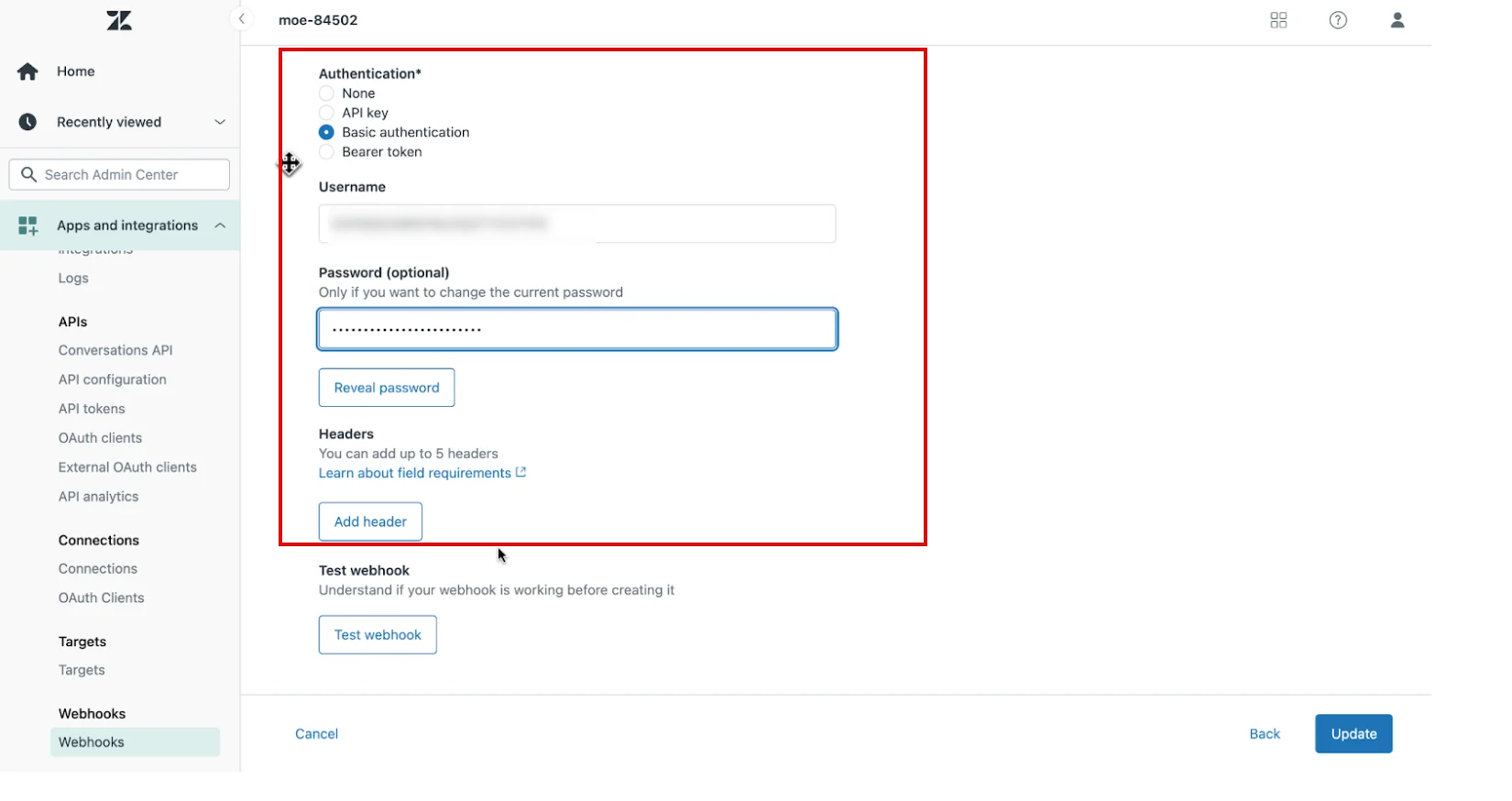
- In the Authentication* section, provide the following details:
- Select Basic authentication.
- In the Username box, type your MoEngage Workspace ID.
- In the Password box, type your Data API Key.
To find your credentials, perform the following steps:
- On the MoEngage UI, navigate to Settings > Account > APIs.
- Copy the ID under Workspace ID (earlier app id).
- Copy the Data under API keys.
- In the Test webhook section, provide the following details:
- Click Test webhook. A test configuration dialog box appears.
- In the Choose event to test list, select Custom test.
- In the JSON body section, paste a sample payload from the examples below to send to MoEngage.
- Click Send test.
Step 4: Configure triggers
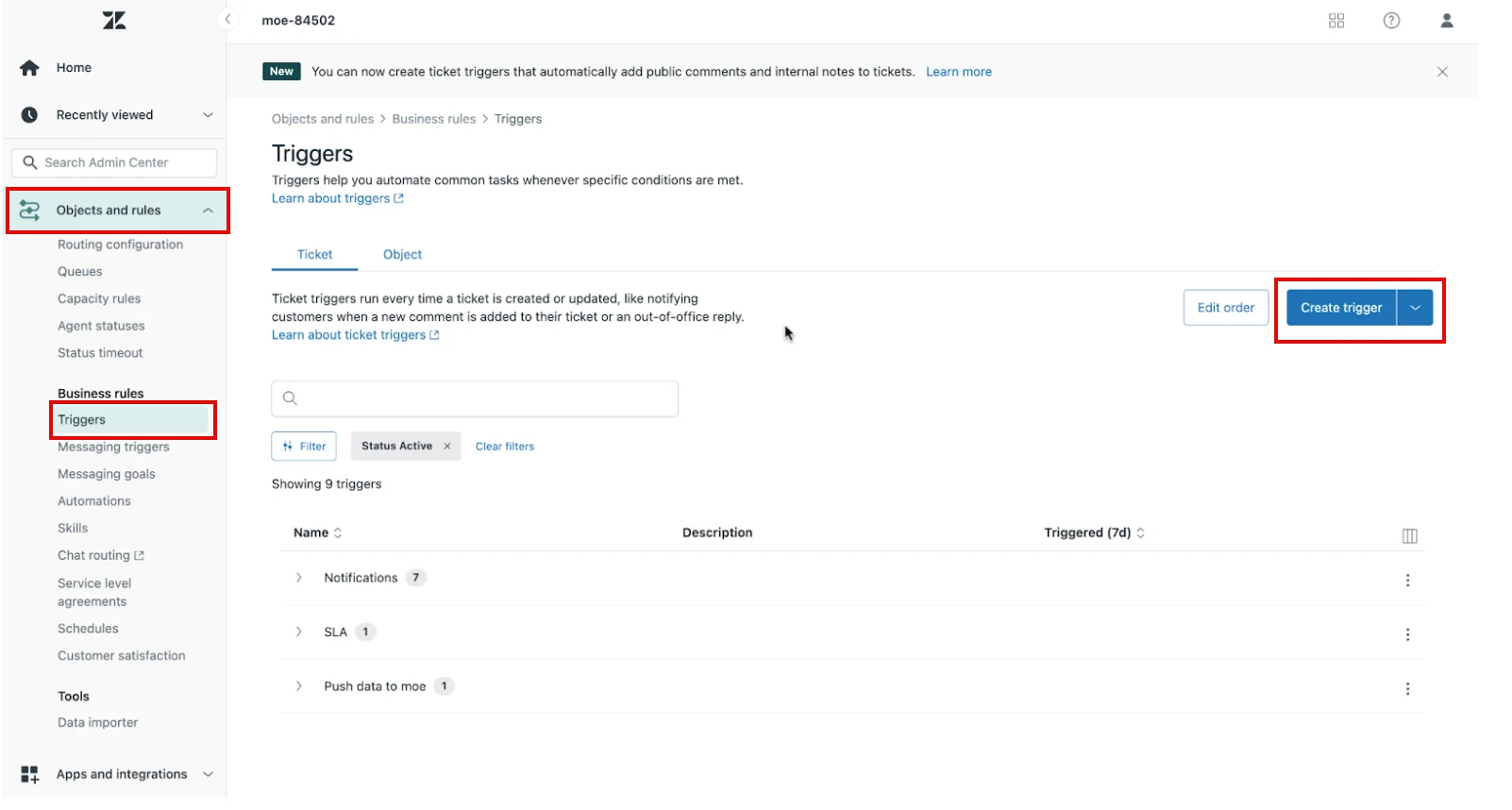
To configure the triggers, perform the following steps:- Log in to your Zendesk Admin Center dashboard.
- On the left navigation menu, click the Objects and rules list.
- In the menu that appears, in the Business rules section, click Triggers.
- On the Triggers page, click Create trigger on the right side of the page.
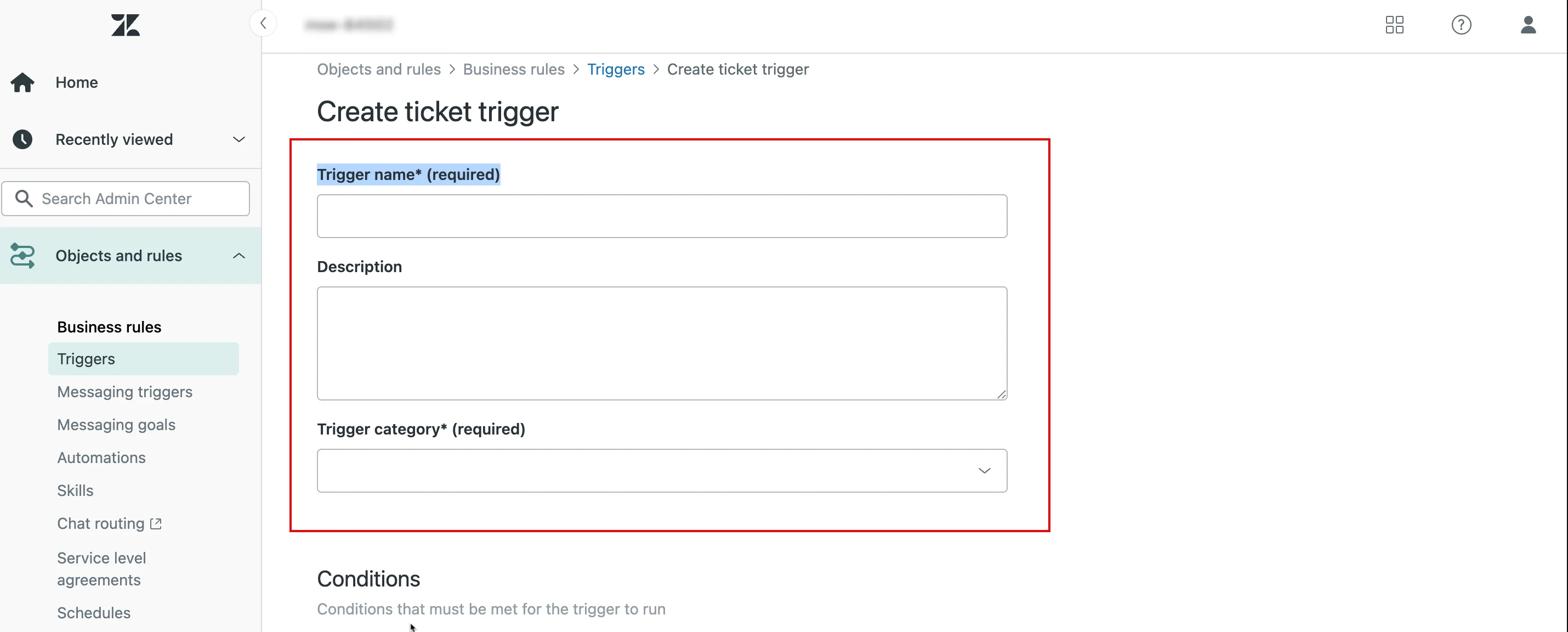
The Create ticket trigger page appears.- In the Trigger name (required)* box, type a name for the trigger (for example, Send Ticket Update to MoEngage).
- In the Description box (optional), briefly explain what this trigger does.
- In the Trigger category (required)* list, select your trigger category.
Next, you must define the Conditions for this trigger.
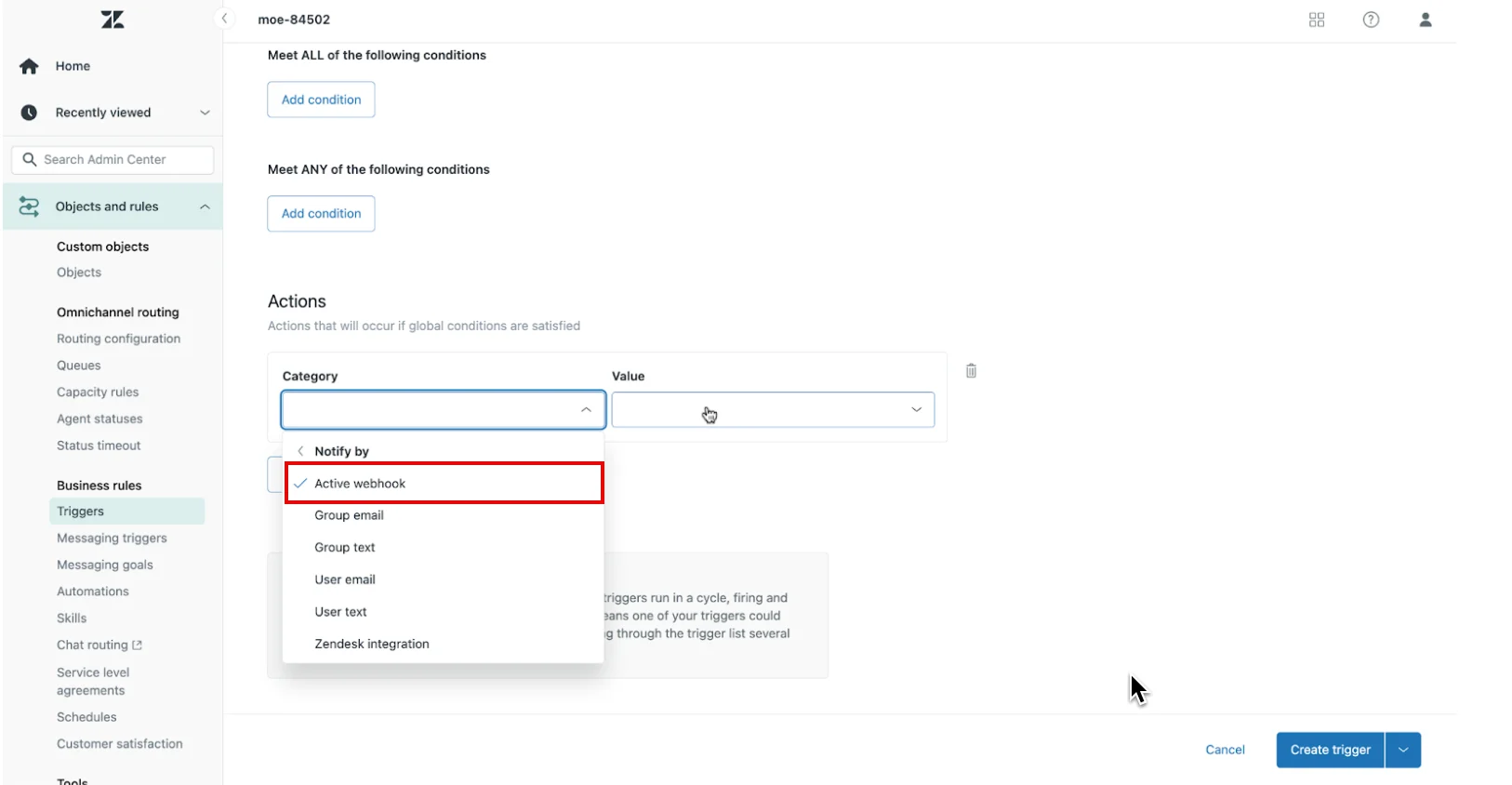
- In the Conditions section, scroll to the Actions section, and click Add action.
- In the Category list, click Notify by > click Active webhook.
- In the Value list, click the Webhook that you created in Step 3.
- In the request body box, add the appropriate JSON payload.
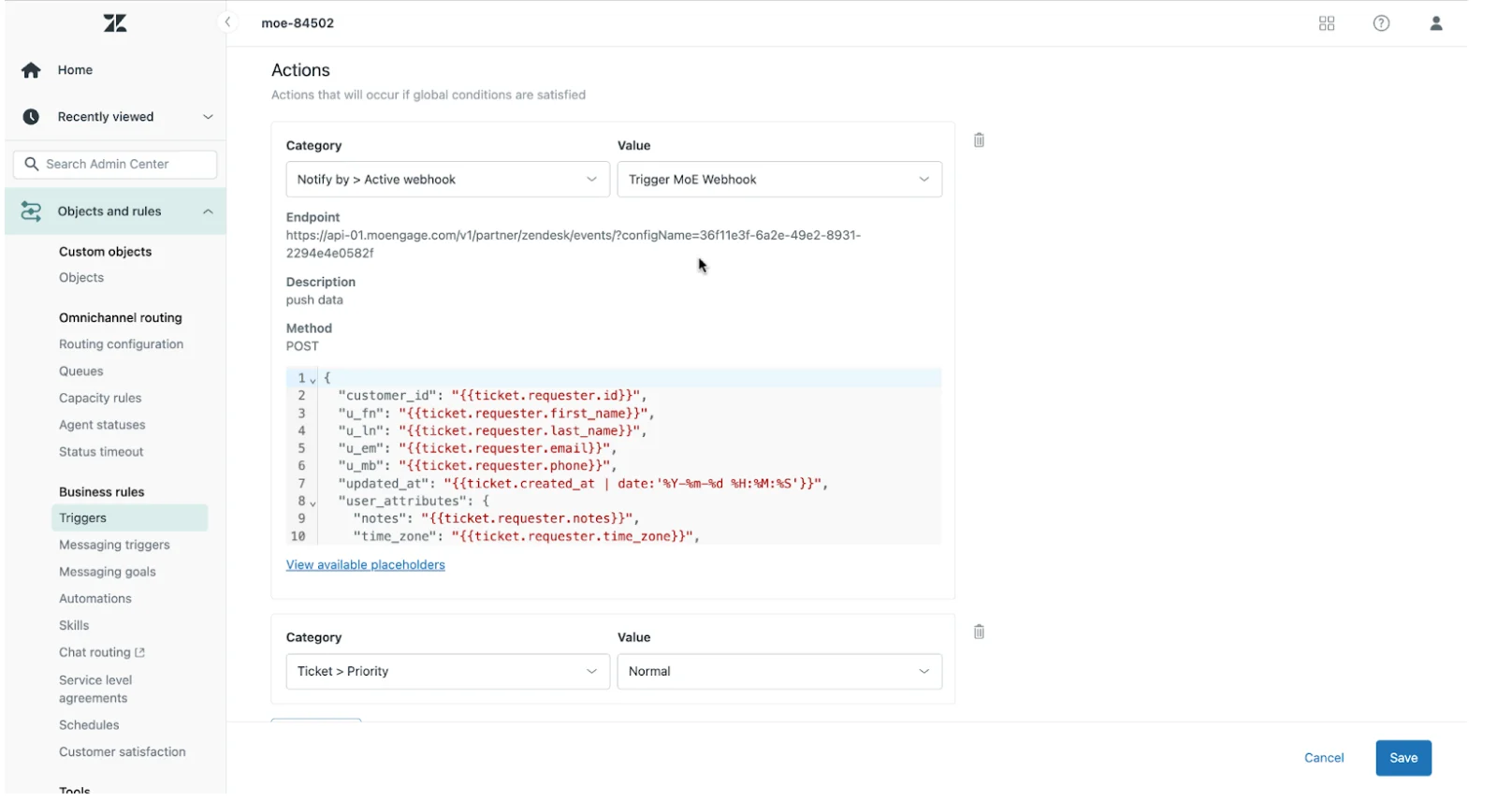
Note: The Create ticket trigger section does not have JSON validation. Ensure your JSON is valid before you save the configuration.
- Click Save.
Data Mapping Guidelines
- Unique Identifier (Customer ID) : Use a consistent, unique identifier (like an
external_idor email address) and map it to thecustomer_id fieldin your MoEngage payload. This is critical for preventing duplicate user profiles. - Required Fields : All payloads must include the customer_id, updated_at, and standard user fields (u_* fields) for proper data processing.
- Event Name : Include the
event_namein every event to identify and categorize actions in MoEngage. This ensures all events are tracked accurately for analysis and segmentation.
Send Data from MoEngage using Connected Campaigns
This section describes how to use MoEngage connector campaigns to automatically create support tickets in Zendesk. For example, you can create a support ticket when a user provides negative feedback in an in-app message.Ensure you have the following:
- Administrator access to your Zendesk account.
- Zendesk API token.
- A common identifier (such as an email address or external ID) to link user profiles between Zendesk and MoEngage.
Step 1: Create a Connector Campaign in MoEngage
To create a connector campaign in MoEngage, perform the following steps:- Navigate to the MoEngage Dashboard.
- On the left navigation menu, click Engage and then click Campaigns.
- On the All campaigns page, in the upper-right corner, click + Create campaign.
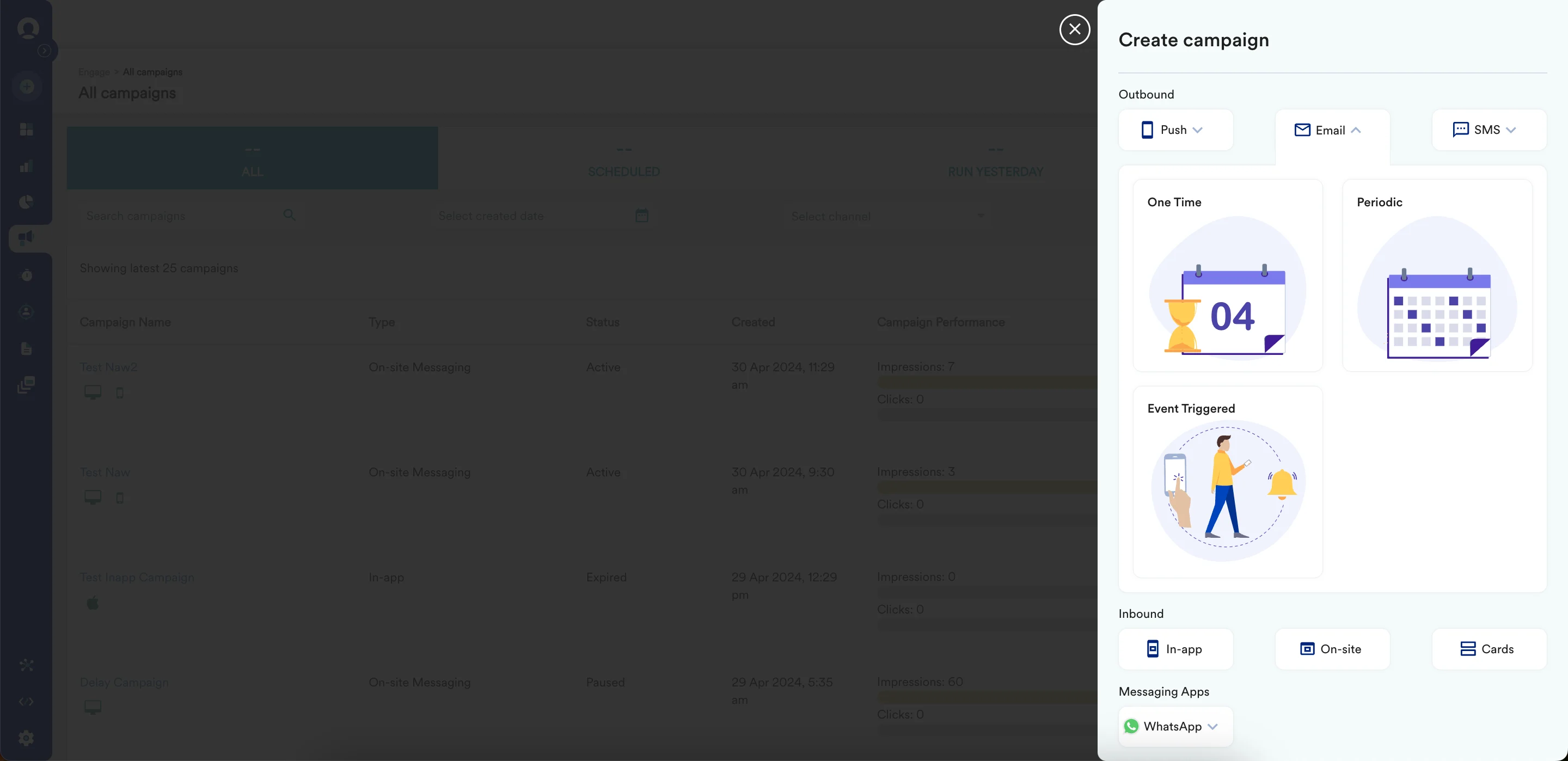
The Create campaign page is displayed.
You can also click Create New > Campaign. The Campaign page is displayed.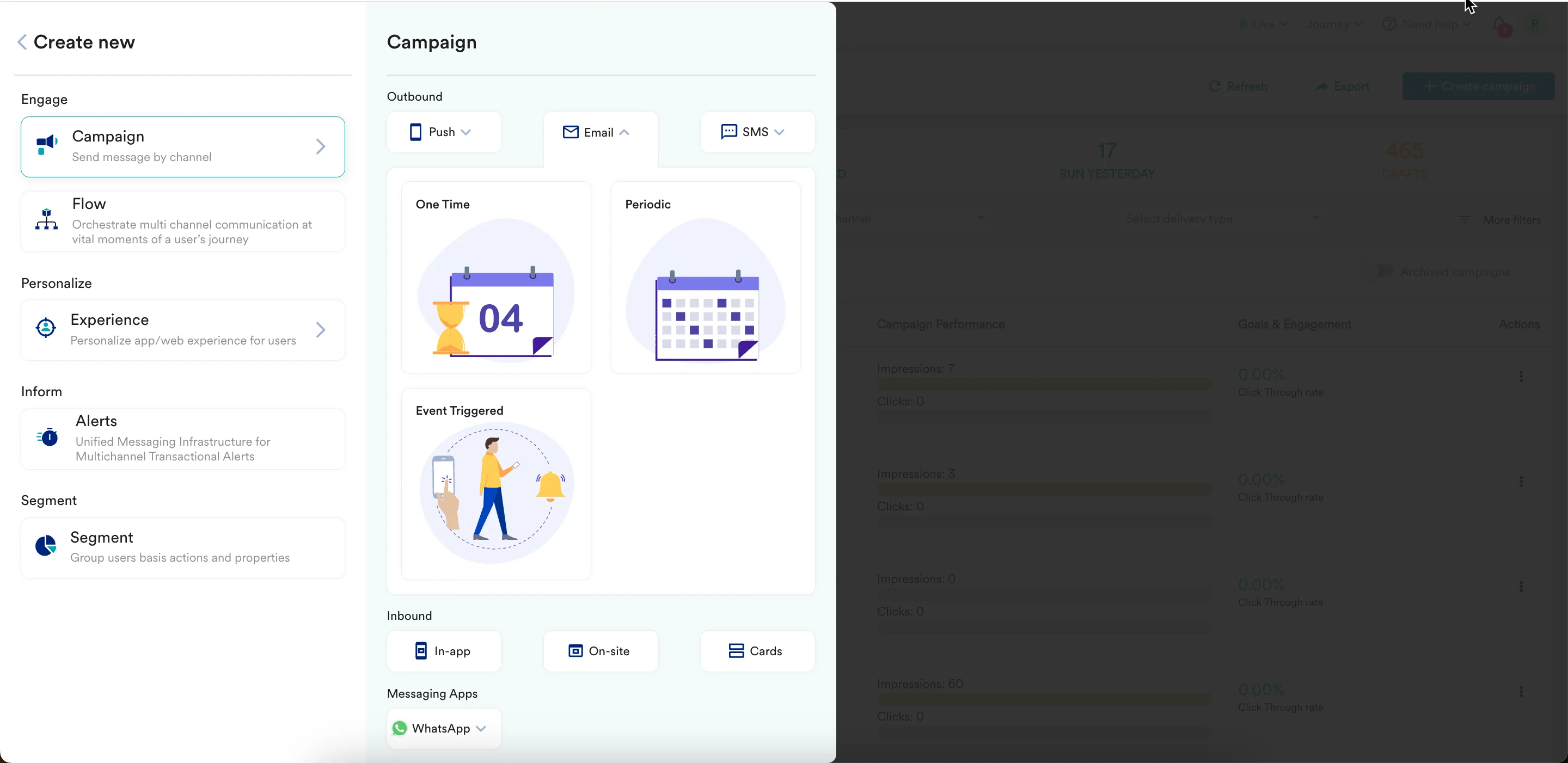
- Under Connectors , click Custom and select one of the following campaign delivery types:
- One Time
- Periodic
- Event Triggered
- Business Event Triggered
For more information, refer to Delivery Types.
The Connector creation page is displayed.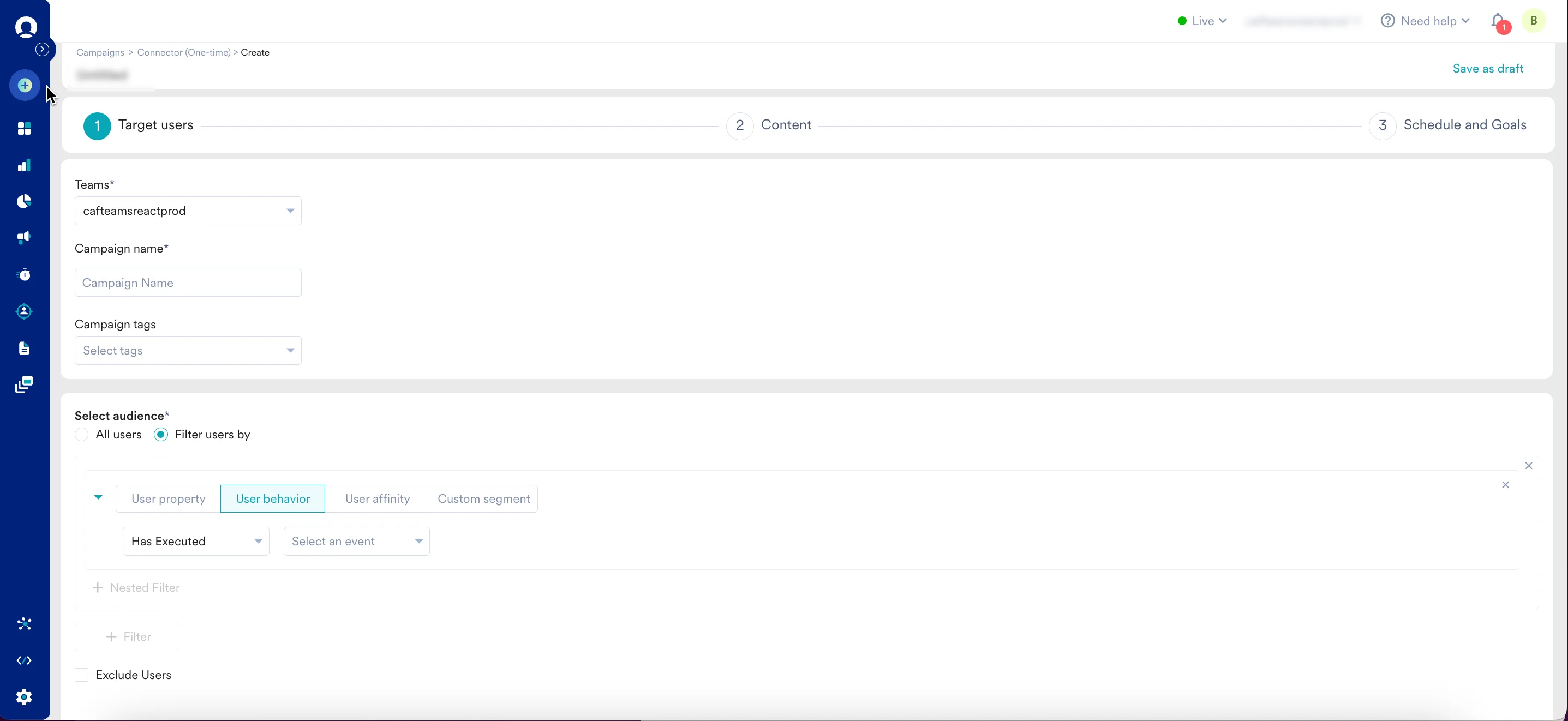
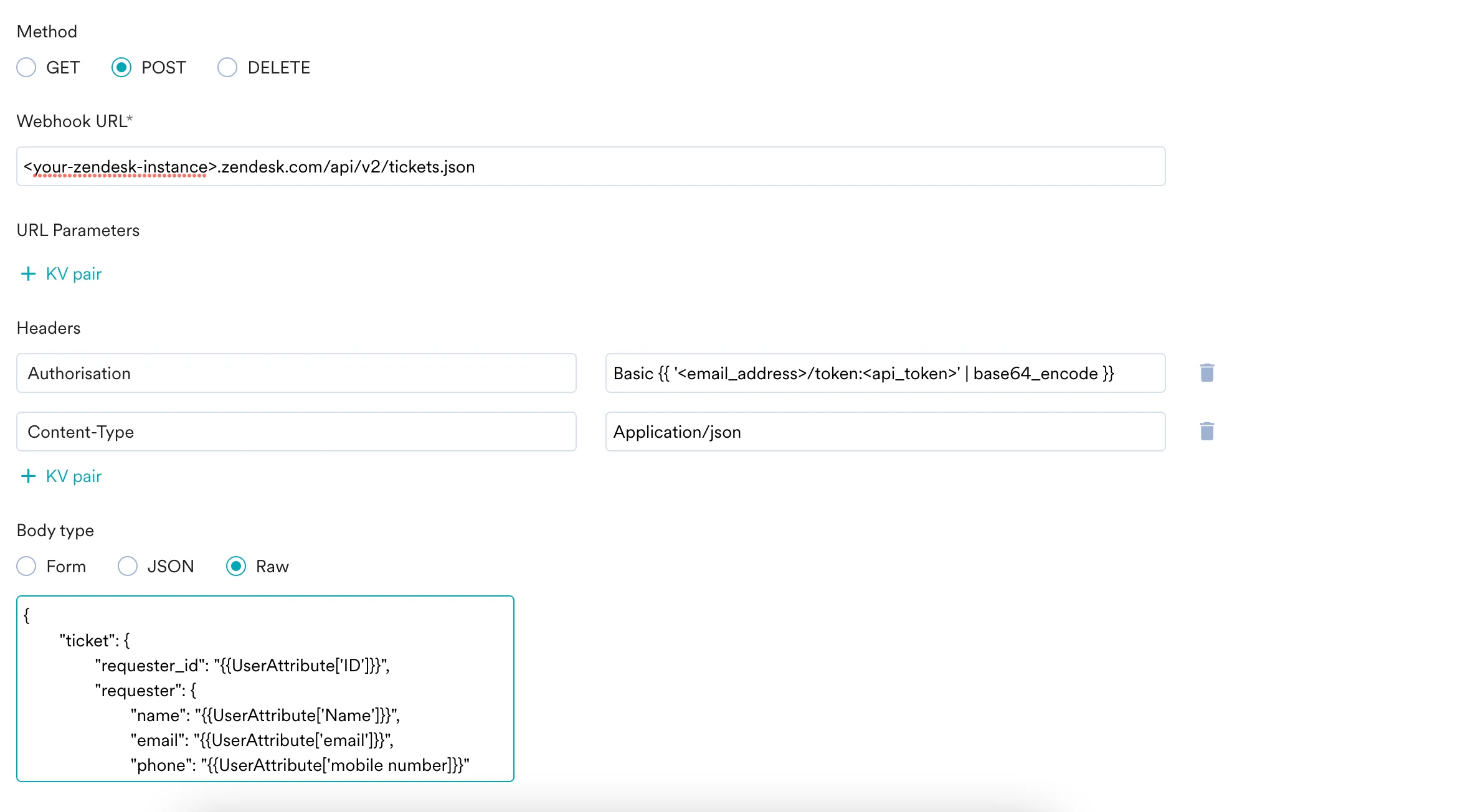
- In step 2 of the campaign, provide the following information:
- Under Method , select POST.
- In the Webhook URL box, paste the following
<your-zendesk instance>.zendesk.com/api/v2/tickets.json - In the Headers section, add the following key-value pairs:
- Authorization :
Basic {{'<email_address>token:<api_token>' | base64_encode}}. - Content-Type : Application/json.
- Authorization :
- In the body section, define the ticket details, such as type, subject, and status. The following is an example payload. You can customize it based on the Zendesk Ticket API.
Step 2: Preview Your Request
The campaign is now ready to be tested and sent. You can test the connector configuration using the Test functionality available in the second step of campaign creation. To verify the connection, check your Zendesk account. If a ticket is created successfully, your setup is correct, and you can publish the campaign.
Common Identifier
If you have a common identifier between MoEngage and Zendesk, we recommend using it as therequester_id. This helps unify the user profiles across both platforms. If you do not have a common identifier, we recommend passing a set of identifying attributes, such as name, email address, or phone number.