

Introduction
Snowflake is a data platform that allows organizations to store, analyze, and process large volumes of structured and semi-structured data in a highly scalable and efficient manner. With its unique architecture, Snowflake allows organizations to consolidate their data, perform quick analytics, and gain valuable data-driven insights accessible to all users.MoEngage × Snowflake
The MoEngage × Snowflake integration allows you to set up a direct connection between your Snowflake instance and MoEngage app to sync data on a recurring basis. You can define a schedule to run the sync periodically - syncs can be as frequently as every hour or as infrequently as once per month. When a sync runs, MoEngage will directly connect to your data warehouse instance, retrieve all new data from the specified table, and update the corresponding data on your MoEngage dashboard.Benefits
Reduce integration time
- No more searching for the right ETL tool, as MoEngage directly integrates with Snowflake.
- Long and complicated ETL pipelines are now replaced with a one-time integration setup that gives MoEngage direct access to your data without actual data flow.
- This decreases the dependency on tech teams significantly.
Faster data processing
- The power of the Snowflake infrastructure enables us to store, process, and query massive amounts of data in near real-time.
- Any changes in the original schema are propagated immediately without having to change any configuration on MoEngage’s end, which is a significant advantage over the traditional ETL pipelines.
- Since there is no need for ETL tools and external cloud providers, the cost of import is significantly lower than traditional data pipelines.
Integration use-cases
- Sync real-time audiences from Snowflake
- Keep your users in MoEngage up-to-date with the user data in your Snowflake account.
- Import event data from your Snowflake account directly into MoEngage.
- Import users into MoEngage and retarget them via custom segments.
Integration
PrerequisitesEnsure you have a Snowflake account with enough permissions to create new users, schemas or tables.
Set up a new Snowflake Connection
In order to import or export from Snowflake, you will first need to connect MoEngage to your Snowflake data warehouse. To create a new Snowflake Connection:- On your MoEngage Dashboard, go to the App Marketplace.
- Search for “Snowflake”.
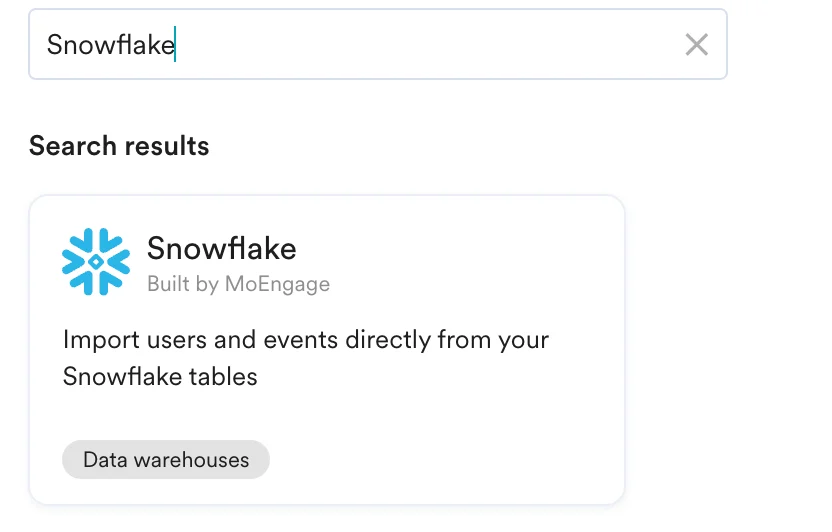
- Go to the Integrate tab, and click + Add Connection.
- Provide your Snowflake data warehouse details:
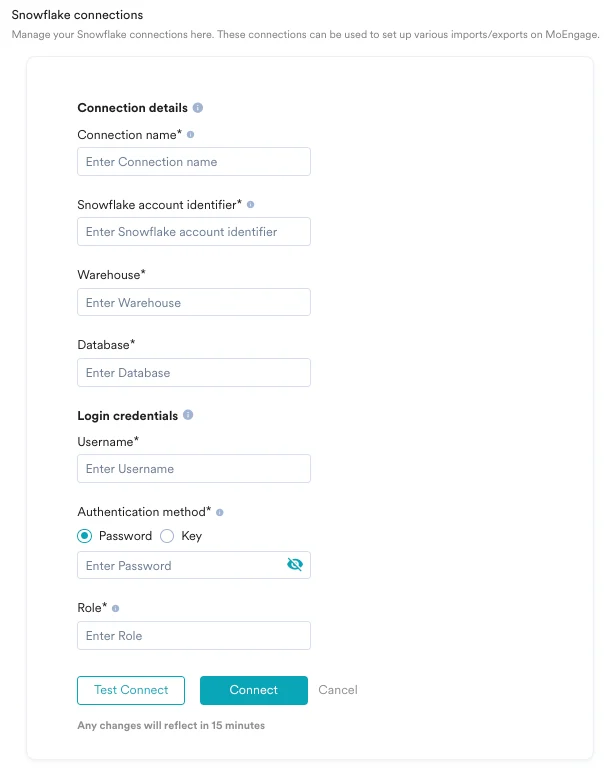
Field Description Example Connection Name Give this connection an identifiable name. My Snowflake Prod Snowflake Account Identifier The account identifier of your Snowflake account. - It is always found at the beginning of your Snowflake URL (
https://ACCOUNT_IDENTIFIER.snowflakecomputing.com). - The format may differ based on Snowflake account age. For details, visit Snowflake docs.
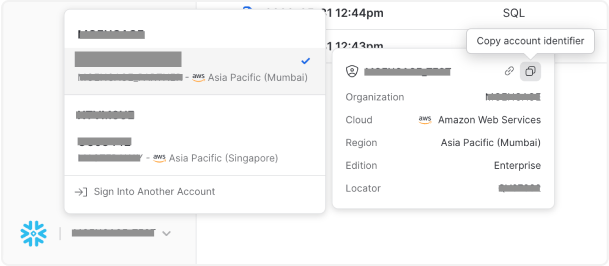
Format should be: ACCOUNT_IDENTIFIER.snowflakecomputing.comWarehouse The name of the warehouse MoEngage will use to execute the queries. COMPUTE_WAREHOUSE Database The database that MoEngage should use to read the tables from. You can pick the schema while setting up imports/exports. MY_DEMO_DB Username Either an existing database username with the read access or create a new one for MoEngage. — Authentication Method MoEngage can connect to your Snowflake Instance using two methods: - Password - Please provide the password of the database user (username) you entered above.
- Key - MoEngage can connect to your Snowflake Instance using the Key pair authentication method.
— Role This role will be used in executing queries from MoEngage. You can click Test connection to test your details or directly click on Save connection to proceed. — 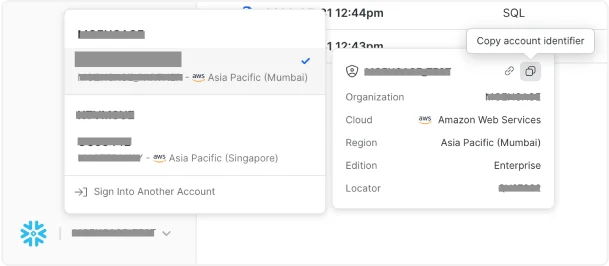
For Key pair authentication: - Select Key as your authentication method.
- Click on Generate Key and MoEngage will display your public key. You will need to add this public key to your database user. Follow the instructions mentioned on Snowflake help docs to set this up:
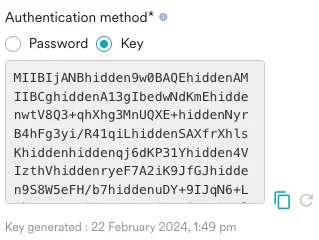
- Once you have added this key to your database user, click on Test connection and MoEngage will attempt to verify the credentials. MoEngage also supports the rotation of keys. If your IT Policy requires key rotation, you can do it by following these steps:
- Go to the App Marketplace > Snowflake > Integrate and edit the connection.
- Click on the generate new key icon:
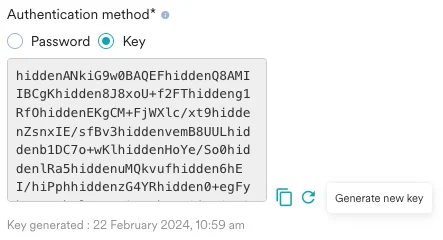
- A confirmation will be asked for you to review. Please read the instructions carefully. Once you save the connection with the newly generated key, MoEngage will no longer use the previous key. You have to ensure that the new key is attached to your database user as the second RSA key (see Snowflake help doc on rotating keys) for the rotation to work properly. If the new key is not attached after saving the connection, your imports and exports might break:
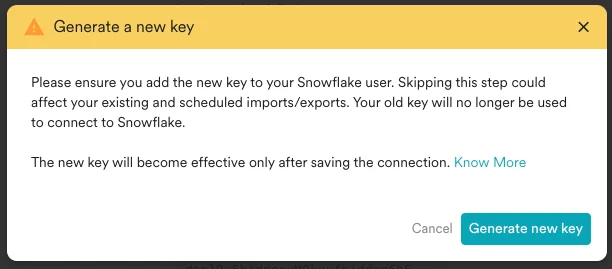
- Your new key will be generated and shown to you. At this point, it is highly recommended to copy this new key and attach it as an additional key to your Snowflake database user by following the instructions provided on the Snowflake help docs. Once you have attached the new key, you need to test the connection successfully to complete the rotation.
- At any point after generating the new key, if you decide to close the edit form, or do not click on Connect, your old (existing) key will continue to be used as before and the newly generated key will be deleted from our system.
- It is always found at the beginning of your Snowflake URL (
- Once you have set up a Snowflake Connection, you can use that to set up various imports and exports in MoEngage.