

Introduction
Karix is a mobile engagement and communications provider enabling enterprises to intelligently personalize their two-way marketing and customer care interactions across multiple channels.Prerequisites Ensure you have access to your Karix Dashboard and have the API key for your Karix account.
Configure Karix as a Custom SMS Connector (Service Provider)
This article will help you set Karix as a Custom Connector on the MoEngage dashboard. Log in to the MoEngage Dashboard and follow these steps:- Navigate to Settings > Channel > SMS > Sender Configuration.
- Click +Add Service Provider at the top right corner.
- Add the following details in the Sender Details screen. Mark as default Turn on this toggle to mark the sender as the default sender for the service provider being configured. If marked as default, this sender would be used for sending all SMS campaigns from MoEngage unless you select a different sender while creating the campaign.
- Configure the Webhook by adding the following details:
- Choose the Body Type as JSON and add the following details:
Change value for these keys: SENDER_ID and API_KEY - Set as per the Karix account credentials (If the API key has ’=’ at the end, add the ’=’ in the Key Value Pair section explicitly)
- Send a test SMS to verify your configuration.
- Click Save to save the Sender Configuration.
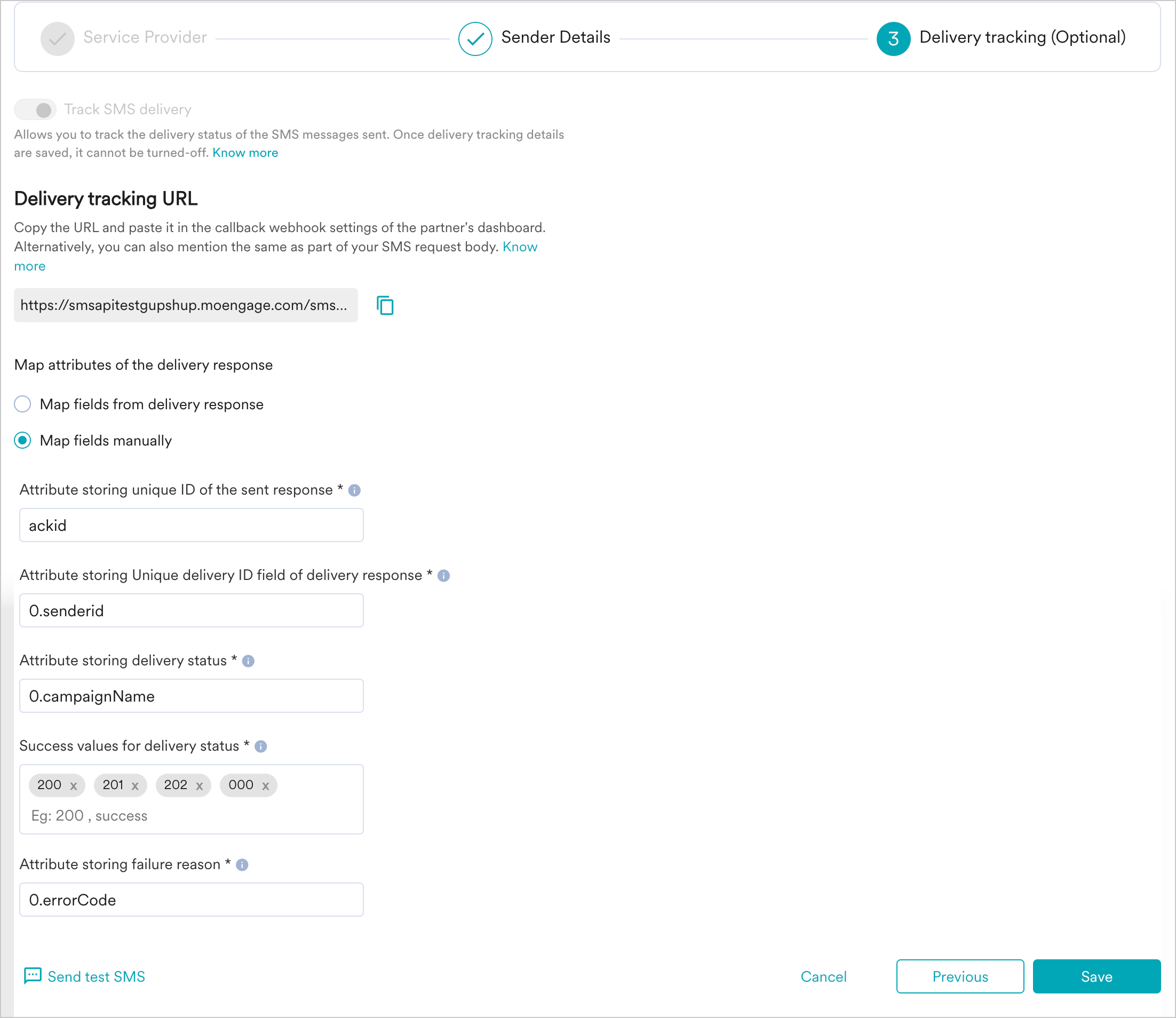
- You can configure delivery tracking after creating the sender in the MoEngage Dashboard. For information about Delivery Tracking, refer to Delivery Tracking for Custom Connectors.
- You can map the attributes of the delivery tracking response manually or automatically.
Next Steps
- Create an SMS campaign using the Getting Started for creating SMS campaign.
- Set the Frequency Capping for SMS.
- Set the Current Service Provider.
- Read more about campaign analytics.