

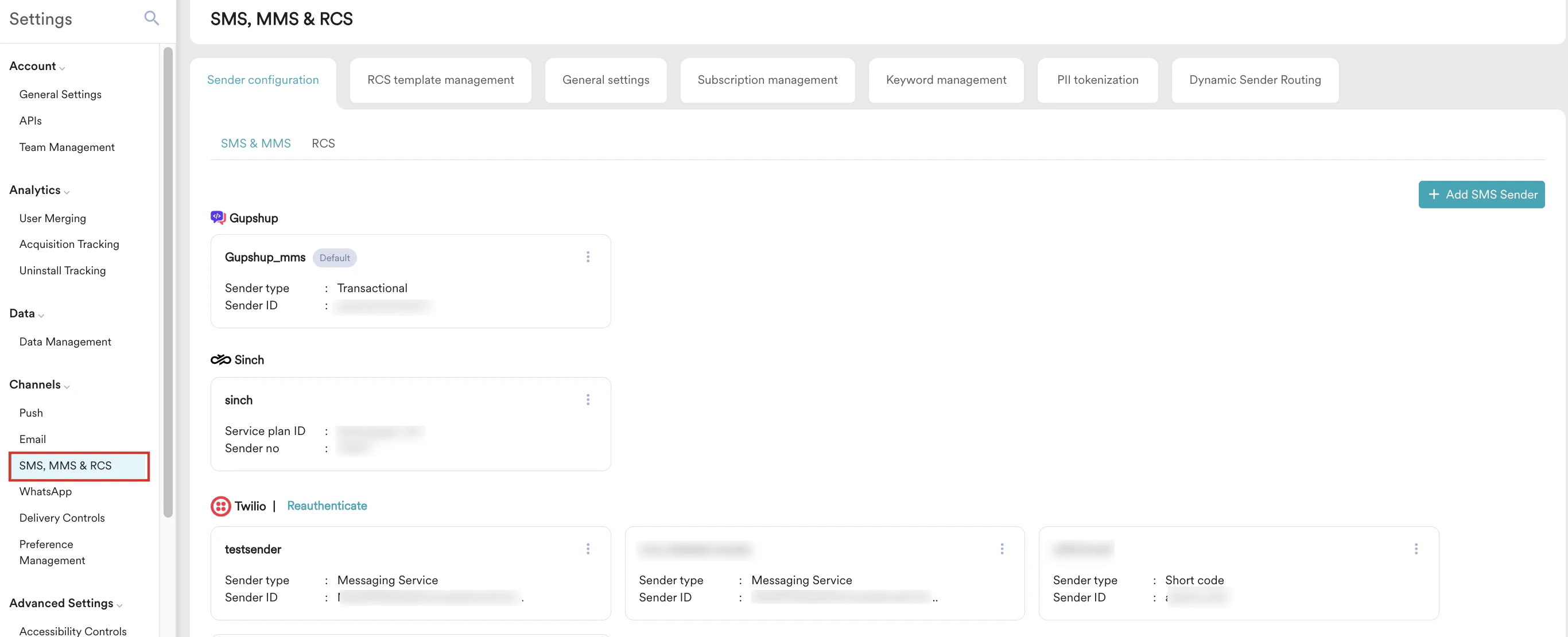
Configure Your Sender
Perform the following steps to add an SMS sender:-
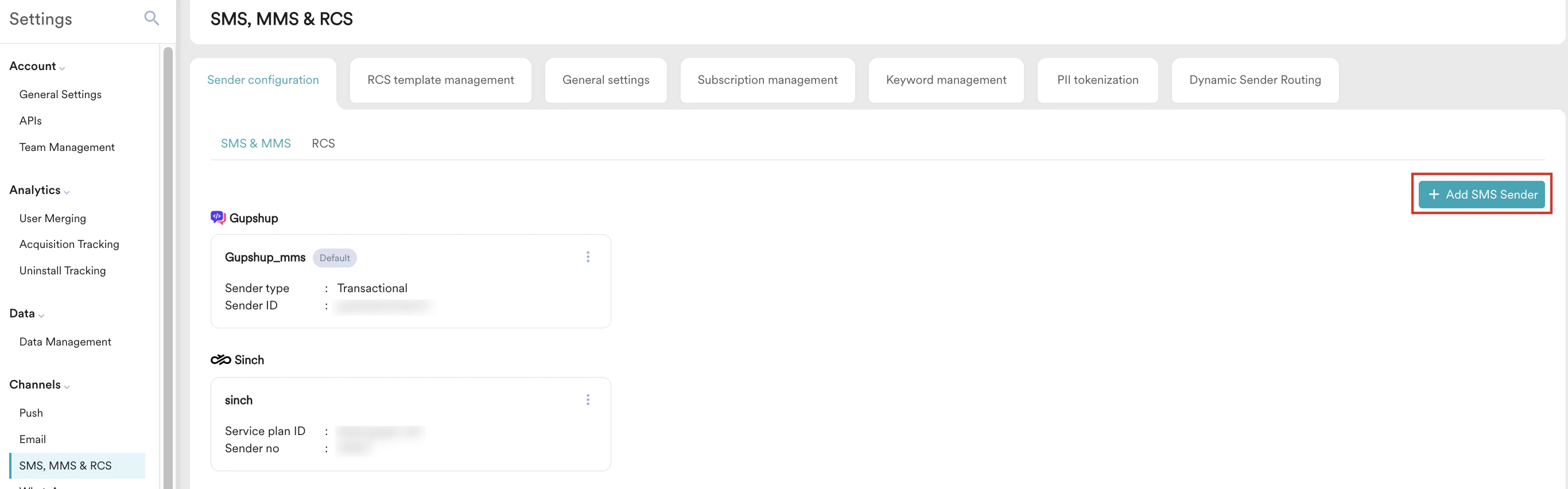
On the SMS & MMS tab, click Add SMS Sender. The Add sender page is displayed.
-
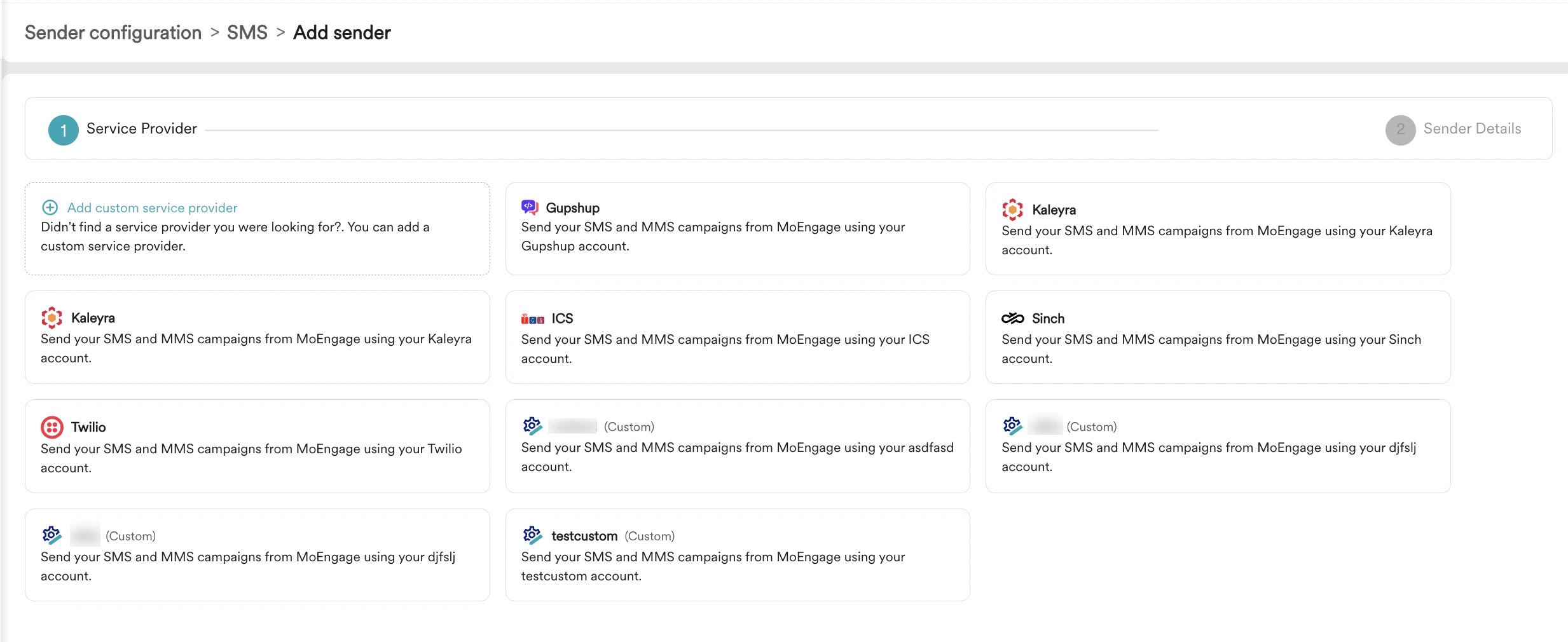
In step 1, Service Provider, select your service provider. You can choose from integrated service providers or add a custom service provider. For more information about adding custom service providers, refer to Configure a Custom Service Provider.
-
In step 2, Sender Details, add the sender details of the selected sender. The following are some of the common sender detail fields for integrated service providers:
Note that depending on the sender being configured, the fields in the UI vary. For example, some senders may require a username and password, while others may require API endpoint URLs. For more information, refer to SMS Providers for vendor-specific configuration details.
- Copy the Delivery tracking URL available on the dashboard and paste it into the callback webhook settings of your service provider.
- Click Send a test SMS to test your configuration.
- Click Save.
- After adding the sender, it will be displayed under the Sender configuration > SMS & MMS tab.
-
Click the ellipsis icon ( ) to Mark as default, Edit, or Delete the sender.
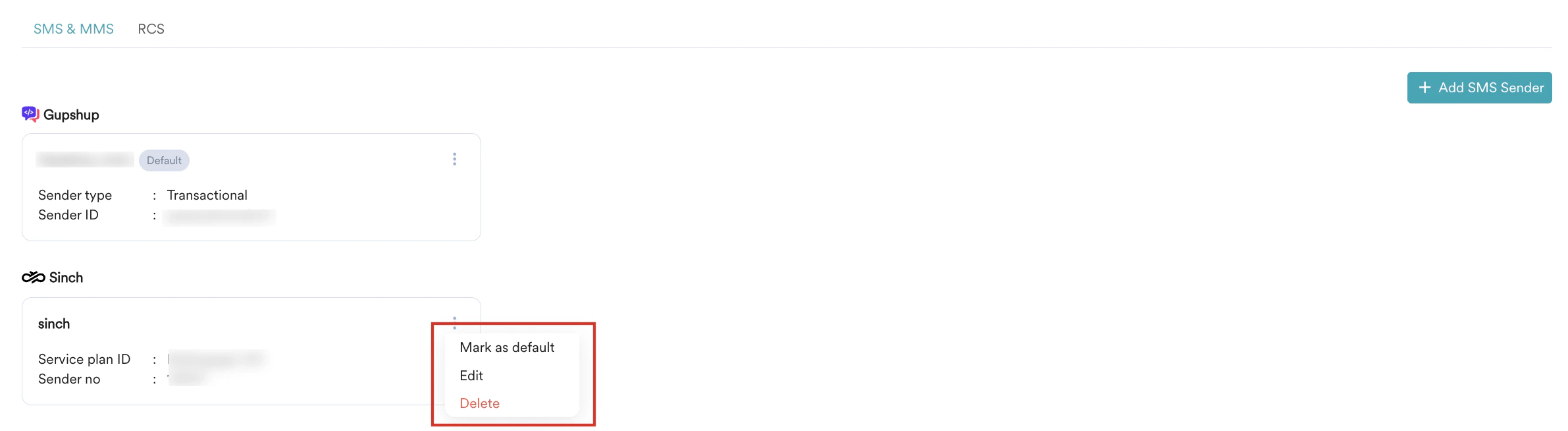
- When a sender is marked as default, this sender is used to send all SMS campaigns, unless a different sender is selected at the campaign level.
- When you delete a sender, any active campaigns associated with this sender will be send using the default sender. Note that you cannot delete a default sender. To delete a default sender, mark another sender as the default first. This will enable the delete option for the sender you want to delete. You can now proceed to delete the sender.
Dynamic Sender Routing
This feature is applicable only for Inform alerts.
- Optimize your messaging for better deliverability.
- Manage sending costs.
- Ensure compliance with local regulations.