

Create a Meta Template
- Navigate to Settings > Channels > WhatsApp.
-
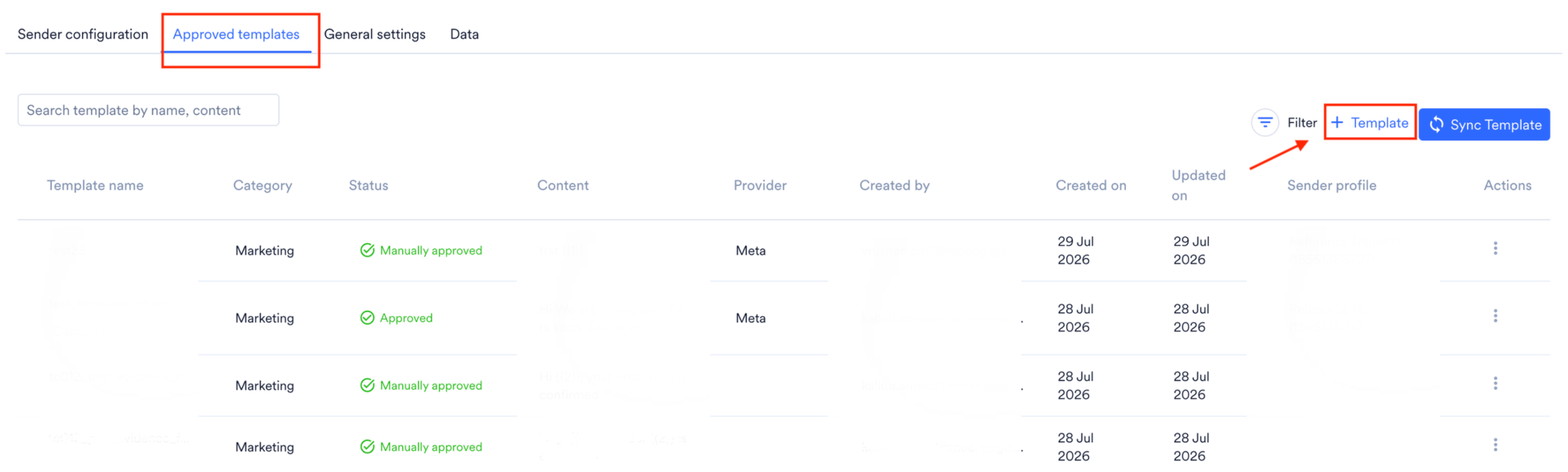
Select the Approved templates tab and click on the + Template button.
-
Configure the template by adding the required components.
-
Click the Save or Submit for approval button.
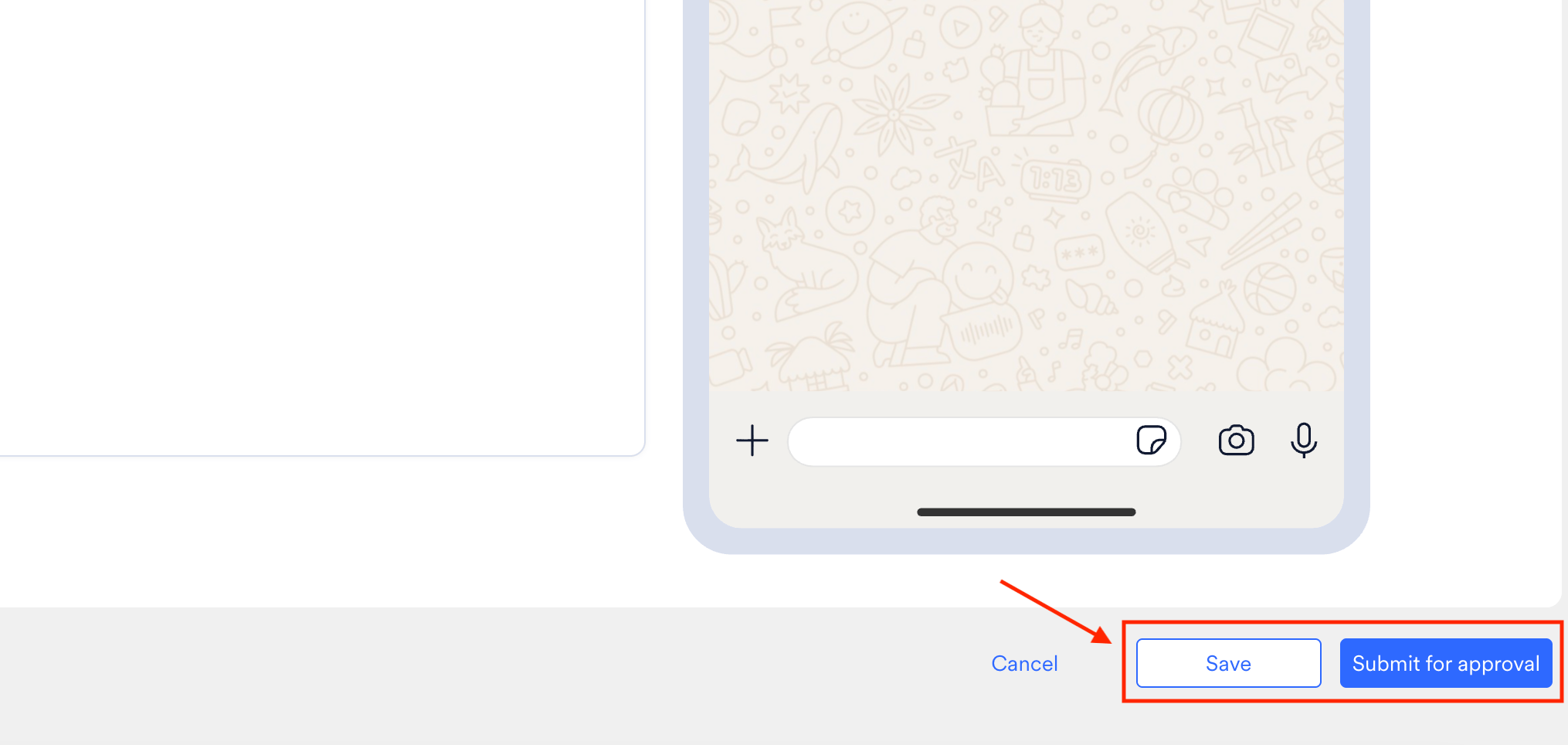
When you select Submit for approval, MoEngage submits the template to Meta for approval. When you select Save, MoEngage saves the template only. Templates saved this way must be manually created and submitted to Meta for approval.
- Carousel Template
- Simple Default Template
- Limited Time Offer Template
| Field | Description |
|---|---|
| Header | The header appears at the top of your WhatsApp message and can contain text or supported media. This field is optional. If you select a dynamic media header (such as an image), provide a sample image during template creation. |
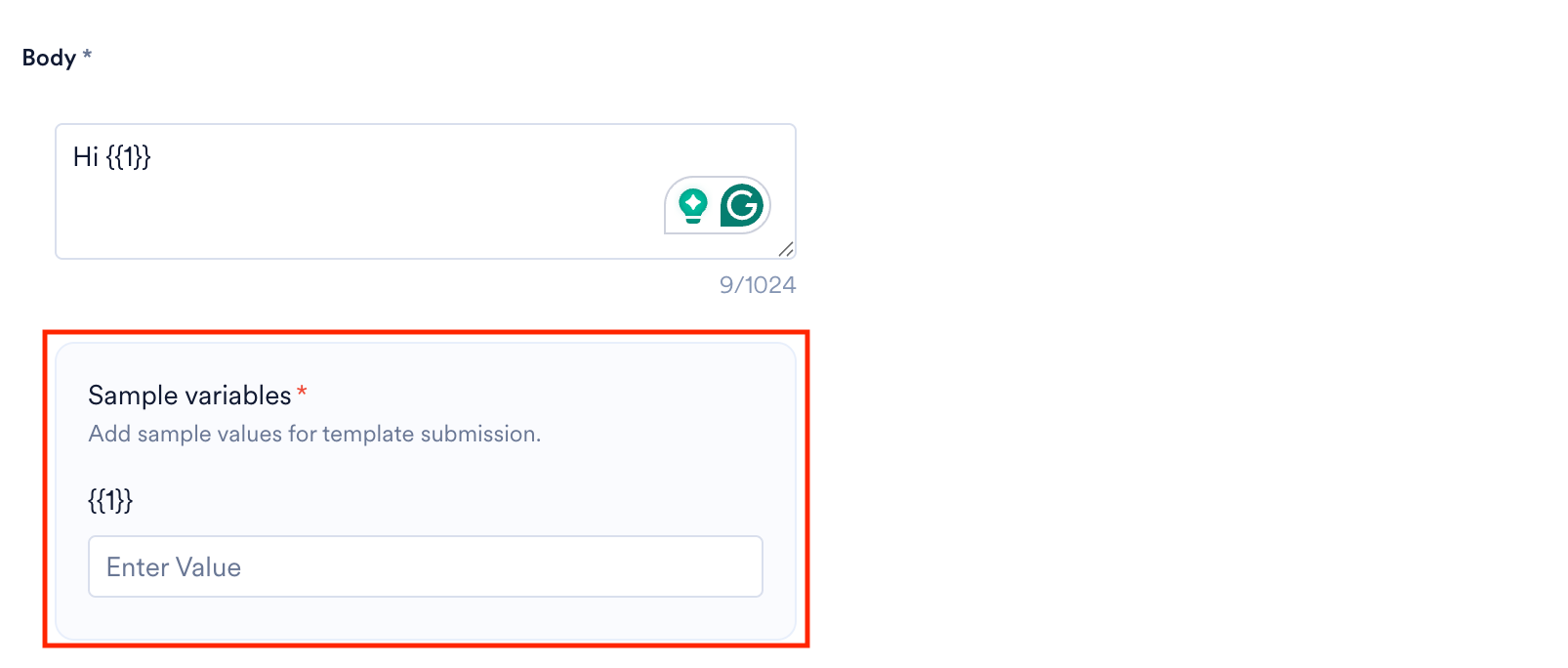
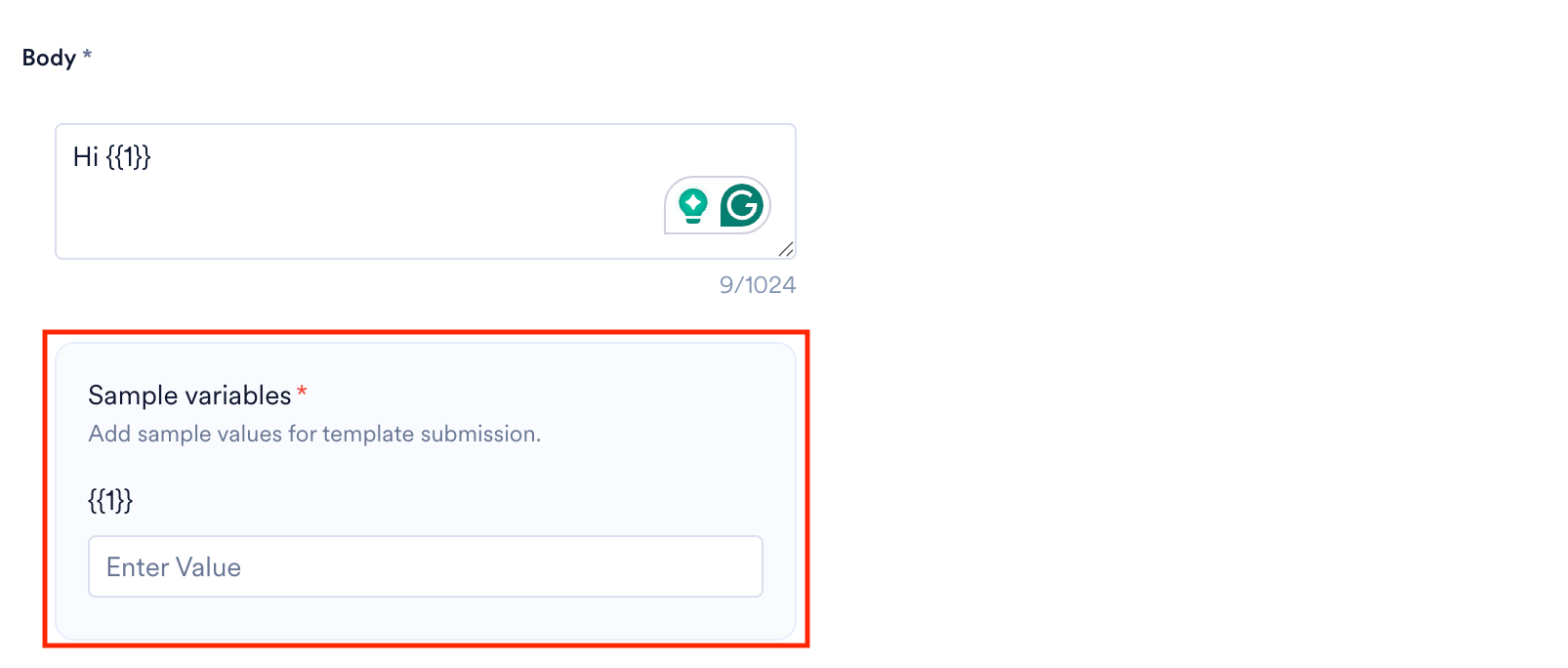
| Body | Configure the body of the template. You can enter up to 1024 characters. Ensure that the body of the template clearly communicates the objective to your audience. If the body contains dynamic variables, provide a sample value for each variable during template creation.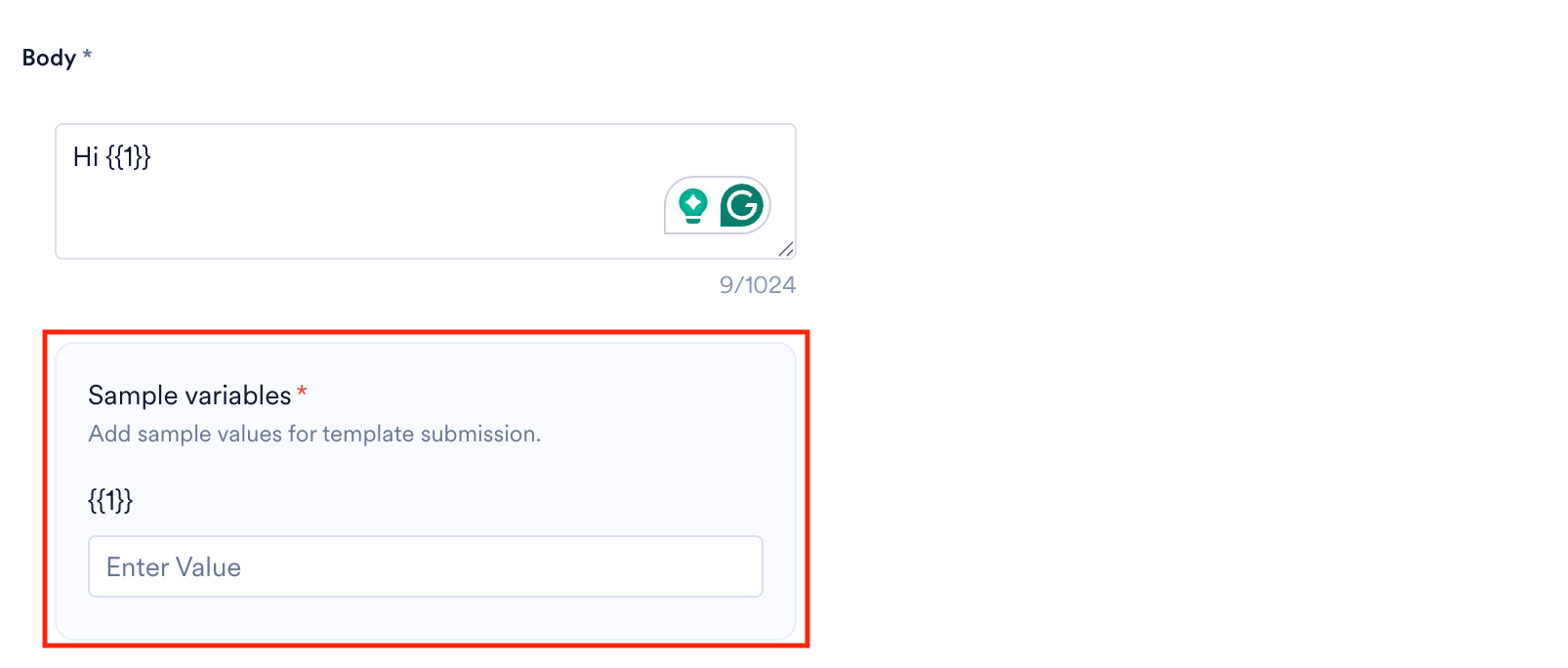 |
| Carousel Content | You can view this section when the Template Type field is set as the Carousel template. |
| Media Type | Select the type of media you want to display on the carousel card. You can select either an Image or a Video. You can view this section when the Template Type field is set as the Carousel template. |
| Image Type | Upon selecting the media type as image, you can further select the image type as static or dynamic. You can view this section when the Template Type field is set as the Carousel template. |
| Image Source | Specify the image source by either uploading the image directly from your device or linking to an external image source. You can view this section when the Template Type field is set as the Carousel template. If the image source is dynamic, provide a sample image during template creation.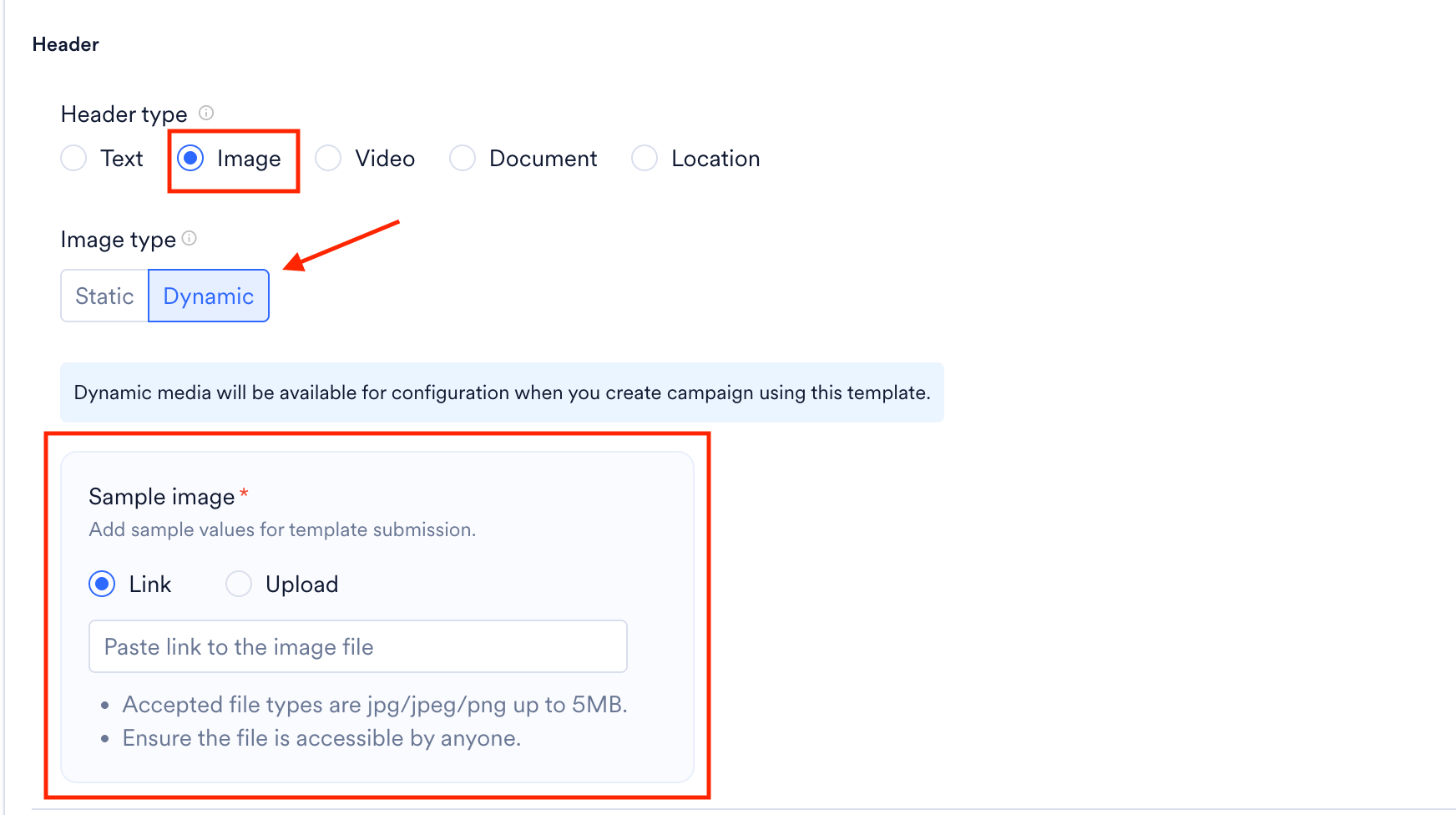 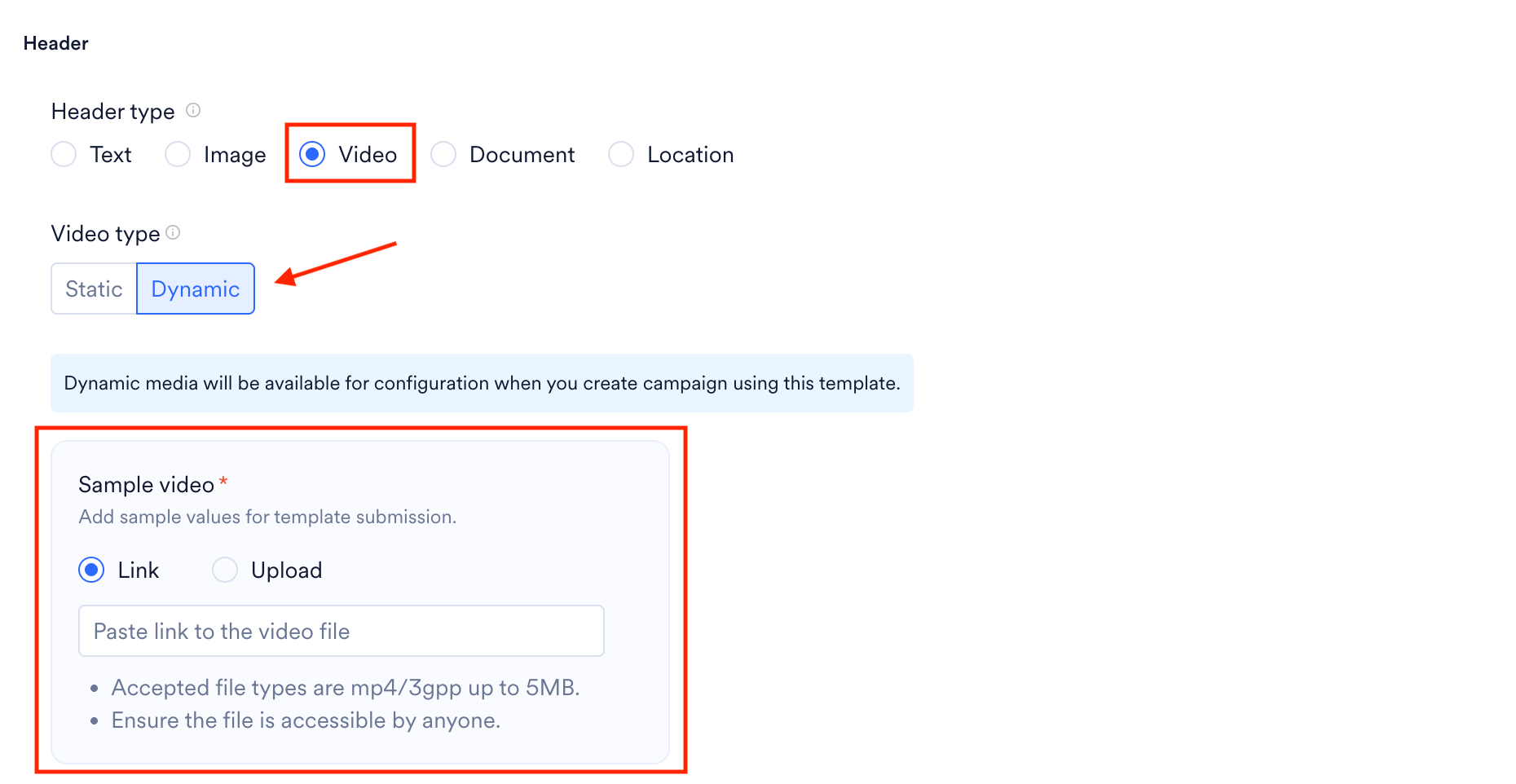 |
| Link to image | You can view this field if the Image Source field is set as a Link. You can specify the URL where the image is hosted. |
| Video Type | Upon selecting the media type as video, you can further select the video type as static or dynamic. You can view this section when the Template Type field is set as the Carousel template. |
| Video Source | Specify the video source by either uploading the video directly from your device or linking to an external video source. You can view this section when the Template Type field is set as the Carousel template. |
| Link to video | You can view this field if the Video Source field is set as a Link. You can specify the URL where the video is hosted. |
| Card Body | You can add up to 10 cards showcasing the content within each card, such as text or media. If you have multiple cards, you can navigate among the cards by using the forward and backward navigation buttons. You can view this section when the Template Type field is set as the Carousel template. |
| Footer | Configure the footer for your WhatsApp template. This field is optional. You can view it when the Template Type field is set as Carousel Template. |
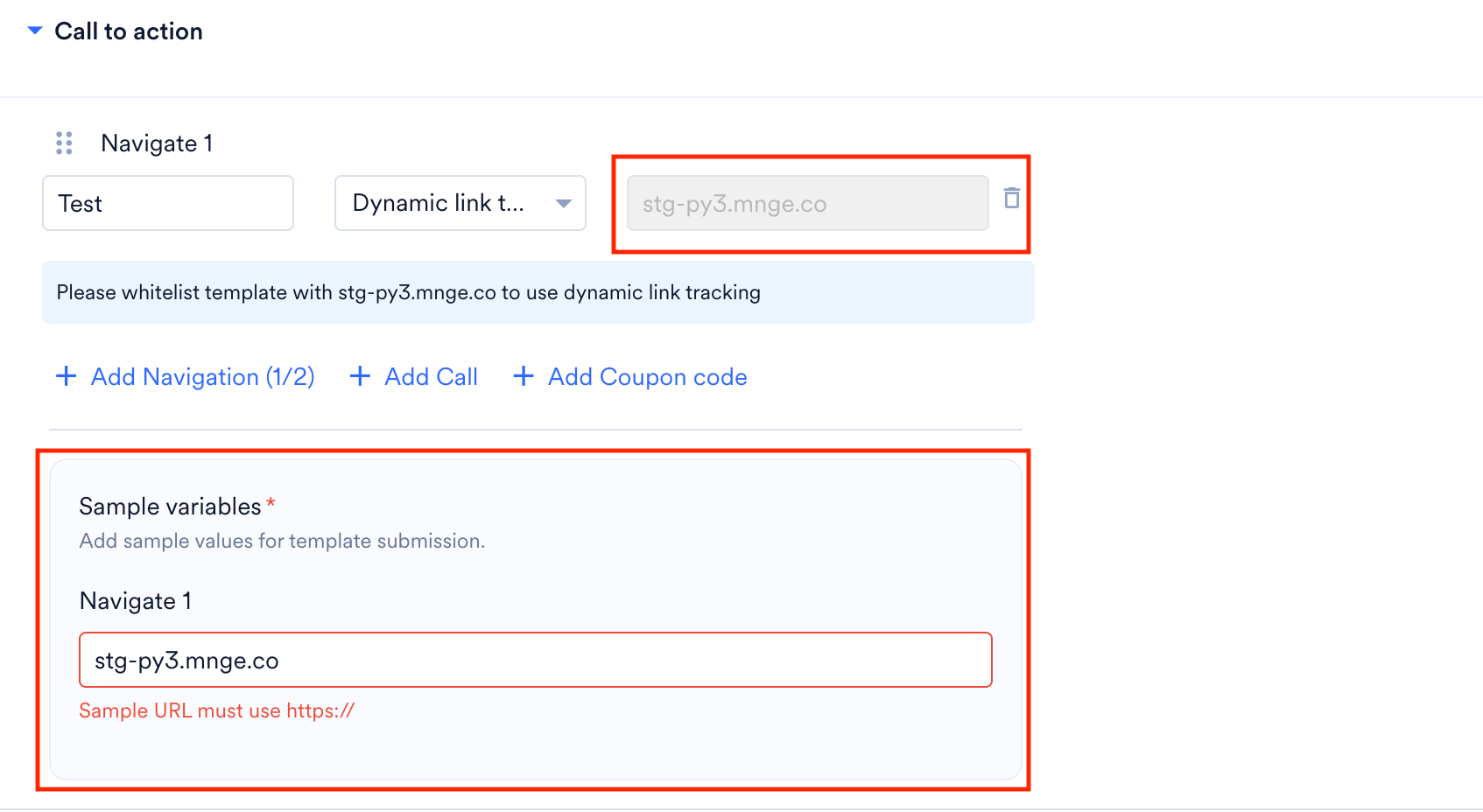
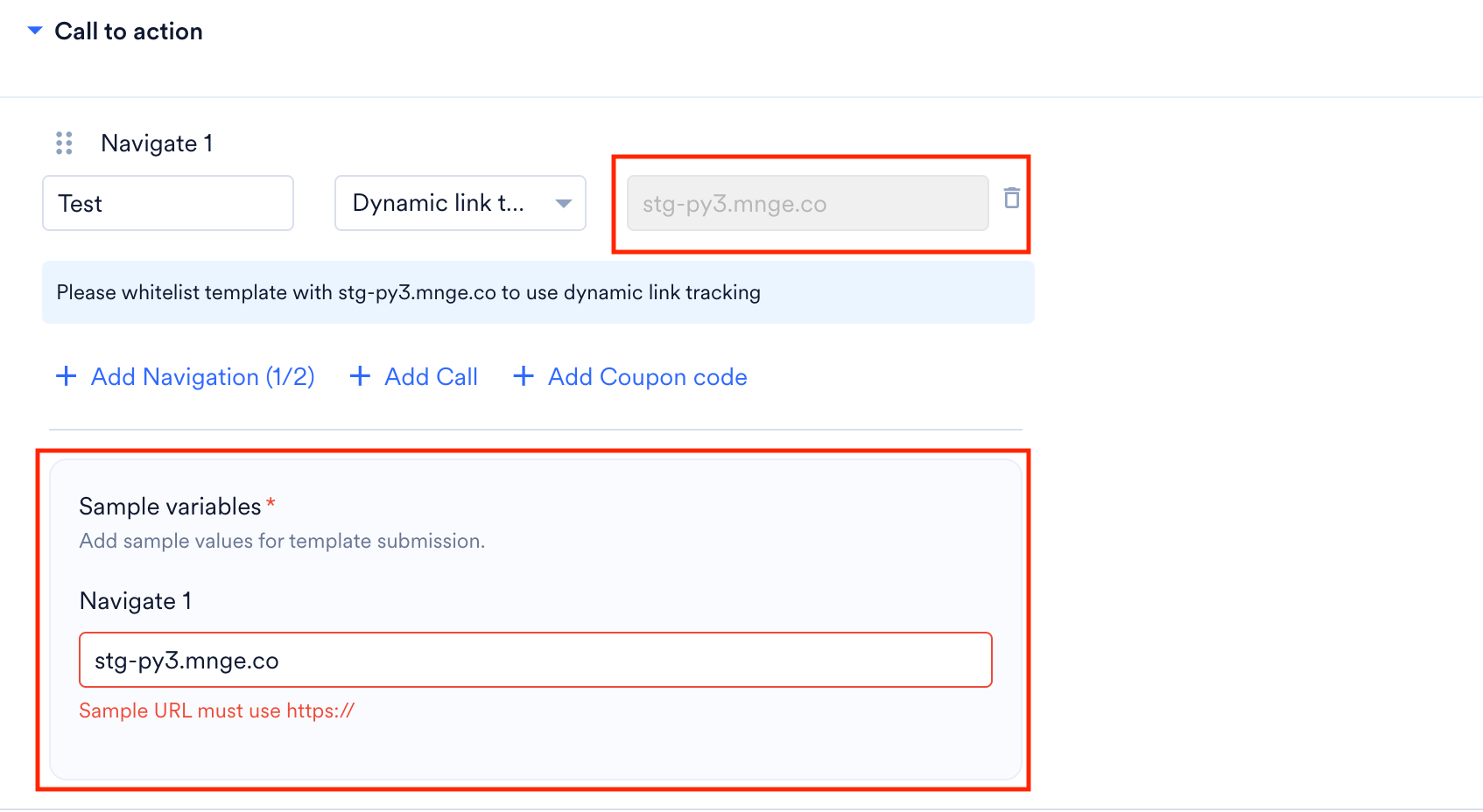
| Button(s) | You can add CTA buttons in this section. When the Template Type field is set as Carousel Template, you can add 2 buttons overall. If your CTA button contains dynamic values (for example, a dynamic URL), provide a sample value for each dynamic variable, and ensure the domains match.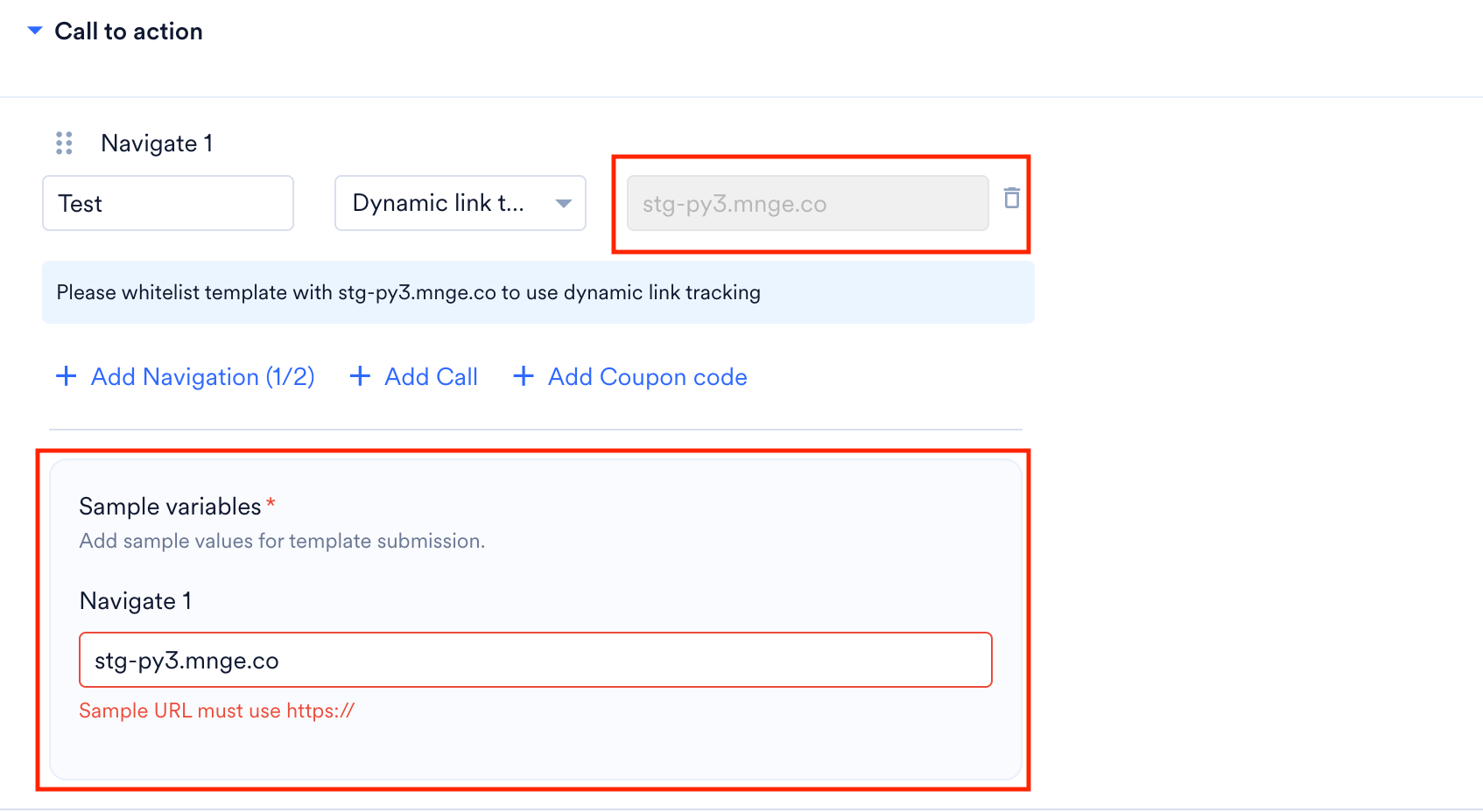 |
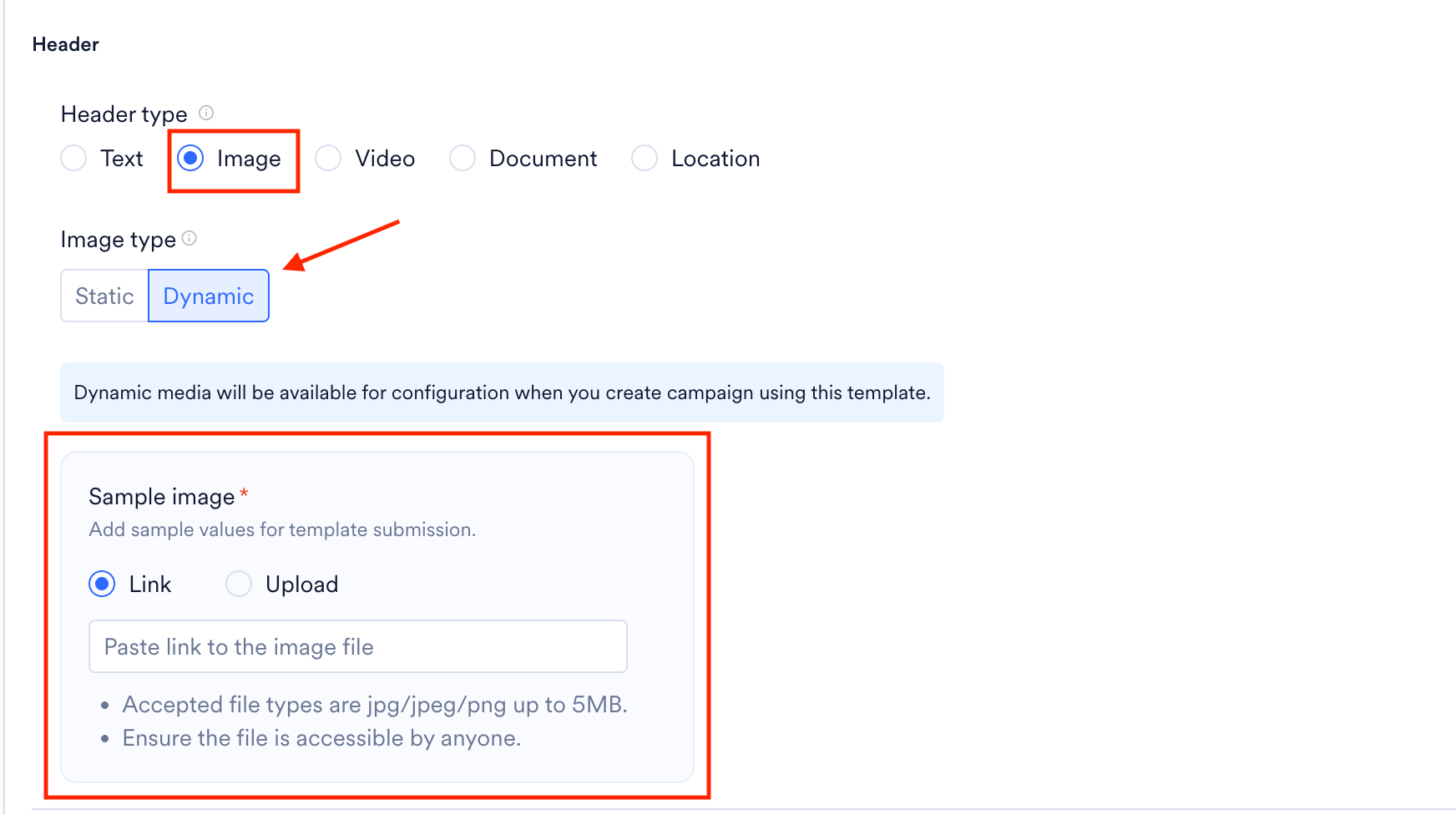
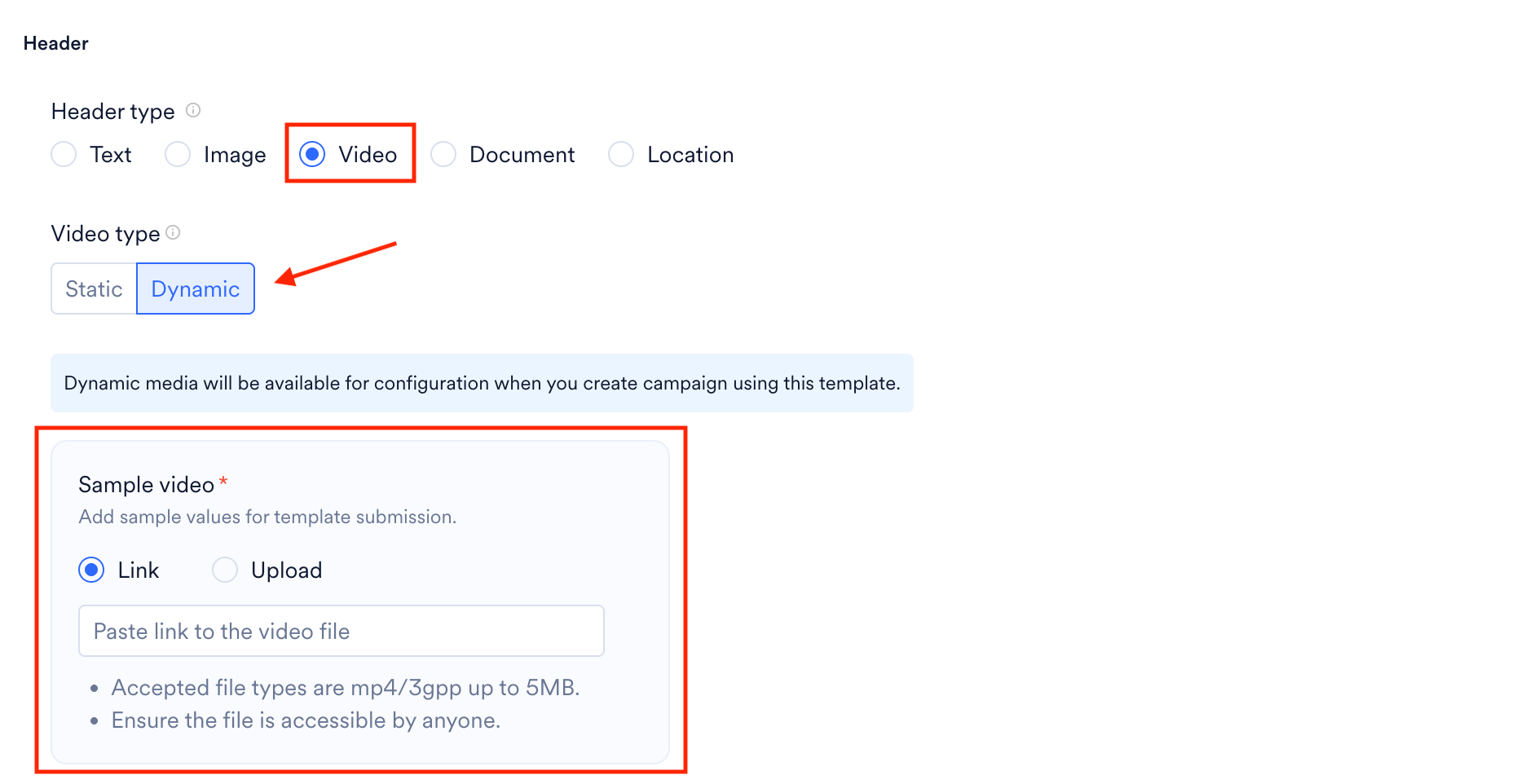
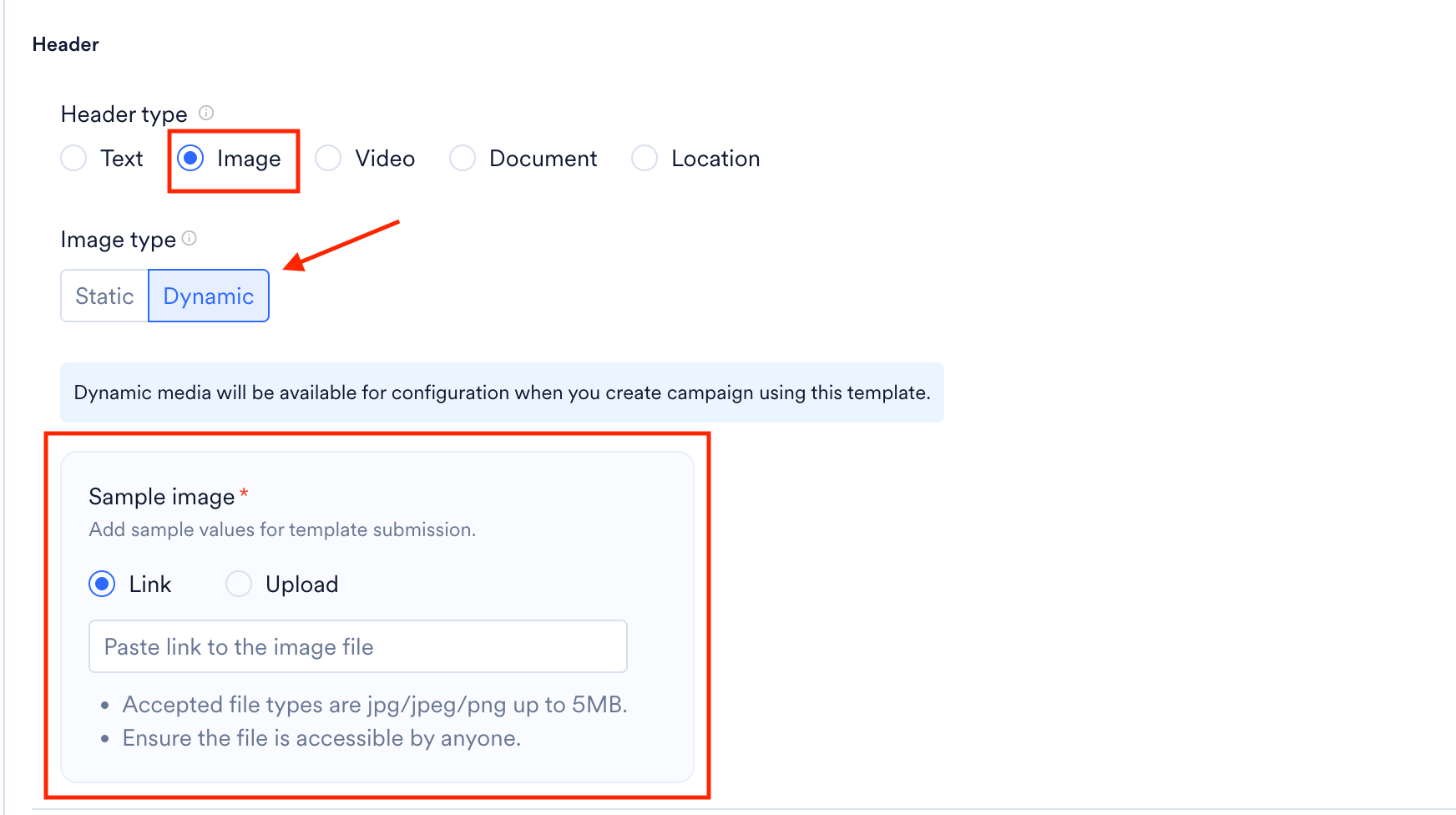
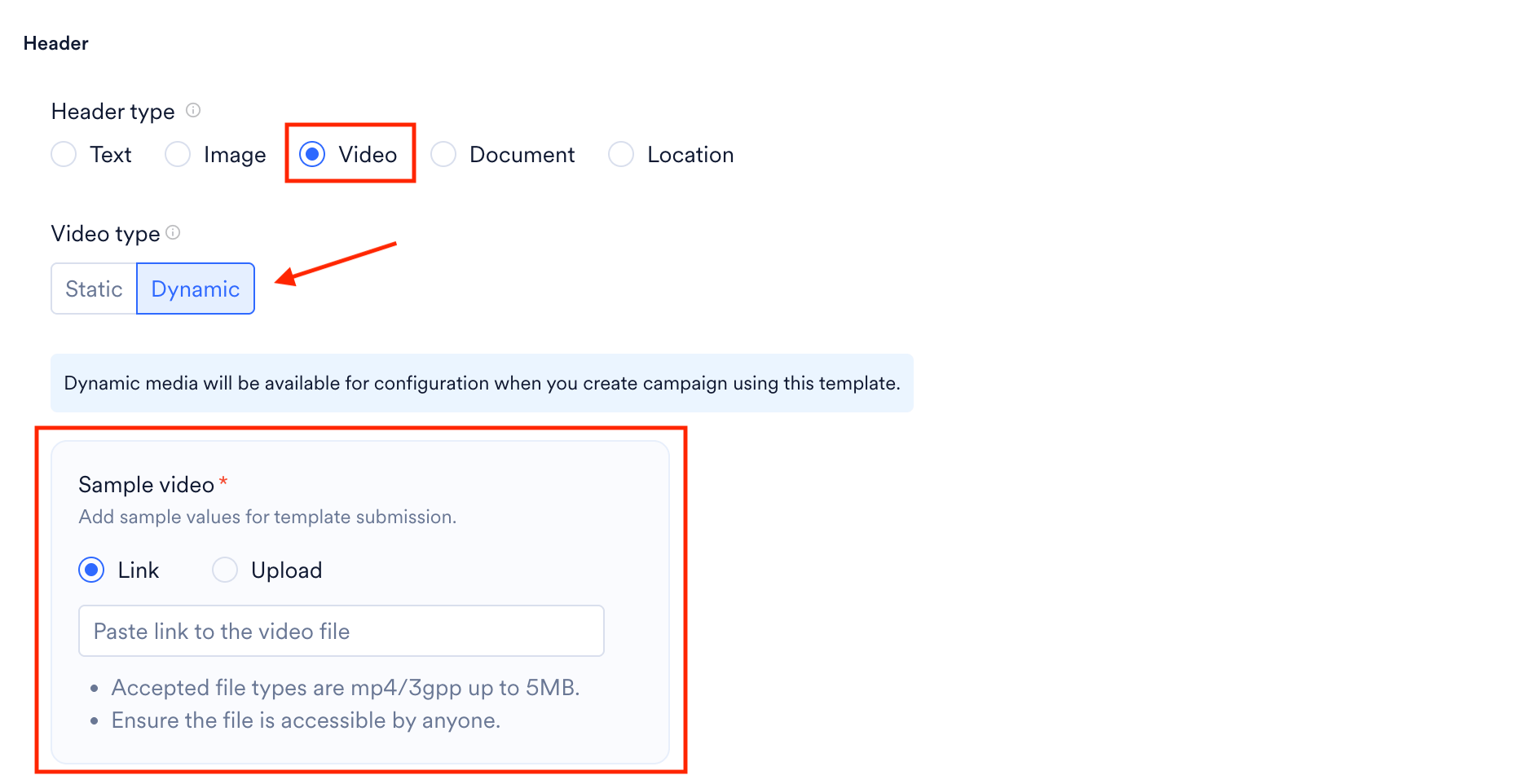
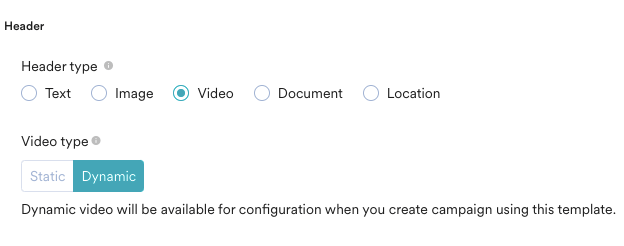
- Static: Static fields are fixed on the Template level. For example, static images can be used to send the same image in all messages to target users across all campaigns where this template is used.
- Dynamic: Dynamic fields are flexible and can be configured during campaign creation. A dynamic image can be used to personalize for each campaign or each user in that campaign.
- Dynamic Link Tracking: Dynamic link tracking allows you to track clicks on buttons with Navigation as an action. This is available only for Navigation buttons and for Gupshup as a provider.
Headers
Headers are optional and can be of the following types:- Text (up to 60 characters, can include 1 placeholder)
- Image
- Video
- Document
- Location
Template Status
Once you submit a template for approval, it progresses through the following statuses: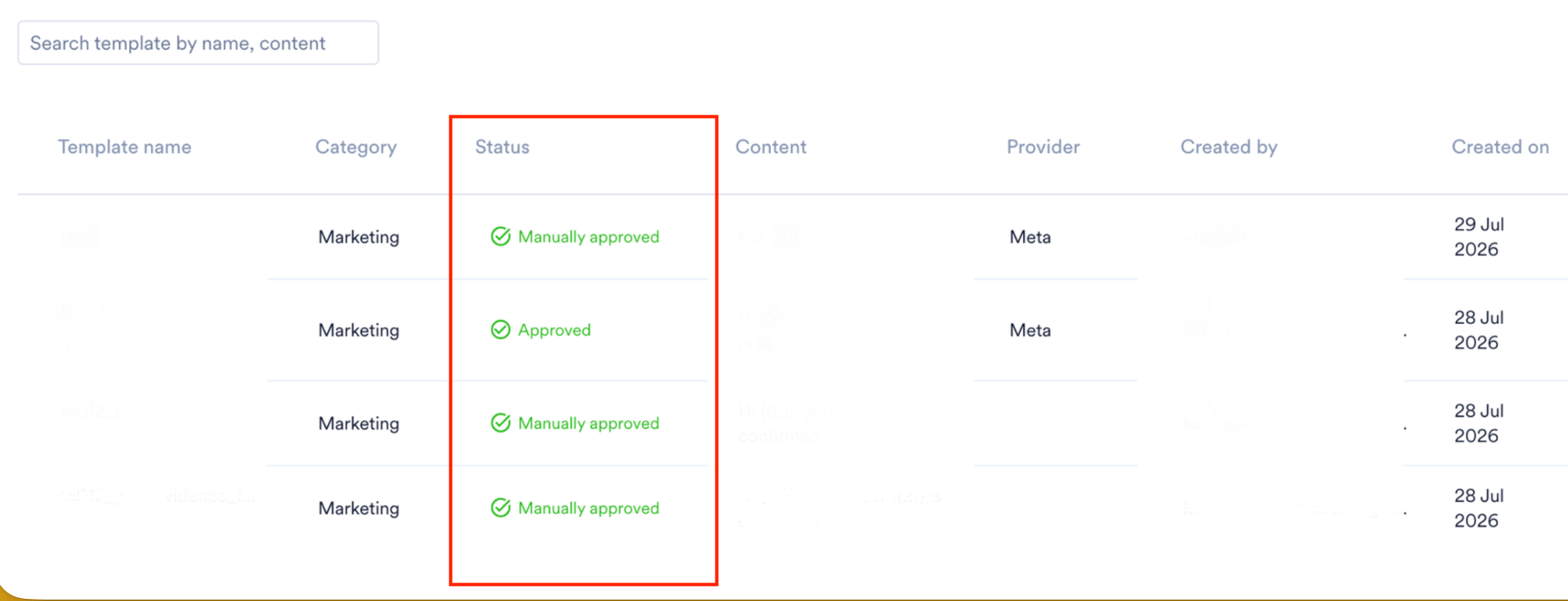
Meta also supports template sync. If you have already created templates in Meta, use Sync Template to import all available templates into MoEngage. You can also use this feature to fetch newly created templates and update existing ones.