

MoEngage x Whilter AI
The integration of Whilter AI and MoEngage enables businesses to generate and deliver personalized media in real-time. You can use MoEngage’s connector campaigns to trigger content creation in Whilter AI, which then uses a secure callback to update the MoEngage user profile with the generated media URL. With this integration, you can:- Trigger real-time personalized content generation (video or image) based on user actions in MoEngage.
- Update MoEngage user profiles instantly with the public URL of the generated media.
- Use the personalized URL in subsequent MoEngage delivery campaigns (Email, WhatsApp, and others).
Use Cases
Integrating MoEngage with Whilter AI supports the following use cases:- Personalized onboarding: Automatically generate a personalized welcome video when a new user signs up and send it via email instantly.
- Abandoned cart recovery: Create a personalized image or video showing a user’s abandoned item(s) and use it in a recovery campaign.
- Milestone rewards: Generate a personalized “Thank You” video when a user reaches a loyalty tier or purchase milestone.
Integration
PrerequisitesBefore you begin the configuration, ensure you have the following:
- An active Whilter AI account with access to template creation.
- Your Whilter AI Client ID and Client Secret (required for token generation).
- An active MoEngage UI account.
Step 1: Set up the Whilter AI Campaign
To set up the campaign in Whilter, perform the following steps:- Sign in to the Whilter AI platform.
- Navigate to the Campaign Creation page:
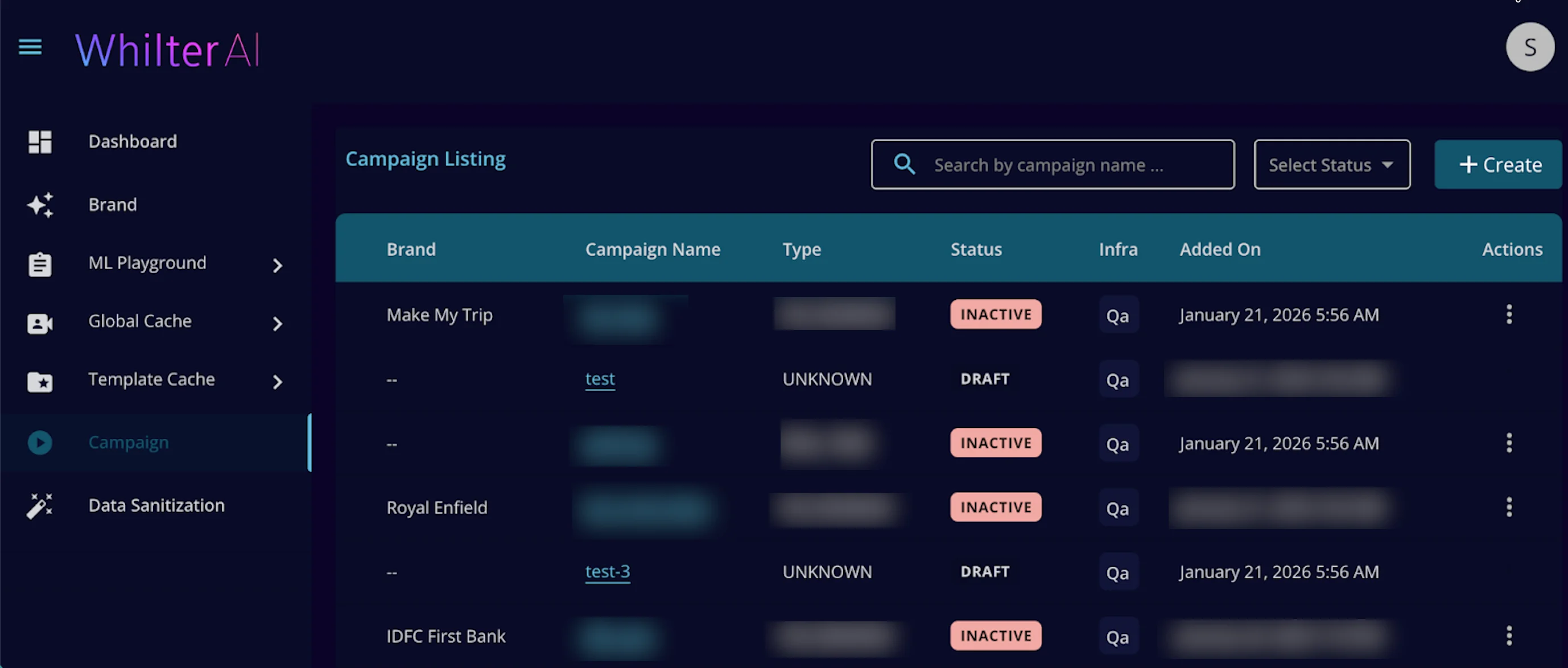
- On the left navigation, click Campaign.
- Click + Create or select an existing campaign (for example, axis-genz).
- Configure Media Parts:
- On the Campaign dashboard, click Campaign Config.
- In the Video Config section, your template is divided into sequential parts. Click each header below to expand the section and upload your base templates:
- ML with MLT: AI-driven features like LipSync, Transliteration, or TTS.
- MLT: Standard dynamic layer mapping.
- STATIC: Assets that remain unchanged.
- Click Browse Media to upload your asset.
- Map the dynamic fields:
- Identify the layers (text or image) in your template.
- Map the user attributes you want to send from MoEngage.
- Click the Eye
 icon (optional) to preview the asset.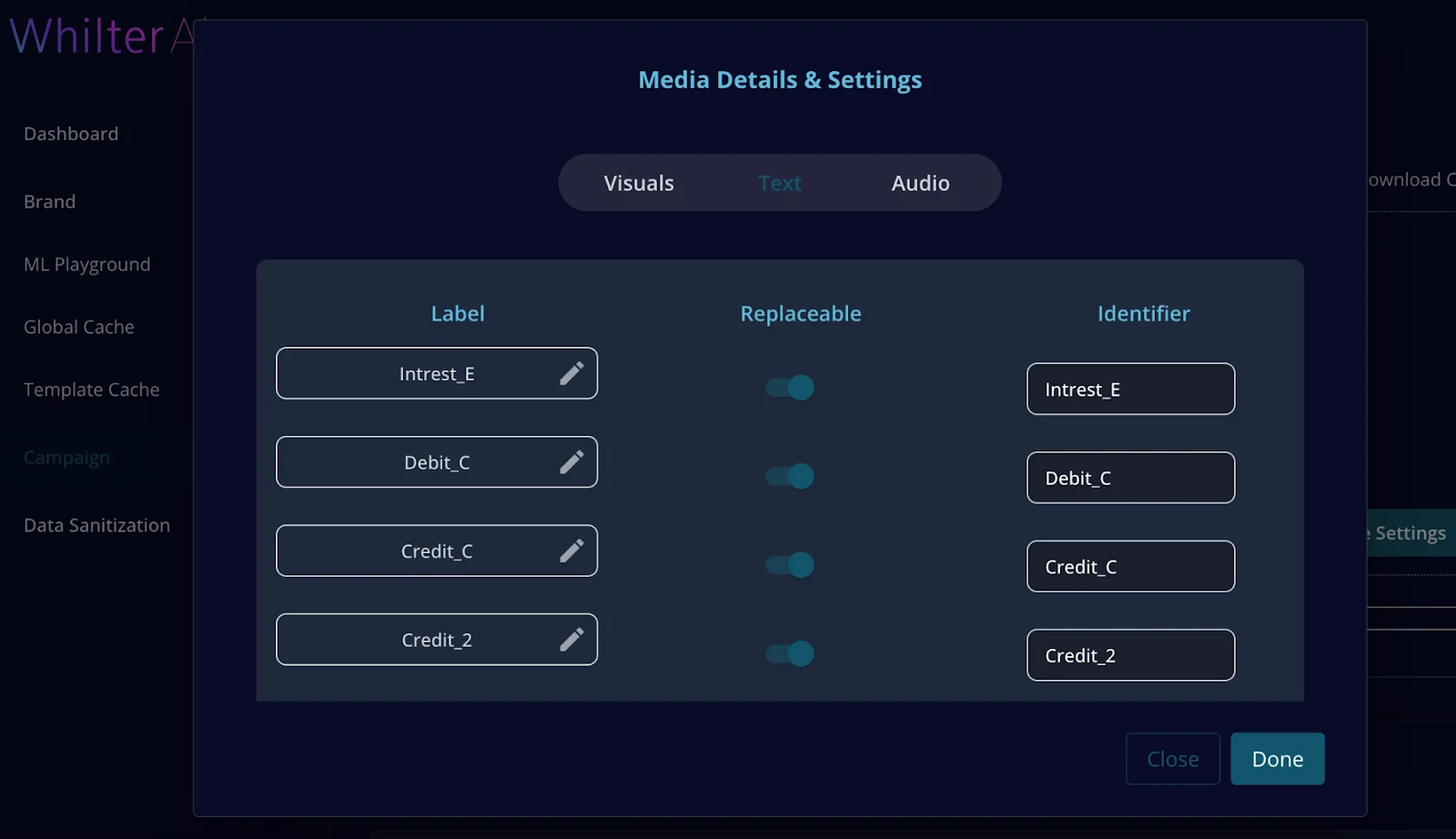
- Connection Configuration:
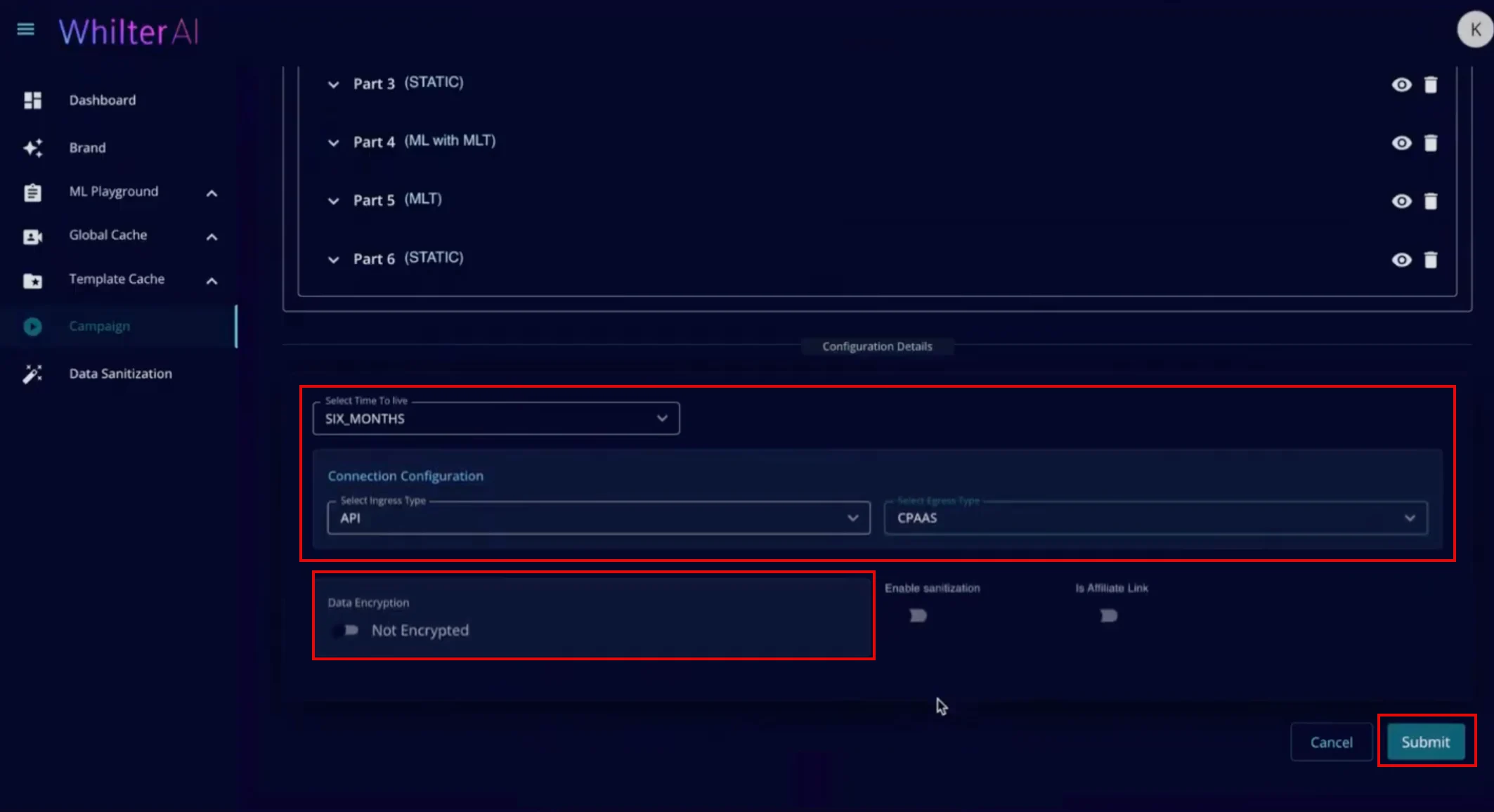
- Scroll down to the Connection Details section.
- In the Select Ingress Type list, click API.
- In the Select Egress Type list, click CPAAS.
- In the Select Time To Live list, click SIX_MONTHS (or as required by the campaign).
- Data Encryption: Turn the Not Encrypted toggle on based on your data privacy requirements.
- Submit and Obtain ID:
- Click Submit.
- Copy the unique use-case-id assigned to the template (for example,
67be6947-44c2-4fcc-bf34-3d82ce767081). This ID is required for Step 2.
Step 2: Set up MoEngage Authorization
Follow the steps below to integrate MoEngage with Whilter AI and set up the connector campaign.Step 2.1: Access Authorization Settings
- Log in to the MoEngage UI.
- Navigate to Settings > Advanced settings > Authorization configuration.
- Click + Add OAuth config.
Step 2.2: Configure OAuth Details
- In the OAuth details step, enter the following:
- OAuth name: Enter a name for the OAuth configuration (for example, WhilterAI).
- Grant type: Currently, the Client Credential grant type is supported. If you use other grant types, contact your MoEngage Customer Success Manager (CSM) or the Support team.
- Token type: Click Opaque (Whilter AI uses opaque tokens where the response contains the expiry time alongside the token).
- API URL: Enter
https://api.whilter.ai/getToken/token. - Method: Click POST.
- Headers: Click + KV pair and add Content-Type:
application/json. - Body type: Click Raw and in the body section, configure the body for your requests.
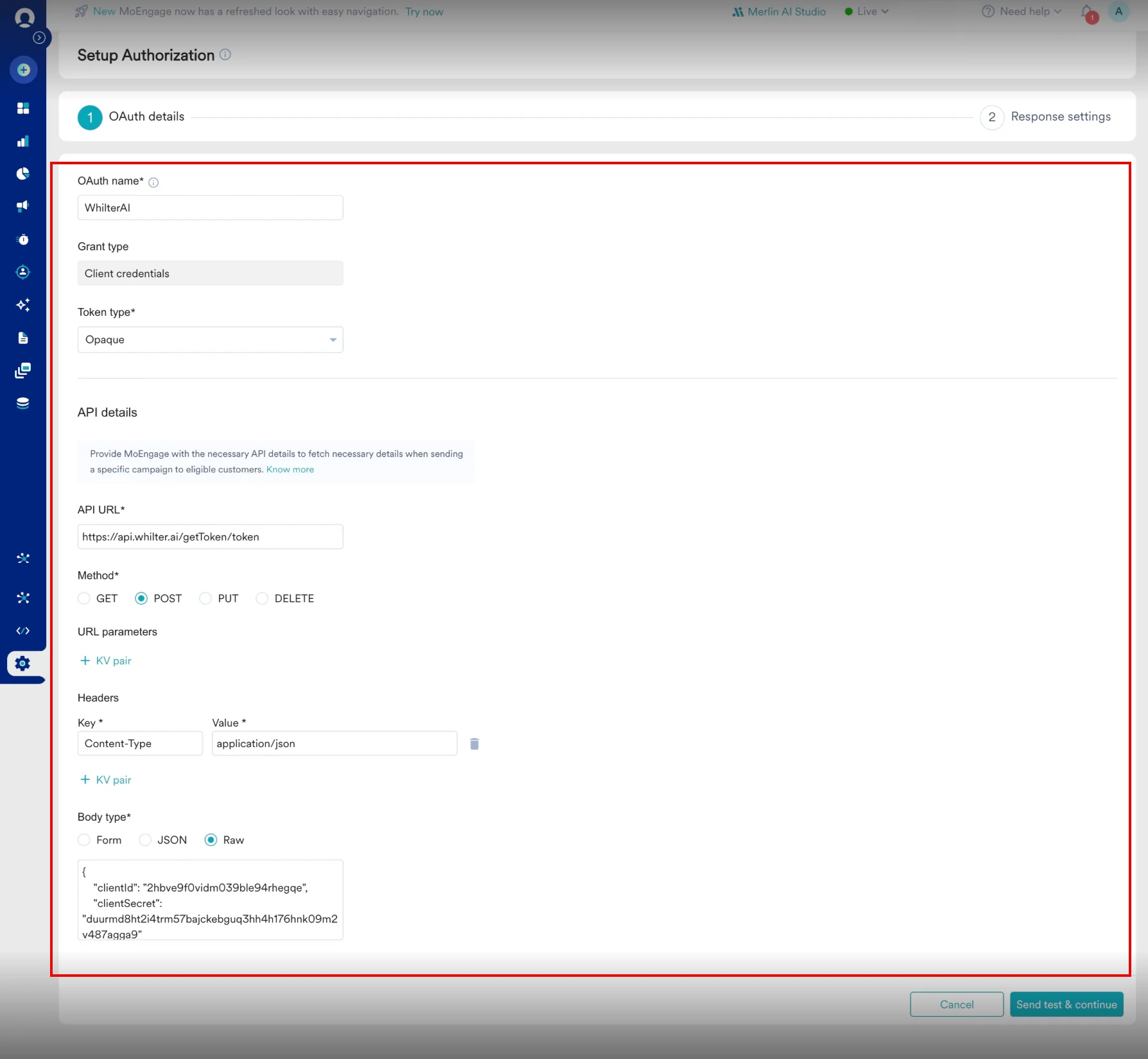
- Click Send test & continue.
Step 2.3: Configure Response Settings
In the Response settings step, finalize how MoEngage handles the Whilter AI token:- OAuth delivery response: Verify the JSON response received from the test.
- Access token: Click the key that contains the token (for example,
access_token). - Expiry: Click expires_in and set the unit to Seconds.
- Preferred prefix: Click Bearer.
- Preferred error codes: Enter the error code (for example,
401or403) to trigger a token refresh if an authorization failure occurs. - Click Save.
 The setting status is shown as Active. For more information, refer to Authorization Configuration with OAuth 2.0.
Step 3: Create a MoEngage Connector Campaign
To create the MoEngage connector campaign, perform the following steps:- Navigate to the MoEngage UI.
- On the left navigation menu, click Engage and then click Campaigns.
- On the All campaigns page, in the upper-right corner, click + Create campaign.
 Alternatively, click Create New > Campaign. The Campaign page is displayed.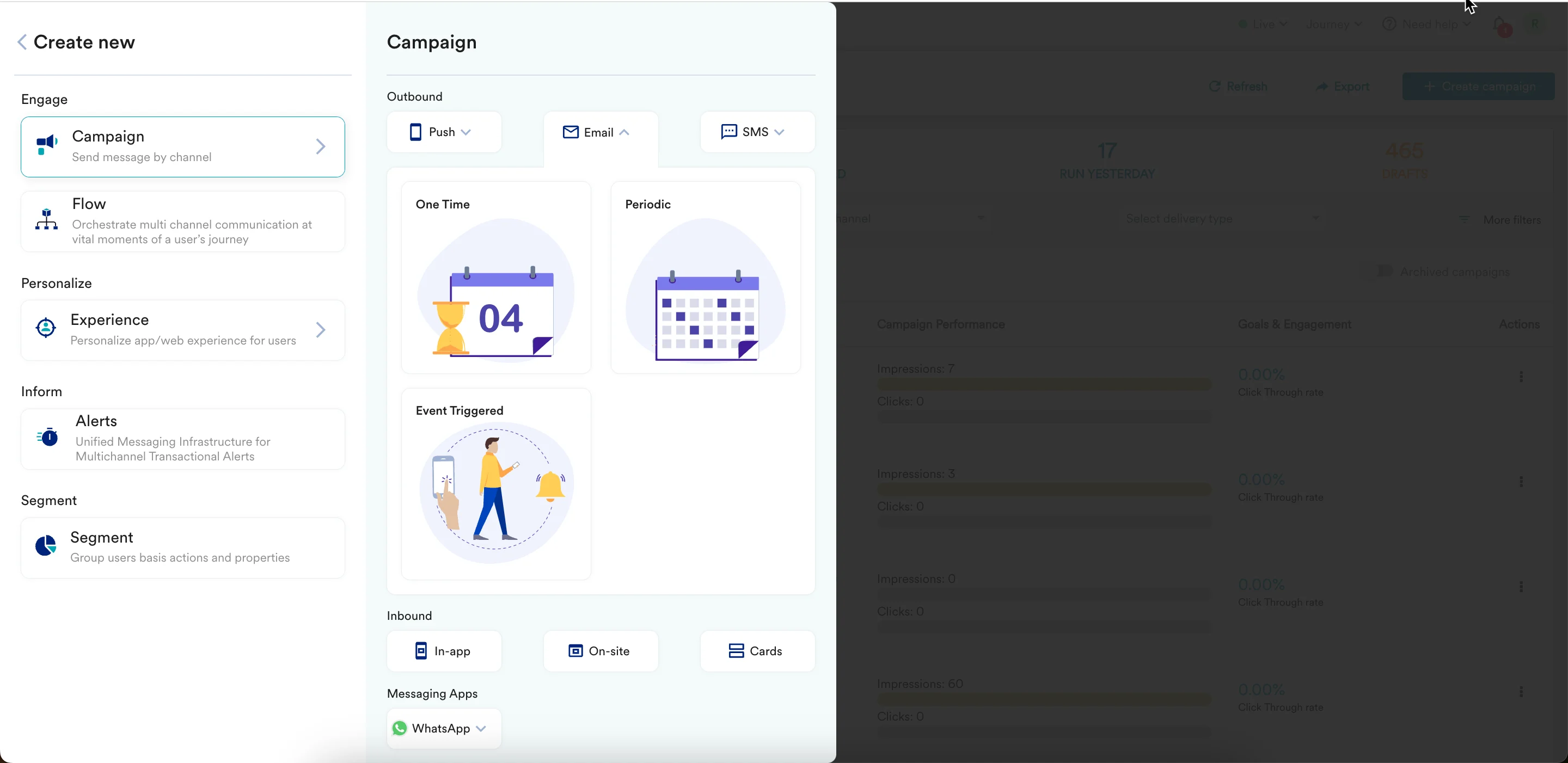
- Under Connectors, click Custom and select one of the following campaign delivery types:
- One Time
- Periodic
- Event Triggered
- Business Event Triggered
For more information, refer to Delivery Types. The Connector creation page is displayed.

- In step 2 of the campaign, provide the following information:
- In the body section, define the parameters required by the Whilter AI template using the following payload structure:
- JSON
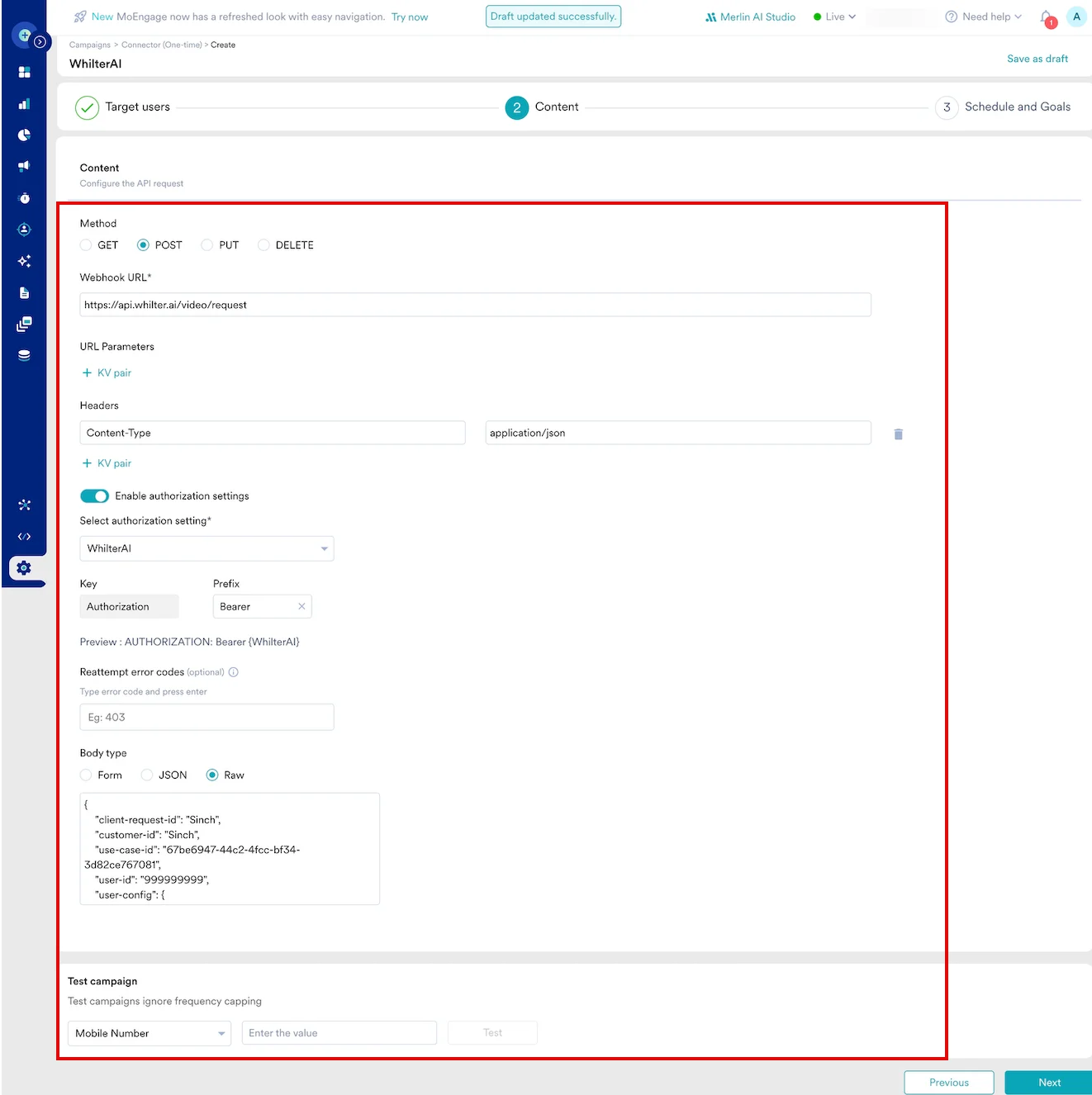
- Now, preview your request. The campaign is now ready to be tested and sent. You can test the connector configuration using the Test functionality available in the second step of campaign creation.

Step 4: Deliver the Personalized Content
After your Connector Campaign is live, MoEngage requests Whilter AI to create your templates. The media URLs generated by Whilter AI are stored as a custom attribute on the user’s profile, making them available to any MoEngage delivery campaign.- Create a new delivery campaign (for example, Email, WhatsApp, Push notification) in MoEngage.
- Ensure your target audience is filtered to include users who have the personalized URL set (for example,
whilter_video_urlis set). - In the campaign editor, use MoEngage personalization syntax (
@or{{UserAttribute}}) to insert the attribute you mapped in Step 2.- HTML
Information You can use the Whilter URL as the src attribute value in animgtag or embed it as a link for playback in a web browser. - Launch the campaign to deliver the personalized media.