

Custom Agents and Connectors are currently Early Access features. If you do not see AI Agents > Connectors in your dashboard, contact your Customer Success Manager (CSM) to request access.
Overview
You connect your Smartling account once on the Connectors page, and its tools become available to every Custom Agent you run. Each user connects their own Smartling account, and an agent works with the account of the person who starts the run.Prerequisites
Before you begin, make sure that:- Your workspace has Custom Agents and Connectors enabled.
- You have an active Smartling account with access to the projects you want to translate into.
- Your MoEngage role includes permission to create content blocks and campaigns. A Custom Agent acts within the MoEngage permissions of the user who runs the agent. Refer to Custom Agent Essentials: Permissions and Security.
Connect Smartling to MoEngage
-
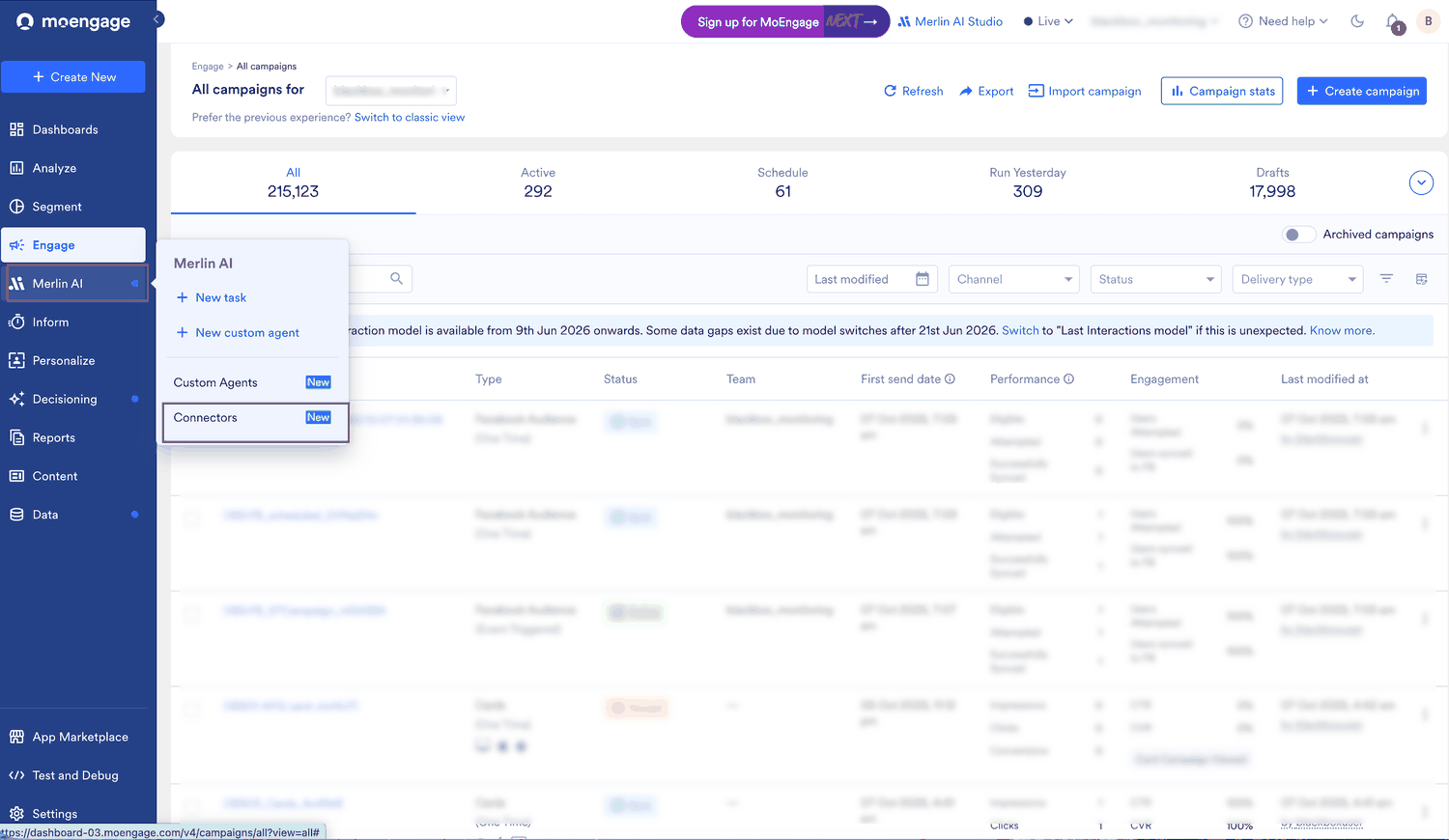
On the sidebar menu in MoEngage, hover over the Merlin AI menu item

-
Click Connectors.
-
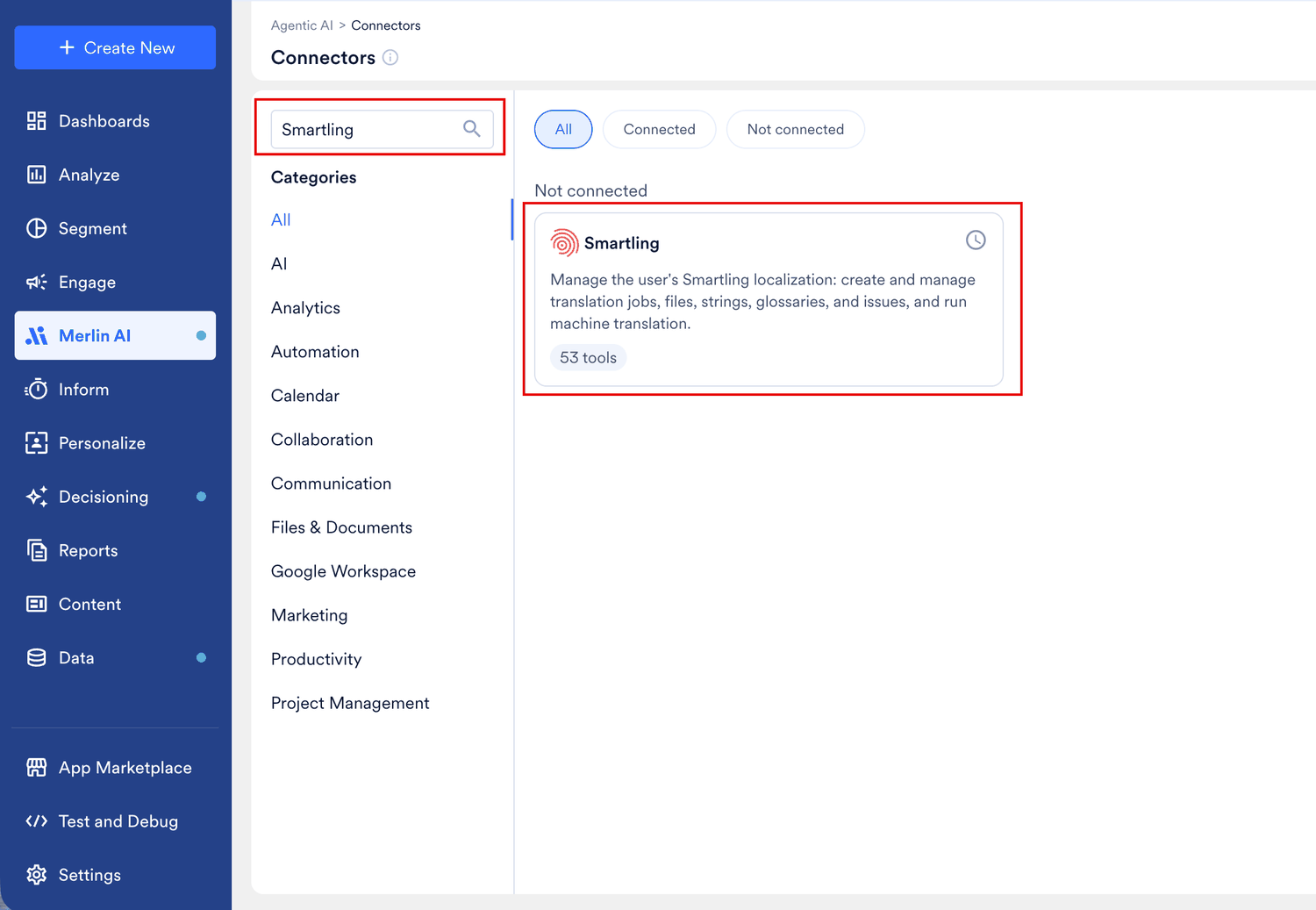
In the Search box, enter
Smartling. -
Click the Smartling card. The Connection details dialog appears.
-
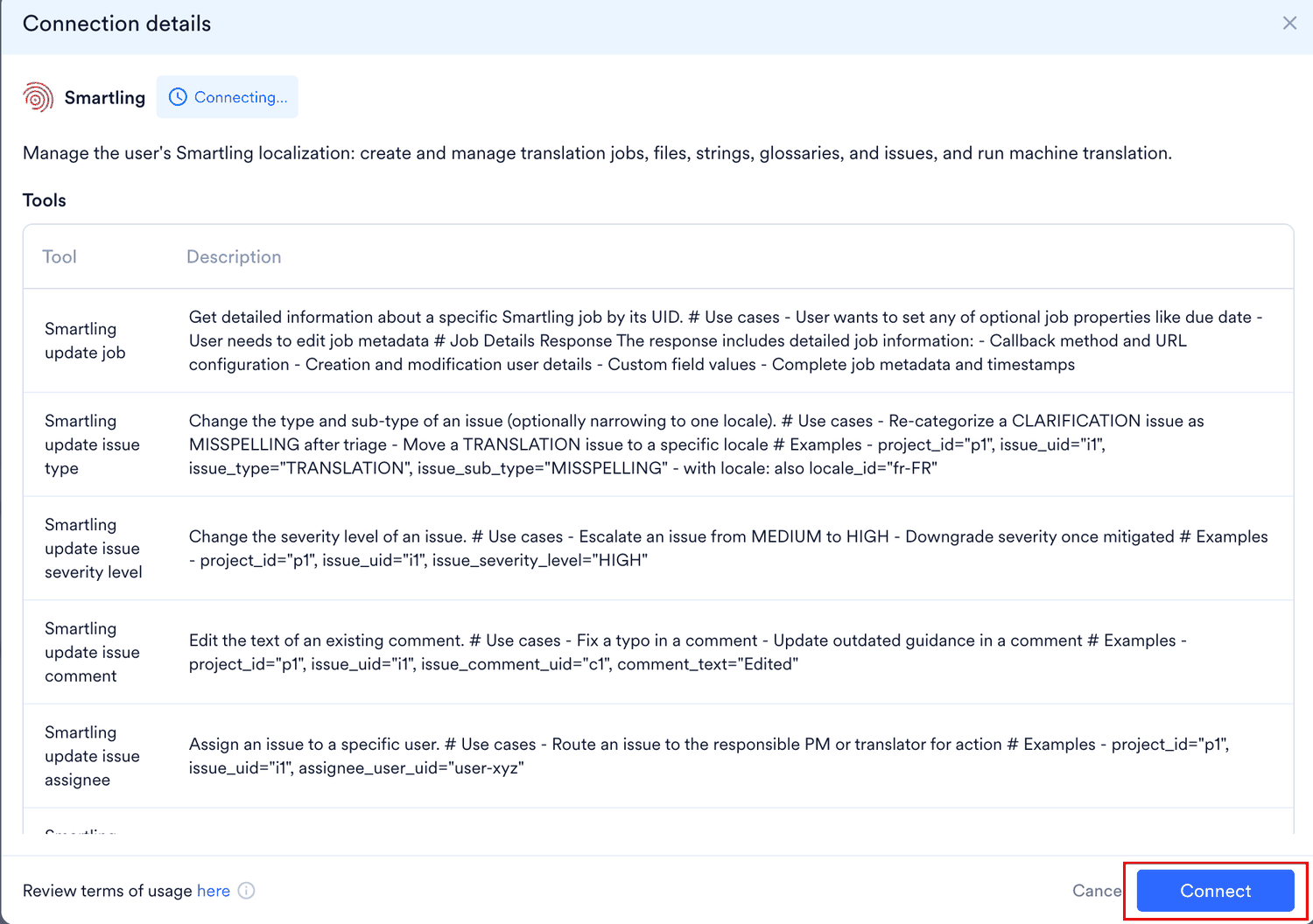
Review the tools Smartling provides and the terms of usage, and then click Connect.
-
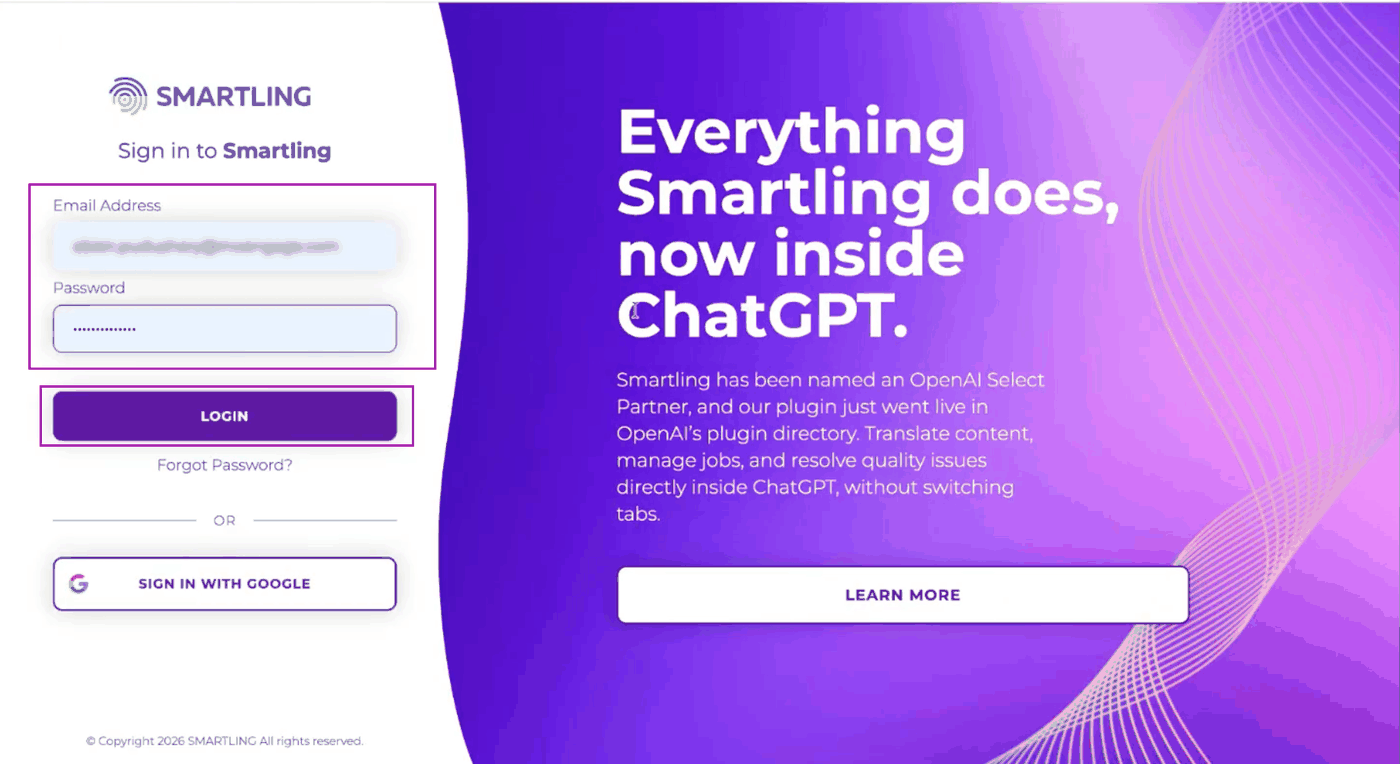
On the Smartling sign-in page, enter your email address and password, and then click LOGIN.
-
Close the window once it confirms the connection, and then return to the MoEngage dashboard.
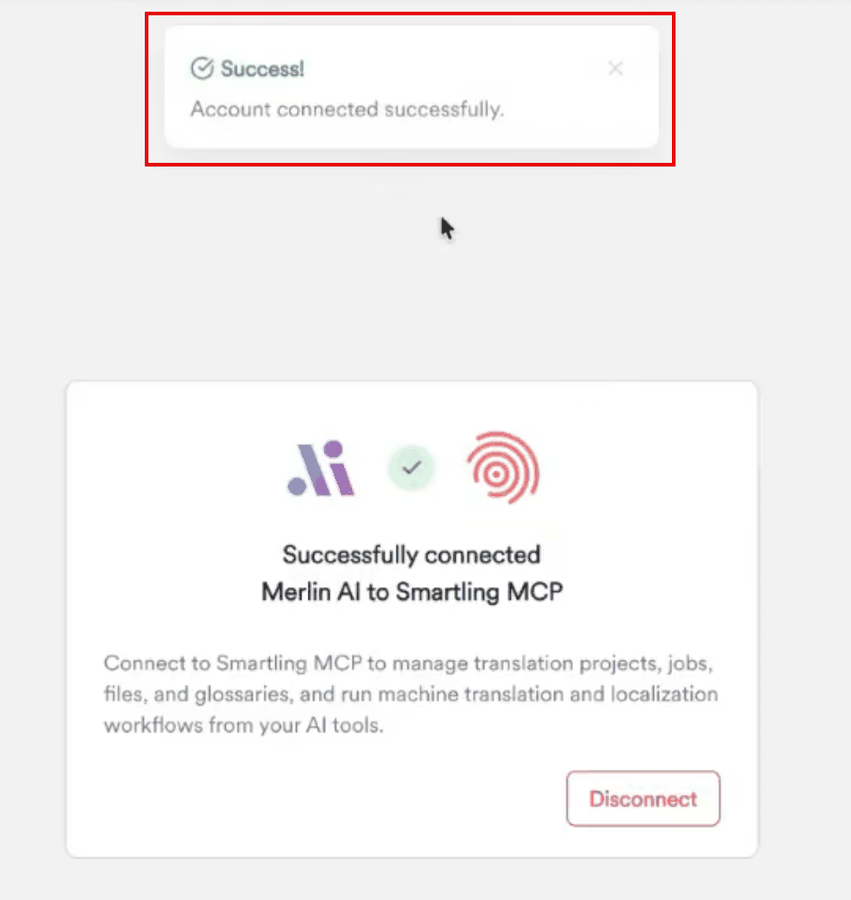
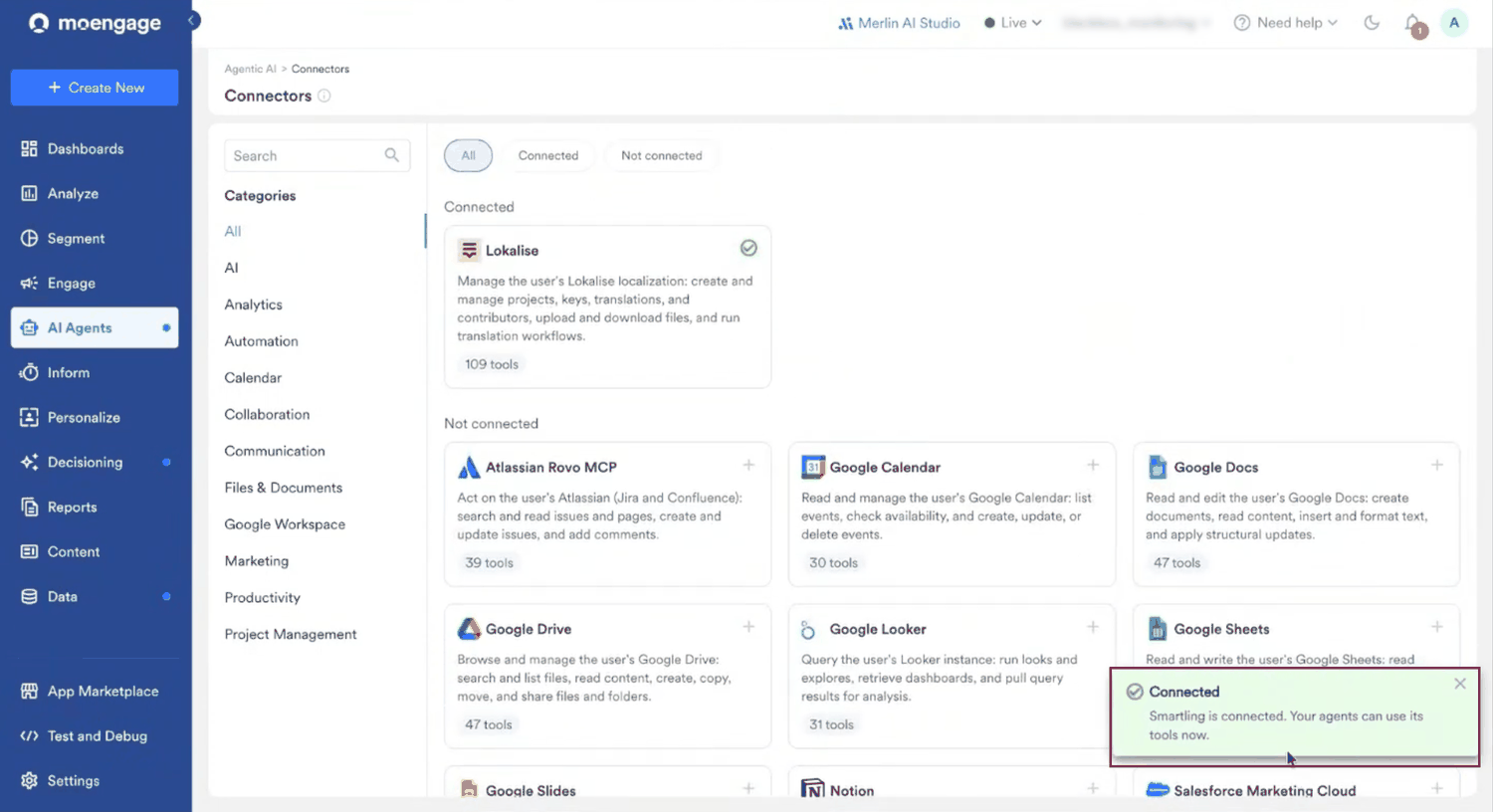
Use Cases
Marketing teams write content blocks in MoEngage in one language and need them in several others. A Custom Agent with access to Smartling covers that work from end to end:- Scheduled translation runs. Translate the content blocks your team created or edited since the last run, on a schedule, without anyone moving files between the two platforms.
- Translated campaigns built for you. Create campaigns from the returned translations, so a localized campaign is ready to review instead of waiting to be rebuilt by hand.
- Review before anything goes out. Leave translated campaigns as drafts, so a marketer approves each one before it reaches users.
- Translation work tracked across runs. Keep a record of what has already gone to Smartling, so the same content is not submitted and paid for twice.
Tools
The Smartling connector covers translation jobs, files, strings, glossaries, and issues, along with machine translation. The Connection details dialog lists every tool the connector provides along with its description and its status, either Enabled or Disabled.
To control which tools your agents can call:
- On the Connectors page, click the Smartling card. The Connection details dialog lists every tool with its description and its status.
- Select the checkbox next to each tool you want to change.
-
Click Enable or Disable. The Status column updates for each tool you selected.
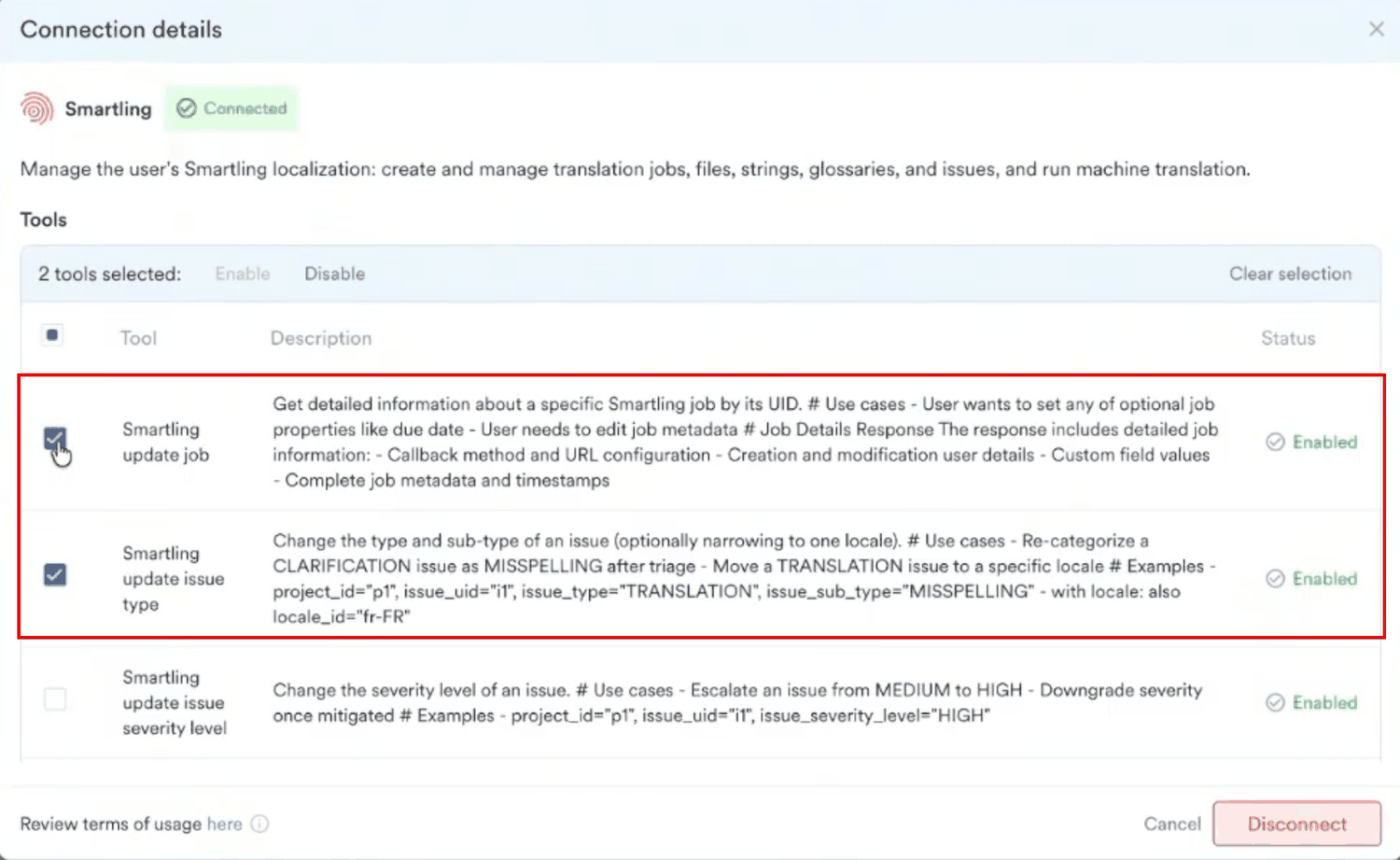
Example Usage
A connected application is available to every agent you run, so there is nothing to attach in the Agent Builder. What the agent does with Smartling comes from the instructions you write. On the sidebar menu in MoEngage, hover over the Merlin AI menu itemTranslate Content Blocks and Create a Campaign
The following instruction covers a complete translation workflow, from finding the content to leaving a campaign ready for review:Agent Instruction
Related Pages
- Connect External Apps to Custom Agents
- Lokalise Connector
- Custom Agents: Overview
- Create and Manage Custom Agents
- Custom Agent Essentials: Permissions and Security
- Content Blocks
FAQs
Do I need a separate MoEngage integration for Smartling?
Do I need a separate MoEngage integration for Smartling?
No. Smartling connects as a connector on the Connectors page, and that connection is the integration. There is no app to install and no credentials to exchange between the two platforms beyond the Smartling sign-in.
Does every agent I run reach Smartling once I connect it?
Does every agent I run reach Smartling once I connect it?
Yes. You connect an application once, and it becomes available to every agent you run. The agent’s instructions decide whether it uses Smartling on a given run. Refer to How Connectors Work.
Whose Smartling account does an agent use?
Whose Smartling account does an agent use?
The account of the person who starts the run. Each teammate connects their own Smartling account on the Connectors page, so an agent works with that teammate’s Smartling projects when they run it.
Can an agent change data in my Smartling account?
Can an agent change data in my Smartling account?
Yes, when a tool that writes to Smartling is enabled. MoEngage does not ask for your approval before a connector write. Disable the tools you want kept out of reach, and write your agent’s instructions to match.
What if the connection to Smartling drops during a run?
What if the connection to Smartling drops during a run?
Reconnect Smartling on the Connectors page in a separate browser tab, and then send your next message in the same session. Restate any step that the agent skipped so that the agent retries the step. Refer to Reconnect During a Run.