

Overview
Merlin AI enables your team to build and deploy custom AI agents within MoEngage, without writing code or needing engineering support. These agents automate repetitive, time-consuming campaign tasks, allowing your team to focus on strategy.Use Cases
Common use cases for Custom Agents include:- Quality Control (QC): Auditing campaign drafts for errors or inconsistencies.
- Localization: Executing bulk language translations.
- Data Analysis: Acting as an automated marketing analyst to process campaign data.
- Campaign Drafting: Generating new campaign drafts based on creative briefs.
- Performance Auditing: Reviewing past campaign metrics to surface top and bottom performers.
Advantages of Custom Agents
Integrating Custom Agents into your marketing strategy provides the following advantages:- Automate Workflows: Execute routine, cross-campaign tasks (e.g., QA, drafting, localization) to eliminate manual effort.
- Native Integration: Process live campaign and segment data directly within MoEngage, bypassing third-party AI security risks.
- Plain-Text Configuration: Define agent behaviors using plain text. Start from a predefined template, or use the Merlin Agent Builder for custom use cases.
- Secure Execution: Enforce strict read/write boundaries. Write-enabled agents are restricted to drafting and cannot auto-publish campaigns.
- Workspace Collaboration: Share agent configurations publicly with your team. Run history on a public agent is visible workspace-wide; only continuing a session you didn’t start is restricted.
- Asynchronous Execution: Run complex, data-heavy tasks in the background without keeping the active session window open.
- Persistent Sessions: Pause and resume a workflow at any time. Each session retains the full context of prior prompts, tool outputs, and attached files, and an agent also keeps facts between runs in its own and your workspace’s memory stores.
- Scheduled Execution: Set an agent to run automatically on a recurring schedule (daily, weekly, or monthly) and receive an email summary each time the scheduled run completes.
- Flexible Model Tiers: Select a model capability tier (Fast, Balanced, or Expert) matching the complexity of each agent’s task.
- Multi-Agent Delegation: Attach existing agents to one coordinator agent as sub-agents, so a single session distributes a multi-step workflow across specialists and consolidates the result.
- External Applications: Connect applications outside MoEngage so the agents you run work with them alongside your campaign data in a single run. The Connectors page lists the applications available to your workspace. Refer to Connect External Apps to Custom Agents and, for a worked example, Import Figma Designs into MoEngage with Custom Agents.
- Creative Generation: Generate campaign creatives from a text prompt during a run, and review them using a separate image analysis tool.
Scope and Capabilities
Each Custom Agent is designed for a specific, single-purpose task. The scope of an agent’s capabilities is strictly defined by the tools and permissions you assign to it during configuration. The actions an agent performs follow from the tools you assign. For details on assigning tools, refer to Assign Tools.Navigating the Custom Agents Dashboard
When you navigate to AI Agents > Custom Agents from the left menu, you land on the Custom agents dashboard. From this page, you create, search, manage, and run every Custom Agent in your workspace.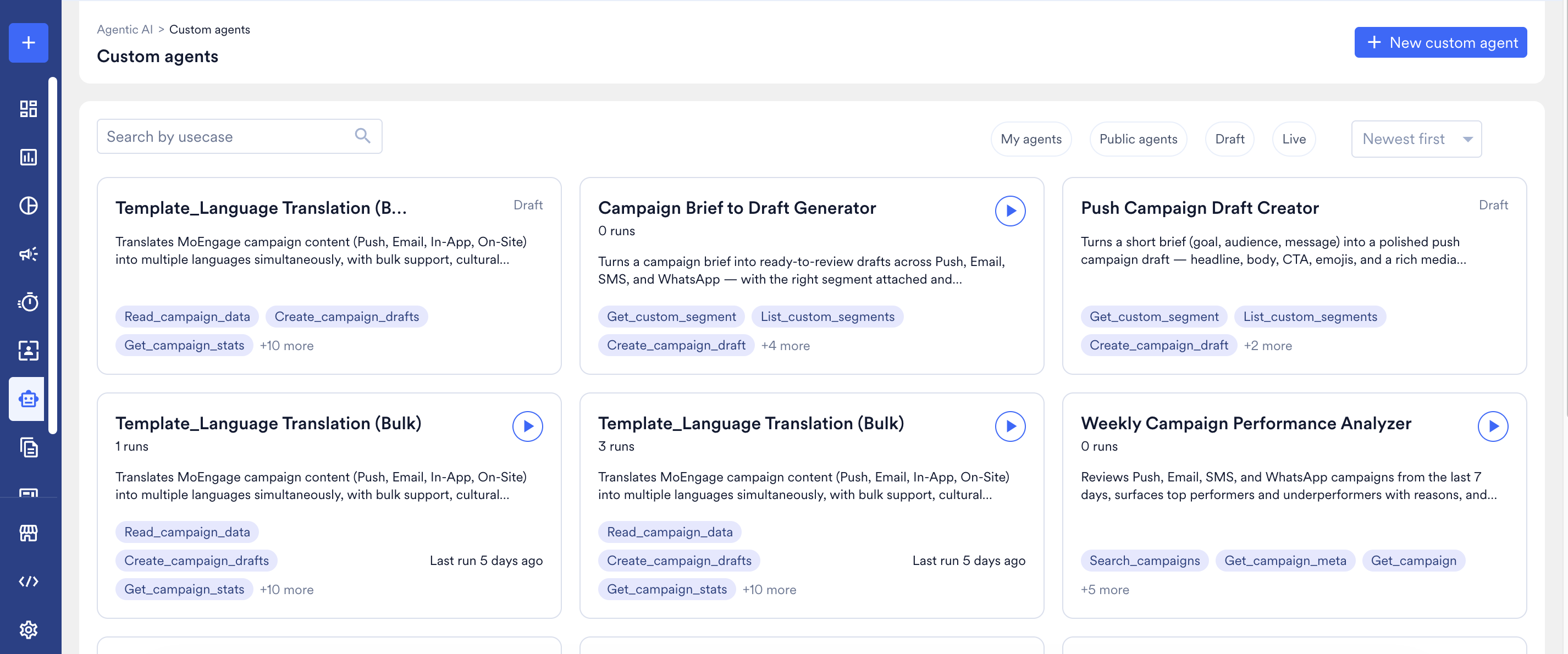
Dashboard Interface Elements
The dashboard provides the following features for locating and evaluating agents:- Search Bar: Use the Search by usecase input field to find an agent by its name.
- Filters: Toggle between the following tabs to refine the list of displayed agents:
- My agents: Displays only your own agents that are set to Private.
- Public agents: Displays every agent in the workspace that is set to Public, regardless of who created it, including your own.
- Draft: Displays agents that are currently under construction and have not yet been published for general use.
- Live: Displays fully published agents that are ready for production execution.
A paused agent doesn’t appear under either the Draft or Live filter. Open the agent directly from a saved link, or from a colleague’s My agents/Public agents list, to find a paused agent.
- Sorting Dropdown: Currently displays agent cards Newest first only; the other sort options in this dropdown don’t change the card order yet.
- Agent Cards: Each card represents an individual agent and provides an immediate summary of its configuration. This includes the agent’s name, a Draft badge when the agent is not yet published, total number of runs, a brief description, a list of assigned tool capabilities (e.g.,
search_campaigns), and the timestamp of its last execution. - Run Button (▶): Located in the top-right corner of every published agent’s card, so you start a task straight from the dashboard. Draft cards do not display the Run button.
- + New custom agent: The primary action button used to initiate the builder and create a new agent.
FAQs
Why am I unable to run an agent I see on the dashboard?
Why am I unable to run an agent I see on the dashboard?
If the agent is categorized under the Draft filter, it has not yet been published for production use. To activate it, click the agent card to open the builder directly, verify its behavior using the Test agent panel, and then click Make live.
Next Steps
Now that you understand the core concepts and capabilities of Custom Agents, explore the following guides to begin implementing them in your workspace:- Create and Manage Custom Agents
- Run and Manage Agent Sessions
- Custom Agent Essentials: Permissions and Security
- Build Multi-Agent Workflows
- Connect External Apps to Custom Agents