

sess_a1b2c3...), and permanently logs the complete transcript within the agent’s All tasks history for auditing and future reference.
Start a New Session
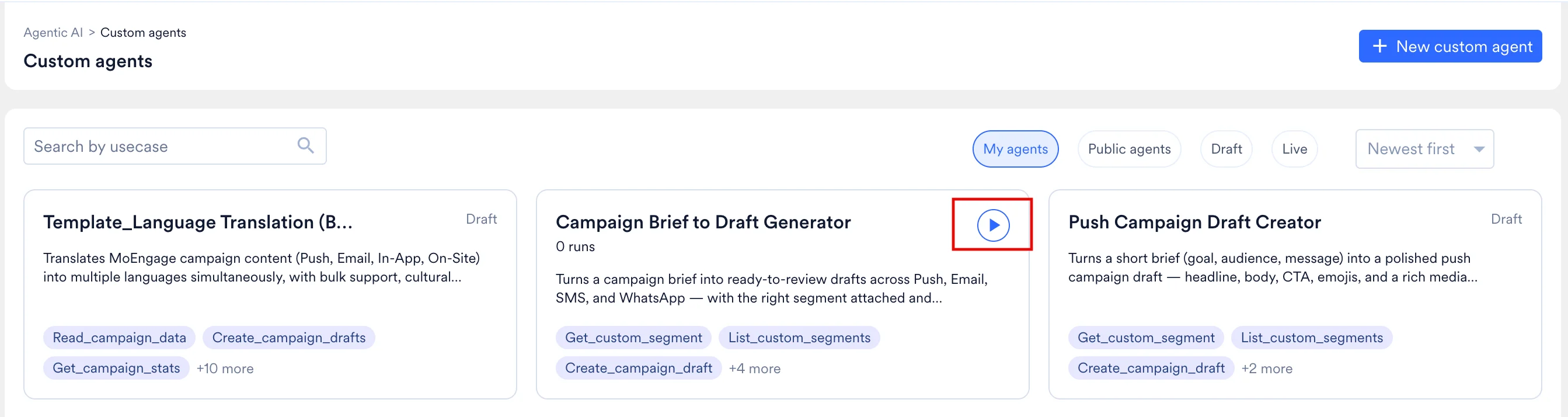
You can initiate a new session from three distinct locations in the platform:- From the Gallery: Click the Run (▶) icon on the right edge of any Live agent card.
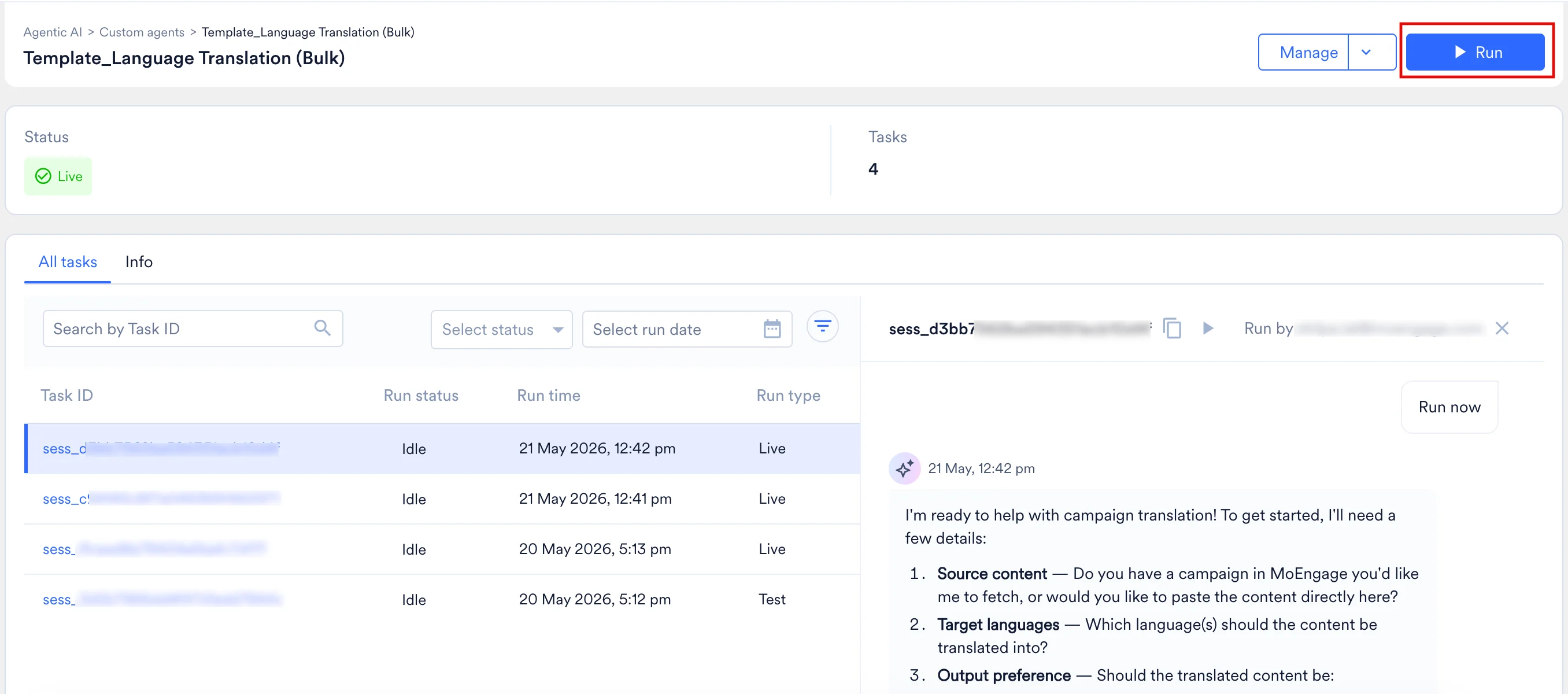
- From the Agent Details Page: Open the specific agent and click Run in the top-right corner.
- From the Agent Builder: While creating a Draft or editing a Live agent, click Test agent to start a trial run. This session is tagged Test in the agent’s history.
Clicking Make live in the builder publishes the agent — it does not start a run. Start a Live run afterward from the Gallery or the agent’s detail page.
- Live Run
- Test Run
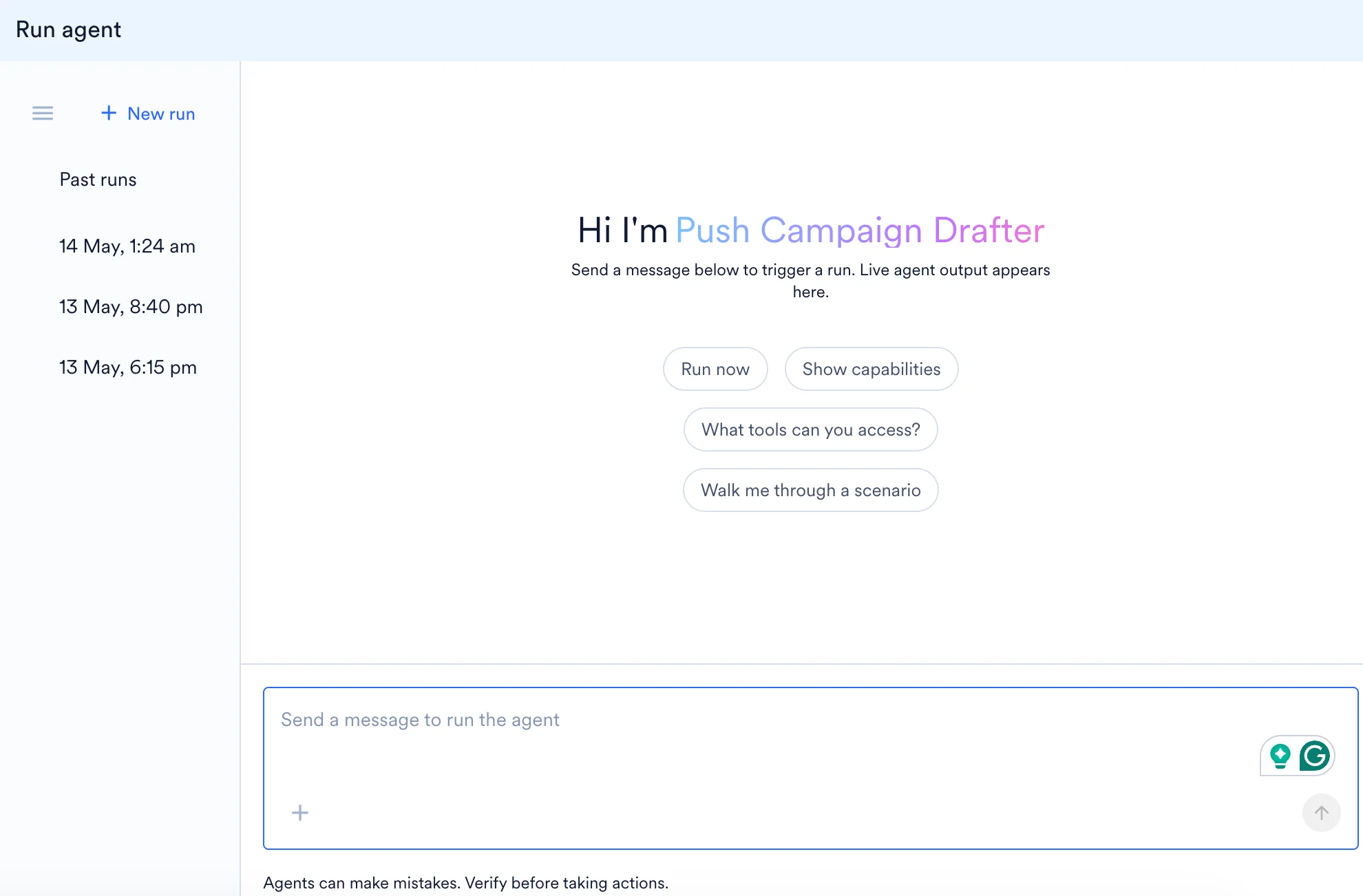
- Live Runs: The panel is titled Run agent. The left sidebar offers + New run and logs your chat history under Past runs.
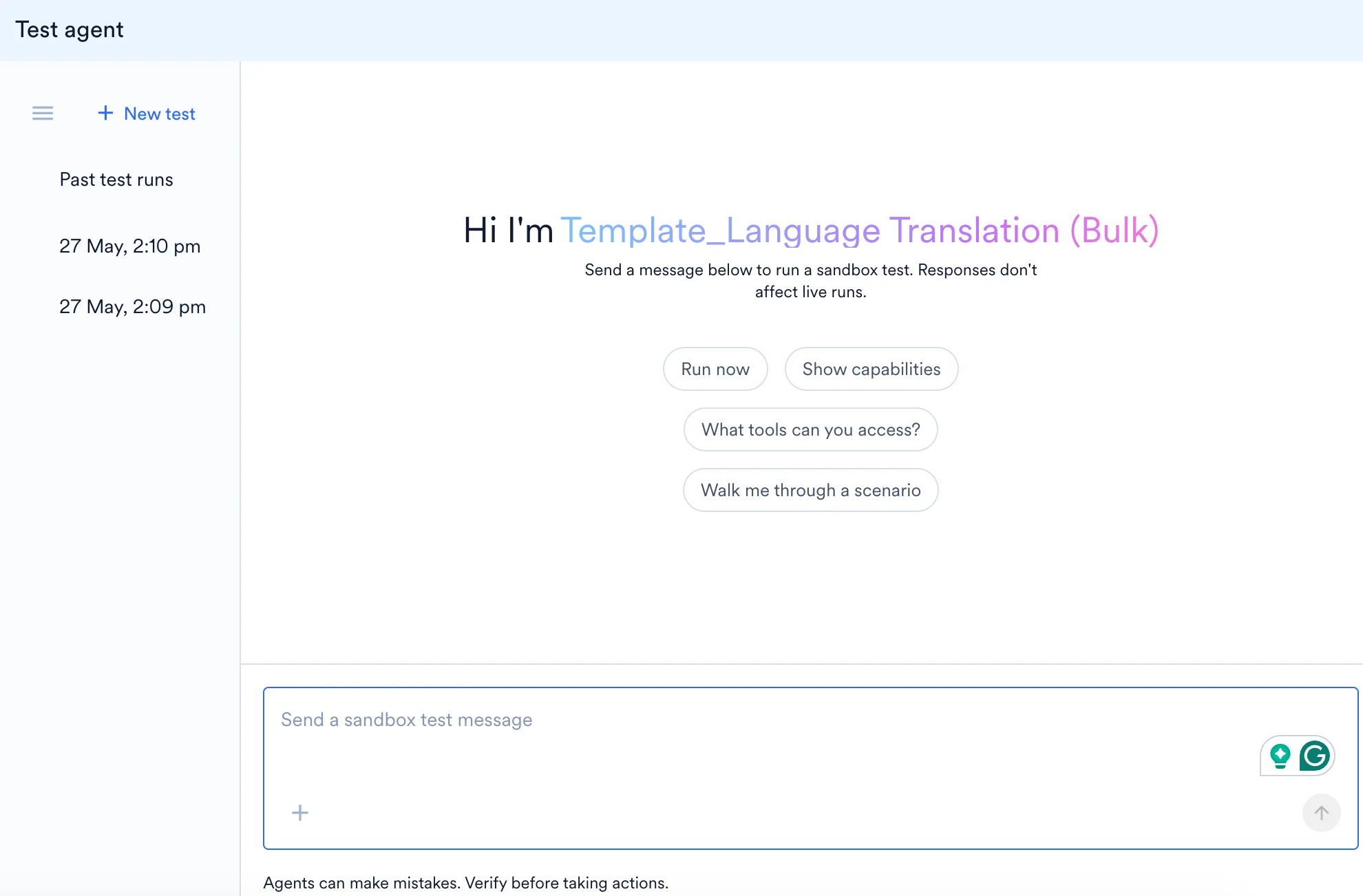
- Test Runs: The panel is titled Test agent. The left sidebar offers + New test and logs your chat history under Past test runs.
If you configure a schedule for an agent (see Set a Trigger), MoEngage automatically starts a new session at each scheduled time and requires no manual action from you. MoEngage tags each scheduled session Scheduled in the agent’s history.
Agents rely entirely on your instructions and the context you provide. Supplying necessary IDs, dates, or reference briefs in your first message prevents unnecessary back-and-forth and improves output accuracy.
Test, Live, and Scheduled Runs
The primary distinction between Test, Live, and Scheduled runs is how MoEngage starts and logs the task. All three run types operate identically on real workspace data using the exact same tool permissions.Scheduled Run Behavior
A Scheduled run always executes using the agent creator’s MoEngage credentials and permissions, regardless of who views the dashboard when the scheduled run fires. Scheduled execution follows three specific behaviors:- If the agent isn’t Live at the scheduled time, MoEngage skips the run entirely.
- MoEngage skips rather than queues the new fire when a previous run from the same schedule is still in progress. A scheduled agent never runs two sessions from the same schedule simultaneously.
- If the creator’s credentials for a required tool are missing, MoEngage still starts the run. The affected tool reports a missing-credential error instead of blocking the entire run.
The Execution Lifecycle and Interaction
Sessions are conversational and asynchronous. When you submit a prompt, the following execution sequence occurs:- The agent reads its core instructions to establish its role and objectives.
- It acknowledges your prompt and begins executing its defined steps, calling assigned tools sequentially (e.g., fetching a campaign, generating a personalization preview, synthesizing a report).
- The transcript logs each tool call with its context parameters and execution time.
- The agent synthesizes the retrieved data and streams the final, structured output into the panel progressively, so the response appears as MoEngage generates it rather than all at once when the run ends.
- As runs can take anywhere from a few seconds to several minutes depending on data volume and tool complexity, they operate entirely in the background. You do not need to keep the session window open; you can safely navigate away and return to the All tasks tab later to view the final output. Write-enabled agents can create or modify real drafts during a session. Always review the agent’s actions before considering the task complete.
- You can send follow-up messages at any point during an open session to request a deeper analysis, ask for a different output format, or instruct the agent to refer to and analyze a different campaign.
- Click Stop in an active session to end the run immediately, whether it’s a Test or Live run.
Anatomy of a Session Transcript
When viewing an active or past session in the side panel, the transcript displays the following elements from top to bottom: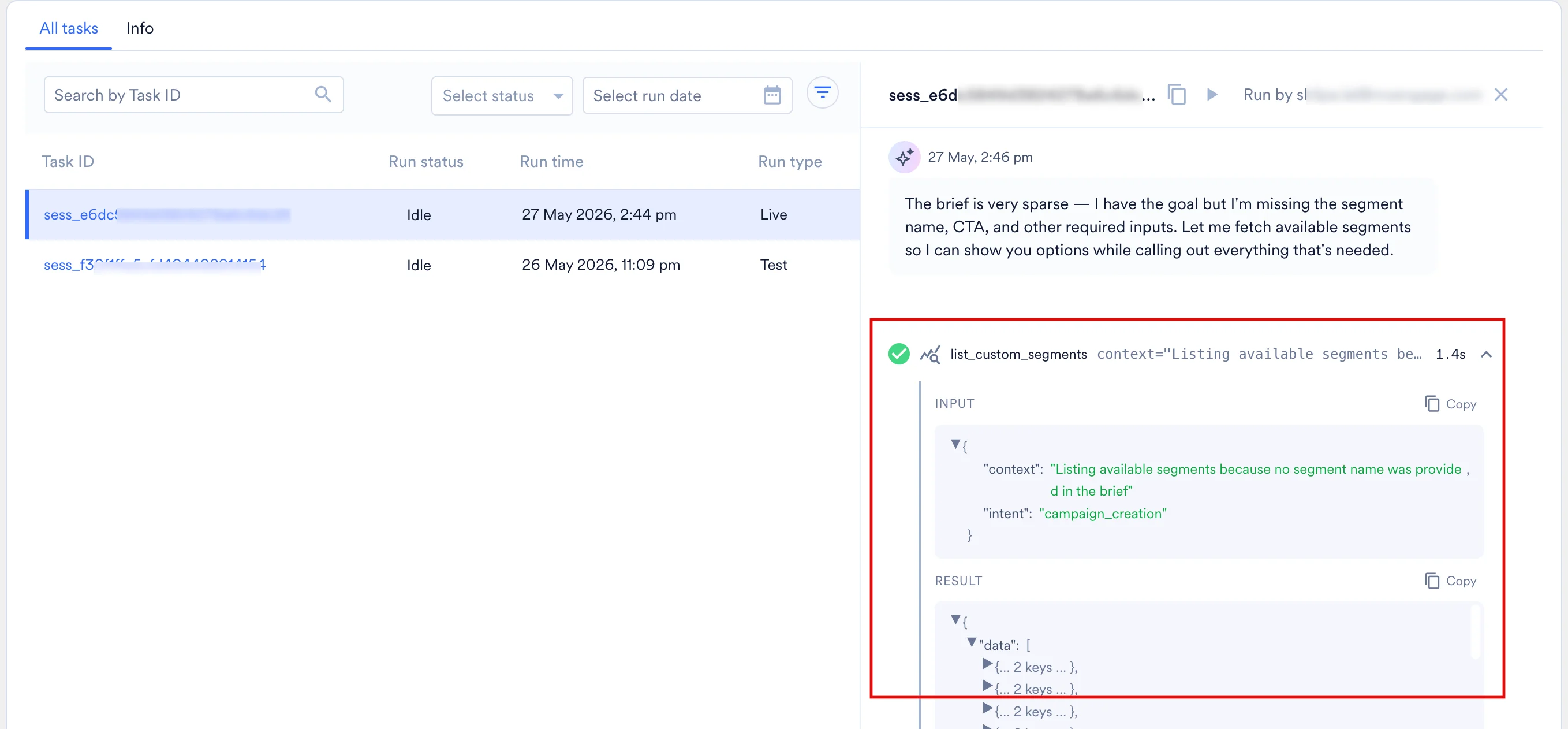
- Header and Instructions: Display the email of the user who invoked the run, and the initial prompt that kicked off the task.
- Agent Steps (Tool Calls): Expandable cards detailing each tool the agent used. By default, these are collapsed for scannability but can be expanded to view full inputs and outputs. Each card includes:
- A status icon (e.g., ✓ for success)
- The tool name (e.g.,
search_campaigns) - Truncated parameter previews
- Total execution time (e.g.,
4.9s)
- Agent Reasoning: Brief, natural-language updates generated between tool calls, explaining the agent’s logic and next steps (e.g., “Campaign confirmed as Push channel. I need to run the personalization preview…”).
- Generated Files: Any downloadable artifacts produced by the agent (e.g., HTML reports, CSVs). These appear as inline cards showing the filename, type, size, and a download button. Each file card shows a Preparing state while MoEngage processes the file, and an Unavailable state if the file can’t be downloaded. Files you attach to your own prompts appear similarly.
- Sub-Agent Activity: When the agent delegates work to sub-agents, MoEngage displays their activity inline in the same transcript, indented under the coordinator agent’s steps, so you can follow each delegation as it occurs. Refer to Build Multi-Agent Workflows.
- Response: The structured output, formatted in Markdown. Each message block includes a copy icon, so you can export the report to external documents or messaging tools.
- Footer: Displays the Session ID with a one-click copy icon, alongside a reminder that agents can make mistakes.
Session Outputs Panel
Every run that produces at least one file also shows a collapsible Session outputs (N) panel on the run’s detail page, listing every file the run produced — including files not directly referenced in the visible transcript. MoEngage hides the panel entirely for runs that produce no files.Once a run completes, MoEngage backs up its outputs so they remain downloadable after the run is no longer active. Each output belongs to the run that produced it; MoEngage does not carry outputs forward to a different run of the same agent.
Agent Memory
An agent keeps two memory stores. One belongs to the agent alone; the other is shared with every Custom Agent in your workspace.
Within a single session, an agent also carries that session’s prompts, tool outputs, and files as ordinary context, which is why you can resume an Idle session and pick up where you left off. That context belongs to the session and is not a memory store.
Workspace memory lets one agent’s findings inform another agent’s work. An agent that records your brand’s tone-of-voice rules or the naming convention for a campaign series makes those facts available to your other agents, so you don’t restate them in each agent’s instructions.
Agents read and record memory as they run. Every workspace has both stores, and no setup is required to use them. The transcript records a read as a step labeled Reading memory or Searching memory, alongside the agent’s tool calls. Writes appear as ordinary file steps instead, labeled Writing a file or Editing a file, and no step distinguishes agent memory from workspace memory.
Scheduled runs use no memory. A scheduled run neither reads what an earlier run stored nor stores anything for a later run to read, so a fact an agent picked up on a manual run is unavailable to that agent’s next scheduled run.
You cannot inspect, edit, or clear workspace memory: MoEngage provides no viewer for it in the dashboard and no API. Because a stored fact stays until MoEngage removes it, treat anything you give an agent as available to your other agents.
Memory is distinct from session outputs, which stay scoped to the run that produced them.
Workspace memory stays within your MoEngage workspace and never reaches another workspace or organization. Because every agent in your workspace reads the same store, a fact one agent records can shape another agent’s output. For details, refer to Custom Agent Essentials: Permissions and Security.
Monitor the All Tasks History
Every initiated session, whether Live or Test, is recorded on the agent’s detail page under the All tasks tab. This tab provides an audit trail specific to that agent.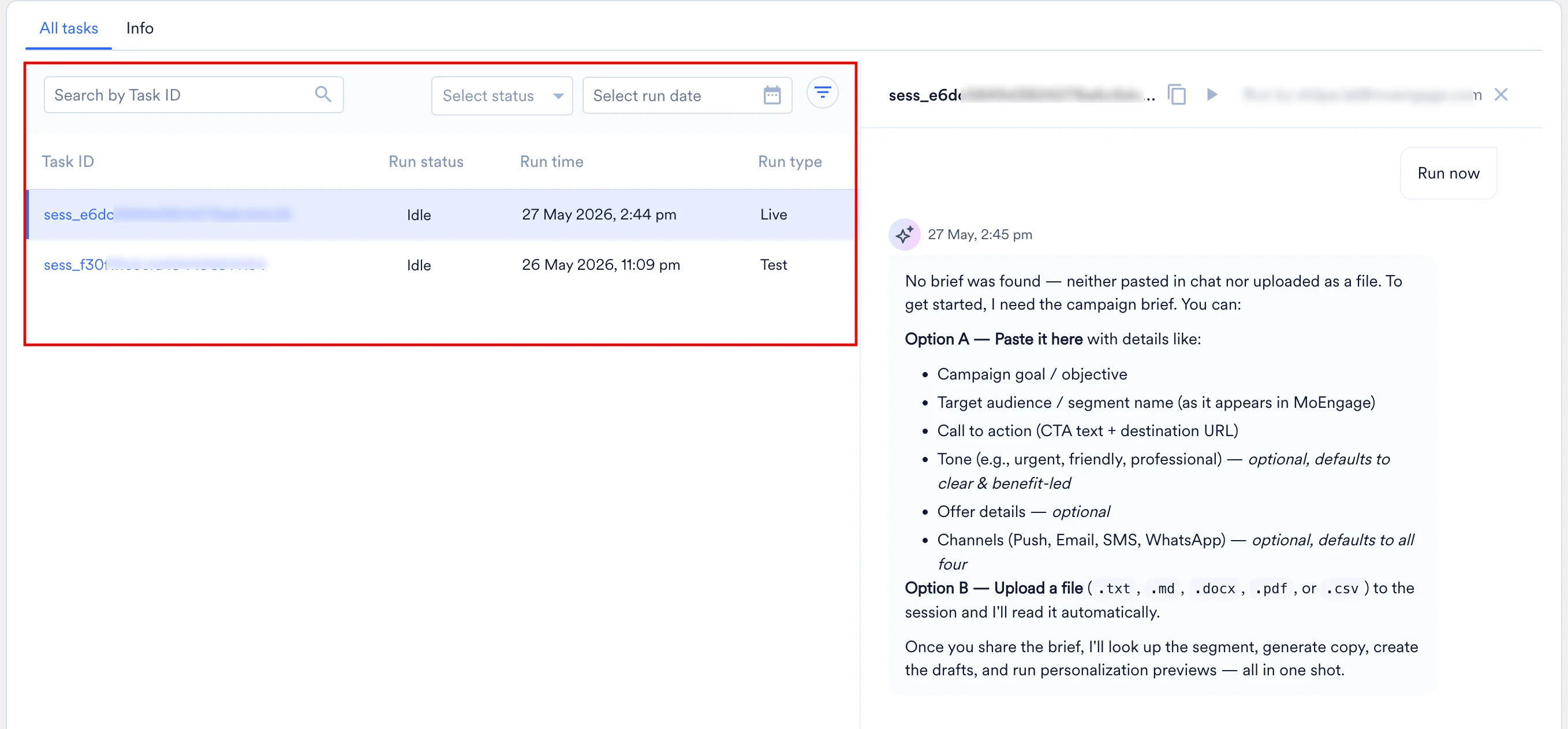
Filtering and Search
Use the filter row above the table to narrow the displayed sessions:- Search by Task ID: Paste a specific Session ID to locate an exact run.
- Status and Date Filters: Use the dropdown menus or the combined funnel icon to filter by specific execution outcomes or timeframes.
- More Filters: Click the funnel icon to add filters for Run by (the user who started the session) and Run type (Live, Test, or Scheduled).
Table Columns Overview
Resume and Share Sessions
Resume a Session
Sessions are persistent and do not permanently close. Each session keeps its own context, so the agent holds all preceding instructions, tool outputs, and generated files from that run. To resume a previous conversation you started:- Open the All tasks tab on the agent’s detail page.
- Click the desired session row to open the transcript in the side panel.
- Type a new message in the input box. The agent retains all prior context, tool outputs, and generated files, and picks up where it left off.
You can resume only a session you started yourself. Opening a session a teammate started shows the transcript, but the message input stays disabled — you can view the conversation but not continue it.
Share a Session
To share a specific session transcript with a colleague in your workspace:- Open the session.
- Click the copy icon next to the Session ID in the panel’s footer.
- Share the ID. Your colleague can paste it into the Search by Task ID filter on the agent’s All tasks tab to immediately view the transcript.
Session Boundaries and Technical Limitations
Keep the following operational boundaries in mind when running agents. For a deeper look at permission scopes and governance, refer to Custom Agent Essentials: Permissions and Security.- No Auto-Send Capabilities: Even with write tools enabled, an agent can create drafts and edit, pause, resume, or stop existing campaigns — but it can never launch or publish a campaign. Final publishing of a campaign must always be executed manually through the standard MoEngage campaign builder using the draft ID generated by the agent.
- Workspace Privacy: Sessions are strictly private to your specific workspace and cannot be shared across different organizations.
- Immutable History and 30-Day Inactivity Limit: Sessions cannot be deleted, and their transcripts remain permanently in the agent’s history for you to view. However, a session is only active for 30 days. You can resume and continue chatting within a specific session within that 30-day window. Once the 30 days have passed, the history remains visible, but you must initiate a new session to perform further tasks.
- Deleting Agents: To prevent accumulating sessions on an obsolete agent, delete the agent entirely, which removes its history from gallery access. Only the agent’s creator can delete an agent.
FAQs
Do I need to keep the dashboard open while an agent is executing a task?
Do I need to keep the dashboard open while an agent is executing a task?
No. Custom Agents operate asynchronously as long-running background processes. You can safely navigate away from the session window while the agent works. Once you are ready, return to the All tasks tab on the agent’s detail page to review the completed steps and final output.
Does the agent remember my past instructions and files?
Does the agent remember my past instructions and files?
Yes. Within a session, the agent retains the complete context of all preceding chat history, tool outputs, and attached files under that Session ID. You can reopen any Idle session from the All tasks tab to resume a complex workflow right where you left off. An agent also keeps facts beyond a single session, and shares some of them with the other agents in your workspace. Refer to Agent Memory.
My agent's task says 'Idle.' Did it get stuck or fail?
My agent's task says 'Idle.' Did it get stuck or fail?
No, “Idle” means the agent’s turn has ended and it’s waiting for you. MoEngage uses the term “Idle” because agent sessions act like continuous chat threads. The agent is waiting for you to ask a follow-up question or give it a new command based on the data it returned.
Why doesn't my scheduled agent run at the expected time?
Why doesn't my scheduled agent run at the expected time?
Two situations cause MoEngage to skip a scheduled fire: the agent isn’t in a Live state at the scheduled time, or a previous run from the same schedule is still in progress. MoEngage skips the fire in both cases rather than queuing the fire — a skipped fire never runs later, and scheduled fires never stack up.