

This page describes how Connectors work once MoEngage enables them for your workspace. If Connectors are not enabled, contact your MoEngage Customer Success Manager (CSM).
How Connectors Work
- You connect an application once, not for each agent. After you connect an application on the Connectors page, every agent you run can reach it. Nothing ties a connector to a particular agent, so the agent’s instructions are what decide which application it uses.
- Reach follows the person who starts the run. Each user connects their own account. The same agent works with your data when you run it and with a teammate’s data when they run it, and every agent you run reaches the same set of applications.
- You control which of a connector’s tools stay active. Connecting an application makes its tools available to your agents. Enable or disable individual tools in the connector’s Connection details dialog. A disabled tool remains unavailable to every agent you run.
- Connectors remain separate from MoEngage tools. A connector leaves an agent’s MoEngage tool assignments unchanged, and you manage the two sets independently. For MoEngage tools, refer to Assign Tools.
Available Connectors
The Connectors page lists the applications available to your workspace. MoEngage adds applications in later phases, so check the page for the current list.Connect an Application
Connect the application first, on its own page:- In the left navigation menu, go to AI Agents > Connectors.
- Select the application you want to connect.
- Complete the application’s sign-in and consent screen. The application then grants MoEngage access to your account.
The Agent Builder knows which applications your workspace offers and which ones you connected. When an agent needs an unconnected application, the builder prompts you to connect it. Use the Connect apps link to open the Connectors page in a new browser tab, connect the application there, and return to the builder.
Enable or Disable a Connector’s Tools
Each connector provides its own set of tools, and each tool carries its own status. To control which tools your agents may call: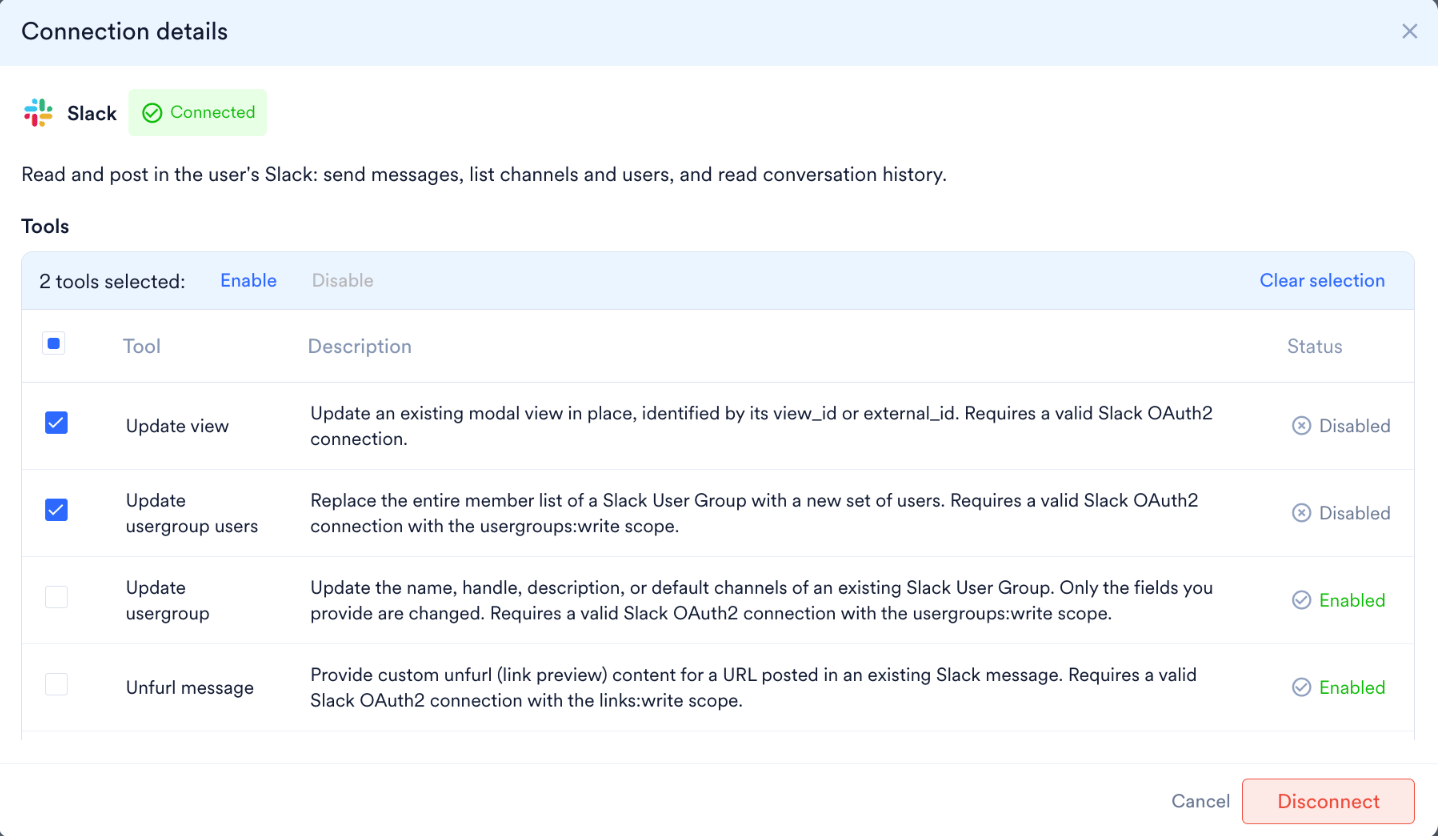
- In the left navigation menu, go to AI Agents > Connectors.
- Select the connected application. MoEngage opens the Connection details dialog, which lists every tool the application provides along with its description and its status, either Enabled or Disabled.
- Select the checkbox next to each tool you want to change. The action bar reports the number of selected tools. To select all tools, use the checkbox in the table header. To discard the current selection, click Clear selection.
- Click Enable or Disable. The Status column updates for each selected tool.
Tell an Agent Which Application to Use
A connected application is available to every agent you run, so there is nothing to attach in the builder. The agent’s instructions are what direct it to the right application:- Open the agent in the Agent Builder. For a new agent, refer to Create a Custom Agent. For an existing published agent, go to Manage > Edit on the agent’s detail page; for a Draft, click its card on the Custom Agents dashboard.
- Reference the application in the agent’s instructions: specify which application holds each input, and state what the agent must do with it. For guidance, refer to Configure your Agent’s Instructions.
- Run a Test agent session to confirm that the agent reaches the application as expected, and then click Make live.
Authentication at Run Time
MoEngage resolves connector access against the user who starts a session rather than the user who built the agent. When a teammate runs an agent that uses a connected application, the agent works with that teammate’s account and returns results scoped to it. Connect an application yourself to test the agent against your own account. Each teammate who runs the agent connects their own account to the same application on the Connectors page. For details on how connector access relates to your MoEngage permissions, refer to Custom Agent Essentials: Permissions and Security.Reconnect During a Run
A connector call requires a live connection. If the application is not connected, or the connection drops mid-session, the agent reports that it cannot reach the application and continues without that data. Restoring the connection does not require a new session:- Open AI Agents > Connectors in a separate browser tab, and connect or reconnect the application.
- Return to the session and send your next message.
Terms of Usage
The MoEngage AI Terms of Usage Policy governs your use of Connectors. Each connected application remains governed by its provider’s own terms. Review those terms before you connect the application.FAQs
Do I connect an application separately for each agent?
Do I connect an application separately for each agent?
No. You connect an application once, and it becomes available to every agent you run. Nothing ties a connector to a particular agent, so two agents you run reach the same applications. To keep an agent away from an application, leave that application out of the agent’s instructions.
Can I control which tools within a connector an agent uses?
Can I control which tools within a connector an agent uses?
Yes. Enable or disable a connector’s tools individually in its Connection details dialog. The status applies to every agent you run. Among the enabled tools, the agent uses the ones its instructions call for.
Does connecting an application change my agent's MoEngage tools?
Does connecting an application change my agent's MoEngage tools?
No. Connectors and MoEngage tools form separate sets. Connecting or disconnecting an application leaves an agent’s assigned MoEngage tools unchanged.
Whose account does a connector use during a run?
Whose account does a connector use during a run?
The account of the user who starts the session. Every connector call in that session authenticates as that user, so each teammate who runs the agent works with their own data in the external application.
What happens if a connection drops while an agent is running?
What happens if a connection drops while an agent is running?
The agent reports that it cannot reach the application and continues without that data. Reconnect the application on the Connectors page, and then send your next message in the same session. The agent continues with the restored connection. Refer to Reconnect During a Run.