

Use Cases
Marketers at MoEngage can use email attachments for the following scenarios:- Financial services: Banks and Fin-tech brands can send periodic account statements to their users.
- Travel and hospitality: Brands can send receipts or tickets to users immediately after a purchase transaction.
Add Attachments
In Step 2: Create content of email campaign creation, click the Attachments tab. You can add attachments using the following ways:Add an attachment from your local drive
Add an attachment from your local drive
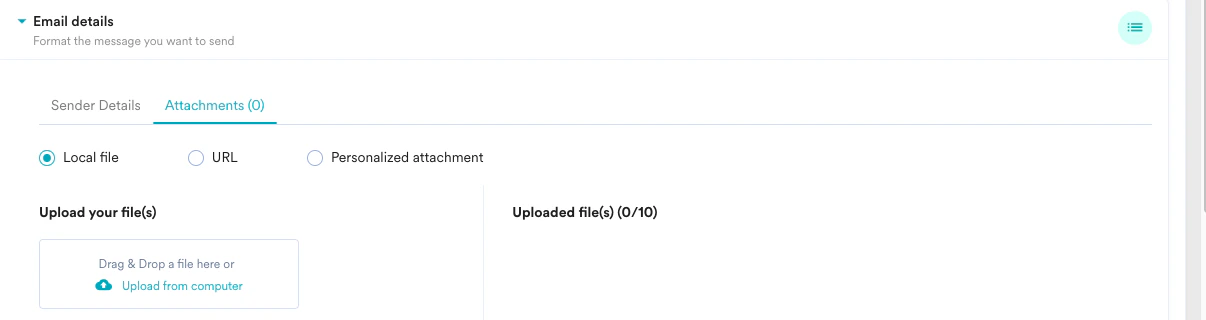
- Click the Local File option.
- Add the file from your local drive using either the Browse or Drag & Drop option.
Add an attachment from a URL
Add an attachment from a URL
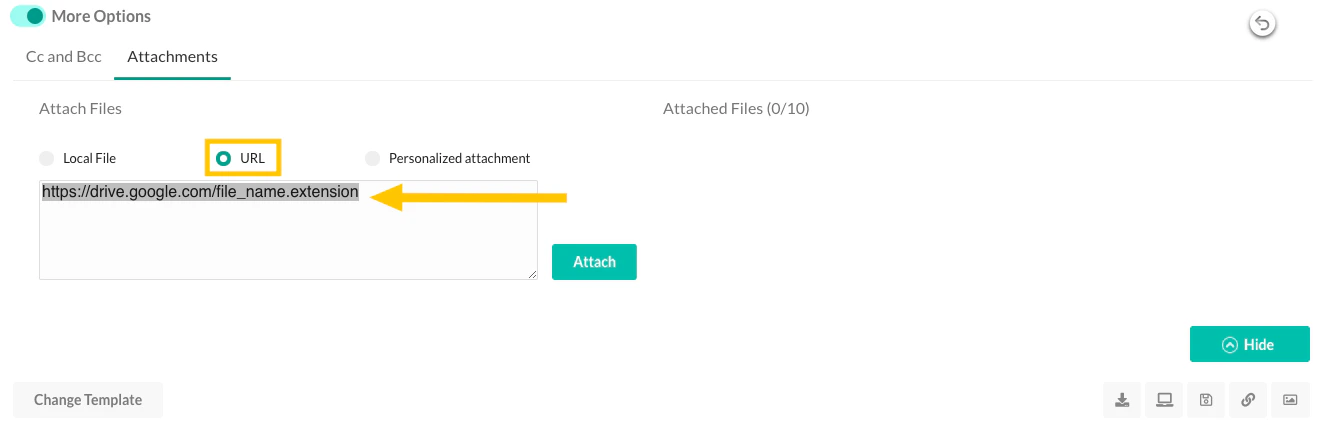
- Click the URL option.
- Add the URL containing the complete file path and the extension.
- Click Attach.
Add an attachment using a personalized URL attribute
Add an attachment using a personalized URL attribute
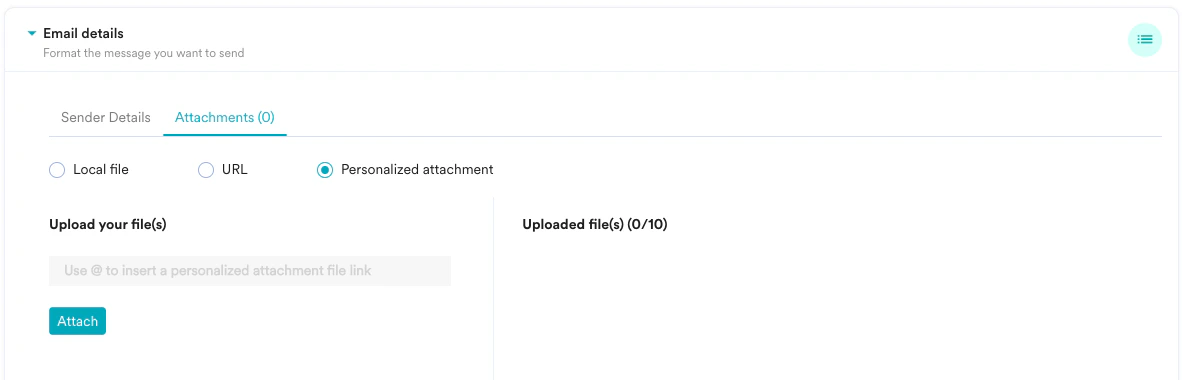
- Click the Personalized attachment option.
- Use ’@’ and click Click to personalize to invoke the personalization menu.
- Select the personalized URL attribute pointing to the file location and choose the corresponding fallback option. Make sure the entire URL is present in the chosen personalized attribute.
- Click Attach.
View the Attachments in a Published Email Campaign
View all the added attachments in the Info section once the campaign is published. You can also see all the attachments added under different variations on the same page.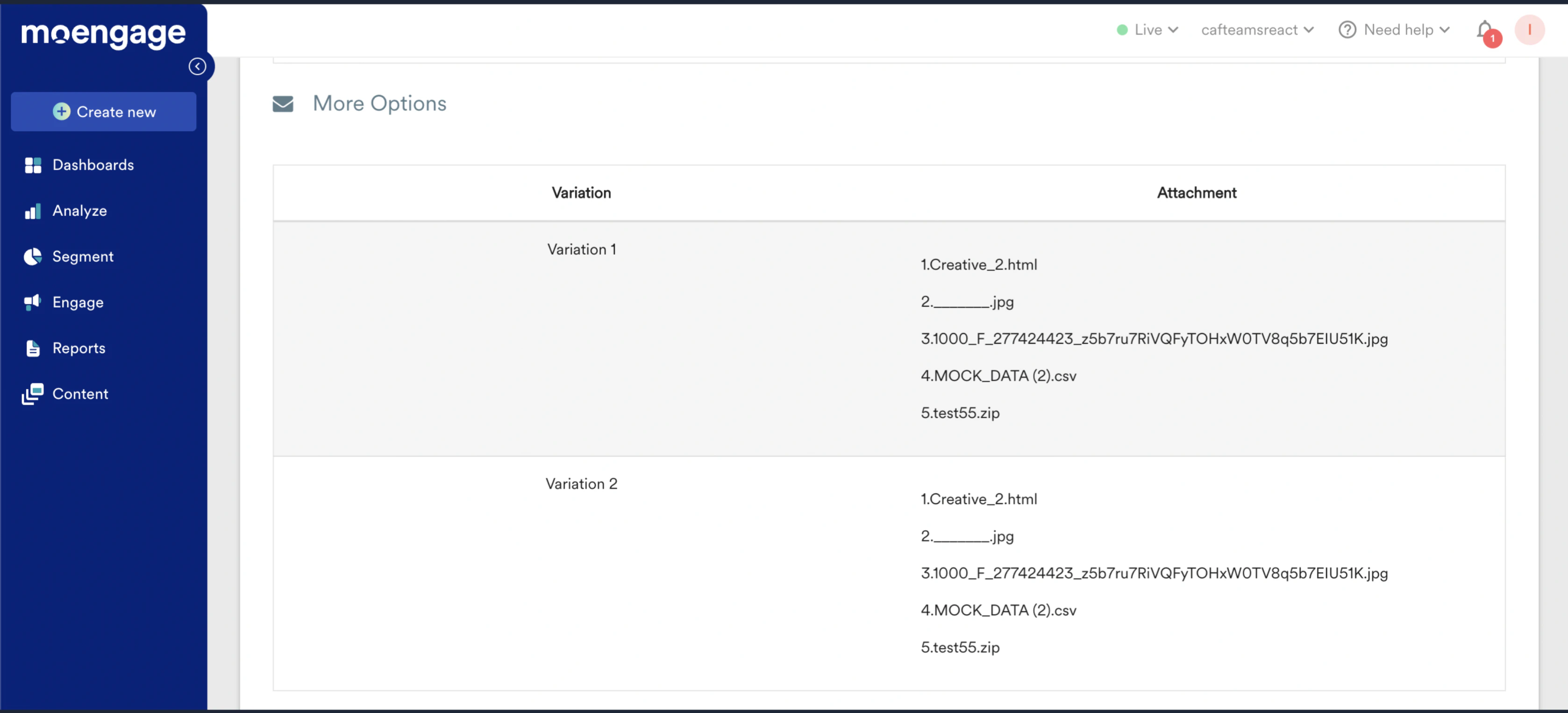
Limitations
The following are the restrictions on adding attachments:- Email size restrictions (MoEngage - Sendgrid)
- You can attach up to 10 files in a single email campaign.
- The individual file size limit is 6 MB.
- Total email size (including the attachments and email content) - 20MB
- Email size restrictions (Other email delivery providers)
- You can attach up to 10 files in a single email campaign.
- The individual file size limit is 6 Mb.
- Total email size, including the file attachment, varies from provider to provider (We recommend having a maximum file attachment size of 75% of the available email limit). Below are file size limits for popular email providers:
- Amazon SES - 10 MB (For more information, refer to SES Email Restrictions)
- Mandrill - 25 MB (For more information, refer to Mandrill documentation)
- Sparkpost - 20 MB (For more details, refer to Sparkpost Email Restrictions)
- For other providers, check with the respective support teams or documentation.
- For attachments via URL/personalized URL
- The file in the URL needs to have a valid file extension.
- The file link should be in a publicly accessible location.
FAQs
Can I track if my recipient opened the attached file?
Can I track if my recipient opened the attached file?
No, the tracking will only be with respect to the campaign. We will not be able to track whether the attachment file got downloaded or opened.
What happens if my attachments exceed the maximum file size limit specified by my email delivery provider?
What happens if my attachments exceed the maximum file size limit specified by my email delivery provider?
This will lead to a hard bounce, and the email will not be delivered.
What happens if the URL for the file attachment was faulty or incorrect?
What happens if the URL for the file attachment was faulty or incorrect?
The email campaign will not be delivered and be reported as ‘Attachment failures’ on the campaign analytics page.
What happens if the attachment files are missing in the URL I provided?
What happens if the attachment files are missing in the URL I provided?
The email campaign will not be delivered and be reported as ‘Attachment failures’ on the campaign analytics page.