Test and preview campaigns do not modify user-profile data. Sending a test does not update profile fields such as the unsubscribe status (
moe_unsubscribe) or other reachability attributes. Only live campaigns update these fields. To validate an unsubscribe flow (or a similar profile update), run a live campaign targeting a small internal segment.Send Test Campaigns
To send a test campaign, you can use the following components to control the locale, target users, and data used for personalization:Locale and Variations
When your email campaign has multiple locales and variations, a Locale and variations dropdown menu appears in the Test Campaign section. You can use this Locale and variations dropdown to select the specific locales and variations you want to test, and then send the test email using the options available from the Send via dropdown. This functionality explicitly allows you to test multiple locale variations simultaneously. MoEngage sends a separate email for each unique locale and variation combination you’ve selected, based on the identifier you use for the test. For example, if you select two locales (for example, English and Spanish) and three campaign variations (e.g., A, B, and C), MoEngage sends six different test emails to each of your selected users. This bulk sending capability ensures you can review every possible version of your campaign without having to create numerous test user profiles for different locale combinations.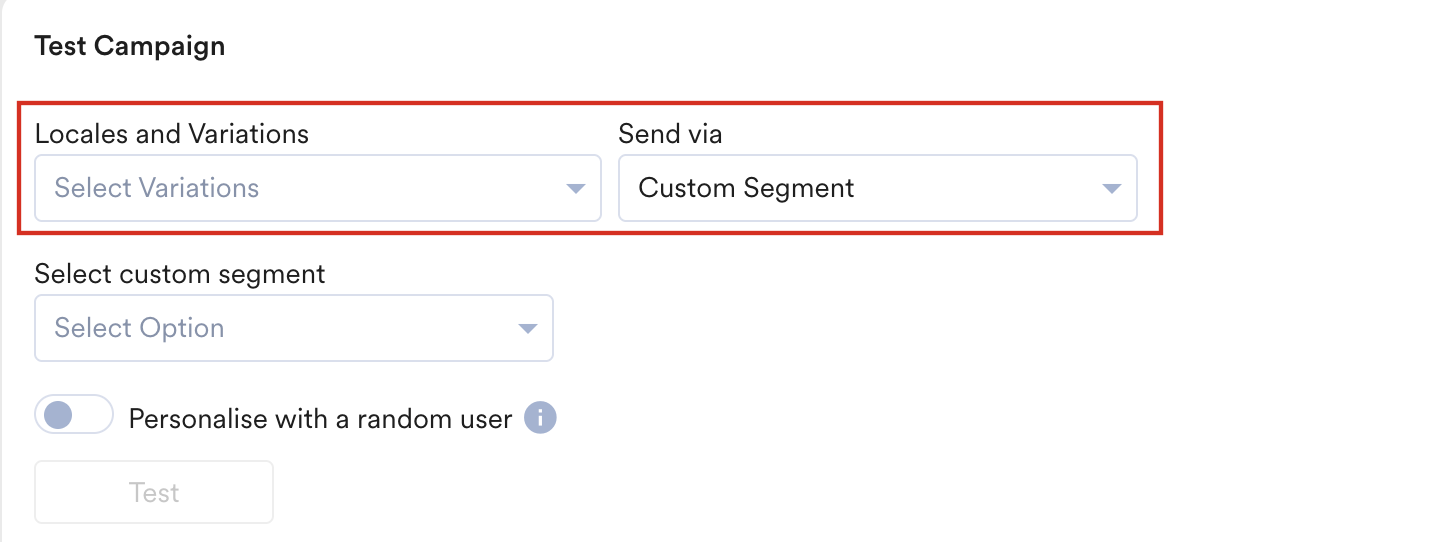
Send Via
You can test your email campaign by selecting the following options from the Send via dropdown: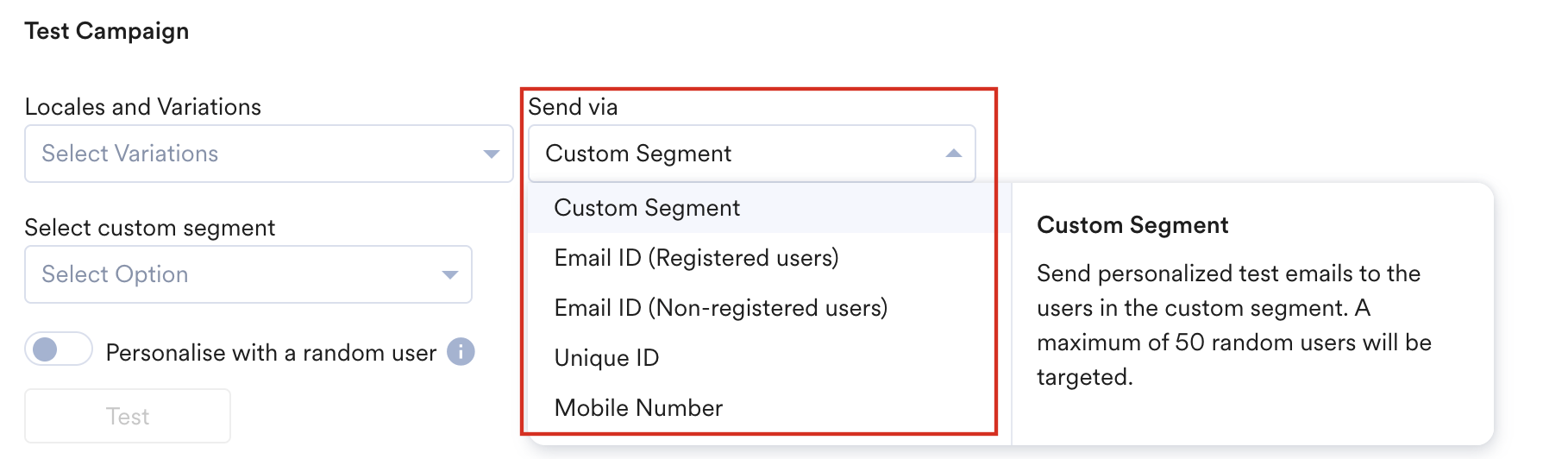
- Custom Segment: This option allows you to send personalized test emails to a maximum of 50 users from the selected custom segment. If your segment contains more than 50 users, MoEngage sends the test campaign to a random selection of 50 users.
- Email ID (Registered users): This option allows you to send personalized test emails to users with existing user profiles (registered users) in MoEngage by entering their email IDs.
- Email ID (Non-registered users): This option allows you to send a test email to external users (non-registered users) by entering their email IDs.
- Unique ID: This option allows you to send personalized test emails to the existing users by entering their unique customer IDs. Entering the unique IDs fetches the associated user profile and sends the test to their registered email address.
-
Mobile Number: This option allows you to send personalized test emails to the existing users by entering their mobile numbers. Entering the mobile numbers fetches the associated user profile and sends the test to their registered email address.
If PII (Personally Identifiable Information) tokenized sending is enabled, the following identification methods for registered users are not available:
- Email ID (Registered users)
- Mobile Number
Personalize with a Random User
To use data from a default user profile for personalization, turn on the Personalize with arandom user toggle. To select a specific user, use the Personalised Preview feature of MoEngage.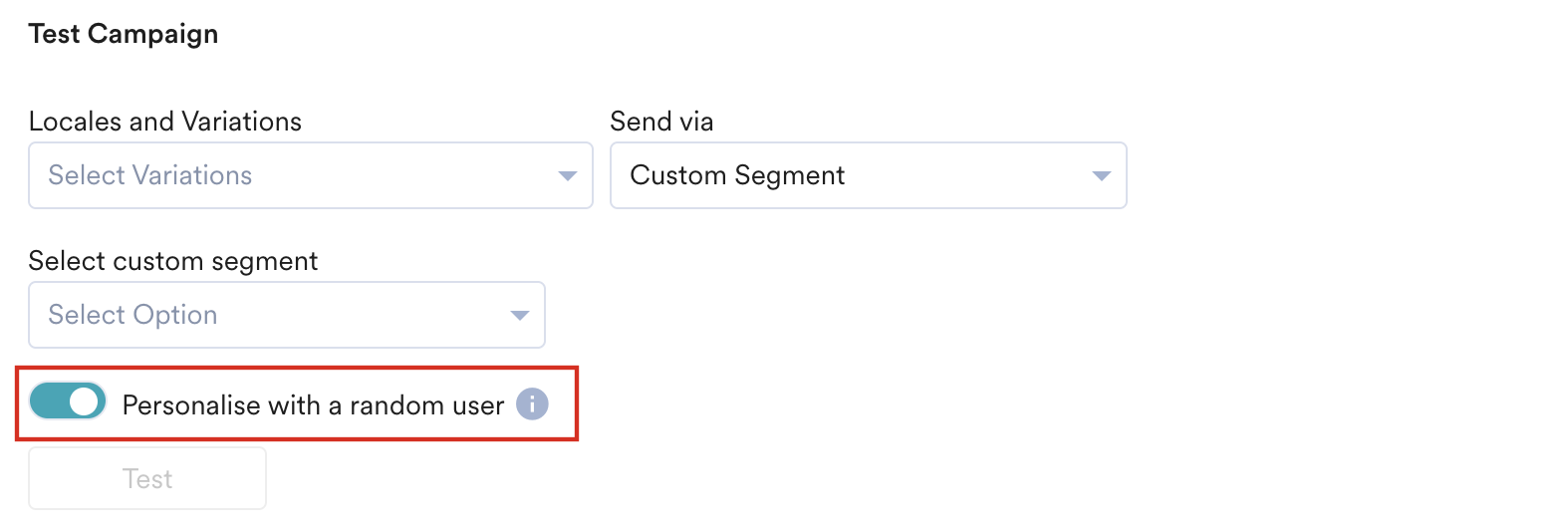
- MoEngage automatically turns on the Personalize with a Random User toggle when the Email ID (Non-registered users) option is selected. This is to provide sample data for the personalization fields, as non-registered users do not have a profile. You can turn this toggle off, but no personalization resolves in that case (see the table below).
- For all other Send via options, MoEngage uses the actual attributes of the selected user. If you turn on the Personalize with a Random User toggle, the data from the default sample profile takes precedence and overrides the actual attributes of the selected user for personalization.
- To ensure transparency, MoEngage displays the identifier of the default user whose data is being used for personalization.
What Personalization Resolves in Each Scenario
The type of personalization that resolves in a test email, and whose data MoEngage uses to resolve it, depends on the Personalize with a Random User toggle state and the Send via option you select:
* Resolves only if the content block, Product Set, auxiliary data, or Content API does not itself contain event attribute Jinja personalization.
Event attribute personalization does not resolve when testing with a targeted/selected user (toggle OFF). Turn on Personalize with a Random User if your campaign content includes event attribute personalization.
Test Email
Click Test to send the test emails. After the test email is sent, click View test results to access the generated test results.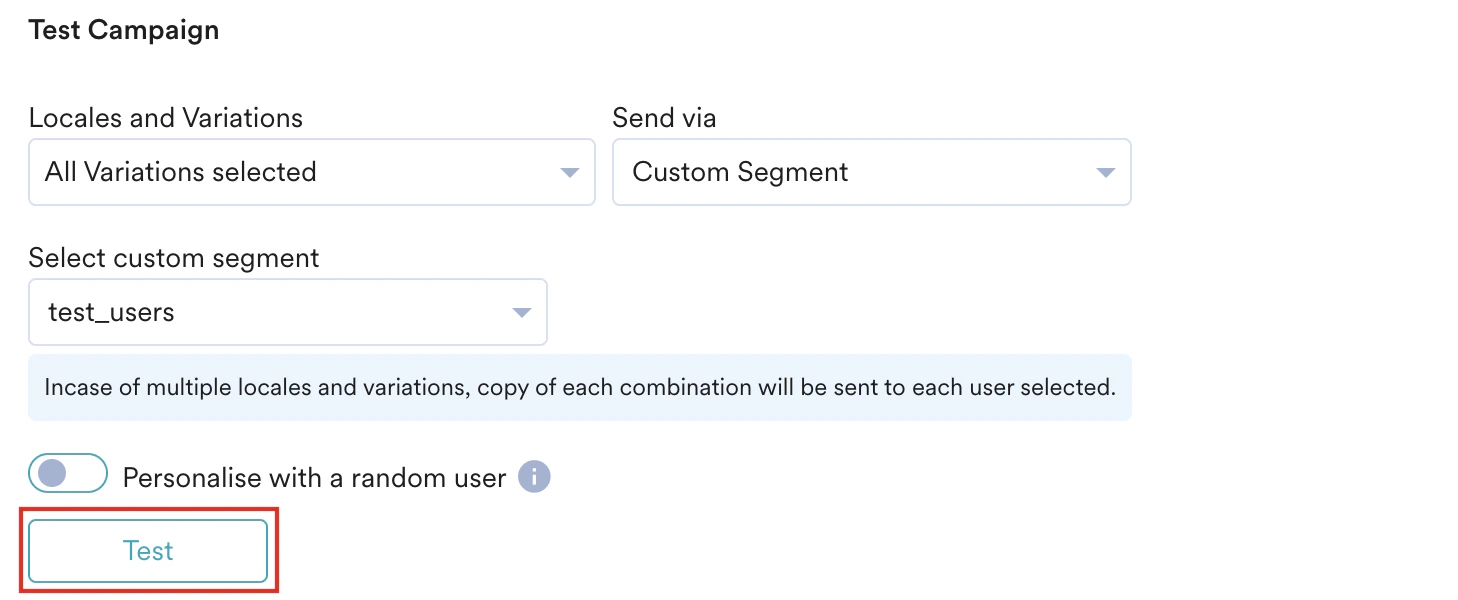
- If both a locale and a variation are selected for the test campaign, MoEngage automatically prepends the subject line with a prefix in square brackets: [TEST -
<Locale Name>-<Variation Name>]. - For all other test campaigns, the prefix still includes the [TEST] indicator, ensuring every test email is easily identifiable, regardless of whether locale variations are selected.
- You can test the campaign URLs with UTM parameters to ensure that the proper values are captured.
- There is no daily limit on the number of test campaigns that can be run.
Test Results
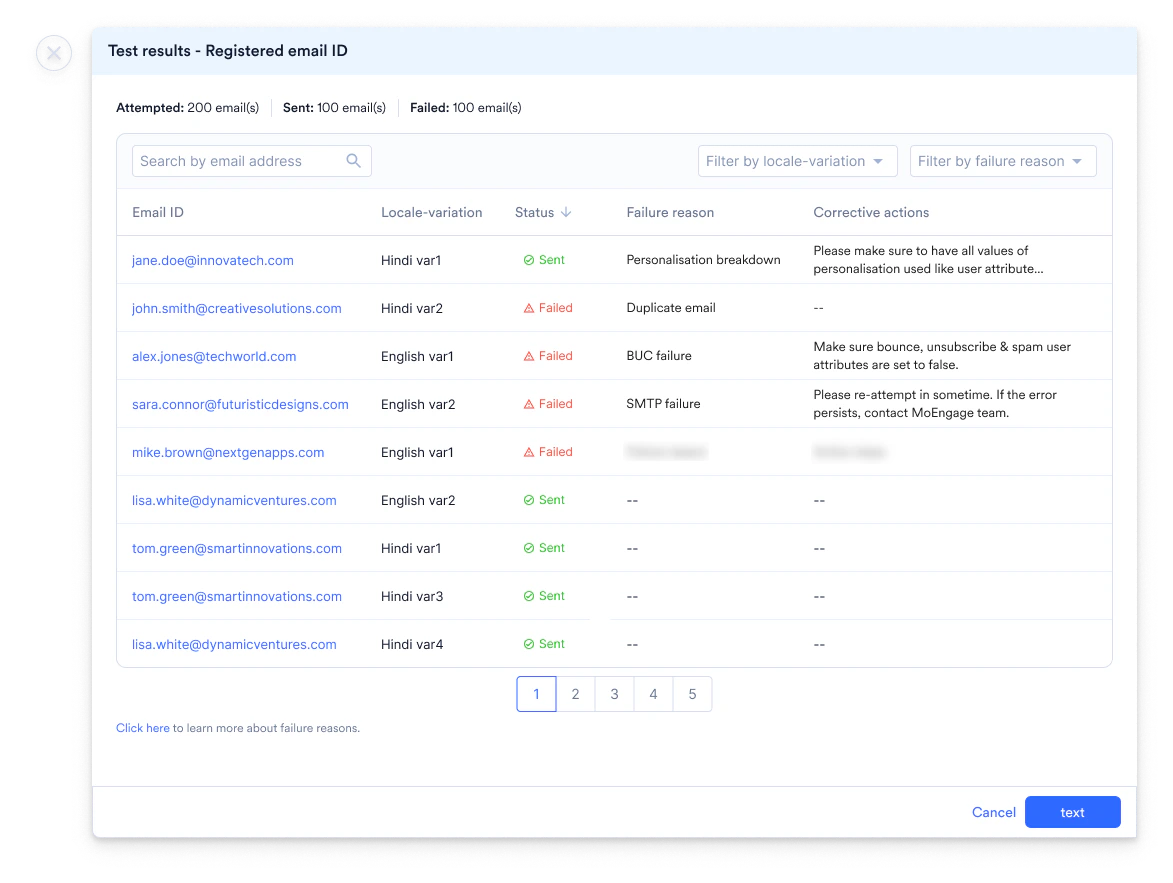
The Test results page displays a table with granular data for each attempted email, detailing the Status of send, the specific Locale-variation combination sent, and information on any failures, including the Failure reason and recommended Corrective actions.